Configure boundaries and Training Space
The Play area dimensions setting in the headset (located under Settings > Boundary) is measured in meters.
Boundaries introduction
Before using your headset, you will need to set up a Training Space. A Training Space is the designated area for VR use. It is important to set up this Training Space so to prevent from running into any walls or objects while in-headset. If you approach the edge of the Training Space, a virtual boundary wall will appear in-headset to help keep you safe.
Boundary configuration methods
There are a few ways you can start the boundary configuration setup:
- When you put on your VR headset for the first time, you will be prompted to set up a boundary for your Training Space.
- If you receive a "Boundary lost" message, you will be prompted to reset the boundary. This occurs in these situations:
If the headset detects a less than optimal space for tracking
Changes in lighting or physical surroundings
Too many people are moving in the Training Space
-
You can manually start the boundary configuration by selecting Settings > Boundary > Reset.
Once you begin the boundary configuration setup, you will be prompted to set the floor level and draw the boundary walls.
Set up boundary and floor level
We recommend your boundary be at least 10 x 10 feet (3 x 3 meters), but you can adjust the size as needed.
To set up a boundary:
-
Start the boundary setup by choosing one of the following methods mentioned in Boundary configuration methods.
-
Set the floor level. This helps ensure that the virtual environment aligns with your physical space, providing accurate height and positioning.
-
Check the virtual floor level against your physical floor.
-
If the virtual floor is too high, use your hand to push the virtual floor down so it matches with your physical floor.
-
If you want to reset the virtual floor level, select Reset.
-
When you're satisfied with the virtual floor level, select Confirm to save.
-
-
Draw the boundary walls. This helps prevent you from accidentally stepping outside the training area and improves safety.
NoteIt's recommended to create a Training Space that provides at least 5 feet (1.5 meters) of clearance between the edge of the virtual boundary and the physical boundary.
-
If you will be sitting or standing (like for a Community Engagement Training scenario), you can select Switch to standing/seated. Otherwise, use your hand to draw a virtual boundary. You may need to pinch with your hand to draw.
-
Ensure you draw around any objects.
-
The virtual boundary displays. If you want to reset the virtual boundary, select Redraw.
-
When you're satisfied with the boundary walls, face the direction that you want to be forward.
-
Select Confirm to save.
-
VO (visual odometry) mode
Setting up VO mode requires restarting your headset.
Visual odometry (VO) mode allows users to skip manual boundary and floor level setup .
In VO mode, the system automatically sets the user's Direction of View (DoV) and Center of Coordination (CoC) as soon as they put on the headset. This eliminates the need for manually setting the boundary and floor level.
To turn on VO mode, go to Settings > Boundary. (If this option is not available, verify the Axon batch file is installed and that the headset is running ROM version x.646 or later.
Recommended VO mode dimensions
The Play area dimensions setting in the headset (located under Settings > Boundary) is measured in meters.
To ensure a safe and optimal VR experience while using VO mode, these are the recommended Training Space dimensions based on the type of VR experience:
| VR app | Recommended minimum dimension |
|---|---|
| Virtual Reality-Based Training (vRBT) | 15 x 15 feet (4.5 x 4.5 meters) |
| Simulator Training (Range Skills) | 10 x 10 feet (3 x 3 meters) |
| Community Engagement Training (CET) | 3 x 3 feet (1 x 1 meter) |
| Virtual Reality-Based Training - Live Action (vRBT-LA) |
3 x 3 feet (1 x 1 meter) |
If possible, we recommend having a second trainer act as a safety officer to monitor the trainee's movements in the physical space. If a safety officer is unavailable, ensure there is at least 5 feet (1.5 meters) of clearance between the edge of the virtual boundary and the physical space to help prevent accidental collisions.
Multiple headset rules
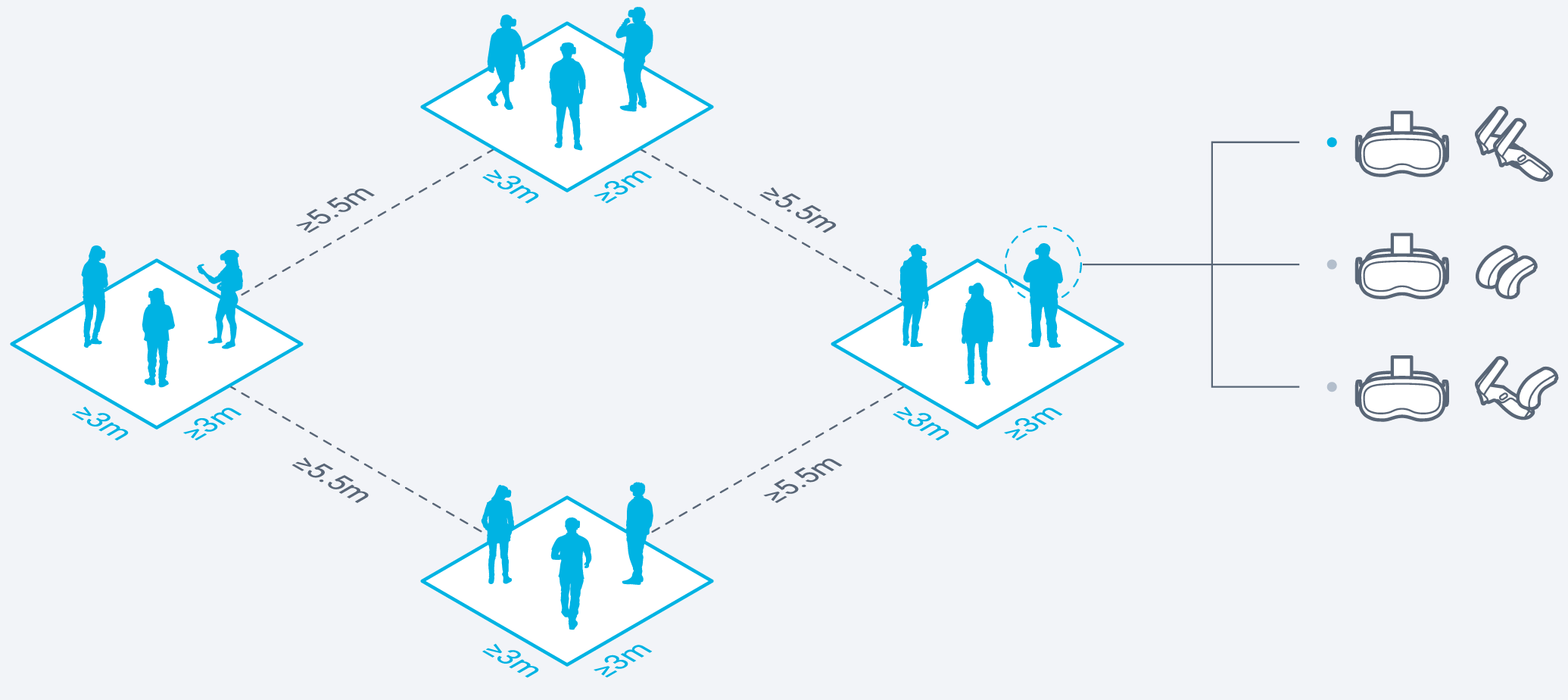
When using multiple headsets simultaneously, it's important to establish proper boundaries and spacing to prevent physical collisions and minimize the risk of Bluetooth interference or cross-pairing between devices. Additionally, there is a limit to the number of headsets and peripherals that can be active within a single boundary area.
In a single boundary area, you can have up to 3 headsets and 6 VR Controllers active at once.
Optimize a Training Space
Keep these tips in mind when setting up a Training Space:
- Lighting: Ensure the training area is well-lit with enough light to comfortably read a book. Avoid intense or direct light sources that may cause glare or interfere with the headset's sensors.
- Reflections: Minimize reflective objects (such as windows, mirrors, or metallic objects) that could disrupt the headset's tracking system.
- Surface patterns: Subtle patterns on walls, ceilings, and floors can improve tracking accuracy. Avoid completely blank surfaces.
- Space safety: Make sure the training room is free of any live weapons, objects, and other people that may interfere with the simulation. For more information, see the Virtual Reality (VR) Training Safety and Health Warnings.


