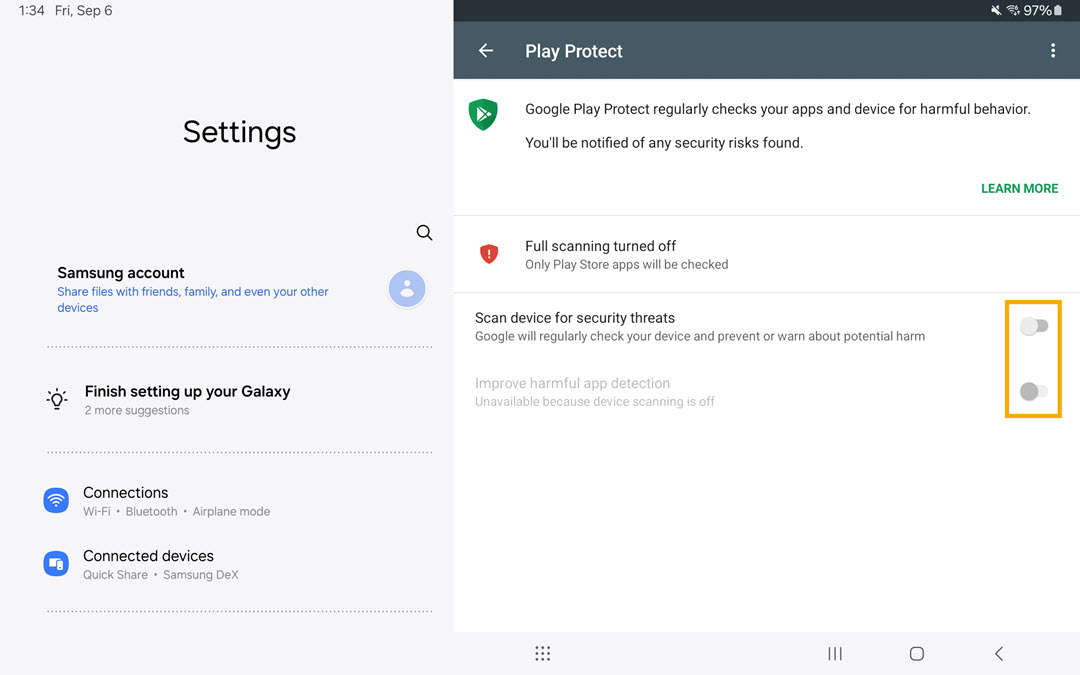
"Harmful app blocked" notification
We’ve identified an issue where some VR Tablets may not sync correctly with Samsung Knox, which is used to manage and update tablet content. To resolve this issue, open Google Chrome on the tablet, go to the Samsung Knox Configure portal (https://configure.samsungknox.com/), and select Re-enroll.
If you see a message from Google Play Protect on your Samsung VR tablet indicating that an app from ArborXR Client has been blocked, it's due to a recent change in Google's security policy. This change could affect the auto-installation of Axon VR apps managed by ArborXR, as they aren't directly controlled by Google Play. Axon uses ArborXR software to deliver content to VIVE Focus 3 headsets and Samsung VR tablets.
To access the new features in the Samsung VR tablet, you may need to take additional steps due to this change.
Your Samsung VR tablet is protected
It's important to note that even if Google Play Protect is showing a warning, your device is still protected. ArborXR manages and controls all apps related to Axon VR, ensuring that they adhere to strict security policies.
Turn off Google Play Protect
If you do not see either Axon or ArborXR in the Google Play Protect message, do not turn off Google Play Protect.
The Axon VR team is actively working with ArborXR to resolve this issue and find a more permanent solution. In the meantime, to allow ArborXR to complete the auto-installation process, follow one of the methods below to turn off Google Play Protect:
- From the Google Play Protect message
- In the settings of a Samsung Galaxy S7+ VR tablet
- In the settings of a Samsung Galaxy S9 VR tablet
By doing this, the Google Play Protect message will not display again. If the Axon VR app does not appear in your launcher or if the Google Play Protect message does not display within 60 minutes of the Samsung VR tablet being online, please reach out to Axon Support for further assistance.
Instructions from the Google Play Protect message
To turn off Google Play Protect from the message:
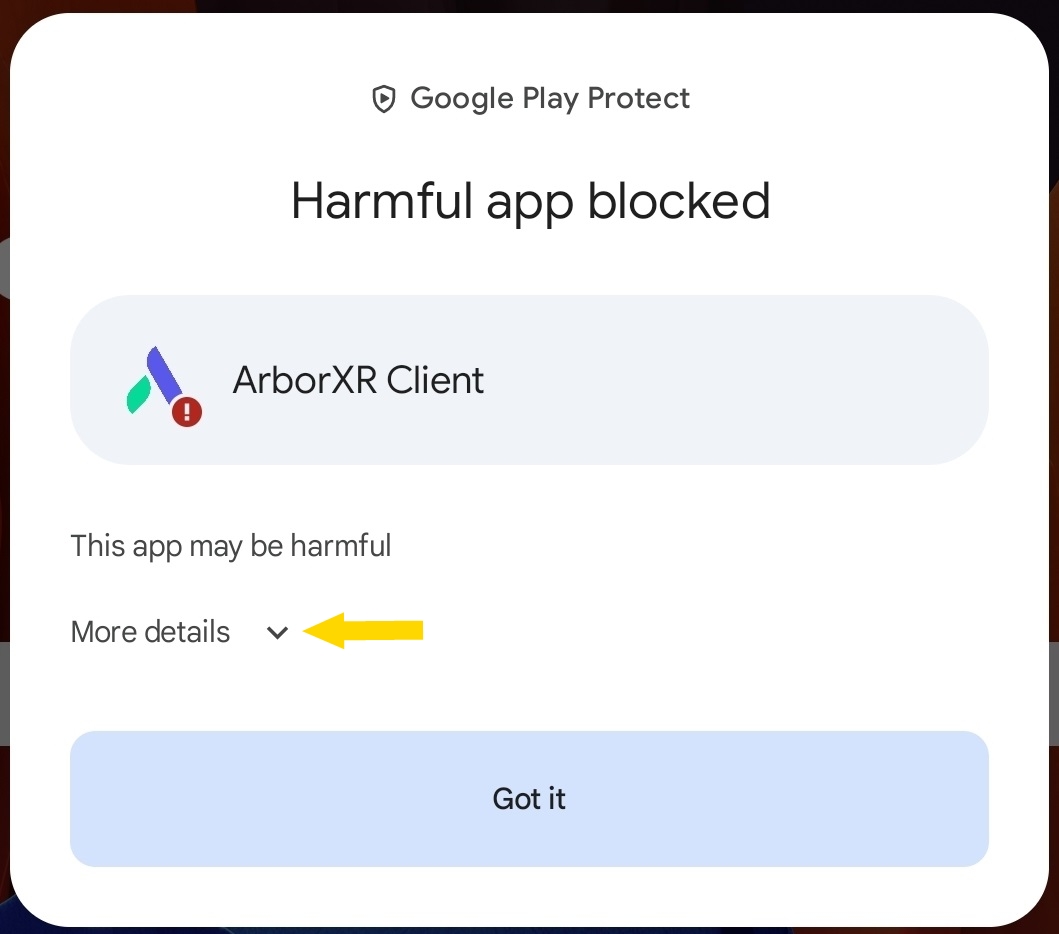
- Select More Details.
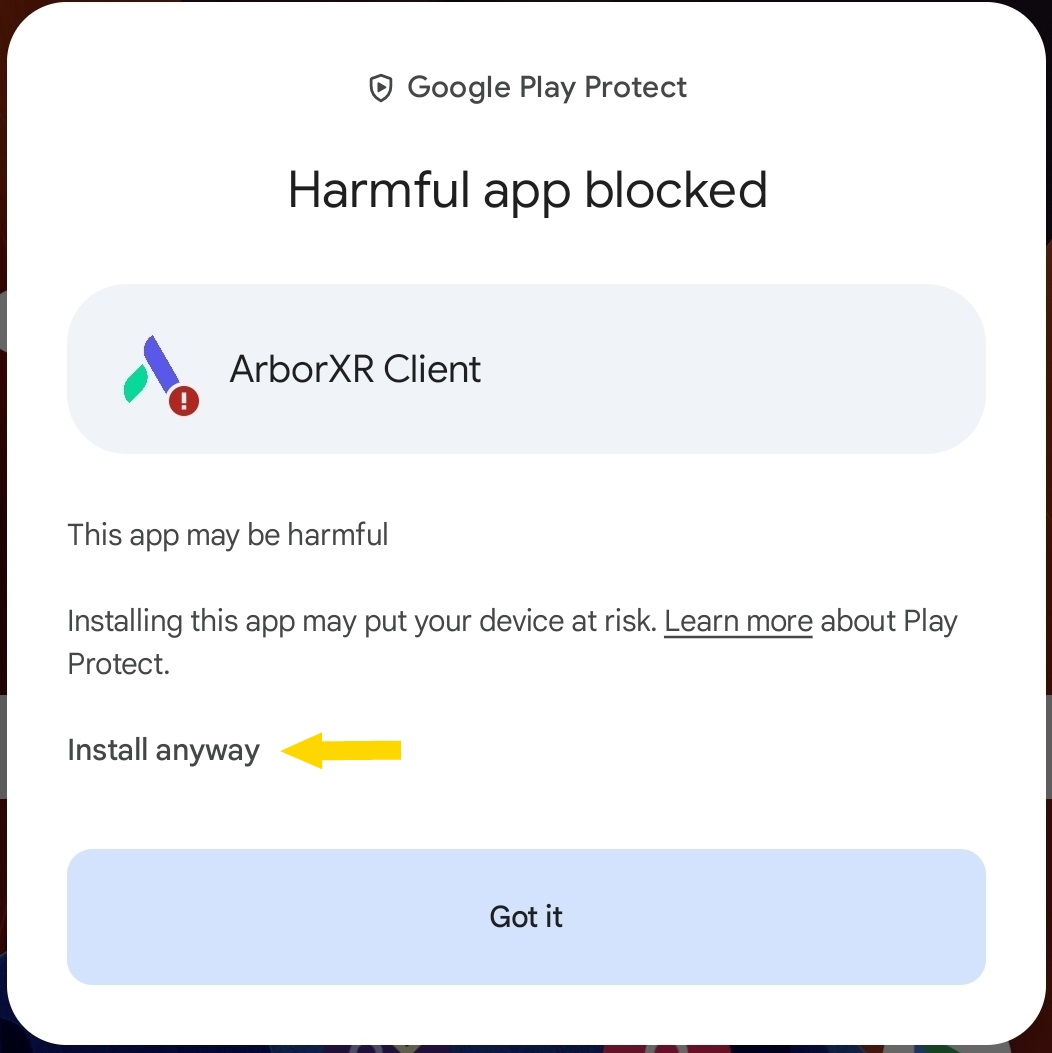
- Select Install Anyway.
Instructions for a Samsung Galaxy S7+ tablet
To turn off Google Play Protect from the Samsung Galaxy S7+ VR tablet settings:
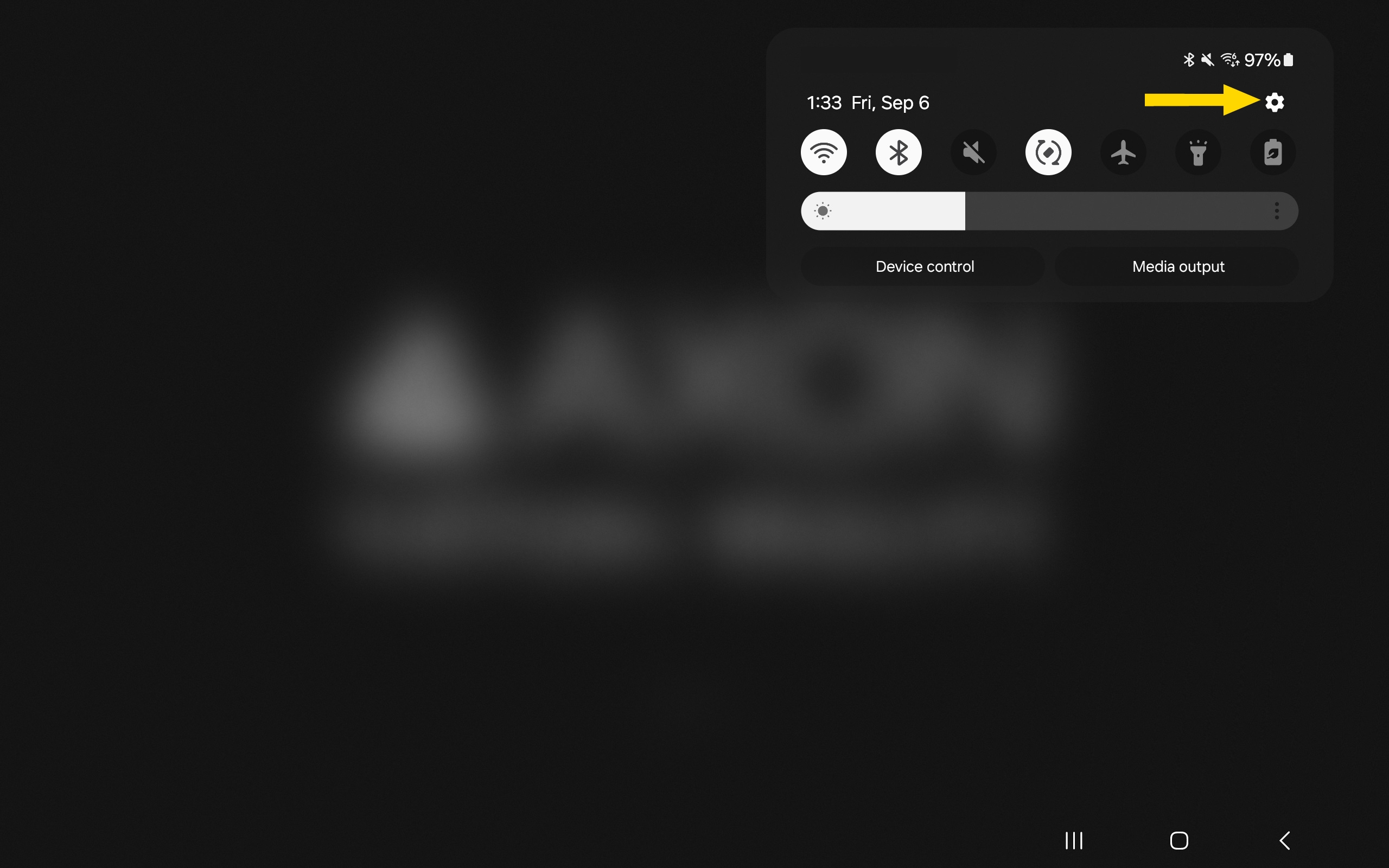
- Swipe down from the top of the Samsung Galaxy S7+ VR tablet screen.
- Select the Settings icon (gear).
- Select Security and Privacy. You may need to scroll down to see it.
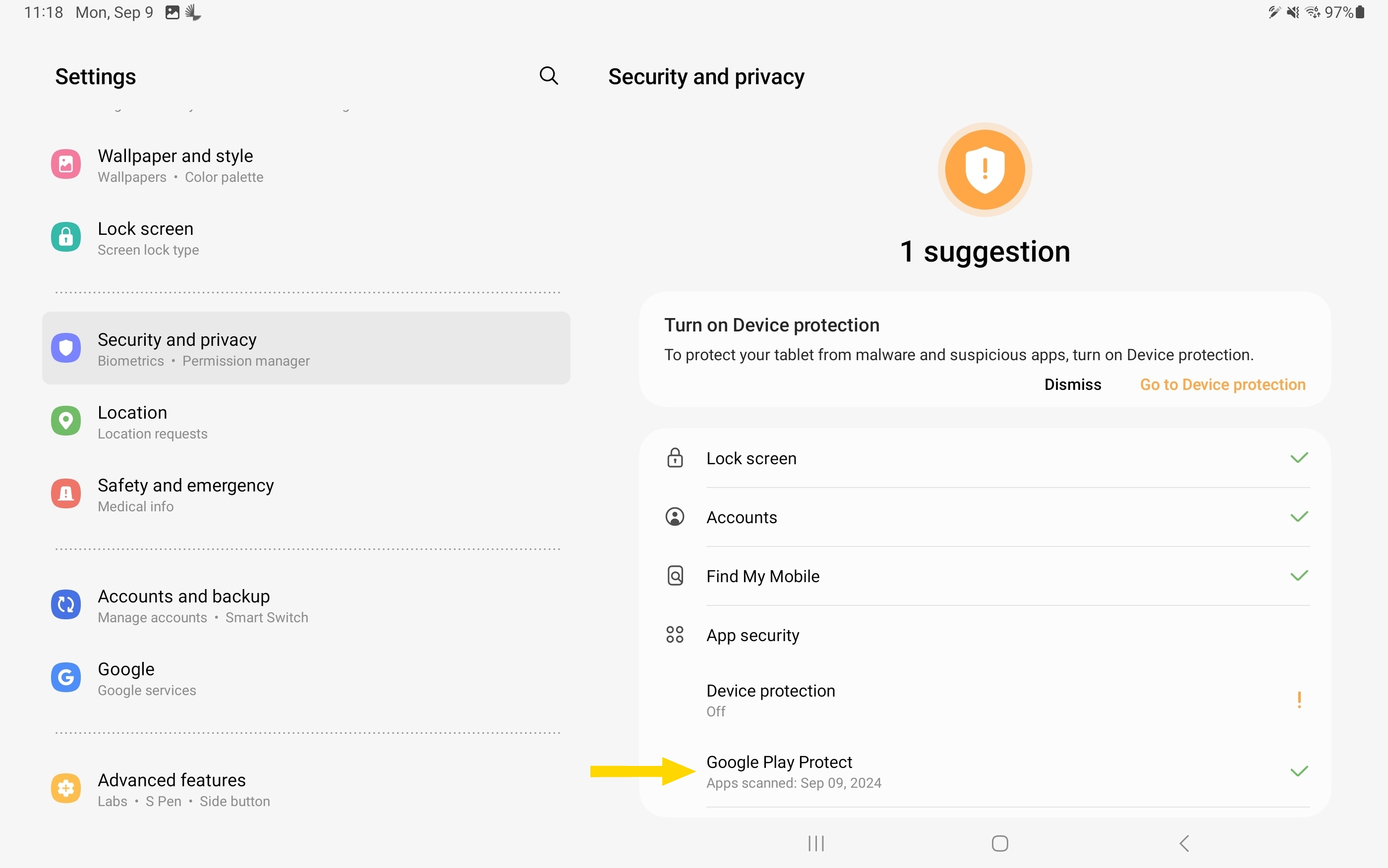
- Select App Security to expand it.
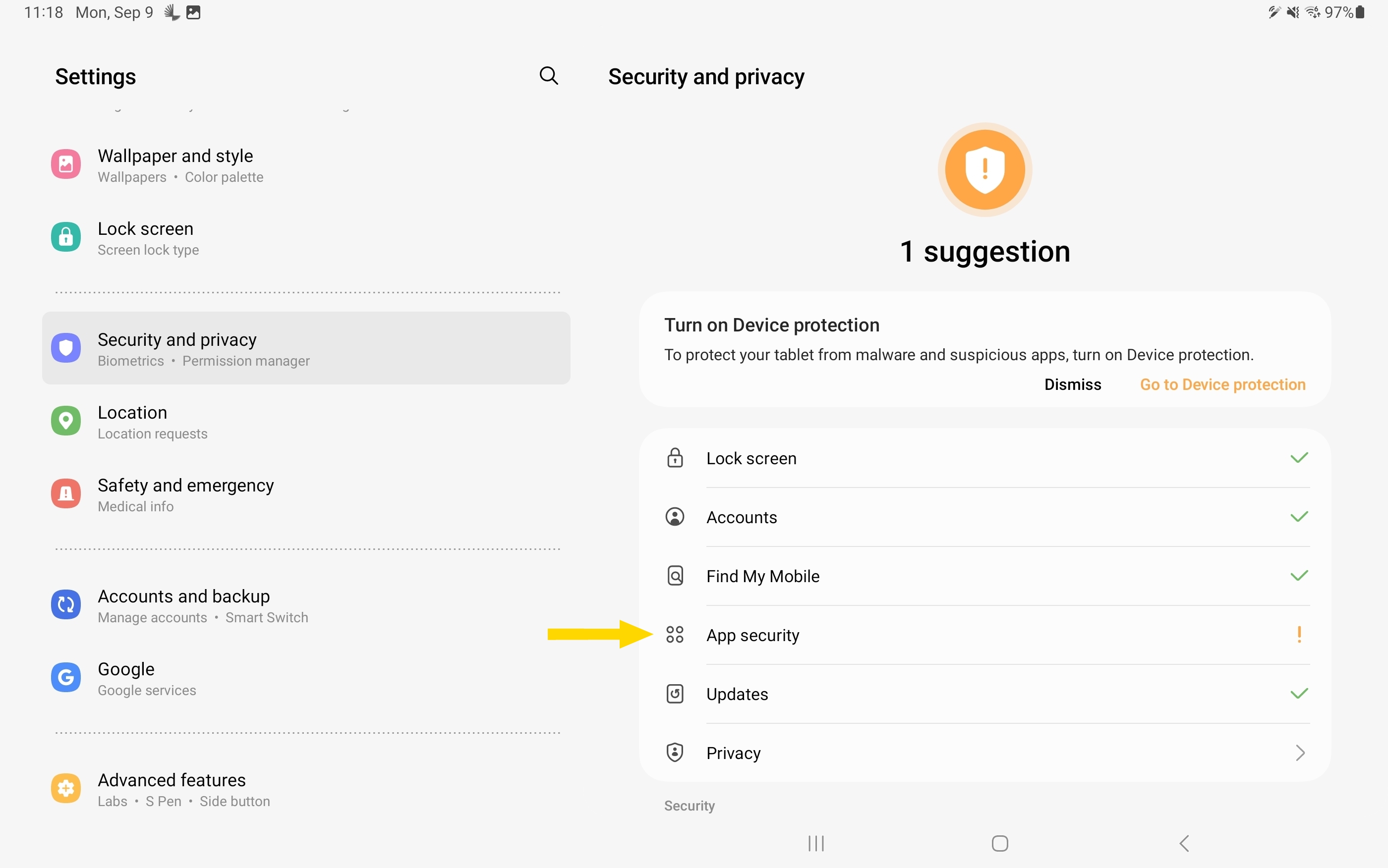
- Select Google Play Protect.
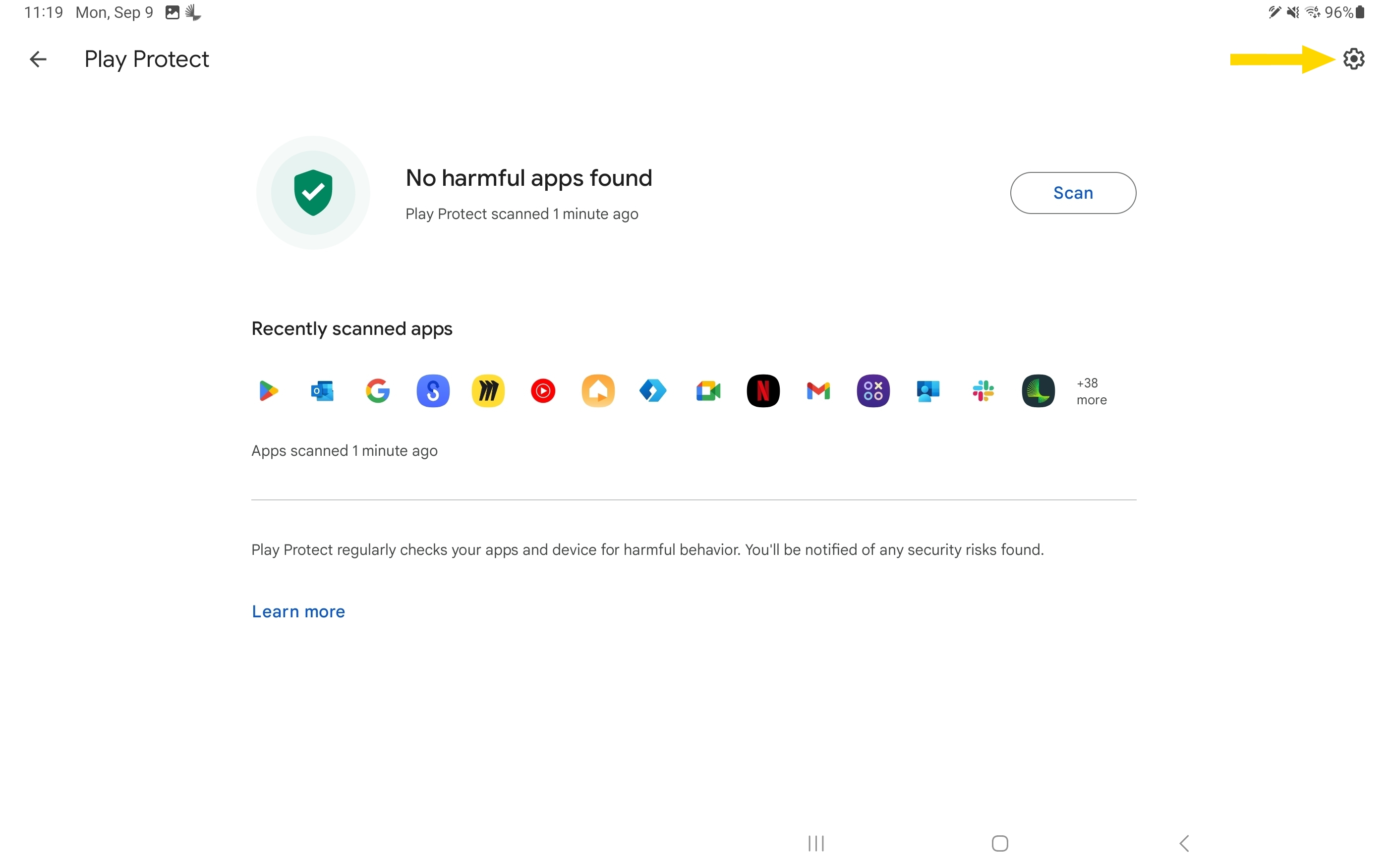
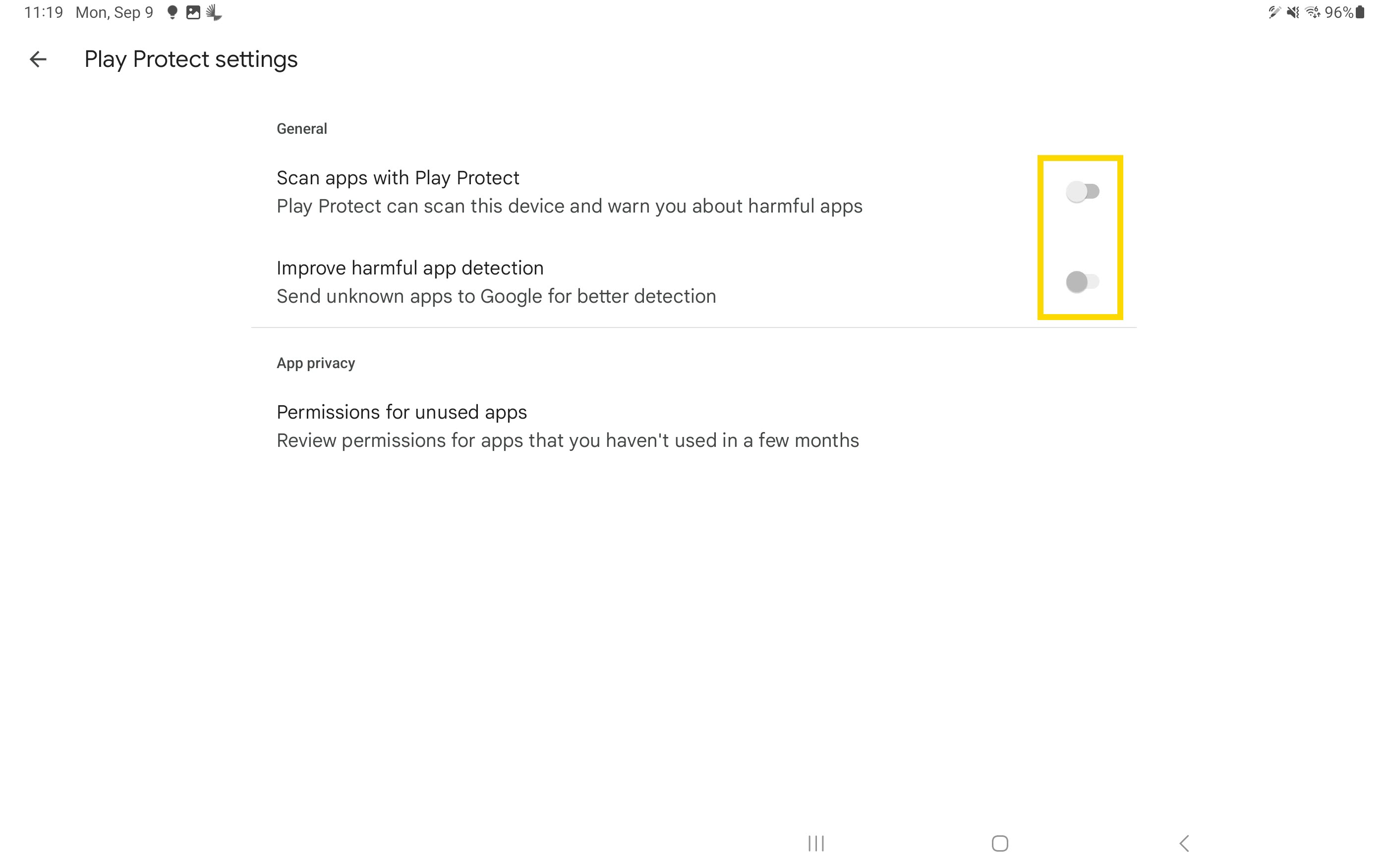
- Select the Settings icon (gear).
- Toggle off Scan apps with Play Protect.
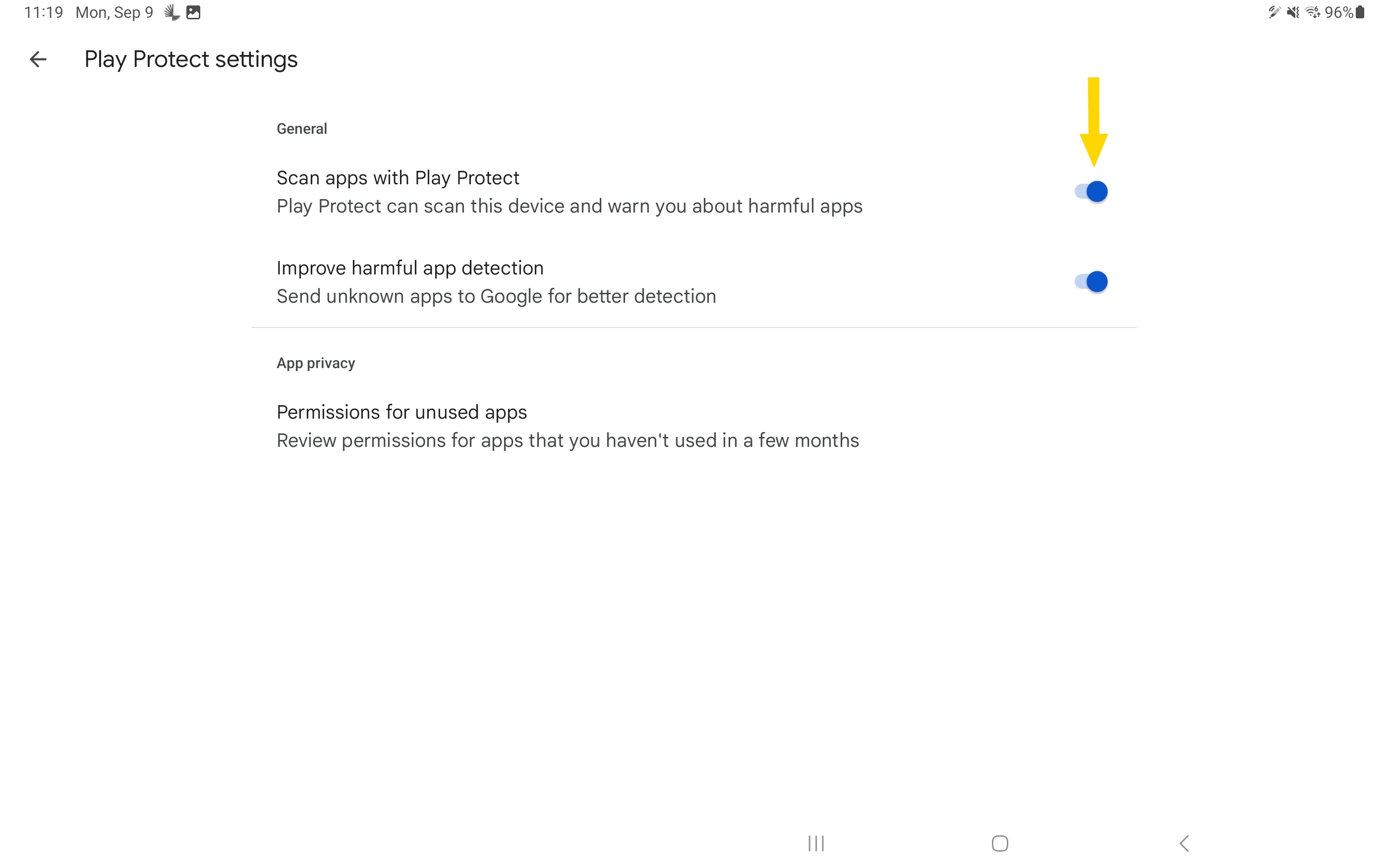
- This will automatically toggle off Improve harmful app detection and turn off Google Play Protect.
Instructions for a Samsung Galaxy S9 VR tablet
To turn off Google Play Protect from the Samsung Galaxy S9 VR tablet settings:
- Swipe down from the top of the Samsung Galaxy S9 VR tablet screen.
- Select the Settings icon (gear).
- Select the Search icon (magnifying glass).
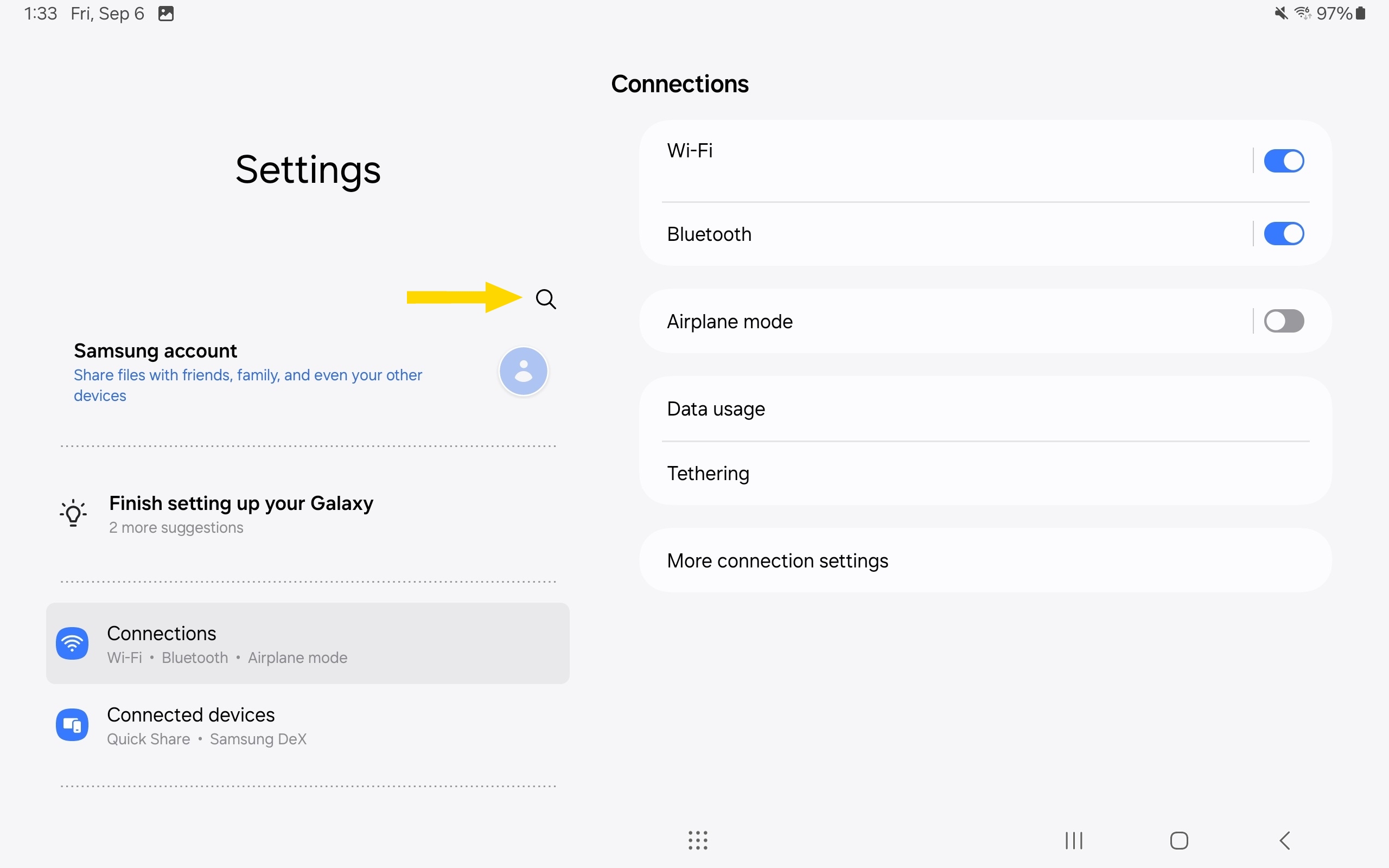
- Search for Google Play Protect.
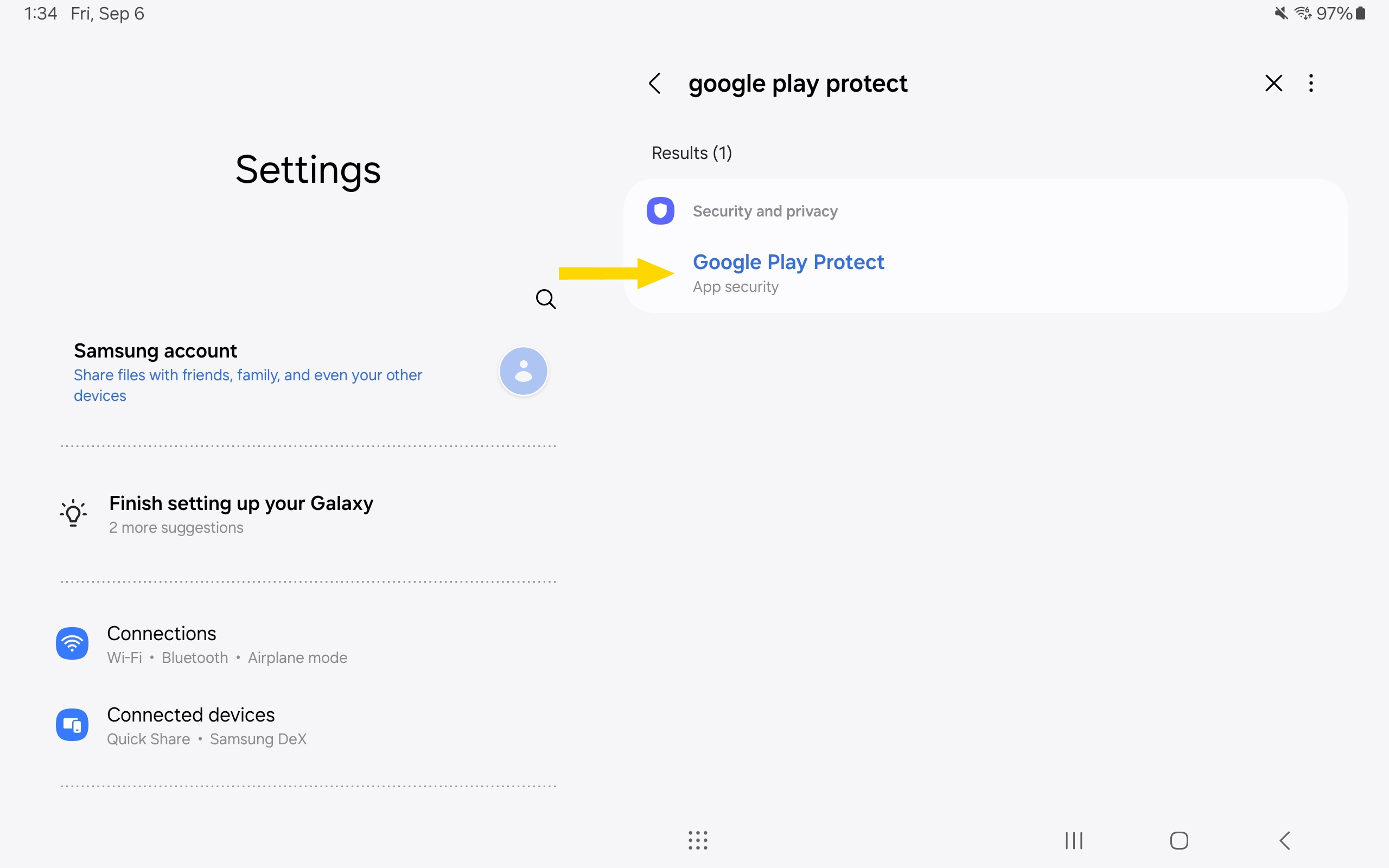
- Select Google Play Protect from the results.
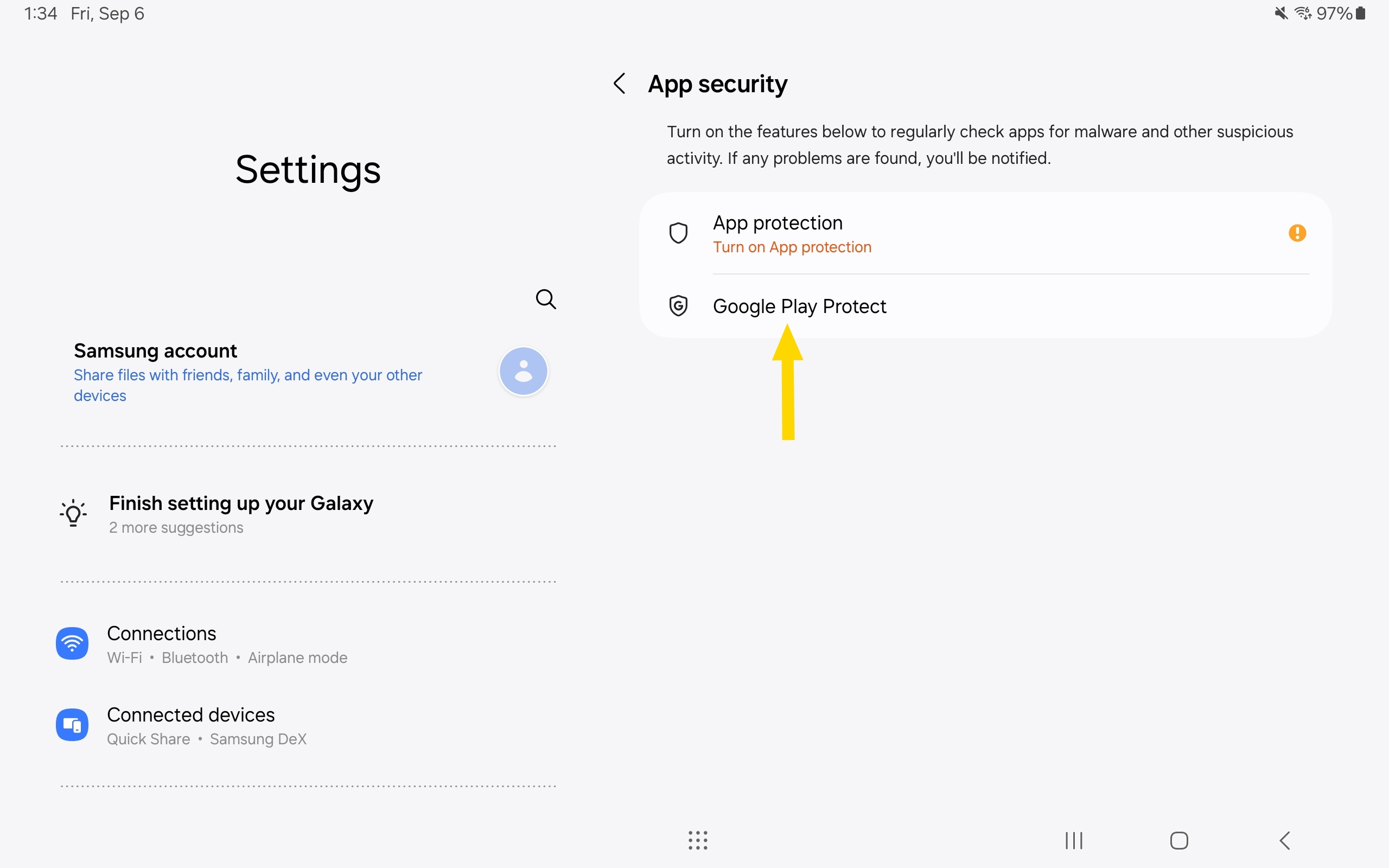
- Select Google Play Protect.
- Toggle off Scan device for security threats. A dialogue box will display. Select OK to proceed.
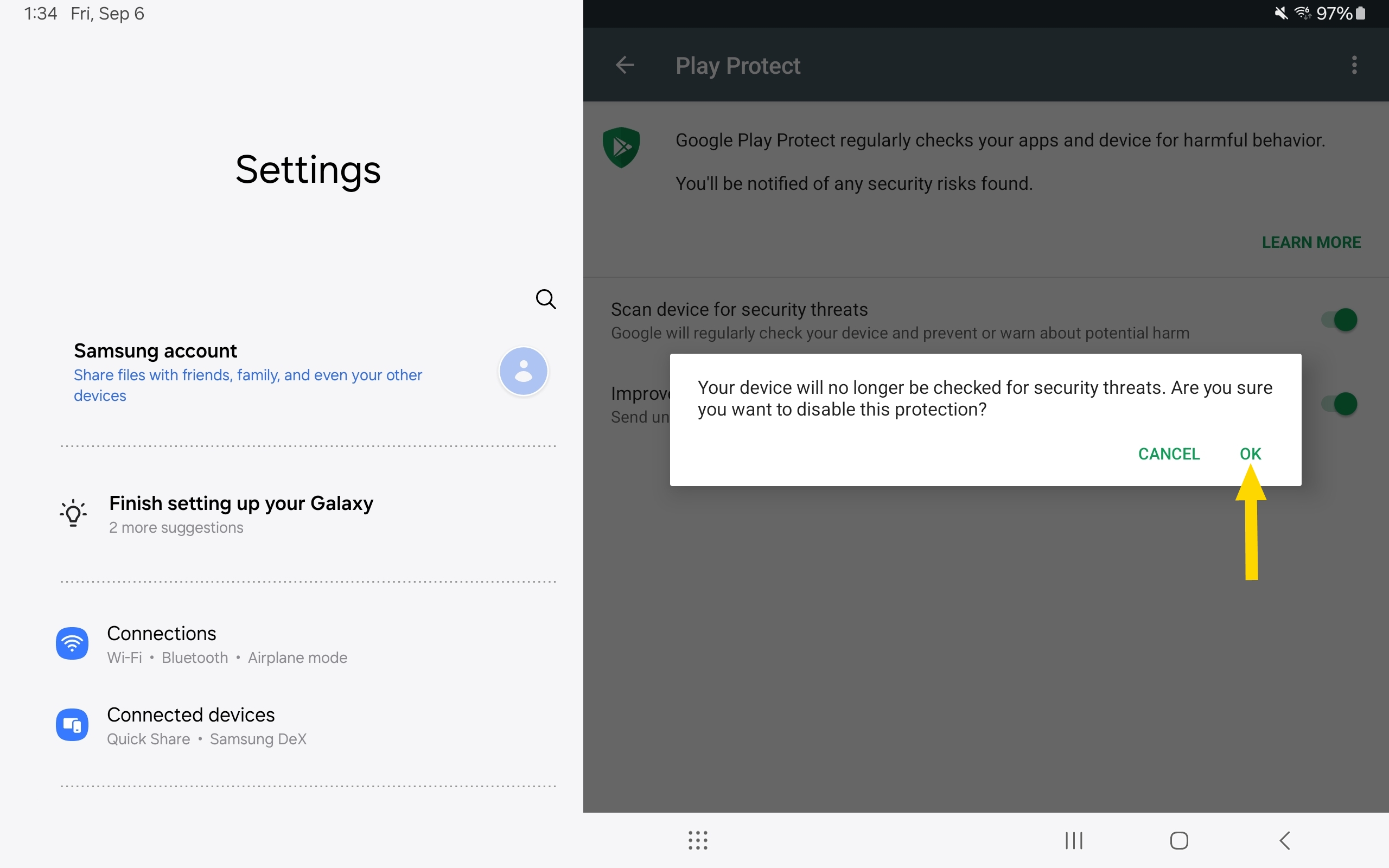
- This will automatically toggle off Improve harmful app detection and turn off Google Play Protect.