Tablet sign-in methods
We’ve identified an issue where some VR Tablets may not sync correctly with Samsung Knox, which is used to manage and update tablet content. To resolve this issue, open Google Chrome on the tablet, go to the Samsung Knox Configure portal (https://configure.samsungknox.com/), and select Re-enroll.
When trainers open the Simulator Training app on their tablet, they'll be prompted to sign in using their Axon Evidence credentials.
Sign In with Axon
- Select your agency's region.
- Select Sign In with Axon.
- Enter your agency domain.
- Select Continue
- Enter your email or username and password.
- Select Sign In.
Sign In with Email
The Sign In with Email option has two workflows, depending on whether your email address is verified.
If your email address is not verified
You must sign in with your email address and password.
If your email address is verified
- You can sign in without a password. Instead, a verification code will be sent to your email. Enter the code when prompted to complete the sign-in process.
- This method is optional; you can still use your email address and password if preferred.
An email is considered verified if:
- You have successfully completed a password reset.
- You have successfully signed in at least once using your email and password.
Email addresses can only be verified after this feature is released. If you have not reset your password or signed in with your email and password after the launch, your email will not be considered verified.
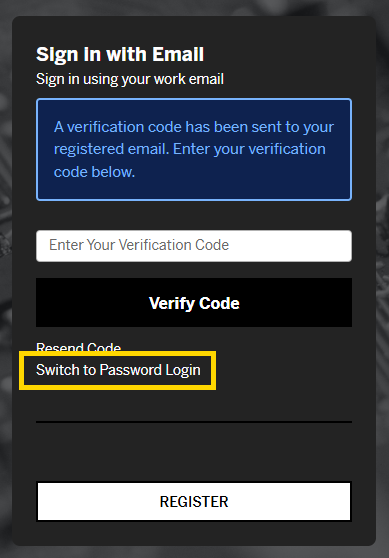
Switch to Password Login
By default, if your email is verified, a verification code will be send to your email. Alternatively, you can use your email and password by selecting Switch to Password Login.
FAQ
I can't access my email to get the verification code. What should I do?
Sign in using your password instead.
I didn't receive a verification code. What should I do?
- Check your spam or junk folder.
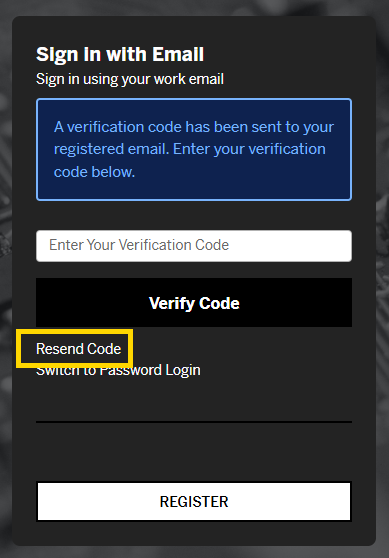
- If the code still hasn't arrived, try resending it by selecting Resend Code on the sign-in page.
What if I forgot my password?
Select Forgot Password on the sign-in page and follow the prompts.
Troubleshooting
Can't sign in to the VR tablet after creating or updating the vr-trainers group
If you cannot sign in, try the following:
- Wait for access to update: Changes to the vr-trainers group can take up to 3 hours to sync. After waiting, try signing in again. If it still doesn't work, wait a few minutes and try once more.
- Check your account: Only users in the vr-trainers group can sign in to the VR tablet.
- Update the app: Connect the tablet to Wi-Fi so it can receive the latest Simulator Training update.


