TASER Arena
A controller is required to navigate within the TASER Arena application. Pair a VR Controller before opening the Arena app; this can be a TASER 7, TASER 10 VR Controller. For instructions on pairing a TASER VR Controller, see Pair VR controller with headset.
What is TASER Arena?
TASER Arena offers entertainment and education on the basics of TASER energy weapons, focusing on aspects like time, distance, and accuracy under stress. Equipped with a TASER VR controller, you'll soon find yourself in immersive scenarios where you'll survive only with critical thinking and precision aiming.
In TASER Arena, make selections by aiming the VR Controller towards the button you want to select, and then pressing the trigger.
Pair VR Controllers before entering TASER Arena
TASER Arena checks to see if you already have a VR controller paired.
If you have a VR controller paired, TASER Arena prompts you to select whether you want to use your right or left hand.
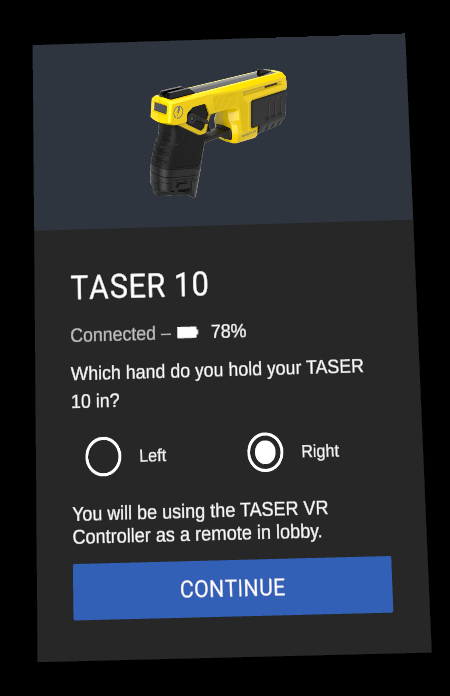
If you don't have a VR controller paired, TASER Arena prompts you to exit TASER Arena to pair a VR controller. For more information on pairing, see Pair VR controller with headset.
Launch TASER Arena
To launch TASER Arena:
- Turn on your headset by pressing the Power button for five to seven seconds.
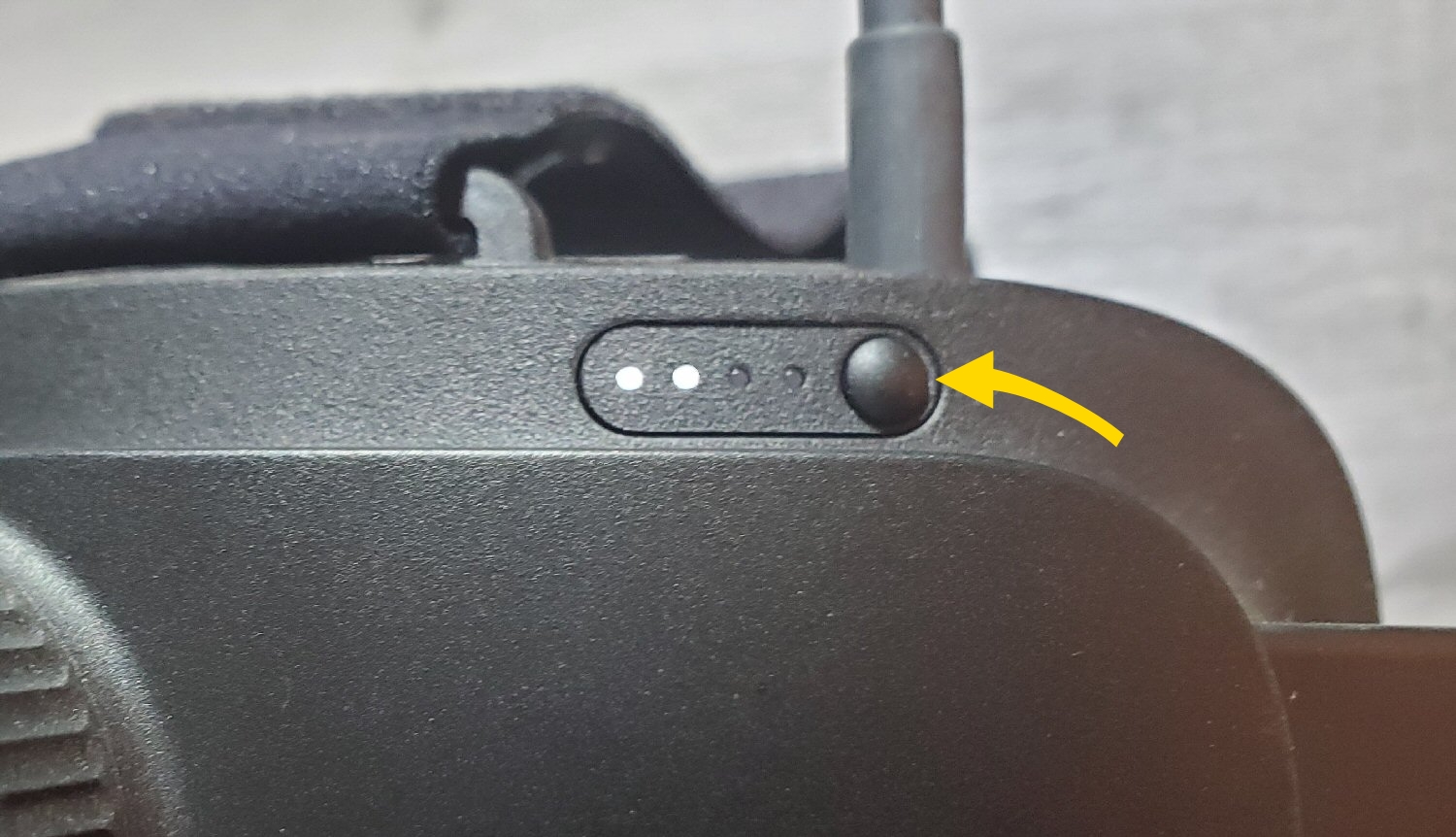
- Put on the headset.
- Accept the boundary messages.
- In the headset library, pinch to select TASER Arena. If you don't see the Axon apps shown below, see the FAQ Why are the Axon VR apps not in my library?
- TASER Arena checks for a paired TASER VR controller.
- If a VR controller is paired, the app prompts you to select whether you want to use your left or right hand.
- If a VR controller isn't paired, the app prompts you to exit the TASER Arena to pair a VR controller.
- After you've paired a VR controller, the TASER Arena lobby displays.
Settings
Before you start an exercise, you can adjust its settings. Any changes you make will be saved and applied to all future TASER Arena exercises.
To open the settings, click the gear icon  .
.
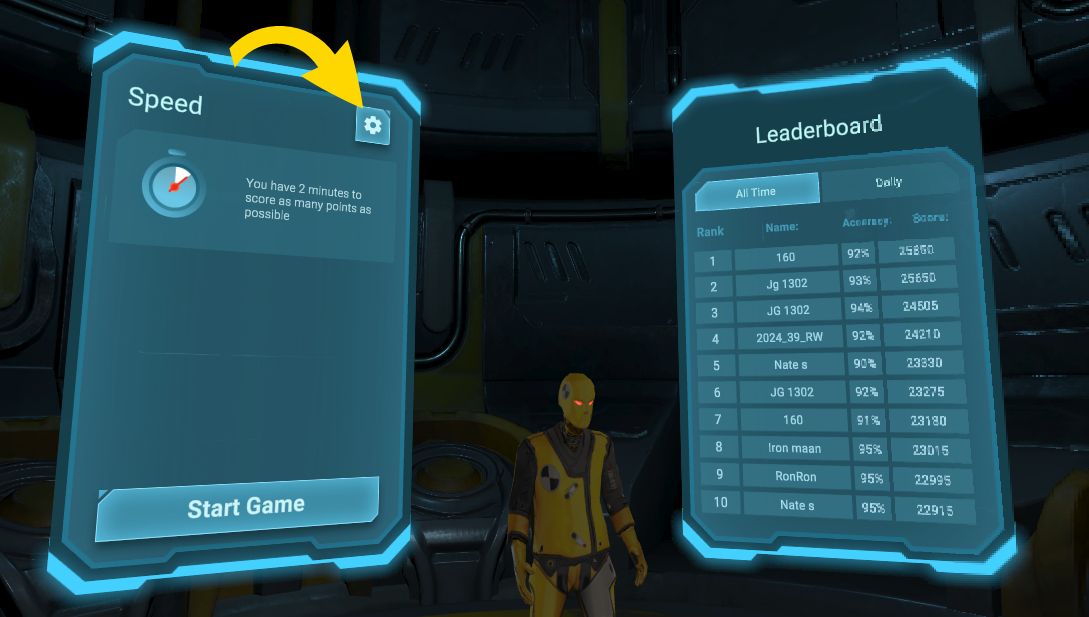
These are the settings:
| Setting | Description |
|---|---|
| Gameplay modes | |
| Speed | Rack up as many points as possible in two minutes. |
| Classic | Face ten waves of targets, with each wave increasing in difficulty. |
| Hardcore | Face ten waves of targets, with the highest level of difficulty from the start. |
| Scenario | |
| Zombie Apocalypse | Face zombies in this exercise during a zombie apocalypse. |
| Space Station | Face robots in the exercise in the confines of a space station. |
| Ammo mode | |
| Infinite ammo | Deploy an unlimited number a probes without reloading. |
| Requires reloading | Automatically reloads with each deployment of 10 probes. |
| Preferred region | |
| United States of America | The sensitive hit areas include the face, chest, and groin. |
| United Kingdom | The sensitive hit areas include the face and groin. |
Start a TASER Arena exercise
To start a TASER Arena exercise:
- Launch TASER Arena.
- Adjust the Settings as needed.
- Select Start Game in the TASER Arena lobby.
Review the Mission Report
After completing an exercise, you'll receive a Mission Report displaying your score, accuracy, and current position on the leaderboard. Review this report to assess your performance.
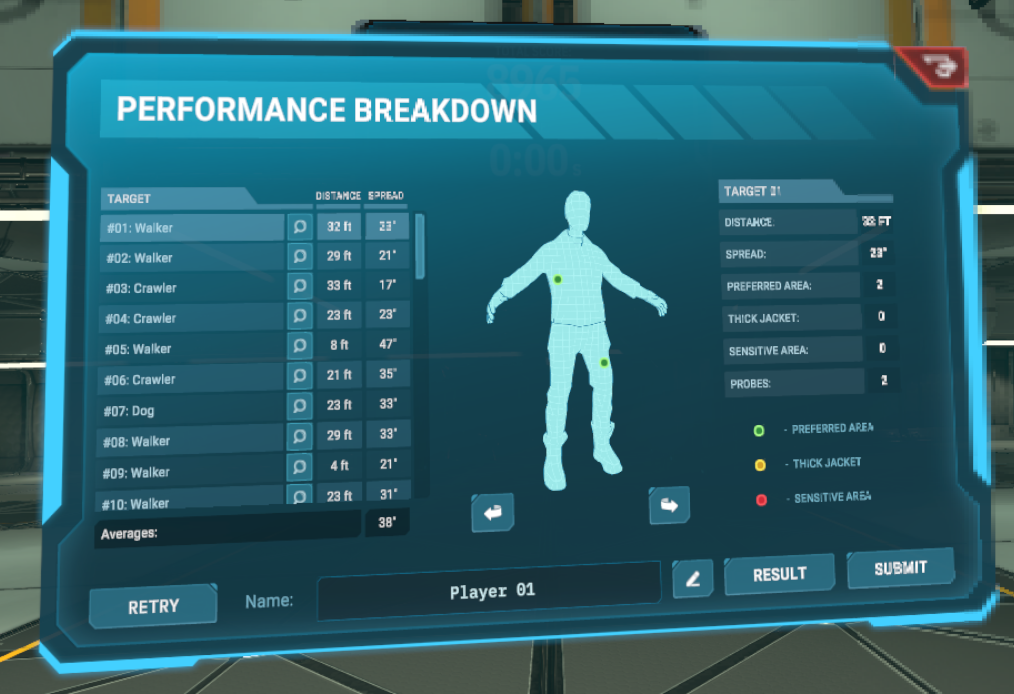
To see a more comprehensive version of this report of your performance, select Details.
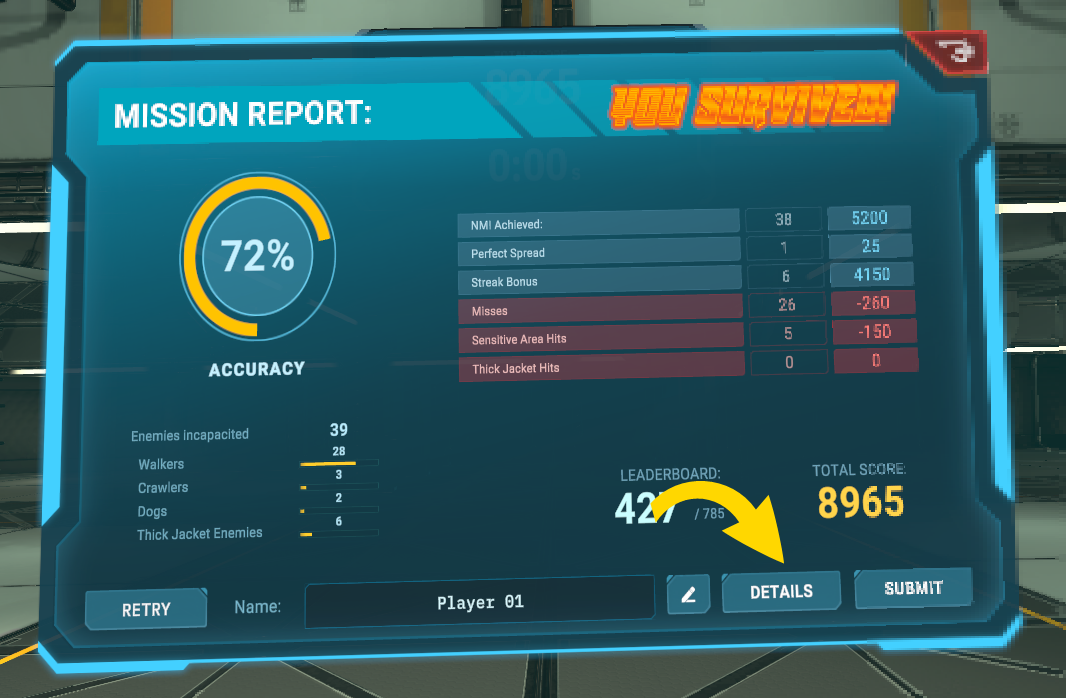
In this view, you can view a performance breakdown of each target.
Add your name to the leaderboard
When viewing the Mission Report, you can see your rank on the leaderboard. The leaderboard only displays if you're connected to Wi-Fi. If the headset can't connect to a Wi-Fi network, see the FAQ Why can't I connect to my secure Wi-Fi network?
You can add your name to the leaderboard. To do this:
- Connect to Wi-Fi.
- Select the pencil icon.
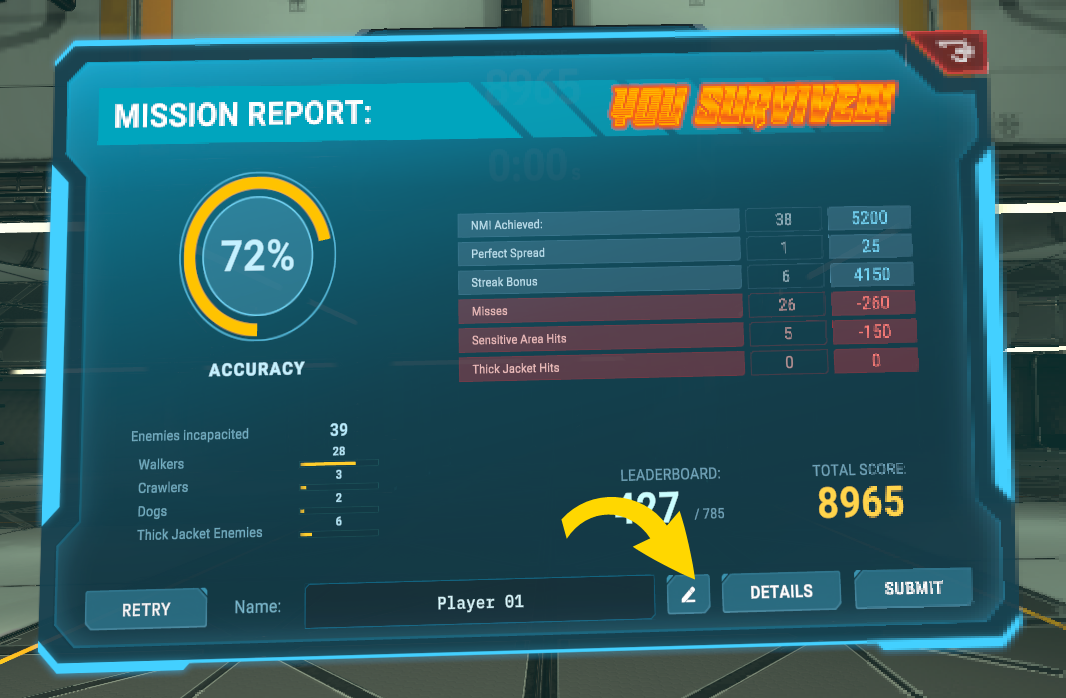
- Enter your name or select Random Name.
- Select Submit.
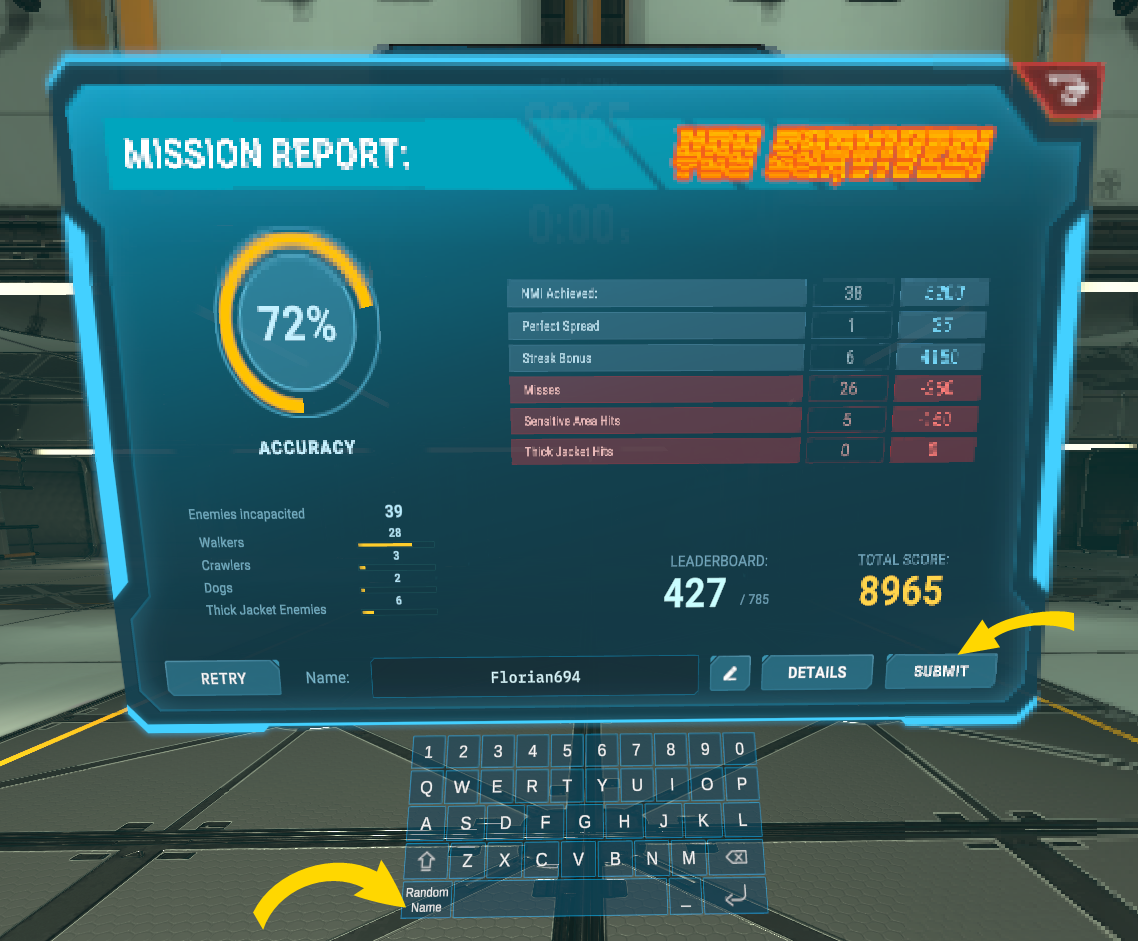
- Your name is added to and displays in the leaderboard.
Exit TASER Arena
If your controller is no longer paired, press and hold the left temple button until the shutdown/restart menu appears. About four seconds after that, the Axon loading screen will appear. Release the button to return to the library.
If your controller is paired, perform the following to exit to the main lobby:
- Look behind you and select the Exit icon
 .
. - Select Yes to confirm your action.
- If you were in an exercise, you are returned to the TASER Arena lobby. If you were in the TASER Arena lobby, you are returned to the main library.
Troubleshooting
The app is unresponsive
If the app is unresponsive, try the following:
1. Exit the app: Depending on the app, either look down and select Exit, or use gaze selection to select Exit App.
2. In the library, use your hand to pinch and select the app tile to relaunch it.


