Verbal Skills Training
Register your VR devices by November 10, 2026 to maintain online functionality. Unregistered devices will lose access to online features until registration is complete. For registration instructions, see Register and manage Axon VR devices.
Verbal Skills Training gives officers immersive, repeatable practice in effective communication for a wide range of encounters. From routine conversations to emotionally charged moments, trainees learn to use timing and empathy to guide interactions, build rapport and maintain control. Through responsive dialogue and open-ended scenarios, the training reinforces core skills like active listening, respectful commands, and tactical pacing. These skills help officers gain cooperation, reduce tension, and make sound decisions in the moment.
The Verbal Skills Training Facilitator's Guide is available for download on the Training Materials page on Axon Help.
Subject types
Each scenario can be configured to include a different subject type (cooperative, aggressive, and upset), which vary the subject's tone, responsiveness, and behavior.
Trainees can choose Surprise Me for the app to assign one of the available subject types at random. This option is useful for scenario variety and reducing predictability during repeat sessions.
Cooperative
The subject is calm and helpful, displaying subdued emotions while focusing on explaining the facts. They're determined to provide the necessary information to resolve the issue. The subject calmly explains the situation, clearly recounting relevant details and providing information when asked.
The table below is an example of how cooperative behavior may appear in victims, witnesses, and suspects.
| Victim or witness behavior | Subject behavior |
|---|---|
|
|
Aggressive
The subject is angry with the officer, feeling that the officer isn't doing enough to help or treating the situation with the urgency it deserves. The subject may yell, accuse the officer of not caring, and be resistant to answering questions. However, if rapport is established, they may calm down and provide the relevant information.
The table below is an example of how aggressive behavior may appear in victims, witnesses, and suspects.
Upset
The subject is shaken and upset due to the incident, making it difficult for them to answer questions or recall details clearly due to their emotional state. Initially, it will be challenging to get clear answers or any information about the situation, including a description of what happened. However, if the trainee builds trust and shows they are there to help, the subject may calm down after some conversation and provide clearer responses to questions.
The table below is an example of how upset behavior may appear in victims, witnesses, and suspects.
Scenarios
Trainees can select Surprise Me to have a scenario chosen at random. Otherwise, they can select a specific scenario.
Stolen Vehicle
An individual reports their vehicle stolen from a garage.
Trespassing
An individual is reported trespassing in a garage.
Noise Complaint
An individual reports noisy neighbor at a motel.
Motorist Assist
Conduct a roadside vehicle assist
Mental Health Crisis
An individual showing signs of a mental health crisis is seen causing a disturbance outside a warehouse.
Sexual Assault
An individual reports a sexual assault that occurred at a party two nights ago.
Investigative Stop
An officer encounters someone matching the description of a theft suspect.
Witness Report
An individual provides information about a recent theft from their store.
Connectivity requirements
Test your network before training using the built-in network speed test on the VR tablet, or visit https://vr.evidence.com/vr-net-test. This test measures network performance but does not verify that required ports are open. Confirm that your network configuration includes the required ports listed in Network requirements for VR headsets and tablets.
For the most consistent and responsive experience, Verbal Skills Training requires an active, strong internet connection. If the connection is below the bandwidth, a warning message will appear on the headset that the experience quality may be compromised.
Verbal Skills Training uses advanced AI models that require a strong internet connection to support real-time interaction and reduce latency.
Recommended setup
Use no more than two headsets on the same network when running Verbal Skills Training sessions. If more than two headsets are needed, place them on separate networks to avoid performance issues.
Network performance
Before a scenario begins, Verbal Skills Training automatically tests bandwidth and latency. If the connection fails to meet minimum thresholds, a message displays giving the trainee the option to troubleshoot the issue or continue with reduced quality.
Verbal Skills Training requires a download bandwidth of about 50Mbps. For more network requirements, see the section Minimum network requirements.
Workflow
Verbal Skills Training is run in Solo mode, meaning that the trainee launches and completes the scenario independently. However, trainers can observe the session in real time by screen casting the session to a tablet. For more information, see Screen cast options.
This is the high-level workflow of running a Verbal Skills Training scenario:
- Trainee: Launches Verbal Skills Training in the headset.
- The app tests the headset's bandwidth and network latency.
- If the connection is sufficient, the app continues automatically.
- If not, a message offers the option to troubleshoot or proceed with reduced quality.
- (Optional) Trainer: Starts screen casting to a Samsung VR tablet.
- Trainee: Selects a scenario and subject type.
- Trainee: Reviews the instructions.
- Trainee: Selects Start Training.
- The app performs a microphone check and the trainee is prompted to say [Your call sign] to radio. See the section Microphone check below.
- The scenario begins with a call from Dispatch, informing the trainee of the situation.
- Trainee: Converses with the subject based on their goals and interpretation of the situation.
- Trainee: Speaks with Dispatch during the scenario by saying [Your call sign] to radio before each statement directed at Dispatch.
- The subject responds dynamically through AI-generated verbal responses.
- The scenario ends. (See End a scenario below.)
- Trainee: Reviews the After-Action Report in the headset.
- Trainee: Rates the performance of the scenario.
Microphone check
Verbal Skills Training performs a microphone check before the scenario begins by prompting the trainee to say [Your call sign] to radio. The app detects the phrase "to radio" to complete the microphone check. Your call sign can be any word or number. For example, "526 to radio".
If the app doesn't detect the phrase or gets stuck on the prompt:
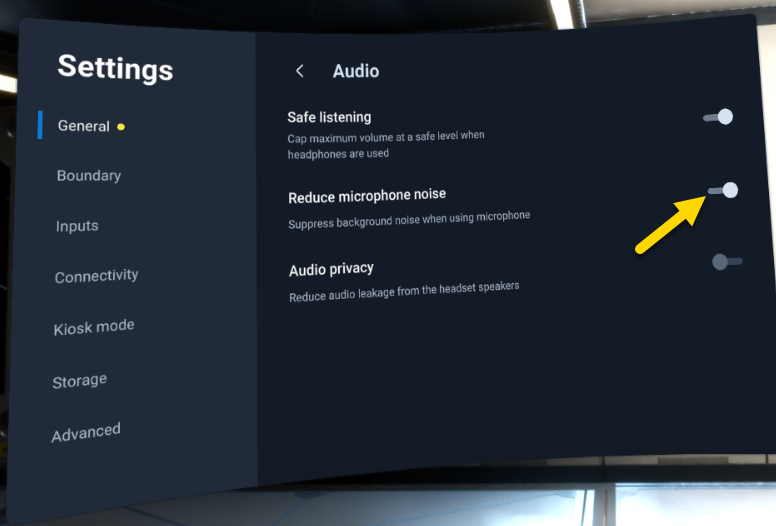
- On the headset, go to Settings > General > Audio and make sure Reduce microphone noise is toggled on.
- Move to a quieter space and speak more clearly.
- Repeat the phrase "[Your call sign] to radio" as prompted.
- If the issue continues, the microphone on the headset may not be functioning. Start the RMA (return merchandise authorization) process to return the headset. Then try a different headset.
End a scenario
This section describes the ways a scenario can end.
Manually
The trainee can exit the scenario by using gaze selection to select End Scenario located at their feet.
External event
If the trainee remains in the scenario for approximately five minutes without reaching a natural conclusion, Dispatch will call with an urgent matter. The scenario ends once the trainee acknowledges the call and says goodbye to the subject.
Concluding behaviors
Each scenario includes naturalistic cues that signal when the experience should end. These involve both trainee actions and subject responses. To make sure the scenario is truly resolved, and that the subject doesn't want to re-engage, some of actions may need to be repeated.
The following behaviors can end a scenario:
- Farewell: The trainee says they're leaving, says goodbye, or tells the subject they are free to leave.
- Enforcement notification: The trainee tells the subject that they're under arrest. If the subject complies, such as by raising their hands or surrendering, the scenario ends. If they resist, the scenario continues until they comply.
- Subject departure: The subject independently leaves the scene.
- Agreed next steps: The trainee and subject agree on a plan of action or next steps that conclude the interaction. This may include the officer stating that they need to leave or will follow up later.
- Use of force: The trainee issues a use-of-force command, like "TASER, TASER, TASER" or "going hands-on".
Use-of-force arrest actions will end the scenario but will also impact the trainee's performance in the After-Action Report.
After-Action Report Overview
After a trainee completes a Verbal Skills Training exercise in the headset, an After-Action Report (AAR) displays. The AAR includes key conversation moments and summarizes how the interaction aligned with scenario objectives.
It may take a moment for the AAR to load, as it is AI-generated based on the scenario. The AAR is not uploaded to VR web app or saved locally, and it cannot be accessed again once the trainee exits the screen.
AAR components
The AAR includes the following visual indicators and buttons:
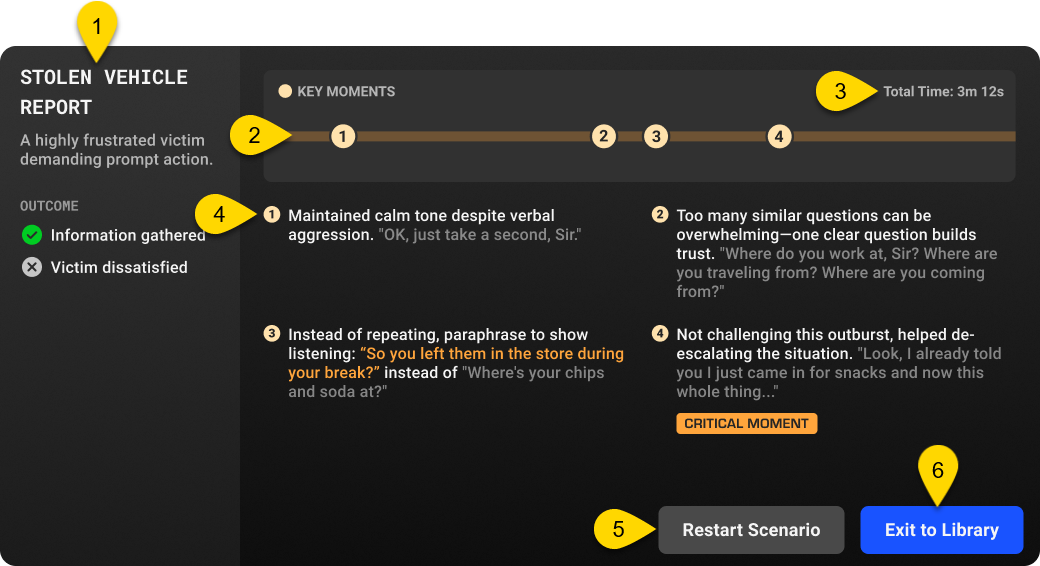
Outcome summary
This section includes:
- The scenario title and description
- Up to two outcomes: one positive and one negative, or just one depending on how well the trainee met the scenario's learning objectives
Each outcome includes a brief summary.
Timeline summary
The timeline shows the flow of the scenario and highlights key moments using numbered feedback points. These points represent moments where the trainee’s actions influenced the direction or tone of the interaction—such as communication choices, response timing, or decision-making under pressure.
Feedback points give the trainee a quick visual on their overall performance.
Scenario duration
This shows the total time the trainee spent in the scenario, from the start of the scenario to scenario resolution.
Scenarios are open-ended and vary based on how the conversation unfolds. A scenario can end at any time if the trainee performs a recognized closing action, such as informing Dispatch that the situation is resolved.
If no closing action is taken, most scenarios will end after five minutes when Dispatch calls with an urgent matter. However, some scenarios, like Sexual Assault, may run longer to allow for more in-depth dialogue and follow-up.
Feedback points
Below the timeline is a short summary for each numbered feedback point. Each feedback point can include:
- Markers to help identify whether the trainee demonstrated escalation or de-escalation
- Either positive reinforcement or a suggestion for improvement
- A quote or paraphrase spoken by the trainee
- A Critical Moment tag to call out impactful decisions
Restart Scenario
Select Restart Scenario to replay the same scenario with the same subject type and subject mood. This is useful when repeating a session after feedback.
Exit to Library
Select Exit to Library to return to the Verbal Skills Training Library, where the trainee can choose a new scenario and subject mood.
Rate your experience
After reviewing the AAR, trainees are prompted to rate their interaction with the subject by selecting Good, Neutral, or Poor.
Ratings are not visible to trainers or included in the AAR. They're collected anonymously to help Axon improve the training experience over time.
FAQs
Getting started
How does Verbal Skills Training work?
Trainees interact verbally with AI-driven subjects in VR scenarios. The subject's responses are generated in real time based on the trainee's input. Each scenario can be replayed using different subject types (cooperative, aggressive, or upset) for added challenge and realism. (See .)
What equipment is required?
- VR headset with Verbal Skills Training installed
- A strong internet connection
- (Optional) Samsung VR tablet to screen cast
What domains or IPs need to be allowlisted?
To run Verbal Skills Training, your network must allow access to specific domains and IP addresses. Make sure your agency's firewall or security filters aren't blocking these required services. For the full list, see Manage Axon VR IP addresses in network allowed lists.
How good must my internet connection be?
Verbal Skills Training requires an active, strong internet connection. The app tests bandwidth and latency before the scenario begins. If the connection is below threshold, a message displays giving the trainee the option to troubleshoot the issue or continue with reduced quality.
For more information, see the section Minimum network requirements.
How long are the scenarios?
Scenarios are open-ended and vary based on how the conversation unfolds. A scenario can end at any time if the trainee performs a recognized closing action, such as informing Dispatch that the situation is resolved.
If no closing action is taken, most scenarios will end after five minutes when Dispatch calls with an urgent matter. However, some scenarios, like Sexual Assault, may run longer to allow for more in-depth dialogue and follow-up.
AI
How does Verbal Skills Training use AI?
Verbal Skills Training uses large language models (LLMs) to power the behavior of subjects. The AI listens to the trainee's voice input and generates real-time verbal responses, body animations, and facial expressions based on the context of the conversation and the selected subject type. (See .)
How did Axon test the quality of the AI?
Axon tested the AI models by measuring key performance metrics, including content appropriateness and response consistency with scenario facts. We ran thousands of test cases, including adversarial prompts, to help make sure the AI behaved appropriately, even when provoked. Ongoing monitoring is in place to catch regressions and maintain high-quality performance over time.
Privacy and ethics
Will you store or use my data to train AI models?
Axon uses advanced encryption and secure data handling practices to protect officer interactions and training data. We comply with relevant data protection laws and law enforcement privacy standards.
We do not share any data with third parties for AI model training.
For more information, see the Axon Privacy Policy.
How does Axon address bias, ethics, and equity in AI?
Axon is committed to ethical AI design through a combination of content safeguards, inclusive design, and ongoing review.
- Ethical content generation: We've implemented robust guardrails to prevent virtual characters from using hate speech or inappropriate language. When appropriate for training, strong language may still appear in context—such as with aggressive subject types—to support realism without reinforcing harm.
- Bias mitigation: We use modular character and scenario design to promote diverse representation. Any character can take on various roles and behaviors, regardless of race, ethnicity, or gender. We also conduct regular audits to identify and reduce potential biases in AI responses.
We work with Axon's Ethics and Equity Advisory Council to help to ensure that AI models and scenario content are ethical by design.
Troubleshooting
The app is unresponsive
If the app is unresponsive, try the following:
1. Exit the app: Depending on the app, either look down and select Exit, or use gaze selection to select Exit App.
2. In the library, use your hand to pinch and select the app tile to relaunch it.
Connectivity
Test your network before training using the built-in network speed test on the VR tablet, or visit https://vr.evidence.com/vr-net-test. This test measures network performance but does not verify that required ports are open. Confirm that your network configuration includes the required ports listed in Network requirements for VR headsets and tablets.
Low internet bandwidth
If the connection is weak, a warning message will appear in the headset.
- Make sure the headset is connected to a strong, stable Wi-Fi network.
- Reduce network congestion by limiting the number of active headsets (no more than two per network).
- Restart the app and try again.
No internet connection
The headset isn't connected to the internet.
- Make sure Wi-Fi is turned on and connected.
- Confirm that the network allows access to the internet.
- Double-check the password in your headset's Wi-Fi settings and try connecting again.
- Restart the headset if the issue persists.
Required services are blocked
The headset is connected, but some services are being blocked by your agency's network. This may be caused by agency firewall or security settings.
Confirm that the required domains and IPs are allowlisted. For more details, see Manage Axon VR IP addresses in network allowed lists.
Unable to begin scenario
The app is stuck on the "[Your call sign] to radio" screen.
- On the headset, go to Settings > General > Audio and make sure Reduce microphone noise is toggled on.
- Move to a quieter space and speak more clearly.
- Repeat the phrase "[Your call sign] to radio" as prompted.
- If the issue continues, the microphone on the headset may not be functioning. Start the RMA (return merchandise authorization) process to return the headset. Then try a different headset.
The app detects the phrase "to radio" to complete the microphone check. Your call sign can be any word or number. For example, "526 to radio".
Scenario behavior
Subjects are unresponsive
The subject doesn't respond after the scenario starts.
- Wait at least six seconds after speaking to allow for AI response time.
- Check the headset's internet connection.
- Restart the scenario.
- Contact Axon Customer Support if the issue persists.
Scenario won't end
Scenarios end when the trainee performs a recognized closing action. This could include
- Informing Dispatch that the situation is resolved
- Saying goodbye to the subject
- Using gaze selection to select End Scenario located at their feet.
If no action is taken, Dispatch will call with an urgent matter after about five minutes—depending on the scenario—to end it.
To see a full list of interactions that can end a scenario, see End a scenario above.


