Review and revise drafts generated by Draft One
Once your body camera footage is uploaded and the Auto-Transcript is available, you can use Draft One to generate a draft narrative. (Draft One can be used on any playable audio/video files supported by Axon Evidence, not just Axon body camera footage.) You can also use Draft One to generate a draft a narrative without using evidence and instead recording a narration describing an incident. After carefully reviewing and revising the draft, you can copy it to your computer's clipboard (Axon Evidence) or submit it for supervisor review (Axon Records and Standards).
After generating a draft with Draft One, it is YOUR responsibility to carefully review the draft. Do not assume it is complete and accurate.
When reviewing your draft, take thee steps listed below.
Watch this video to learn about the safeguards you will encounter when using Draft One to generate a narrative for a report.
Review the draft for accuracy
Draft One isn't perfect, and it is your responsibility to ensure that the narrative correctly reflects what happened during the CFS.
Check the name and date
Draft One automatically inserts the date/time of the recording, as well as the person who made the recording at the start of the narrative. Double-check that this information is accurate.
Add missing information
Draft One generates narratives based on the Auto-Transcript. As such, it cannot include information that was not spoken aloud during the CFS. Be sure to add your observations and any other additional necessary information to result in a complete and accurate narrative of the events that occurred.
Update the [INSERT] statements
Draft One will periodically provide [INSERT] statements in sections of the narrative where the audio evidence did not provide the necessary information. If you click anywhere on the text inside the brackets, the entire INSERT statement will be selected and you can quickly update the narrative and provide the missing information.
If you try to submit a report that still contains an [INSERT] statement, you will receive an error message.
Remove obvious errors
Some organizations have configured Draft One to introduce obvious errors. These errors appear in the narrative after you select Insert to add the narrative to the report. (They do not appear on the "preview" screen that is displayed immediately after Draft One has finished generating the draft.) Read the draft carefully to remove these errors. The draft narrative can't be copied or the report submitted if any of these obvious errors are present.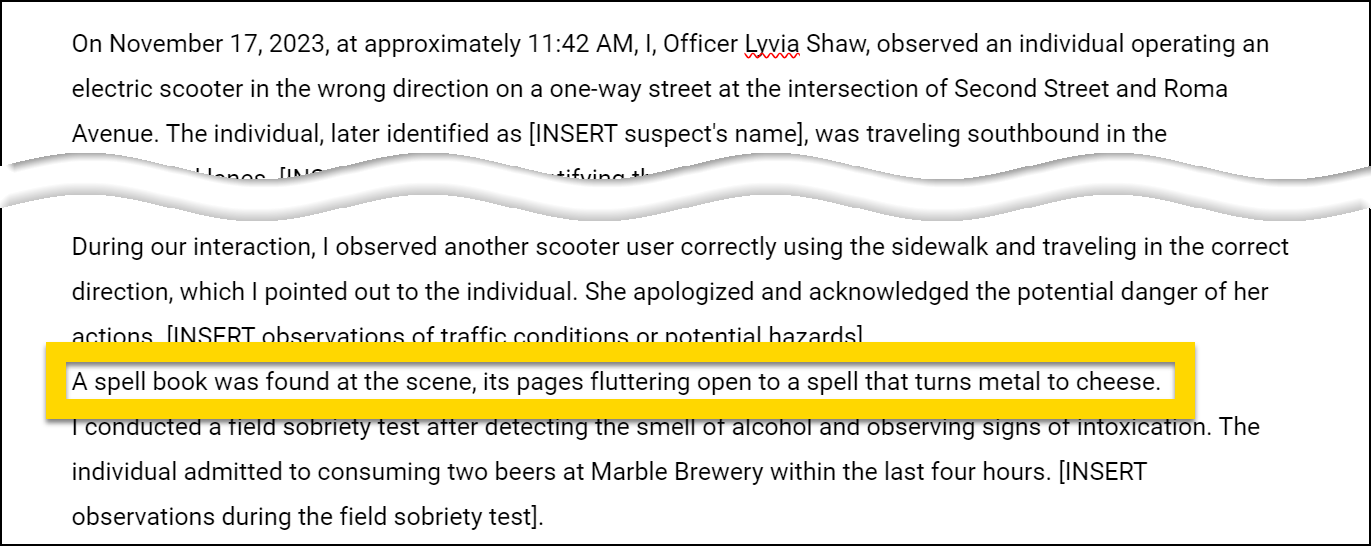
Make the required amount of changes
Some organizations have configured Draft One to require a certain amount of text to be edited to ensure that users are reading and revising narratives generated by Draft One. If you have not made the minimum amount of required changes, you will see an error after attempting to submit the report.
Some organizations have a recommended minimum change requirement, but do not require their users to make those changes. Instead, a popup window will appear explaining the recommended change amount but still allow you to submit the report.
After taking all necessary steps to review and revise the report, you can copy it to your computer's clipboard (Axon Evidence) or submit it for supervisor review (Axon Records and Standards).
Save your work
If you are using Draft One in Axon Records, your draft narrative is automatically saved to the cloud when you insert it into your report.
If you are using Draft One in Axon Evidence, your work is NOT saved to the cloud. Instead, it is only stored in your internet browser's tab. This is done intentionally to prevent reports from being stored outside of your organization's third-party RMS (Records Management System).
If you close the tab containing the draft narrative, your work will be lost. If you are logged out of Axon Evidence and later log back in from the SAME tab, your draft narrative will appear.
To avoid losing your work, it's best practice, even if you are logged out due to inactivity, to keep the tab containing the draft narrative open until you have finished reviewing, revising, and copying it.
Use Dictation
When updating the draft narrative, you can quickly add text by clicking where you want the new text to appear, selecting Start Dictation, and speaking. Select Stop Dictation, once you finish dictating. You can continue to start and stop dictation as many times as needed.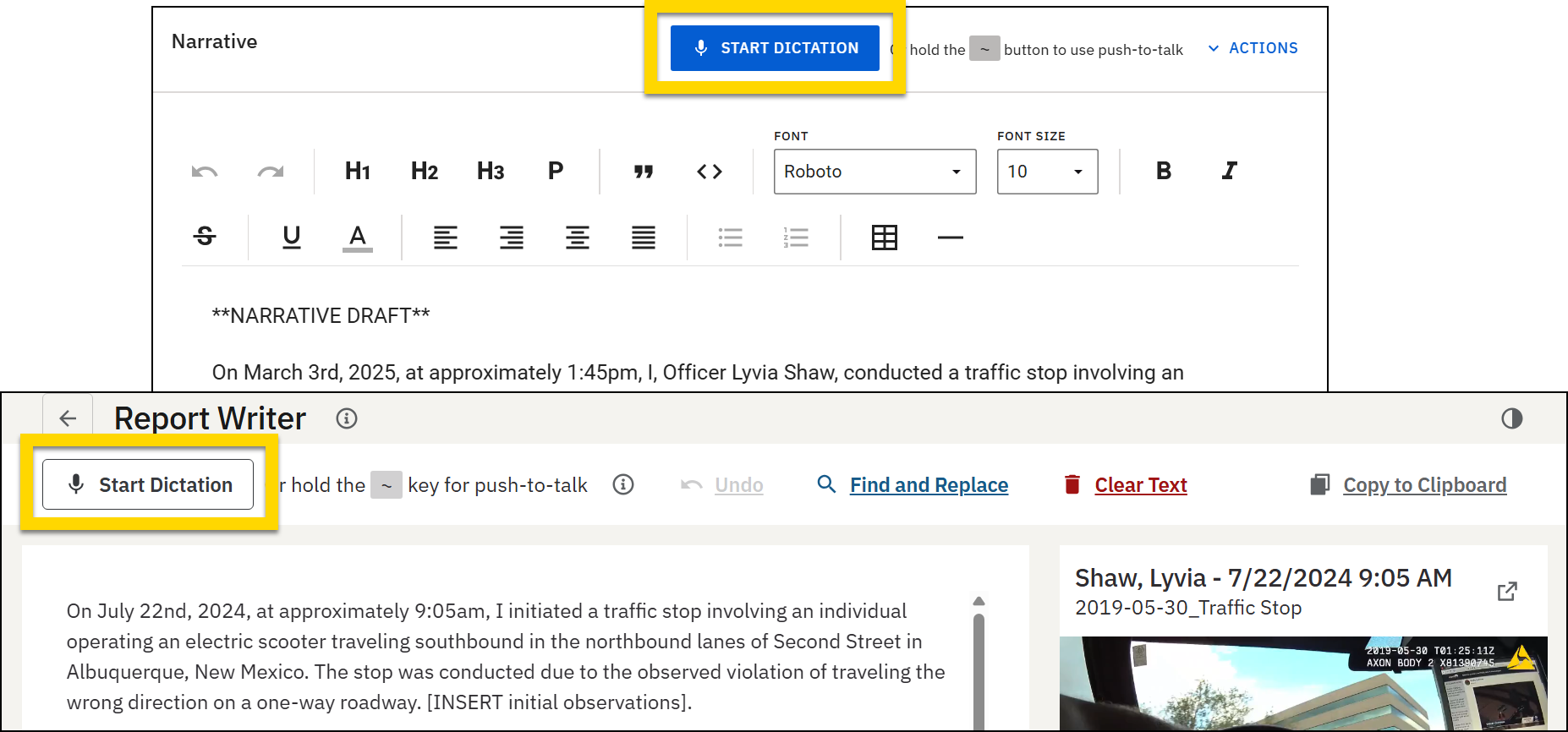
For the best dictation results:
- Speak Clearly: Articulate your words and speak directly into the microphone.
- Use a Quiet Environment: Dictate in a quiet setting to reduce transcription errors.
- Use Verbal Commands: Learn to use voice commands for punctuation and formatting to increase efficiency and accuracy.
- For complex terms or names, you may want to type directly into the report narrative rather than dictating.
When dictating in Axon Evidence, your audio data and text are NOT stored in the system or audit logs. If you close the browser tab, the text will be gone forever.
Voice commands
Add punctuation and formatting as you dictate to reduce editing afterward by speaking the following commands:
- Period (.): Say "period" or "full stop" to end a sentence.
- Comma (,): Say "comma" to insert a comma.
- Question mark (?): Say "question mark" to end a sentence with a question.
- Exclamation mark (!): Say "exclamation mark" for emphasis.
- Parentheses (): Say "open parentheses" to begin and "close parentheses" to end a parenthetical statement.
- Quotes ("): Say "open quotes" to start a quote and "close quotes" to end a quote.
- New paragraph: Say "new paragraph" to start a new paragraph.
- New line: Say "new line" to move down one line without starting a new paragraph
Requirements
Before using dictation, ensure you meet the following criteria:
- Axon Evidence Pro license: You must be able to access Axon Evidence and have a Pro license.
- Microphone: Your device needs a functioning microphone. Grant your web browser permission to access the microphone if prompted.
- Speech-to-text connection: Ensure your device can connect to .stt.speech.azure.us (in the United States) or .stt.speech.microsoft.com (in Canada). You may need to work with your agency's IT department to ensure access.
Review the Transcript
When using Draft One in Axon Evidence, the evidence and its transcript display beside the text area, allowing you to quickly reference the evidence as you make your edits. Interact with the transcript in the Report Writer window or select the new tab icon to open the evidence details page in a new tab. If you selected multiple evidence items, use the arrow to switch between items.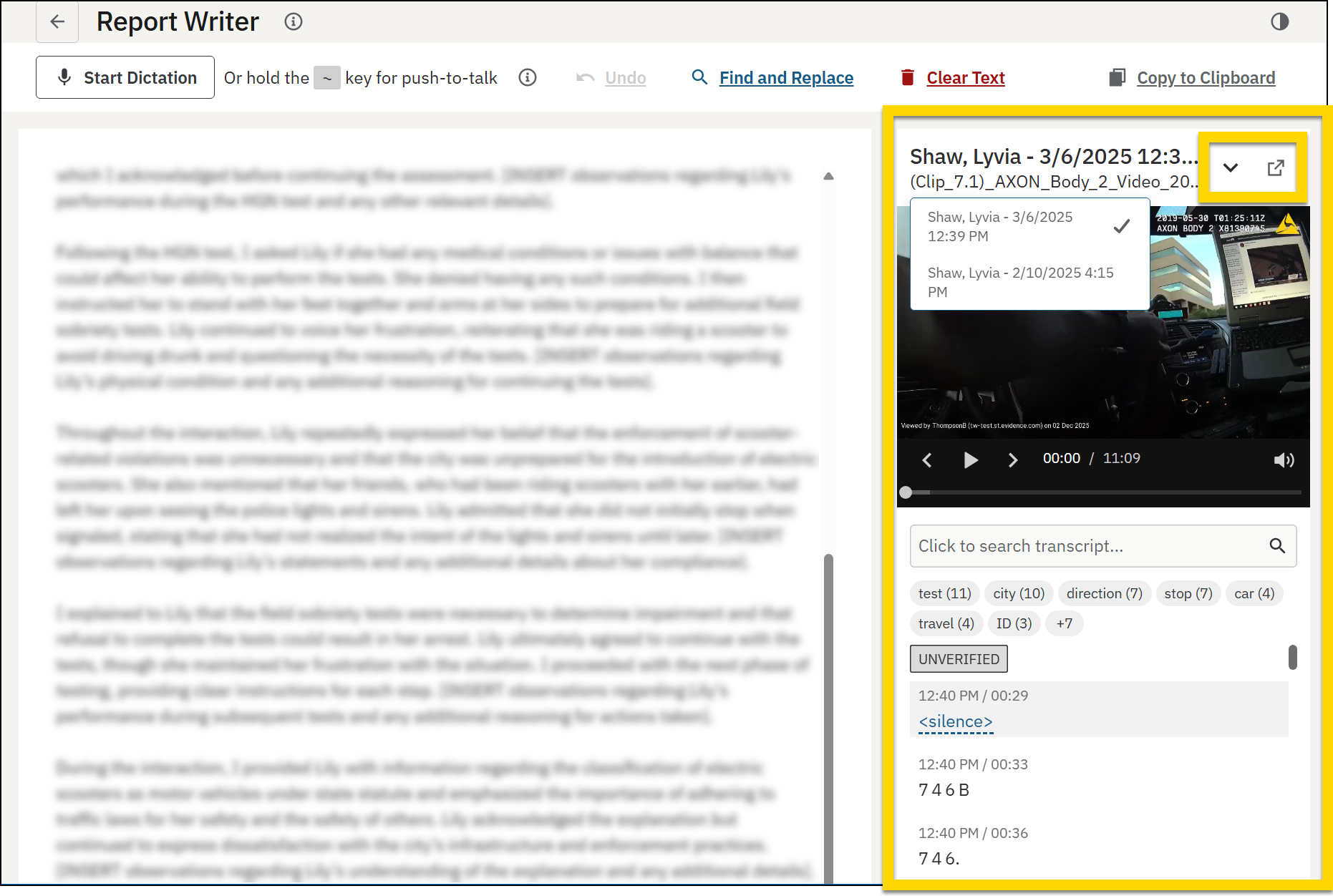
When using Draft One in Axon Records/Standards, select the camera icon in the Report Writer sidebar to view the evidence and its transcript and reference the evidence as you make your edits. Interact with the transcript in the sidebar or select the new tab icon to open the Axon Evidence details page in a new tab. If you selected multiple evidence items, use the arrow to switch between items. 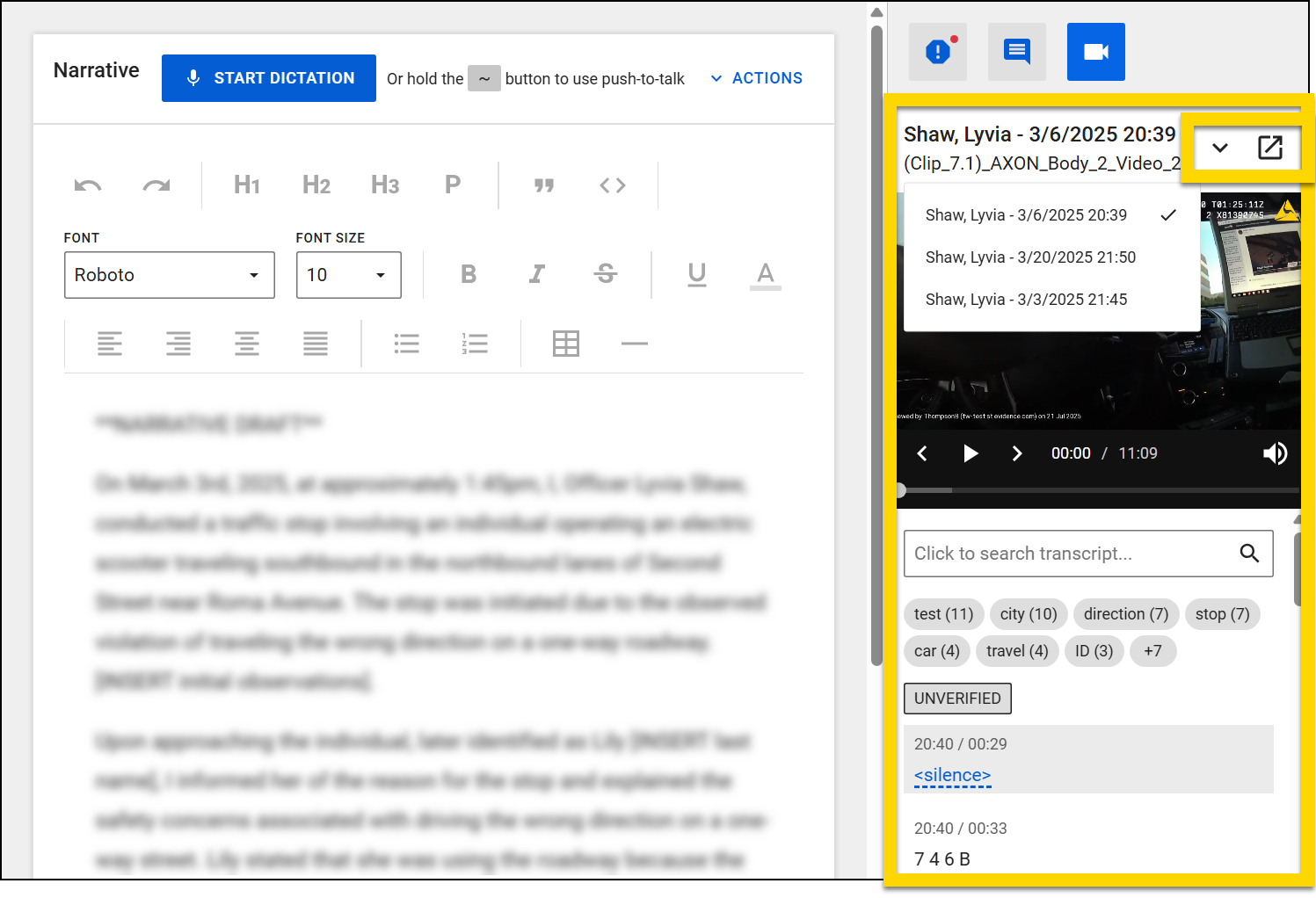
Axon's AI-powered features use artificial intelligence to provide insights, recommendations, or analysis based on available data and user inputs. These outputs may include inaccuracies, limitations, or outdated information. These tools are designed to support—not replace—professional judgment, legal interpretation, and human oversight. Users are responsible for carefully reviewing and verifying AI-powered content before acting on it. Axon continually works to enhance AI accuracy, mitigate bias, and uphold ethical standards. Learn more at Axon AI.


