View evidence audit trails
The Evidence Audit Trail in Axon Evidence Local provides a chronological record of all interactions with a piece of evidence.
Watch thisvideoto learn how to view the evidence audit trail.
View the audit trail for a single piece of evidence
- Sign-in to your Axon Evidence Local account.
- Select Evidencefrom the top menu and then search for the evidence you want to view the audit trail for. For more information, seeHow to Search for Evidence.
- Select the title of the evidence you wish to view the audit trail for to open it in review mode.
- Select More actions (...), and then select Audit Trail. The Evidence Audit Trail opens in a new browser tab.
Download the audit trail for multiple evidence files
- Select Evidencefrom the top menu and then search for the evidence you want to view the audit trail for. For more information, seeHow to Search for Evidence.
- For each evidence file you want to include in the audit trail download, select the check box to the left of the evidence. To select all evidence on the page, select the top checkbox next to ID.
- Select More actions (...), and then select Download audit trail to begin downloading the file. The exact behavior of the download depends on your browser settings.
Audit trail events
The audit trail records all events related to the evidence, with each entry including a timestamp, event name, and activity description. It also specifies whether the action was performed by a user or the system, ensuring a clear and transparent record of every activity. This guarantees full accountability and traceability for each piece of evidence.
Review Mode
Audit trail download
When selecting an evidence file, you can access the audit trail of the evidence directly from the review overlay by selecting the More Actions (•••) button and selecting Audit Trail. 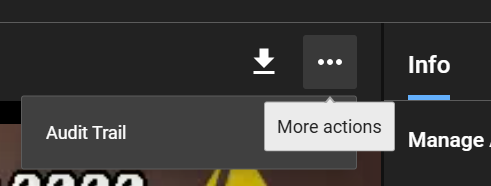
This opens a new tab (or download a PDF directly depending on your browser settings) displaying the evidence audit trail file. Print or download as needed.


