Evidence maps
The Evidence Map feature in Axon Evidence Local provides an interactive map view of GNSS data captured by Axon devices. It displays geographic location data associated with digital evidence, helping users visualize where files were recorded and supporting location-based analysis and case management. If geolocation data was captured, a "Map" tab will appear on the evidence details page. This feature allows users to:
- Visualize location data associated with evidence files in real time.
- Sync movement data with video playback, showing exactly where the recording device was at any given moment.
- Track routes, stops, and key locations throughout the duration of the video.
- Gain context around movements and events - critical for investigations, reviews, and incident analysis.
Prerequisites
- Version: Axon Evidence Local 5.2 or later.
- Permissions: Learn more at user rights in Evidence Local.
- Create and edit clips and markers: Required to annotate map data.
- Delete clips and markers: Required to remove map annotations.
- Map service activation: The map feature depends on a third-party integration with ArcGIS Location Platform and must be enabled in the system settings by an administrator.
- This setting is managed in the System Settings. Learn more at Manage System Settings – Evidence Local.
View an evidence map
After the map service is configured in system settings, users can access GPS data from supported files through the Map tab in Review Mode.
- Search for the evidence that contains GNSS data (body-worn or Fleet camera video).
For help searching, see Search for Evidence – Evidence Local. - Select the evidence to open it in Review Mode.
- Select the Map tab.
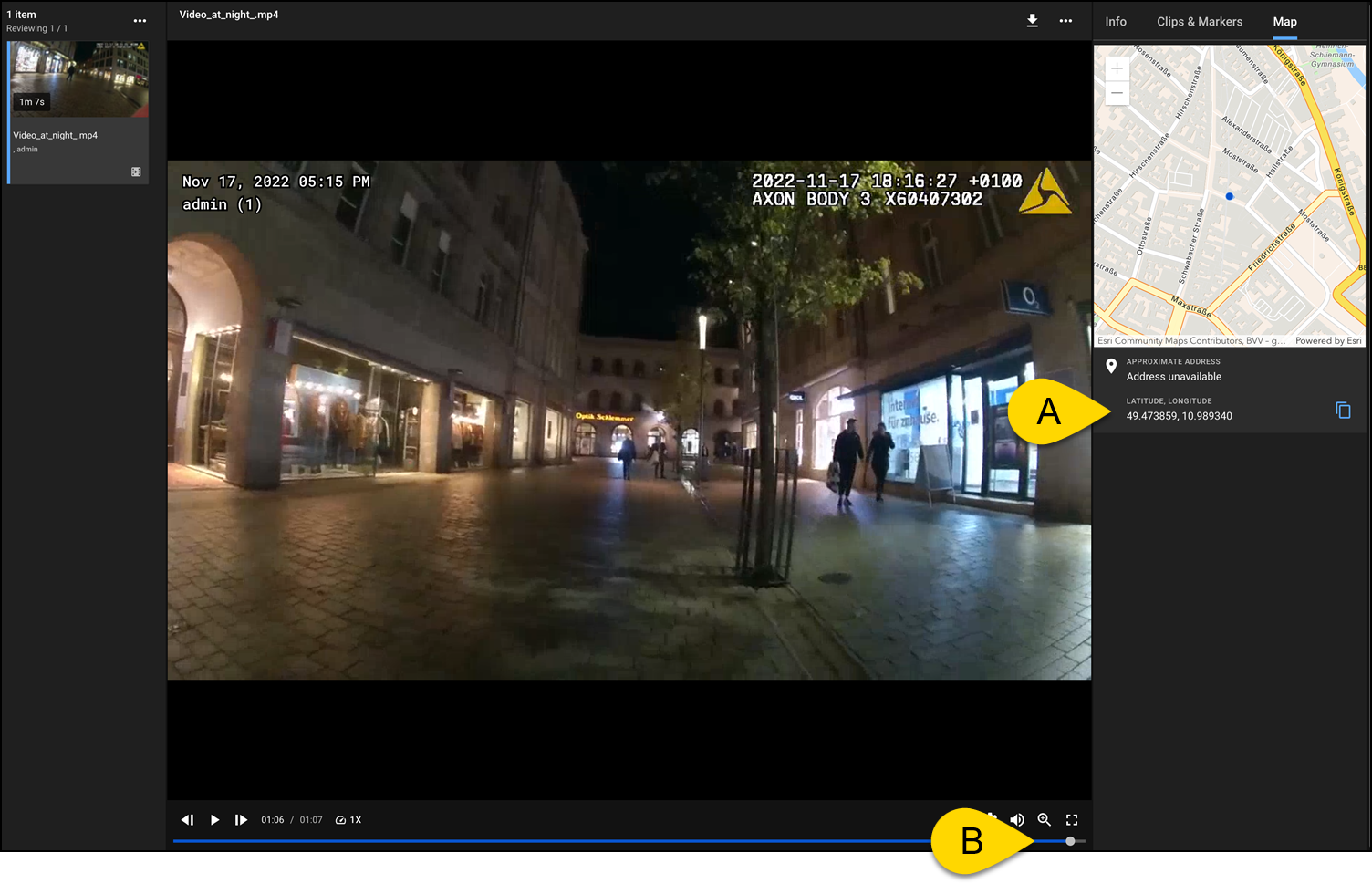
The map appears showing the route, pinpoints, and approximate address (if available). The map is synchronized with the video timeline, so as the video plays, the map updates to show the device's location in real time.
Find your way around the evidence map
- GPS Coordinates: Displays latitude and longitude beneath the map.
- Playback timeline sync: The map is synchronized with the video playback timeline. As the video plays, the device's movement is reflected in real time on the map.
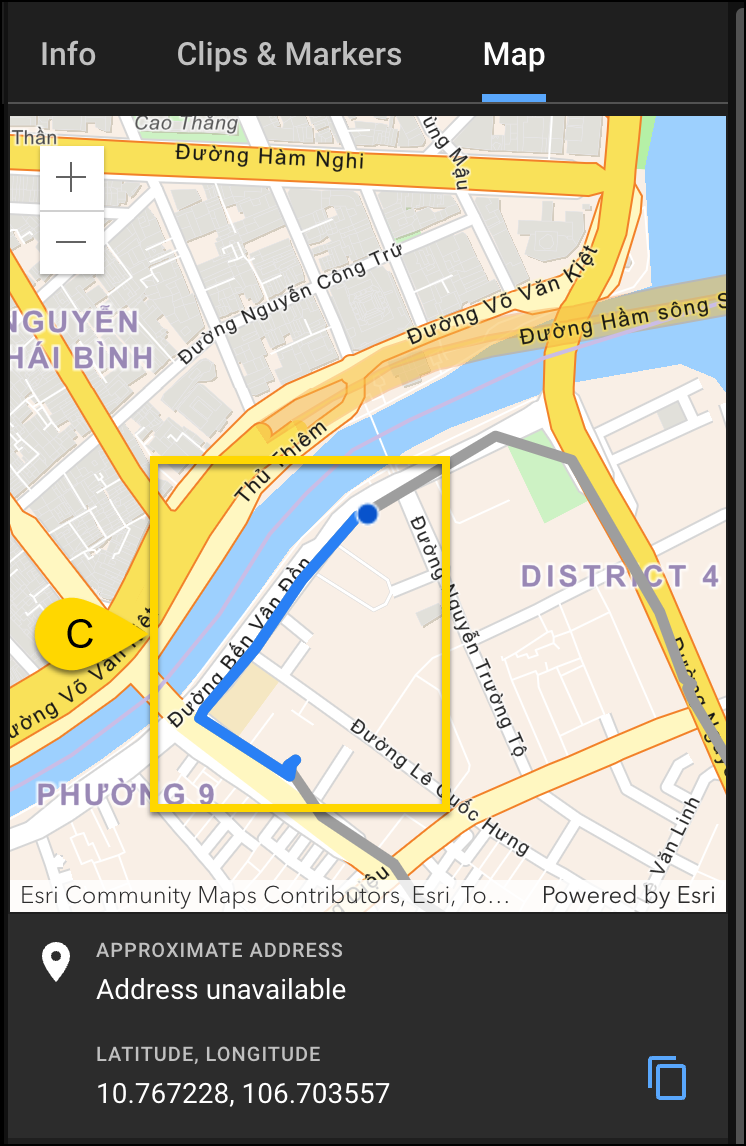
- Route visualization: Shows the path taken by the device during the recording.
Note: If Address unavailable is displayed, this might be due to missing reverse geocoding support or limited map licensing.


