Find evidence
The Axon Evidence Local search feature helps you find the evidence you need. Search filters limit your results to only the evidence files that match the search criteria you set. In the Evidence area, there are two types of search filters:
- Basic search filters - Allow you to narrow down evidence using primary identifiers such as ID, title, date, user or group, category, tags, and case ID.
- Advanced search filters - For a more precise search, advanced filters allow you to search by file type,date type, source, and device serial.
Evidence Local search also provides an option to customize your search by configuring columns and their order.
Watch this video to learn how to search for evidence.
Basic search filters
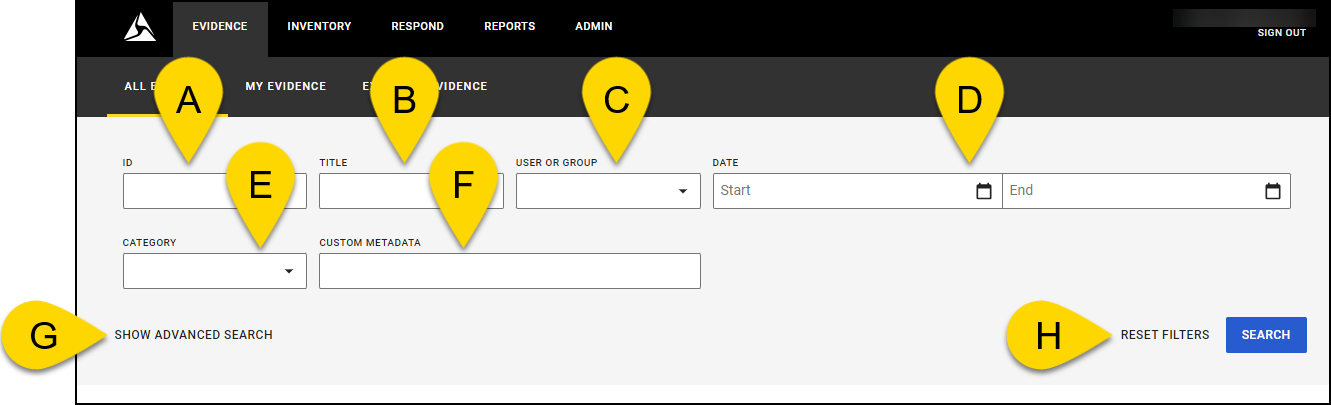
- ID: Limits search results to evidence whose ID includes the characters you enter in the ID box. You can also enter “None” as the search term to find evidence that does not have an ID.
- Title: Limits search results to evidence whose title includes the characters you enter in the Title box.
- User or Group: Limits search results to evidence owned by or uploaded by the group or user specified. To specify a user or group name, select the User or Group box, enter the name of the user or group, and then select the group you want from the matching results. On the My Evidence tab, the User or Group filter is set to your name by default.
- Date: Limits search results by either the recorded on, uploaded on, or deleted on date and time for the evidence. You must specify a date and time range by using the Start and End boxes, otherwise the search is not limited by date range. Search results are inclusive of the dates specified.
- Start: The start of the date and time range. If the Start box is empty, the date range begins with the earliest possible date.
- End: The end of the date and time range. If the End box is empty, the date range ends with today.
- Category: Limits search results to evidence that is assigned to the category that you select. Categories determine the retention period of evidence assigned to them. By default, search results include evidence assigned to any category, including uncategorized evidence. You can also enter “None” as the search term to find evidence that does not have a category.
- Custom Metadata: Filter evidence based on specific metadata fields that have been customized for your organization.
- Show Advanced Search: Select Show Advanced Search to view more search filters.
- Reset Filters: Clears all search criteria.
Advanced search filters
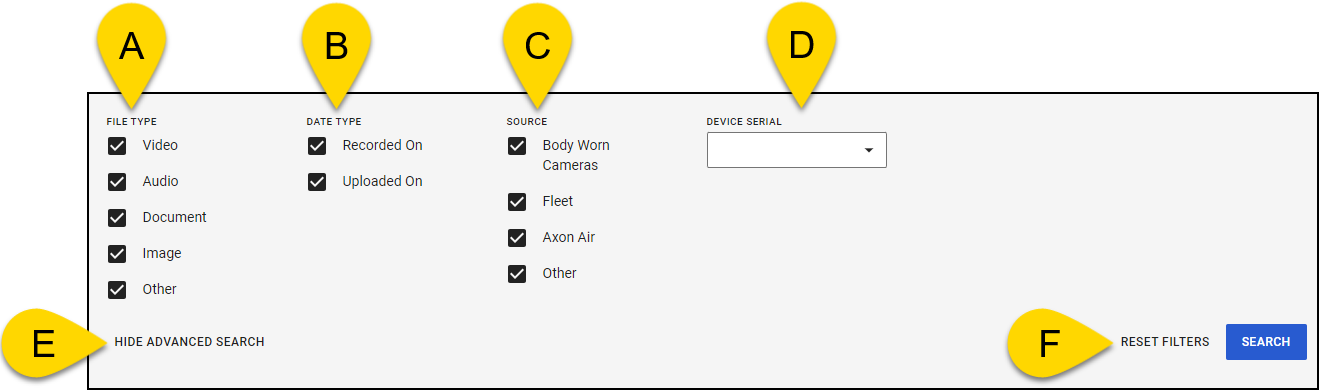
- File Type: Limits search results to the file type selected. By default, search results include all file types.
- Date Type: Limits search results to evidence whose status matches the date type selected. By default, search results include both Recorded On and Uploaded On date types.
- Source: Limits search results to evidence from the selected type of device that produced the evidence file. The Body Worn Cameras option applies to all Axon Body Worn Cameras. The Fleet option applies to Axon Fleet 3, Axon Fleet 2, and Axon Fleet. Evidence submitted through a Community Request can be found through that option. Evidence that has been extracted or redacted is included in the Other option.
- Device Serial: Limits search results to evidence from a particular device.
- Hide Advanced Search: Select Hide Advanced Search to close the advanced search filters.
- Reset Filters: Clears all search criteria.
Folders and cabinets
In the unified search, you can search for files in either a folder or a cabinet, but not both simultaneously. The search will apply to whichever field you select.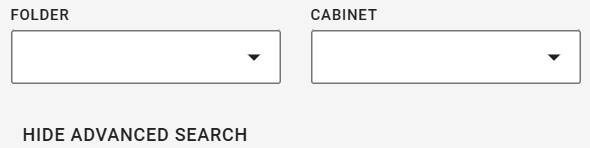
Text search details
The ID, and Title filters provide advanced text matching capability for evidence searches.
- Letters, numbers, and special characters - Comma (,), dash (-), opening parentheses ((), closing parentheses ()), slash (/), and backslash (\).
- Text matching - The text you enter can be a full or partial match of the data you are filtering. For example, if you enter 21 in the ID box, then any evidence with 21 in any portion of the ID is included in search results.
- Search for multiple strings at once - You can search for more than one text string in a single filter by adding a space between the strings. This provides AND search functionality of the data you are filtering. For example, if you enter 12- 34 in the ID box, search results include any evidence with both 12- and 34 in the ID, such as 12-3456 and 12-7348.
- The order of text strings is irrelevant - For example, if you enter 78 21 in the ID box, search results include evidence with the ID 21378 and 17821.
- Capitalization for letter characters is irrelevant - For example, if you enter REDACT in the Title box, search results include evidence with the Title REDACT, redact, and redaction.
Configure search columns
Custom columns allow you to select which columns are visible and set the order in which they are shown. Add, remove, and reorder the columns as needed.
- From the Evidence search page, select Table Settings (gear button).
- In the Custom column setting pane, under Column Options, select the columns you wish to display.
- Under Reorder columns, select and drag the column names to set their order.
- Select Save.


