Manage access to evidence
Use the Manage access feature in Axon Evidence Local to view and update who has access to a specific evidence file. This feature is available from the file in Review mode.
Open the Manage Access pane
- Search for the evidence you want to view or manage access for.
- Select the evidence to open it in Review Mode.
- Select Manage Access to expand the section. The number shown when Manage access is collapsed includes all users with access—whether from roles, inheritance, or direct assignment. The list shown when expanded only includes users and groups with direct or inherited access.
- Select Edit to view or update access.
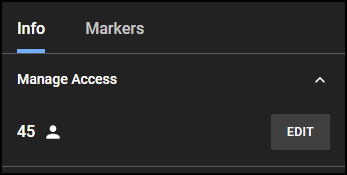
From the Manage Access pane, you can:- View who has access to the evidence
- Add or remove users and groups (if allowed)
- Turn inheritance on or off
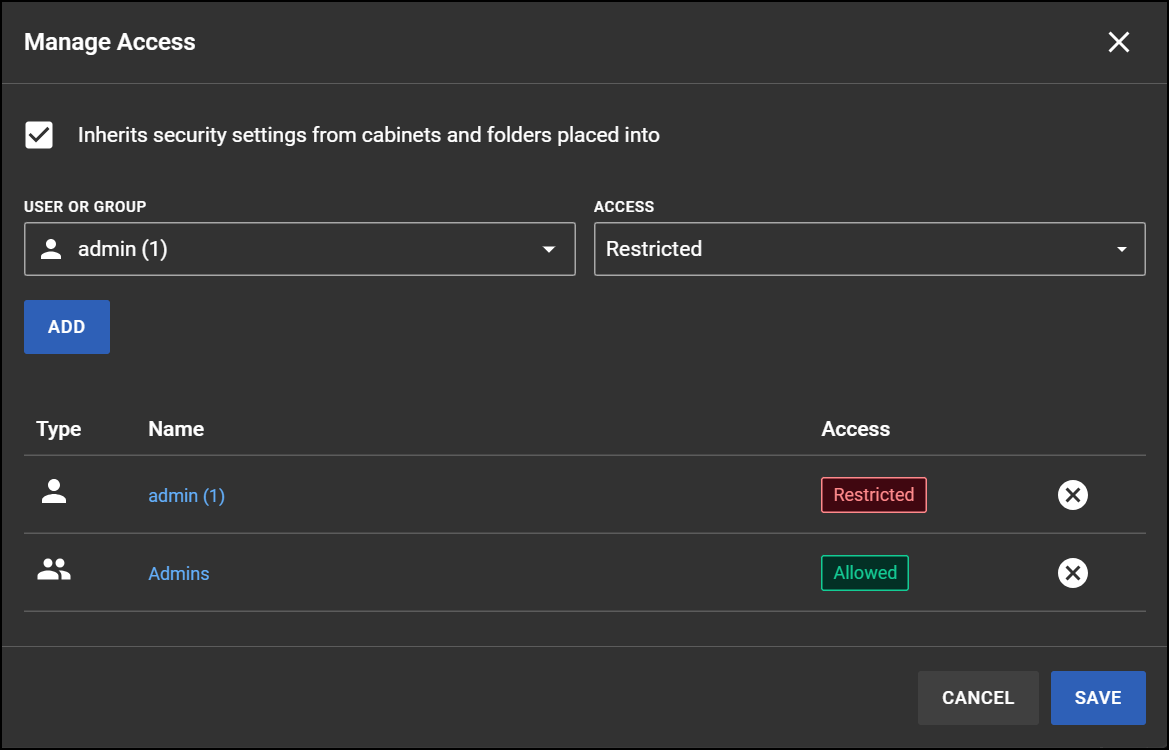
View access
All users can view the list of users and groups who have access to a file. The list includes users or groups that were added:
- Directly at the file level
- Through folder or cabinet inheritance
The list does not include users who have access through the View all files permission.
Add or remove access
Users can edit the access list only if one of the following is true:
- They have the Manage cabinets, folders, and files permission
- They are assigned to the evidence and have the Manage security for assets that user is owner of permission
To add or remove access:
- In the Manage Access pane, select Edit, and then:
- To add access:
- Select or clear the Inherit security settings from cabinets and folders checkbox. If inheritance is turned off, the file only respects access granted directly at the asset level.
- Select a User or Group, then select an Access class (Allowed or Restricted).
- Select Add, then select Save.
- To remove access: Select Delete (X) next to the user or group you want to remove, then select Save.
- To add access:
Change the access class
- In the Manage Access pane, select Edit.
- Select an Access class (Allowed or Restricted).
- Select Save.


