Markers in Review Mode
Markers are used to identify and annotate significant events within video or audio evidence. These markers can be added manually during review or may have been created automatically in the field using Axon cameras. All marker actions are available from the Markers tab within the Review screen.
Add a marker
- Search for the evidence you want to mark.
- Select the evidence to open it in Review Mode.
- Use the media player controls to locate the point in the video where you want to add a marker.
- Select the Clips & Markers tab.
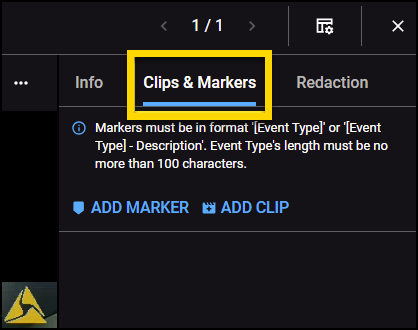
- Select Add Marker. The current position in the playback is automatically entered in the timestamp box.
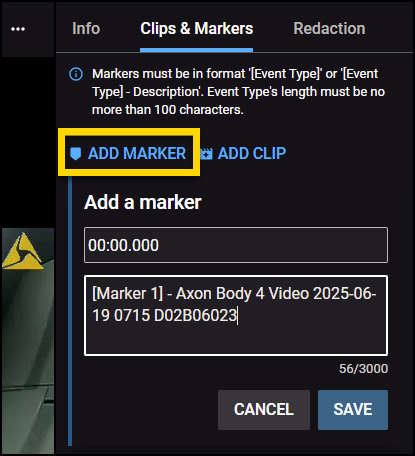
- Enter a descriptionor edit the default text:
[Marker X] - [File name or metadata details] - Select Save. The marker is added to the file and appears in the markers list.
Edit a marker
- Open the video file in Review Mode.
- Select the Clips & Markers tab.
- Locate the marker you want to edit from the list.
- Select More actions (...) on the marker tile.
- Select Edit.
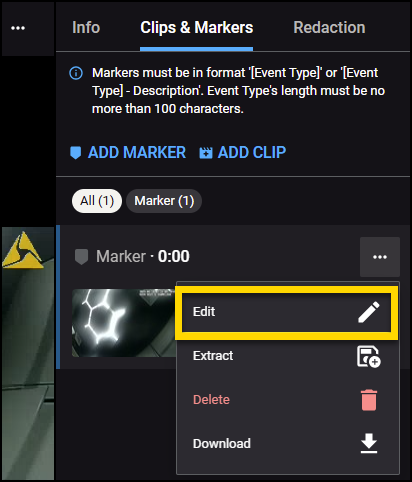
- Edit the description.
- Select Save.
Extract a marker
Markers can be extracted to create a new standalone piece of evidence.
- Open the video file in Review Mode.
- Select the Clips & Markers tab.
- Locate the marker you want to extract from the list.
- Select More actions (...) on the marker tile.
- Select Extract. The extraction starts. A new Extractions dropdown appears on the marker tile.
- Select Extractions to view the extraction progress.
After the extraction is complete, it will appear in the list under the Extractions dropdown. Select Download to save the extracted segment as a separate file.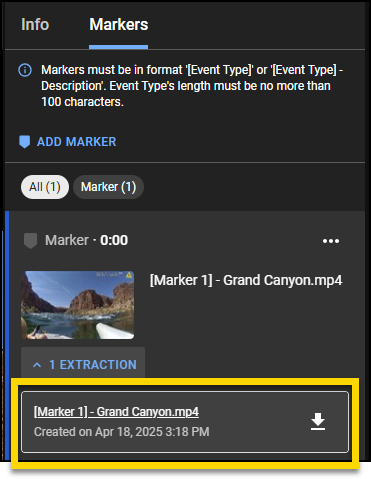
Delete a marker
- Open the video file in Review Mode.
- Select the Clips & Markers tab.
- Locate the marker you want to delete from the list.
- Select More actions (...) on the marker tile.
- Select Delete.
- On the confirmation message, select Delete to confirm.
Download a marker
A marker can be downloaded as a still image of the video frame at its timestamp.
- Open the video file in Review Mode.
- Select the Clips & Markers tab.
- Locate the marker you want to download from the list.
- Select More actions (...) on the marker tile.
- Select Download. The download starts. A JPG file is saved using the frame from the marker's timestamp.


