Use Respond
Users with Respond Live Stream permission can view the location of Axon body cameras on the Respond map in Evidence Local. While recording, Axon body cameras send location updates based on the GPS sensor in the camera. Location updates are sent every few seconds while recording and stop when the camera stops recording. The Respond map and user list update with location and markers based on when a body camera last sent a location update.
Watch this video to learn how to use Respond in Evidence Local.
- Sign into Axon Evidence Local.
- Select Respond from the top menu.
- Locate the livestream you wish to view, using one of the following methods:
- Locate active alerts: Cameras with alerts are highlighted with a red circle. Select Alert
 to center the map on active alerts, then Start Livestream.
 - Locate cameras currently recording: Select the right chevron to open the recording list. Locate the officer or vehicle you wish to view from the list, and then select Start Livestream.
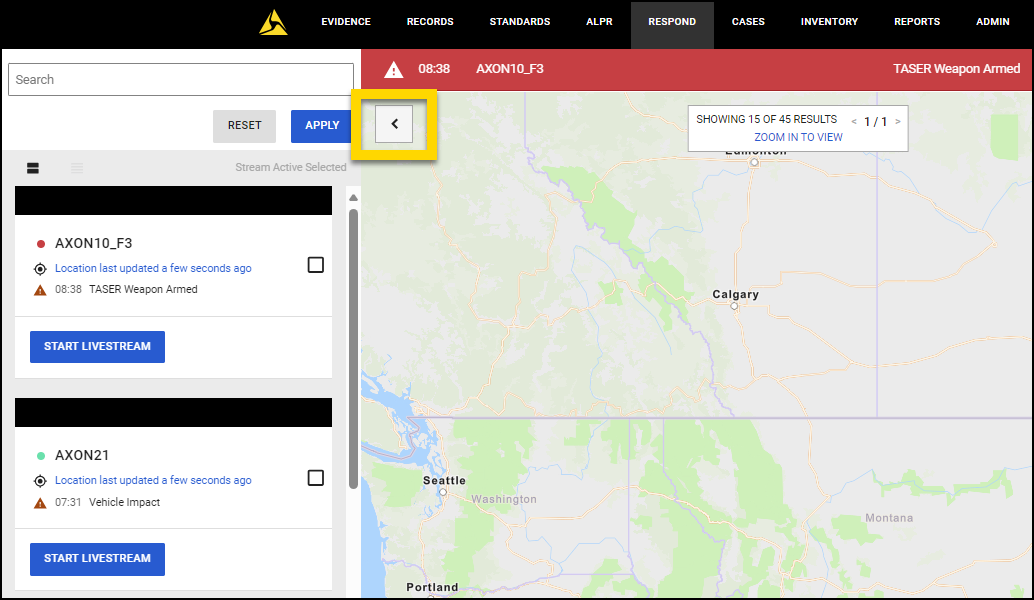
- Search for an officer or vehicle: From the recording list use the Search box to enter a name, device serial number, or badge ID, and then select Apply. Locate the officer or vehicle you wish to view from the list, and then select Start Livestream.
- Locate a livestream directly from the map: Select, hold, and drag to move around the map. Use the + or - buttons or your mouse wheel to zoom in and out. Cameras with a red dot indicate that the device is recording. Select a device, and then select Start Livestream.
- Locate active alerts: Cameras with alerts are highlighted with a red circle. Select Alert
Find your way around the livestream view
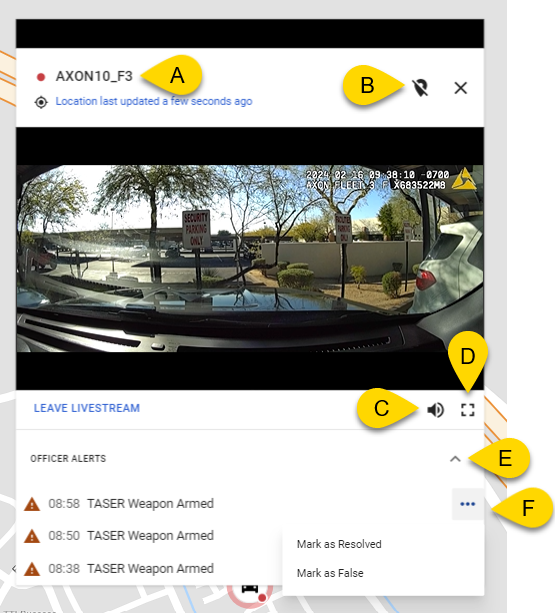
- Assigned user or vehicle name and location
- Tethered/Untethered status: Indicates whether the window is tethered to the camera marker on the map, or untethered (has been moved away from the camera marker).
- Volume control
- Full screen
- Alerts list
- More actions menu. Authorized users can mark alerts as Resolved or False. This removes the red alert dot from the device icon on the Respond map.
Navigate the Respond map
-
Select and drag to move the map.
-
Select +, -, or your mouse wheel to zoom in or out.
-
Select Zoom to Fit to zoom out to all cameras currently active on the map.
Real-time alerts
When an action is taken that is configured for notification, the information is passed to Respond as an alert or general activity notification.
Actions configured as high priority alerts send an alert in real-time and display as a banner across the top of the map. Select the banner to go directly to the map location of the alert.
Livestreaming considerations
- Livestreams can be viewed from Axon Body 4, Axon Body 3, Axon Fleet 3, and Axon Air cameras.
- Up to 25 users can view the same stream from a single camera.
- Livestreaming can affect Axon Body battery capacity, reducing charge by approximately an additional 10% for every 30 seconds of livestreaming. This also depends on other environmental factors.
- You can view up to 25 livestreams at one time.
- When a livestream is accessed, the information is logged in the user and device audit trails.


