Hotlists
Hotlists are lists of known license plates and vehicles of interest, typically stolen or associated with unlawful activity or missing persons. This article describes how to upload and add to a local, state, and federal hotlist in Axon Evidence.
Hotlists fall into the following general categories of license plates or vehicles:
- Known to be stolen.
- Known to be associated with known or potential criminal activity, such as gangs, watch lists, or known associates of criminal activity
- Having administrative issues such as unpaid car tabs or unpaid traffic fines
Watch this video for an overview of ALPR record search and hotlist management.
Types of hotlists
Different countries, states, and jurisdictions have different lists for different reasons, but they generally scrape a variety of data sources to identify important vehicles of interest. Sample hotlists include:
USA FBI or NCIC hotlists
A collection of lists of stolen automobiles or other automobiles of interest associated with known persons of interest or terrorists.
Access to NCIC hotlists is available to all law enforcement agencies nationwide, but each state has a process agencies must follow to allow ALPR system suppliers, including Axon, to gain access. There is no national standard practice for ALPR system supplier access approval, but typically it only needs to be completed once in each state. Axon will work with each agency and the respective CJIS Systems Agency (CSA) to meet the access approval requirements.
Once approved, Axon Evidence can automatically ingest the NCIC hotlist from state CJIS Systems Agency (CSA) network and push updates to active Fleet 3 systems without agency manual interaction.
State, DMV, or DOR hotlists
Some states maintain a list of vehicles of interest for various processes such as insurance violations, local stolen property lists, or known gang members.
Similar to NCIC, access to these lists are typically controlled by the state CSA and agencies wishing to use Axon ALPR to alert against these lists must follow their state's applicable ALPR vendor access approval process. Axon will work with each agency and the respective CSA to meet the access approval requirements.
Unlike NCIC, state lists vary in content and format from state to state. Integration with these hotlists requires custom API development. Work with your Axon representative to detail the technical and security/legal requirements for your state to enable these integrations.
Local BOLO or APB hotlists
Hotlists can be specific to a police agency or region within a city or county. This includes city-wide APB (All Points/Police Bulletin) or BOLO (Be On the Lookout) alerts for vehicles of interest that don't appear in the NCIC system.
Amber or Silver alert hotlists
Amber alerts for missing children are a critical safety program in the USA that notifies not only all law enforcement but also the public of the details of an abducted child and information on the vehicle involved.
Upload a local hotlist
Uploaded hotlist files cannot exceed 500,000 records and/or 50 MB, whichever comes first. Agency maximum total hotlist records is 15 million.
To upload a local hotlist:
- On the menu bar in Axon Evidence, select ALPR and then Hotlist upload.
- If you're updating a hotlist that already exists in your database, toggle Update existing hotlist on. Updating an existing hotlist will remove any records that do not appear in the uploaded file.
- If the hotlist is not already in the prescribed Axon .csv format, download the linked template file and fill it in using Excel or a similar program. File column headers are:
- Key, licensePlate, registrationState, offenseCategoryId, offensePriority, year, model, vin, color, vehicle Type, registrationDate, expirationDate, note, firstName, lastName, gender, address1, address2, city, state, zip, weight, height, eyes, and birthdate. The bold items require an entry.
- Most fields are self-explanitory, there are a few special ones:
- key – The unique record identifier within your hot list. During list upload, if the key matches a key in a list that already exists in Axon Evidence with the same list name, then that associated record will be updated in that list with the information in the newly uploaded list. If the key does not match a key in a list that already exists with the same list name, a new record is added to that list. If you are using some other database type tool to manage hotlists, each record should already have a unique key which can be used to populate this field.
- offenseCategoryId – This is a coded entry. See Offense category codes.
- offensePriority – This is a coded entry. See Hotlist priority codes.
- Enter the List name of the list you're uploading.
- Enter the List expiration date when you'd like this hotlist to expire.
- Select Choose file to attach the completed hotlist file.
- Select Submit to upload the hotlist.
Create or add to a hotlist
When selecting ALPR in the menu, users with hotlist management permissions default to the ALPR Hotlist Record Management screen.
To add to an existing hotlist:
- On the menu bar in Axon Evidence, select ALPR > Hotlist record > New.
- In the details pane that displays on the right side, enter or select the appropriate content for each field.
- In the List Name field:
- To add this record to an existing hotlist, enter a few letters and then select it from the list. Or,...
- To create this record in a new hotlist, enter a name, like "Axon" (above), then select the last entry, "Create Axon hotlist".
- The Notes field is optional. Enter any additional vehicle or vehicle-owner details you have in the Car information and Owner information sections.
- Select Submit.
Offense category codes
Following are the codes for offense category used in CSV file uploads.
| Code | Category | Code | Category | Code | Category |
|---|---|---|---|---|---|
| 0 | Other | 1 | Abandoned Vehicle | 2 | Amber Alert |
| 3 | Armed Robbery | 4 | Assault | 5 | Battery Assault |
| 6 | Capias Warrant | 7 | Car Jacking | 8 | Child Abduction |
| 9 | Deported Felon | 10 | Disorderly Conduct | 11 | Expired |
| 12 | Felony Theft | 13 | Felony Warrant | 14 | Fugitive |
| 15 | Gang Member | 16 | Hit and Run | 17 | Homicide |
| 18 | Law Enforcement Suspect | 19 | Misdemeanor | 20 | Missing Person |
| 21 | Narcotics | 22 | Prostitution | 23 | Protection Order |
| 24 | Revoked License | 25 | Sex Offender | 26 | Stolen License Plate |
| 27 | Stolen Vehicle | 28 | Suspect | 29 | Terrorist |
| 30 | Unlicensed Driver | 31 | Wanted Person | 32 | Wanted Vehicle |
| 101 | Suspended Registration | 102 | Suspended Driver | 103 | Suspended in Possession |
| 104 | Suspended with Registrant | 105 | Terminated | 106 | Stolen / Unissued License |
| 107 | Spoiled | 108 | Missing License / License Plate | 109 | Unattached |
| 110 | No Insurance | 111 | Sanctioned Driver | 112 | Cancelled/Terminated |
| 113 | Unrenewable | 114 | Expired Tag | 115 | Expired License |
| 116 | Felony Vehicle | 117 | Attempt to Locate | 118 | Used in Misdemeanor or Felony Offense |
| 119 | Reported Lost/Missing | 120 | Person of Interest | 121 | Threats to Law Enforcement |
| 122 | BOLO | 123 | HAZMAT | 124 | Stop and Hold |
| 125 | Court Action | 126 | Special Interest Person (SIP) | 127 | Prohibited |
| 128 | Suspended Plate | 129 | Plate in Poor Standing | 130 | Supervised Release |
| 131 | Protective Interest | 132 | Violent Person | 133 | Immigration Violator |
| 134 | CPIC Data Records | 135 | Gang or Suspected Terrorist | 136 | Warrants |
| 137 | Notice of Seizure | 138 | Stop & ID | 139 | Pointer Vehicle |
| 140 | Revoked Plate | 141 | Disqualified Plate | 142 | Aggravated Assault |
| 143 | Arson | 144 | Bank Robbery | 145 | Bias Incident |
| 146 | Burglary | 147 | Death Suspicious | 148 | Harassment |
| 149 | Kidnapping | 150 | Law Enforcement Purpose | 151 | Parole |
| 152 | Robbery | 153 | Sex Offense | 154 | Stalking |
| 155 | Theft | 156 | Threat to Kill | 157 | Weapons Poss/Dist |
| 158 | Terrorist Suspect | 159 | DFS Alert | 160 | Silver Alert |
Hotlist priority codes
Following are codes for hotlist priority used in CSV file uploads.
| Code | Priority |
|---|---|
| 1 | Low |
| 2 | Normal |
| 3 | High |
Alert settings
Watch this video for an overview of configuring alerts.
To disable vehicle alerts for a hotlist:
- Go to ALPR > Hotlist Files.
- Select Alert Settings
 for the hotlist.
 - Toggle off Vehicle Alert.
Fusus alerts
To start receiving alerts in Fusus, your admin can enable this setting. For more information on using Fusus alerts, see ALPR Alerts in Fusus.
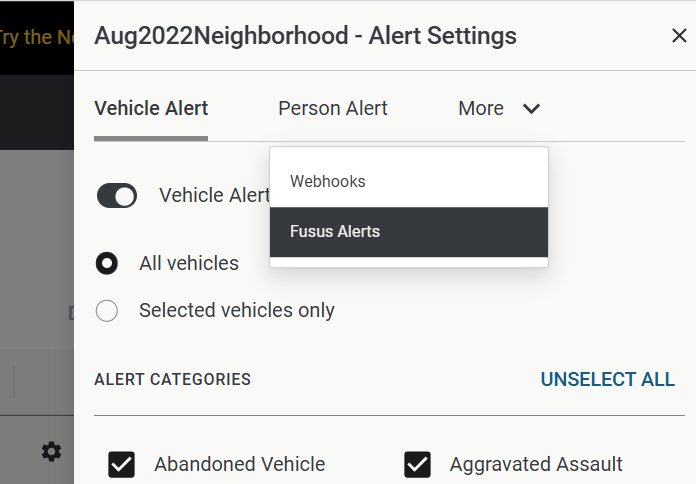
Vehicle alerts
As shown above, initially all vehicles are enabled for alerts and all enabled categories are active.
To enable or disable alerting in certain vehicles:
- Select Selected vehicles only.
- To add a vehicle, select from the Vehicles Not Alerted list to move them to the Vehicles Alerted list.
- To remove a vehicle, select from the Vehicles Alerted list to move them to the Vehicles Not Alerted list.
- If needed, scroll down to add or remove alert categories.
- Save your changes.
Person alerts
Your admin can choose to alert a specific person or user group.
- Toggling on Person Alerton the Person Alert tab.
- Add people or user groups by entering a name in the Search People field.
- Select the Alert Categories this person or user group should be alerted for.
- Save your changes.
By default, initially no persons or categories will be active.
To stop alerting specific users or user groups, select the X.
Alert email notification
When a license plate of interest it detected, all users on the alert list will receive an email with details specific to their role and agency:
Hotlist management
Delete a hotlist
- Select ALPR > Hotlist Files.
- Check the box of the hotlist(s) to delete.
- Select Delete at the top, then again in the confirmation dialog box.
You can't delete an NCIC hotlist.
View hotlist details
To view update history for a selected hotlist, select ALPR > Hotlist Files, then select the hotlist.
Status indicators
To view hotlist upload status and history or access error reports for user hotlists, select ALPR > Hotlist Files, then view the status report next to the hotlist. There are three types of hotlist status:
- Pending
- Failed
- Completed with errors


