General FAQs - Fleet 3
Does Fleet 3 require a Mobile Data Computer/Terminal (MDC/T)?
No. Activate Fleet 3 cameras by Signal triggers or manually pressing buttons on the back of the Dual-View camera. After you press stop, videos automatically upload to Axon Evidence as Wi-Fi or LTE connectivity allows.
How do you stop the interior camera if it doesn't have a button?
The interior camera has no button because it is out of reach of the officer; this also prevents a detainee from stopping it. Use the secondary button on the right of the Dual-View camera to start or stop recording of the interior camera.
What recording capacities are available and can they be upgraded?
Fleet 3 has two hub models. Standard capacity hubs support 74 hours of video and 24 hours of video recall per camera at 720p resolution.
What are the available resolutions for video recording?
See the table in Recording.
What parts of Fleet 3 are configurable?
The operator of the vehicle may adjust:
- Volume of camera sounds
- Brightness of the LED
- Mute mode
- Stealth mode
The agency administrator can configure things like:
- Activation triggers
- Video resolution
- Pre-roll buffer (0–120 seconds, audio on or off)
- Video upload method (LTE or Wi-Fi)
- Signal triggers (12V inputs, speed, motion, devices)
- Video Recall (On or Off)
What recording capacities are available for Fleet 3 and are these upgradable?
What camera configurations are available?
Standard configuration is a Dual-View camera facing forward and an interior camera in the rear partition facing the occupant. Fleet 3 can support up to three additional cameras.
Does Fleet 3 support prisoner transport van configurations?
Yes. Fleet 3 supports up to five total cameras for full coverage of the van. It can operate without an MDC via Axon Evidence vehicle assignment. Use of the Fleet 3 Dashboard app is optional.
Are Fleet 3 cameras compatible with the Fleet 2 or Fleet 1 system?
No. Fleet 3 cameras require the Fleet 3 Hub to operate.
Fleet 3 contains a "Dual-View camera"; are both lenses in the camera recording video all the time?
No. The wide-angle camera captures a 160⁰ Field of View (FoV) image. The high resolution 4k camera with a 60⁰ FoV is used for ALPR to capture plate reads even when the wide-angle camera is recording video.
How do I start a recording?
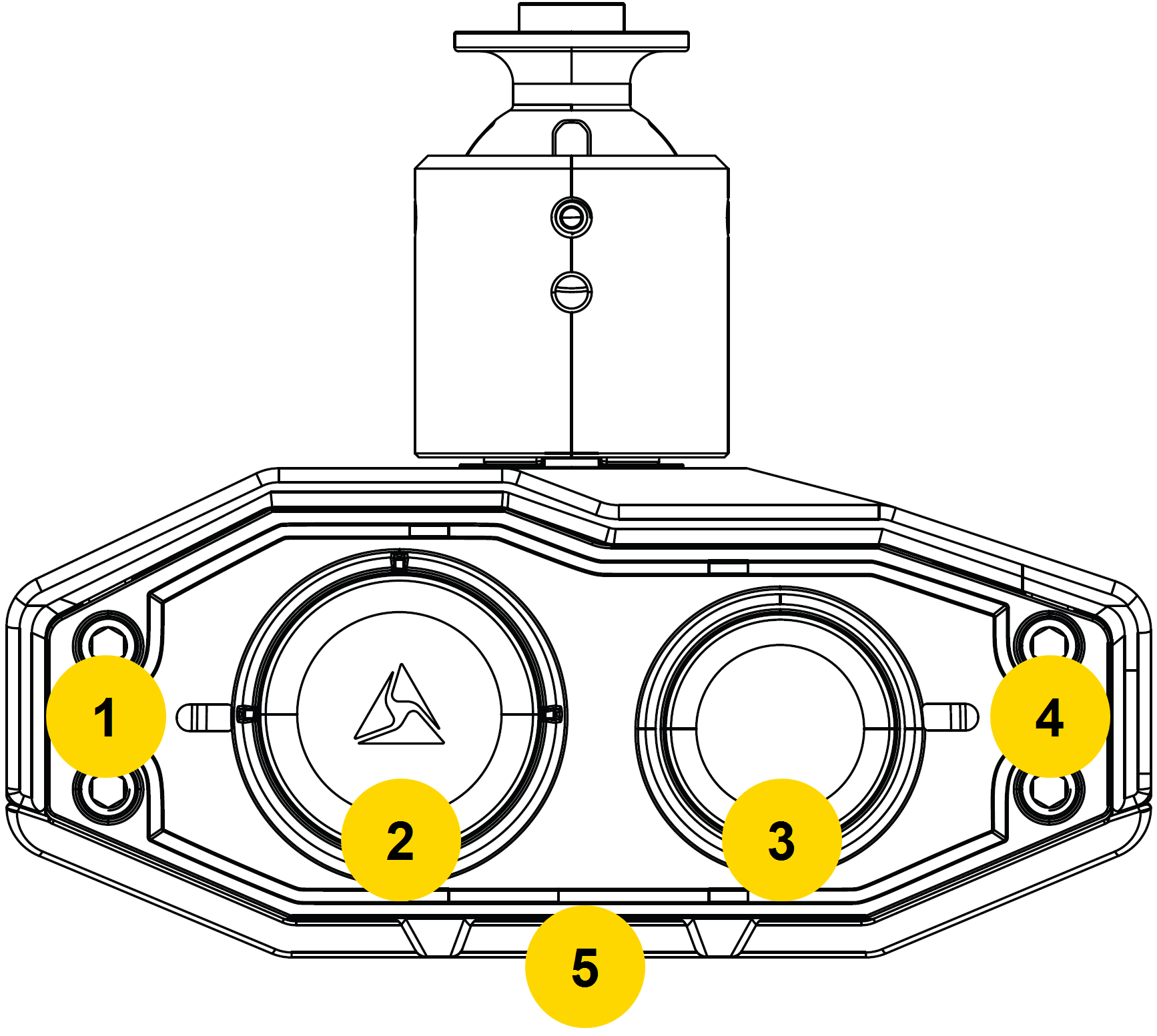
The simplest method is to press one of the buttons on the Dual-View camera. The left primary button activates the Dual-View camera and the right secondary button activates the interior camera. The Dashboard app has buttons to control recording of all connected cameras either individually or all-together. Various triggers can be configured to automatically start recordings, such as light bar activation, vehicle speed, or Signal.
|
|
How does Fleet 3 perform in low light?
Fleet 3 camera auto-exposure adjusts to wide range of lighting conditions. Image quality in low light conditions will exceed Fleet 2 video. The interior camera has an infrared illuminator so people and objects can be seen in monochrome in complete darkness. Low-light capture is dependent on multiple factors, including headlight brightness, rain on the windshield, the angle of the vehicle's approach, and speed. Very generally, if you can see it with your eyes, so can the Fleet 3 camera.
How does Fleet 3 video compare to previous Fleet products?
Fleet 3 camera video performance meets or exceeds that of Fleet 2. Moving objects will have less motion blur and the interior camera will have color video in light conditions.
What components make up the system?
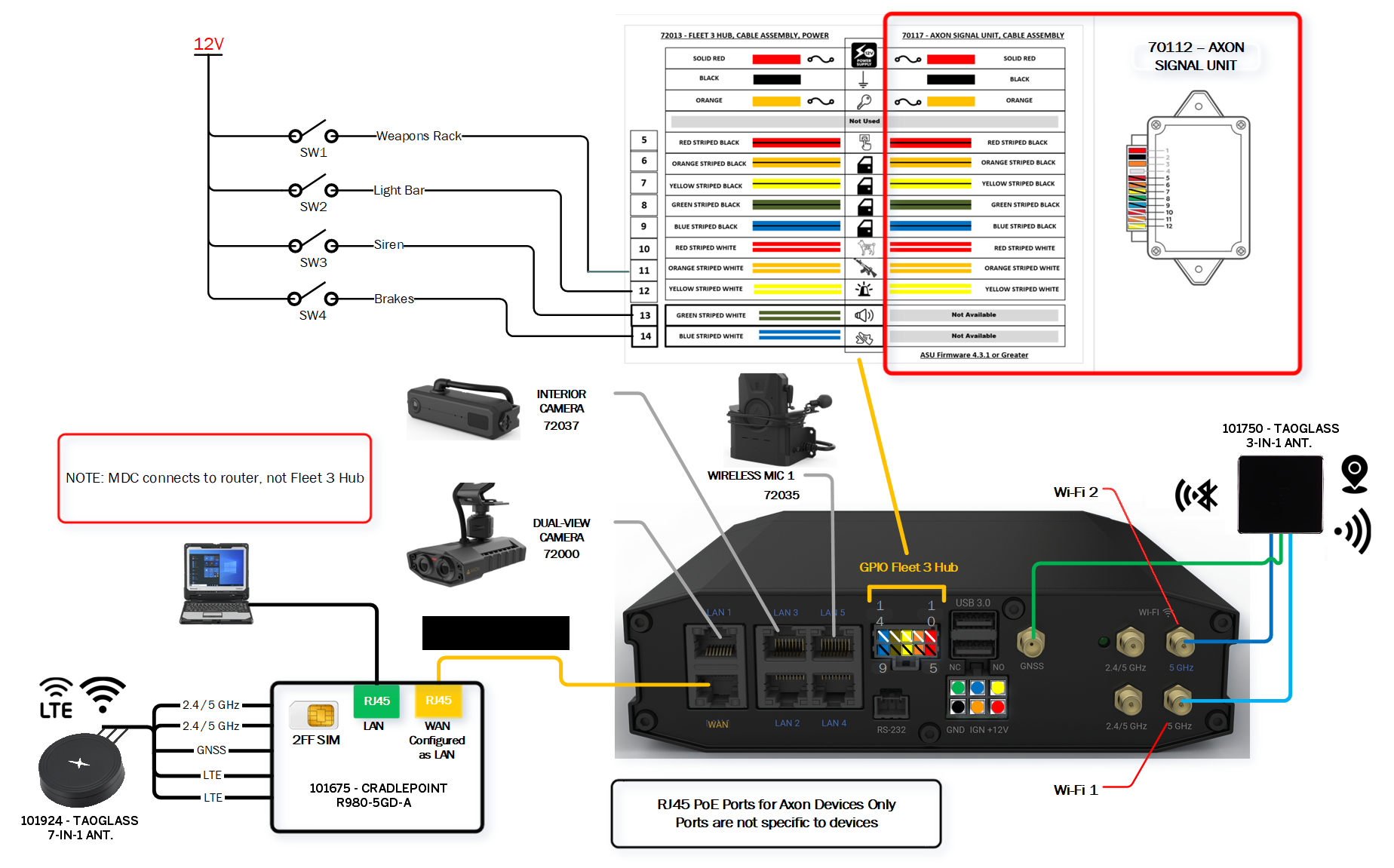
- Fleet 3 includes a Dual-View camera and an interior camera connected to the Fleet Hub.
- The hub and MDC are connected to a Cradlepoint router.
- Antennas and triggers are connected to the hub and the router.
- An ASV is included for body-worn camera integration.
- A wireless mic with charging base is available.
- Connect a mix of up to five cameras and two wireless mic charging bases to the hub, for a total of five devices.
Why did Fleet 3 move from Wi-Fi to Power over Ethernet (PoE) connections?
The camera needs wired power and therefore there is no installation benefit by avoiding wires for communications. Fleet 1 and Fleet 2 systems experienced connection issues in some vehicles due to wireless interference. Using standard CAT6 ethernet cable for power and communications provides a reliable connection to the camera for high-speed data transfer, improves ease of installation, and eliminates wireless connection issues.
Do I need a router?
Yes, Axon Fleet 3 requires an in-vehicle router to function. The Dashboard app communicates with the Fleet 3 system over the router's local network, while the router uses its WAN interface to connect to Axon Evidence via cellular (LTE/5G) or Wi-Fi. The Dashboard app can connect to the router via Ethernet for Windows 10/11 MDC devices and either Ethernet or Wi-Fi for mobile devices.
We recommend using a Cradlepoint router, as several models are validated for optimal performance. Contact your account representative for the latest list of compatible routers. Routers from other vendors may require specific configurations or have limitations that could affect Fleet 3 functionality.
Customers using an APN or VPN might need additional configurations, such as firewall exemptions.
Can we use our existing antenna?
Maybe, but Fleet 3 performance has been validated and will only be supported with the included antenna.
Can we use our existing MDC?
MDCs compatible with Fleet 2 are compatible with Fleet 3. We recommend using a Windows 10 or 11 MDC with Fleet 3. MDCs require 500MB of memory, 4 GB of RAM, and an ethernet port to connect to the router.
Can we connect to the MDC to the router using Wi-Fi similar to Fleet 2?
Though an ethernet cable is preferred for its high reliability, an MDC can also use Wi-Fi to connect with the router. Configure it to use a Wi-Fi radio frequency (5 or 2.4 GHz) different from agency Wi-Fi access points (APs) used by Fleet 3. When using a Wi-Fi connection between MDC and router, it's possible the MDC prioritizes the connection to an AP outside the vehicle, leading to a loss of communication between the hub and Dashboard. If this happens, use Windows to manually select the in-car router network. This will let the Dashboard application re-establish its connection with the hub.
Can we use our iOS/Android devices?
Fleet 3 supports Windows, tablets, and mobile phones. Find device-specific Dashboard help topics at https://my.axon.com/s/axon-fleet3 as they become available.
What features use LTE/Wi-Fi connectivity?
Fleet 3 uses the router to access the internet via Wi-Fi or LTE. These features use LTE when Wi-Fi is unavailable:
- Dashboard app login
- Configure vehicle
- Synchronize time
- Download and apply settings
- Video live streaming
- Live vehicle status updates, including location
- ALPR hotlist updates
- ALPR hotlist aware notifications
These features can be configured to only use Wi-Fi to reduce LTE usage:
- Download and install updates
- Evidence upload
What features are available when I have no LTE SIM?
All features listed in the prior FAQ are available over Wi-Fi, but the power of ALPR and Respond comes from LTE coverage throughout the patrol area.
Can Fleet 3 use the LTE SIM in the MDC?
No. Fleet 3 relies on the router to connect to the internet and the hub cannot access the internet using the SIM in the MDC. If the SIM is in the MDC and there is no SIM in the router, all the above features will only work when the router has internet access over Wi-Fi.
Does Fleet 3 support relay outputs?
Yes, the Fleet 3 Hub has relay control ports for relay outputs.
What are the USB and RS-232 ports for on the Fleet 3 Hub?
The USB and RS-232 ports are for future expansion.
What is the maximum length of a video?
Fleet 3 videos have a maximum length of six hours. If a recording exceed this time, Fleet 3 will continue the recording on a new video. Avoid recording videos of extreme length as they can become time-consuming to upload and work with.
If no user is signed into the Dashboard when video is uploaded, who is the video assigned to in Axon Evidence?
The last officer signed in is assigned as the Uploaded By user.
Troubleshooting ï this topic ð Signal FAQs
Last modified - 19 February 2026


