Form One
Form One is Axon’s AI-powered form assistant that helps users complete report forms faster. It is available to trial for all US-based AI Era Plan customers who use web-based forms and reporting systems. Contact your Axon representative if you are interested in trialing Form One.
Currently, Form One is an early-access feature. As such, functionality will change rapidly and may not be completely reliable at all times.
Form One analyzes various sources to generate suggested content for web-based form. Users can review and insert these suggestions into their forms and submit them. Sources Form One can use include:
- Body-worn camera footage from Axon Evidence
- Narration created in Form One
- Scanned driver's licenses in Form One
- Capturing information from another window on your device (e.g., a screen from CAD)
Form One is a browser extension that can be downloaded from the Google Chrome Web Store and used with most web-based forms.
This guide explains how to download the extension, log in to your Axon Evidence account, and use Form One to complete your forms.
Download the browser extension
The Form One browser extension is hosted on the Google Chrome Web store, but it can be installed either for Google Chrome or Microsoft Edge browsers.
Google Chrome
To begin using Form One in Google Chrome, download the browser extension:
- Open a Google Chrome web browser and go to the Axon Form One extension in the Google Chrome Web Store.
- Select Add to Chrome.
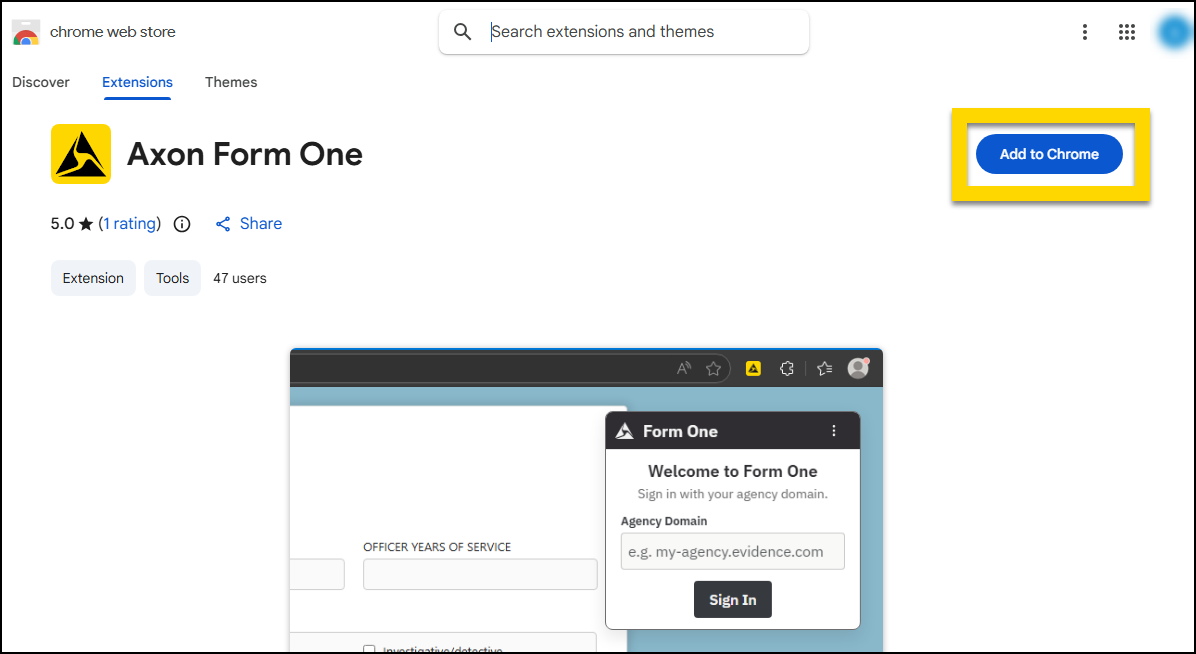
- In the confirmation message that appears, select Add extension.
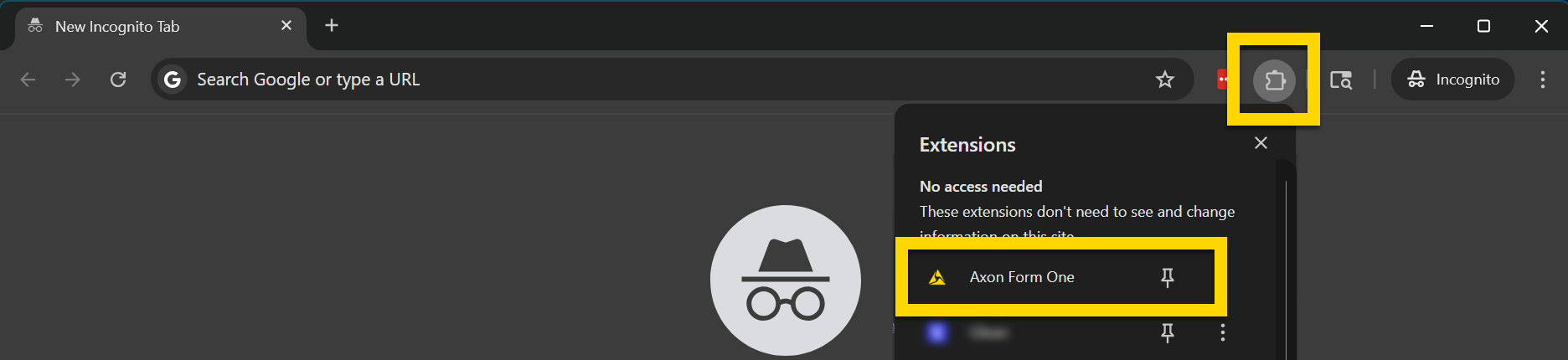
- You can pin the extension to your browser bar so it is easily accessible:
- Select the puzzle icon to the right of the URL bar.
- Select the pin icon beside Axon Form One.
- See the Google Chrome documentation for additional instructions on managing browser extensions.
Microsoft Edge
To begin using Form One in Microsoft Edge, download the browser extension:
- Open a Microsoft Edge web browser and go to the Axon Form One extension in the Google Chrome Web Store.
- Microsoft Edge users can still download this extension from the Google Chrome Web Store.
- Select Get.
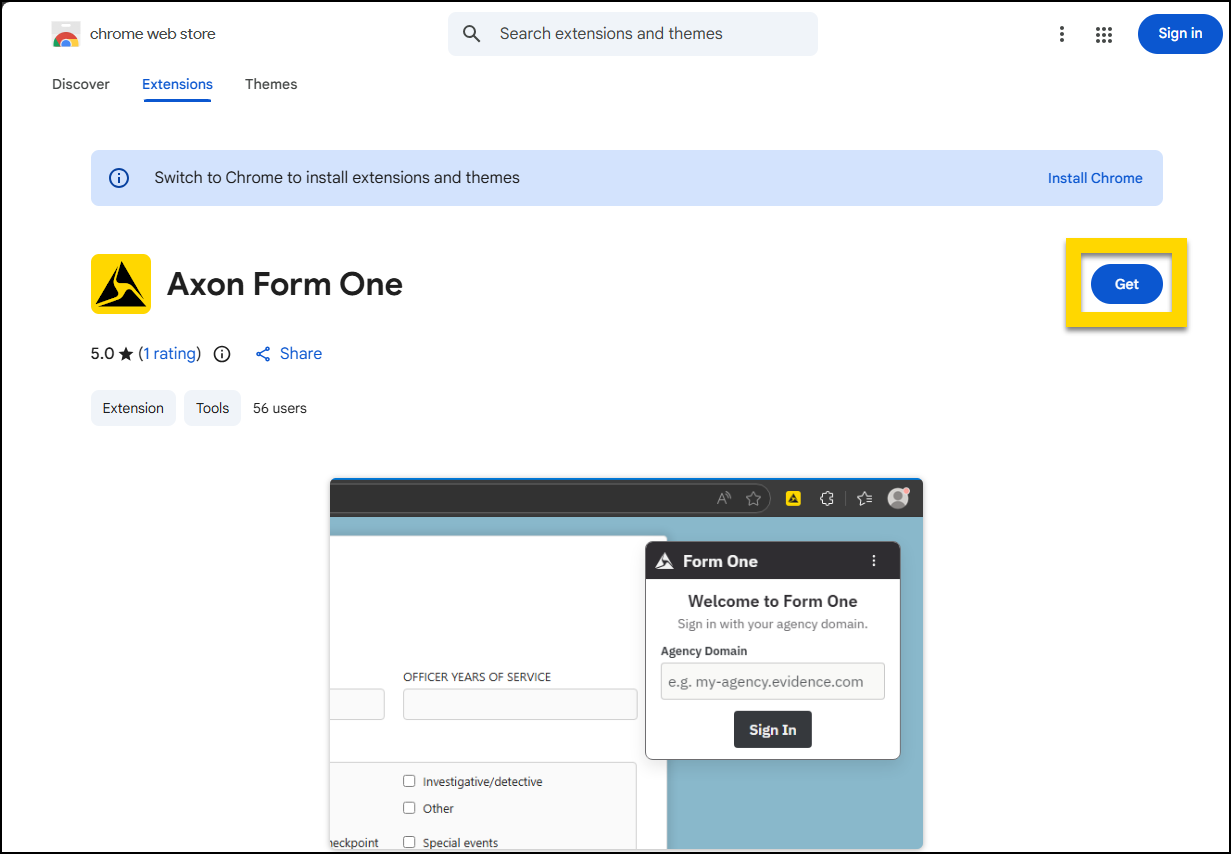
- In the confirmation message that appears, select Add extension.
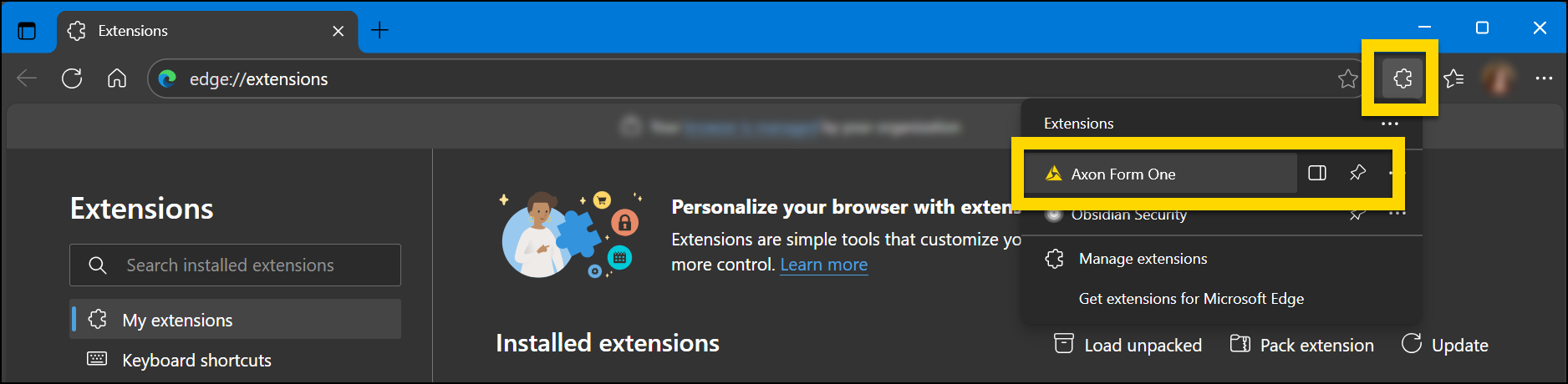
- You can pin the extension to your browser bar so it is easily accessible
- Select the puzzle icon to the right of the URL bar.
- Select the pin icon beside Axon Form One.
- See the Microsoft Edge documentation for additional instructions on managing browser extensions.
Grant microphone and camera access
To use Form One’s narration, screen capture, and ID scan features, you must grant access to your device’s microphone and camera. To do this:
- In your browser toolbar, right-click on the Form One icon and select View web permissions.
- Change the Camera setting to Allow.
- Change the Microphone setting to Allow.
Log in to Axon Evidence
To use Form One, you must open the extension and log in to your Axon Evidence account:
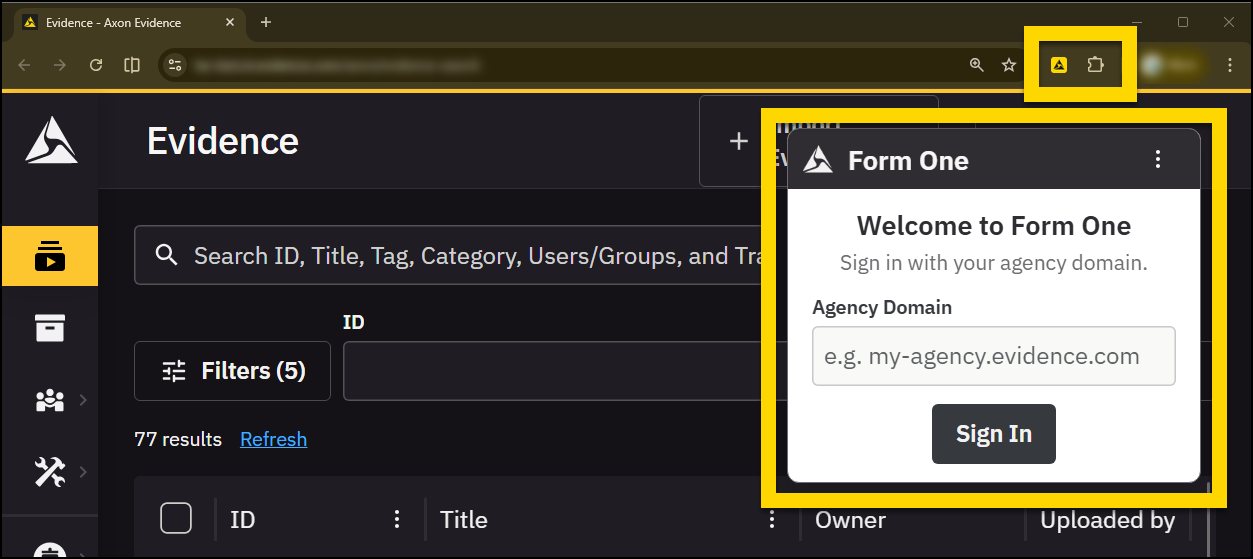
- Select the Form One extension icon that appears to the right of your URL bar.
- If you haven't pinned the extension, instead select the puzzle piece icon to reveal the list of extensions installed on your browser.
- When the Form One panel appears in the top right corner of your screen, enter your organization's Axon Evidence domain, which ends in "evidence.com", and select Sign in.
- Enter your username and password, and select Sign in again.
- Once you have signed in, open a form and start using Form One.
Open Form One
Once you are logged in to Form One, if you open a web page that contains a form, Form One opens on the right side of your screen. If Form One does not open, you can start it manually by selecting the Form One icon in your browser bar.
If no form fields are detected on the page, Form One will not open.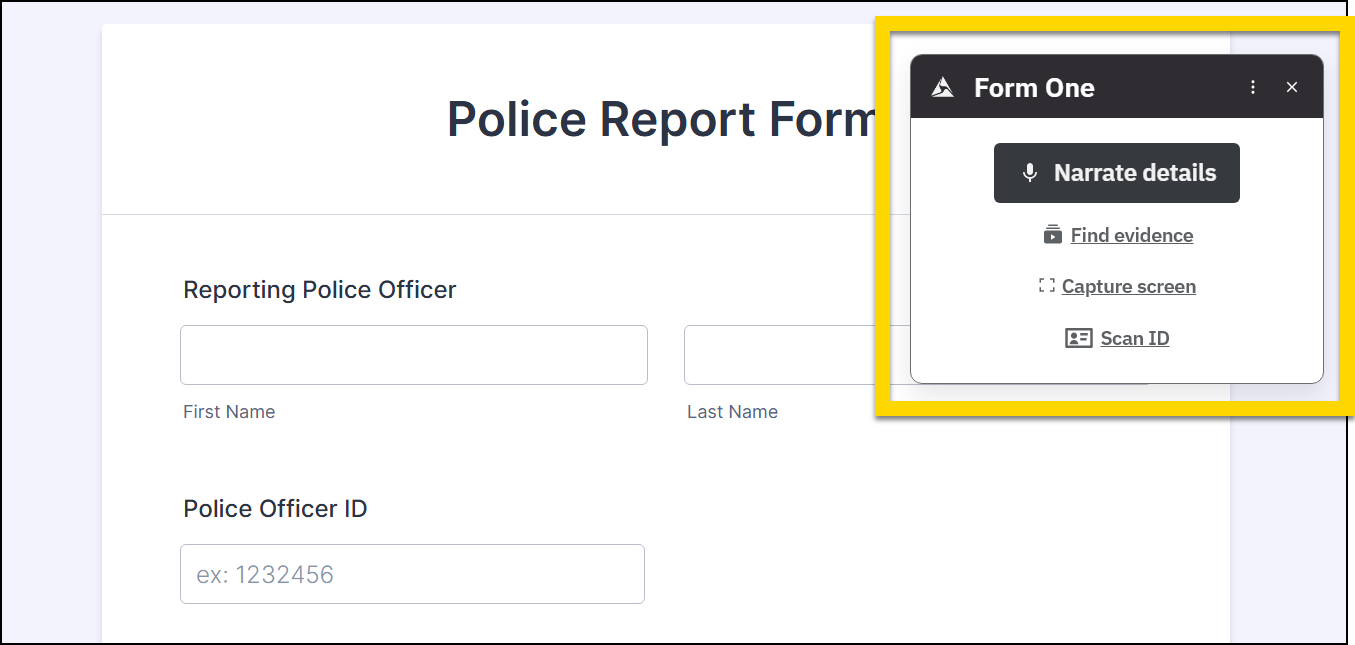
Select sources
Form One can use various different sources to generate suggestions, including:
- Evidence from Axon Evidence
- Narration
- Captured information from another window on your device (beta feature)
- Scanned driver's licenses (beta feature)
After adding one of these source types, you can continue to add additional sources. Form One's list of suggestions grows with each source you add. You can insert these suggestions in bulk or one at a time. See Review and insert suggestions.
Find evidence
To use evidence that has been uploaded to Axon Evidence as a source for Form One’s suggestions, select Find evidence.
- Only items marked as Available in the Status column can be used.
- Available items are evidence files that have been uploaded to Axon Evidence and had a transcript generated.
- Files with poor audio quality are marked with a File not recommended label. You can still use these files, but the quality of Form One’s suggestions may be impacted.
- You can switch between the tabs to find the right piece of evidence:
- Suggested: Contains all evidence you have recorded and uploaded in the past 24 hours.
- Search: Lets you search for a specific piece of evidence
- Selected: Selected items appear on this tab for easy review
- Select the arrow to expand the row and view a media player for that file.
Select Continue after choosing one or more pieces of evidence.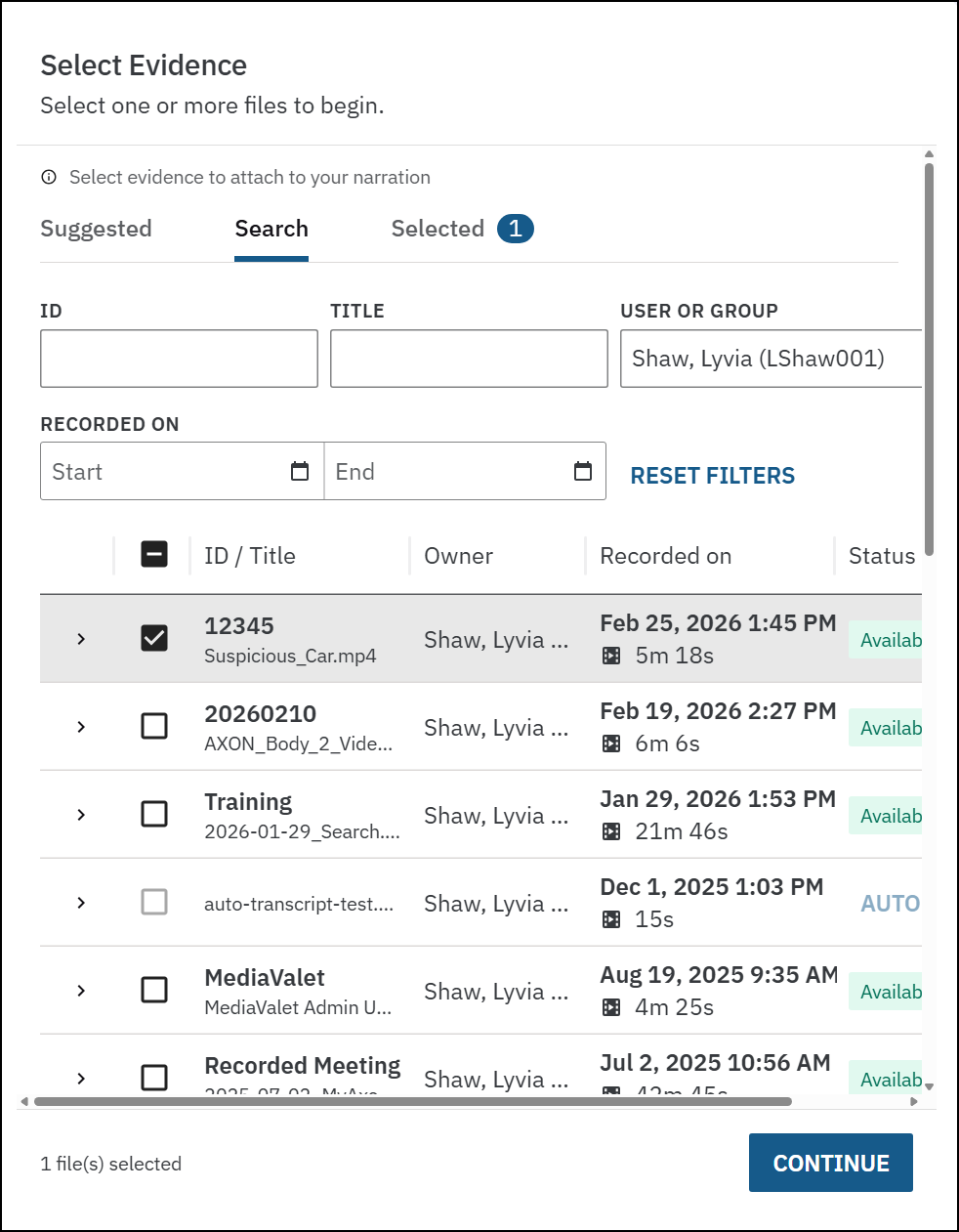
Review and insert suggestions
Form One processes the transcripts for the evidence items you selected and compares them to the fields it has detected in your form. It displays a count of suggestions you can insert into the fields in your form.
After using Form One, it is YOUR responsibility to carefully review the suggestions. Do not assume they are complete and accurate.
Scroll down through the form to review the suggestions. Each field containing a suggestion is displayed with a color bar along the left side of the field. The text of the suggestion is overlaid on the field in a gray, italic text. Note that these suggestions are a preview and have not actually been inserted into the form yet.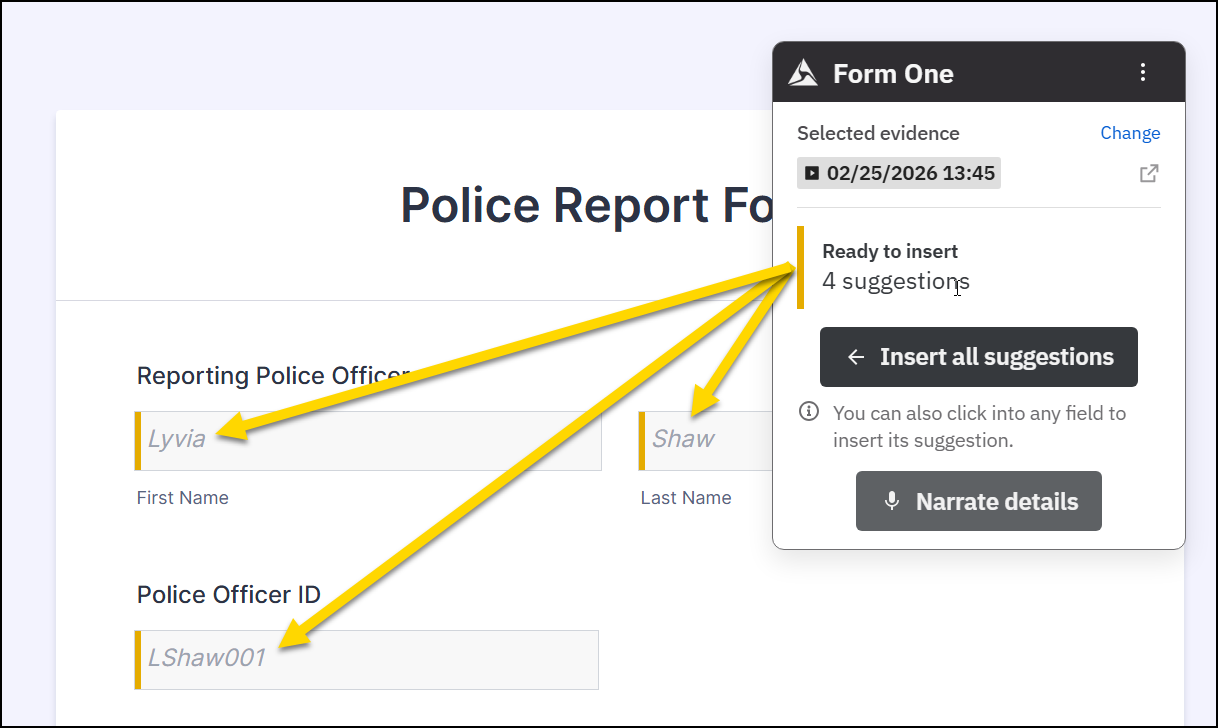
When you click into a field in the form that contains a suggestion, a window appears below that field and lists the suggestion for the field as well as where that suggestion came from (narration, the evidence item you selected, your Axon Evidence user profile, etc.). Select Insert (or press ENTER on your keyboard) to insert that suggestion, or select Reject (or press ESC on your keyboard) to delete that suggestion.
You can also quickly insert all suggestions by selecting Insert all suggestions in the Form One panel.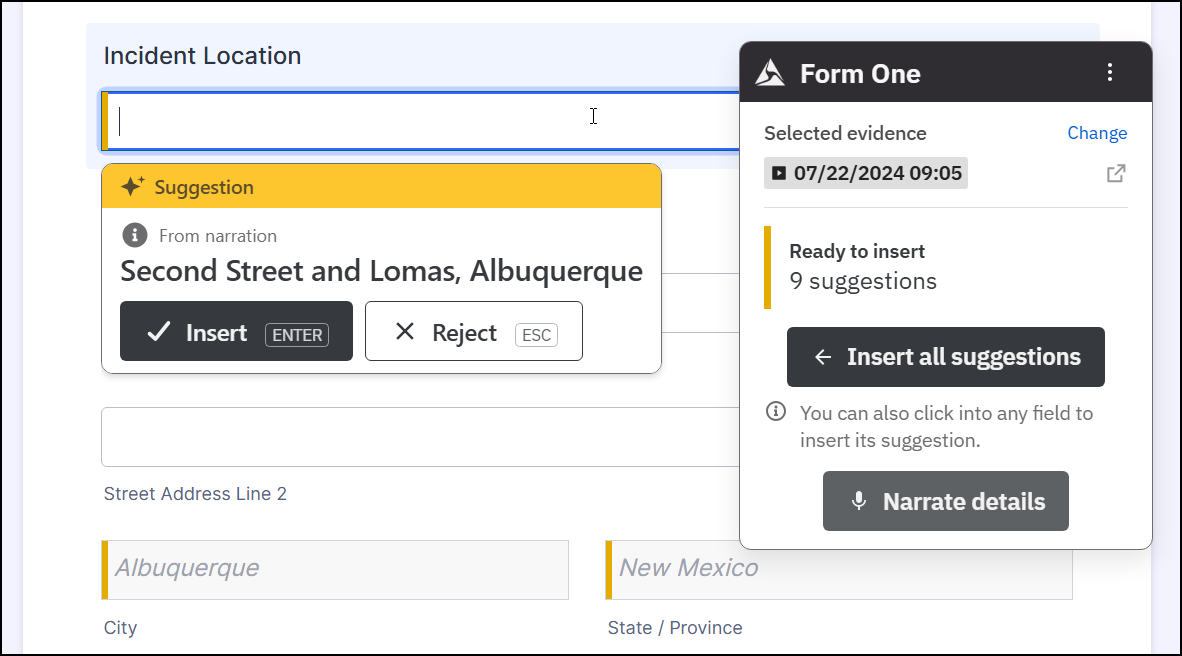
Change, add, or view evidence
To change which evidence items Form One uses, select Change in the Selected evidence area. To open the Evidence details page for one of your selected evidence items, select the arrow icon. Axon Evidence opens the evidence details page for that evidence item in a new tab.
You can only remove an evidence item if you exit Form One, then reopen it and start over.
Narrate
At any point, including after you have selected other evidence sources or inserted suggestions, you can provide additional details for more fields that don't have suggestions, select Narrate details. You can then speak out loud while Form One records to provide additional information. When you are finished, select Stop narration.
Capture screen
You can copy all information displayed on another screen and use it in Form One by taking these steps:
- In the Form One page, select Capture screen.
- Choose what to share with Axon Form One. You can select:
- A specific tab
- A window
- Your entire screen
- Form One will capture whatever information is available on the tab, window, or screen you selected and generate suggestions.
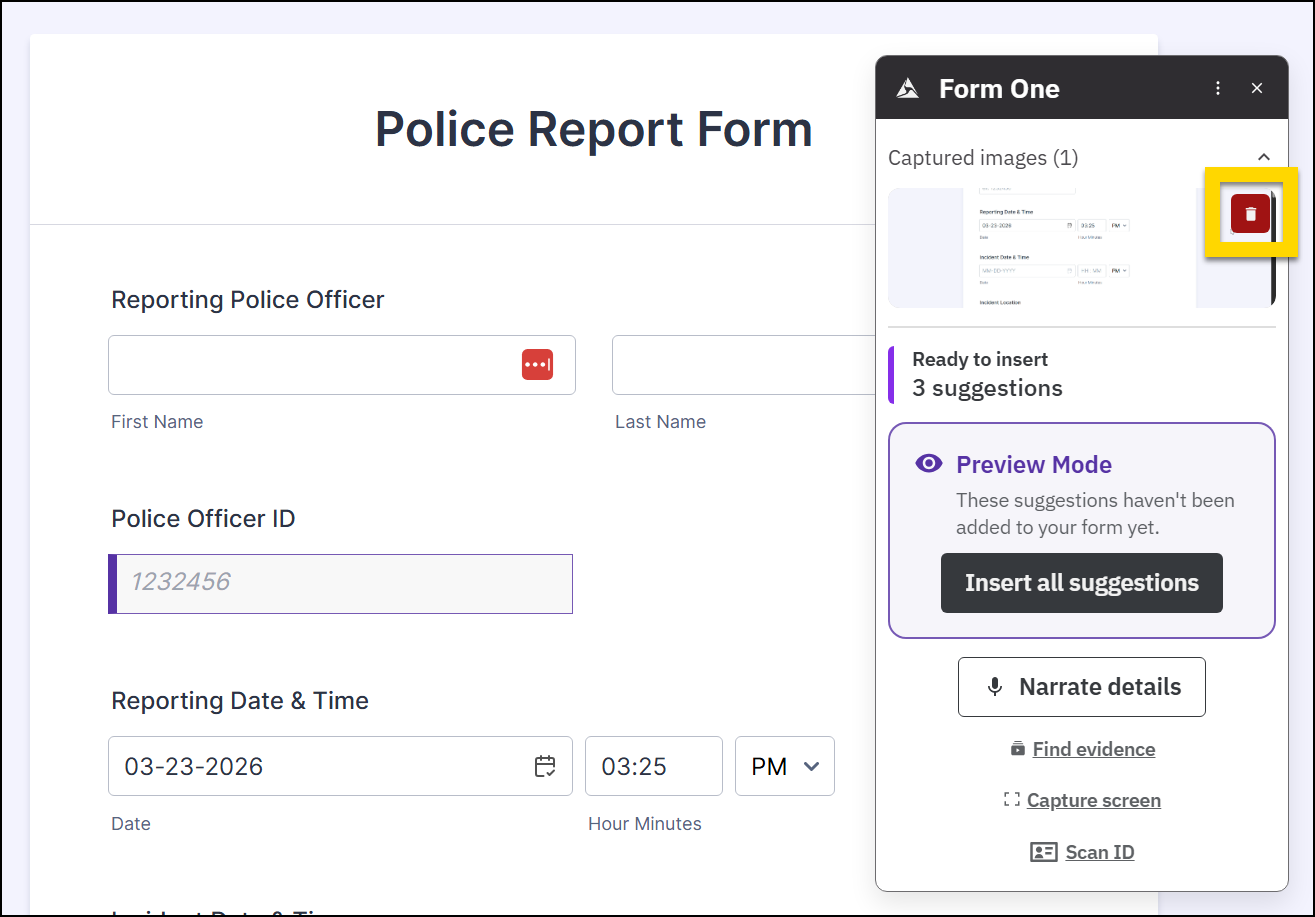
- You can remove a screen capture from Form One's list of sources by selecting the trash can icon.
Scan ID
To add a person's driver's license to Form One, select Scan ID, and hold the front of the license up to your device's camera. You can use this feature to quickly auto-fill person-related fields in a form, such as NCIC search query fields or person information in a Stop form or incident report.
This is a beta feature that is undergoing continual improvement. Form One may not always be able to scan IDs reliably.
Review and insert suggestions
Form One processes the sources you have selected and compares them to the fields it has detected in your form. It displays a count of suggestions you can insert into the fields in your form.
After using Form One, it is YOUR responsibility to carefully review the suggestions. Do not assume they are complete and accurate.
Scroll down through the form to review the suggestions. Each field containing a suggestion is displayed with a color bar along the left side of the field. The text of the suggestion is overlaid on the field in a gray, italic text. Note that these suggestions are a preview and have not actually been inserted into the form yet.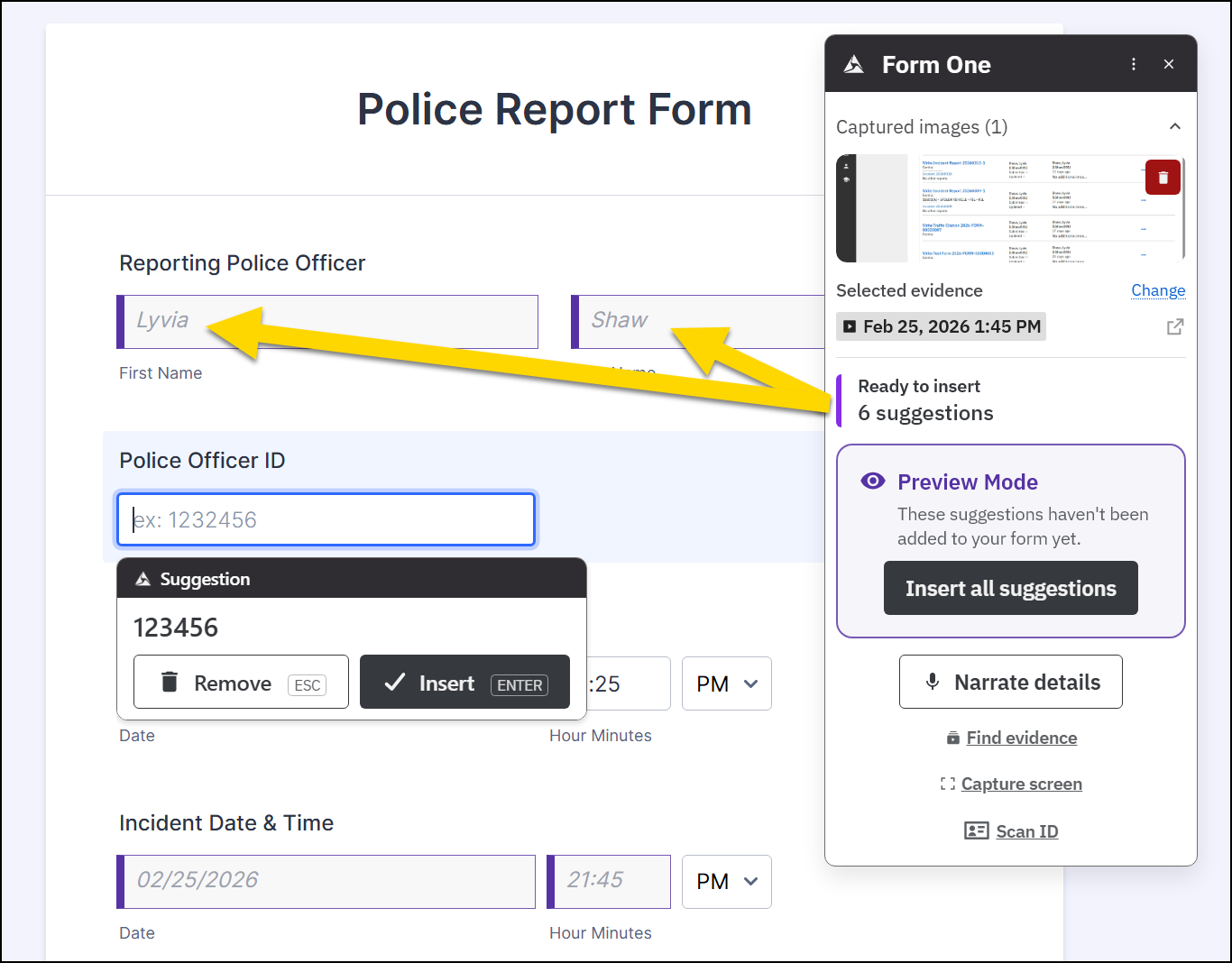
When you click into a field in the form that contains a suggestion, a window appears below that field and lists the suggestion for the field as well as where that suggestion came from (narration, the evidence item you selected, your Axon Evidence user profile, etc.). Select Insert (or press ENTER on your keyboard) to insert that suggestion, or select Reject (or press ESC on your keyboard) to delete that suggestion.
You can also quickly insert all suggestions by selecting Insert all suggestions in the Form One panel. You can continue to add additional sources, even after you have inserted suggestions.
If you want to use Form One’s suggestions, be sure to actually insert them into your form. If you leave the page or submit your form while the suggestions are still in Preview Mode, the suggestions are not actually inserted into your form.
Close Form One
To close Form One, select the x icon in the top right corner of the Form One pane. If you have already inserted Form One’s suggestions into the form, they will remain.
You can always re-open Form One again by selecting the Form One icon in your browser bar. However, any sources (evidence, narration, etc.) that you originally added will not re-appear, and you must add them again.
Move Form One
Form One opens by default in the top right corner of your screen. However, its location may block your form's content. Hover over the black bar at the top of the Form One panel and note that your mouse cursor changes from a pointer icon to a hand icon. Click on the black bar and drag Form One anywhere on your screen.
Use Form One more actions
Additional Form One actions can be found in the More actions [...] menu that appears in the top right corner of the panel:
- Provide feedback: Axon greatly values your feedback and will use it to continue to improve the product.
- Don't show Form One on this site: Stop Form One from appearing on that web page, including any other time you visit it in the future.
- You can always re-activate Form One for the page by opening Form One and selecting More actions [...] > Show Form One on this site.
- Exit Form One: Removes all suggestions from the form and closes Form One.
- If you typed in any fields, that text will NOT be removed.
- Sign out: Signs you out of your Axon Evidence account. Form One can't be used until you sign back in.


