ALPR search
This article explains how to run an ALPR (Automatic License Plate Recognition) search in the Axon Fusus platform. You can start from the map or the menu:
Option 1: From the map
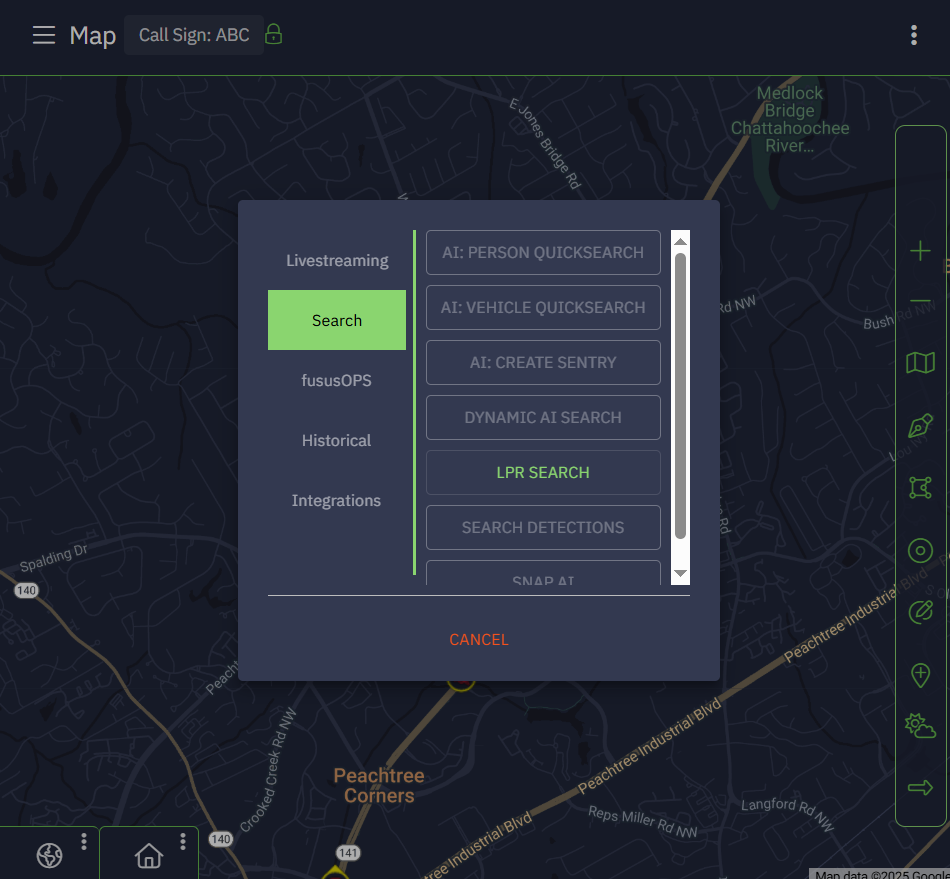
- Use a drawing tool from the right menu to draw a region on the map. A menu appears.
- On the menu, select Search and then select LPR Search.
- Under Quick Search, enter a reason and relevant search terms. The Search button remains grayed out until a reason is entered.
- You can filter your search by time and vehicle details. After entering your criteria, select Search.
- By default, all relevant results are displayed. You can filter them as needed.
Option 2: From the menu
- In the top navigation bar, select the menu, then select LPR. The LPR menu opens.
- From the LPR menu, select ALPR Search. Select anywhere on the screen to hide the menu and reveal the Quick Search options.
- Under Quick Search, enter a reason and relevant search terms. The Search button remains grayed out until a reason is entered.
- You can filter your search by time and vehicle details. After entering your criteria, select Search.
- By default, all relevant results are displayed. You can filter them as needed.
Filtering and viewing search results
After running an ALPR search, all results are shown by default. You can refine these results using several tools:
- Use the controls in the upper-right corner to:
- Toggle between Grid and List view
- Select Show Map to view a geolocation of the ALPR results on a visual map
- Select a result to:
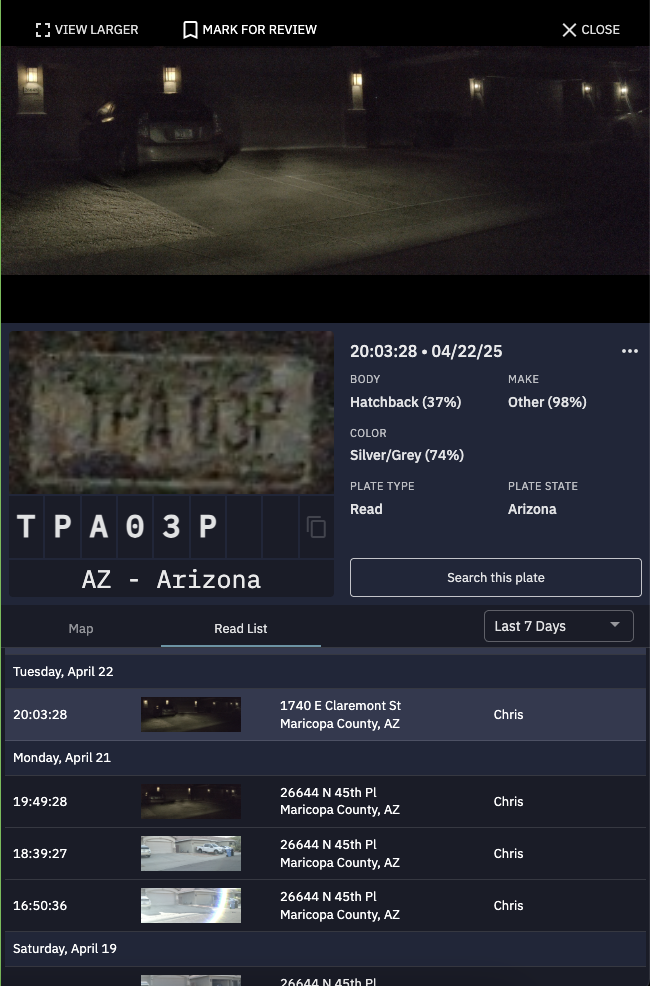
- View detailed information
- Select Search this Plate to run a new search with the specific plate as a search parameter
- Select View Larger to see an expanded image of the vehicle
- Select the Map tab to see where the image was captured
- Select the Read List tab to see a list of all the places the vehicle was recorded
| Note | Not all providers offer the same options. For example, vehicle color is an attribute that may come from Axon Fleet 3, but not from Axon Outpost. If there is an unsupported search term, an orange icon appears next to the provider. Selecting the provider shows the unsupported search term. |

Wildcard searches
Wildcard searches are supported for partial plate searches using LPR data stored within your agency’s Axon Fusus environment, including any Hits or Reads received through webhook integrations.
| Note | Wildcard searches are not supported for data access through partner-read integrations via API. |
Supported wildcard formats
Use asterisks (*) or question marks (?) as wildcards when performing partial plate searches. Use the question mark for a single character and the asterisk for multiple characters:
- ABC*: Matches plates that start with “ABC”
- *ABC: Matches plates that end with “ABC”
- *ABC*: Matches plates that include “ABC” anywhere in the string
- ABC12?: Matches plates that start with “ABC12” and have an unknown ending character
Hotlist hit alerts
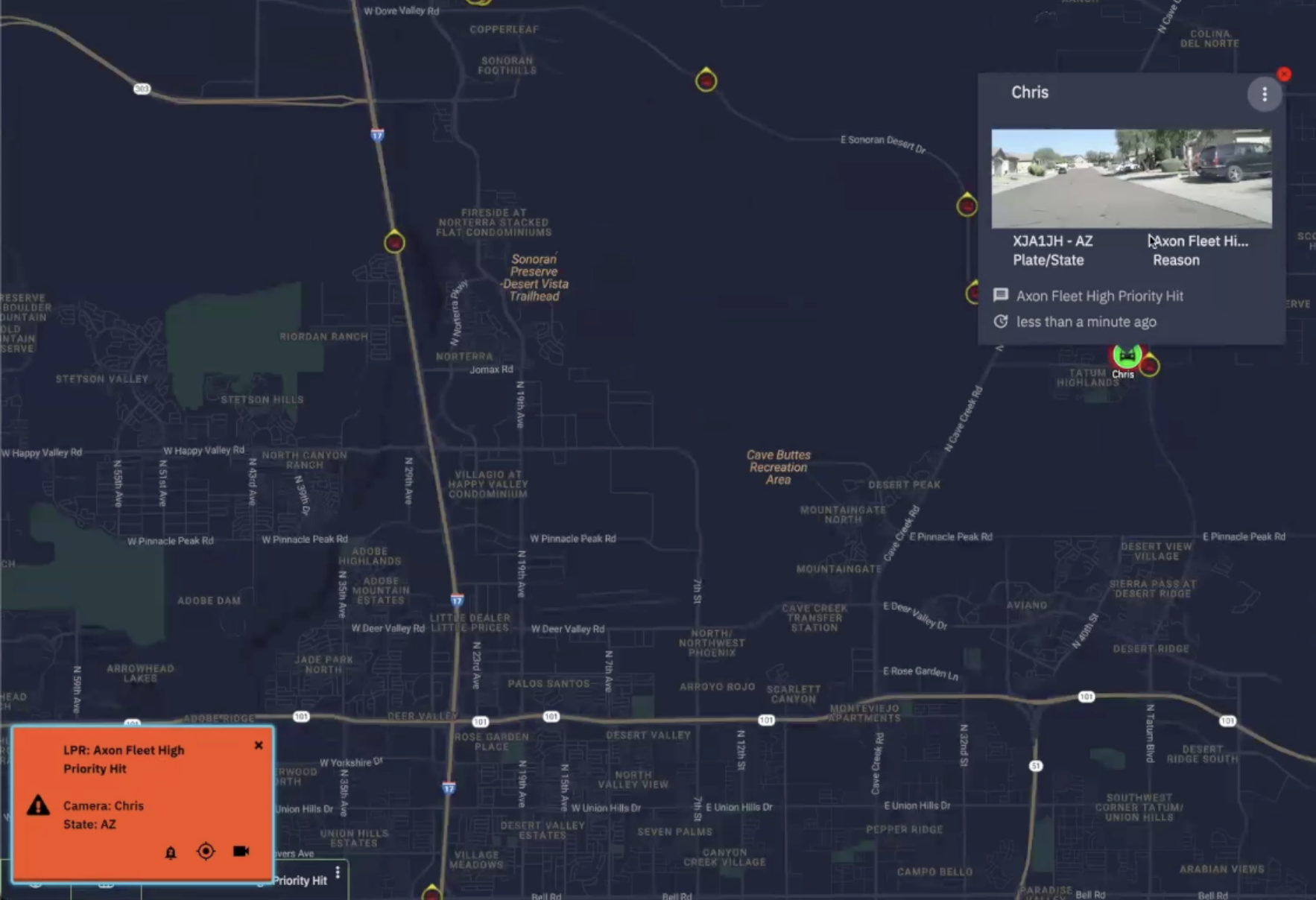
As officers drive around, Axon Fleet 3 gathers license plates and sends alerts, which are visible from the top menu. Similarly, mounted cameras like Axon Outpost read license plates as vehicles pass by. The alerts include an image of the vehicle, license plate, state, and position on the map. You can click the alert to see where it happened, which vehicle got the hit, and which state and license plate. Alerts can also be reviewed later in the alerts panel.