Set up the fususOPS mobile app
Use the fususOPS mobile app to view live device locations, alerts, and livestreams on your mobile device. This article explains how to download the app, sign in, and configure your device’s security features.
Note: These instructions apply to agencies using Axon Managed identity. If your agency is using a legacy Fusus environment, your login process may differ.
Download the app
You can download the fususOPS mobile app from the Apple App Store or the Google Play Store.
- iOS users: For detailed instructions on how to download applications on your iOS device, visit Apple's support website: Download apps and games on your iPhone or iPad.
Sign in
Sign in with your existing Axon Evidence credentials—no separate account setup is required. To sign in to the fususOPS mobile app, follow the steps below:
- Open the fususOPS mobile app.
- Unlock the app using your device's security method:
- iOS: Enter your passcode or continue with Face ID or Touch ID.
- The first time you sign in to the fususOPS mobile app, you are asked to provide your agency's Axon Evidence URL. Enter your Agency Name (agency.evidence.com).
- (Optional) Select Remember agency name to save this setting for future use.
- Select Sign in with Axon.
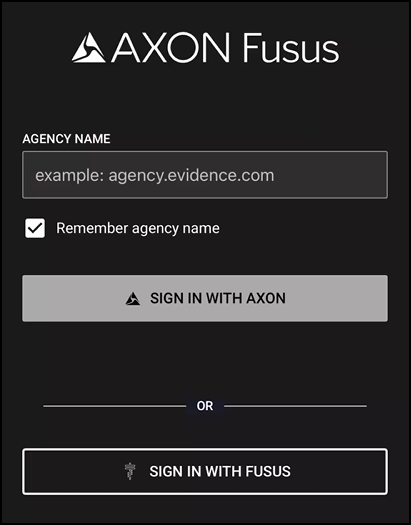
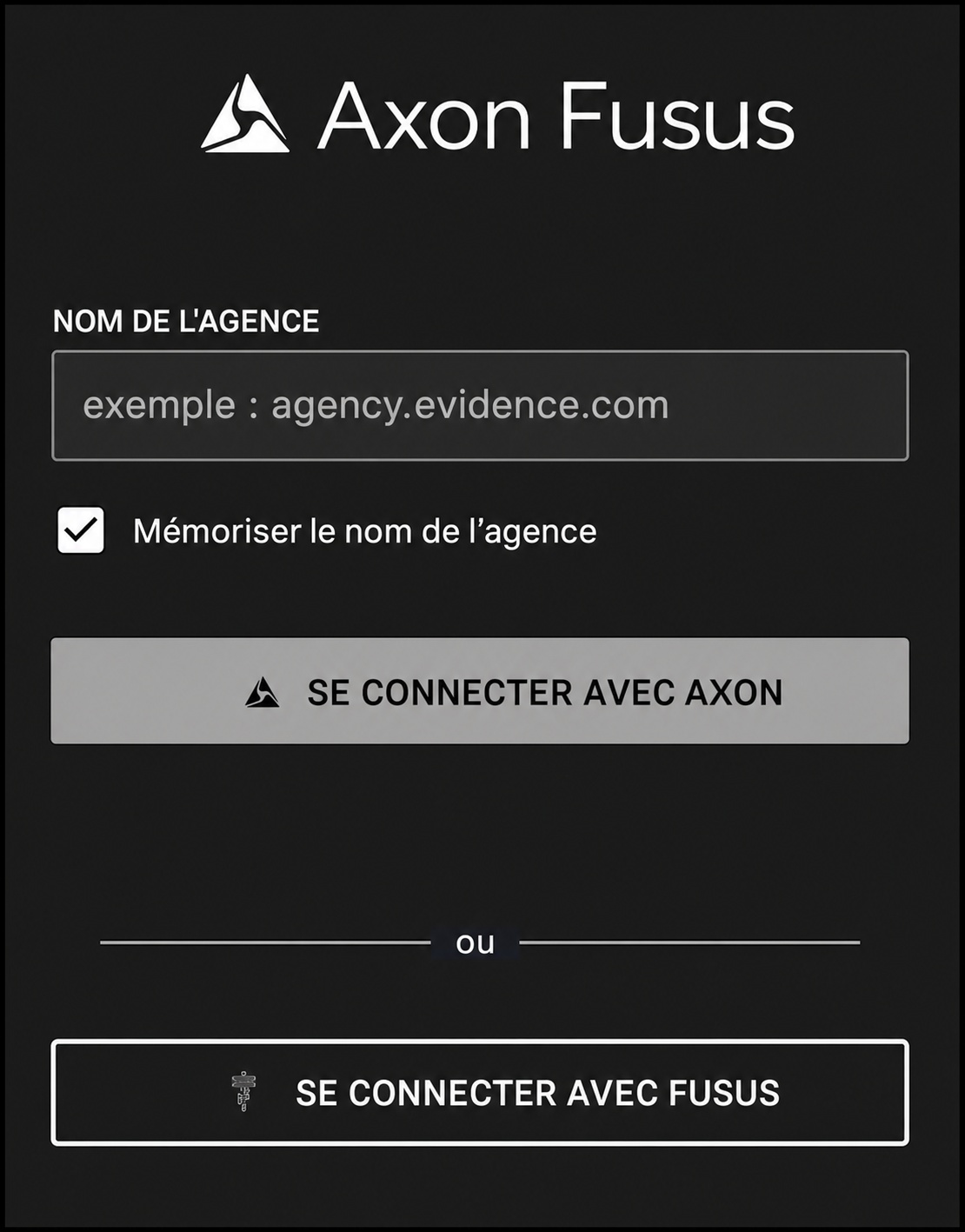
- Enter your email or username and password, and then select Sign In. The mobile app opens to the live map.
Optional: Setting up your device's security features
After signing in, you can configure your device’s security features—such as Face ID, fingerprint, or a passcode—for faster access to the fususOPS mobile app.


