Case access control
Cases in Axon Justice use access classes to control access to cases. Each case in is assigned to one of the following access classes:
- Unrestricted
- Restricted
- Confidential
Cases can only be assigned to one access class at a time. By default, cases are created with the Unrestricted access class. However, users with appropriate permissions can set a case's access class either during or after creating a case.
When a case access class is changed to restricted or confidential, all evidence in the case will inherit the case's access class.
There are no specific definitions for the restricted and confidential access classes. Your organization should determine how these classes are used.
Case access and permissions
Default access to case is based on the permissions for your assigned role. The role-based permissions affect your ability to search for, view, and change the access class for cases.
Additionally, each case has its own access list, which allows your organization to manage case access inside your agency on an as needed basis. Users and groups inside your organization can be granted access to a case by being added to the case access list. Users and groups on the case access list are able to view the case and all evidence in the case.
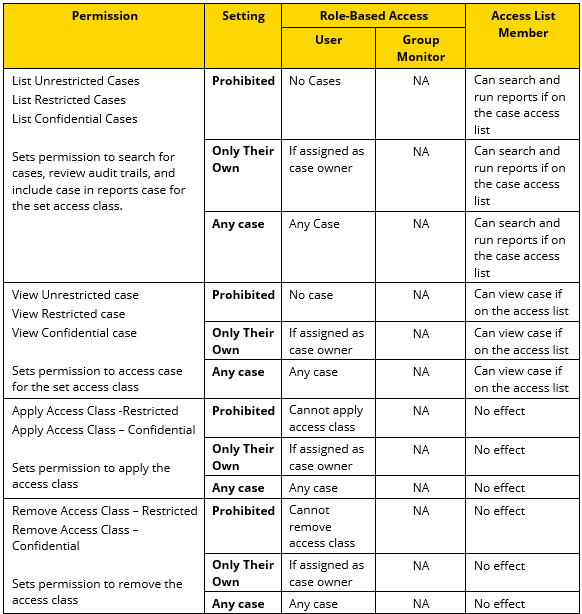
The following table provides information on a user's ability to search for, view, and change the access class for a case for the different permission settings.
Case search page views
The information shown to you on the case search page and in reports depends on the permissions for your assigned role and if you have been added to a case access list. You are only allowed to search for cases that your role grants you permission to list and that you are on the access list for. If your role does not include permission to list a case and you are not on the access list for the case, then you will not be able to search for the case and the case will not appear in any reports.
Example: If your assigned role has the List Unrestricted case permission set to Only Their Own and you are not on any case access lists, then you will not see any cases that you are not the case owner of, restricted cases, or confidential cases on the case search page.
If you have list permission for an access class set to Only Their Own, then you will only see the cases you are assigned as the owner. You would not see other users Unrestricted cases and the Owner search filter is locked with your name.
Access list information
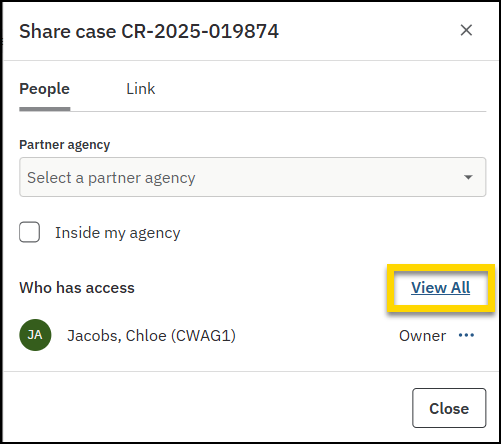
In the Evidence tab of the case details page, select Share to see who has access, then select View all to review their access details.
Evidence access vs case access
Axon Justice provides administrators flexibility in which permissions they grant to their users. As such, it is possible to configure roles in such a way that a user may be able to access a case, but not be able to access all evidence in the case.
For example, your role could include permission to list and view all restricted cases, but not include permission to list and view restricted evidence. In this scenario, you would be able to search for and view the case, but only be able to list and view the evidence in the case that either your role grants you default access to, or that you are on the access control list for.
To have access to both a case and all evidence in the case, you must be added to the case access control list.


