Case details page
The case details page helps you review case information and work with evidence for a case. From this page, you can review evidence, organize files in folders, and manage case access (if your role includes permission).
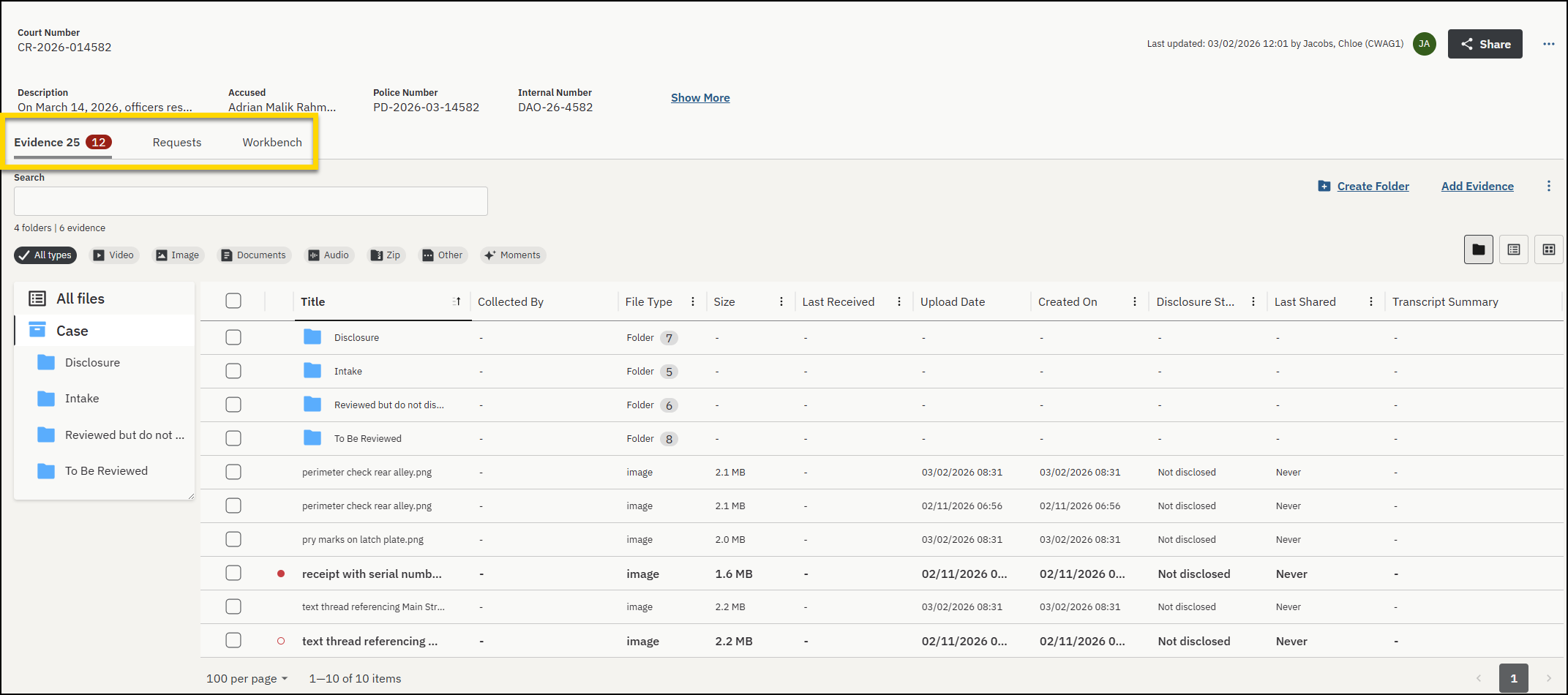
Find your way around the case details page
The case details page contains several areas to help you work efficiently:
- Case summary: Shows key details like the ID, description, retention policy, status, tags, and access class. You can edit these details directly if you have permission.

- Tabs: Provide access to different types of case information:
- Evidence: Displays all evidence and folders associated with a case in a single, expanded workspace that supports review, filtering, and organization. The number next to the evidence tab shows how many pieces of evidence are in the case that you have access to.
- Requests: Request and manage evidence from trusted users for the case.
- Workbench: A dedicated space for internal case notes tied to the case. Notes are visible to everyone with access to the case inside your organization. They are not included when the case is shared externally.
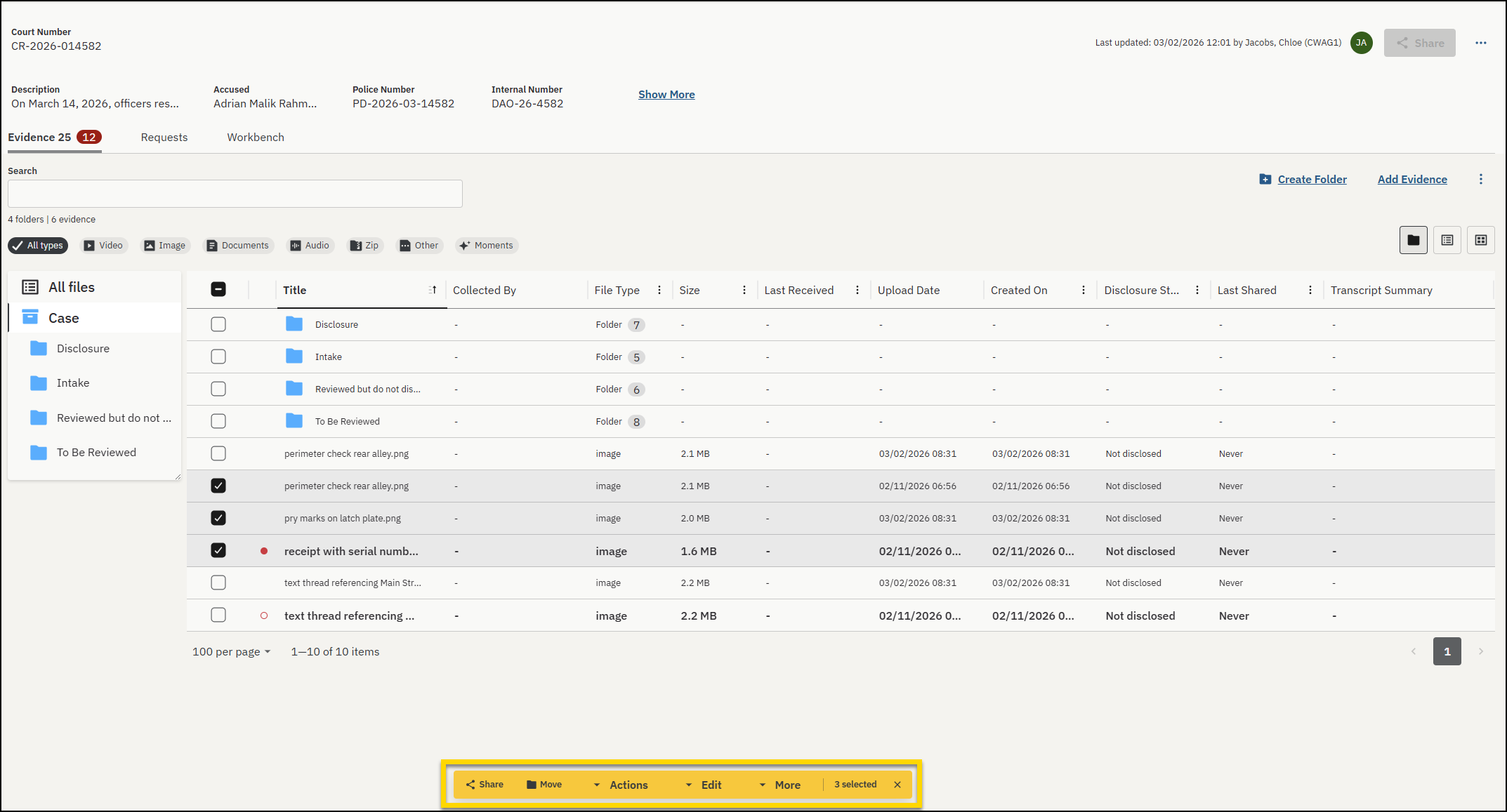
- Bulk action bar: Appears when you select one or more evidence files, allowing you to perform actions like moving items, adding them to folders, sharing, and more.
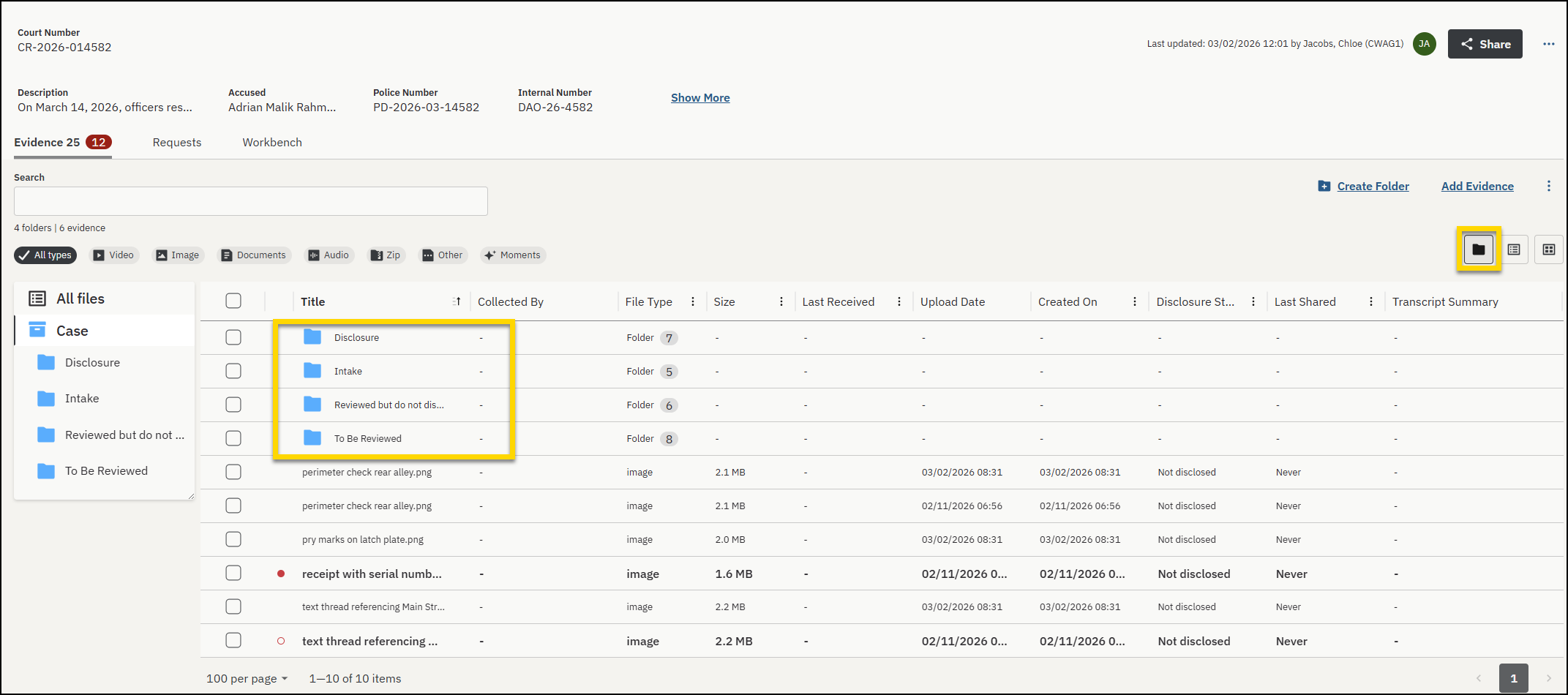
- Folders: Provide multiple ways to view, navigate, and organize evidence in a case. Select Folder view (folder button) to show folders in the evidence list. Select a folder to open it and view its contents.
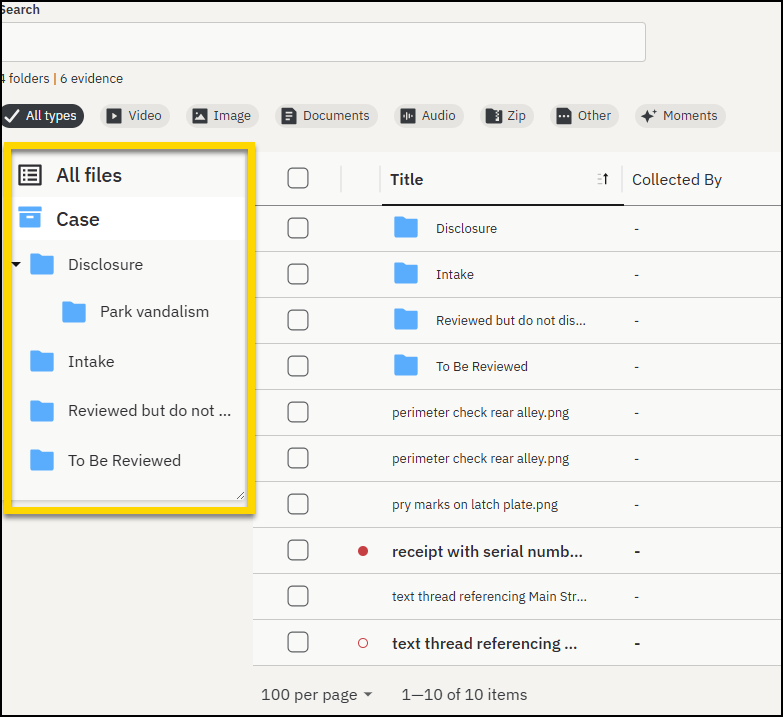
- Folder tree: A collapsible folder view next to the evidence table. Use this to browse folders, drag and drop evidence, or reorganize files.
Evidence bulk actions
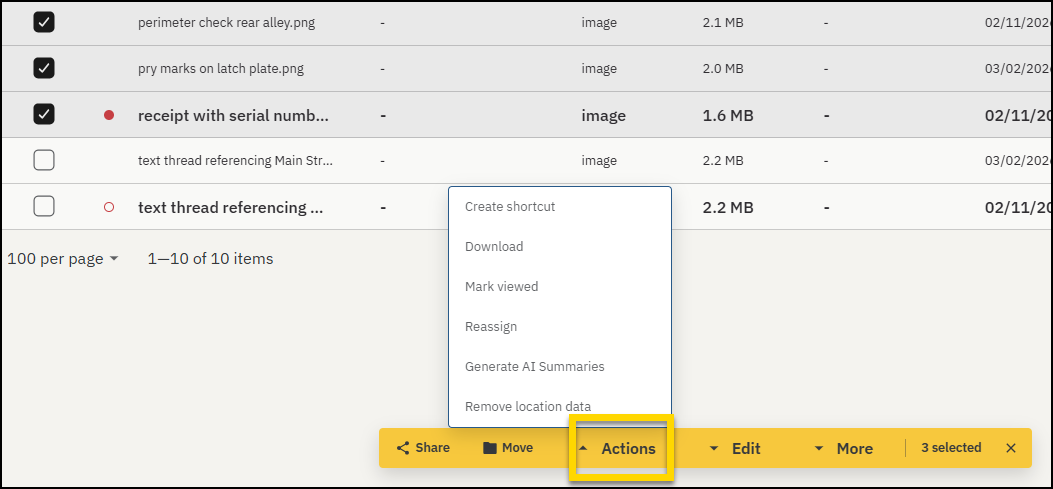
Select multiple pieces of evidence, then in the action bar, select Actions. If your role includes permission, from here you can:
- Create a shortcut
- Download evidence
- Mark evidence as viewed
- Reassign evidence
- Generate AI summaries
- Remove location data
Viewed and disclosure status
Viewed states for each piece of evidence are shown in the evidence list next to the title, and Disclosure statuses display in the Disclosure Status column when evidence is shared or received:
- Not viewed by you: A red circle (outline) is shown until you view the evidence.
- Not viewed by anyone: A solid red circle is shown when the evidence has not been viewed by anyone.
- Not disclosed: Evidence is marked Not disclosed by default for each case.
- Do not disclose: When marked Do not disclose, evidence cannot and will not be shared under any circumstance. If evidence is already marked "Disclosed", it cannot be marked as "Do not disclose".
- Disclosed: Once evidence is shared by download link or partner share, it becomes Disclosed.
Evidence quick filters
The evidence quick filters let you quickly refine your search.
For example, if the file type section shows there are images, videos, and audio recordings files, selecting Image will show only image file types in the evidence list. The quick filters automatically update the evidence list as you select or deselect them.
The quick filters section is automatically updated as evidence is added or removed from a case.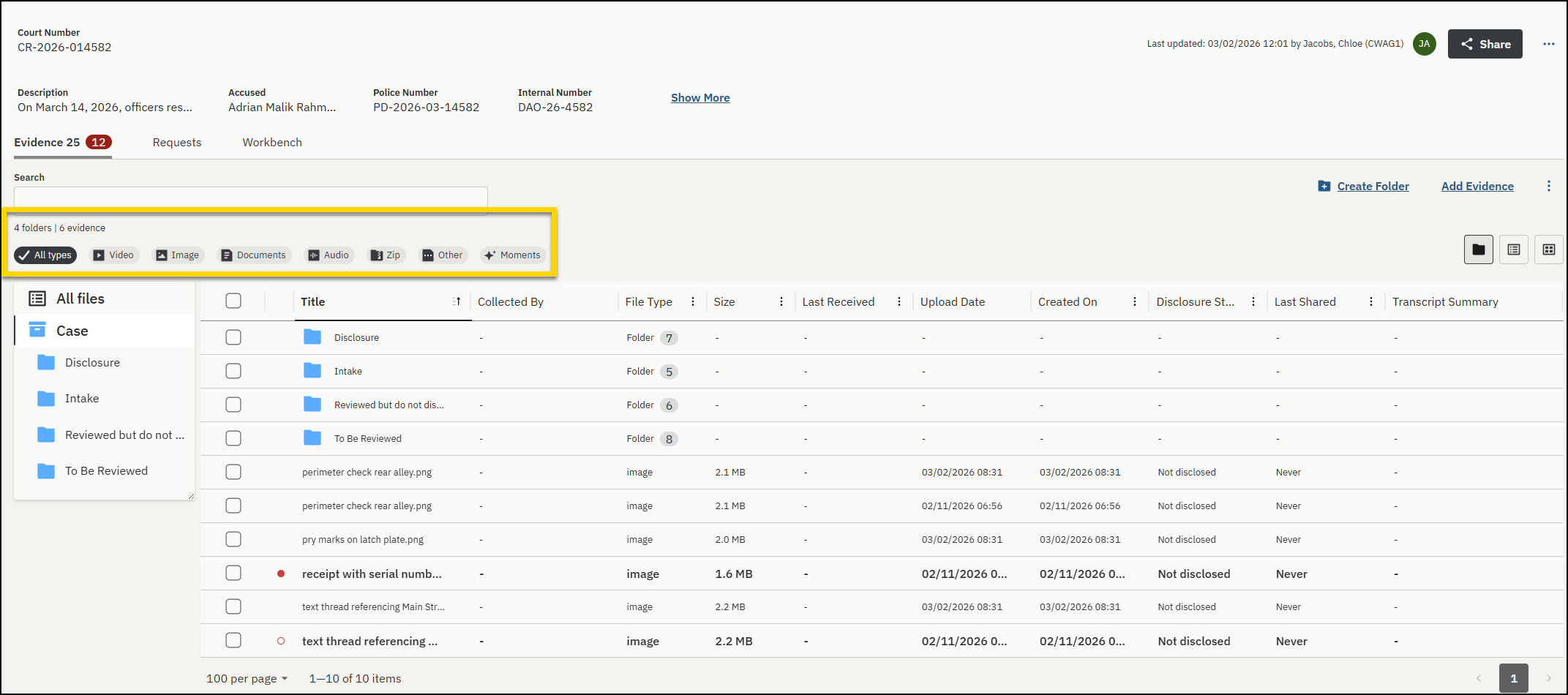
When multiple values are selected the system does an OR search, so evidence matching any of the selected values will be returned.
- Select one or more file types:
- Video
- Image
- Documents
- Audio
- Zip
- Other
- Moments
- Select the Search box to reveal more filters.
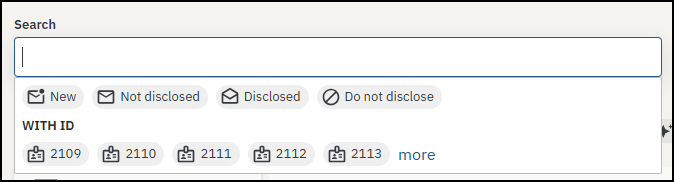
- Select one or more evidence statuses:
- New: Only shows evidence that has not yet been viewed.
- Not disclosed:Shows evidence that is set Not disclosed.
- Disclosed: Shows evidence that is set to Disclosed.
- Do not disclose: Shows evidence set to Do not disclose.
- Select one or more With ID filters, or select more to open the Advanced Search panel and display all IDs associated with the case.
Active filters change from gray to black, and are marked with a checkmark. Deselect filters to clear your selections.
Remove evidence from a case
- Use the search filters to find the evidence you want to remove.
- Select the checkbox next to each evidence item you want to remove.
- On the action bar, select More, then select Remove from case.
- In the confirmation dialog box, select Remove.
When the evidence is removed from the case, it is returned to its normal retention schedule based on the category assigned to the evidence and the date the evidence was recorded on.
Case table settings
Adjust the case table to show only the information that matters most to your workflow. Choose which columns appear, remove what you don’t need, and rearrange the layout to match how you review evidence in cases. Custom views help reduce clutter and make it easier to focus on key details—like court number, case status, or accused name.
To update your view:
- Select Table settings (gear).
- In the Settings pane, under Reorder columns, select and drag the column name to change the order in which it appears.
Alternatively, use the Move up and Move down arrows. - Select Done to save your changes.
Hide or unhide table columns
- Select Table settings (gear).
-
In the Settings pane, hide or unhide columns:
- Hide columns: Under Reorder columns, hover over a column name, then select Hide column (eye).
- Unhide columns: Under Hidden columns, select Unhide column.
- Select Done to save your changes.
Set column width
Hover your mouse between two columns until the pointer changes to a double arrow. Select and drag to adjust the width.


