Linked Cases
The Justice linked cases feature allows you to associate multiple cases for easier discovery by combining them into a single (primary) case. This makes discovery more efficient with a unified view of multiple cases, without losing update capabilities from partners. This guide provides information about case linking and steps to use the Justice linked cases feature.
Watch this video to learn more about linked cases.
Find your way around linked cases
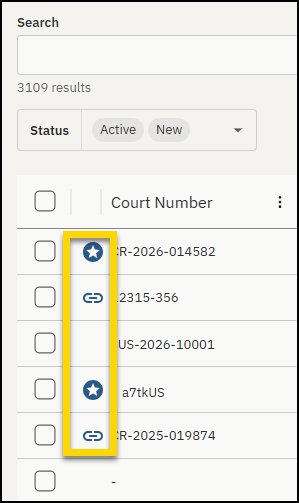
- Icons on the case search page: Identify linked cases on the case search page by the link icon next to the court number. Identify primary cases by the star icon. If a case has been previously linked, this icon will appear in search results, indicating that the case is part of a linked group of cases.
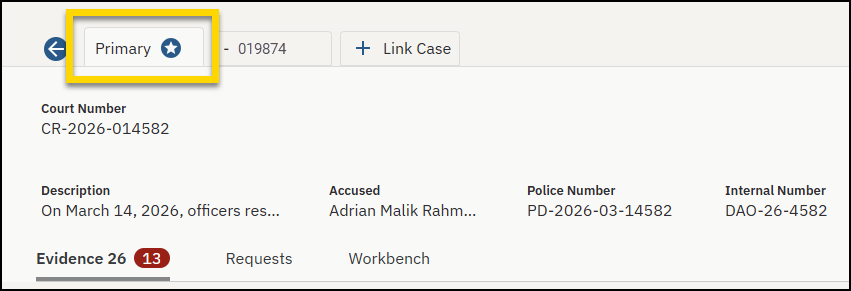
- Primary case tab: The Primary tab shows the selected primary case details along with all evidence from any linked cases.
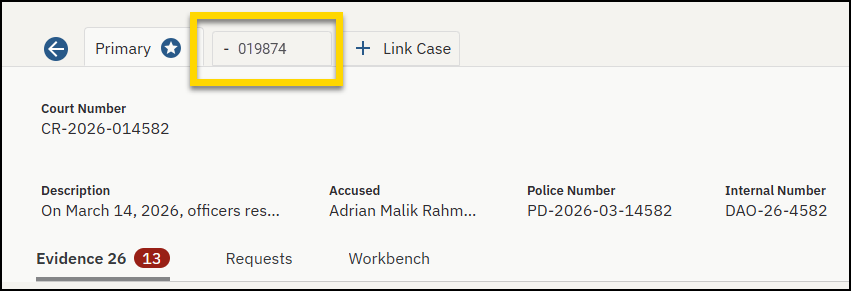
- Linked cases tabs: Each linked case appears as a separate tab on the primary case detail page.
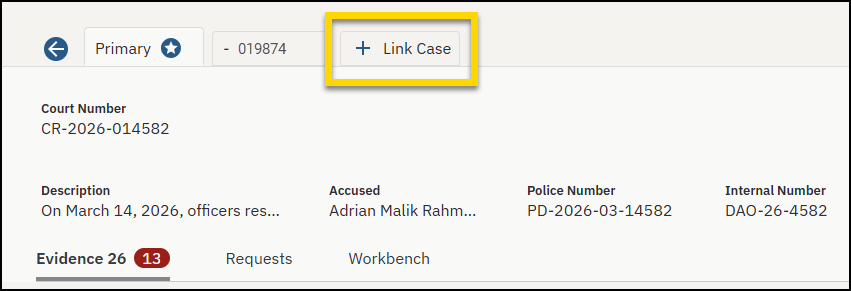
- Link Case: Select + Link Case to open the Link case pane and link a new case.
- Evidence tab: Lists all evidence related to the primary case and the linked cases.
- Search bar: Allows you to search for evidence related to the primary case and the linked cases.
Get started with Justice linked cases
- Select Cases.
- Locate and open the case you wish to designate as the Primary case.
- Select + Link Case to open the Link cases pane.
- Search by the court number, accused, internal number, or police number of the case you want to link to the Primary case.
- From the list of search results, select the case you want to link.
- Select Link. You can link up to ten (10) cases. The number of cases already linked is shown under the search bar.
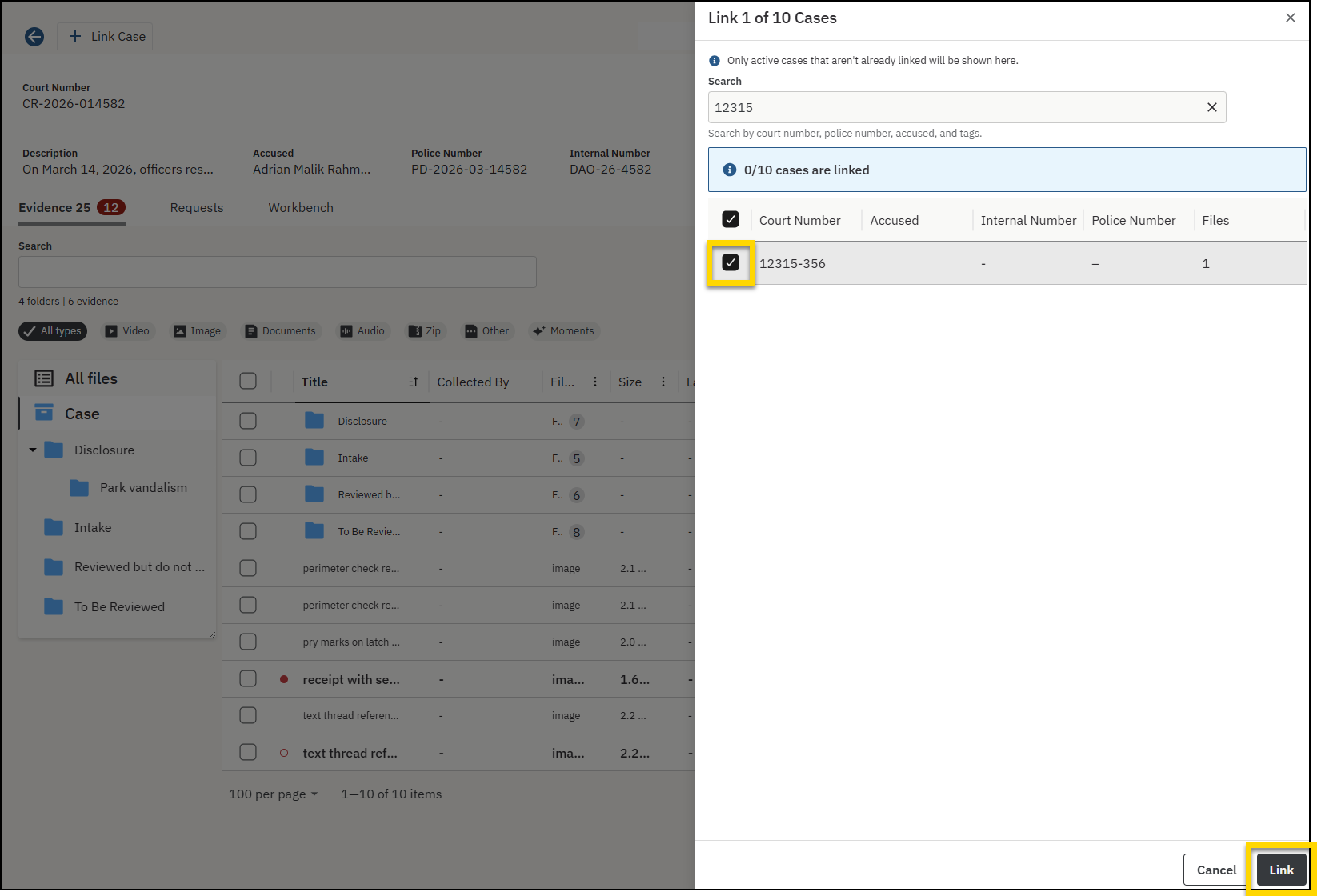
After linking, the linked case will appear as a separate tab next to the Primary case tab on the case details page.
View and manage linked cases
This section provides guidance on how to navigate linked cases, review all related evidence in one place, and understand how case updates are managed.
View all linked evidence
To review all evidence from both the primary and linked cases in one place, select the Primary Case tab from the case detail page. Here, you'll find all evidence from the linked cases, providing a unified view.
Navigate between linked cases
After linking cases, you can easily move between the primary case and its linked cases:
- On the primary case's details page, linked cases appear as separate tabs next to the primary case.
- Select the linked case tab to view the specific details and evidence of that case separately.
- When you select a linked case from the case search results, it will automatically open directly to the tab of the linked case.
Understand linked case updates
When a partner updates a linked case, the new evidence will automatically be added to the primary case. The owner of the case will receive an email notification. Selecting the link in the email will take you directly to the tab of the primary case, allowing you to quickly access and review the updates.
Sharing Justice linked cases
When working with linked cases, it's important to understand how sharing operates:
- Sharing a primary case: You can share a primary case just like any other case in Axon Justice. When you share a primary case, any information shared in the linked cases is not included in the share.
- Linked cases and sharing: Because linked cases are created for internal use, shared information is confined only to the primary case. All existing shares within linked cases are preserved and remain accessible, but only from the original linked case, not from the primary case.
Troubleshooting
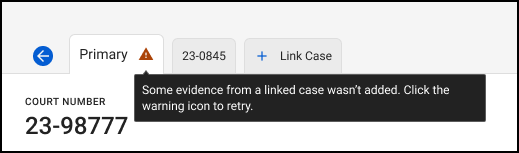
If an error occurs during the linking process, a red error symbol will appear on the Primary tab. Select Retry to repeat the process. If the issue persists, contact Axon support.
Frequently asked questions (FAQ)
Can everyone link cases?
All Justice users can see if a case is linked, but only those with 'create case' permissions can link cases.
What case can be a primary case?
Any case can be selected as the primary case. You can choose an existing case or create a new one to serve as the primary case. For example, if you want the primary case to be a court case with related police cases, you can create a new case to represent the court case number, and then link the existing police cases or incidents to the court case. This may be helpful for more efficient discovery from the primary case for related cases.
What happens if a partner organization updates a linked case?
If the partner organization shares updates to a case they have previously shared, the updates will be reflected in the original linked case and automatically added to the primary case. You will receive an email notification as usual.
How many cases can be linked?
Currently, you can link up to ten (10) cases.
Is the evidence metadata preserved after linking a case?
Some evidence metadata will be preserved when cases are linked to a primary case. The following metadata is carried over:
- Evidence clips, markers, and notes remain intact.
- Evidence previously marked 'do not disclose' remains 'do not disclose' in the primary case.
- The 'Last received' date for evidence is preserved.
However, certain metadata is reset when a case is linked to a primary case, including:
- Disclosure Status, Last Shared, Shared To, Bates Number, and Exhibit Number.
How does sharing work with primary and linked cases?
- When you share a primary case, the original case share in the linked case is not included in the share.
- If linked cases have previous shares, these shares are separate from the primary case and remain within the original linked case.
Can I link multiple primary cases?
No, you cannot link two primary cases at this time. Linking must happen from a non-primary case to a case that is designated as the primary case.
Is there an audit of the cases that are linked?
Yes, the audit log will record all cases and evidence added to a primary case.
How do I unlink a case?
You are now able to unlink cases. After unlinking, the evidence remains but no partner share updates feed into the primary case. To unlink, right-click or control-click on the case name at the top of the case folder and select Unlink from Primary. You are prompted to verify this command.
What permissions are required to link cases?
To link cases, users must have the 'create case' permission.


