Share cases
This guide provides instructions for sharing cases in Axon Justice using two different methods:
- Partner share: This creates a copy of the entire case or selected evidence within the case in the partner organization's instance of Axon Justice.
- Share a download link: This creates a link that allows recipients to download case files without providing them direct access to the case in Axon Justice.
Evidence marked as Do Not Disclosecannot be shared.
Get started with case share
- Sign in to your Axon Justice account.
- Select Cases from the menu.
- Locate and select the case you wish to share to open the case details page.
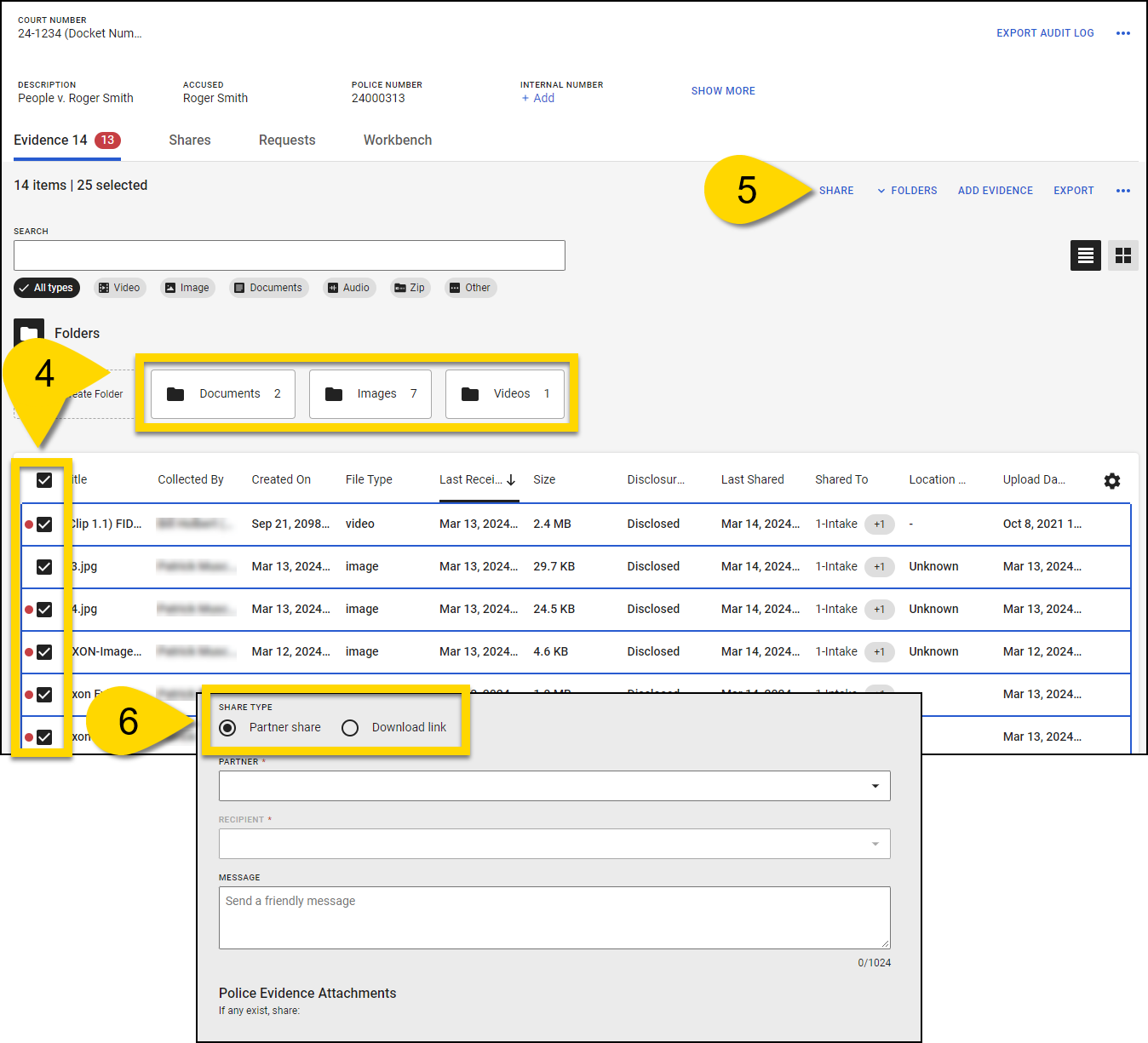
- From the Evidence tab, you can share evidence directly by:
- Selecting a folder to share all the evidence it contains. Up to 8,000 pieces of evidence in a folder can be shared at one time.
- Using the top checkbox in the evidence table to select all evidence in the case.
- Selecting individual checkboxes next to the specific evidence items you want to share.
- Select Share. Alternatively, you can right-click the selected evidence and choose Share from the menu.
- Select a sharing method below, and then proceed with the steps in that section. If you're unsure which sharing method to choose, contact the partner organization to ensure you select the method that works best for them.
Partner share
- Under Share Type, select Partner Share.
- Select a Partner.
- Select a Recipient, or multiple recipients. Enter the name of a user or group in the Recipient field, or select from the available options.
Note: If a case has been previously shared, you can reshare it with new recipients or add them to the existing share. - Enter an optional Message.
- Select any of the following the Police Evidence Attachments you wish to include in the share:
- Police Markers: If an Axon Evidence organization created markers in their media and shared them with you, selecting this option forwards those markers to your recipient.
- Police Notes: If an Axon Evidence organization created notes on the evidence and shared them with you, selecting this option forwards those notes to your recipient.
- Police Audit Trail: If an Axon Evidence organization shared their evidence audit trails with you, selecting this option forwards those audit trails to your recipient.
- Transcripts: Transcripts that were previously created for evidence included in the case share are forwarded when selected.
- Select Share.
A folder for each recipient appears under the Shares tab. For every piece of evidence shared, the Last Shared date is updated with a timestamp, the Shared To information is populated, and the evidence is marked as disclosed.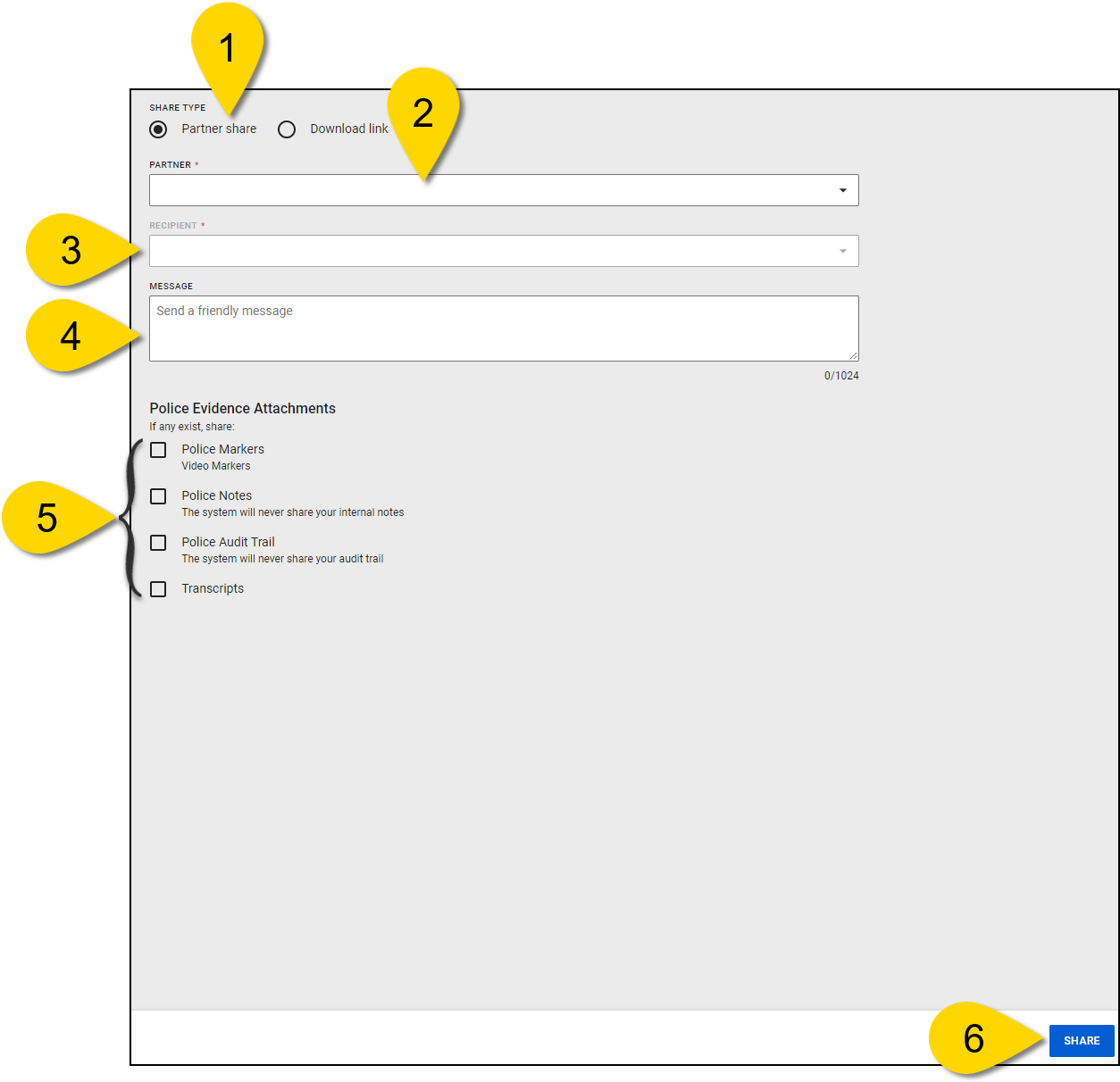
Share confirmation and notifications
After completing the share, a confirmation message will appear on-screen, indicating that the share was successfully initiated. The case is automatically created in the partner organization's Axon account with the unrestricted access class, and you'll see a packet for each recipient under the Shares tab. If any issues occur, the sender will receive email notifications about the failure.
Update partner shares
After a case has been shared, there are several ways you can manage or update the share, depending on your needs. You can update the share when you add new evidence, or update it later from the case details page.
Update a partner share when adding new evidence
- Select Cases from the top menu.
- Locate and select the case you wish to share to open the case details page.
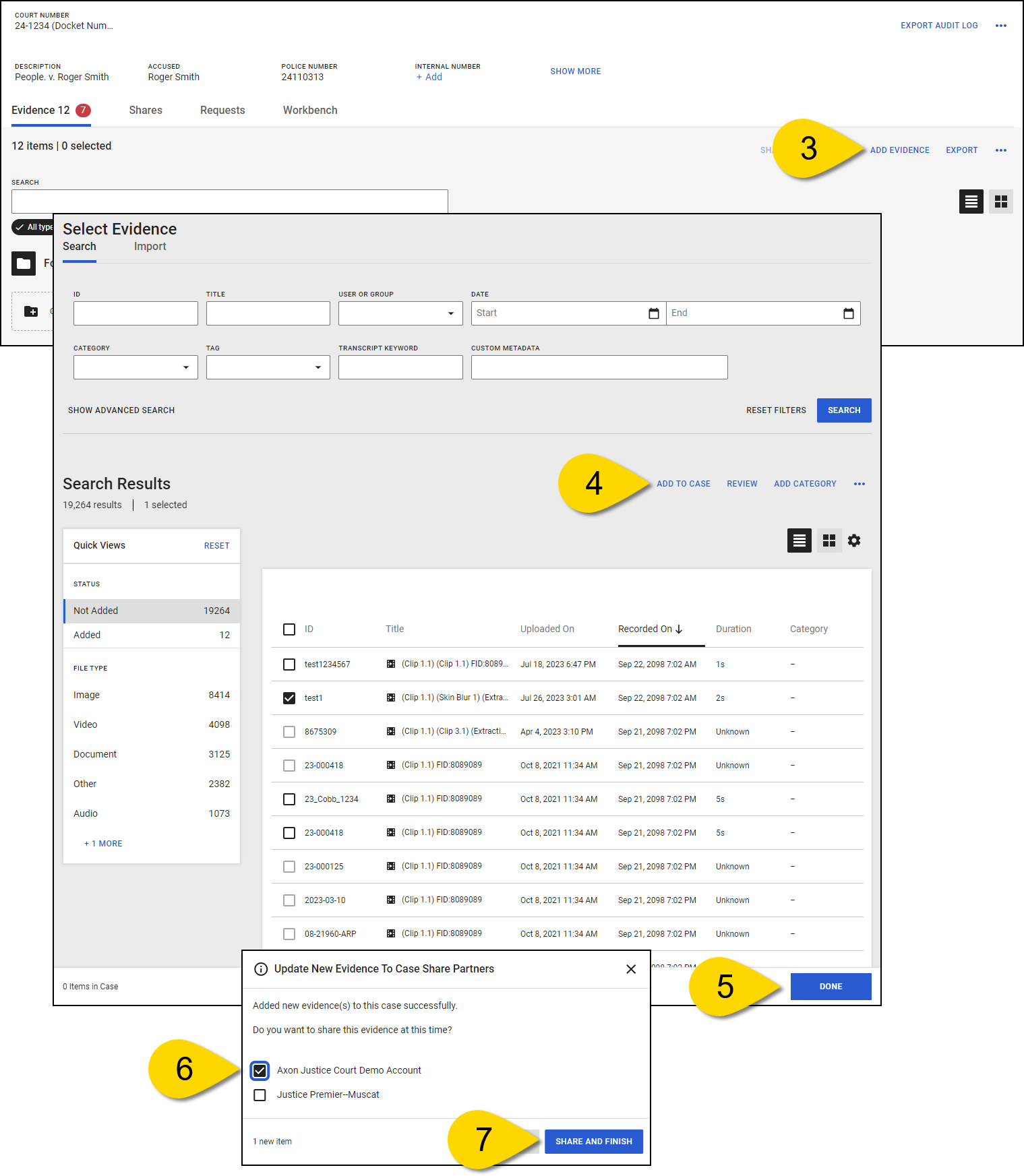
- Select Add Evidence to open the Select Evidence page.
- Select the evidence you want to share, and then select Add To Case.
- Select Done.
- On the Update New Evidence to Case Share Partners dialog box, select the partner(s) you want to share the new evidence with.
- Select Share and Finish.
Update a partner share from the case details page
You can update a partner share from the case details page in two ways:
Method 1: From the Shares tab
- Go to the case details page for the case.
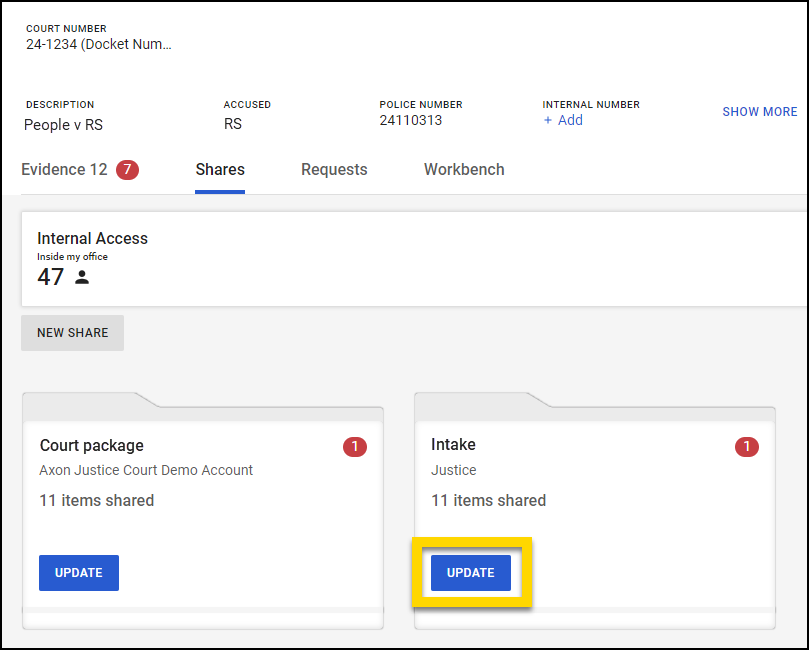
- Select the Shares tab.
- Select Update on the folder of the recipient you wish to share to. The red badge on a share packet (folder) indicates the number of items not yet shared.
- Select the checkboxes next to the evidence you wish to share, or select a folder to share.
- Select Next. You will receive a confirmation message that the partner share has been successfully initiated.
Method 2: From the Evidence tab
- Go to the case details page for the case.
- From the Evidence tab, select the evidence you want to share. New evidence is indicated with a red badge.
- Select Share. Alternatively, you can right-click the selected evidence and choose Share from the menu.
- Select the recipient's folder to share the new evidence. You will receive a confirmation message that the partner share has been successfully initiated.
Share a download link
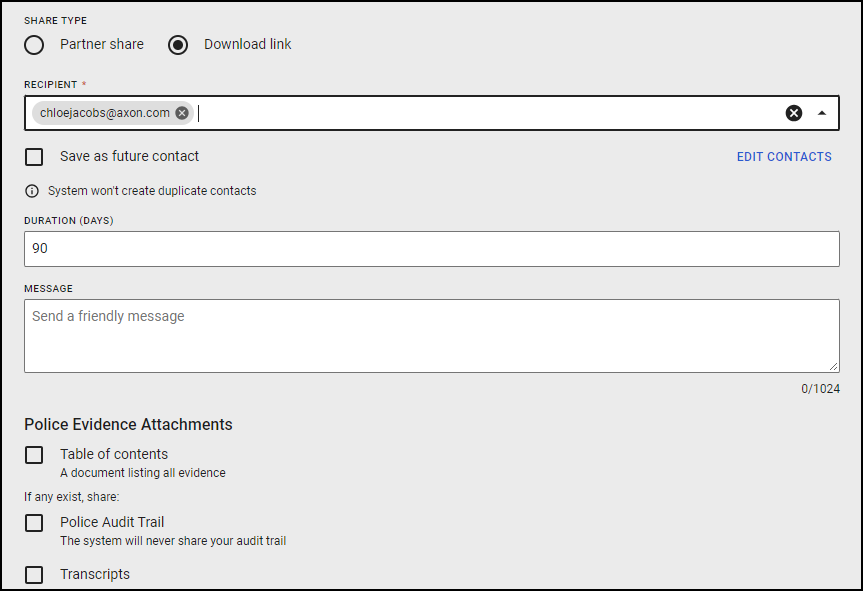
- Under Share Type, select Download link.
- Enter a Recipient, or multiple recipients. Optionally, select Save as future contact.
- Enter a Duration.
- Enter an optional Message.
- Select any of the following Police Evidence Attachments you wish to include in the share:
- Table of contents: A document listing all evidence.
- Police Audit Trail: If an Axon Evidence organization shared their evidence audit trails with you, selecting this option forwards those audit trails to your recipient.
- Transcripts: Transcripts that were previously created for evidence included in the case share are forwarded when selected.
- Select Share. You'll receive a confirmation that a download link has been successfully sent. The recipient will receive an email once the case is available to access.
Reshare a case with new recipients
Watch this video to learn how to reshare cases.
Resharing allows you to share a case that has already been shared with additional recipients without creating duplicate evidence copies. This is useful when you need to share the case with new recipients in the same or different partner organizations. No new case is created for the original recipient, but the new recipient gets a copy in their Axon Justice system.
Resharing examples
- Change of defense counsel: If the defense counsel changes, you can reshare the case with the new counsel. The new recipient will receive the evidence, but the original defense counsel will still retain access to the previously shared case.
- Multiple recipients in the same organization: If more than one individual in the same partner organization needs access to the case (e.g., different attorneys within the same firm), you can reshare the case with them. Each recipient will have access to the same evidence, without creating new copies of the case.
- Sharing to multiple defense attorneys: In cases with multiple defendants represented by different defense attorneys, you can reshare the case with each defense attorney. This ensures that each attorney has access to the evidence without duplicating the case in their system.
Share a download link
- Under Share Type, select Download link.
- Enter a Recipient, or multiple recipients.
- Optionally, select Save as future contact.
- Enter a Duration.
- Enter an optional Message.
- Select any of the following the Police Evidence Attachments you wish to include in the share:
- Table of contents: A document listing all evidence.
- Police Audit Trail: If an Axon Evidence organization shared their evidence audit trails with you, selecting this option forwards those audit trails to your recipient.
- Transcripts: Transcripts that were previously created for evidence included in the case share are forwarded when selected.
- Select Share. You'll receive a confirmation that a download link has been successfully sent. The recipient will receive an email once the case is available to access.
Shared case retention
When evidence is shared to your organization as part of a partner case share, the following retention rules are applied:
- Categories are set to None (uncategorized) for all evidence shared to your organization as part of a partner organization case share.
- If your organization has Configurable Case Retention Policies enabled, then the shared case is created using your organization’s default retention policy. Users with the Edit Case Retention permission can change the case retention.
- If your organization does not have Configurable Case Retention Policies enabled, then all evidence in a case is kept until manually deleted.
When you create a new case share, you can select the sharing method:
- Share partner access – The case evidence is accessible to the selected recipients within a partner organization. Recipients with the link can view and download the evidence.
- Share a copy of case – This creates a copy of the case in the partner organization’s instance of Axon Evidence. Shared cases can be updated when evidence is added. This is the current method for case sharing.
- Share a download link – This creates a link that is emailed to the share recipients.
The download link can be used by anyone who receives the link, not just users in a partner organization.
Share a case to users or groups within a partner organization
On the case details page, the External Sharing section shows the number of partner agencies the case has been shared with.
The case can be shared with additional partner organizations by accessing the External Sharing page.
- On the Case Detail page, select External Sharing. The Manage External Sharing screen is shown.
- Select New Share. The Select a sharing method page is shown.
When you create a new case share, you can select one of three sharing methods:
- Share partner access – The case evidence is accessible to the selected recipients within a partner organization. Recipients with the link can view and download the evidence.
- Share a copy of case – This creates a copy of the case in the partner organization’s instance of Axon Evidence. Shared cases can be updated when evidence is added. This is the current method for case sharing.
- Share a download link – This creates a link that is emailed to the share recipients.
Share partner access
When sharing a Case to a Partner organization, the user must select the partner organization and Users or Groups at the partner organization will receive the case share.
- Select the appropriate Partner organization, User or group, Duration, and Includes options. Add a message in the Message text box.
- In the User or Group field, start typing the name, badge ID, or email address of the user or the name of the group. Axon case shows a list of matching users and groups as you enter the information. Select the user or group you want to add to the access list.
You can add multiple users and groups if they will have the same access duration and access permissions.
Note: The user must be an active member of a Partner organization for the case to be shared to them.
- When finished, select Next.
Share a copy of the case
- Select the appropriate Partner organization, User or group, and Attachments options. Add a message in the Message text box.
The Attachments option includes the following:
- Notes - Case and Evidence Notes
- Clips - Evidence Clips
- Markers - Evidence Markers
- Audit Trails — User can view the audit trail of the case and all evidence included in the case share
- Transcripts - Transcripts that previously have been created for evidence included in the case share
- When finished, select Next.
Share a download link
- Select the appropriate User or email address, Attachment, and Package type options. Add a message in the Message text box.
- When finished, select Send download link.
- Select which pieces of evidence to share to the partner organization.
- Once the evidence is selected, select Add to Case Share, then select Share Case on the bottom right of the page.
The system shows that the case has been successfully initiated for sharing. The recipient will receive an email once the case share completes.
All cases shared to partner agencies are automatically created in the partner organization’s Axon Evidence account with the Unrestricted access class. However, the case share recipient may choose to update the case’s access class at any time. Once the case’s access class have been updated, all evidence that is shared into the case via a case share update will be automatically created with the case’s current access class.
- To add the evidence to a case without updating the case share, select Finish without sharing.
- To update the case share with the newly added evidence for the listed partner agencies, select Update case share with listed partners and select Share and Finish.
Update a shared case
If you add evidence to a case that has already been shared to a partner organization, you can choose to update the case share when adding the new evidence or you can update the case share through the Case Details page after the evidence is added.
In both situations, the evidence will be added to the partner organization’s copy of the case and they will receive an email notifying them that new evidence has been added.
Update a shared case when adding evidence
- To add the evidence to a case without updating the case share, select Finish without sharing.
- To update the case share with the newly added evidence for the listed partner agencies, select Update case share with listed partners and select Share and Finish.
Update a shared case after evidence is added
- Open the Case Details page for the case.
- On the Case Details page, select Manage Shares.
- On the Manage Case Shares page, select Update for the partner organization case share you want to update.
- Select the evidence you want to add to the partner organization case share.
There are several options available for sharing evidence. You can:
- Select Add All Evidence to Case Share to share all evidence in the case.
- Select Add Pinned Evidence to Case Share to add all pinned evidence to the case share.
- Select evidence and select Add to Case Share to add the selected evidence to the case share.
- View evidence in the review mode and select Add Evidence to Case Share in the upper right of the review mode to add the evidence to the case share.
- Open a folder and select Add Folder to Case Share to add all evidence from the folder into the case share.
Note: When evidence in a folder is added to the case share, the folder is also included.
After you have selected the evidence, review the information to verify it is correct.
- Select View Case Share Evidence to see the new evidence that has been added to the case share.
- Select Back to Select Evidence to return to the Select Evidence page.
If you need to add more evidence, repeat step 4 as needed.
- Select Update Share Case.
Axon Evidence will update the partner organization’s case share with the evidence you have selected. The user(s) or group(s) with which the case was shared to will be notified via email that new evidence has been shared once the update has completed successfully.
After you have finished sharing, select Back to Case to return to the Cases Detail page.
Subset case sharing new metadata
With subset case sharing we now track three new pieces of metadata on cases and the evidence in cases. This metadata enables you to search for and filter your cases and evidence in cases. This metadata is also included in the export lists generated from the case search page and case details page.
Case search page
- Shared To: Returns cases that are shared to the specified partner organization
- Shared From: Returns cases that were shared to your organization from the specified partner organization
- Not Shared To: Returns cases that have not been shared to the specified partner organization
Case details page
- Shared To: Returns evidence in the case that has been shared to the specified partner organization
- Shared From: Returns evidence in the case that has been shared to your organization from the specified partner organization
- Not Shared To: Returns evidence in the case that has not been shared to the specified partner organization
Send a download link
- On the Case Details page, select the Manage Shares tile.
- On the Case Sharing page, select Send Download Link.
- Select Download link.
On the Download Link Details page:
- Add Users.
- In the User or Email Address field, add the users or email addresses you want to send the download link to.
- For a user in your organization or a partner organization, start typing the name of the user, wait for Evidence.com to show the matching users, and then select the user you want. You can also type the user badge ID or email address.
- For a user who is not in your organization or a partner organization, type the email address of the user and then press Enter.
Select any additional information to include:
- Selecting Audit Trails will share all of the audit events for the case and evidence in the case with the partner organization.
- Selecting Table of Contents adds a Microsoft Excel spreadsheet to the download with the following fields: File Name, Evidence ID, Evidence Title, File Type, File Size, Evidence Duration, Date Recorded, Uploader-First Name, Uploader-Last Name, Uploader-Badge ID, Assignee-First Name, Assignee-Last Name, Assignee-Badge ID, and Agency Name.
- Selecting Transcripts will share all the human generated and Axon Auto-Transcribe transcripts associated with the case.
- Select the Package Type, ZIP or ISO file.
- In the Duration field, type the number of days that the evidence link is to be available.
- Review that the information is correct, then select Send Download Link.
A link for downloading the file is sent to the user or email you added. The files will only be available until the duration you specified expires.
After you have finished sharing, select Back to Case to return to the Cases Detail page.
Case share partner access (Case share by reference)
To generate a Case Share by Reference, both agencies must have the Case Share feature. To activate this option for your organization, contact your Axon representative.
To generate a Case Share by Reference, the source organization must enable the following EDCA feature flags:
- Case Sharing by Reference
- Enable New UI for Case Shares Management
To receive and review a Case Share by Reference, the share recipient organization must enable Case Sharing by Reference.
Users will only see the share options their role permissions allow.
The Access and Sharing section on the Case Detail Evidence page shows the number of internal organization users and groups that have access to a case, along with how many partner agencies, users, and groups the case has been shared with.
- On the Case Detail page, select External Sharing.
- Select New Share.
- Select Share Partner Access.
Case sharing by copy errors
Axon supports the following common errors in Case Sharing by Copy:
- Error - Target case is currently not active.
- Error - One or more evidences is missing the required information.
- Error - One or more evidences failed because that evidence was being copied in another case at the same time.


