Brief One
Overview
Brief One is a Gen AI-powered evidence summary, review, and analysis tool that helps attorneys and law enforcement save time.
Brief One provides concise evidence summaries with ethical safeguards backed by the source evidence. If more details are required, Brief One helps you quickly see a timeline of key transcript moments. You can select a key transcript moment and supporting details to instantlygo to the corresponding point in the evidence for fast review.
Access to Brief One depends on your organization's plan:
- Brief One is included with Justice Premier Plus for Axon Justice Users.
- Reach out to your Axon representative to access this AI product feature.
If the audio is too short, an AI generated summary may not show as a result.
AI evidence summaries
AI evidence summaries automatically generate a concise narrative summary (less than 150 words), capturing key details from the evidence for supported evidence types. You can generate an AI summary for evidence that has already been uploaded by selecting Generate Summary.
- Audio and video: A summary is generated from the transcript.
- Images and documents: A summary is generated from the content of the file.
View AI evidence summaries in the Justice review mode
In the Justice reviewer, you can view AI summaries from either of these two locations:
- Overview tab
- Transcript tab
Before you begin
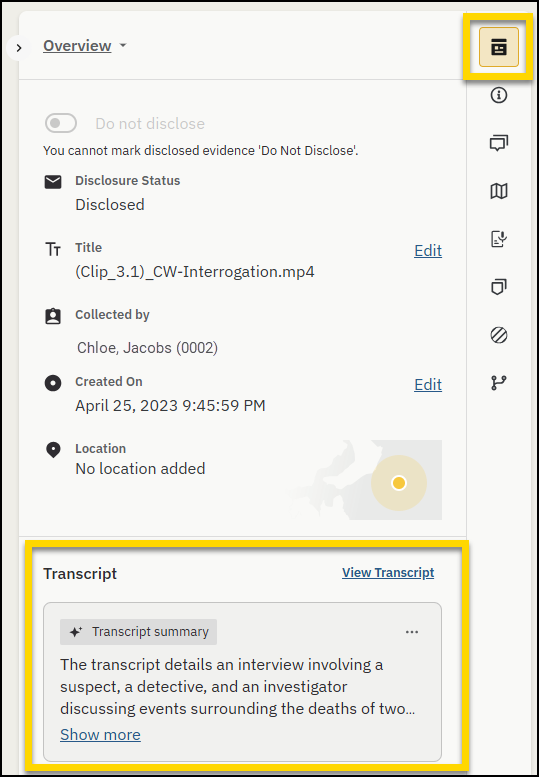
Open the evidence in Review mode. The Justice reviewer opens to the Overview tab.
Overview tab
Under Transcript, in the Transcript Summary card, select Show more to expand the summary, or Show less to collapse it.
Transcript tab
Select the Transcript tab. In the Transcript summary card, select Show more or Show less.
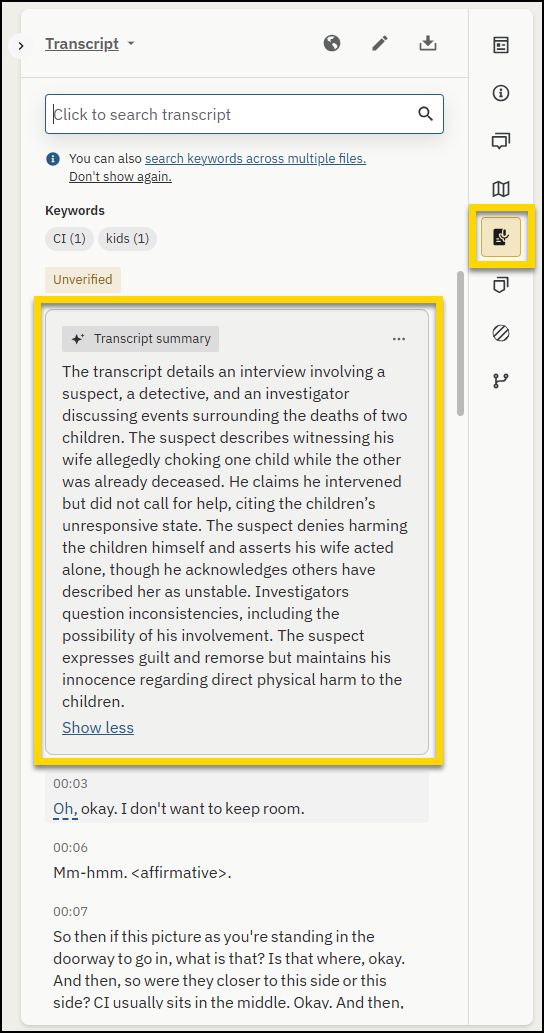
Transcript summaries are available only for evidence with a transcript.
Provide feedback on a transcript summary
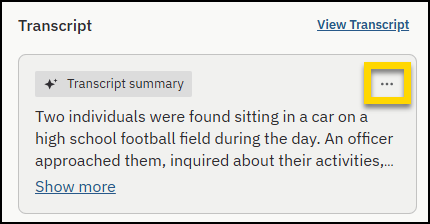
- In the Transcript summary card, select Provide feedback (ellipsis).
- Select Useful or Not useful.
After you submit feedback, Provide feedback is no longer available for that transcript moment.
Enable AI evidence summaries in the evidence table
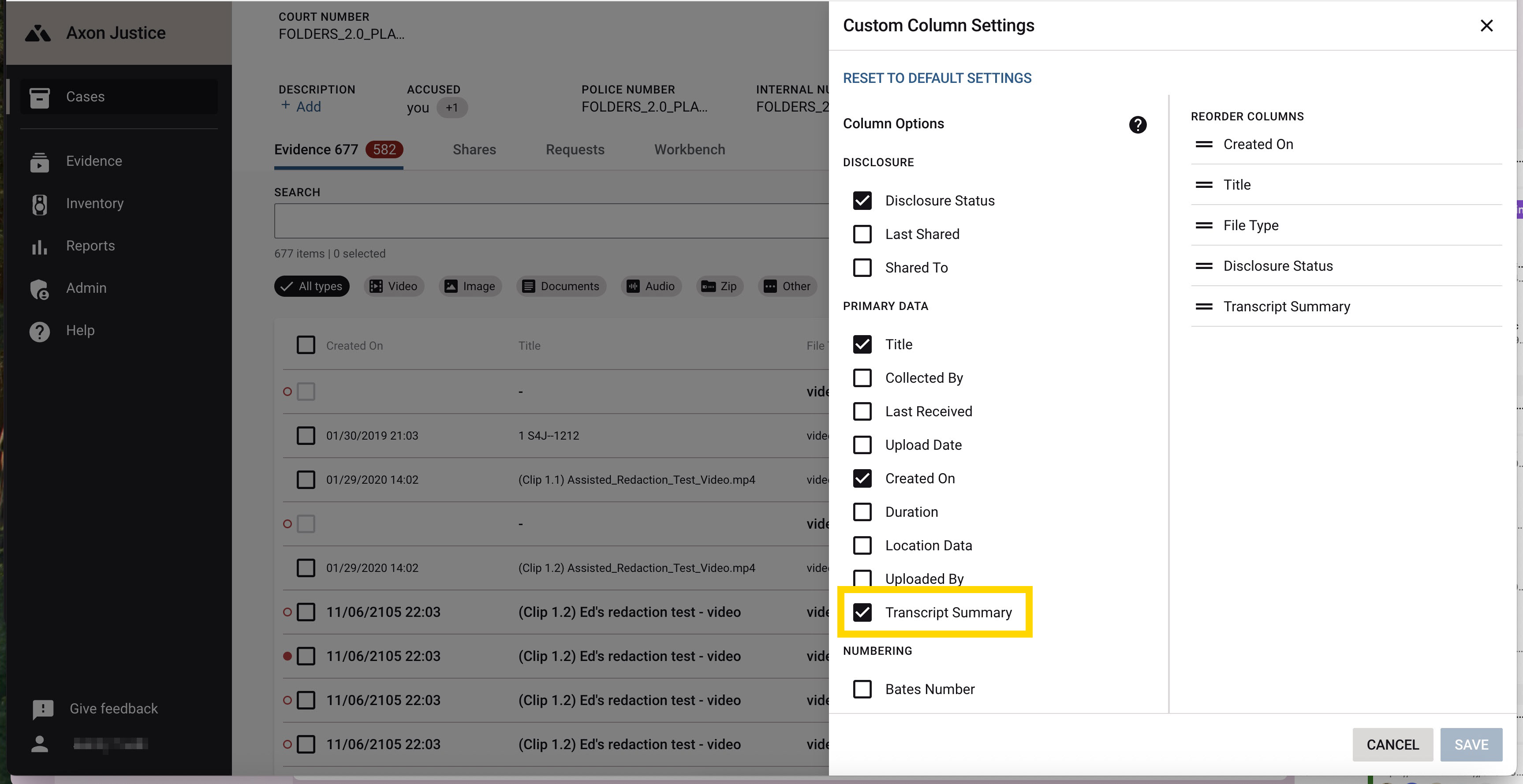
- Select Cases.
- Select the Evidence tab.
- Select Table Settings (gear).
- Check Transcript Summary, then select Save.
View AI evidence summaries in the evidence table
The transcript summary displays in the Summary column in the evidence table. Hover your mouse over a summary to view the entire summary.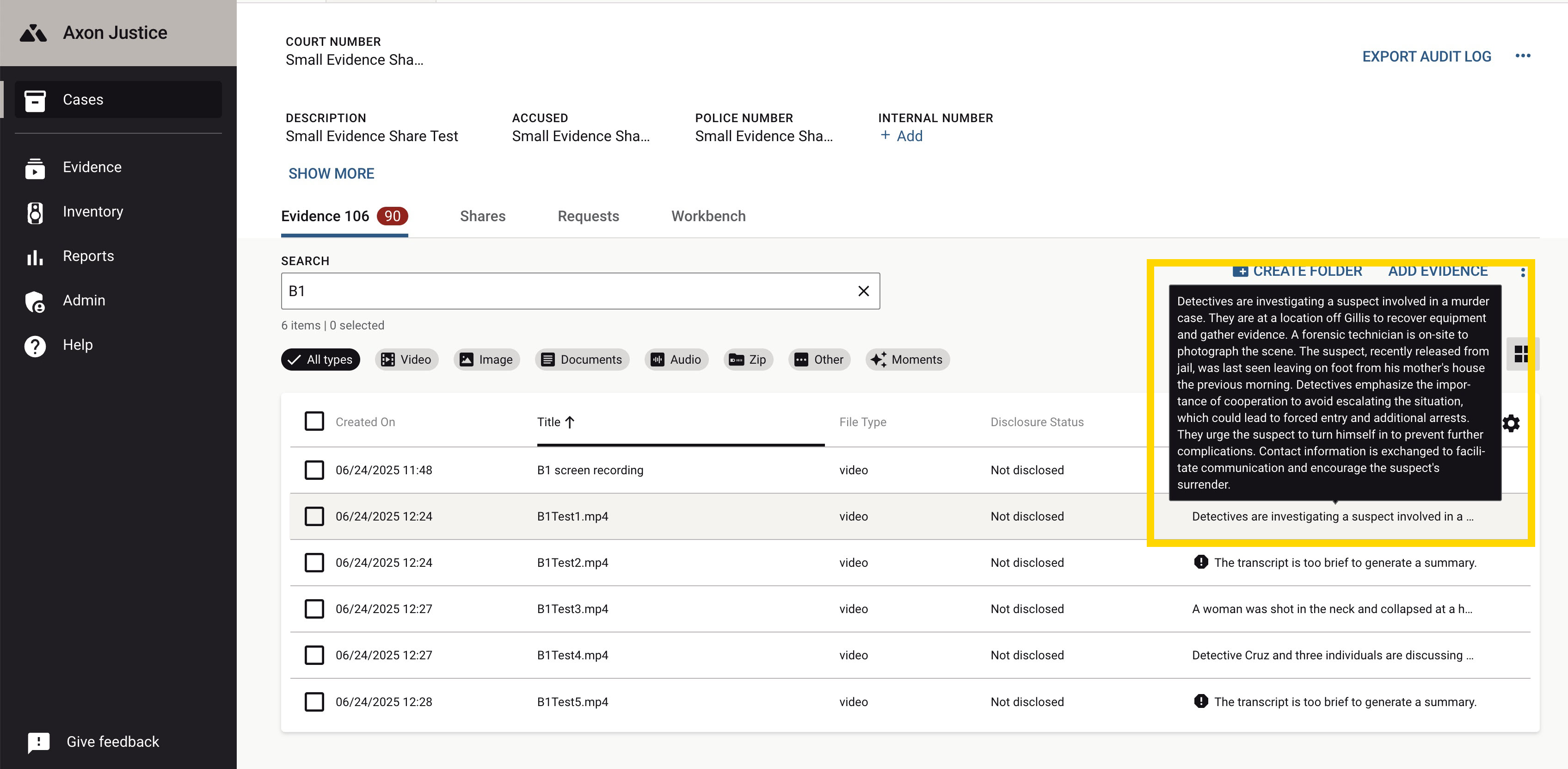
View AI evidence summaries in Gallery view
Select Gallery to access the AI evidence summary in Gallery view. The summaries display next to the evidence media thumbnail.
An AI Brief One view displays the AI evidence summary and the moments.
Generate summaries
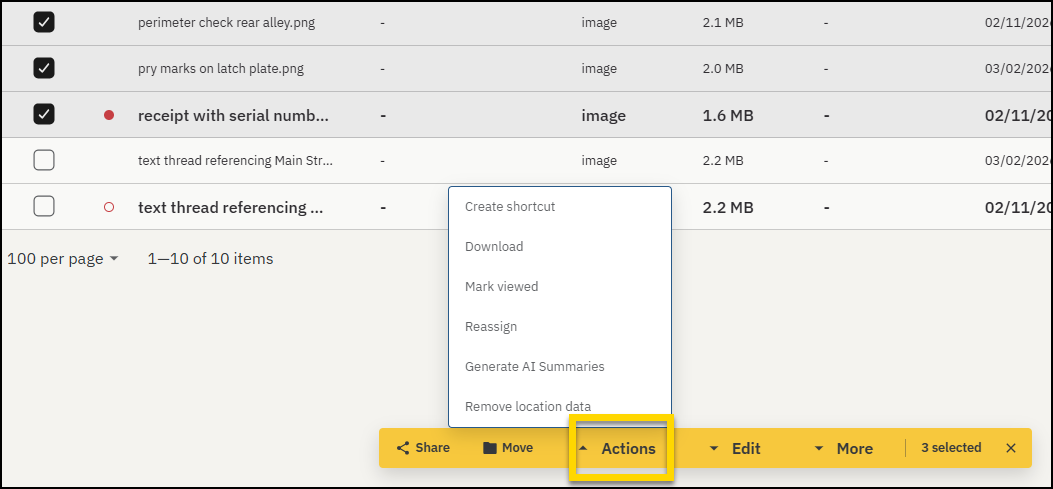
You can select more than 1 piece of evidence in the folder view, evidence table, or gallery view to generate AI summaries on evidence that was in Axon Justice prior to Brief One and may be missing an AI summary.
- Select the checkbox next to each piece of evidence you want to work with.
- On the action bar, select Actions, then select Generate AI summaries.
Transcript moments
Transcript moments highlight key events in an evidence transcript and add timestamps so you can review important sections faster (for example, Miranda Rights).
Transcript moments appear as:
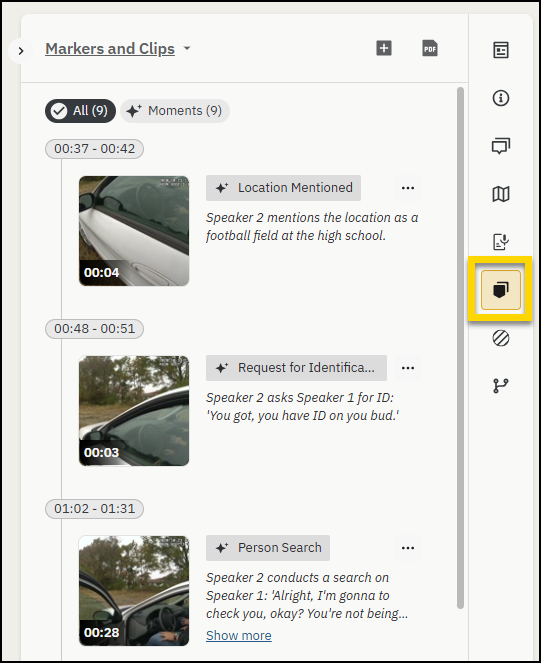
- Markers (a single timestamp)
- Clips (a start and end timestamp)
Moments are sorted by their start time. You can view moments in several places in Justice, including the Justice reviewer, the Brief One gallery view, and as a filter from the evidence details page.
Moment categories
The following transcript moment categories are generally available to all Brief One users:
- Miranda rights
- Field sobriety test
- Request for identification
- Person search
- Legal representation
- Vehicle mentioned
- Person mentioned
View moments in the Justice reviewer
You can view transcript moments in two places:
- Markers and Clips: Select the Markers and Clips tab to view a list of moments.
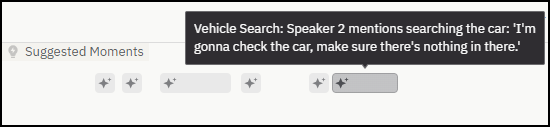
- Suggested moments track: On the video timeline, moments appear in the Suggested moments track.
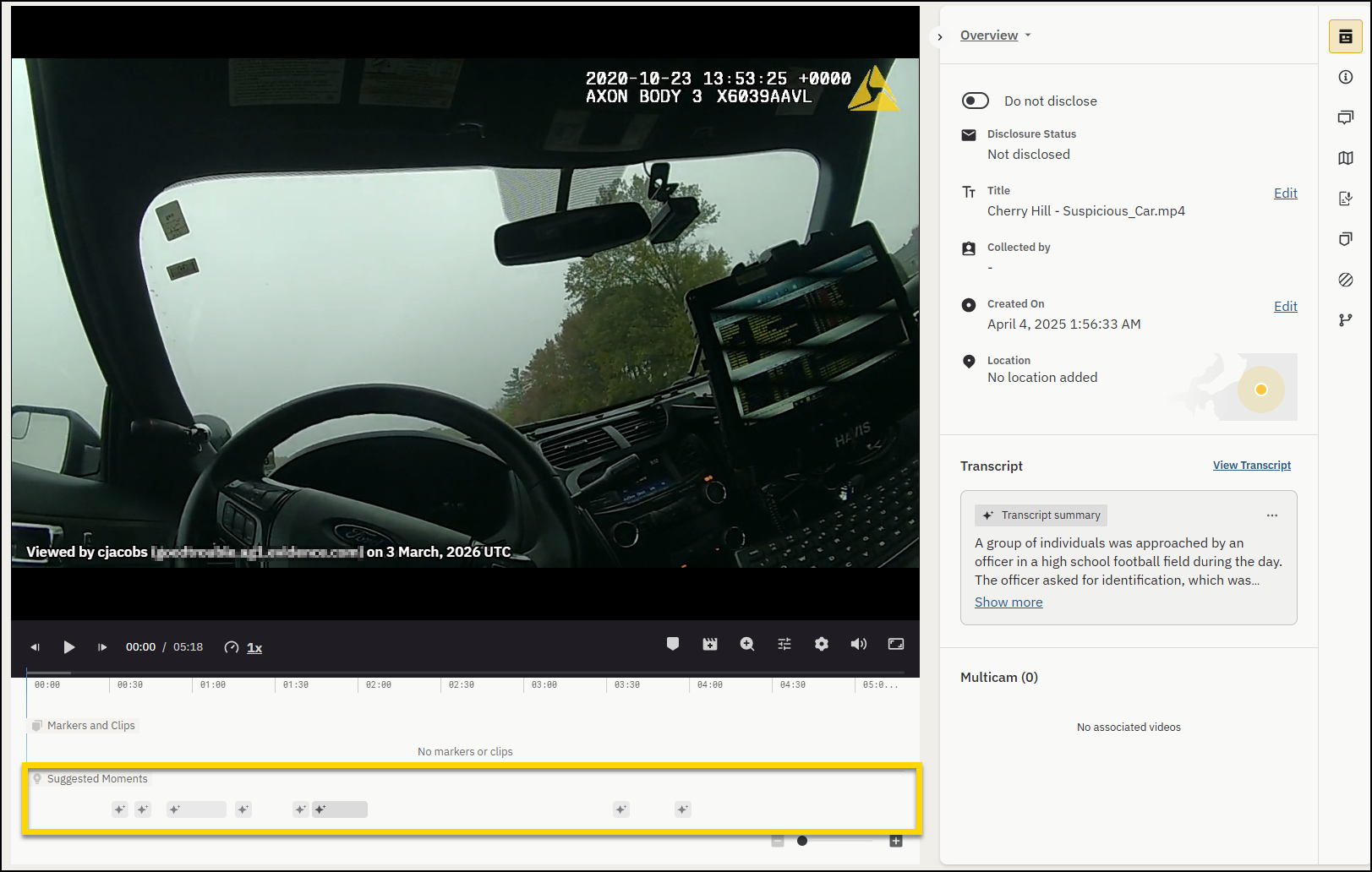
In the suggested moments track
- Hover over a moment to view its transcript summary.
- Select a moment to jump to that timestamp in the evidence.
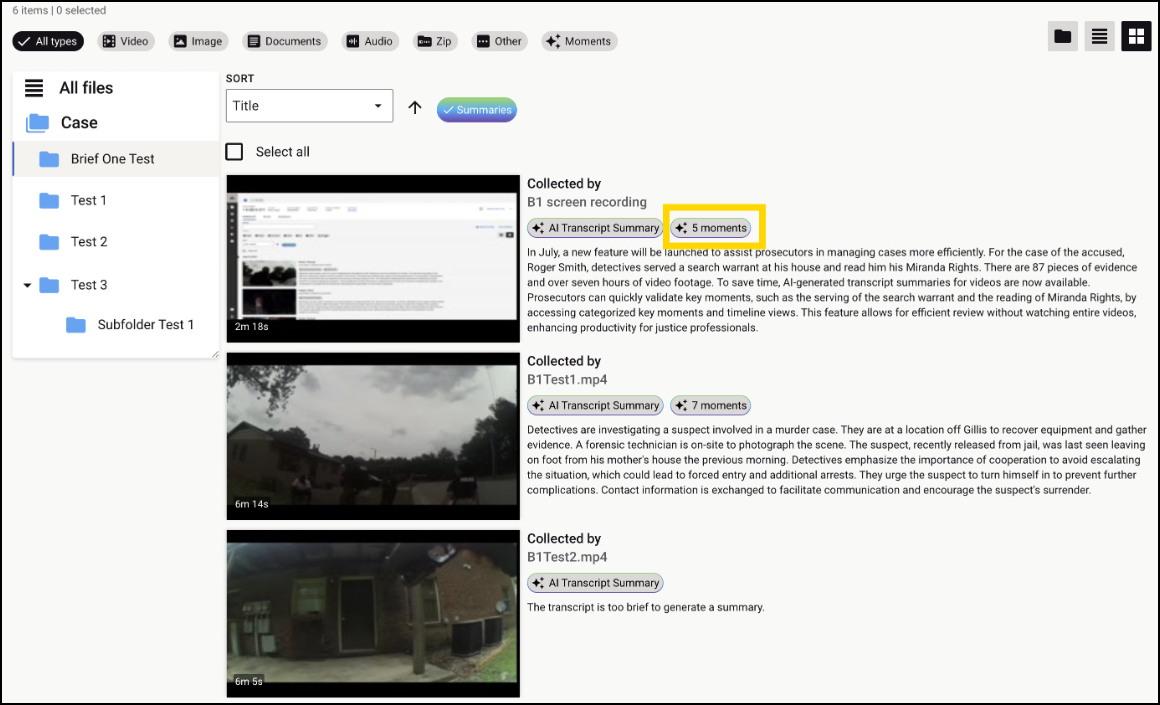
View moments in gallery view
Select the number of moments, to open all the moments associated with that piece of evidence in a side panel.
Select a moment to open the exact timestamp in the video when the moment begins.
Access transcript moments by using the moments filter from the folder view, case detail page, or gallery view.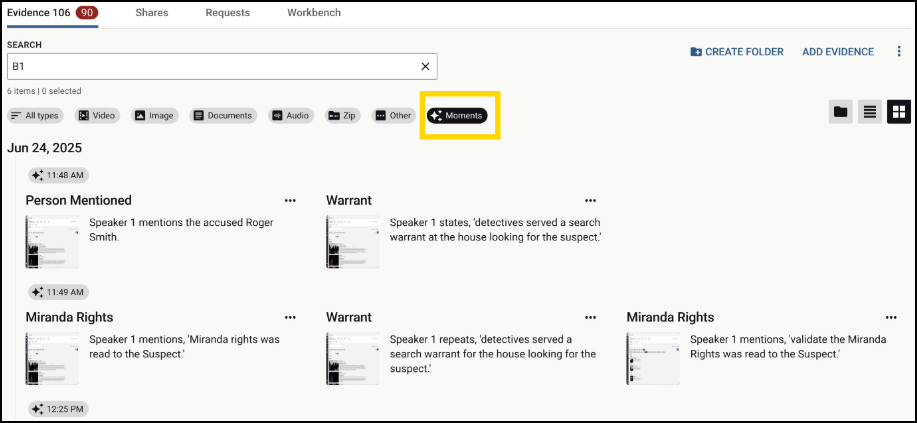
Filter moments
You can filter by moment category to narrow the moments shown for a case.
- On the Evidence tab of the case details page, select the Moments quick filter.
- Select one or more moment categories (for example, Miranda Rights). To clear the filter, deselect the category (or categories).
Moment categories are dynamic. Only categories that apply to the evidence in the case are shown.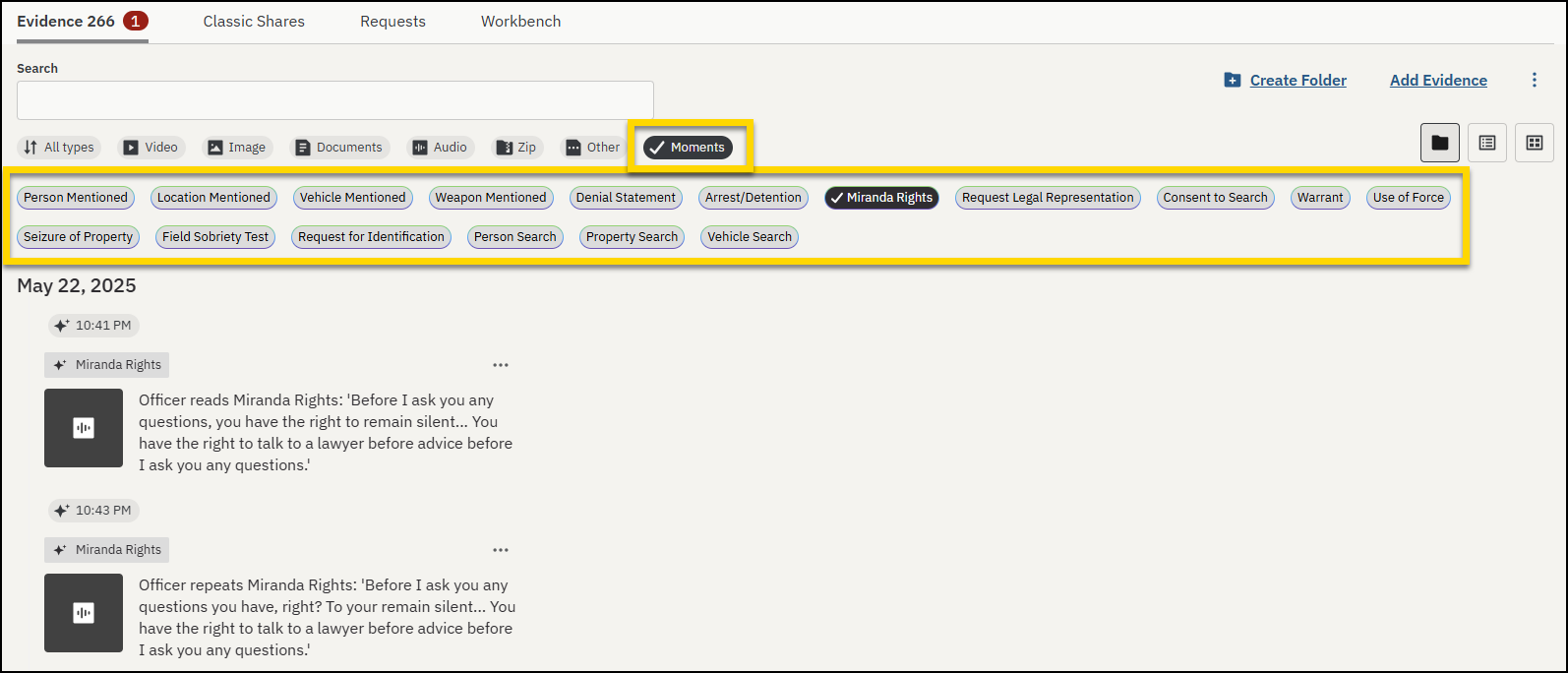
Axon's AI-powered features use artificial intelligence to provide insights, recommendations, or analysis based on available data and user inputs. These outputs may include inaccuracies, limitations, or outdated information. These tools are designed to support—not replace—professional judgment, legal interpretation, and human oversight. Users are responsible for carefully reviewing and verifying AI-powered content before acting on it. Axon continually works to enhance AI accuracy, mitigate bias, and uphold ethical standards. Learn more at Axon AI.


