July 2024
The schedule for the July 2024 release is as follows:
- Customers in the Enterprise region (.ent.evidence.com), Canada region (.ca.evidence.com), European region (.eur.evidence.com), European legacy region (.eu.evidence.com), and New Zealand receive on July 23, 2024.
- Customers in the U.S. Federal (.us.evidence.com) and U.S. Law Enforcement region (.evidence.com) receive on July 24, 2024.
- Customers in Australia, the United Kingdom, and South America region (.la.evidence.com) receive on July 30, 2024.
For information on the update schedule times for your region, refer to the Axon Evidence Maintenance Schedule on the Axon website.
We don’t expect any downtime during this update.
Additional help documentation for the products included in these release notes is located at axon.com/help.
Download this month's release notesAxon Body 4
Operating system v1.2426
Starting with early access devices on July 22, this phased rollout is expected to span three weeks, targeting general availability by August 12th. This update includes:
- General bug fixes and improvements.
Axon Body 3
Operating system v1.32
Starting with early access devices on July 23, this phased rollout is expected to span four weeks, targeting general availability by August 20th. This update includes:
- General bug fixes and improvements.
Axon Body 3 and Axon Body 4
Role-based device settings
In July, Axon will release role-based device settings for Axon Body 3 and Axon Body 4 cameras. Previously, device settings were “one size fits all” across all devices registered to an organization. This new feature allows administrators to create unique copies of the Axon Body 3 and Axon Body 4 Device Settings page, called Device Settings Profiles. These profiles can then be associated with specific roles, so any cameras assigned to users in that role will operate with the profile’s settings. This new functionality will be available for all Axon Body 3 and Axon Body 4 users.
For example, the device settings page appears like this: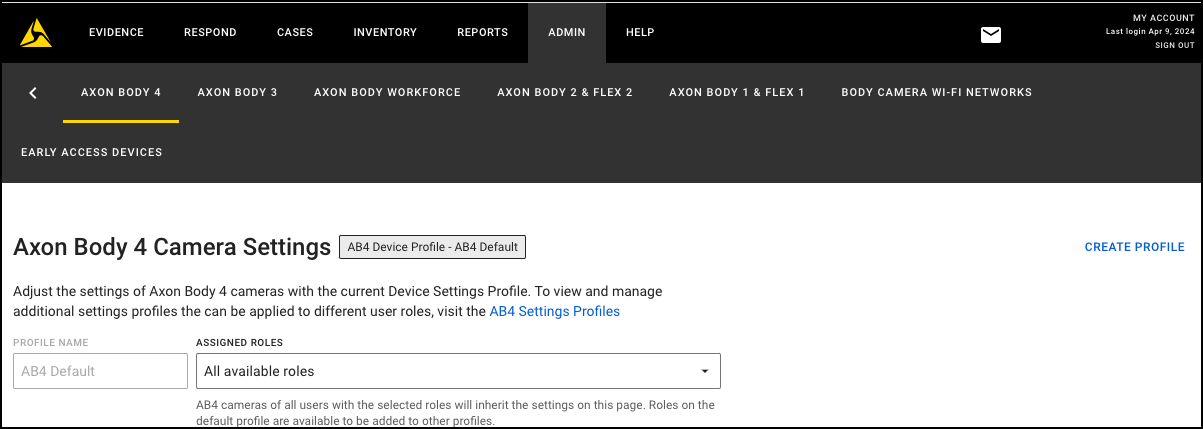
Every Axon Evidence account begins with a default profile, which contains the current settings your organization already has configured for the camera. The default profile is associated with “All available roles”, meaning that every role and therefore every assigned camera in your organization utilizes the settings configured in the default profile. By selecting Create Profile, you can create a copy of the default profile and modify settings as needed.
For example, a test profile has been created: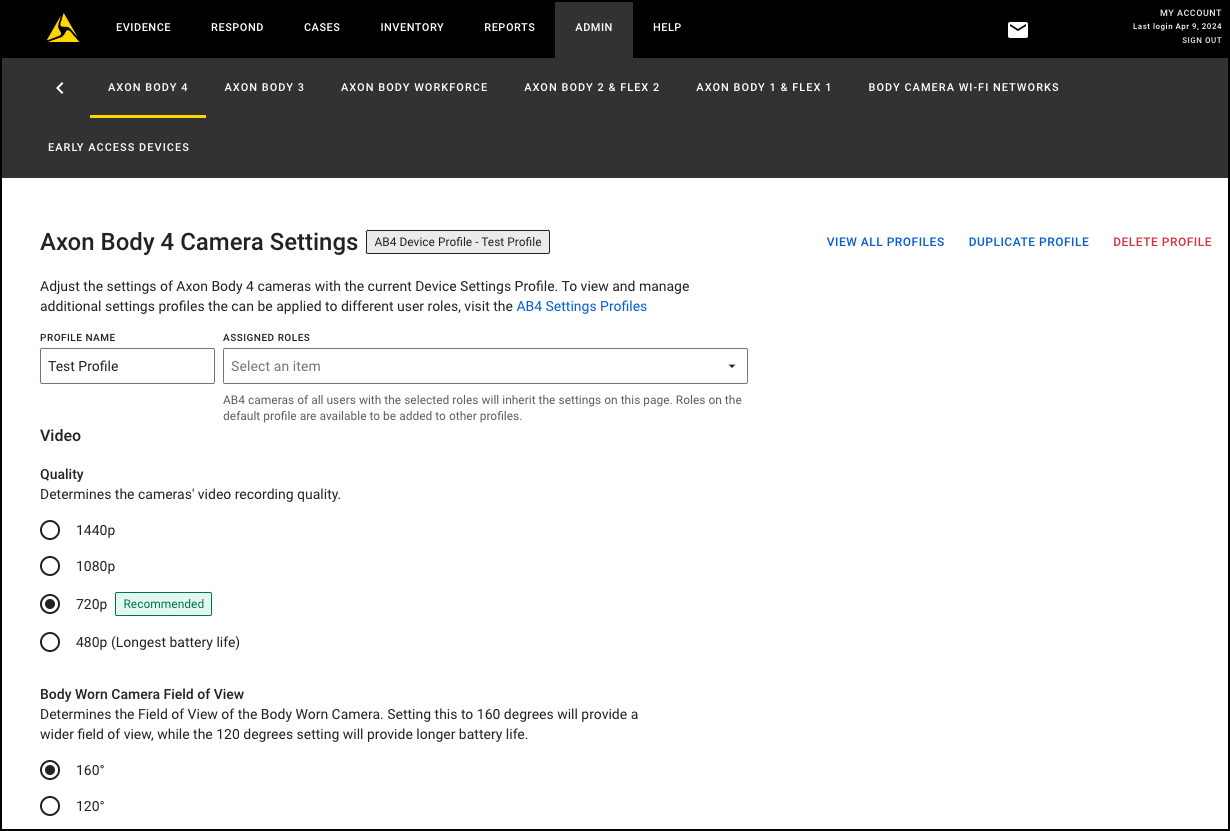
Within this test profile, any settings can be uniquely configured without impacting the default profile. As a final step, you can select which existing roles should be associated with this new test profile. In the following example, the test profile is now associated with the armorer role. As shown in the image, any roles that are currently associated with another non-default profile are unavailable for selection here. In this example the investigator and user roles are assigned to a different profile titled “No Location Reporting”.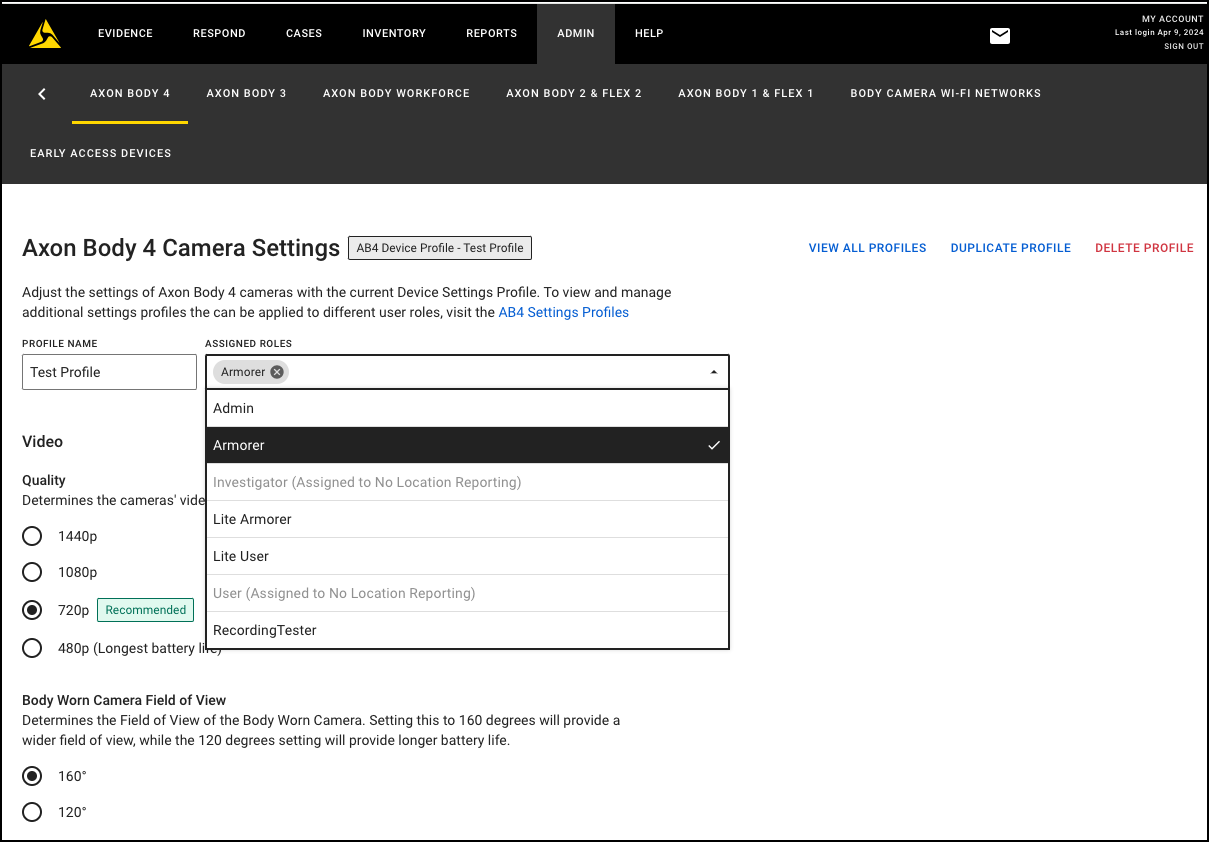
Selecting View All Profiles opens a list view of all profiles created and which roles are associated. From this view, you can select a specific profile to edit settings or role associations. This will be your new view every time you open the settings page going forward.
For a full step-by-step guide on how to configure this feature, please visit: Role-Based Device Settings.
Axon Body Camera Dock
Universal login procedure
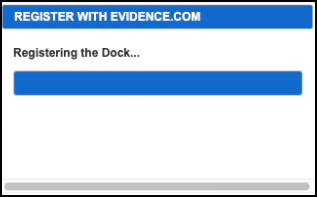
Universal login is now active on all Docks running firmware version 3.17.
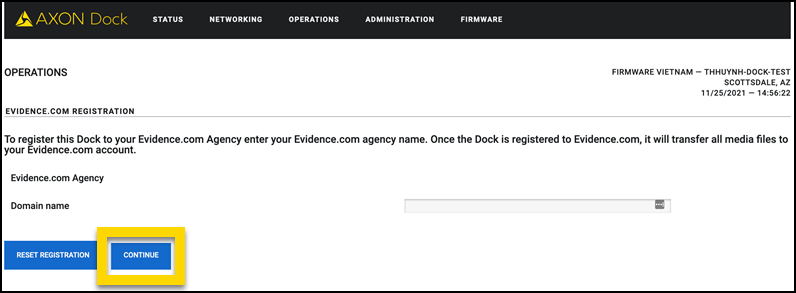
- Login page: With the new universal login workflow, the login page now shows only the domain name text box, and the Save Changes button is changed to Continue.
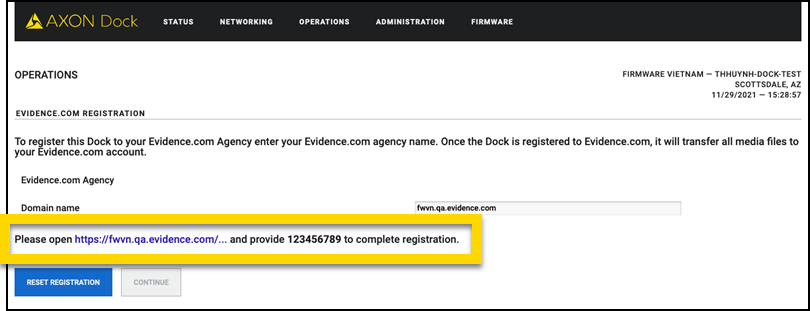
- Verification: After entering the domain name and selecting Continue, a verification URL and user code are shown.
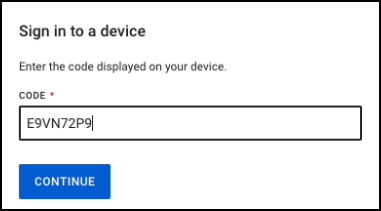
- Registration: Selecting the verification link will prompt you for the verification code.
You will then be presented with one of the following two scenarios:
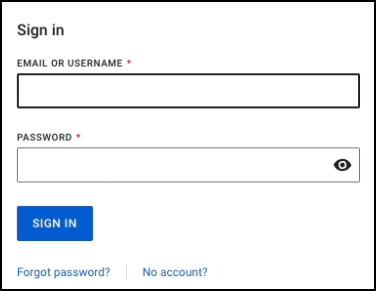
- First registration or expired login: After entering the code, you will be prompted for the admin username and password.
- Non-expired login: If the login isn’t expired, the dock is directly registered after entering the registration code without requiring the username and password.
Axon Fleet 3
Firmware v2.2423
Starting late July and continuing through early August, Axon will begin a phased deployment of firmware update version v2.2423 for the Axon Fleet 3 system.
Fleet improvements
- Simplified system deployment/initialization: When deploying a new Fleet 3 system, the Fleet Dashboard application now supports registration and assignment of the Axon Signal Vehicle (ASV) device to the Fleet 3 vehicle identity, alleviating the need to navigate to Axon Evidence to populate this information.
- Improved Wireless Mic reliability: Resolved rare issues where the charging base could become disconnected from the Fleet 3 Hub, enhancing performance of audio capture.
- Improved connection reliability of body-worn cameras to the Fleet 3 Hub.
- Regular security and performance enhancements
Fleet dashboard mobile
Fleet Dashboard for Android v1.2423 will be released to Google Play.
- Resolved ALPR notification issues, log duplication, and login errors.
- Enabled root detection to prevent unauthorized app use on rooted devices.
- Improved app stability and responsiveness by addressing crashes and other issues.
Axon ALPR
Record search
This update includes the following improvements to the Axon Evidence ALPR Record Search feature:
Search for multiple plates
When searching, you can now search for multiple plates of interest in a single search by separating each plate number with a comma. Wildcard searching, using the * character, is also available when performing searches on multiple plate numbers.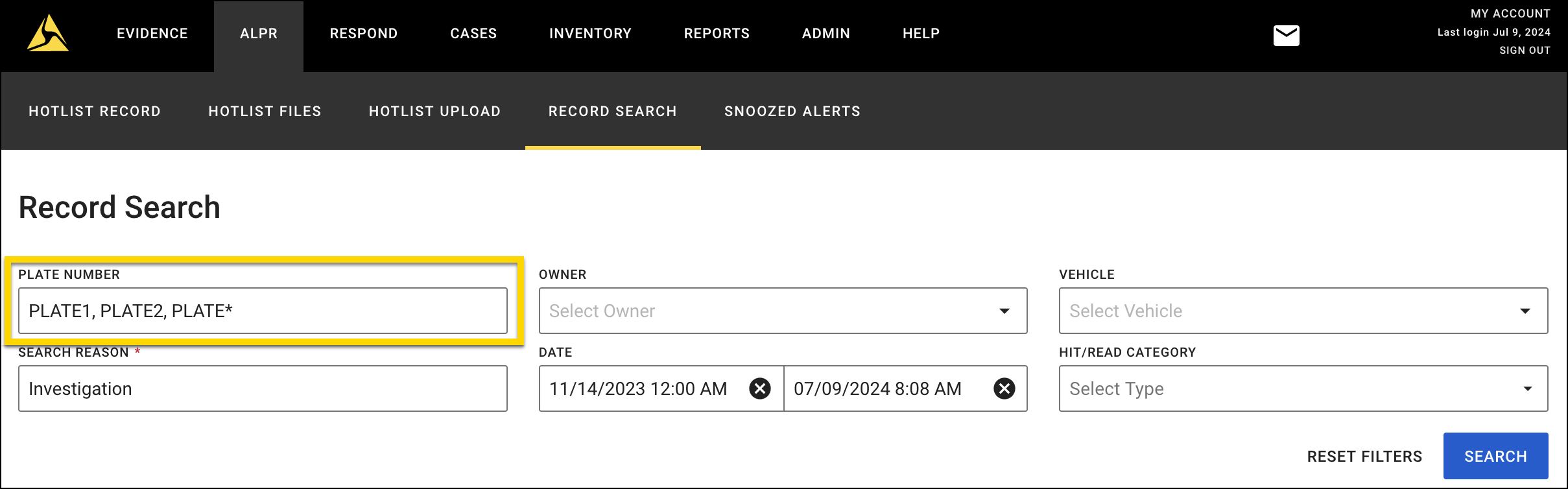
Interactive map markers
After completing an initial search, you can now hover over map markers for more detail on each hit or read record, removing the need to individually open each record. Users can opt to view the data above the map marker or pin it to the right side of the map panel for ease of navigating records. Clicking ‘View’ on the panel shown will open the existing side detail panel for the record in question.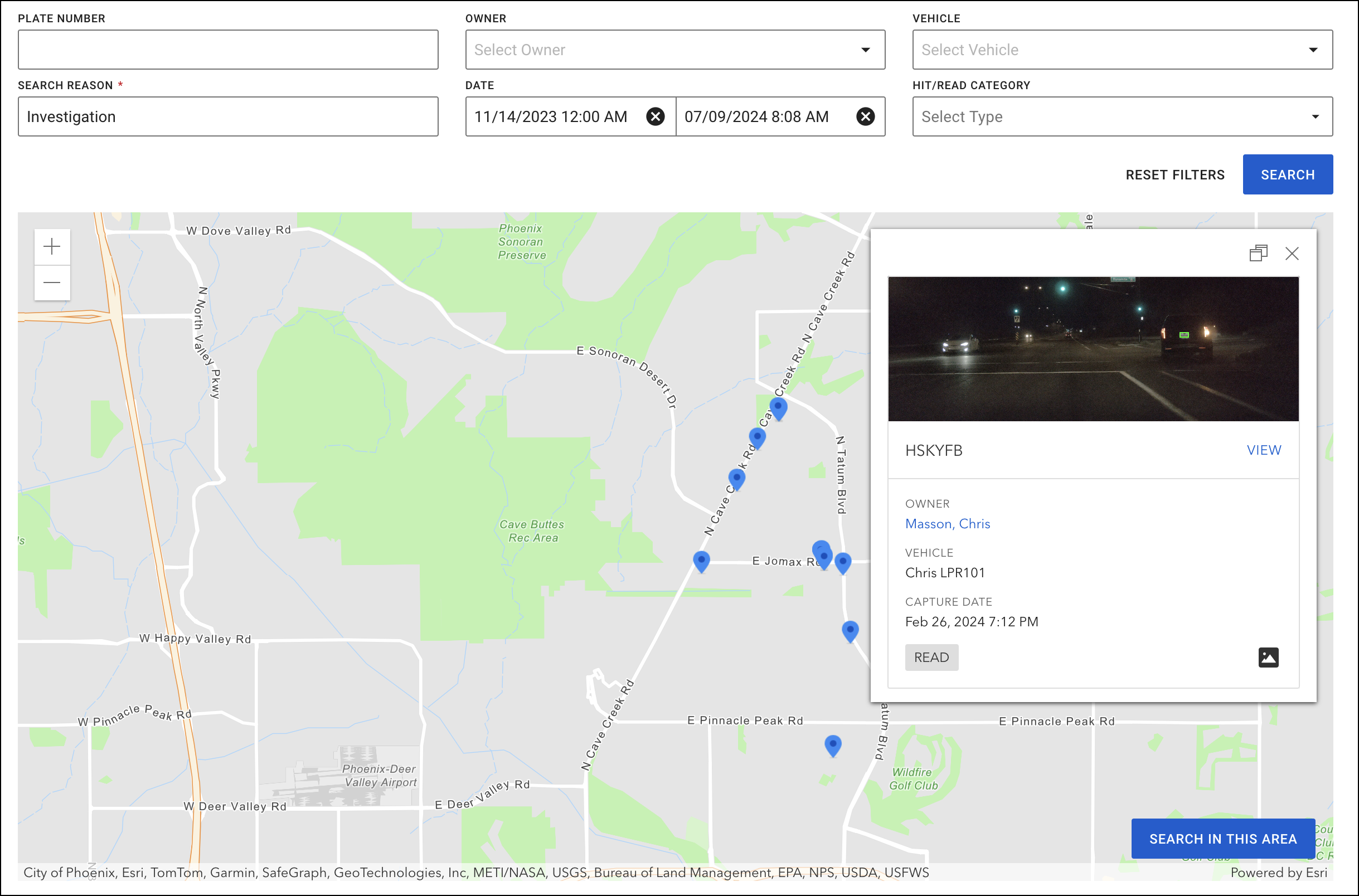
Map-based search
After completing an initial search, you can pan and zoom the map area, and using a new button titled ‘Search in this area’, perform a search with the same search parameters in the new map area, to expand or reduce the number of plates located. This can help when searching for single or multiple vehicles of interest, but you require an ability to focus in on a specific geographic area for hit or read data.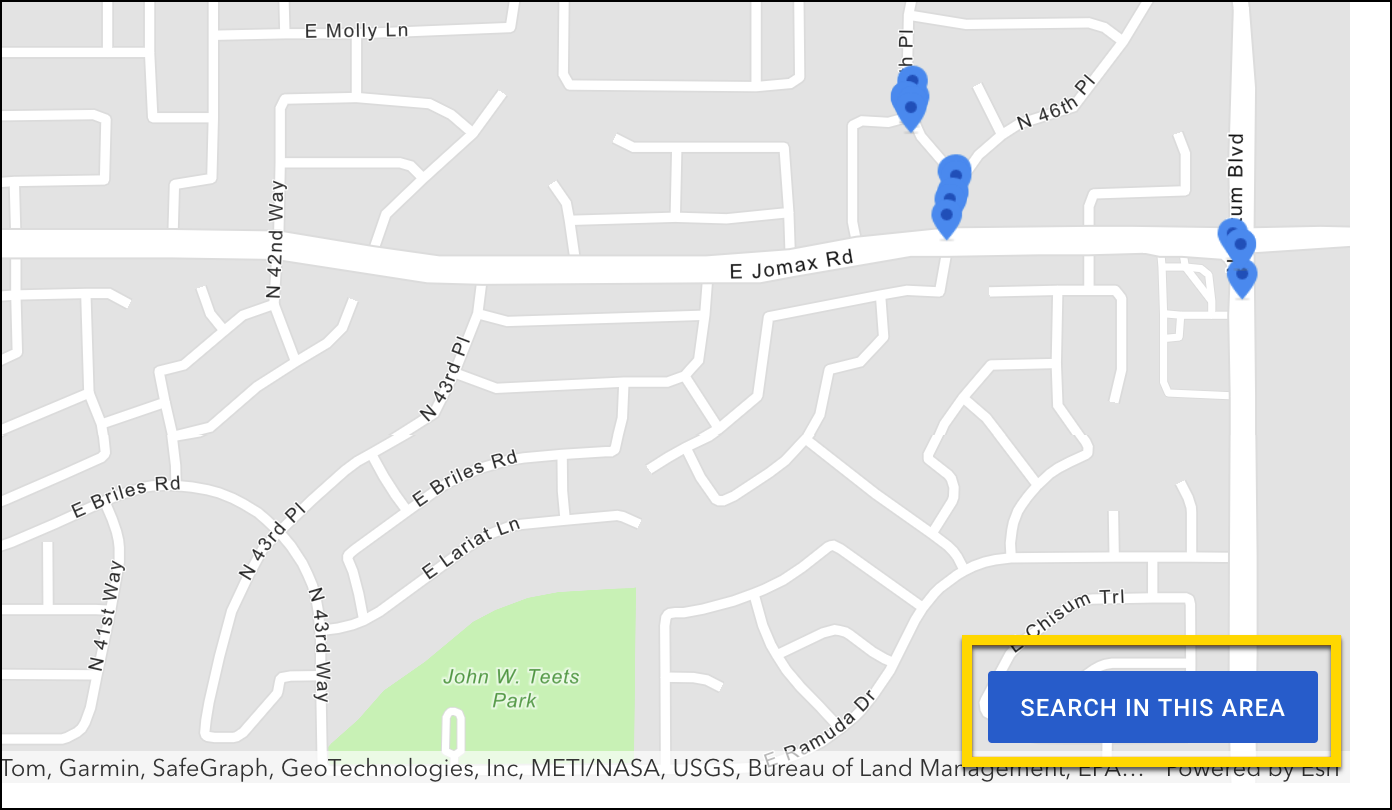
Axon View XL
Issue resolution: Uploads failing due to incorrect permission requirement
The issue that incorrectly required users to have the [Upload External Files] permission enabled in evidence.com to successfully upload evidence has been addressed in the v1.27 release.
ViewXL has been updated to allow evidence uploads without requiring the Upload External Files permission.
Issue resolution: Uploads failing due to session timeout
Corrected an issue where users whose active sessions expired were not being instructed to re-login to ViewXL prior to attempting to upload evidence. Proper error handling has been added to ViewXL in order to instruct users that re-authentication is required to successfully upload evidence.
Improved application logging
Added additional logging information to the authentication process for more efficient debugging and issue resolution.
Axon Academy
New e-learning videos
You’ll have access to the following new e-learning videos in July:
- Fleet 3
- Fleet 3 Mobile - IOS
- Axon Body 4
- Role-Based Settings
New course languages
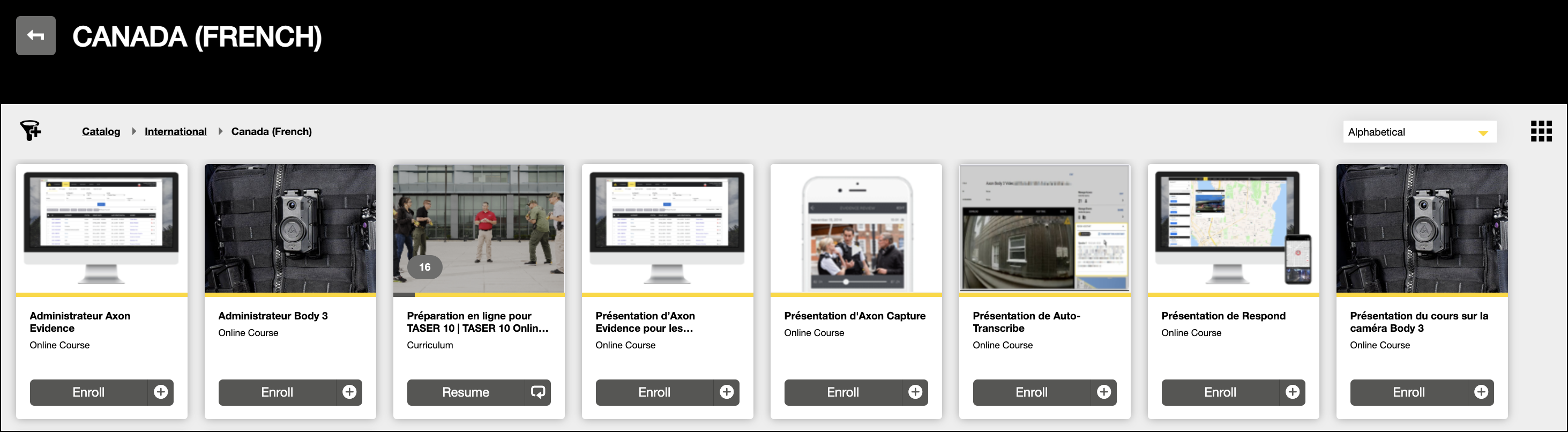
Additionally, you now also have access to 30 courses in 3 new languages: French (Canada), Spanish (Latin America), and Portuguese (Brazil). These courses include:
- Devices e-learning, such as Body 3 Admin and End User courses (French-Canadian only).
To access these courses
- Go to the Academy homepage, and follow the steps outlined below to select a platform language.
- On the Academy home page, look for international courses at the top of the page, under the “International Academy” header.
- Select the desired language tile to discover available courses.Note
International TIS and MIS courses are not available for self-enrollment. Customers will need to contact local training teams to be enrolled.
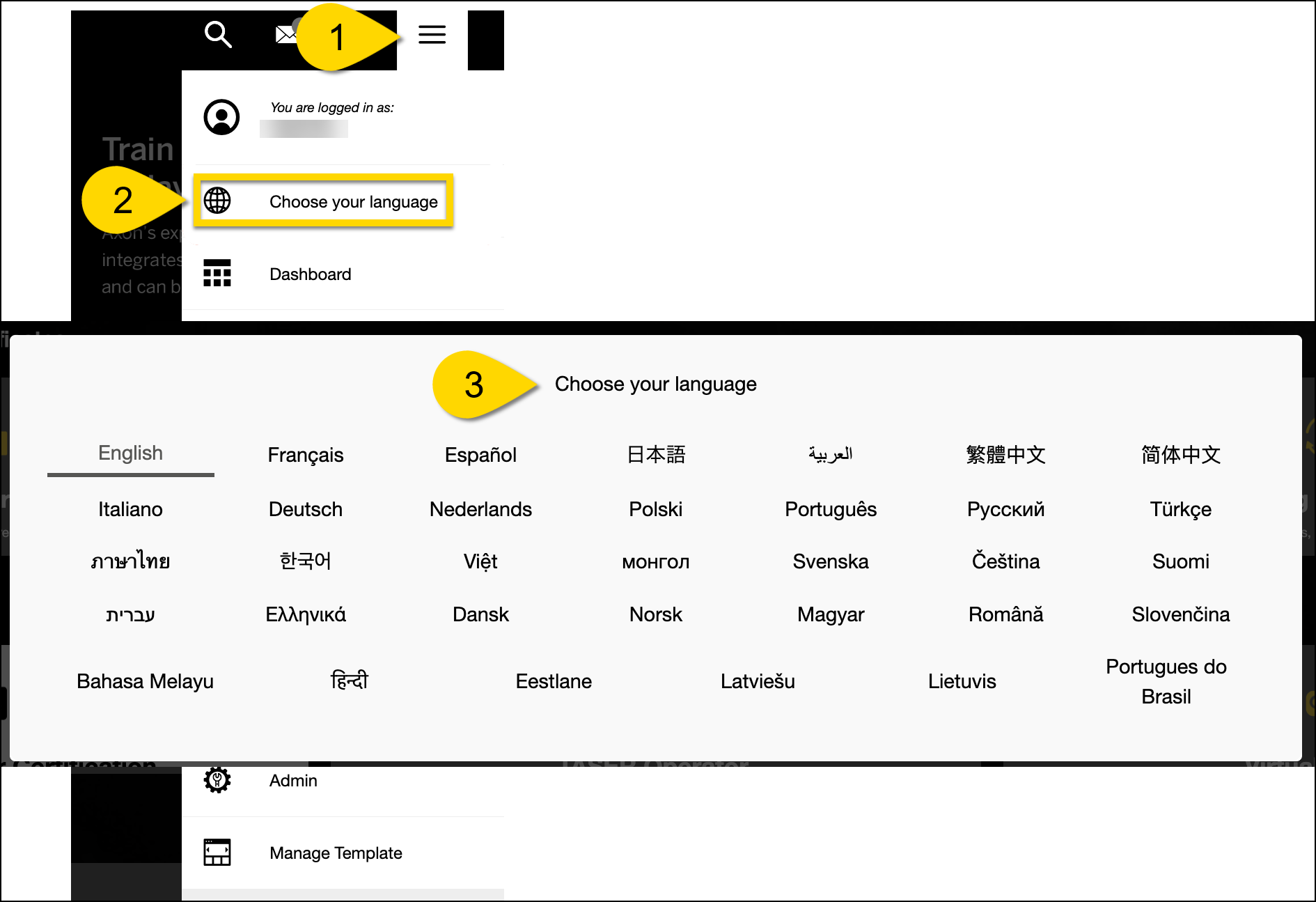
Step 1. Select Platform language
- Select Menu.
- Select Choose your language.
- Select a language from the list.
Step 2. Select desired language folder/tile.

Step 3. View available courses in desired language.
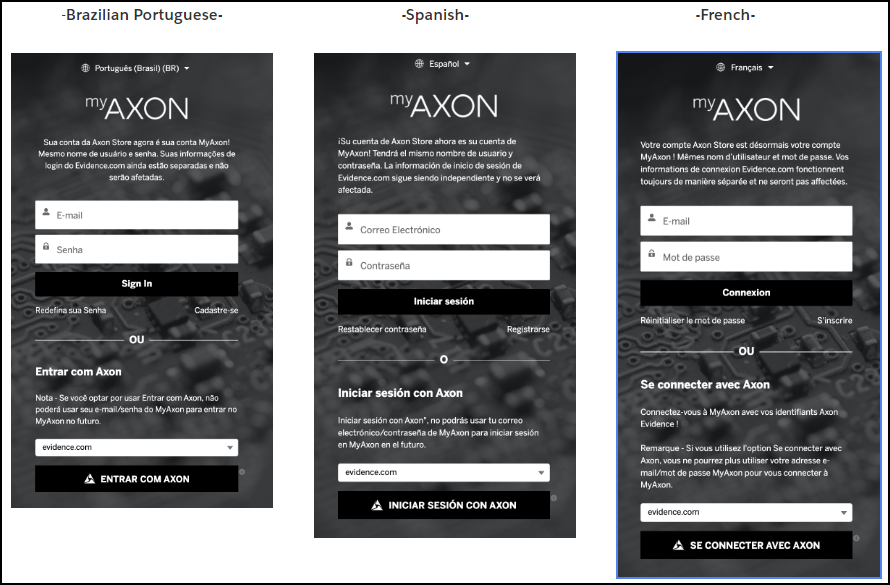
Are the login pathways localized in French, Spanish, and Portuguese?
Yes. Users can log in via MyAxon or E.com SSO by setting the language selector located at the top of the login screen. Note, logging in via Brazilian Portuguese and Spanish will directly send the learners to Axon Academy homepage. Logging in via French will send learners to MyAxon. This is because MyAxon site is now also fully translated in French, whereas it is not currently supported in Spanish and Portuguese. This will cause an extra “hop” for French learners in accessing Academy, but they will also be able to access localized MyAxon store, select Product Guides, etc.