April 2024
The schedule for the April 2024 release is as follows:
- Customers in the Enterprise region (.ent.evidence.com), Canada (.ca.evidence.com), and U.S. Law Enforcement region (.us.evidence.com) receive on May 2, 2024.
- Customers in the U.S. Federal (.evidence.com), New Zealand, the European region (.eur.evidence.com), and the European legacy region (.eu.evidence.com) receive on May 6, 2024.
- Customers in the United Kingdom, Australia, and South America region (.la.evidence.com) receive on May 7, 2024.
For information on the update schedule times for your region, refer to the Axon Evidence Maintenance Schedule on the Axon website.
We don’t expect any downtime during this update.
Additional help documentation for the products included in these release notes is located at axon.com/help.
Download this month's release notesCore platform changes
Sign-in with Axon on MyAxon
This does not apply to Federal customers.
Currently, users of Axon products and MyAxon must maintain separate user accounts for each system, resulting in confusion for users who must manage multiple passwords. Starting May 10, all users (excluding US Federal customers) will be able to sign in to MyAxon using their main Axon accounts. This feature is already available as a pilot for non-Federal US Law Enforcement. Agencies that wish to opt out of this functionality should contact Axon for support.
From the MyAxon sign-in page, users can choose the “Sign in with Axon” option at the bottom of the page to sign in using their Axon accounts.
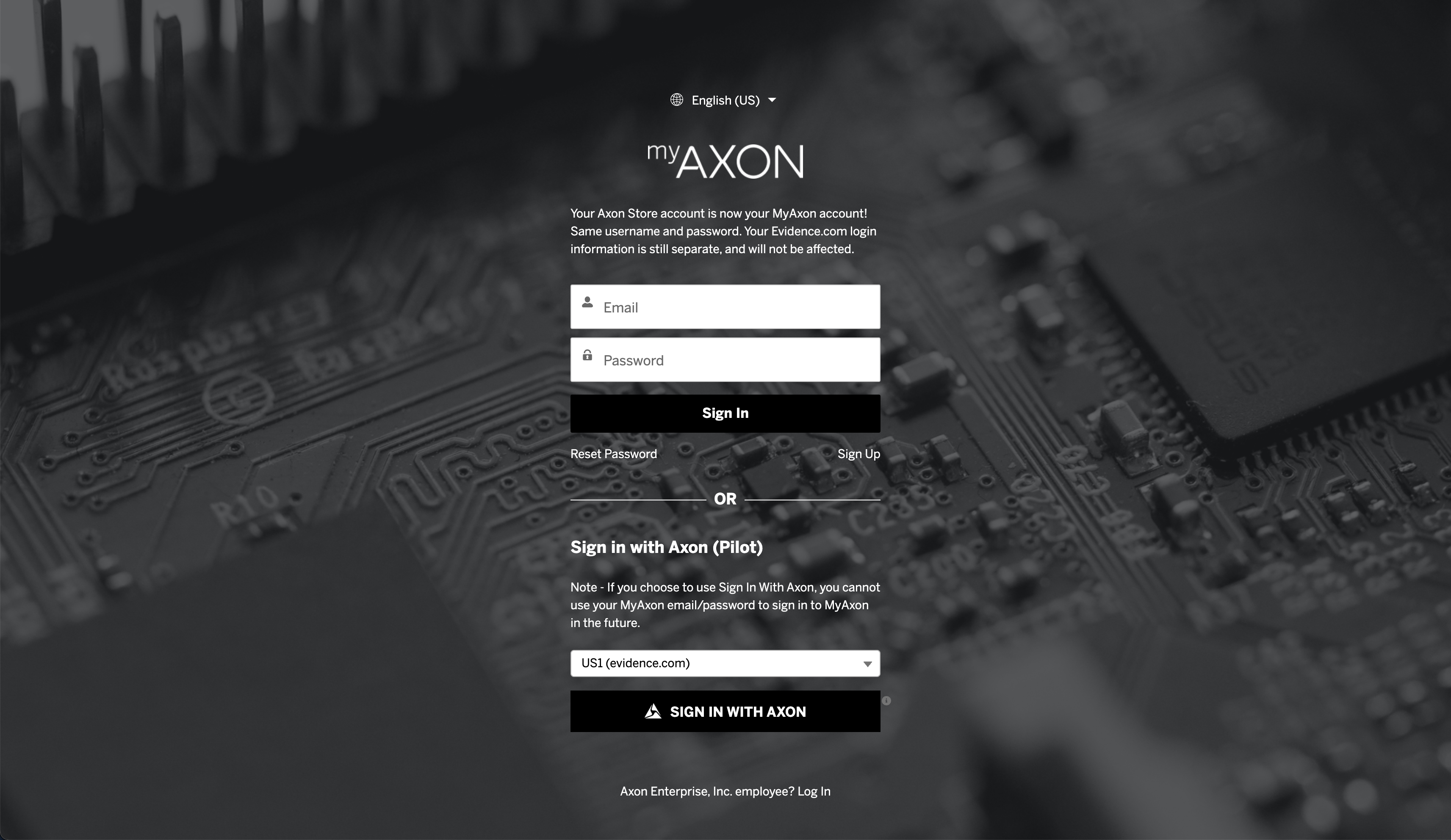
Users who do not yet have a MyAxon account who sign in with their Axon account will be automatically provisioned in MyAxon without additional registration. If there are any issues with signing in, please reach out to [email protected] for assistance.
Reminder: End-of-life for legacy sign-in
Over the past two years, Axon has upgraded all desktop and mobile applications to support our modern sign-in system, Universal Sign-In, to enhance the security and reliability of our applications. We have been rolling the new system out across all applications and customers gradually to minimize impact. This rollout is expected to complete in early May. Once the rollout is complete, the legacy sign-in system will be shut off in the May 2024 release. Axon Interview will not be impacted by this change and Axon Interview customers will have until December 2024 to upgrade their systems.
As a reminder, the new system requires the use of multi-factor authentication (MFA) for all applications, including desktop and mobile clients (except for customers who have configured Single Sign-On). We strongly recommend users configure multiple MFA methods, such as app-based MFA, to minimize the impact of email or SMS delivery issues.
Following the shutdown, users attempting to access Axon desktop or mobile applications on unsupported versions will receive the following message. This can be resolved by upgrading to the latest version of that application.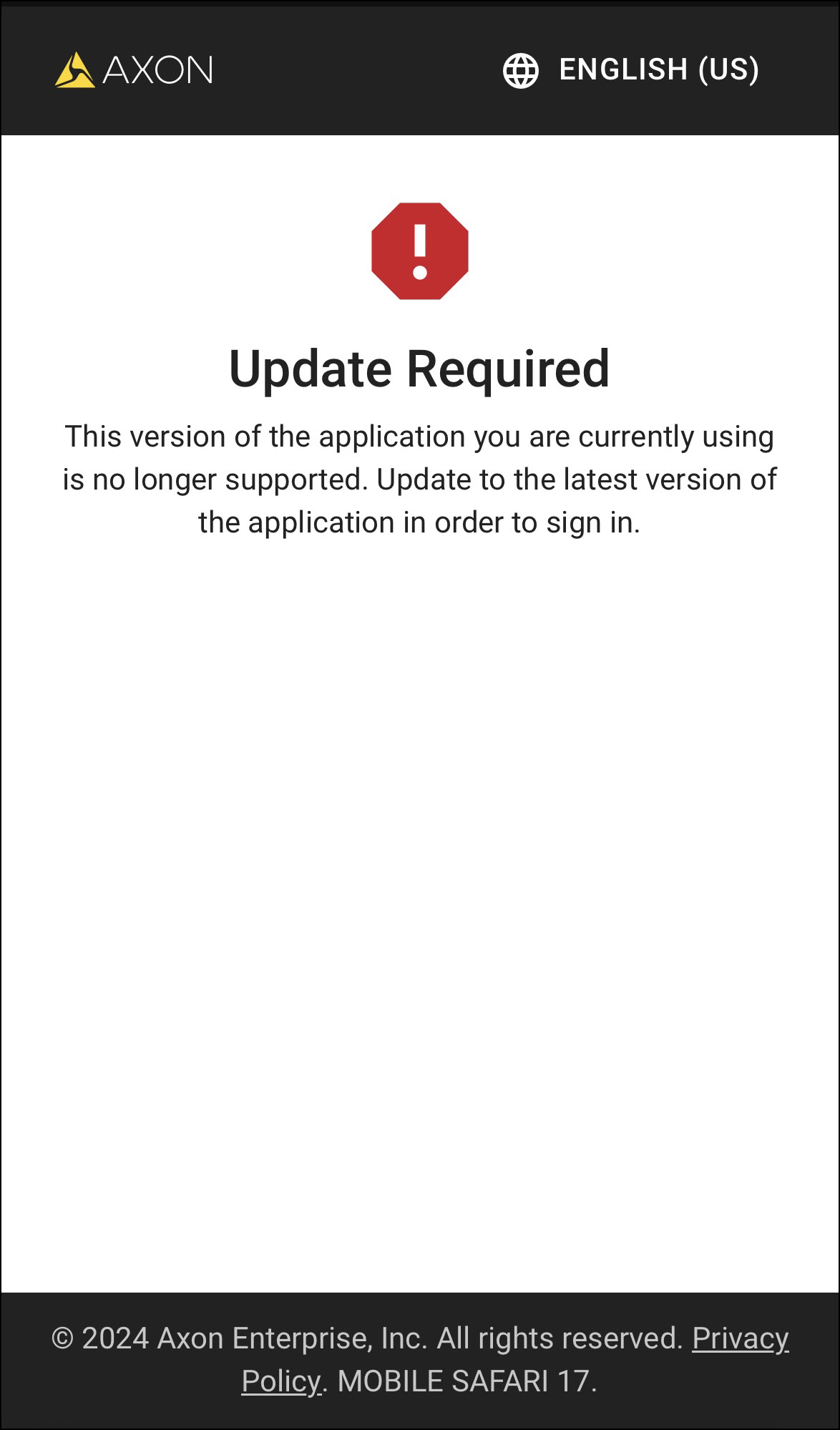
In order to avoid disruption, ensure your applications meet the minimum version requirements listed below:
|
Application name |
Platform |
Minimum version |
|---|---|---|
|
Axon Capture |
iOS |
5.9.0 |
|
Axon Capture |
Android |
5.11.0 |
|
Axon Checkout |
iOS |
2.0.1 |
|
Axon Checkout |
Android |
0.4.1 |
|
Axon Device Manager |
iOS |
3.2.2 |
|
Axon Device Manager |
Android |
3.7.5 |
|
Axon Fleet Dashboard |
iOS |
No minimum version |
|
Axon Fleet Dashboard |
Android |
No minimum version |
|
Axon Fleet Dashboard |
Windows |
1.2.5395 |
|
Axon Respond |
iOS |
1.12 |
|
Axon Respond |
Android |
1.12 |
|
Axon View |
iOS |
5.8.0 |
|
Axon View |
Android |
5.7.0 |
|
Axon View XL |
Windows |
1.22 |
|
Axon Upload XT |
Windows |
2.6 |
|
Evidence Sync |
Windows |
3.22.1 |
Enrolling multiple Multi-Factor Authentication (MFA) methods
In January 2023, Axon rolled out a new capability to the vast majority of customers that allows users to enroll multiple MFA methods and choose between them during sign-in. The functionality defaults to your previous MFA method, but you can now use other MFA methods allowed by your agency administrators. Starting from this release, any agency not using this feature will be automatically upgraded to the new experience.
Where users have phones available, we recommend users register an authenticator app as an MFA method to avoid impact from delayed email or SMS delivery.
For more information and instructions, see MyAxon.
Reminder: rate limiting for API client token creation
Axon has begun a phased reduction of the rate limit for API client token creation in order to optimize performance and ensure system stability.
To ensure uninterrupted access to our services, make sure your clients are properly caching and reusing access tokens, and only renew as needed. Caching your tokens will ensure you are not impacted by rate limit changes. Clients should also be configured to handle 429 requests, including the Retry-After header.
Partner API updates
The Axon Evidence Partner API Guide has been updated with changes to the Partner API. You can view the API Guide at https://developers.axon.com. If you are unable to access the API Guide site, see Accessing the Axon Developer Community.
The following changes are part of the Axon Partner API:
- Axon is beginning a phased reduction of the rate limit for API client token creation in order to optimize performance and ensure system stability. To ensure uninterrupted access to our services, make sure your clients are properly caching and reusing access tokens, and only renew as needed. Caching your tokens ensures you are not effected by rate limit changes. Clients should also be configured to handle 429 requests, including the Retry-After header.
Axon Evidence
Case management
Case template
Case Template is available for all customers in all regions (except EU1), however, only Pro/Pro+ users can use this feature.
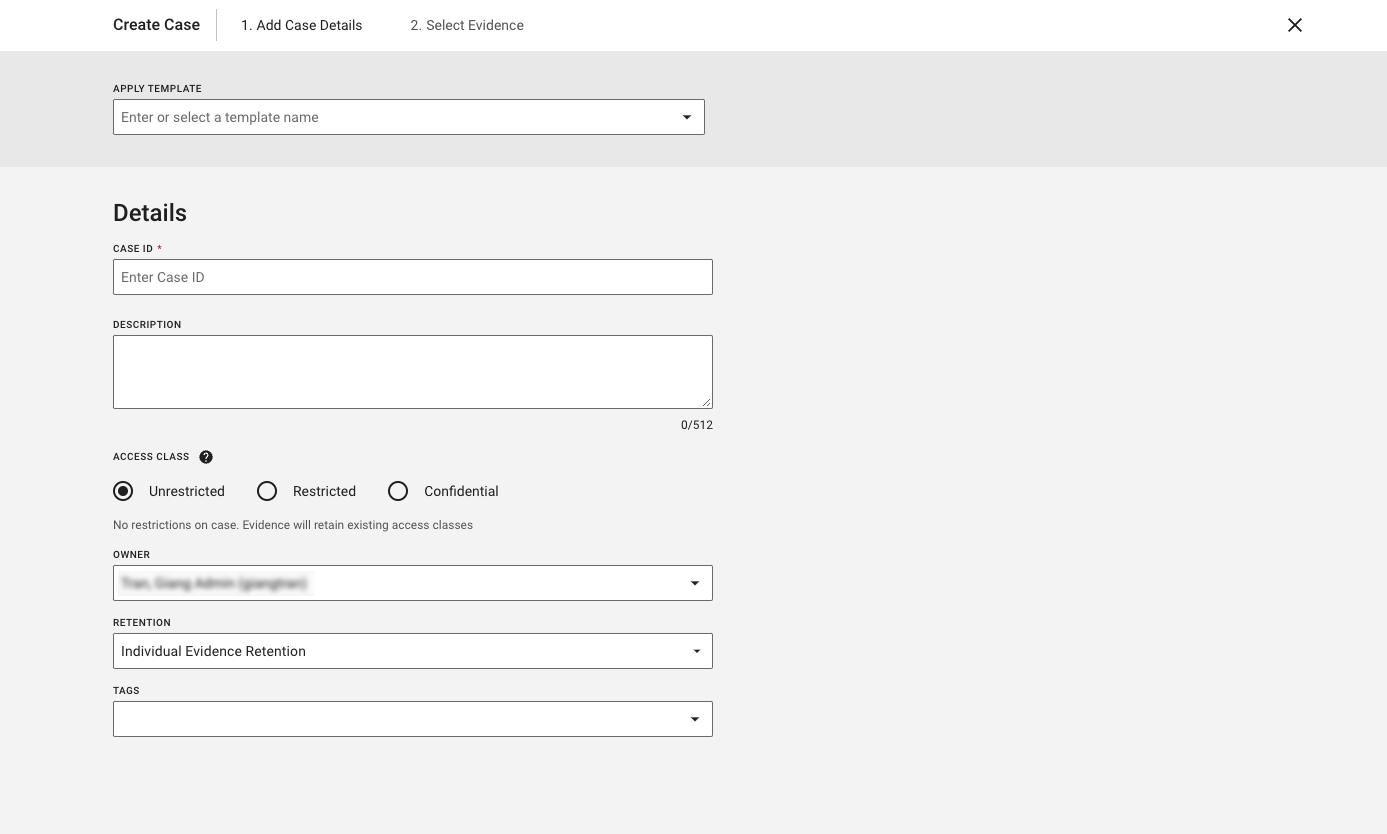
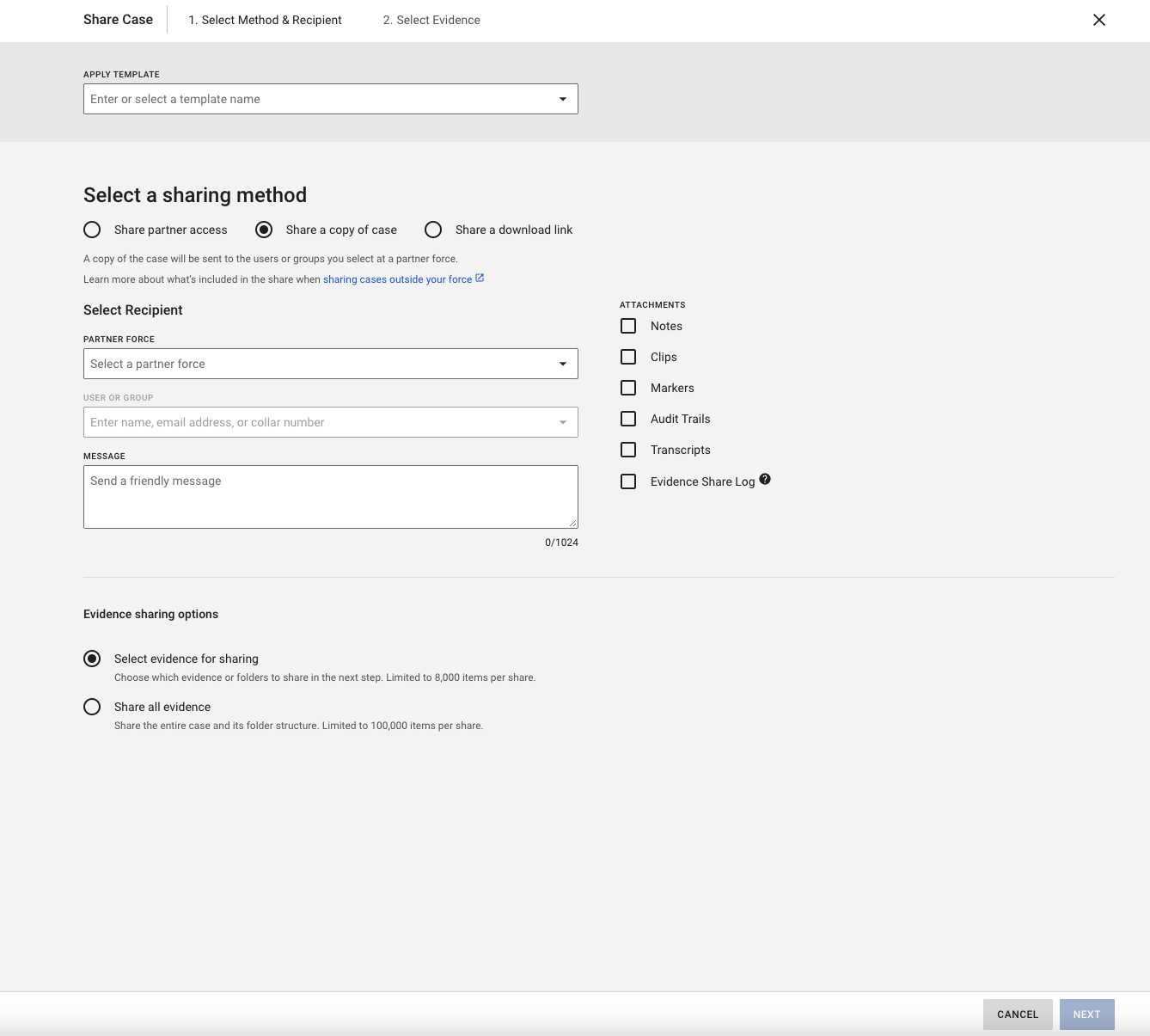
Along with Case Template GA, the new UIs for Case Creation and Case Share Creation are rolling out for all customers.
For Case Creation, there are two steps: Add Case Details and Select Evidence.
For Case Share Creation, there are two steps: Select Methods & Recipient and Select Evidence. If a user selects “Share all evidence” in step 1, step 2 is skipped. For more information on case settings, see MyAxon. For more information on sharing cases, see MyAxon.
Axon Capture app and API client evidence source filters
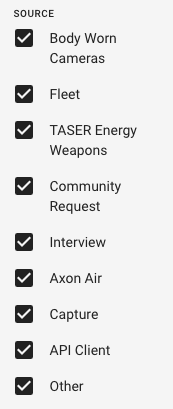
Users can now filter for evidence uploaded by Capture and for evidence uploaded via an API client on both the Evidence Search page and on evidence search within a case.
General improvements:
- The usage count for custom metadata has been removed
Quickshare
This is only available for customers in the Enterprise region.
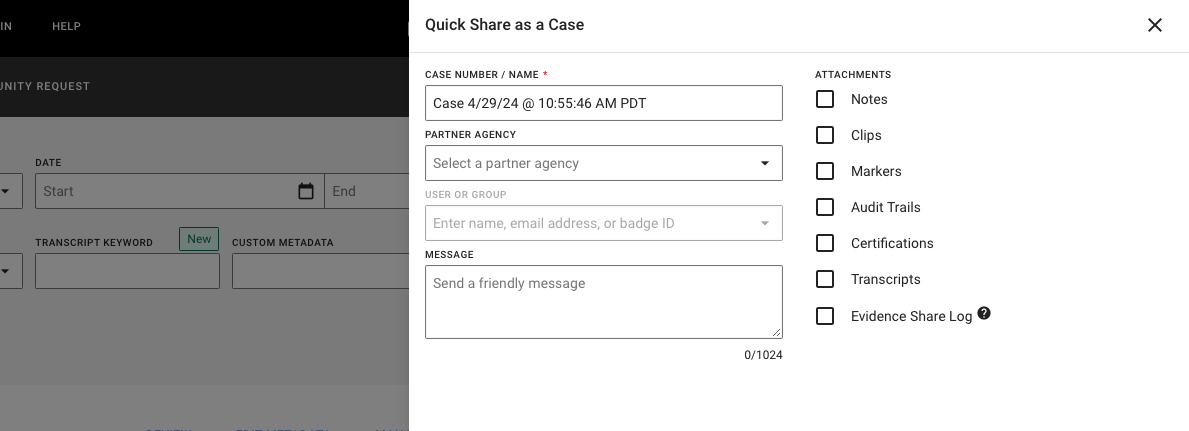
A new action is available when selecting evidence from the All Evidence or My Evidence pages. Users can now select multiple pieces of evidence, select Quickshare, and a case is automatically created with those pieces of evidence. Users can select a recipient, add attachments, and then share the new case.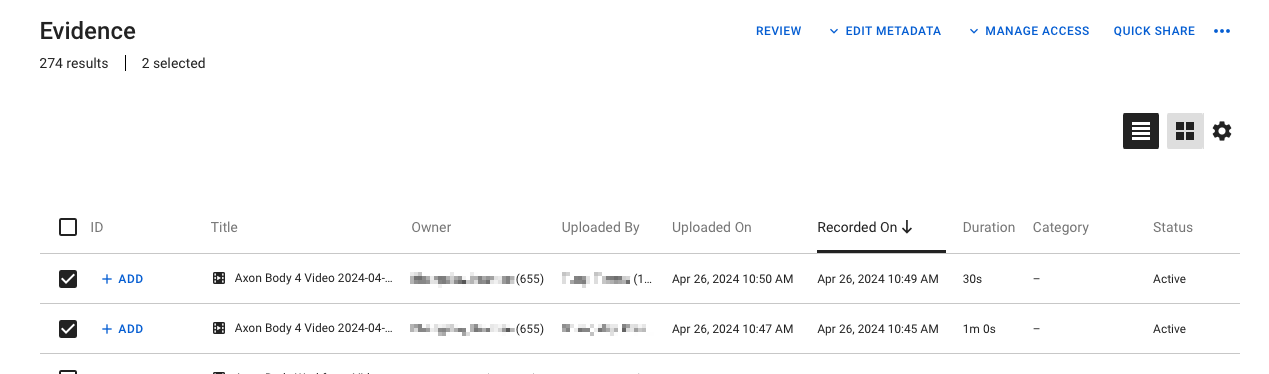
Redaction
Redacted object type
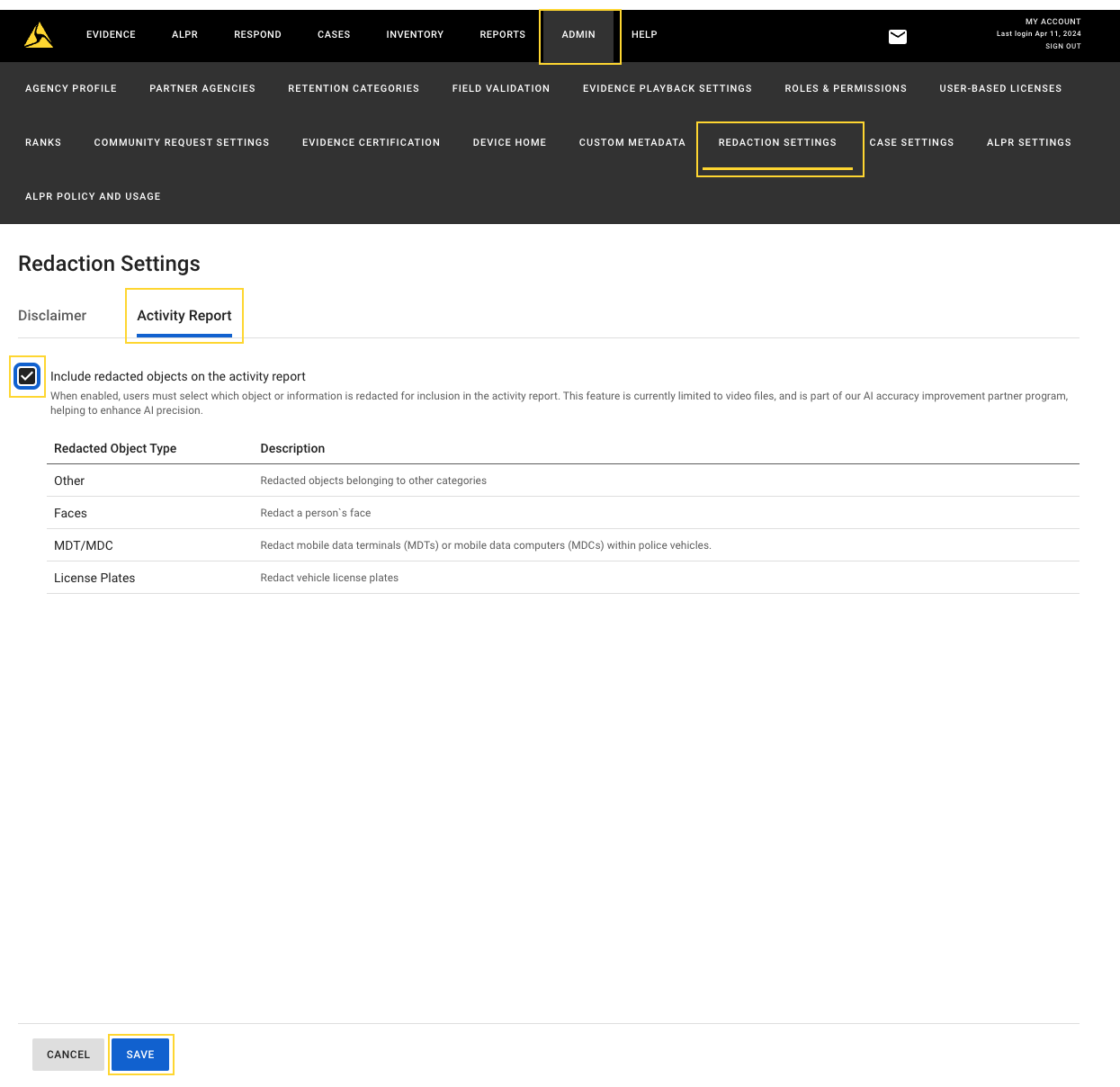
For this release, an agency admin can now enable “Redacted Object Type“, which allows a user to select from a list of default options to clarify why a redaction mask was added in Redaction Studio. These results are available to download once the evidence is extracted from Redaction Studio. This is an optional task that can be helpful for agencies that need to provide clarifications for why each mask was added in redacted videos.
To enable, navigate to Admin > Redaction Settings > Activity Report and check Include redacted objects on the activity report and select Save. Once checked, the options for redacted reasons are shown.
Once the setting is saved, users now see a drop down option in Redaction Studio allowing them to select redacted object type for each mask created. For assistant generated masks (Face, License Plate, MDT/MDC), the redacted object type is automatically applied based on which model added the mask.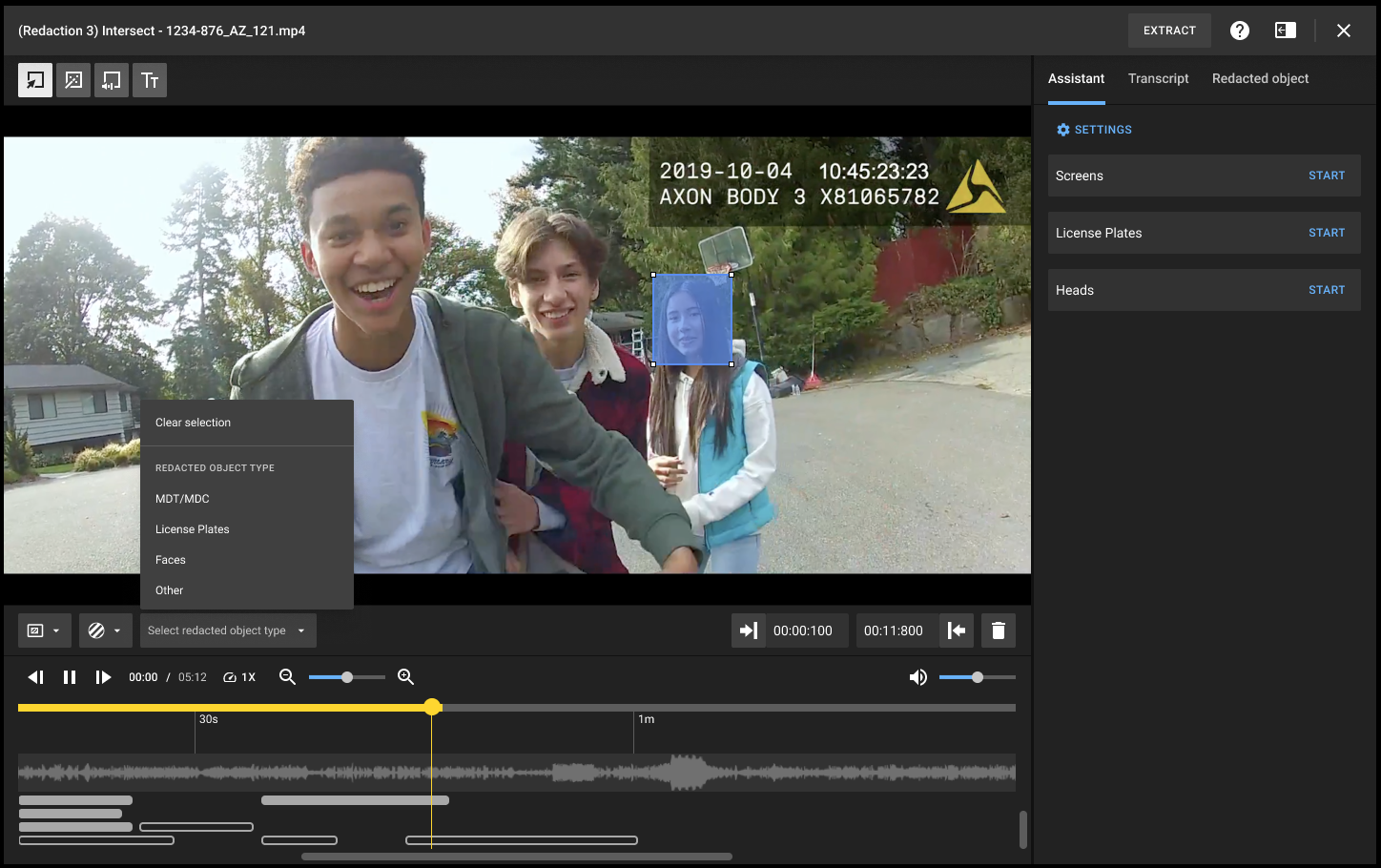
Users also see a new tab within Redaction Studio called “Redacted objects”. This tab allows a user to see all masks applied in a video, the time frame the mask is applied, and the redacted object type added for each mask. Users can select a mask from this list to add or change the redacted object type for each mask.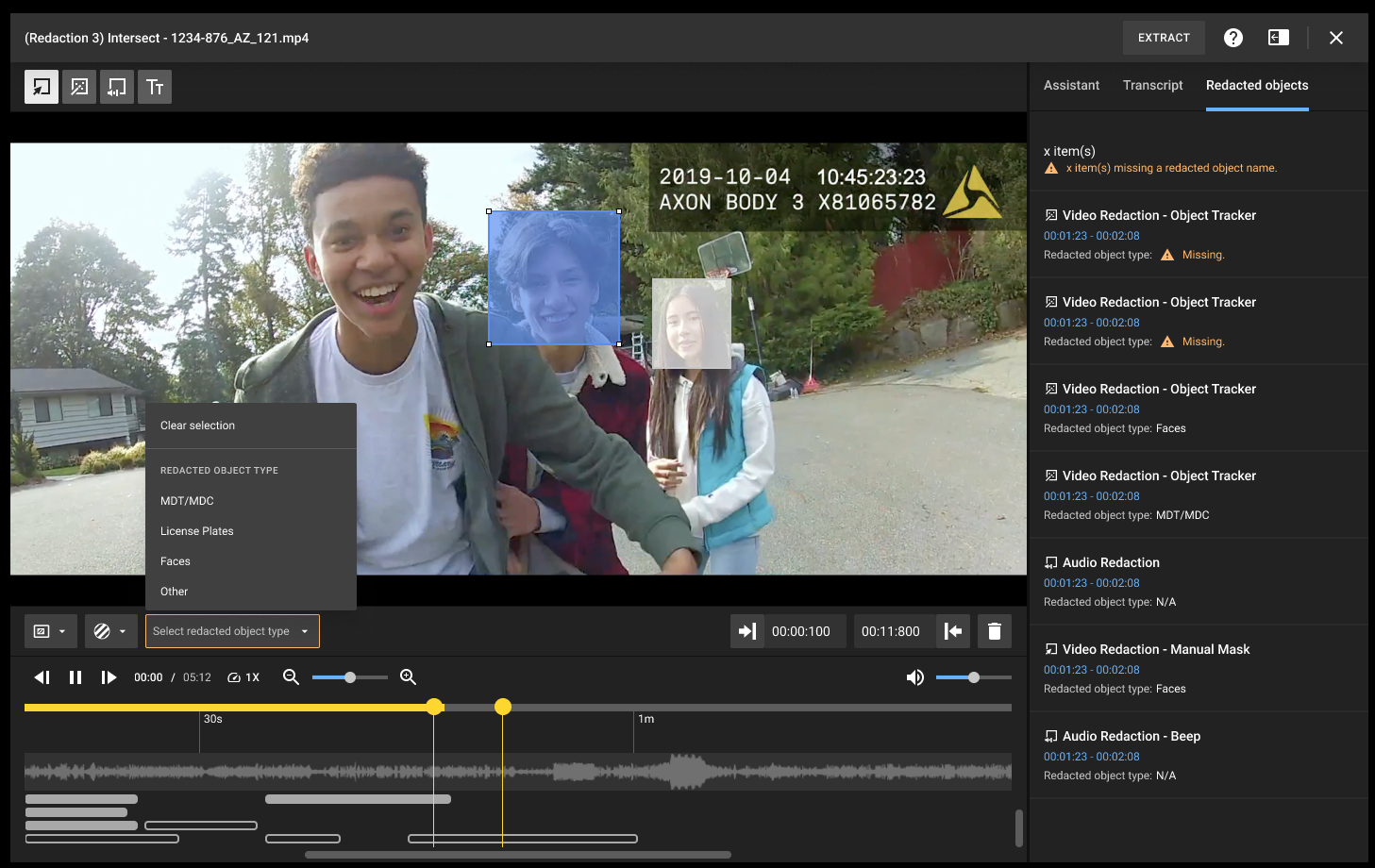
When all masks and redacted object types are added, the user should follow the same extraction process. The redacted objects type is available in the Activity Report downloadable file on the evidence details page.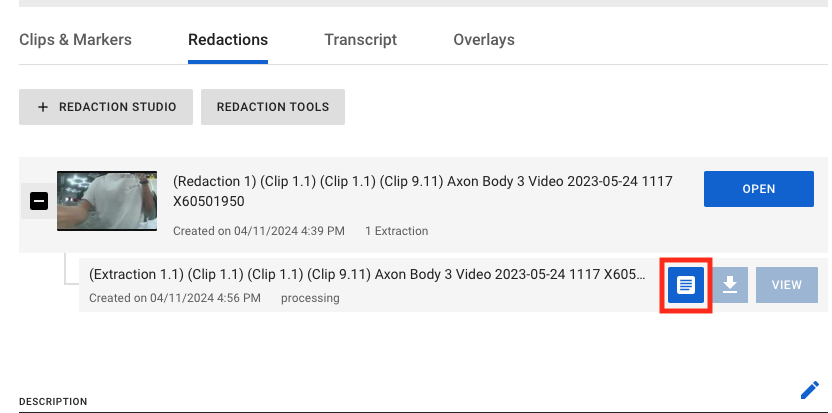
The activity report is available to download alongside the extracted evidence file on the Evidence Details page.
The activity report includes the type of mask, source of the mask (automatic or manual), the redacted object type, and the timestamp.
Third-party Video Support
This release has several enhancements for third-party video playback support:
- Playback support for Avigilon Systems .ave exports using the JPEG2000 codec
- Expanded coverage for L3 Mobile Vision .qbx files, and EverFocus .avr files
- Modified support for the latest critical update of the Genetec .g64x format
If you encounter a video file format in which playback is not yet supported by Axon Evidence with Axon Third-Party Video Support, email [email protected] and provide details about the unsupported format.
Mobile
Axon App
The Axon app allows officers seamless access to Axon Evidence, Axon Records, and Axon Standards while in the field.
With the Axon app, users can do the following:
- See and complete pending action items
- Search, review, and maintain digital evidence
- Search, write, and review records
- Initiate digital evidence collection
In order for officers to utilize the Axon app, an Axon Evidence administrator must enable agency permissions. Instructions for this process can be found on MyAxon.
The Axon app is available today on iOS, and will be available this fall for Android:
Axon Evidence Upload XT
XTMT: Upload XT migration tech
At Axon Accelerate we will be announcing the beta availability of a new product called XTMT, designed to help agencies move legacy on-premise evidence to Axon Evidence reliably and at scale. The tool is fully scriptable and can be automated to upload, add metadata, create cases, and maintain folder structures of on-premise storage and server data. To access the beta and hear about upcoming resources and webinars please fill out this form.
Upload XT v1 sunset final notice
Last year we ended support for Upload XT v1 and announced that the ability to sign-in with it would end when the legacy Axon authentication system was decommissioned. After several extensions and notices in release notes, we will be disabling this support completely by or before the first week of May. To prevent disruptions in your agency workflows, please upgrade to the latest version of Upload XT v2.8 from the downloads section in the help tab in Axon Evidence. Training resources and video guides are also available in MyAxon.
Coming soon
Third-Party Video Support
- Introducing playback support for Dedicated Micro’s .par files using an h364 codec, Wavestore .wsb files, and Eyeonet Backup files (.dat, .mp4, or extensionless)
- Refined identification for DVTel .dvt format variants, and Timespace Technology .xba format variants
Automatic account deactivation
Automatic account deactivation is coming soon, and allows agency administrators to specify an inactivity period ranging from 5 to 730 days. If a user doesn’t sign-in to Axon (either through an application like View XL, Axon Capture, etc. or Axon Evidence in a browser) within the set timeframe, their account is automatically deactivated. To regain access, an administrator must reactivate the account before they can successfully sign-in to Axon again. Using Single-Sign On (SSO) is recognized as valid Axon account access. This feature allows agencies greater access control to Axon products and helps federal agencies in complying with the NIST SP 800-53, AC-2(3) control requirement.
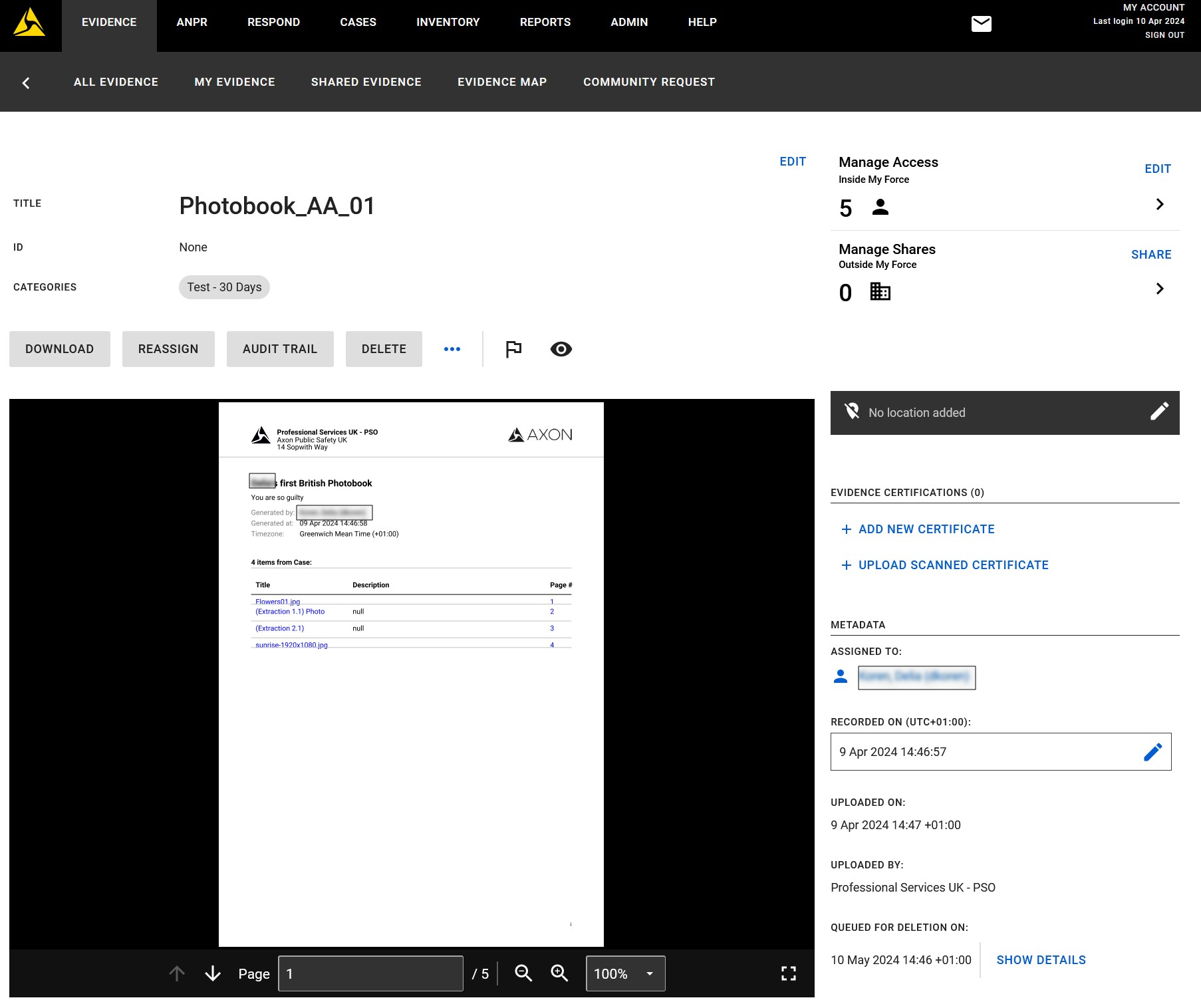
Photobook
In cases, users will be able to bundle images together into one single file and save it as a PDF in Axon Evidence. The PDF is then saved as a new piece of evidence that can be shared, printed or presented in court to a jury.
The photobook is editable, and users can create new versions of the same photobook or have a few photobooks in the same case.
| Note |
Beta is open for customers in the US, UK, Canada, Australia and federal agencies. Ask your account manager to join. |
Create a new photobook
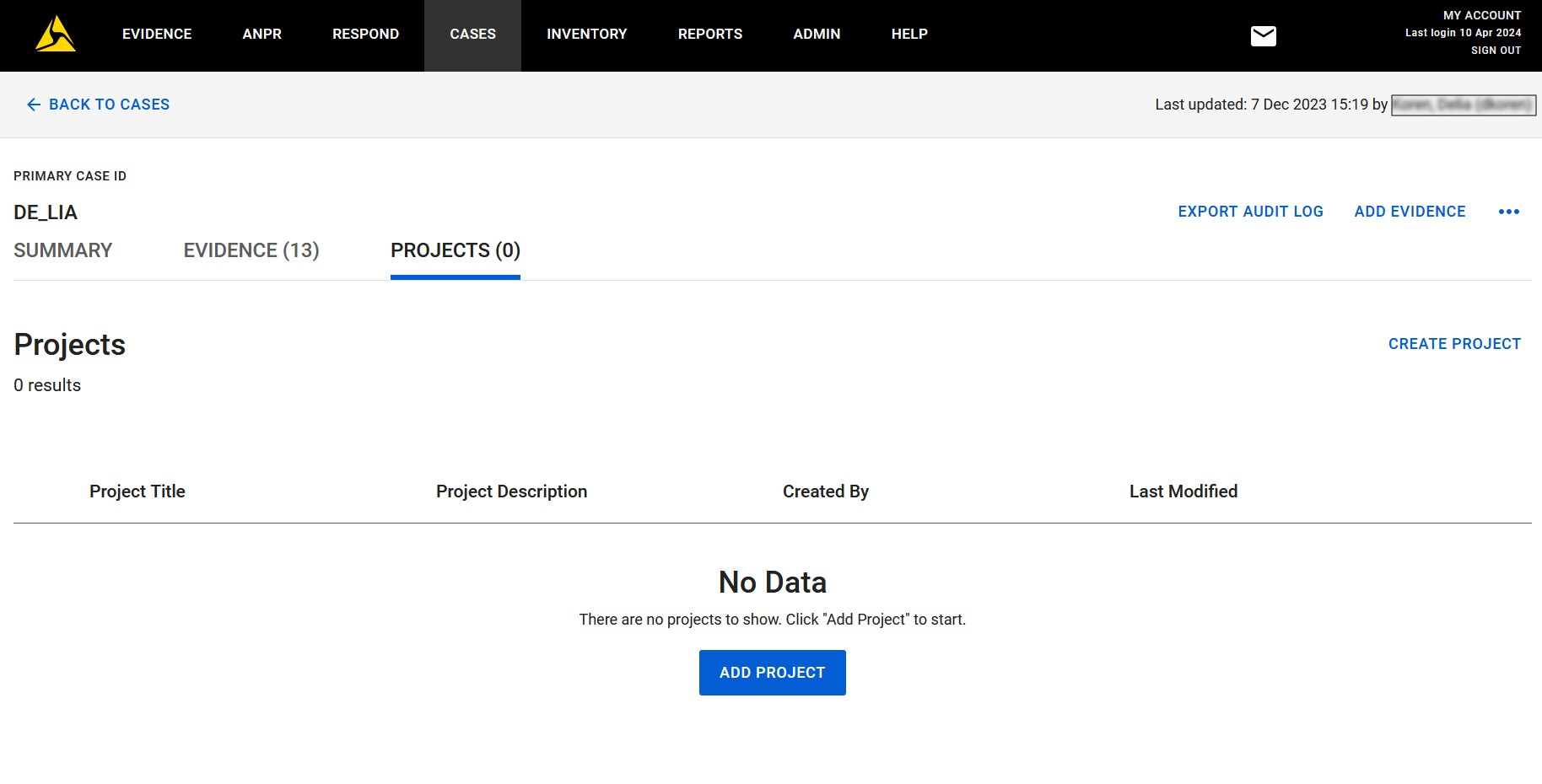
- On the Cases page in the Projects tab, select Add Project.
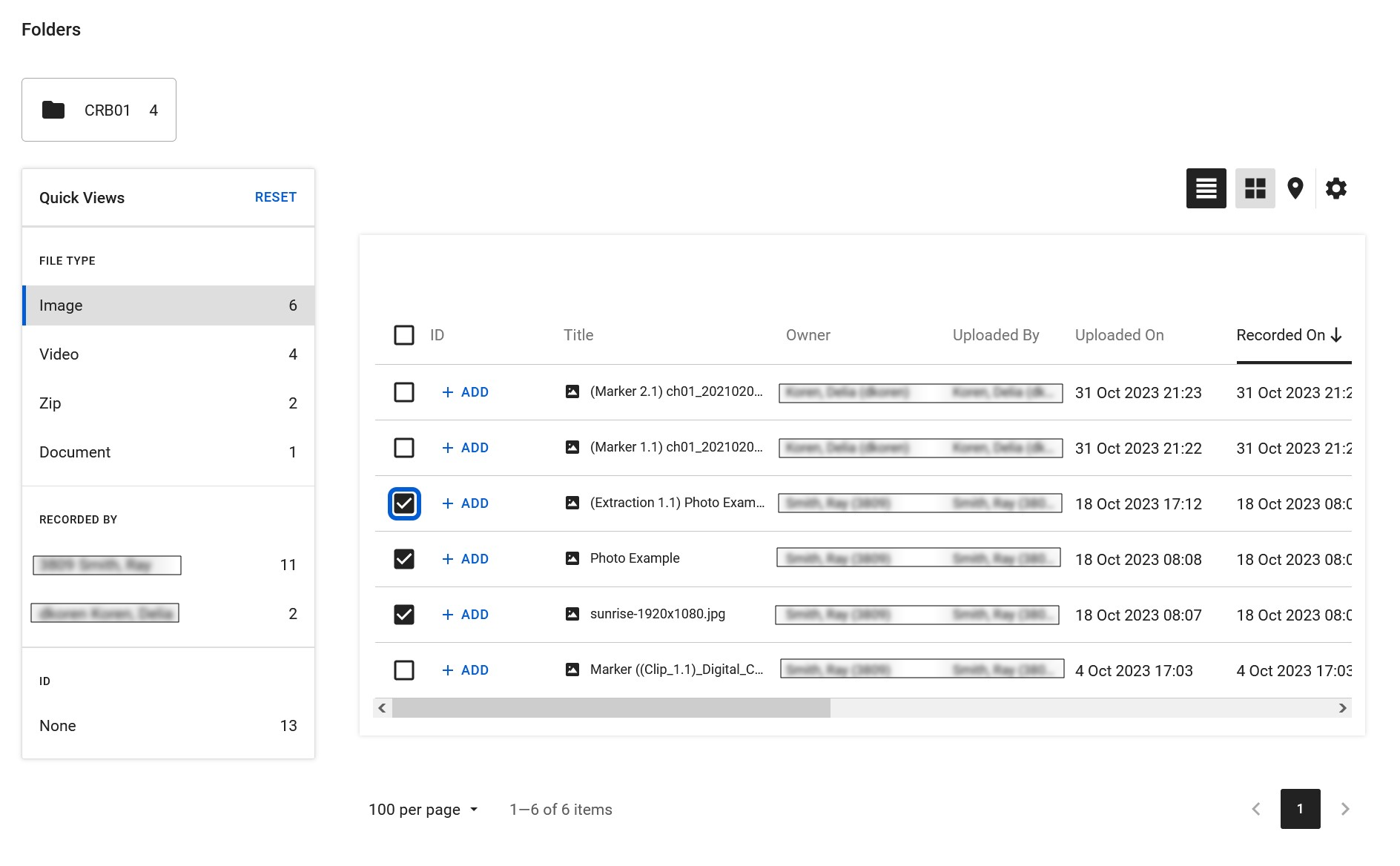
- Add the desired evidence.
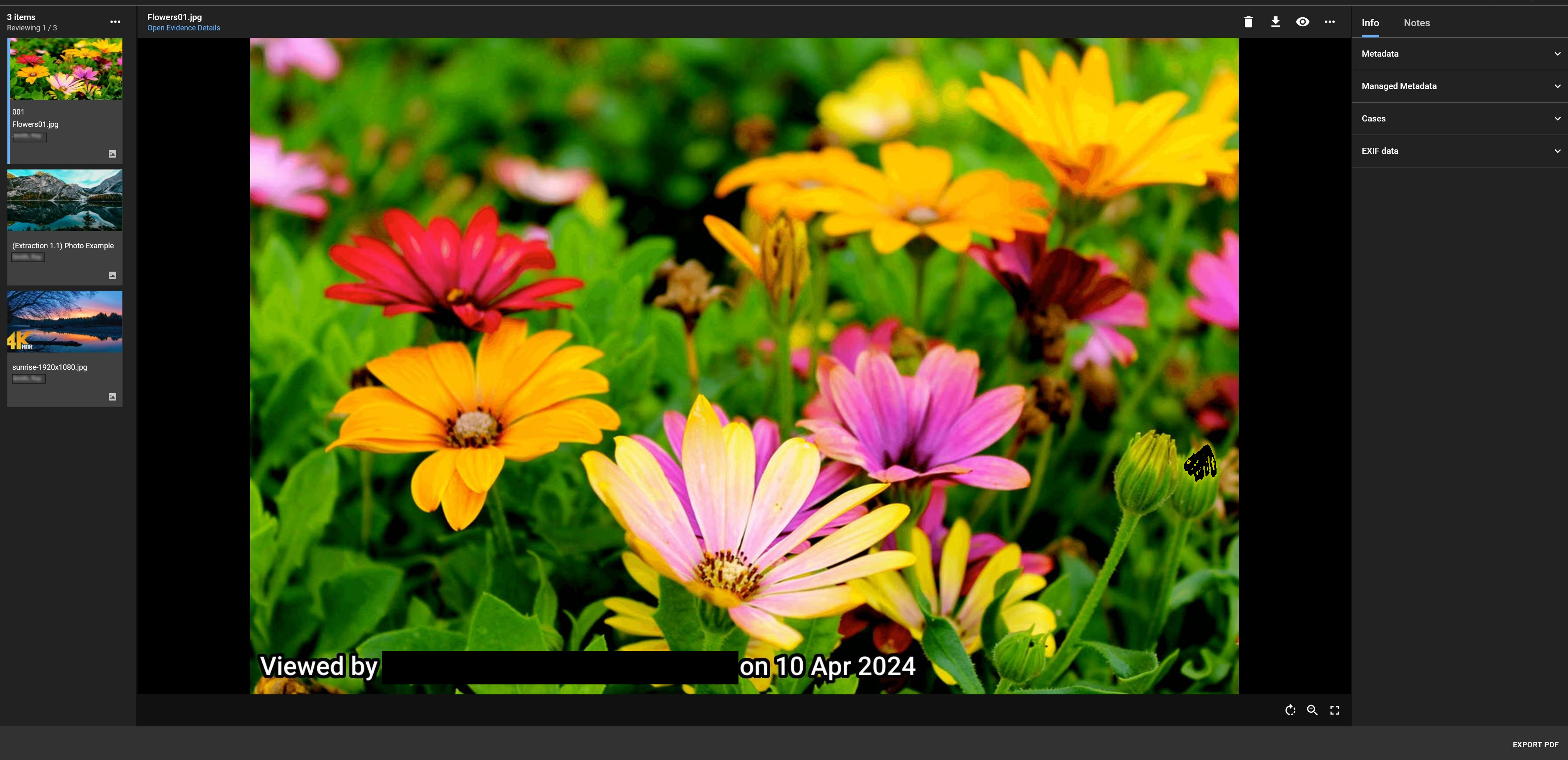
- Arrange the evidence as desired and export the PDF.
- View the PDF on the Evidence page.