Version 6.4 (September 2026)
These release notes correspond to the following software version: 6.4.
Introduction
Axon Evidence Local v6.4 helps organizations accelerate evidence review, expand camera connectivity, and simplify day-to-day administration while continuing to operate within their own on-premises environment.
Investigative users can now bring cloud-generated transcripts back into Axon Evidence Local through extended Hybrid workflow capabilities, review and correct them alongside the original recording, and retain Axon Evidence Local as the system of record. A new video stabilization workflow gives authorized reviewers a controlled way to create a stabilized derivative while protecting the original evidence and documenting how the result was produced.
Device and fleet operations also become more flexible. Administrators can configure trusted Wi-Fi networks for Axon Body 3 and Axon Body 4 cameras, enabling supported evidence upload and firmware updates over Wi-Fi. Nearby Body Camera Activation can be configured for Axon Body 4 cameras, and scheduled Signal Sensor notifications help organizations identify devices with low batteries, calibration issues, or hardware faults.
For administrators and Support teams, a browser-based System Log experience brings service logs, device logs, live viewing, and downloadable OpenTelemetry packages into the Axon Evidence Local Dashboard. Controls for Skyhook and XTRA provide clearer oversight of third-party location services, while additional Partner API endpoints let approved integrations download evidence files and retrieve audit information.
This release delivers:
- Transcription through the Hybrid workflow, with local review, correction, and verification
- Video stabilization with protected derivative evidence and a downloadable history report
- Body camera Wi-Fi networks and Wi-Fi evidence upload for supported cameras
- Nearby Body Camera Activation and False Signal Cancellation for Axon Body 4 cameras
- Scheduled Signal Sensor critical-state notifications
- Browser-based System Log, device log downloads, and OpenTelemetry packages
- Expanded controls for Skyhook and XTRA location services
- New Partner API evidence download and audit endpoints
- Basic and Pro user tier visibility in user and group administration
- Updated cryptography and device authentication support for evolving device identity requirements
Together, these updates give organizations more ways to review evidence, keep devices ready, and support their Axon Evidence Local environment, while remaining in control of which connected capabilities they enable.
Transcription through the Hybrid workflow
Axon Evidence Local v6.4 extends the existing Hybrid workflow to support transcription.
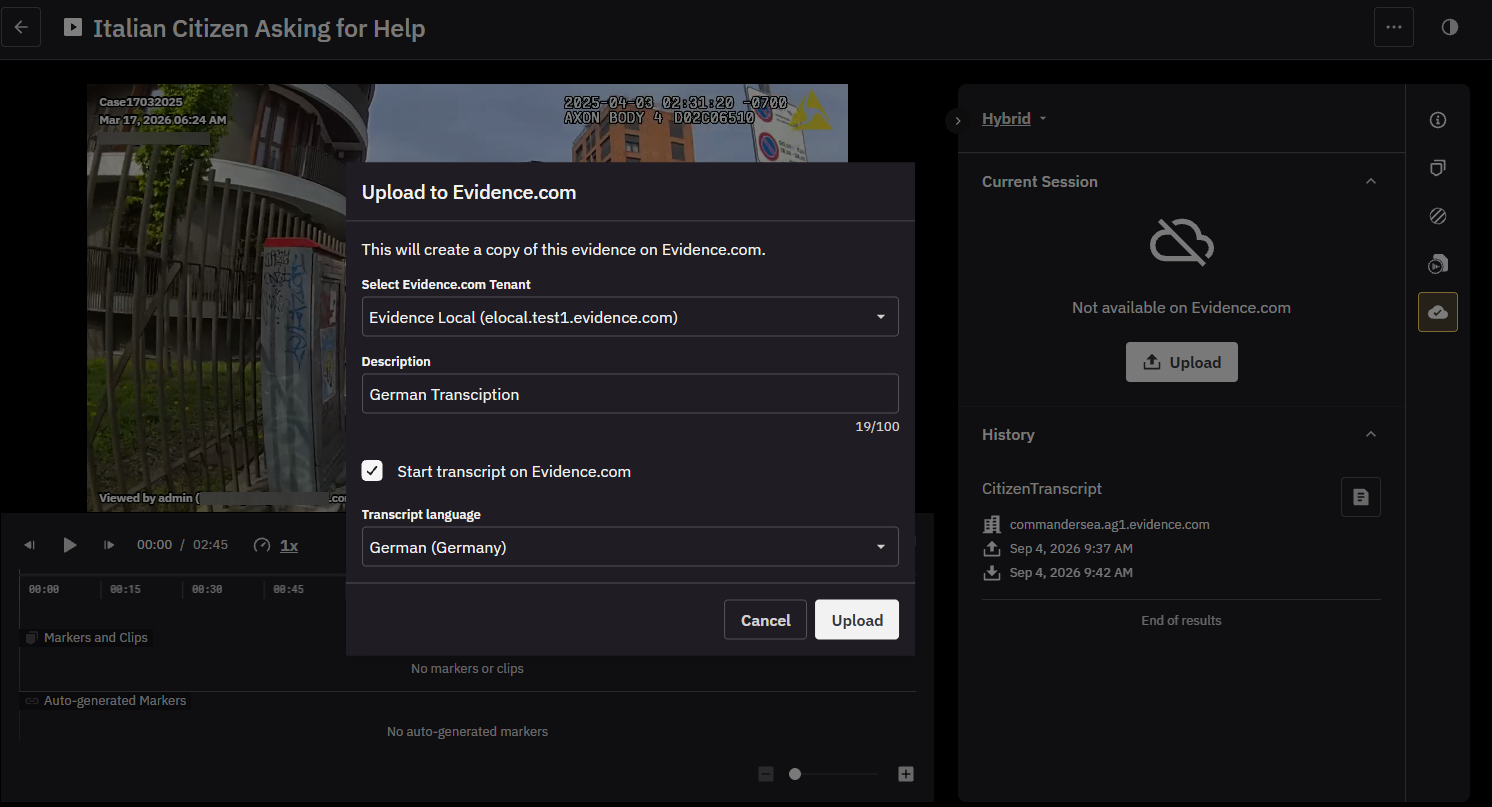
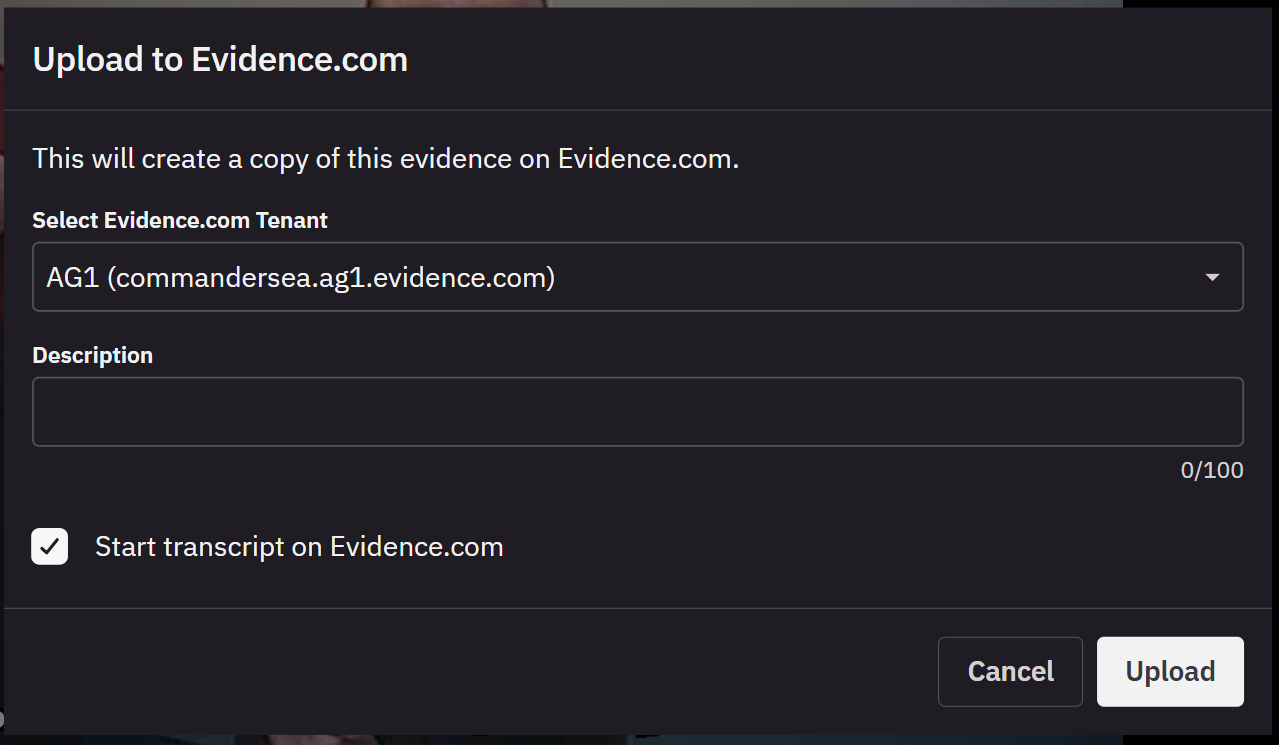
When eligible audio or video evidence is sent from Axon Evidence Local to Axon Evidence through a Hybrid session, an authorized user can request a transcript in Axon Evidence. When the Hybrid session is finalized, the completed transcript returns to Axon Evidence Local together with the evidence.
Axon Evidence Local then becomes the system of record for that transcript as well.
On the evidence details page, authorized users can:
- Read the transcript alongside the recording
- Navigate and review the transcript within the Axon Evidence Local interface
- Correct words, names, or other transcript content
- Save reviewed changes
- Mark the transcript as verified when review is complete
- View transcript-related activity in the audit trail
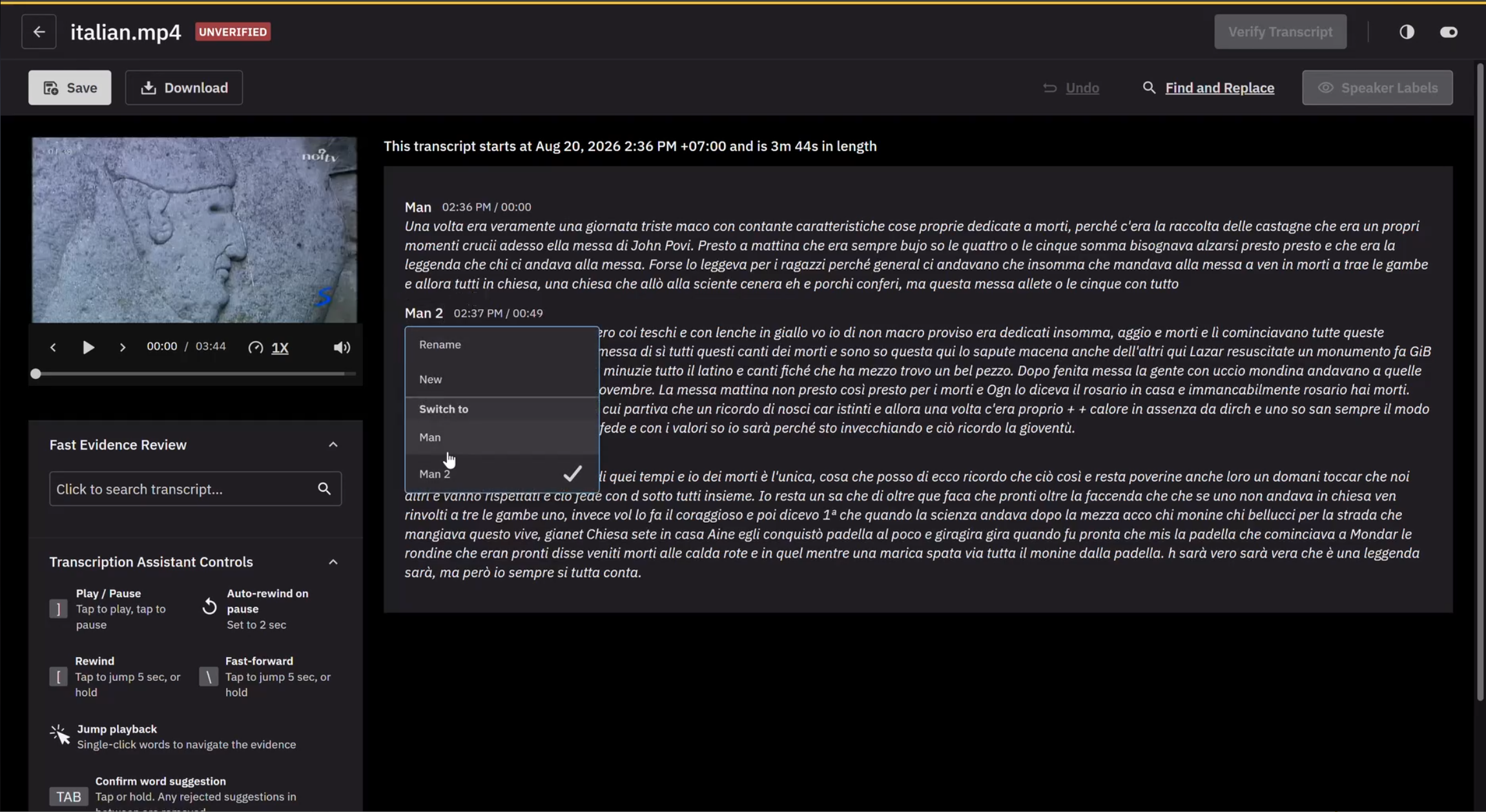
Access is controlled through your organization's Transcription entitlement and configured user permissions.
Protecting existing local transcript work
Axon Evidence Local does not automatically overwrite an existing local transcript when a Hybrid session is finalized.
If the evidence already has a transcript, you see the available options before finalization. Replacing the existing transcript requires an explicit selection. A verified transcript is never replaced silently.
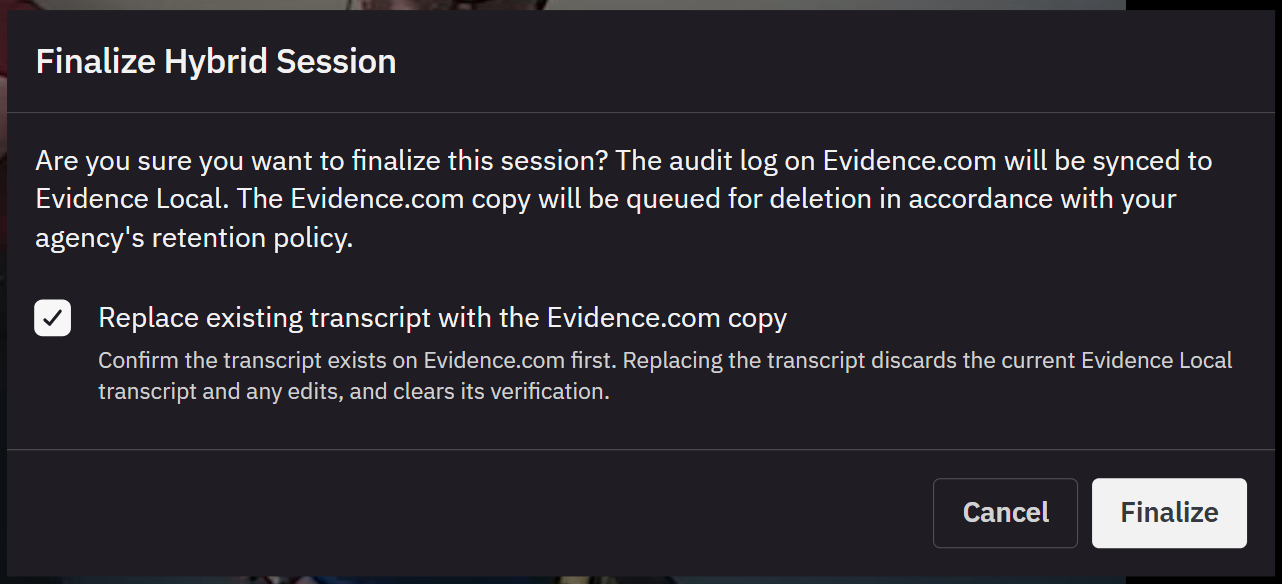
When you deliberately replace a local transcript:
- The Axon Evidence transcript becomes the current local transcript
- Existing local edits are replaced
- Any previous verification state is cleared
- The replacement is recorded in the audit trail
Replacing a transcript also replaces existing local edits. Review the current transcript before you select Replace existing transcript with the Evidence.com copy.
Transcription through the Hybrid workflow requires a configured Hybrid workflow connection to Axon Evidence, the applicable Transcription entitlement, supported audio or video evidence, and the relevant user permissions (Order Auto-Transcript and Edit Auto-Transcript).
Video stabilization through Clarifications
Axon Evidence Local v6.4 introduces an in-product video stabilization workflow for supported first-party Axon video evidence.
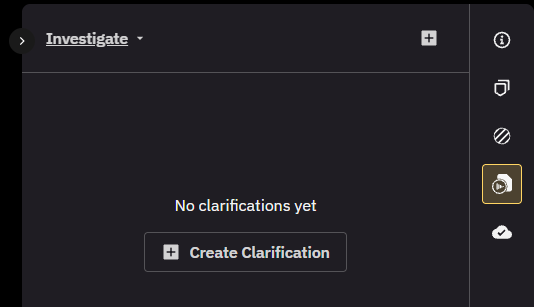
Video stabilization is available through the Investigate panel on the evidence details page and is reached with the Create Clarification button.
An authorized reviewer can reduce visible camera movement while preserving the source recording. Stabilization offers Light, Medium, and Strong strengths, with advanced control over edge cropping and interpolation.
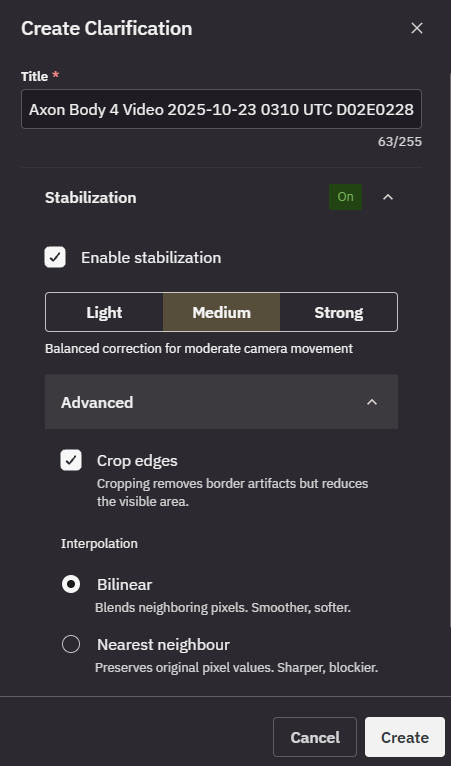
The stabilization process:
- Leaves the original evidence unchanged
- Creates the stabilized result as new child evidence
- Preserves the original audio tracks in the stabilized output
- Displays whether processing is queued, in progress, complete, or failed
- Adds the completed derivative to the related evidence view
- Records the processing activity in the audit trail
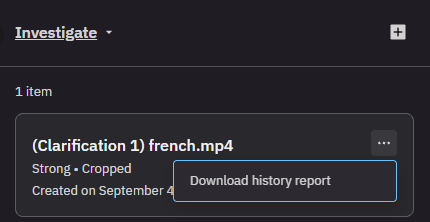
- Provides a downloadable history report in CSV format
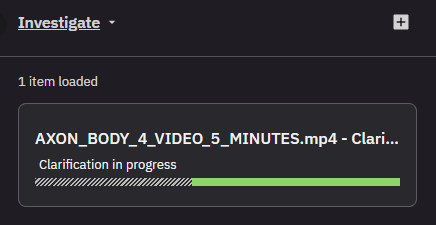
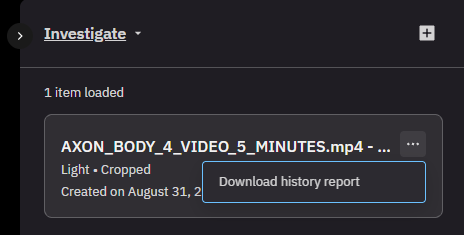
The history report is available from the completed clarification through Download history report, and records information such as:
- Source video analysis
- Processing parameters
- Stabilization tool information
- Relevant source characteristics
- How the derivative was generated
Access to video stabilization is controlled by a dedicated Create and View Clarifications permission, which lets a user create and view clarifications in the Investigate panel, including applying stabilization.
Unsupported evidence is rejected before processing rather than partially processed or silently producing an incomplete result.
A stabilized derivative created from variable frame-rate source video is not suitable for timing-critical interpretation. Axon Evidence Local detects relevant variable frame-rate characteristics and displays a warning to the reviewer. The history report records the source analysis, so anyone reviewing or disclosing the derivative can understand how it was produced. The original evidence remains available and unchanged.
Processing time and failed jobs
Stabilization is an asynchronous media processing task. Completion time depends on:
- Evidence length and source characteristics
- Available CPU capacity
- The number of other media processing jobs
- Your organization's Axon Evidence Local infrastructure
A failed stabilization job is shown clearly in the Investigate panel. The original evidence is unaffected, and you can submit a new stabilization request.
Validate stabilization performance in a non-production environment before you enable the workflow in production, particularly where the Axon Evidence Local media server has limited CPU capacity or already processes several concurrent media jobs.
Body camera Wi-Fi networks and evidence upload
Axon Evidence Local v6.4 gives administrators a central place to configure approved Wi-Fi networks for supported Axon Body 3 and Axon Body 4 cameras.
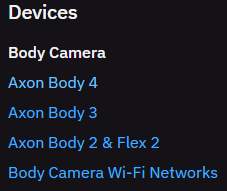
The Body Camera Wi-Fi Networks page is in the Body Camera part of the Devices section on the Administration page. Access requires the Manage Device Configuration (PRO) permission.
Once a camera has received the approved network settings, it can connect whenever that network is available. When Wi-Fi Evidence Upload and Firmware Updates is enabled, the camera can upload recordings and receive supported firmware updates over Wi-Fi, giving your organization more flexibility in how it offloads evidence and keeps cameras up to date.
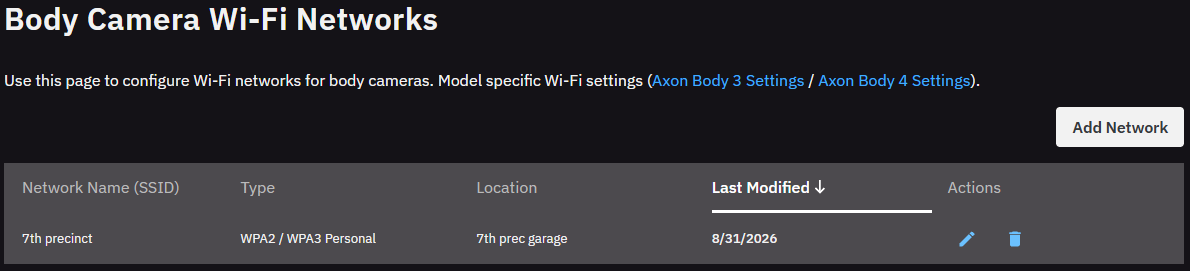
From this page, administrators can:
- Add, edit, or remove a Wi-Fi network
- Enter the network name and a location description, making it easier to identify where each network is used
- Open the model-specific Axon Body 3 and Axon Body 4 settings, where Wi-Fi Evidence Upload and Firmware Updates is enabled
- Review network configuration changes in the audit trail
Axon Evidence Local v6.4 supports networks secured with WPA2 or WPA3 Personal. These are password-protected networks that use a shared Wi-Fi password rather than individual user accounts or device certificates.
The administrator configures the network and password once in Axon Evidence Local. Supported cameras then receive the approved network profile directly from Axon Evidence Local, so the Wi-Fi details do not need to be entered manually on each camera.
Axon Evidence Local protects the configured Wi-Fi password and sends the approved network settings to supported cameras over an encrypted connection.
Livestreaming remains controlled separately through the existing Axon Respond camera settings and user permissions. Configuring an approved Wi-Fi network does not enable livestreaming. When livestreaming is enabled and the camera is recording, authorized users can start and view the stream through Axon Respond.
The existing dock-based workflow remains fully supported and unchanged. Cameras can continue to upload evidence, receive firmware updates, and charge when placed in an Axon Dock.
Network list caching prevents cameras from repeatedly downloading an unchanged configuration. When the camera confirms that it already has the current version, Axon Evidence Local returns an unchanged response rather than retransmitting the full list.
Nearby Body Camera Activation
Fast-moving incidents often involve several people, and one camera may capture only part of what happens. Nearby Body Camera Activation helps your organization capture additional perspectives by letting supported Axon Body 4 cameras begin recording together.
When a user manually starts a recording by pressing the event button on their Axon Body 4 camera, the camera can broadcast a Signal alert to other nearby cameras. Cameras configured to receive the alert self-activate and begin recording, even if the nearby users have not yet pressed their own event buttons.
This helps capture an incident from multiple viewpoints as it unfolds. The activation occurs directly between cameras through secure Bluetooth communication. Axon Evidence Local provides the central administrative controls and records the resulting activation information in the applicable device and recording audit trails.
The setting is:
- Disabled by default
- Enabled only when an administrator deliberately configures it
- Coupled to your organization's broader Axon Signal Activation setting
- Recorded in the applicable device and recording audit trails
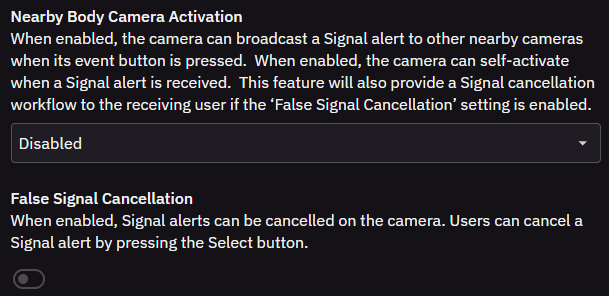
Nearby Body Camera Activation configuration is supported for Axon Body 4 cameras in this release.
False Signal Cancellation
Automatic camera activation is designed to capture more of an incident, but there may be situations where an activation was accidental or the additional recording is not required. For example, if one user accidentally presses the event button, their camera may broadcast a Signal alert and cause nearby receiving cameras to begin recording.
When False Signal Cancellation is enabled, a user can cancel a Signal alert on their own camera by pressing the select button, which stops the automatically started recording on that camera.
False Signal Cancellation:
- Applies to the receiving camera's automatically started recording
- Gives each receiving user control over their own camera
- Does not cancel the initiating user's manually started recording
- Does not remotely stop every nearby camera at once
The user who originally pressed the event button continues to control their own recording using the normal camera controls.
Axon Signal Sensor health notifications
As organizations expand their use of the latest Axon Signal Sensor devices, keeping every sensor ready for operational use becomes increasingly important. Building on the existing support for Axon Signal Sensor devices and the in-app and optional email notification capabilities introduced in Axon Evidence Local v6.2, this version turns available device health information into proactive, scheduled notifications.
Rather than requiring fleet administrators to review sensors individually, Axon Evidence Local can automatically identify devices that may need attention and notify the appropriate teams. This helps your organization address common maintenance conditions early and keep its Signal Sensor fleet ready for duty.
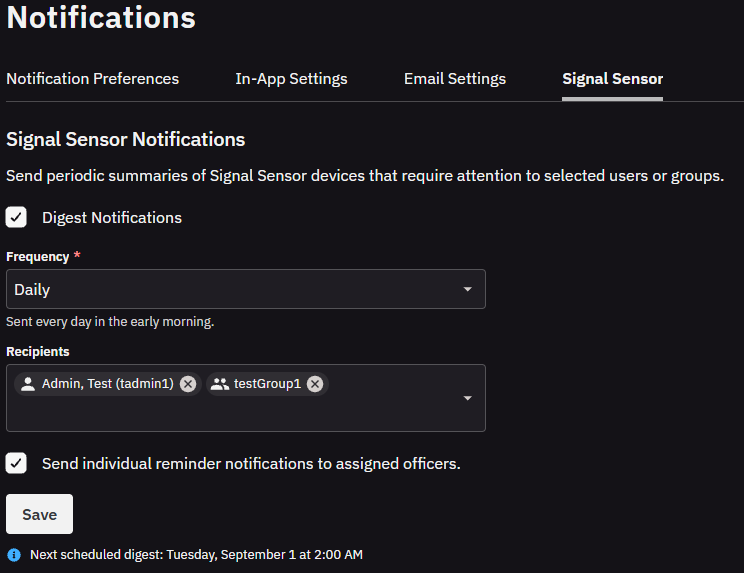
Administrators can configure scheduled health summaries that are delivered through:
- The Axon Evidence Local Notifications in-app inbox
- Email through the SMTP server configured for your organization
An administrator with the Change System Settings permission can choose:
- Daily, weekly, or monthly delivery
- The users and groups that receive the digest
- Whether the user assigned to an affected Signal Sensor is also notified
- Whether scheduled Signal Sensor notifications are enabled
A Signal Sensor is included in the health summary when Axon Evidence Local receives one of the following conditions:
- Low battery
- Calibration required
- Hardware issue detected
This health information is supported when it is reported through an Axon Body 3 or Axon Body 4 camera. Axon Body 2 cameras do not provide the Signal Sensor status information this notification workflow requires.
Axon Evidence Local sends a health summary only when one or more Signal Sensor devices require attention, so recipients do not receive empty notifications. Conditions that remain unresolved can continue to appear in later summaries, helping the responsible teams track them through to resolution.
An authorized administrator enables and configures the notifications under Admin > Notifications on the Signal Sensor tab. Email delivery uses the SMTP server configured for your organization, and notifications can also be reviewed directly in the Axon Evidence Local Notifications in-app inbox.
Multi-server deployments: Use the same operating system time zone on every Axon Evidence Local application server. Servers set to different time zones can calculate different digest schedules, which may result in duplicate notifications.
System Log in the Axon Evidence Local Dashboard
Maintaining a clear view of system activity is essential for keeping critical services available and resolving issues quickly. Axon Evidence Local v6.4 continues the product's move toward a modern, browser-based administration experience. Monitoring and troubleshooting workflows that previously required the Axon Evidence Local Server Manager are now available directly in the Axon Evidence Local Dashboard.
Instead of opening an RDP or console session on the application server, administrators can review system activity, investigate device issues, and collect information for a Support case from the same browser interface they already use. This reduces the need for routine server access and shortens the path from identifying an issue to resolving it.
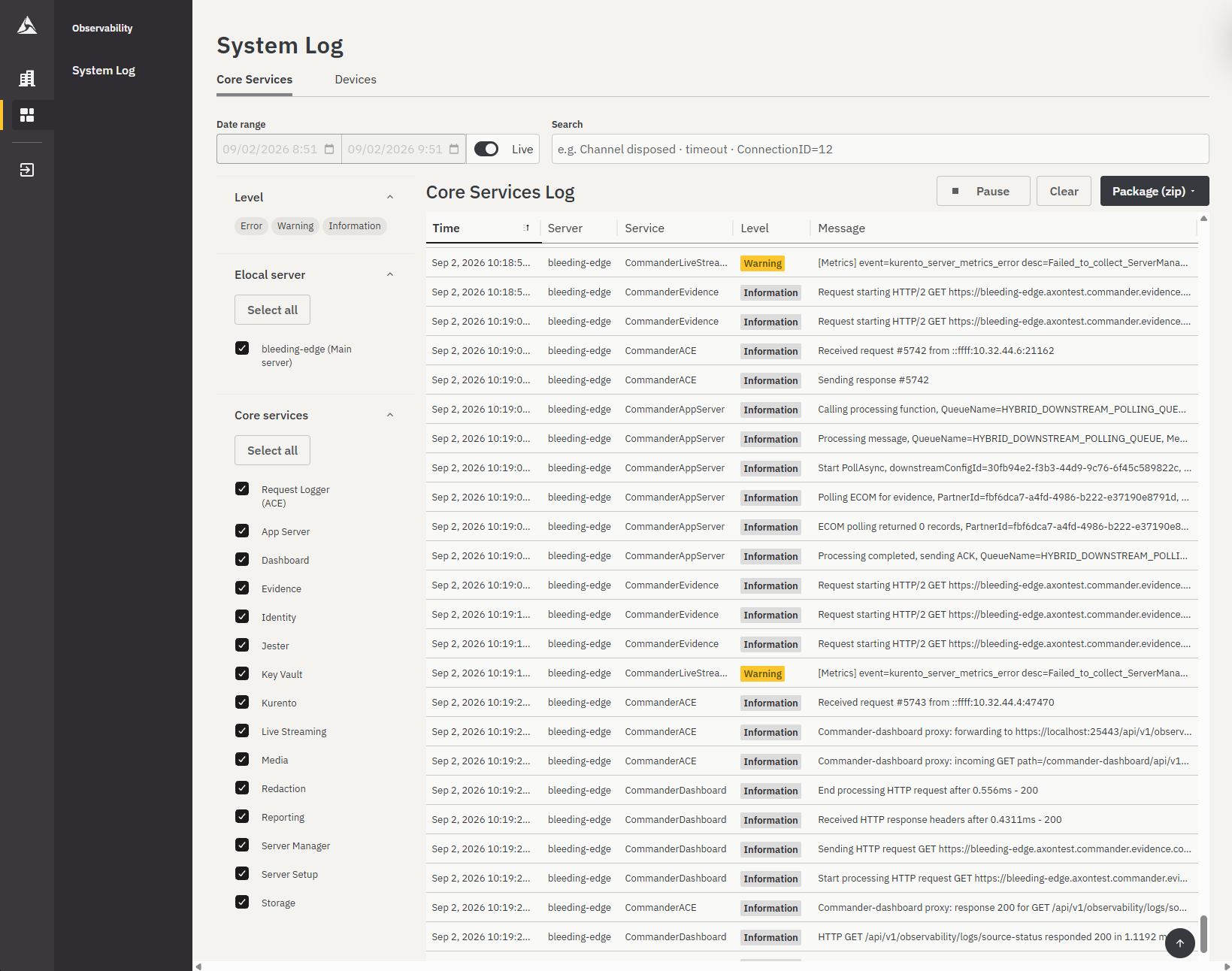
The System Log page provides two dedicated views:
- Core Services for Axon Evidence Local application and service logs
- Devices for logs collected from supported Axon devices
Core Services
The Core Services view brings logs from the main Axon Evidence Local services together in a single chronological view. Administrators no longer need to open separate log files or move between different apps to understand what was happening across the system at a particular time.
Administrators can:
- Select one or several services and review their activity together
- Search log messages using free text
- Filter by date range, level, and Axon Evidence Local server
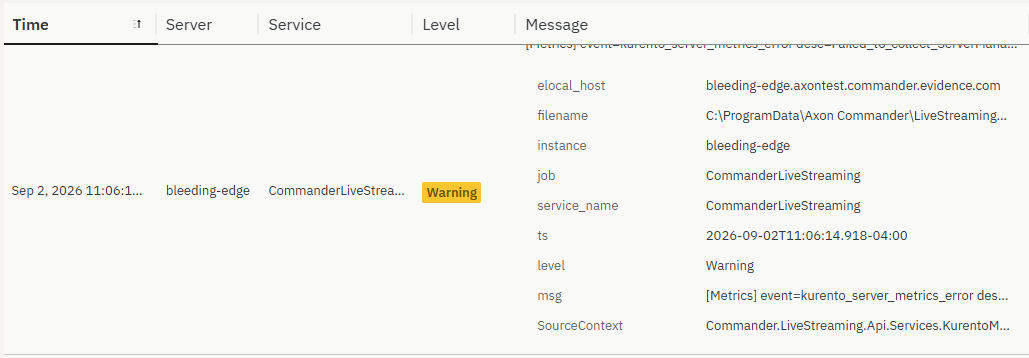
- Expand an entry to review its complete details
- Copy relevant log details for sharing with Axon Support or an internal IT team
- Follow new activity as it occurs through the live log view
This makes it easier to follow an event across several Axon Evidence Local components, identify related warnings or errors, and narrow the results to the services and time period relevant to the investigation. Each entry can be expanded to show its complete details and the original log line.
Live log viewing
When investigating an issue as it happens, administrators can turn on Live and watch new log entries appear in the Dashboard in real time. New entries are added to the bottom of the list in chronological order. This makes it easier to follow system activity while reproducing a problem, checking the result of a configuration change, or monitoring a service during troubleshooting.
The live view provides controls to:
- Pause the live display while reviewing the current entries
- Resume the display to continue following new activity
- Clear the entries currently shown in the browser and begin with a clean view
Selecting Clear does not delete or change any logs stored by Axon Evidence Local. It only clears the current on-screen view.
Live viewing is available when the selected time period includes the current time and the central log service is available. Historical log searches remain available through the standard filters.
Visibility across multi-server deployments
For a multi-server Axon Evidence Local environment, the same System Log page provides visibility across the participating servers. Administrators can review activity across the deployment or use the Elocal server filter to focus on a particular machine. This makes it easier to determine whether an issue is isolated to one server or affects the wider environment.
Continued log access
Axon Evidence Local retains useful log visibility even if the central log collection service is temporarily unavailable. In this situation, the Dashboard displays the available logs stored on the local server and informs the administrator that the view is currently limited, so an administrator still receives useful diagnostic information instead of an empty log screen.
Centralized cross-server searching and live log viewing become available again when the central service is restored.
Device logs
The Devices view provides a central place to find logs collected from supported cameras, Axon Dock units, and TASER devices.
Administrators can filter by date range, device type, and device serial number, search by file name, select the relevant files, and download them together as a ZIP archive.
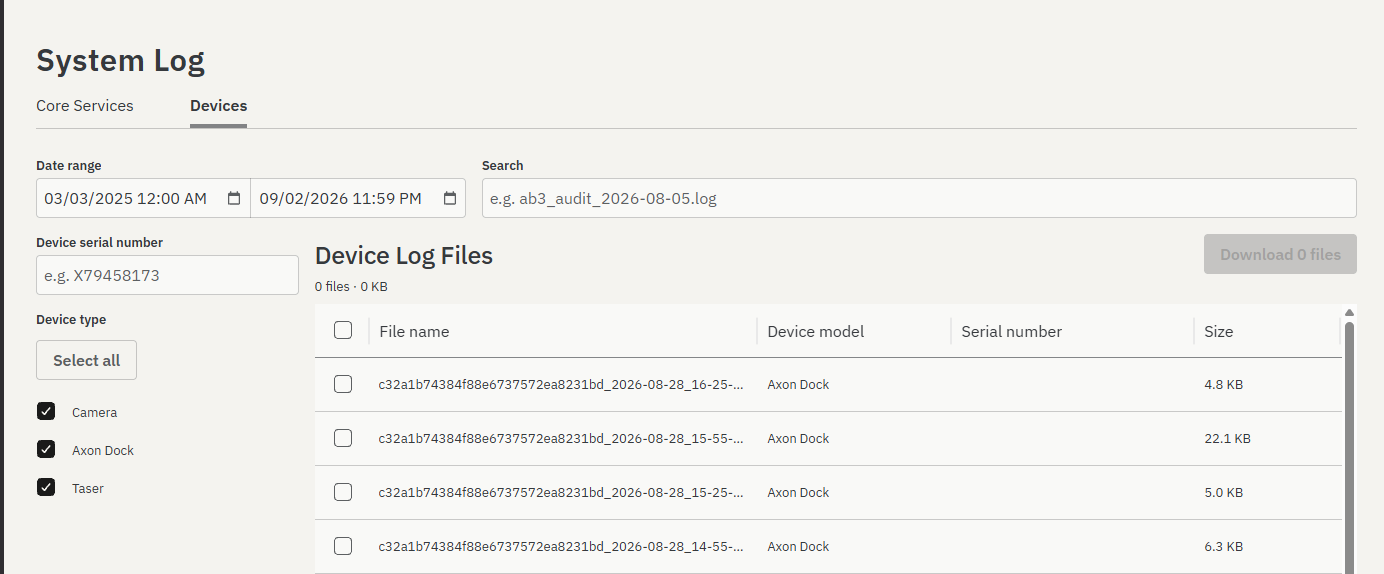
This simplifies device troubleshooting by removing the need to locate individual files manually and makes it easier to provide Axon Support with the exact logs for the affected camera, dock, TASER device, or system component.
Log packages for Support
The Core Services view also introduces a one-step packaging workflow. Administrators can select the relevant time period and log filters, then use Package (zip) to create a structured package containing the available diagnostic information for that investigation. Depending on what is available, the package can include:
- The selected system logs
- System metrics for the same time period
- Axon Evidence Local environment information
- Additional system insight information
The package uses OpenTelemetry, an industry-standard format for system logs and monitoring information, and is available as OTLP binary or OTLP JSON. Axon Support or an internal security operations team can review the package using compatible platforms such as Splunk, without first converting a proprietary Axon Evidence Local log archive.
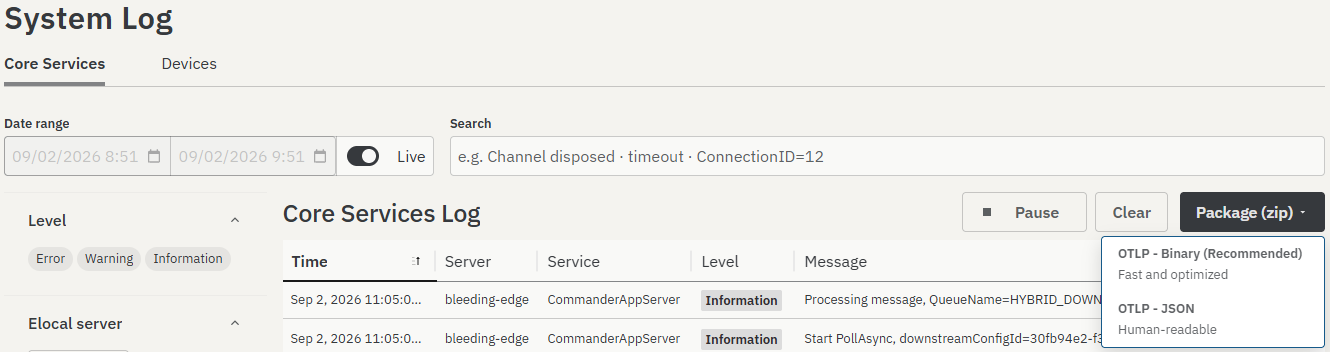
The package remains useful even when an optional source of information is temporarily unavailable. It is still created with the available content and records which information could and could not be collected.
Third-party location services
Reliable location information helps your organization understand where recordings were captured and supports location-based evidence review. Axon Evidence Local v6.4 makes the optional services that support camera positioning easier to manage and troubleshoot by bringing them together on one central administration page.
Under Admin > System Settings > Third-Party Services, administrators can manage Skyhook and XTRA alongside the existing ArcGIS configuration.
From this page, administrators can:
- Turn each service on or off for the organization
- Review its current connection status
- Configure the Skyhook authentication key
- Review configuration changes in the audit trail
Axon Evidence Local checks the current connection status whenever an administrator opens the page.
Skyhook Wi-Fi positioning
Skyhook is a Wi-Fi positioning service that gives supported Axon Body 3 and Axon Body 4 cameras an additional way to determine their location. It estimates camera location from nearby Wi-Fi networks when GPS is weak or unavailable, which is typically indoors.
When Skyhook is enabled for the organization and Wi-Fi positioning is enabled for a supported camera model, the camera sends information about nearby Wi-Fi access points to Axon Evidence Local. Axon Evidence Local relays the request to the Skyhook service and returns the resulting location estimate to the camera. The camera does not connect directly to Skyhook.
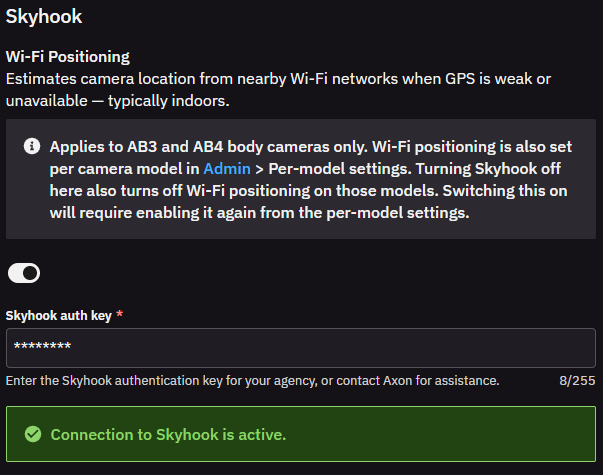
Wi-Fi positioning is also set per camera model under Admin, in the per-model settings. Turning Skyhook off on the Third-Party Services page also turns off Wi-Fi positioning on those models. Turning Skyhook back on requires enabling Wi-Fi positioning again from the per-model settings.
The Skyhook authentication key is stored in encrypted form within Axon Evidence Local and masked in the administration interface. Changes to the key and to the service configuration are recorded in the audit trail.
XTRA GPS assistance data
XTRA downloads predicted satellite data so that supported cameras acquire a GPS fix faster after power-on. The server refreshes the assistance file and serves it to cameras on request, giving the camera's GPS/GNSS receiver a head start when searching for available satellites. XTRA applies to Axon Body 3, Axon Body 4, and Fleet Hub.
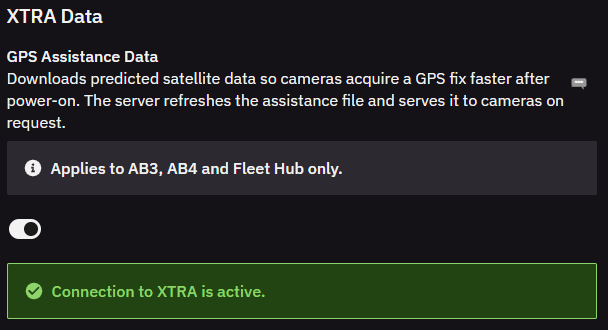
For compliance and air-gapped deployments: When an administrator turns off XTRA, Axon Evidence Local immediately stops downloading new assistance data. The most recently downloaded assistance file remains available to cameras until it expires on the device, which can take up to approximately seven days. Account for this expiry period when you transition the service off.
Reviewing service availability
The connection information on the Third-Party Services page is checked when an administrator opens the page. Axon Evidence Local v6.4 does not send a separate in-app or email notification when the availability of Skyhook or XTRA changes.
Administrators who use these services can return to the page whenever they need to verify current connectivity.
Expanded Partner API for evidence and audit integrations
Many organizations operate Axon Evidence Local alongside other systems used for records management, investigations, disclosure, archiving, or compliance. Axon Evidence Local v6.4 expands the Partner API to make these connections more capable and reduce the manual work involved in moving evidence and audit information between approved systems.
Authorized external systems can retrieve evidence files and selected audit information directly from Axon Evidence Local. This creates more opportunities to automate established workflows, reduce repeated downloads and data entry, and provide connected systems with the information they need from an on-premises evidence repository.
The Partner API continues to use OAuth 2.0 client credentials and configured client scopes. This release introduces four additional integration capabilities.
Evidence file download
Approved external systems can retrieve individual evidence files through the Partner API. This can reduce the need for a user to download a file manually and then upload it separately to another authorized system.
The download capability also supports interrupted or partial transfers. When the external integration supports it, a large download can continue from where it stopped instead of starting again from the beginning.
Evidence that is unavailable for normal retrieval, for example because it has been deleted, archived, or is being restored, cannot be downloaded through the Partner API.
Evidence audit trail
An approved integration can retrieve an evidence item's audit trail in a structured, machine-readable JSON format.
The existing PDF audit trail remains available to read and review. The structured format lets an external records, disclosure, or oversight system process the same activity information automatically, for example to associate evidence handling history with its own record or workflow.
Audit events
Authorized systems can retrieve audit activity for a selected date range and, where required, limit the results to particular activities. This provides a controlled way for approved compliance, monitoring, or reporting systems to work with Axon Evidence Local audit information without requiring an administrator to repeatedly generate and transfer reports manually.
Access remains limited to the audit categories granted to that integration. An integration authorized to retrieve evidence audit information does not automatically gain access to user or Axon Respond audit activity.
System audit trail
Approved integrations can retrieve a consolidated view of system-level activity from Axon Evidence Local. Depending on the access granted to the integration, this can include applicable activity from:
- Core Axon Evidence Local services
- Axon Respond
This gives IT, compliance, and oversight systems a more complete source of system activity while retaining control over which integrations are permitted to retrieve it.
If your organization does not use the Partner API, no action is required and existing Axon Evidence Local workflows remain unchanged.
Basic and Pro license visibility
As organizations add more users and assign different levels of access, administrators need a quick way to understand how Basic and Pro user tiers are distributed. Until now, determining whether a user required Basic or Pro access, and which permissions contributed to that requirement, was not immediately visible in the user management interface.
Axon Evidence Local v6.4 brings this information directly into the existing administration workflow. Administrators can see current Basic and Pro user totals, review the tier of each individual user, and identify permissions that require Pro access. This makes user administration, access reviews, and license planning clearer and more efficient.
Basic and Pro user summary
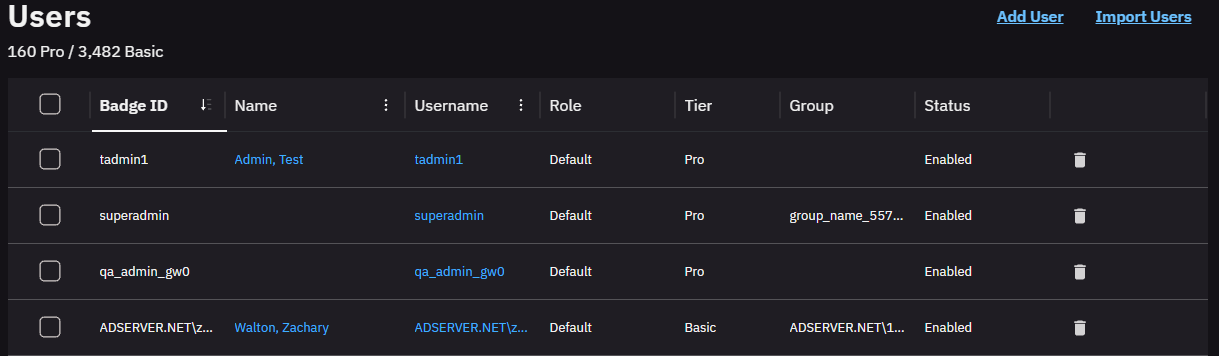
At the top of the Users page, Axon Evidence Local displays a summary showing the current number of Pro users and Basic users. This provides an immediate overview of user tier distribution without requiring administrators to review accounts individually or calculate the totals outside Axon Evidence Local.
Tier column
The Users table includes a dedicated Tier column showing whether each user is currently classified as Basic or Pro.
The Tier column is displayed separately from the existing Role column. A user's role describes their configured access profile, while the Tier column shows the corresponding Basic or Pro user tier.
Administrators can use this information to:
- Review an individual user's current tier
- Identify Basic and Pro users during access reviews
- Understand overall user tier distribution
- Investigate why a particular user is classified as Pro
- Make more informed decisions when onboarding users or changing their access
PRO badges on permissions
Permissions that require the Pro user tier are marked with a PRO badge in the user and group permission settings.

The badge lets administrators see the tier requirement before granting a permission. When reviewing a user shown as Pro on the Users page, the administrator can also identify which of that user's configured permissions require the tier.
This creates a clearer connection between the permissions granted to a user, the capabilities available to that user, and the Basic or Pro tier shown on the Users page.
The PRO badge is informational. It does not grant the permission itself, and administrators continue to configure access through the existing user and group permission workflow.
This update does not introduce a new user role or change existing access permissions. It makes the current Basic and Pro user tier requirements easier to understand and manage within Axon Evidence Local.
Dependency / compatibility overview
Devices firmware
| Device | Supported FW Version |
|---|---|
| AB2 / Flex2 | 1.28 |
| AB3 | v1.2601.7 (For SSR: min. 1.2607.11) |
| AB4 | 1.2601.14 / 1.2607.40 / 1.2619.60 |
| AB 2 / Flex 2 / TASER Dock | 3.24 |
| Flex 2 Controller | 0.7.3 |
| Fleet 3 | 2.2529.4025 (For SSR: min. 2.2612.4638) |
| TASER 7 | 2.0.6 |
| TASER 10 | 2.7.13 (live) / 1.5.39 (inert) |
| TASER Dock Charger | 2.7.13 |
| TASER BLE Bundle | 1.4.2 |
| Signal Sensor | 1.2610.3 |
Applications
| Application | Supported App Version |
|---|---|
| Axon Device Manager iOS | 3.3.1 (For SSR: min. v3.2613.0) |
| Axon Device Manager Android | 3.2 |
| Axon View iOS | 6.8 |
| Axon View Android | 6.7.0 |
| Axon Capture iOS | 5.17.1 |
| Axon Capture Android | 5.18.1 |
| Axon Device Checkout iOS | 2.1.0 |
| Axon Device Checkout Android | 1.2.1 |
| Axon Fleet 3 Dashboard (Win) | 1.2.7446 |
| Axon ViewXL | 1.33.2 |
| Axon Interview | 4.16.4.7 |
| Axon Evidence Upload XT | 2.14.1 |
Other dependencies
- Evidence Local Server: Microsoft Windows Server 2019, 2022, 2025
- Evidence Local Web Client: Firefox, Chrome, Edge
- Database: Microsoft SQL Server 2019, 2022, 2025
- Upgradable from Evidence Local version: from v4.36+


