Version 4.1.0 (June 2024)
All users logging in to this application via Axon agency credentials will need to be using Investigate Version 4.0 or later to prevent uninterrupted access with MFA login capabilities.
This dynamic release completes the bridge between the on-premises video processing platform and Axon Evidence. Axon Investigate can access Axon Evidence cases within the software, but now users can use Axon Evidence to select evidence and launch Axon Investigate. This further integrates Axon Investigate within Axon’s overall ecosystem and makes video processing faster and easier for the investigator while maintaining the integrity of evidence.
Axon Investigate 4.1 includes the following:
- The ability to install and/or launch Axon Investigate directly from Axon Evidence and load selected evidence files
- Refactor of the search/filter/sort functionality
- Addition of a watermark node
- A timeline default starting at frame 0, but can be changed to start at frame 1
- New languages added. Axon Investigate is now available in English, Spanish, French, German, Portuguese, Czech, Italian, Bulgarian, Dutch, Swedish, Polish, Arabic, and Hebrew.
Open with Axon Investigate from Axon Evidence
The bridge of access and communication between the local on-premises Axon Investigate software and the Axon Evidence cloud storage is complete. Now an “Investigate" control is available in all review areas of Axon Evidence.
In the evidence tab, select Investigate in the control banner to open Axon Investigate. This option requires enablement of the Axon Investigate feature flag that validates product access. When selected, Axon Investigate automatically launches and loads the evidence selected by the user into the Investigate Project Files list. If the Axon Investigate application is not installed prior to the control being selected, the installer runs automatically and launches. The user is required to sign-in using agency credentials and the selected evidence loads into the Investigate Project Files list.
Open with Investigate is available in the following areas:
- Evidence Display Page list of evidence items
- Evidence.com Cases page
- Review Mode 2.0 (player interface in Evidence.com Cases)
- Justice main page
- Justice Cases page
- Justice player interface
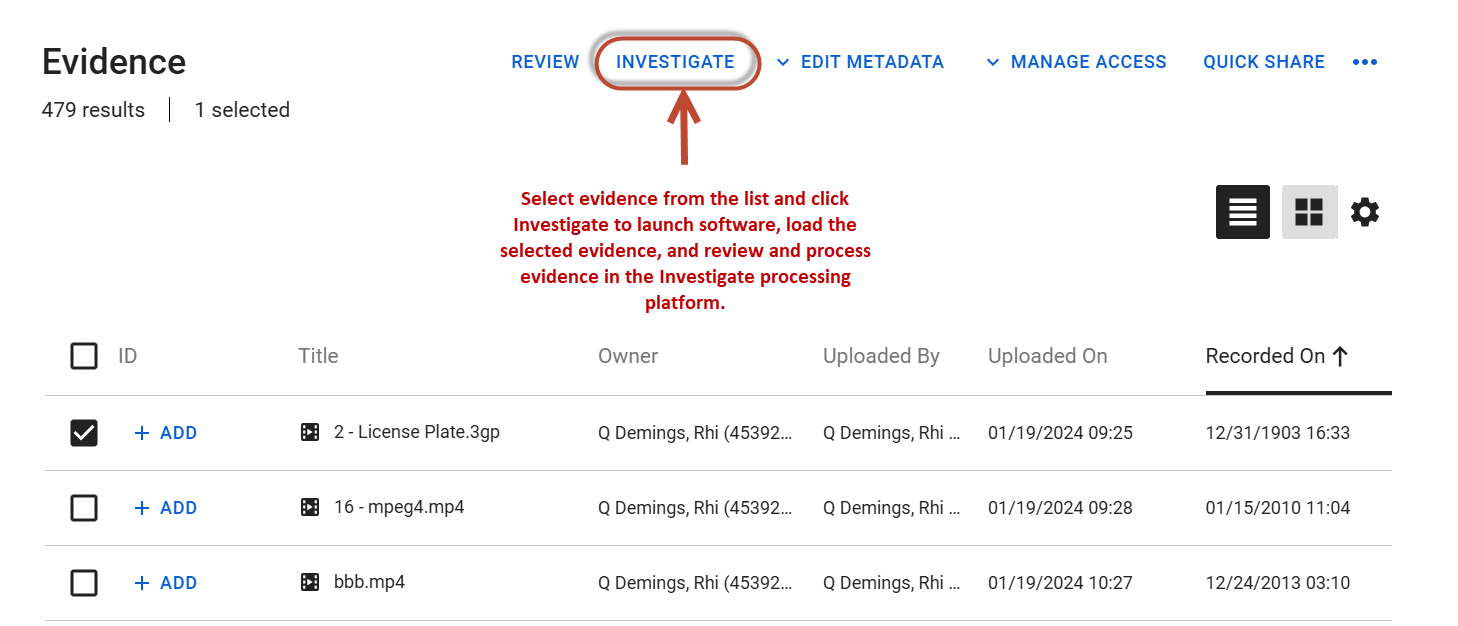
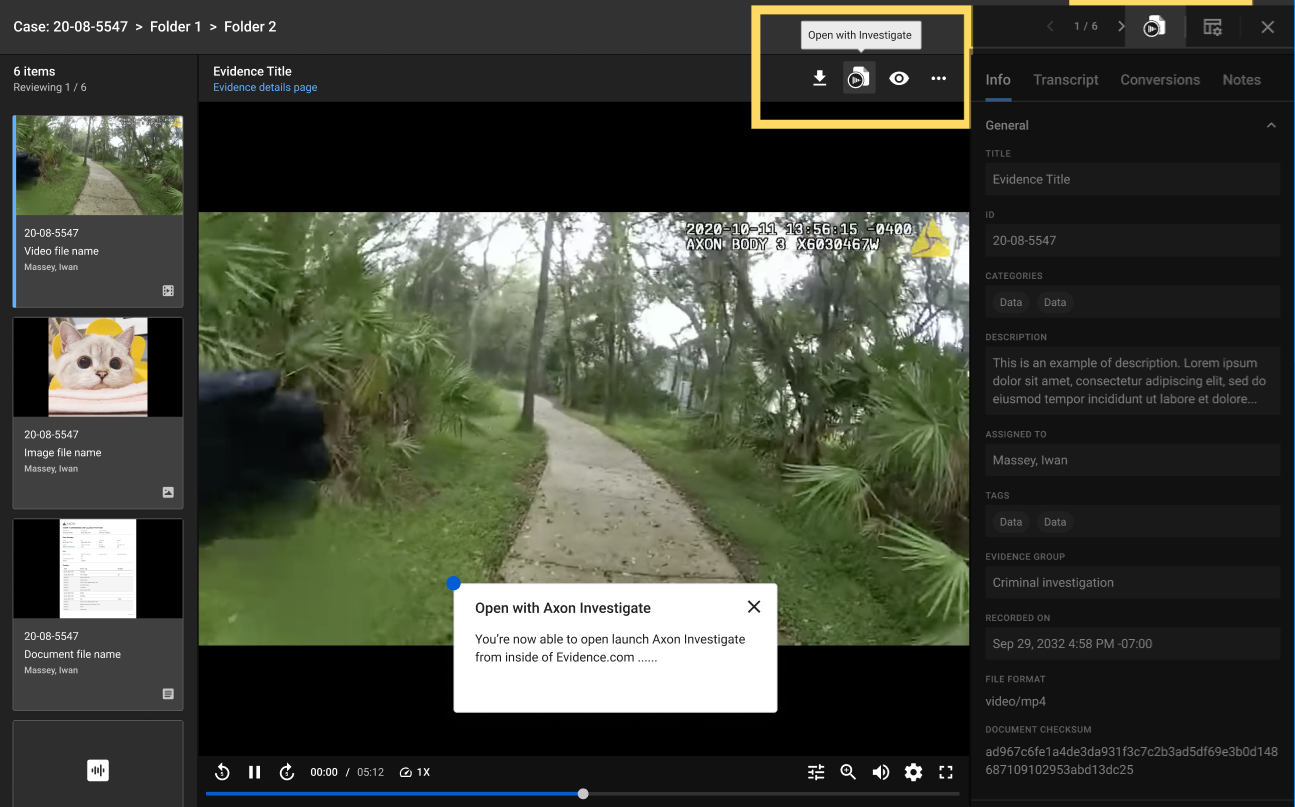
Users can either launch Axon Investigate and pull evidence from Axon Evidence or be logged into to Axon Evidence and install or launch Axon Investigate. Being able to access either platform from within the other platform improves the flow of data and greatly enhances workflow efficiency while maintaining evidence integrity.
First time access to the Axon Investigate software may require permission configurations. Contact your administrator for more information.
Filter/search/sort
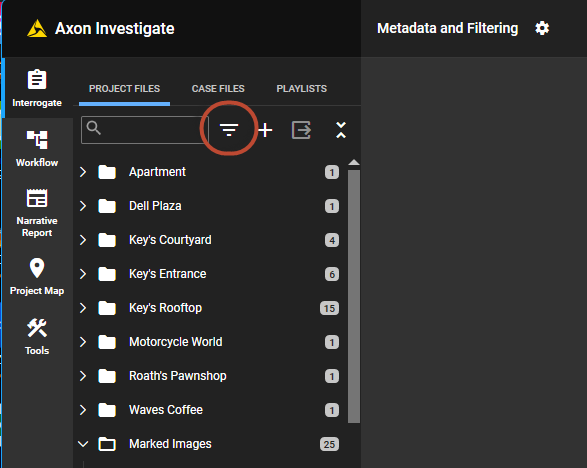
The Axon Investigate filter/search/sort feature has been refactored to function similarly to Axon Evidence’s search functionality. Evidence files can be easily organized in the Project Files list by using a quick control icon and setting the desired criteria to produce a refined list of evidence.
Use the Filter icon to refine search criteria.
Evidence files can be searched by title, evidence ID, a start or end date/time, specific tags assigned to evidence files, or filtered by all markers or subclips.
Selecting Reset File List restores to the original display of all evidence items.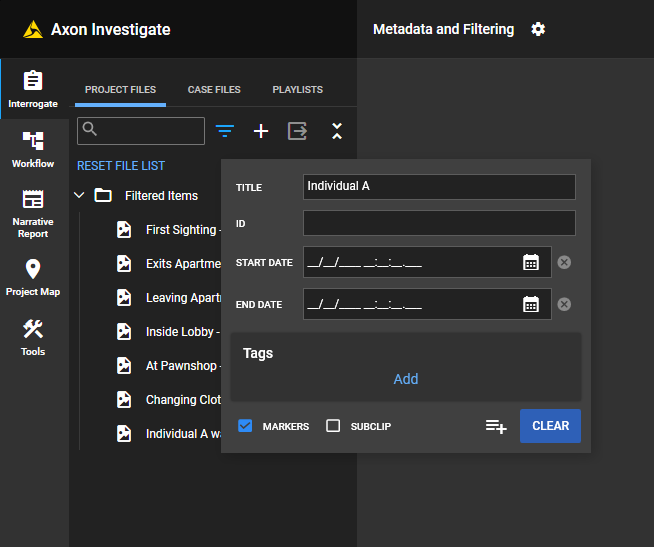
Watermark Node
A new node is available under the Workflow tab > Advanced Processes to allow users to add their own custom watermark to evidence. Within the node settings, use the folder icon to add a saved image file. Choose the placement and opacity of the watermark prior to running the evidence to the standard output final result.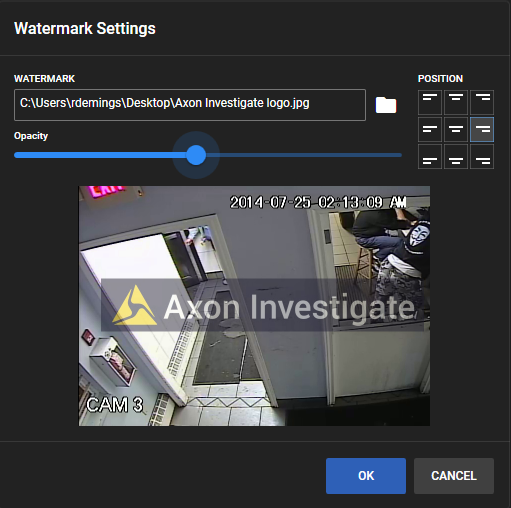
New marker/subclip placement in file list
The display of markers and subclips in the Project Files list has changed. When capturing a marker or subclip, the same dialog opens allowing the user to name the derivative evidence, but now a drop-down list is available to save the evidence to a specific folder. If a folder is not prepared prior to obtaining a marker or subclip, the evidence is only available for review under the associated parent file. The files can be moved to a new folder at any time for organizational purposes but will lose their relationship to the parent file they were obtained from unless extracted first.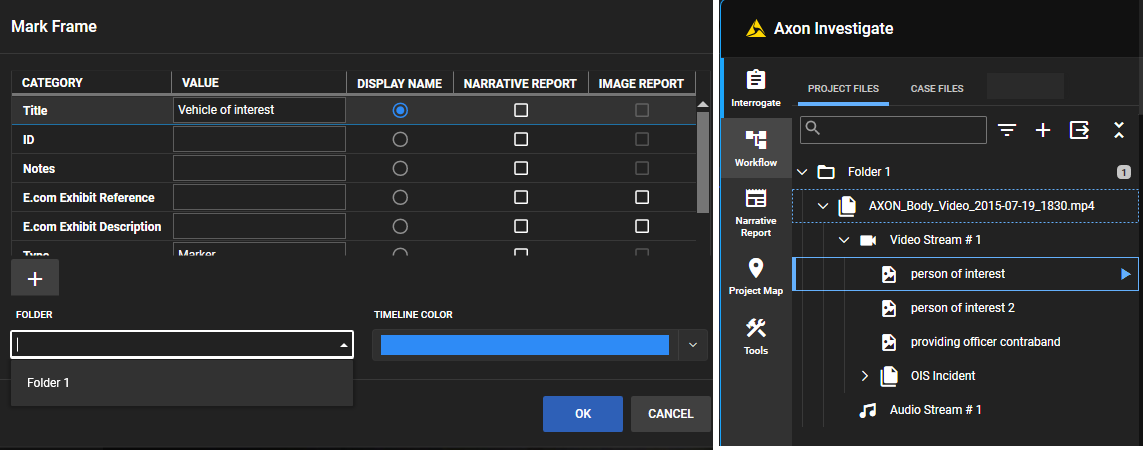
Timeline frame numbering
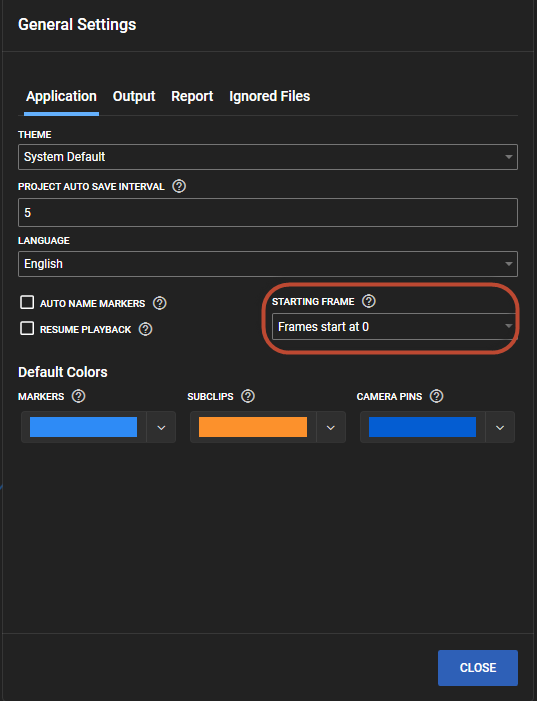
Most non-linear editors and other forensic software platforms start their timeline at frame zero. This is referred to as an array syntax. The concept of an array syntax can be confusing since there really is no such thing as a frame zero. This confusion about frame numbering can lead to detrimental misstatements during testimony. However, to keep parity with other non-linear editors and forensic programs and to eliminate discrepancies in forensic video proficiency test results, the Axon Investigate video player timeline defaults to frame zero. The timeline can be changed to start at frame 1 by going to the application settings and selecting the desired starting frame number from the dropdown.
For additional support regarding Axon Investigate, please contact [email protected]m and provide details about your workflow and licensing questions, or feature requests. For more information about Axon Investigate contact your Axon representative.


