Crime Reports
The Crime Reports tab in Retail Crime Hub lets retailers submit complete, structured reports directly to law enforcement partners. Each report can include:
- Incident date, time, and location.
- People and vehicles of interest.
- Details about products stolen and estimated loss.
- Images, video, and supporting digital evidence.
This allows organizations to:
- Review and triage incidents from the desk, instead of dispatching patrol just to take an initial report.
- Quickly determine which incidents warrant follow‑up.
- Create warrant‑ready or case‑ready packages earlier in the process.
Access Crime Reports
To access Crime Reports, select Community, then select the Crime Reports tab.
Status tabs let you filter by
- Pending: New reports awaiting review.
- Accepted: Reports your organization has accepted for follow‑up.
- Declined: Reports declined or closed without further action.
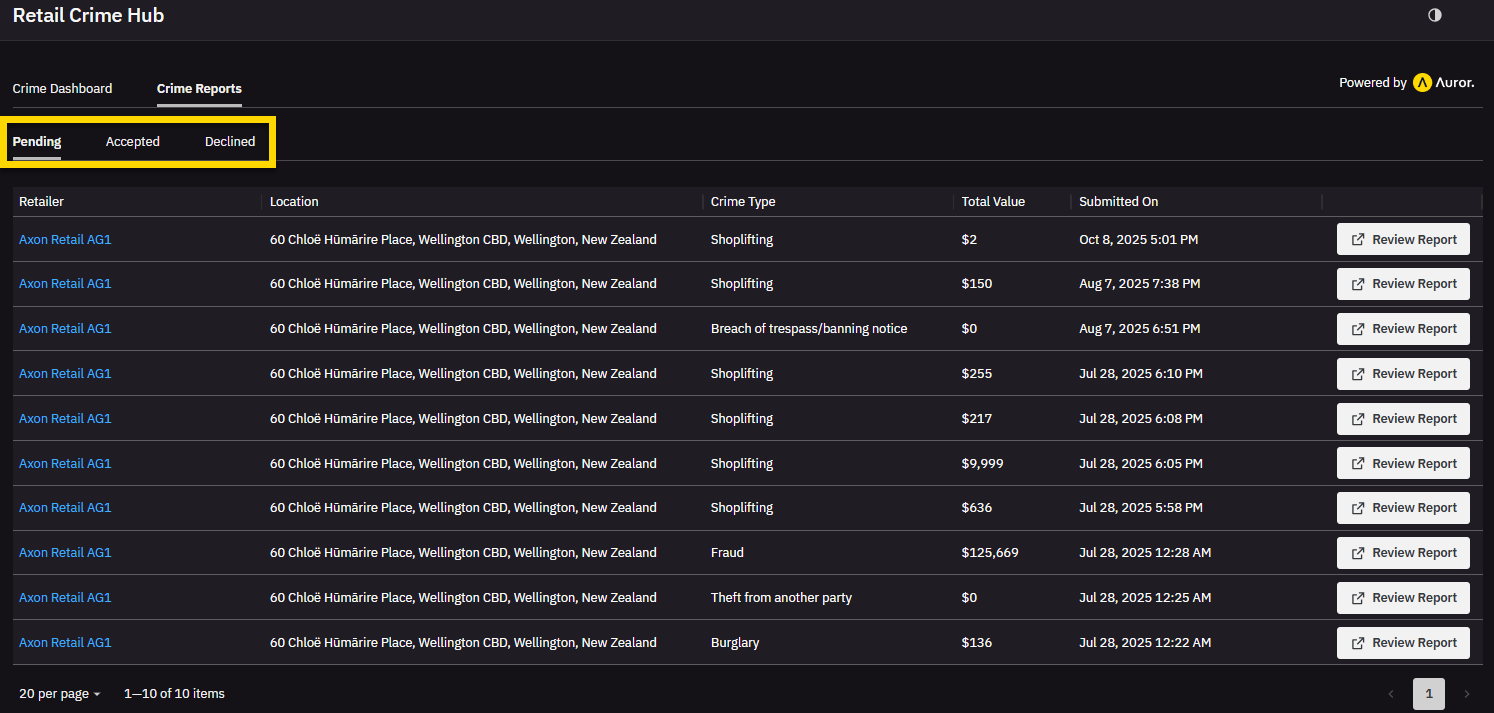
Each tab shows a count of reports in that state so you can quickly see your review workload.
Select View Report to open the full details in Auror, and accept or decline the report.
Example end to end workflow
- A retailer identifies an incident and gathers supporting evidence in Auror (people of interest, products stolen, and media).
- In Auror, the retailer creates a detailed report and sends it to your organization.
- Your organization receives a notification that a new retail crime report was submitted, opens Retail Crime Hub and goes to the Crime Reports tab.
- From the Pending list, open and review the report in Auror.
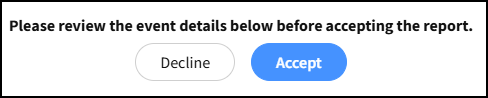
- Accept the report.
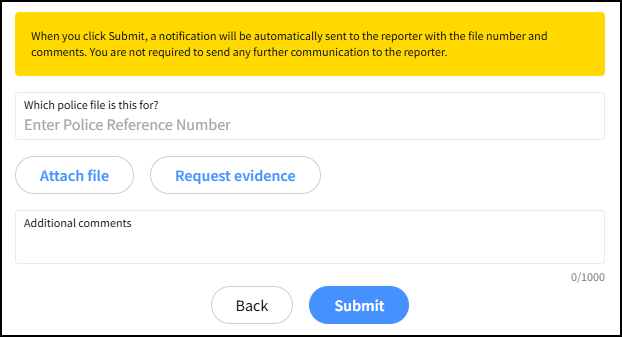
- Enter a police file number, and add any instructions or comments, then Submit.