Your account
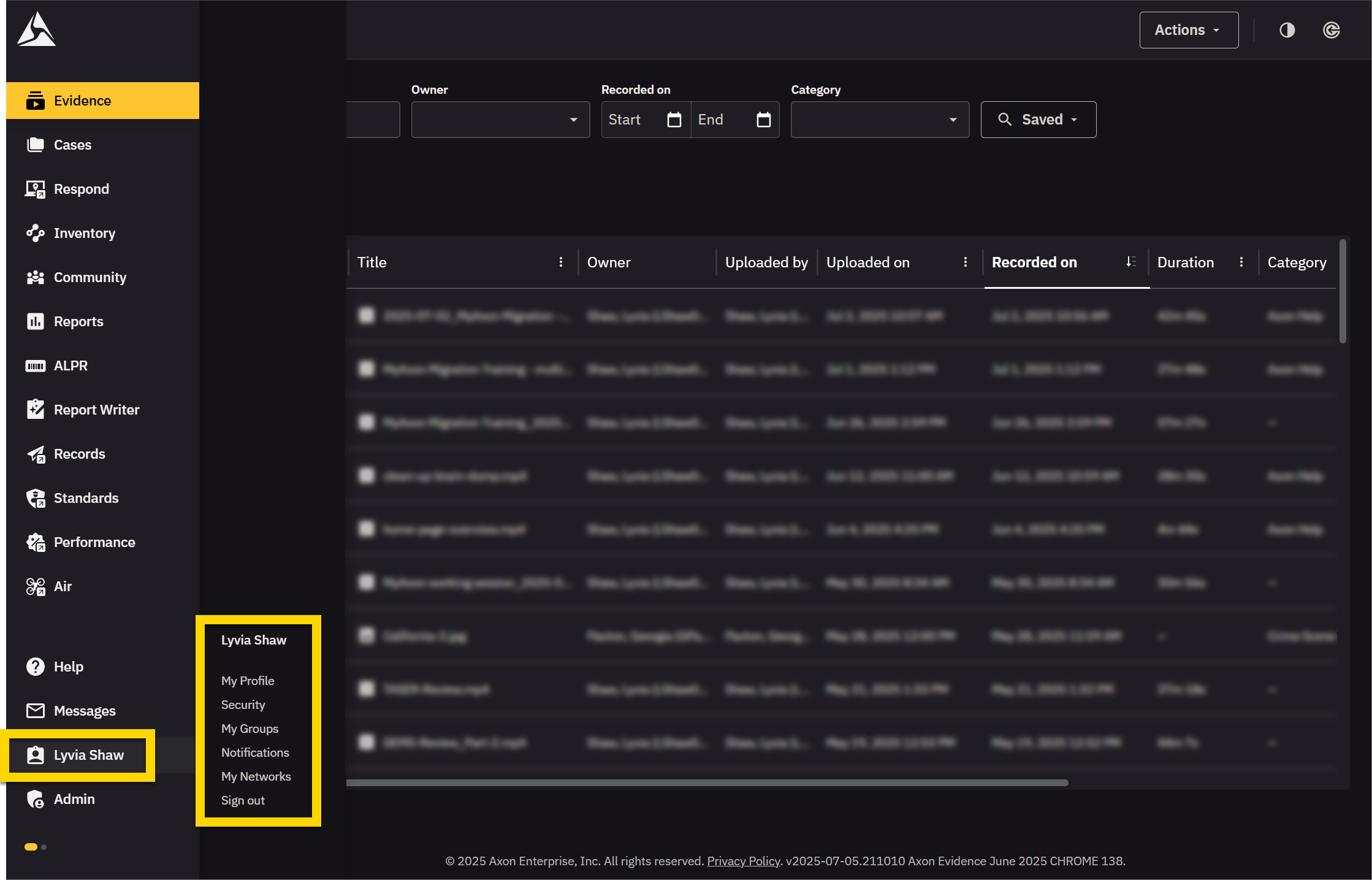
Your Axon Evidence account information can be accessed by selecting your name. The following pages include your user information and settings:
- My Profile: Basic user information (name, badge, etc. and contact information (email, phone number, etc.)
- Security: Password and multi-factor authentication (MFA) method(s)
- My Devices: Axon devices assigned to your user account.
- My Groups: Group-related lists.
- Notifications: Settings for email notifications sent to you by Axon Evidence
- My Networks: Personal network settings for assigned devices
In most agency configurations, users can manage and update many settings for their own user accounts.
The default permissions assigned to the User role allows a user to edit their account information. However, some agencies do not allow users to perform any of the procedures in this section, such as changing username and email address. Check with your Axon Evidence administrator to learn which permissions are enabled for your account.
Basic account information that you can update includes:
My Profile
Your profile page contains basic user information (name, badge, etc. and contact information (email, phone number, etc.).
Watch this video for information about updating your account profile.
- Badge ID
- First Name
- Last Name
- Username
- Language
- Time Zone
- Email address
- Phone number
If enabled by your agency, you can also view information about your assigned Rank and Evidence Group. However, you cannot edit this information.
To access your account page:
- Select your name > My Profile.
- To make changes, select Edit.
- Update your information as needed.
- You can't verify an updated phone number until you save your changes.
- Select Save.
- Enter your password to verify the changes.
Change language
Watch this video to learn how to change languages.
You can choose the language that you see for all labels in your Axon Evidence organization. Your organization has a default language that is set for every user when your Axon Evidence organization was created. The language setting in your profile lets you change the default language to the language that you are most comfortable using.
If the language option does not appear on the My Profile page, your organization has requested that the feature be disabled.
To change your account's language:
- Select your name > My Profile > Edit.
- In the Language list, select the language you wish to use, and then select Save.
- Enter your password to verify the changes.
- Sign out, and then sign back into your Axon Evidence account to see the change.
Verify phone number
Watch this video to learn how to verify your phone number.
If your agency uses multi-factor authentication, you can allow Axon Evidence to send one-use security codes to your mobile phone.
After you add a mobile phone number or change the mobile phone number on your user account, Axon Evidence considers the number unverified. Before Axon Evidence can send security codes to your phone, you must verify the phone number. To do this:
- Select your name > My Profile > Edit.
- If Verified is shown below your mobile phone number, no further action is needed.
- If you have not entered a phone number or need to change the number, follow these steps. Otherwise, skip to step 4:
- Select Edit.
- Update your phone number information as needed.
- Select Save. You are asked to enter your password to verify the changes.
- Select Verify phone number.
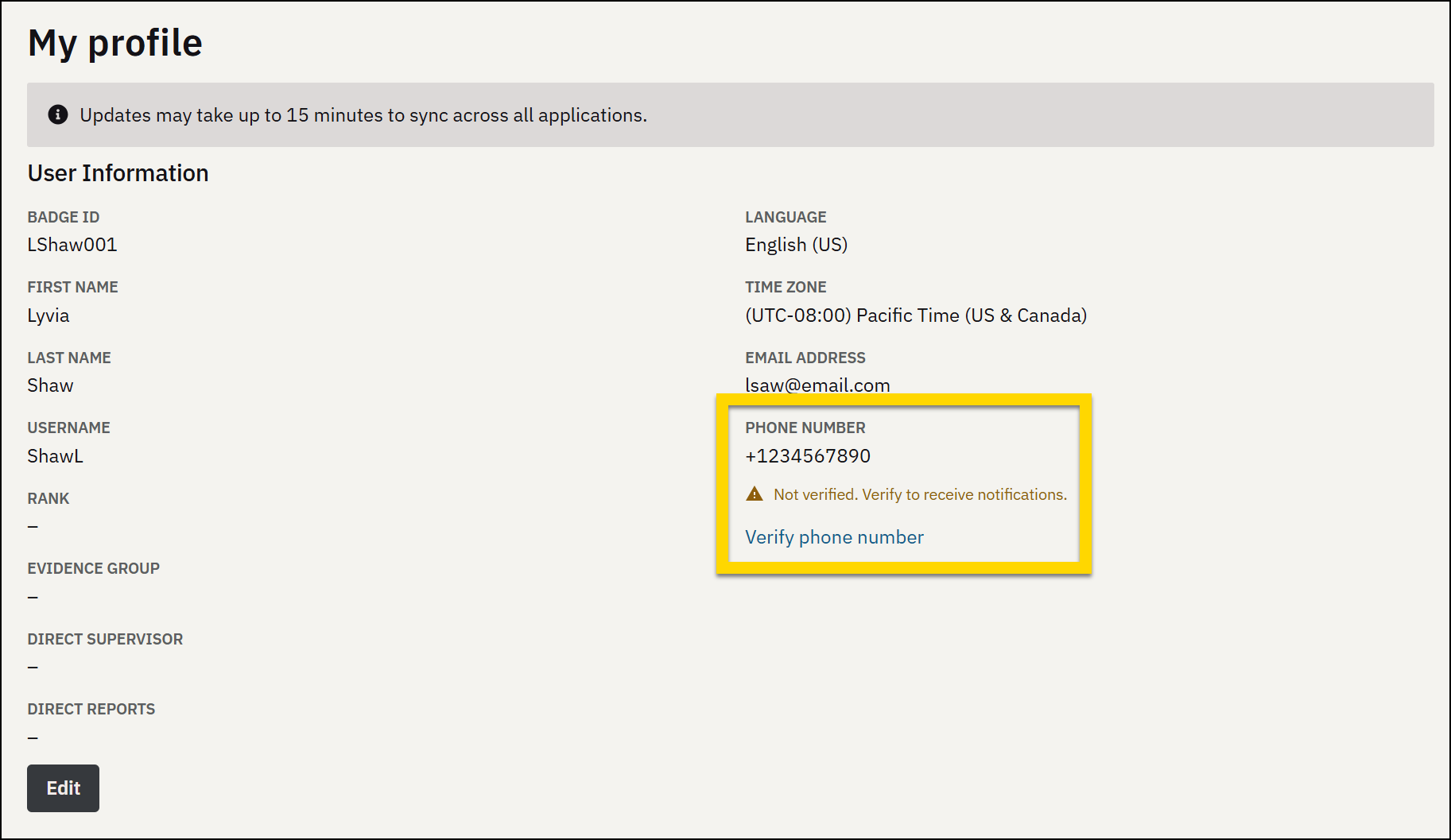
- A dialog box displays the verification method options, which include SMS Text message or a voice Call.
- Select the verification method you want to use to receive the security code. A dialog box for submitting the verification code appears and a verification code is sent to the phone number saved in your user account.
- Use your mobile phone to receive the verification code.
- In the Code box, enter the verification code and then select OK.
- On the notification message box, select OK.Your mobile phone number is verified.
Security
The Security page contains your password and multi-factor authentication (MFA) method(s).
Change password
Watch this video for steps to update your password.
Generally, you can change your password as needed. However, your organization may have added certain password configuration requirements. Contact your organization's Axon Evidence administrator for information about password requirements.
To update your password:
- Select your name > Security > Edit.
- Select Update Password. The Update Password dialog box appears.
- Enter your Current Password.
- Enter your New Password.
- In the Confirm New Password box, enter your new password again.
- Select Update. A banner message notifies you that your password has been successfully changed.
Forgot password
Follow these steps if you forgot your password:
- Open the Axon Evidence login page for your organization and select Forgot password?
- Enter the email address you use for the account.
- Select which items you forgot (Username, Password, or both).
- Enter the code shown.
- Select Submit.
If the email address you entered is associated with an account in Axon Evidence, you will receive an email with a link to reset your password or retrieve your username, depending on the options you selected.
Reset security questions
Watch this video for steps to reset your Axon Evidence password.
Contact one of your organization's Axon Evidence administrator and ask them Reset Credentials on your account.
If your organization uses Single Sign-On (SSO), contact your IT department to reset your login credentials.
Axon Technical Support can only reset the password or security questions for users in the default Admin role. If you are assigned any other role besides the default Admin role, you must contact your organization's administrator to reset your security questions.
My Devices
This page includes device details such as model, serial number, device name, last upload, device home, error status, and firmware, with serial numbers linking to the device profile page.
My Groups
Watch this video to learn how to view 'My Groups' information.
If you are a group monitor or a member of a group, the My Groups section of your account will show the following group-related lists:
- Groups I monitor: Appears if you have monitoring permission for a group.
- Groups I am a member of: Appears if you are a member of any group.
You can access the group profile page by selecting the group name.
Notifications
The Notifications page contains settings for email notifications sent to you by Axon Evidence.
Watch this video to learn how to update your email preferences.
You can set personal preferences for email notifications. The email notifications that are available to you are determined by the role assigned to your user account. You may not see all of the email notification settings.
If your role does not allow any email notifications, the page includes a message stating, “Your role currently doesn't have any email notification enabled.”
Axon Evidence lets you customize the following email notification settings:
- Account lockout notification: Receive an email if Evidence.com locks your account because you exceeded the maximum number of incorrect login attempts.
- External agency collaboration notifications: Receive notifications regarding other agencies that would like to collaborate with you and share evidence.
- Evidence delete digests notification: Receive an email about the upcoming evidence deletions summary for the next week in your Evidence.com Inbox.
- Incorrect capture date notification: Receive an email informing you about any evidence uploaded by your agency that appears to be recorded more than 14 days ago. This could be indicative of a device with a system clock in need of synchronization with Evidence.com.
- Category assignment notification: Receive an email when evidence uploaded is also assigned to at least one category that is in the process of being deleted. This notification helps ensure that no evidence is unintentionally deleted during system-initiated evidence deletions.
- Signal sidearm low battery notification: Receive an email when your assigned Signal Sidearm device has a low battery.
- ALPR snoozed alert notification: Receive an email when a hotlist record alert is snoozed.
- ALPR license limit exceeded notification: Receive an email if your agency exceeds the allotted number of ALPR licenses.
- Multi-Factor Authentication policy change notification: Receive an email if your agency's Multi-Factor Authentication (MFA) settings are changed.
Use the toggle switch to turn each notification type on or off. The toggle is turned on when the background is filled and the circle appears on the right. In the image below, the first notification setting is turned on, and the second is off. Changes to these settings are automatically saved.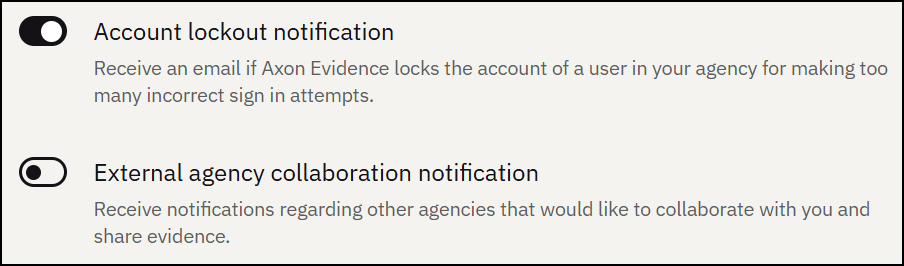
Remove Axon Evidence access to your YouTube account
Use the following steps to remove Axon Evidence access to your YouTube account. Removing access will prevent users from publishing videos to YouTube.
- Sign in to Google using the link: https://myaccount.google.com/permissions.
- In the list of Third-party apps with account access, select Axon Evidence and then select Remove Access.


