Reviewing a TREND Report
If you review TASER Data Science Reports (TREND reports) for your organization, use these steps to approve or reject a report assigned to you. The process is the same in TREND in Axon Evidence and TREND in Standards.
-
Sign in to Axon Evidence.
-
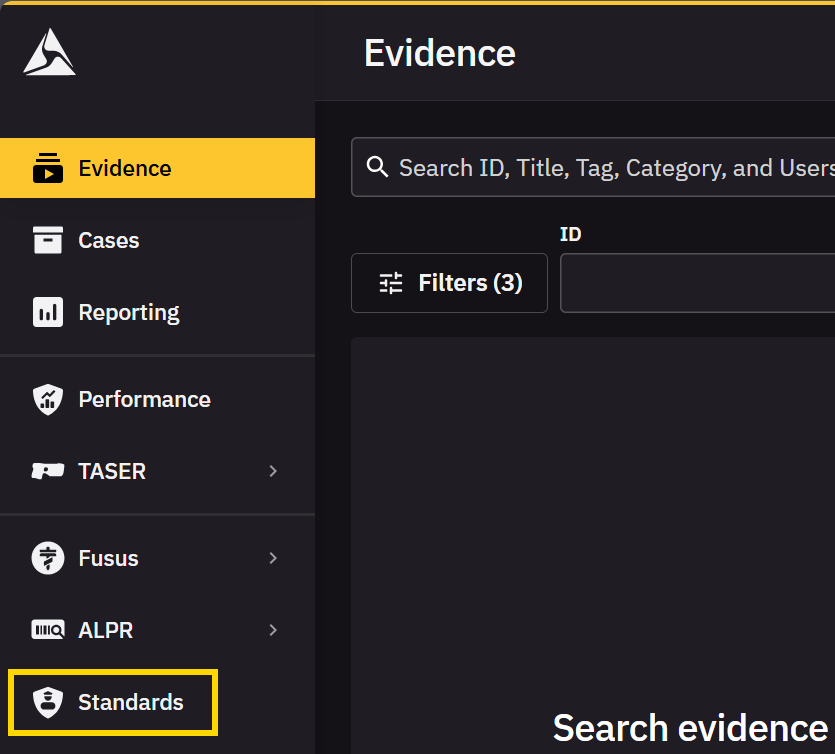
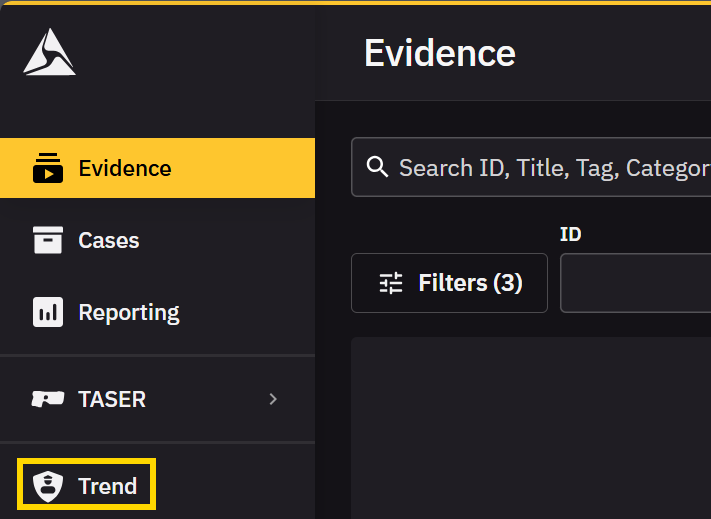
In the side navigation, click Standards or Trend.
Review tasks are here even if your organization uses TREND in Axon Evidence, where the analytics are under the TASER menu.
 Note
Your Axon Evidence administrator can configure the side navigation, so these options might appear in a different place.
-
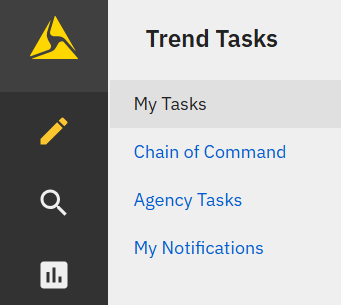
Click Trend Tasks, and then click My Tasks.
-
Click the report you want to review.
-
Review the report, and then click Approve or Reject.
If you reject the report, you can explain why in the Add a Note box.
-
Click Finalize.


