Automation
Introduction
These steps walk through how to use the included starter script to automate many operations based on data in a tab separated file. A sample is included that points to the test files to run the script.

Note that the script has the autoRun setting set to true. You may wish to set this to false in the script for initial testing.
Set file paths and metadata
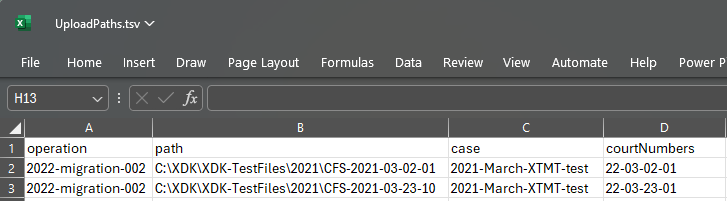
The XDK includes a sample PowerShell script called "AutomationCMD.ps1" with simple input file parsing and execution of the XTMT operations. It uses the data in the tab-separated “UploadPaths.tsv” file which specifies a list of operations, paths, and optional metadata as columns. Column names must match XTMT parameters and are case-sensitive, e.g.: evidenceID, categories, case, courtNumbers, and so on.

You can also use Microsoft Excel to modify the file and save it in the.TSV file format. Important leaving any XTMT-related files open in Excel will lock the file and can cause logging issues.
Exit Codes
XTMT returns specific exit codes at the end of operations to support better automation and error handling in scripts.
Exit codes can be captured in scripts to automate subsequent actions. For example:
    XTMT.exe --operation "UploadCase" --path "D:\Data"
       if %ERRORLEVEL%==1 echo "Authentication Failed, please check your credentials."
| Exit code | Title | Description | Retryable |
| Service-level | |||
| 100 | ServiceNotRunningError | The Upload XT service is not currently running. | Yes |
| 101 | AuthenticationFailedError | User authentication or authorization failed. | Yes |
| Upload batch preparation & configuration | |||
| 200 | UploadBatchPreparationError | Error preparing the upload batch. | No |
| 201 | XtoFileNotFoundError | The XTO configuration file was not found. | No |
| 202 | XtoFileParsingError | Unable to connect to the external service. | No |
| 203 | OperationNameNullOrEmptyError | The operation name is null or empty. | No |
| 204 | CaseEmptyError | The case field is empty. | No |
| 205 | OwnerEmptyError | The owner field is empty. | No |
| 206 | EvidenceIdEmptyError | The evidence ID field is empty. | No |
| 207 | UploadPathNullOrEmptyError | The upload path is null or empty. | No |
| 208 | UploadPathNotFoundError | The upload path directory does not exist. | No |
| 209 | ConfigurationError | Configuration validation failed. | No |
| Case management | |||
| 210 | CaseInfoRetrievalError | Failed to retrieve case information. | No |
| 211 | CaseIdAsNewError | A Case ID was supplied when creating a new case — mutually exclusive. | No |
| 212 | CaseNotFoundError | The specified case was not found. | No |
| 213 | CaseMultipleFoundError | Multiple cases found with the provided name. Use the exact Case ID in the .XTO or TSV file. | No |
| 214 | CaseCreationError | Failed to create the case. | Maybe |
| Category management | |||
| 215 | CategoryRequiredError | A category is required but was not provided. | No |
| 216 | CategoryRetrievalError | Failed to retrieve category information. | No |
| 217 | CategoryInvalidError | The provided category is invalid. | No |
| Validation & processing | |||
| 218 | CaseFolderCreationError | Failed to create the case folder. | Maybe |
| 219 | MultipleError | Multiple validation errors occurred. | |
| 220 | OperationCompletedWithError | Operation completed with errors. | Maybe |
| 221 | OperationCompletedWithResolvableError | Operation completed with errors that can be resolved and retried. Maps to ErrorStatus.Resolvable. | Yes |
| 222 | OperationCompletedWithUnResolvableError | Operation completed with permanent, unresolvable errors. Maps to ErrorStatus.Unresolvable. | No |
| 223 | OperationCompletedWithIndeterminateError | Operation completed with errors of unknown transience. Manual assessment required. Maps to ErrorStatus.Indeterminate. | Maybe |
| 224 | NetworkDriveNotMappedError | A required network drive is not mapped. | No, map first |
| 225 | MetaDataInfoRetrievalError | Failed to retrieve metadata information. | No |
| 226 | TsvFileNotFoundError | The TSV file was not found. | No |
| 227 | TsvFileReadingError | Error reading the TSV file. | No |
| 228 | TsvFileParsingError | Error parsing the TSV file. | No |
| 229 | TsvFileValidationError | TSV file validation failed. | No, file fix required |
| 230 | CategoryParsingError | Error parsing the category value. | No |
| 231 | NotAFilePath | The provided path is not a valid file path. | No |
| Special codes | |||
| 999 | ExitApplication | Generic application exit signal. | N/A |
| 1000 | OperationCompletedSuccess | Operation completed successfully. | N/A |
Launch the script
You can launch the script using one of three methods:
Launch with PowerShell
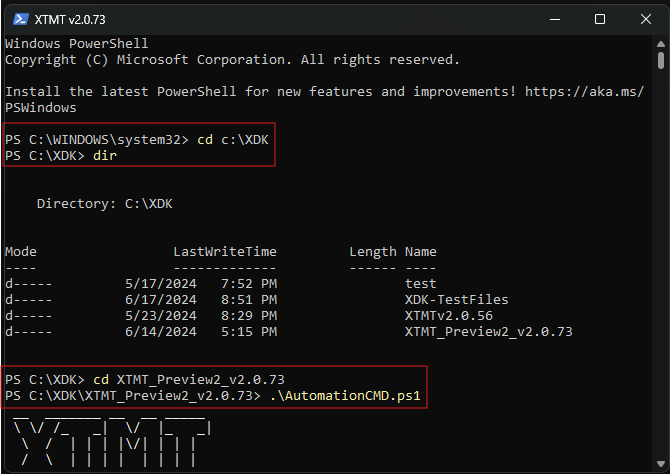
To run the script using the sample files included in the XDK in the recommended paths, open Windows PowerShell from the Start menu (you may need to open as administrator based on your device policies), then navigate to the XDK directory, and the directory of the most recent XTMT build number using these commands:
Launch with Command Prompt
You can launch the automation sample from a command prompt as well:
powershell.exe -File AutomationCMD.ps1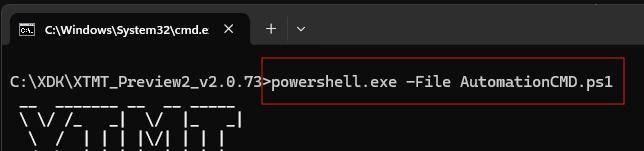
You can add a .TSV file parameter to override the default value of the UploadPaths.tsv file:
powershell.exe -File AutomationCMD.ps1 "filepaths1.tsv"Use Development Environment
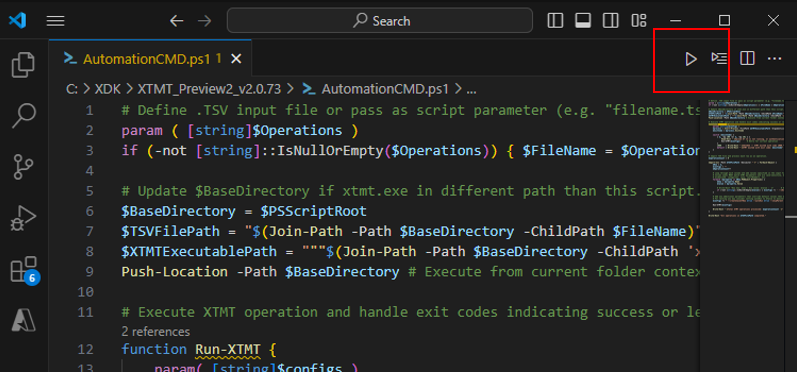
Using your own development tools such as the freely-available Microsoft Visual Studio Code application can be used to run scripts even if you have permission issues with other options, and enable debugging while you work on your scripts:
Troubleshooting
File cannot be loaded because running scripts is disabled on this system
Depending on the security policies on your device you may need to enable PowerShell scripts if you get this error:
File [filename] cannot be loaded because running scripts is disabled on this system.
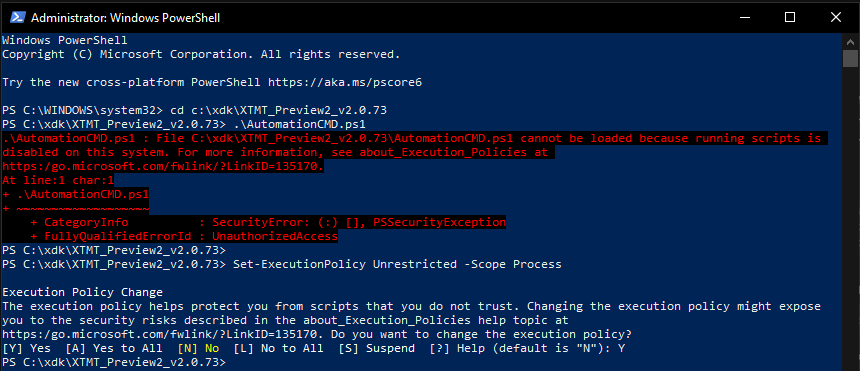
You can enable the script for the current session of PowerShell to test the script with this command:
Set-ExecutionPolicy Unrestricted -Scope ProcessYou can set the scope to “CurrentUser” or “LocalMachine“ to persist the setting.You can find more information on Microsoft's site Set-ExecutionPolicy (Microsoft.PowerShell.Security) - PowerShell (third-party site).
You can also do this from a Command Prompt window. If you're changing this for a user or machine you might need to re-open a new window after updating.
Powershell -command "& {Set-ExecutionPolicy -ExecutionPolicy Unrestricted -Scope Process -Force}"
Latency
if you're experiencing latency when running commands, try setting --global to false.
Script example
This script example can be found in the XDK download as "AutomationCMD.ps1":
# Define .TSV input file or pass as script parameter (e.g. "filename.tsv")
param ( [string]$Operations )
if (-not [string]::IsNullOrEmpty($Operations)) { $FileName = $Operations } else { $FileName = "UploadPaths.tsv"}
# Update $BaseDirectory if xtmt.exe in different path than this script.
$BaseDirectory = $PSScriptRoot
$TSVFilePath = "$(Join-Path -Path $BaseDirectory -ChildPath $FileName)"
$XTMTExecutablePath = """$(Join-Path -Path $BaseDirectory -ChildPath 'xtmt.exe')"""
Push-Location -Path $BaseDirectory # Execute from current folder context
# Execute XTMT operation and handle exit codes indicating success or level of failure
function Run-XTMT {
param( [string]$configs )
$process = Start-Process -FilePath $XTMTExecutablePath -ArgumentList $configs -Wait -NoNewWindow -PassThru
$exitCode = $process.ExitCode
switch ($exitCode) {
{ $_ -eq 100 -or $_ -eq 101 } {
Read-Host "`nUpload XT v2 is not running, or authentication has expired. Restart and authenticate then press Enter to continue."
Run-XTMT($configs)      # Retry for current operation
}
1000    { Write-Host "`nSUCCESS -- XTMT exited with code 1000." }
default { Write-Host "`nXTMT exited with exit code: $exitCode" }
}
}
# Import TSV file and process each row as an operation.
$operationCount = 0
Import-Csv -Path $TSVFilePath -Delimiter "`t" | ForEach-Object {
$Row = $_
$configs = ""
$OperationCount++
# Loop through each column and add values specified in the input file.
# Column names MUST match XTMT parameters and are case-sensitive, e.g.:
# evidenceID, categories, case, courtNumbers, etc.
foreach ($property in $Row.PSObject.Properties) {
$key = $property.Name
$value = $property.Value
# Write-Host "Row key: $key / Row value: $value : `n"       # Uncomment this for debugging value issues
if (-not [string]::IsNullOrEmpty($value)) { $configs += ' --{0} "{1}" ' -f $key.Trim(), $value.Trim() }
}

# Add any additional parameters that override default values then execute operation
# For testing you may consider setting autoRun to $false to monitor each operation
$configs += " --createCaseIfNew $true --autoRun $true --skipParent $true"

Run-XTMT($configs)

Write-Host "`nTotal XTMT operations processed: $operationCount `n"
}
Write-Host "All operations in $TSVFilePath completed."


