Assign devices to groups
The ability to assign devices to groups is coming soon and will appear on the Inventory page in the Admin Console. It is currently part of an alpha release. This means it is still being developed, and is available to select organizations for testing and feedback. As an alpha feature, functionality is not fully polished, and adjustments can occur based on input. If you would like to participate in this alpha release, contact your Axon representative. Learn more about Alpha and Beta features.
You can assign devices in bulk with a CSV file or assign one device at a time from device details. Use the Group filter in Device Inventory to review device assignments.
This feature must be enabled for your organization before you can assign devices to groups. To request access, contact your Axon representative.
What device-to-group assignment does
Device-to-group assignment helps you organize your device fleet in a way that matches how your organization operates, such as by site or business unit.
Admins can assign devices to groups in bulk by CSV or update one device at a time from the device details page.
A device can belong to only one group at a time.
For organizations that use Evidence Groups, device-to-group assignment can also support evidence access based on the device that captured the evidence.
If device-based Evidence Group behavior is enabled, uploaded evidence can use the group assigned to the recording device instead of the recording user's Evidence Group.
Before you begin
- For bulk assignment, create a CSV file with these columns:
- DEVICE_SERIAL_NUMBER and GROUP_NAME.
- A device can belong to only one group at a time.
- Plan group names carefully. The CSV uses group names rather than group IDs.
- Make sure the groups you want to use already exist.
Note: If device-based Evidence Group behavior is enabled and a device is not assigned to a group, uploaded evidence can have no Evidence Group. If you move a device to a different group later, evidence uploaded before the change keeps its original Evidence Group assignment.
If your organization uses device-based Evidence Group behavior, assigning devices to groups can also affect how Evidence Groups are assigned to uploaded evidence. For more information, see Assign an Evidence Group using Device Groups (link to new article https://www.axon.com/help/admin-and-it/software/admin-and-it/user-management/groups/assign-evidence-groups-using-device-groups.htm.
Assign devices in bulk by CSV
- Select Admin.
- Select Device Management, then select Inventory.
- Under Management, select Bulk Assign to Groups.
- Select Select File, browse to the CSV file you created, then select Open to upload it.
- Review the results after the upload finishes.
- Successful rows are assigned right away.
- Skipped rows are listed in a separate error file.
- Fix any skipped rows and upload them again.
Common reasons a row can fail include:
- An invalid or empty group name
- An invalid or empty device serial number
- A group that was not found
- A device serial number that was not found
Assign or reassign one device from device details
- Select Admin.
- Select Device Management, then select Inventory.
- Select the device type or select All Devices.
- Use the Group filter to narrow your search and review which devices are assigned to a group.
- Select the device from the list.
- Next to Group, select Edit group.
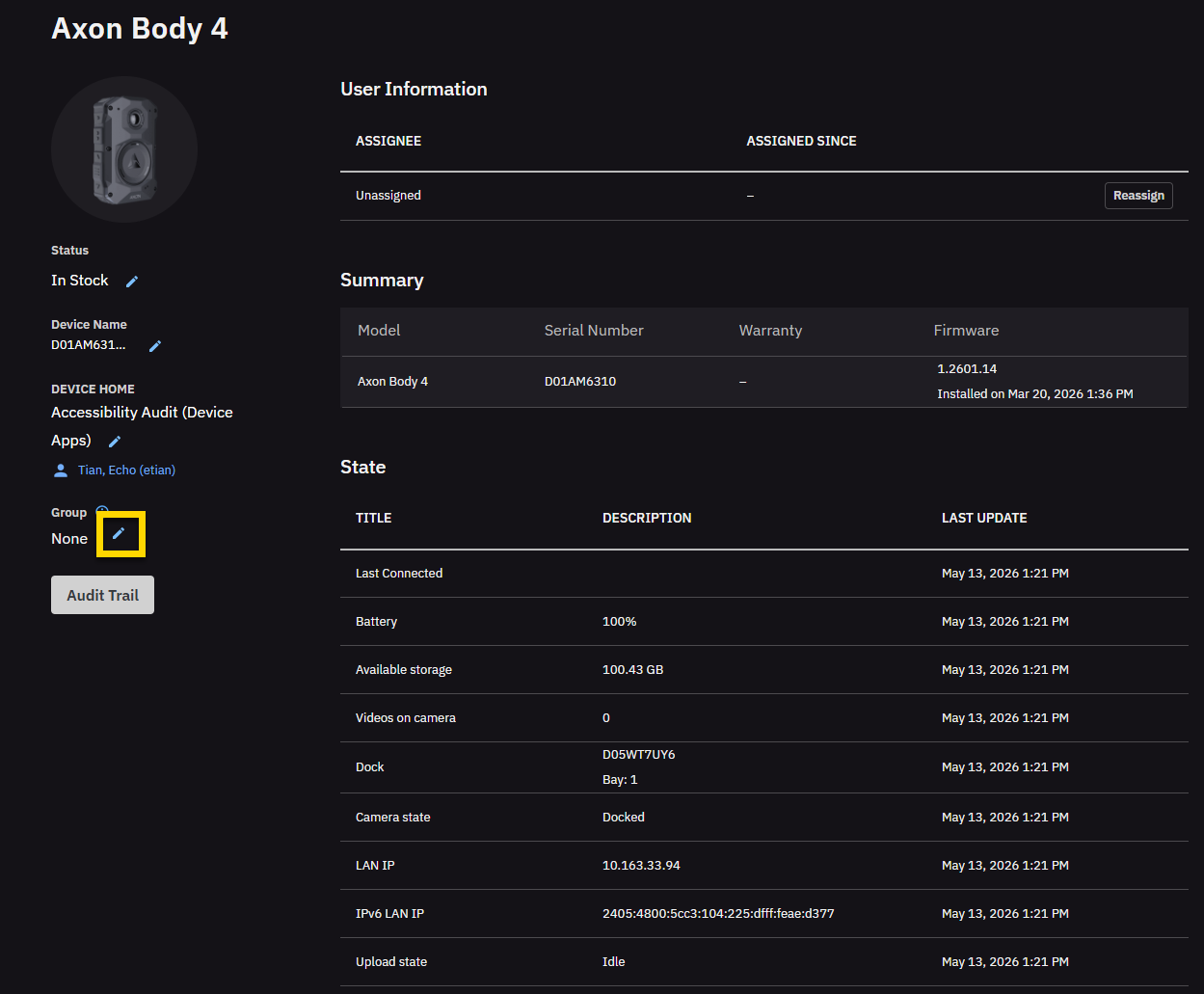
- Select a group.
- Select Save.
Limits, errors, and deletion restrictions
- A device can belong to only one group at a time.
- If rows are skipped during a bulk upload, use the error file to identify the issue, correct the rows, and upload them again.
- You can delete a group only when it has no members, devices, or files.
- To avoid import issues, keep group names unique..
- Changing a device's group does not update evidence that was already uploaded.


