Import groups, members, and monitors
This guide outlines the import groups feature, available to administrators and users with 'Configure Agency Security Settings' permission to manage groups. With this feature, you can use comma-separated-value (CSV) files to create groups and define members and monitors from the Admin portal. Whether you're setting up groups for the first time, or updating existing data, these steps walk you through preparing your CSV files, choosing an import strategy, and uploading your files.
If you've already prepared your group, and members and monitors CSV files, you may skip ahead to Step 3: Choose your import strategy. For specific tasks, use the links below to navigate directly to the section you need.
Step 1: Prepare your group CSV file
Step 2: Prepare your members and monitors CSV file
Step 3: Choose your import strategy
Step 4: Import your Group CSV file
Step 5: Import your members and monitors CSV file
Learn more about groups and memberships.
Watch this video to learn how to import groups.
Step 1: Prepare your group CSV file
Start by deciding whether to modify an existing sample group CSV file, or create your own from scratch.
If you are creating VR groups, ensure that the External_ID field includes the specific external IDs required for VR groups. These external IDs must be entered exactly as listed for the following groups:
- vr-trainers
- For more information about VR group creation and external ID requirements, refer to Accessing VR systems through Axon Evidence.
Choose one of the options below, and follow the associated steps:
Option A: Download and modify the example CSV file
- Sign in to your Axon Evidence account, and then select Admin from the top menu.
- Under Users, select All Groups, and then select Import Groups to open the Import groups page.
- In the Import Option list, select Create Groups, and then select Download Example File. The example file downloads.
- Open the example file, make a copy, and then save it with a meaningful name. This is now your groups CSV file.
- Delete the second, third, and fourth rows. Do not delete the first row, this is what Evidence.com uses to determine the column names.
- Enter your group information under the appropriate headers for each group you wish to add. For more information about required values, refer to the reference table below.
Option B: Create your own CSV file from scratch using a spreadsheet application
- Open your preferred spreadsheet application, such as Microsoft Excel. and create a new document.
- In the first row of your file, enter the column names using the following values:
- A1: EXTERNAL_ID
- B1: MEMBERSHIP_TYPE
- C1: ENTITY_TYPE
- D1: ENTITY_ID
- Enter your group information under the appropriate headers for each group you wish to add. For more information about required values, refer to the reference table below.
- Save your work as a CSV file with a meaningful name. This is now your groups CSV file.
The reference table below describes the required values in the CSV file for importing groups.
| Column | Header Value | Value |
| A | EXTERNAL_ID |
External group ID — A unique value that identifies the group. This ID should be persistent and unchanging for the life of the group. The ID is assigned by your organization. It is recommended that you determine a group ID strategy that best suits your needs. If you are manually synchronizing the groups in your Evidence.com agency with groups in another application, you may want to use an ID value provided by the other application, such as a GUID. To find the external group ID for an existing group, view the Group Profile page for the group. You can also simply assign a descriptive name. Valid external group IDs can be up to 255 characters. |
| B | MEMBERSHIP_TYPE |
Member or monitor – Whether the row in the CSV file defines a member or monitor. Valid values are the following two words:
The valid values are case sensitive. |
| C | ENTITY_TYPE |
User or group – Whether the member or monitor is a user or a group. Valid values are the following two words:
The valid values are case sensitive. |
| D | ENTITY_ID |
Identifier of the member or monitor.
|
Note Older versions of the Import Groups CSV with the VISIBLE_TO_FEDERATED column will be accepted for upload, but the values imported will be converted to the SHARE_ACCESS setting as follows: VISIBLE_TO_FEDERATED = TRUE is converted to SHARE_ACCESS = ANY VISIBLE_TO_FEDERATED = FALSE is converted to SHARE_ACCESS = FORBIDDEN
For more information about valid CSV formatting, see https://tools.ietf.org/html/rfc4180.
Step 2: Prepare your members and monitors CSV file
Note If License Tiers are enforced, or in preview mode for your organization, group monitors must be assigned to a Pro Tier roleStart by deciding whether to modify an existing sample members and monitors CSV file, or create your own from scratch. Choose one of the options below, and follow the associated steps:
Option A: Download and modify the example CSV file
- Sign in to your Axon Evidence account, and then select Admin from the top menu.
- Under Users, select All Groups, and then select Import Groups to open the Import groups page.
- In the Import Option list, select Add members and monitors, and then select Download Example File. The example file downloads.
- Open the example file, make a copy, and then save it with a meaningful name. This is now your members and monitors CSV file.
- Delete the second, third, and fourth rows. Do not delete the first row, this is what Evidence.com uses to determine the column names.
- Enter your member and monitor information under the appropriate headers for each member or monitor you wish to add. For more information about required values, refer to the reference table below. Follow these guidelines to ensure information in entered accurately:
- Enter a single member or monitor per row: Each row in the CSV file defines one member or monitor. For example, if you need to add a user both as a member and as a monitor, include a separate row for each role.
- Group reference: Ensure that each member, or monitor row references a group in column A. Only groups listed in this column will be updated. For example, if groups 1 and 2 each have several members assigned, and your CSV file only specifies members and monitors for group 1, Evidence.com will take no action on group 2.
Option B: Create your own CSV file from scratch using a spreadsheet application
- Open your preferred spreadsheet application, such as Microsoft Excel. and create a new document.
- In the first row of your file, enter the column names using the following values:
- A1: EXTERNAL_ID
- B1: MEMBERSHIP_TYPE
- C1: ENTITY_TYPE
- D1: ENTITY_ID
- Enter your member and monitor information under the appropriate headers for each member or monitor you wish to add. For more information about required values, refer to the reference table below. Follow these guidelines to ensure information in entered accurately:
- Enter a single member or monitor per row: Each row in the CSV file defines one member or monitor. For example, if you need to add a user both as a member, and as a monitor, include a separate row for each role.
- Group reference: Ensure that each member, or monitor row references a group in Column A. Only groups listed in this column will be updated. For example, if groups 1 and 2 each have several members assigned, and your CSV file only specifies members and monitors for group 1, Evidence.com will take no action on group 2.
- Save your work as a CSV file with a meaningful name. This is now your members and monitors CSV file.
The reference table below describes the required values in the CSV file for importing members and monitors.
| Column | Header Value | Value |
| A | EXTERNAL_ID | External group ID — The ID of the group to which the member or monitor is added. This ID must match the external group ID used to create the group. To find the external group ID for an existing group, view the Group Profile page for the group. If you specify an external group ID that does not correspond to an existing group in your agency, Evidence.com does not create the member or monitor, and an error message appears in the list of actions taken. Valid external group IDs can be up to 255 characters. |
| B | MEMBERSHIP_TYPE | Member or monitor – Whether the row in the CSV file defines a member or monitor. Valid values are the following two words:
The valid values are case sensitive. |
| C | ENTITY_TYPE | User or group – Whether the member or monitor is a user or a group. Valid values are the following two words:
The valid values are case sensitive. |
| D | ENTITY_ID | Identifier of the member or monitor.
|
For more information about valid CSV formatting, see https://tools.ietf.org/html/rfc4180 (third-party site).
Step 3: Choose your import strategy
Consider the following two strategies to manage your groups with CSV files – either for automated synchronization, or for manual updates. The strategy you choose will determine how your CSV files are imported in Step 4, and in Step 5. Select the method that best fits your organization's workflow, and update frequency:
Option A: Setup by import, maintain by synchronization
- Use this approach if you want your group configurations in sync with an external application, like an on-premises Microsoft Entra ID implementation.
- Ideal for organizations that experience regular changes to their group structures.
- It's recommended that your groups CSV file, and members-and-monitors CSV file reflect complete configuration of all groups, and their members and monitors, and that CSV files are backed up reliably.
- When importing groups, this option will replace all of your groups with exactly what is in your CSV file. Any group not referenced will be deleted and can't be reverted.
- When importing members and monitors, this option adds the new memberships as specified in your CSV file, and removes any configured memberships that aren't specified.
Option B: Setup by import, maintain manually
- Ideal for organizations with infrequent changes, that don't need to synchronize group configurations with an external source.
- Allows you to use the import feature for initial setup, and then switch to manual updates as needed.
- When a large number of changes are needed, you can update the CSV files, and then import them again.
- Offers a balance between automated setup, and hands-on control.
- When importing groups, this option builds the framework of groups for your organization from the CSV file you upload, and will not change or add membership to any of the groups. Existing groups, which are identified by external ID, will not be affected.
- When importing members and monitors, this option adds them to groups, as specified in your CSV file, without altering the group members or monitors already configured in your organization.
Note: You can't use the 'Define Members and Monitors' feature to empty an existing group of all members and monitors. It's recommended that you delete a group rather than attempt to maintain an empty one. You can always create a group later, when it's needed.
Step 4: Import your group CSV file
- Sign in to your Axon Evidence account, and then select Admin from the top menu.
- Under Users, select All Groups, and then select Import Groups to open the Import groups page.
- In the Import Option list, choose the appropriate import option for your group file:
- Option A: Maintain groups by synchronization: Select Synchronize groups.
- Option B: Maintain groups manually: Select Create groups.
- Select the Select File button, navigate to the location where you saved your groups CSV file, confirm your selection, and then select Upload. Evidence.com displays a list of actions taken based on information in the uploaded file. This includes information about detected errors, and about the deletion of previously existing groups not defined in the file.
- Review the list of actions taken, and then:
- If you need to correct errors: Update your CSV file, and then select Import another file to re-upload.
- If no errors are detected: Select Finished to complete the upload process. You will then be directed back to the Groups page.
Step 5: Import your members and monitors CSV file
- Sign in to your Axon Evidence account, and then select Admin from the top menu.
- Under Users, select All Groups, and then select Import Groups to open the Import groups page.
- In the Import Option list, choose the appropriate import option for your group file:
- Option A: Maintain groups by synchronization: Select Synchronize members and monitors.
- Option B: Maintain groups manually: Select Add members and monitors.
- Select the Select File button, navigate to the location where you saved your members and monitors CSV file, confirm your selection, and then select Upload. Evidence.com displays a list of actions taken based on information in the uploaded file. This includes information about detected errors, and actions taken.
- Review the list of actions taken, and then:
- If you need to correct errors: Update your CSV file, and then select Import another file to re-upload.
- If no errors are detected: Select Finished to complete the upload process. You will then be directed back to the Groups page.
Troubleshooting CSV errors
If you encounter the following error message:
"File cannot be uploaded. Your CSV file does not have the right format. Please make sure to have the following columns with entries for the groups to be imported in the listed columns: External ID, Membership Type, Entity Type, Entity ID."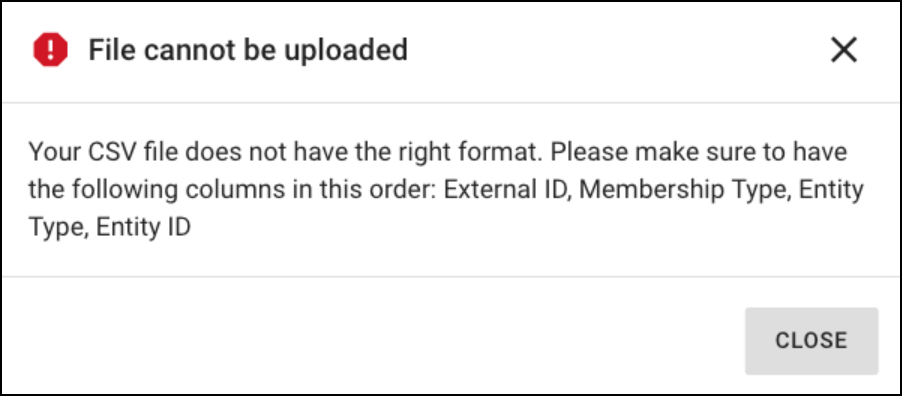
This error occurs when required columns are missing, or if any row is missing entries for these columns. To resolve this issue:
Ensure your CSV file contains the following columns in this exact order:
EXTERNAL_ID
MEMBERSHIP_TYPE
ENTITY_TYPE
ENTITY_ID
Make sure every row has values for all four columns. If any fields are left empty, the file will not upload.


