Accessing VR systems through Axon Evidence
We’ve identified an issue where some VR Tablets may not sync correctly with Samsung Knox, which is used to manage and update tablet content. To resolve this issue, open Google Chrome on the tablet, go to the Samsung Knox Configure portal (https://configure.samsungknox.com/), and select Re-enroll.
To access VR web app and the Simulator Training app on the VR tablet, users will need to sign in with their Axon Evidence credentials.
There are three key steps to fully set up VR system access through Axon Evidence:
- Get an Axon Evidence account for your agency
- Add trainees and trainers to Axon Evidence
- Assign VR Trainer Access by creating groups
These key steps are described in detail below.
Once all required steps are completed, users in your agency will have access to VR systems using their Axon Evidence credentials.
Step 1: Get an Axon Evidence account for your agency
Your agency must have an Axon Evidence account, which will look like this: youragency.evidence.com.
If your agency doesn’t have an account:
- Contact your Sales Representative or Customer Service Manager (CSM) to request one, or
- Reach out to [email protected] or call 800-978-2737
Step 2: Add users to Axon Evidence
Once your agency has access to Axon Evidence, the Admin must add users by creating Axon Evidence accounts for all trainees and trainers.
Users can be added individually (see Adding a user) or in bulk (see Importing Users in Bulk).
(Optional) Export roster from MyAxon
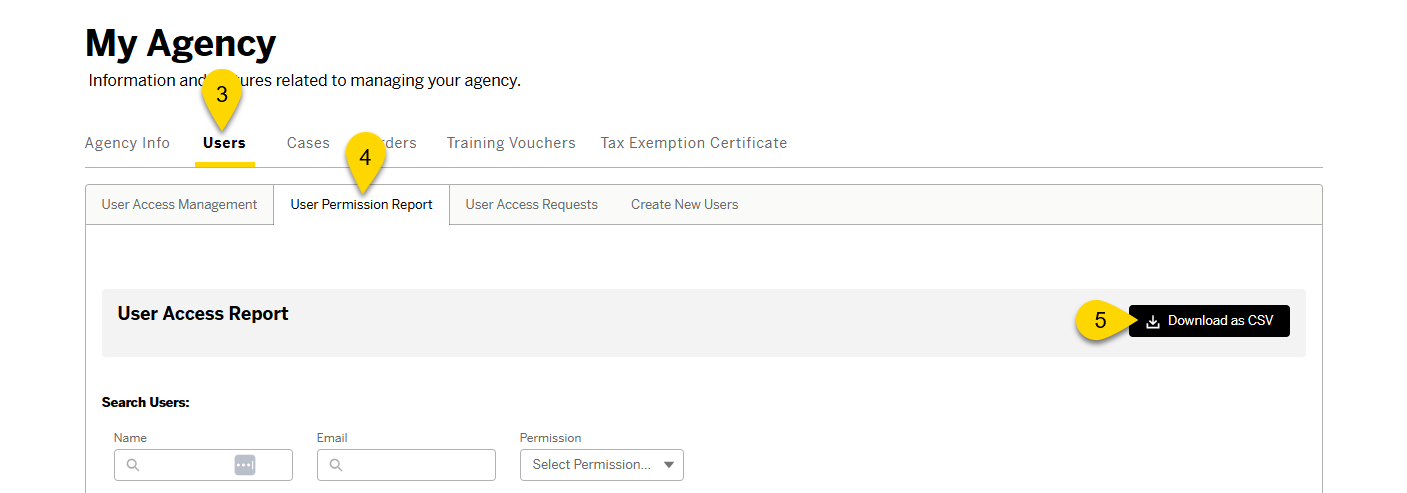
If your agency previously used MyAxon, you can export a CSV of all users to help recreate your roster in Axon Evidence.
- Sign in to my.axon.com.
- Select My Agency.
- Select Users.
- Select User Permission Report.
- Select Download as CSV. The roster downloads automatically.
- Import the CSV to Axon Evidence. See Importing Users in Bulk to complete the process.
Step 3: Assign VR Admin Access by creating groups
To grant VR trainer permissions—such as initiating tablet-facilitated training sessions and viewing After Action Reports for officers in your agency—an Axon Evidence Admin must create a group in Axon Evidence. See Creating a group.
When setting up your group, apply these settings:
- Group name: vr-trainers
- Group setting: No Access
Once the group is created, add your VR trainer to that group. See Add members to a group from the article Creating a group.
The group name must be entered exactly as shown: vr-trainers
Restore deleted groups
If you deleted a group and then tried to create a new group with the same VR External ID, you will receive an error. To resolve this, you will need to restore the original group. The deleted group won't be visible in Axon Evidence, but you can restore it by importing a custom CSV. To do this:
- Sign in to Axon Evidence.
- Select Admin at the top.
- Under Users, select All Groups.
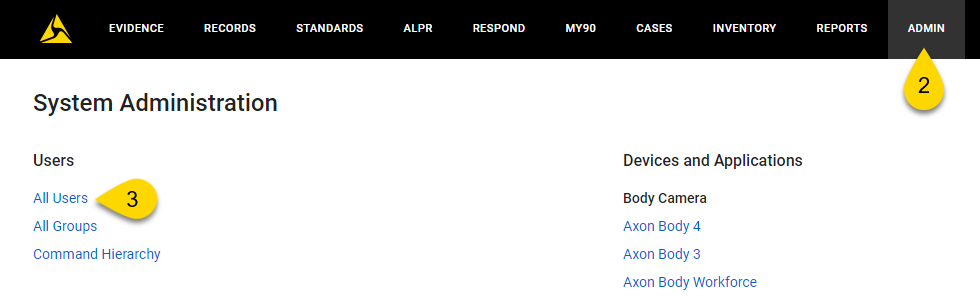
- Select Import Groups.
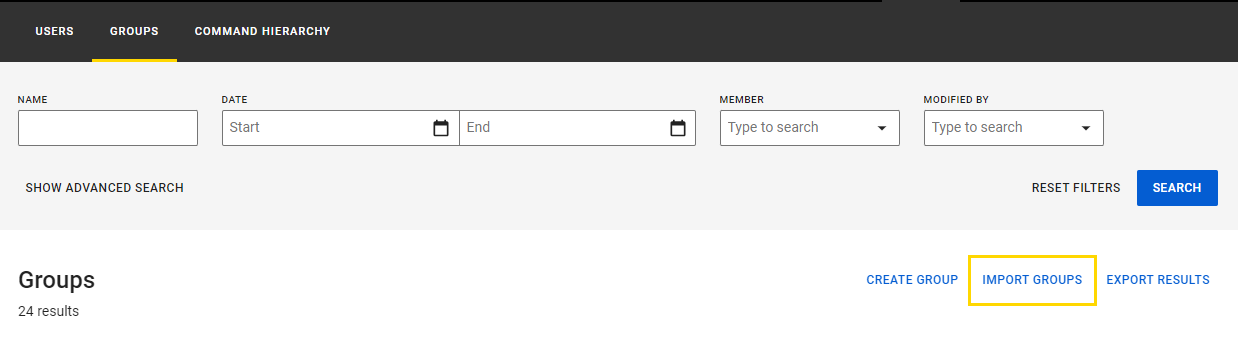
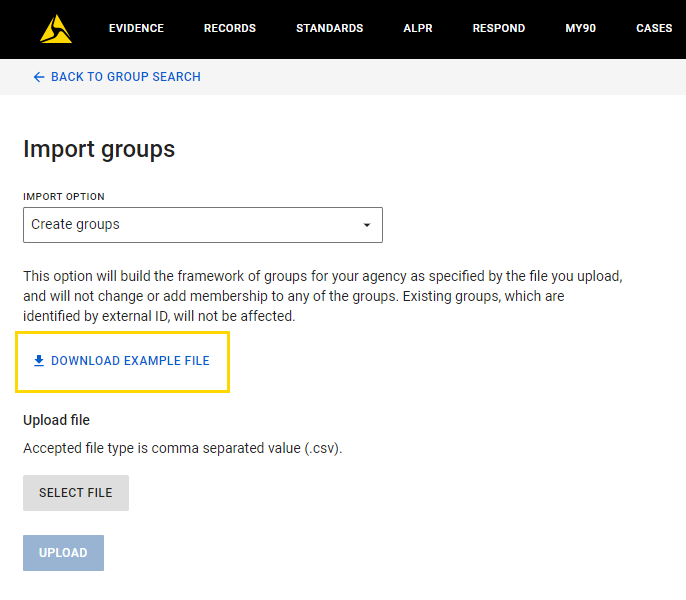
- Select Download Example File on the Import Groups page to download a sample CSV .
- Open the file. It should look like the screenshot below.
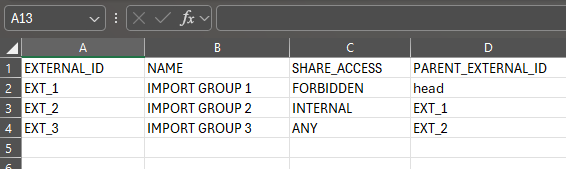
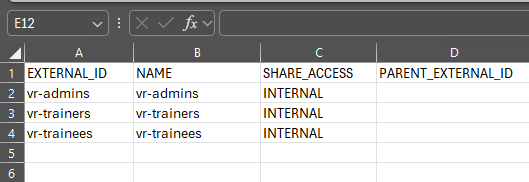
- In Column A, replace the "IMPORT GROUP" placeholder text with the External ID of the deleted group, which should be one of the following: vr-admins, vr-trainers, and vr-trainees.
- In Column B, enter the name of the deleted group or rename it.
- In Column C, update the Share Access as needed. The options are FORBIDDEN, INTERNAL, and ANY. For more information, see Creating a group.
- In Column D, delete the excess text while keeping the column name (PARENT_EXTERNAL_ID).
- Save the CSV. It should look similar to the screenshot below.
- Open the file. It should look like the screenshot below.
- In Axon Evidence, select Create Group in the Import Option menu.
- Select Select File.
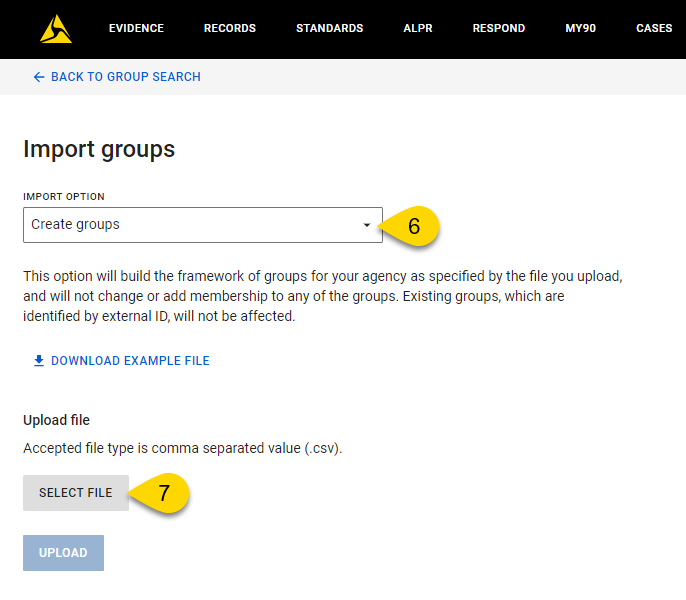
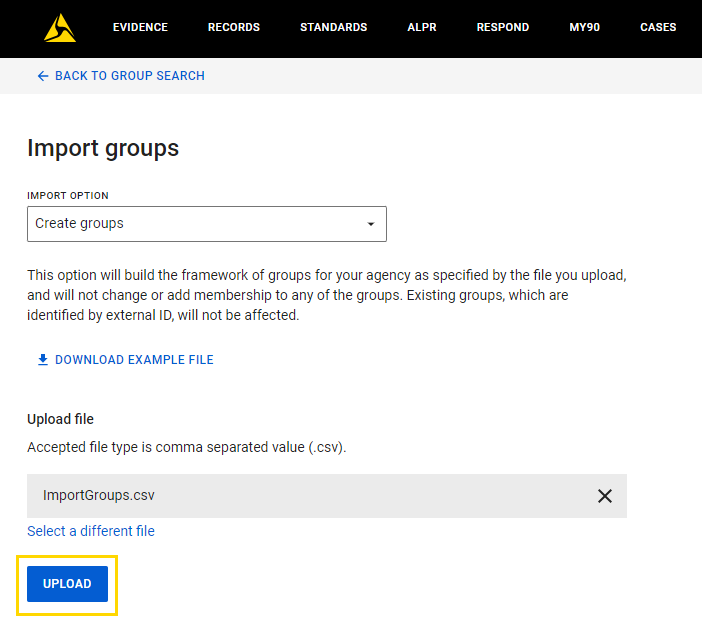
- Add the CSV.
- Select Upload. The deleted group will be restored and can be viewed in Axon Evidence.
Troubleshooting
Can't sign in to the VR tablet after creating or updating the vr-trainers group
If you cannot sign in, try the following:
- Wait for access to update: Changes to the vr-trainers group can take up to 3 hours to sync. After waiting, try signing in again. If it still doesn't work, wait a few minutes and try once more.
- Check your account: Only users in the vr-trainers group can sign in to the VR tablet.
- Update the app: Connect the tablet to Wi-Fi so it can receive the latest Simulator Training update.


