Register and manage Axon VR devices
VR device registration links a VR headset or tablet to your organization’s Axon Evidence account. Registration allows the device to communicate with Axon VR cloud services to upload After-Action Reports (AARs) and download eligible content.
If a device is not registered, you can continue to use features that do not require an internet connection, such as Simulator Training. Online features, including Facilitated mode and AAR uploads, are unavailable until the device is registered. For more information, see VR app online and offline capabilities.
You can register VR devices using the VR Device Registration Dashboard or the Axon VR Registration Tool.
Prerequisites
Before registering devices, make sure you have:
- An active internet connection (Wi-Fi required).
- An Axon Evidence account.
- Admins have an Admin account on Axon Evidence with these settings:
- Group name: vr-admins
- Group setting: Inside my agency access
- For more information on creating groups, see Accessing VR systems through Axon Evidence.
Only members of the vr-admins group can access the VR Device Registration dashboard and register devices.
Access the VR Device Registration dashboard
The VR Device Registration dashboard displays your agency's devices and their registration status.
To access the dashboard:
- Go to the appropriate VR web app for your organization:
- United States: vr.evidence.com
- Enterprise: vr.ent.evidence.com
- Canada: vr.ca.evidence.com
- Sign in using your Axon Evidence domain and credentials.
- Select Device Registration.
The Device Registration tab is available to members of the vr-admins group.
Understand device registration statuses
The VR Device Registration dashboard displays the serial number, model, and registration status of each device shipped to your organization.
A device can have one of the following statuses:
- Registered: The device is linked to an Axon Evidence account.
- Unregistered: The device has not been registered and requires registration.
- Pending: The device has not connected to the network to complete registration.
For registered devices, the dashboard also displays the registration method, the user who registered the device, and the registration date.
Register VR devices
You can register devices using either the online waiver or the Axon VR Registration Tool.
Online waiver
The online waiver allows you to register one or more devices from the VR Device Registration Dashboard without physically connecting each device to a computer.
Use this method if your organization does not need to use the GovRAMP-approved registration method.
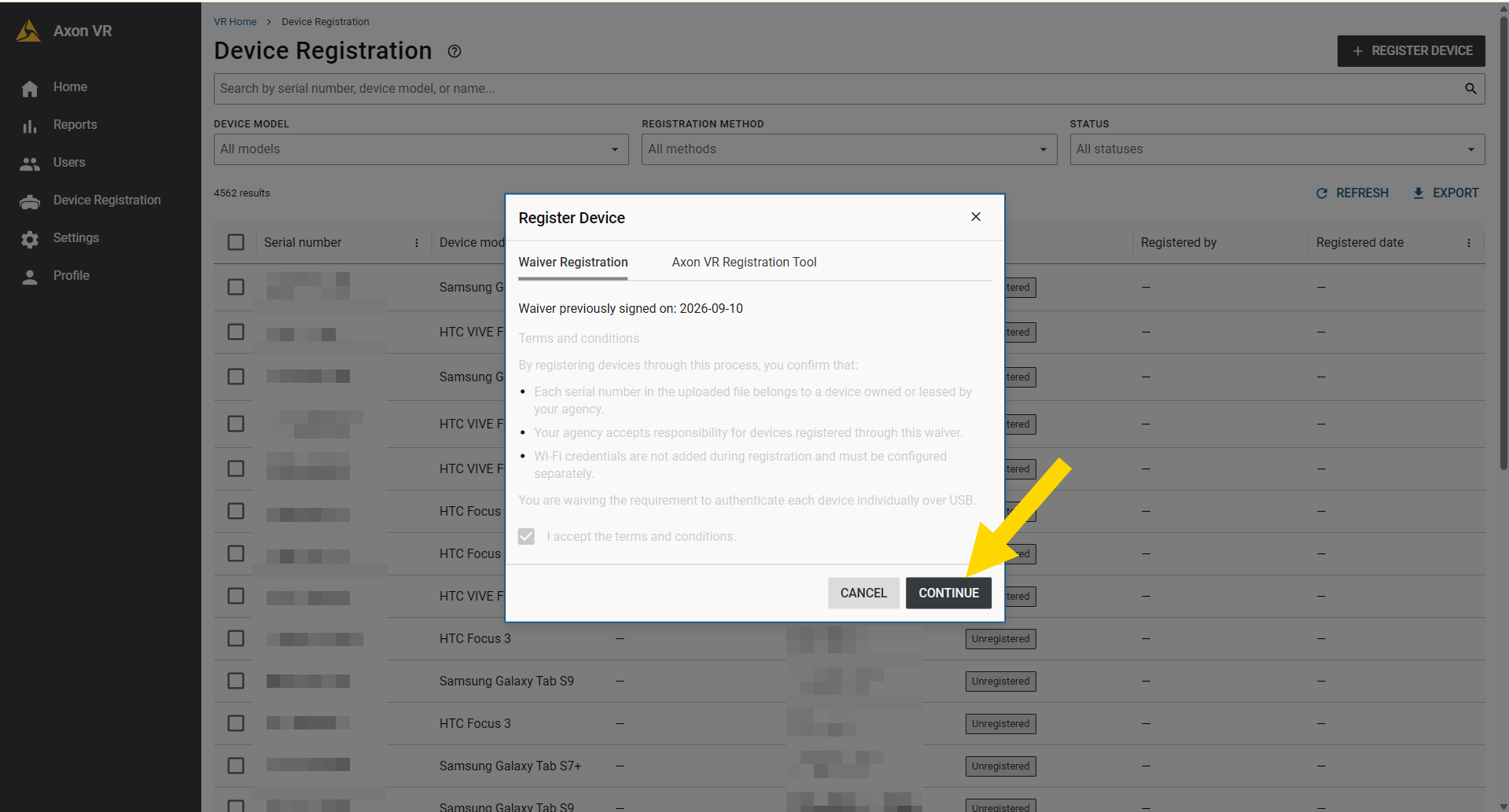
To register devices using the online waiver:
- From the VR Device Registration Dashboard, select + Register Devices.
- Select Waiver.
- Read the waiver terms and conditions.
- Select I accept.
- Select Continue.
- Select one or more devices to register.
- Select Register.
The device status changes to Registered. If the device has not connected to the internet, its status changes to Pending until it connects and completes registration.
Axon VR Registration Tool
The Axon VR Registration Tool connects a VR device to your computer using a USB cable and registers the device with Axon. This method physically verifies the device and is the GovRAMP-approved registration method.
To download the Axon VR Registration Tool:
- From the VR Device Registration Dashboard, select + Register Devices.
- Select Registration Tool.
- Select Download Axon VR Registration Tool.
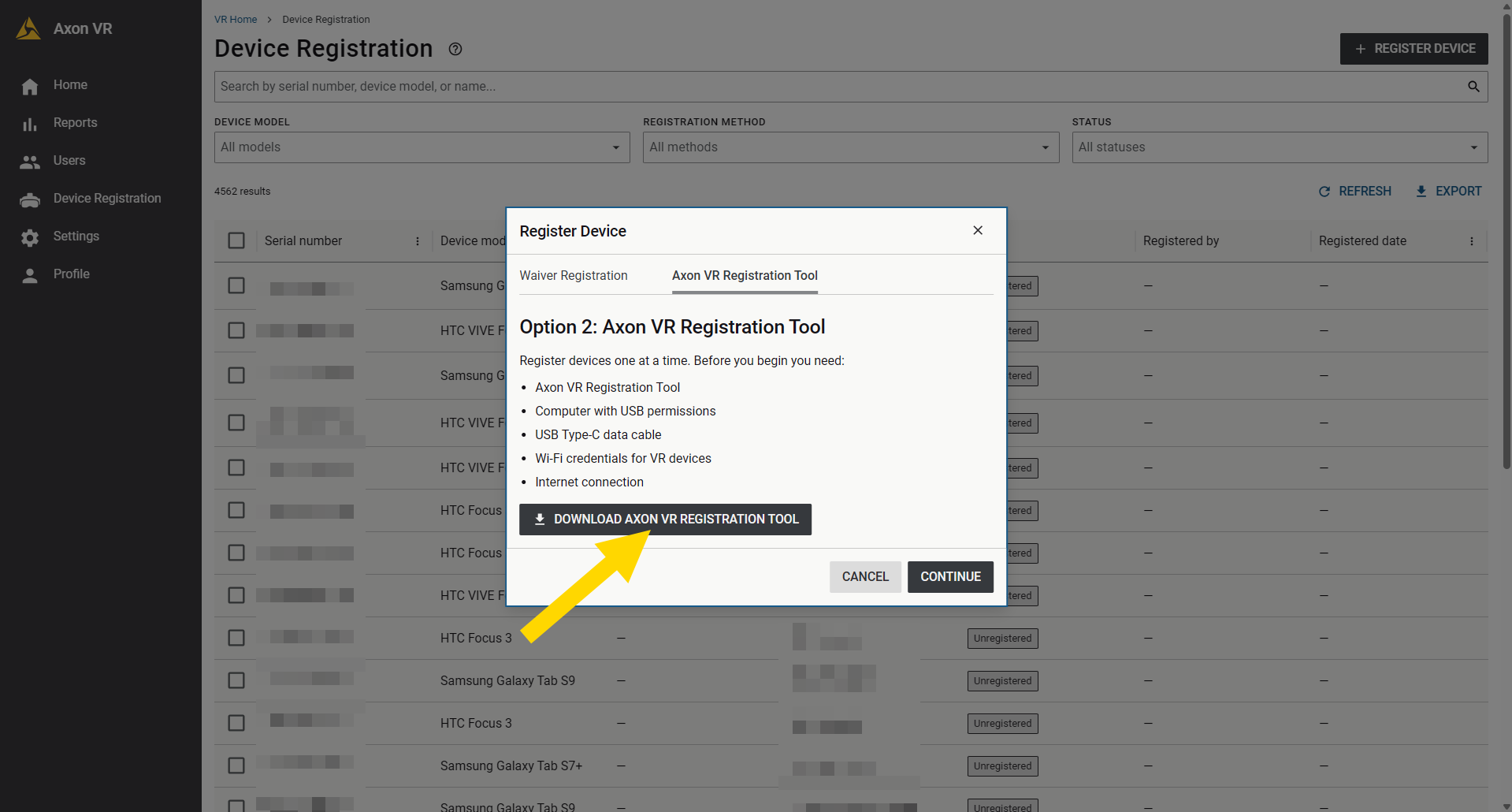
- Continue the installation on your computer.
Register a device with the Axon VR Registration Tool
Before you begin, make sure you have a USB data cable and that your computer allows USB access.
- Open Axon VR Registration Tool.
- Enter the Axon Evidence account where you want to register the devices.
- Sign in using your Axon Evidence credentials.
- Select Register Device.
- Enter the Wi-Fi credentials for the device.
- You can skip this step if you do not currently have network access. You must enter the Wi-Fi credentials on the device later to complete registration.
- Connect the VR device to your computer using a USB data cable.
- For a Samsung VR tablet, select Allow when the tablet prompts you to allow the USB connection.
- Wait for the tool to detect the device and display its serial number and device information.
- Select Register.
Repeat these steps for additional devices. You can also connect multiple devices and register them as a group.
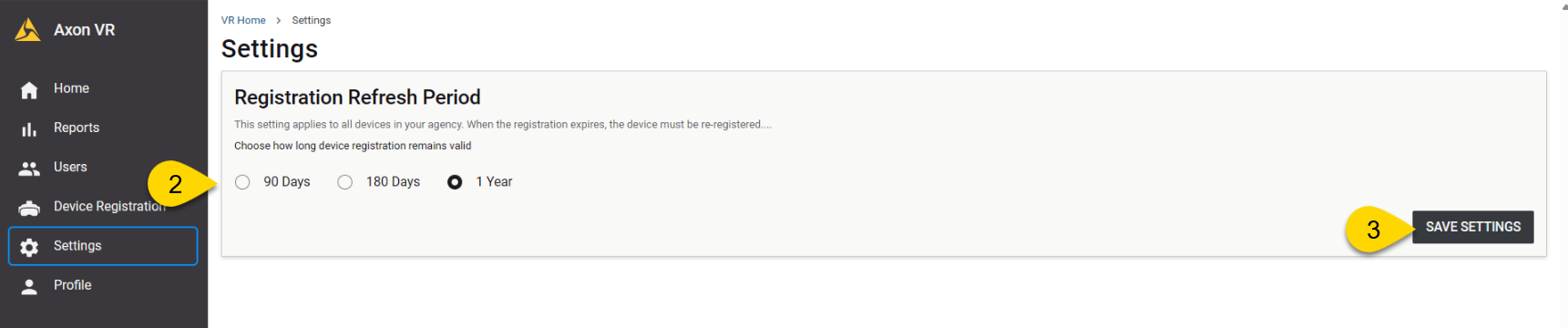
Set the device registration period
Your organization can set its device registration period to:
- 90 days
- 180 days
- 1 year
During the selected registration period, each registered device must connect to the internet to refresh its registration token.
If the device does not connect within the registration period, it is automatically deregistered and the training data is deleted. You must register the device again before it can access online features.
To set the registration period:
- From the VR Device Registration Dashboard, go to Settings.
- Select the Registration Refresh Period.
- Save your changes.
FAQs
Does every agency need to register its VR devices?
Every VR device must be registered to use online functionality. From October 6 through November 9, 2026, Axon will automatically register devices for agencies that have only one Axon Evidence account. Agencies must manually register any devices that are not automatically registered.
Can I use the online waiver instead of the Axon VR Registration Tool?
Yes. Both registration methods are available. The Axon VR Registration Tool is the GovRAMP-approved method. The online waiver is available for agencies that do not need to follow GovRAMP requirements or that want to register multiple devices at once.
Who can register VR devices for my agency?
Only users who belong to your agency’s vr-admins group can access the VR Device Registration Dashboard and register devices. Your agency determines which users belong to this group.
What if my agency has more than one Axon Evidence account?
Your agency can choose which Axon Evidence account to use for each VR device.
Devices registered to a single Axon Evidence account will be able to see each other in mode such as facilitator mode in Simulator Training.
What if my agency does not have an Axon Evidence account?
Contact your Axon representative or submit a ticket here if your agency does not have an Axon Evidence account.
What happens after November 10, 2027, if a device is not registered?
Devices that are not registered lose access to online VR features until registration is complete. Depending on the VR products your agency uses, this can include:
- Uploading AARs
- Using headset sign-in
- Downloading new training content
- Using other cloud-based VR features
Features that do not require an internet connection continue to work.
Troubleshooting
The device shows Unregistered
The device has not been registered.
An administrator in your organization who belongs to the vr-admins group must register the device using the online waiver or the Axon VR Registration Tool.
The device shows Pending
The device has not connected to the network to complete registration.
Connect the device to a Wi-Fi network. If the status remains Pending, connect the device to a different Wi-Fi network. The original network might be blocking communication with Axon servers.
The device does not appear on the dashboard
Use the Axon VR Registration Tool to register the device to your organization.
If the Axon VR Registration Tool displays an error an you cannot register the device, contact your Axon representative or submit a ticket here.
My agency no longer uses a device
Contact your Axon representative to request that the device be deregistered.


