Axon Assistant
Axon Assistant is an AI assistant accessible through a push-to-talk interface on your body camera. The Assistant provides several channels, each with different capabilities.
To select a channel, double-press Programmable Button 2 (P2) to connect to Axon Assistant, then double-press again to cycle through enabled channels. Once connected, the camera displays the selected channel and audibly states the name.
Admin requirements
Assign to body camera button
Once Axon Assistant is enabled for your organization, assign it to your cameras (Body 4 in this example):
- Go to Body 4 settings in Axon Evidence at Admin > Body Camera > Axon Body 4 > profile.
- Under Programmable Buttons, open the dropdown for Programmable Button 2 and select Assistant (double-pressed).
- Optional: to enable the Assistant only for select users, create different device settings profiles. For example, one profile can have the Assistant assigned to P2 while another profile assigns Photo Marker. Then assign different roles to the appropriate profile (at the top of the settings page for that profile, shown below) to determine which users receive which P2 behavior. Learn more at Role-based settings - Devices on Axon.com/help.
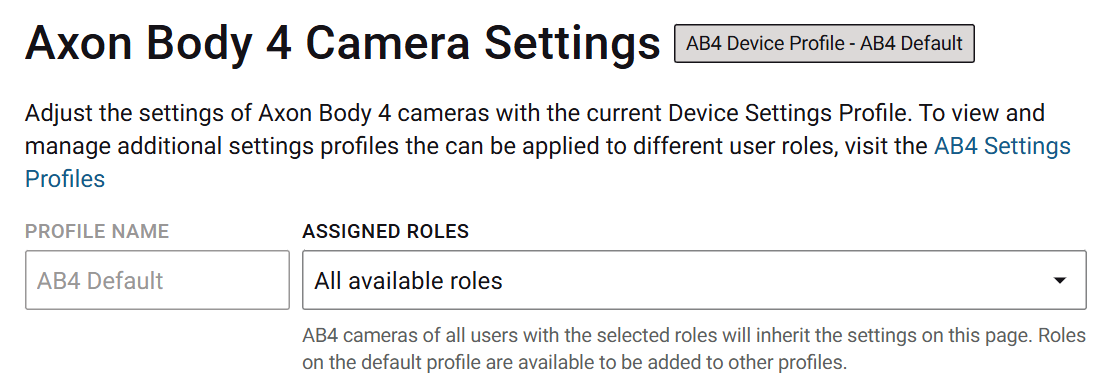
Users who previously used P2 for Select, Marker, or Mute will now use Select (between the volume buttons).
System requirements
- Body 4 camera
- Fusus or Device Connectivity licensing
- LTE or trusted Wi-Fi connection
General FAQs
Can other Axon body cameras use Axon Assistant?
Only Axon Body 4 supports Axon Assistant at this time.
Does using Axon Assistant raise any data privacy concerns?
No. No data is shared back to providers of foundational models and all data remains within Axon’s secure cloud environment at all times.
How does Axon Assistant affect battery life?
Using Assistant occasionally during a normal shift has minimal effect on battery life.
Can I use my voice to activate Assistant instead of pressing P2?
No. Axon Assistant is a push-to-talk interface, like using a radio or walkie-talkie. It requires a press-and-hold of P2 while capturing speech and a release when done.
Choose a channel
To select a channel, double-press Programmable Button 2 (P2) to connect to Axon Assistant, then promptly double-press again to cycle through enabled channels. The following Axon Assistant channels are available:
| Channel | Description |
|---|---|
| Real-Time Translation | RTT is push-to-talk voice translation directly on the body camera. Communicate with speakers of other languages without waiting for human interpreters. |
| General info | Ask about facts, definitions, and calculations useful in the field, such as:
|
| Agency info | Ask agency-specific questions, such as:
|
Availability differs by worldwide region, with initial releases beginning mid 2025.
Real-Time Translation channel
Real-Time Translation (RTT) enables two people who speak different languages to communicate with each another. Speech in your language is translated to and spoken in a foreign language, and the verbal reply in that language is translated to and spoken in yours. In the future, the Assistant will gain additional base languages beyond English.
At the start of translation, the camera automatically begins recording. This ensures both sides of a conversation are recorded for a human interpreter to later produce a certified translation, if required.
For instructions on how to use translation on a Body 4, jump down to Use Real-Time Translation.
Watch this video for an overview of using Real-Time Translation on Axon Body 4.
Use Real-Time Translation
The Real-Time Translation channel provides some of these instructions audibly during use.
- Turn on the camera and once ready to record, wait 10 seconds for it to get fully online.
- Double-press Programmable Button 2 (P2) to start connecting, during which the camera will chirp a few times.
- Once connected to Axon Assistant, double-press again promptly as needed to cycle through channels until you hear "Translation". Once connected, it announces "Translation", displays Translation on the screen, and provides verbal instructions.
- Hold P2 and listen for the audible tone indicating audio will be captured. The camera starts recording.
- Set a language:
- If you know what language you need, set it manually by saying “Translate to [language name]”. Release P2.
- If you don't know what language you need, say “Auto-Detect”, have the foreign language speaker say a few full sentences, and release P2. After a brief pause, the camera announces the language identified and translates the statement to your language.
- If the Assistant can't determine the language, repeat (b), but have them speak for a longer period of time.
- To restart with a different language, double-press P2 and start at step (a).
- To continue the conversation in either direction, hold P2 to record speech, then release to translate.
If you stop recording while the RTT channel is active, the translation function remains active. The channel disconnects after a period of inactivity; there's nothing to turn off.
Real-Time Translation FAQs
- General (below)
- Language support
- Security and privacy
- Camera considerations
- Respond and Fusus
General
When should I use this channel?
Real-Time Translation is for everyday encounters, such as traffic stops, minor incident reports, and public event security. While it is not certified for taking witness statements or use in situations where extreme accuracy is critical (such as prescribing medication), using RTT automatically starts camera recording, and that recording can be taken to a certified human interpreter if needed.
Are translations included in Draft One reports?
Yes. As with all Draft One reports, review and certify generated contents before submitting.
Does RTT require any other Axon products?
See System requirements.
Language support
What languages does RTT support?
Users speaking different languages can understand each others’ “main intent” (at a minimum) in the vast majority of cases for the following 50+ languages:
| Afrikaans | Estonian | Kazakh | Russian |
| Arabic | Finnish | Korean | Serbian |
| Armenian | French | Latvian | Slovak |
| Azerbaijani | Galician | Lithuanian | Slovenian |
| Belarusian | German | Macedonian | Spanish |
| Bosnian | Greek | Malay | Swahili |
| Bulgarian | Hebrew | Marathi | Swedish |
| Catalan | Hindi | Maori | Tagalog |
| Chinese | Hungarian | Nepali | Tamil |
| Croatian | Icelandic | Norwegian | Thai |
| Czech | Indonesian | Persian | Turkish |
| Danish | Italian | Polish | Ukrainian |
| Dutch | Japanese | Portuguese | Urdu |
| English | Kannada | Romanian | Vietnamese |
| Welsh |
Does RTT support “mixed” languages like Spanish-English or Chinese-English?
The service will do its best to translate languages that are a combination of two, but results will vary depending on the languages involved.
Does RTT translate sign language?
No. RTT requires audio input.
How do I switch languages?
To change languages, double-press P2 and set a new language by saying "Translate to <language> or "Auto Detect" again. Also see Step 5 in Use Real-Time Translation.
How does RTT handle profanity and slang?
All voice input is translated with the goal to ensure both users understand the main intent of the communication. This includes slang and profanity, though results will vary by language.
Can I use Real-Time Translation while offline?
No. RTT requires a connection to LTE or a trusted Wi-Fi network.
Does RTT work in noisy environments?
RTT works best in environments where two people can have a conversation without needing to raise their voices. Translations may be difficult to hear in noisy settings.
Is RTT usable in prosecution?
No. Real-Time Translation has not yet been tested against relevant translation standards required for use in court. Translation output should not be used as evidence for prosecution or in court unless human-certified (although the body camera video is still applicable).
Security and privacy
Are translations stored in Axon Evidence?
Yes. Starting translation also starts a recording, which captures audio from the interaction.
Are translations auto-transcribed in Axon Evidence?
If you have Auto-Transcription enabled, yes. Foreign languages transcribe for a limited (but growing) set of languages.
Is RTT always listening to conversations?
No. Translation only captures audio input while the P2 button is held down.
What agency information does RTT retain and for how long?
Retained information includes anonymized metadata about the body camera (such as device ID) and timestamps for when and how long translation occurred. This information is retained for one year through secure logging and metrics. No transcripts or audio recordings of translations are stored other than a normal body camera recording for upload to Axon Evidence.
How do members of the public know a translation tool is in use?
While some members of the public will realize the camera is being used for translation, others may not. After setting the translation language, we recommend advising the public that the camera is being used for translation and confirming that they understand before proceeding.
Camera considerations
Can I replay prior translations on my camera?
No. Ask the speaker to repeat their statement or review it later in Axon Evidence.
Can I customize the camera voice?
No. The voice is fixed for each geographical region.
Can the camera translate silently or through a headset without people knowing it?
No. Translation only occurs out loud to facilitate active conversation.
Does translation incur additional data charges?
No. Data usage for translation uses existing camera connectivity.
Respond and Fusus
What do Fusus livestream viewers experience when an officer uses translation?
Fusus livestream viewers hear the same audio input and output as the user, including audible notification tones, voice inputs for translation, and translations emitted by the device.
General info channel
The General information channel provides some of these instructions verbally during use.
- Turn on the camera and once ready to record, wait 10 seconds for it to get fully online.
- Double-press Programmable Button 2 (P2) to start connecting, during which the camera will chirp a few times.
- Once connected to Axon Assistant, double-press again as needed to cycle through channels until you hear "General knowledge". Once connected, it announces "General information", displays General information on the screen, and provides verbal instructions.
- Hold P2 and listen for the audible tone indicating audio will be captured.
- Ask your question, then release P2. After a few moments, the channel provides an answer. Questions do not build on each other; each question is a new request.
- To ask another question, return to step 4.
This channel will disconnect after a period of inactivity; there's nothing to turn Axon View.
Watch this video for an overview of using the General information channel on Axon Body 4.
Agency info
Axon policy chat provides answers to user questions.
To get started, double press P2 to get connected to Axon Assistant, and then double-press P2 again to cycle channels: Translation → General Info → Agency Info. In Agency Info, press P2 and ask a policy question, for example: “What’s our policy for transporting juveniles?”.
Watch this video for an overview of using Axon Assistant Policy Chat on Axon Body 4.


