Automatic Wi-Fi upload
This feature lets cameras upload videos and update (download) firmware over Wi-Fi when an approved network is available. It is available for all camera users and requires no separate licensing.
This article describes how to set up a body camera Wi-Fi network, what happens on the camera during a firmware update over Wi-Fi, how to confirm an upload, what takes priority over Wi-Fi, and frequently asked questions (FAQs).
Your Axon Evidence administrator can enable this feature in the Admin section. Admins should also reference:
Watch this video for an overview of Wi-Fi uploads with Body 4 cameras.
Advantages
When connected to an approved Wi-Fi network, a body camera will:
- Sync the clock once per day
- Sync changes made in the Axon Evidence camera settings page, including the list of approved Wi-Fi networks
- Upload recordings
- Download and install firmware updates
When connected to a dock, communication occurs over the wired connection (if available), even if Automatic Wi-Fi Upload is enabled. Wi-Fi communication halts whenever the camera is docked, whether it is networked or not, but will continue if charging through a USB-C cable.
Registration is the only non-supported Wi-Fi operation (use View XL Standalone or a networked dock).
In Axon Evidence
Set up a Wi-Fi network
This section describes how to create an approved Wi-Fi access point that body cameras can use to upload recordings and download updates.
- In Axon Evidence, select Admin > Body Camera Wi-Fi Networks.
- Select Add Network.
- Enter the Network Name (SSID) and Password. Optionally, add Location information to differentiate networks with similar names.Note
While WPA2-TKIP, WPA, and WEP are supported, Axon recommends using WPA2-PSK networks for increased security.
- Select Save.
- Add more networks as needed.
- Use Edit
 and Delete
  to manage existing networks.
Enable Automatic Wi-Fi Upload
- Select Admin >
- If applicable, select the appropriate profile.
- Under Evidence Upload, toggle Automatic Wi-Fi Upload on.
- Scroll to the bottom and select Save Profile Settings.
Axon Body Cameras download updates to the network list the next time they are docked or can access an approved Wi-Fi network.
On the camera
What triggers Wi-Fi
These situations will cause the camera to communicate over Wi-Fi:
- At the end of a recording. If multiple networks are available, it will use the one with the strongest signal strength. The camera checks for an approved network every 15 minutes.
- If the feature is disabled and then re-enabled on the body camera.
- When the camera is charging through a USB-C cable.
Wi-Fi communication will pause if the camera:
- Loses connection to approved Wi-Fi
- Stops charging via USB-C
- Drops below 20% battery
- Begins recording
Receive a firmware update over Wi-Fi
To receive a firmware update, the camera goes through the following steps.
- The camera downloads the new firmware.
- The camera displays Wi-Fi
 when connected and Download
  when downloading.
- Once the firmware has downloaded, press Select (between the volume keys) at the opt-in prompt to install. Because this will restart the camera, don't install if the camera is in active use.
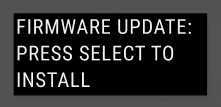
- During installation, the LEDs flash white and the screen displays Installing
 .
.
- After installation, the camera restarts with the latest firmware.
- If you ignore the opt-in prompt, it will disappear after 60 seconds and the camera will return to the Ready state.

- If the prerequisites for updating over Wi-Fi are still not met after four hours because the camera is in use, press Select to opt-out of (cancel) the installation.
- If you don't cancel within 60 seconds of this message displaying, the firmware will install and the camera will restart as noted in step 4.
Disable Wi-Fi Upload on camera
If your network is overloaded or you have large recordings to upload, you may not want to upload wirelessly even though your admin has enabled it. You can disable wireless upload on your body camera:
-
- If your organization has Respond+ or the Priority Evidence Upload add-on, the first option listed will be Priority Upload. If not, it will be Auto Upload and whether it is ON or OFF.
- To disable the Wi-Fi upload feature, select Auto Upload and then OFF using the volume buttons. To turn the feature back on later, return here and select ON. To cancel, select BACK.
- Once a camera connects to approved Wi-Fi and begins uploading, the screen displays Wi-Fi and Upload
 .
. - When the upload completes, the camera vibrates and then deletes the recording from the camera.
Check camera storage
Automatic Wi-Fi Upload makes wireless uploading, well, automatic. As long as you're within range of an approved Wi-Fi network, recordings upload and updates download. To confirm an upload, check the camera's storage menu.
-
- Press Volume Down q to find About and select.
- Move down and select Storage.
Wi-Fi and priority
In general, Wi-Fi communication will occur if the feature is on and an approved network is available, but other app or camera connectivity functions take priority.
- If a Wi-Fi network connection is lost or interrupted during upload, the upload pauses and resumes when reconnected.
- Wi-Fi connectivity to Axon applications such as Axon View or Fleet 3 Dashboard take priority over Wi-Fi communication.
- If you use Respond or Respond+, LTE connectivity for Respond-related activities take precedence over Wi-Fi communication. For example, if you start recording during a Wi-Fi upload, the upload will pause for livestreaming connectivity.
- Wi-Fi upload will not occur while recording to Wi-Fi or if already processing a Priority upload.
Frequently Asked Questions
If your question isn't answered here, contact Axon support or your Axon representative for more information.
How long must a camera be docked to receive an updated list of Wi-Fi networks?
Dock your camera or connect to View XL for at least two minutes to receive changes to settings, including Wi-Fi networks. An icon on the screen shows if it is downloading .
Do recordings wait to upload until they are tagged?
No. Recordings upload when connected to a networked dock or approved Wi-Fi network. After upload, they are deleted from the device and no longer visible or editable using Axon View, View XL, or Fleet Dashboard. You can edit recording metadata in Axon Evidence.
How does this feature affect battery charge?
The effect on battery is proportional to how often a camera is recording, the length of the recordings, and their resolution. It is similar to that of uploading recordings with ViewXL or Fleet Dashboard, both of which also use Wi-Fi connections. For example, a 15-minute recording at 720p
What is the maximum Wi-Fi upload speed?
Up to 10 Mbps is possible, but dependent on many factors, such as what the network supports.
Will my camera download over Wi-Fi while in Sleep mode?
Yes, it will still check for an approved network every 15 minutes while in Sleep mode.
What happens if the opt-in or opt-out messages are interrupted by a different button press?
The message will disappear and the other action will take precedence. The camera will retry four hours later.
Will the camera upload and download over Wi-Fi at the same time?
Yes.


