Bi-directional communications
Bi-directional communications (BDC) lets dispatchers and command staff talk to Body 4-equipped officers from either the Fusus desktop or mobile app. Being able to see, hear, and now communicate with officers brings support teams even closer to the scene—from the safety of their individual locations—to provide even greater support to officers.
During a livestream, authorized dispatchers and command staff can start a conversation with a Body 4-equipped officer from within the Fusus desktop or mobile app by pressing the Start call button. The conversation will continue for the duration of the livestream and is hands-free for the officer. Up to 25 Fusus viewers can participate in a single conversation. All conversations are recorded and uploaded to Axon Evidence as part of the evidentiary video, just like any other Axon body camera recording.
For instructions on how to use BDC on Body 4, jump to Use BDC on the body camera.
Watch this video for an overview of BDC.
System requirements
- Body 4 camera
- Fusus licensing
- Meet the Axon Web System requirements for desktop users and mobile app for mobile users
- To use bi-directional communications on desktop, users must have an audio input and output device, such as microphone and speaker or headset
Configuration requirements
- Livestreaming must be enabled for Body 4 cameras. In Axon Evidence, see the Admin > Body 4 > profile > Axon Fusus section.
- Dispatchers and command staff must have Axon Evidence credentials and belong to a role with View BWC Livestreams and Allow Voice Communication permissions enabled in Axon Evidence at Admin > Roles & Permissions.
Use BDC on Fusus desktop or mobile
This process will be different if you have already migrated from Respond to Fusus. Instructions for Fusus will be available soon.
- Sign in.
- Select the Fusus tab...
- ...to view the Fusus map and start a Livestream from a Body 4-equipped officer. The camera must be recording to be livestreamed. Grant microphone access if needed.
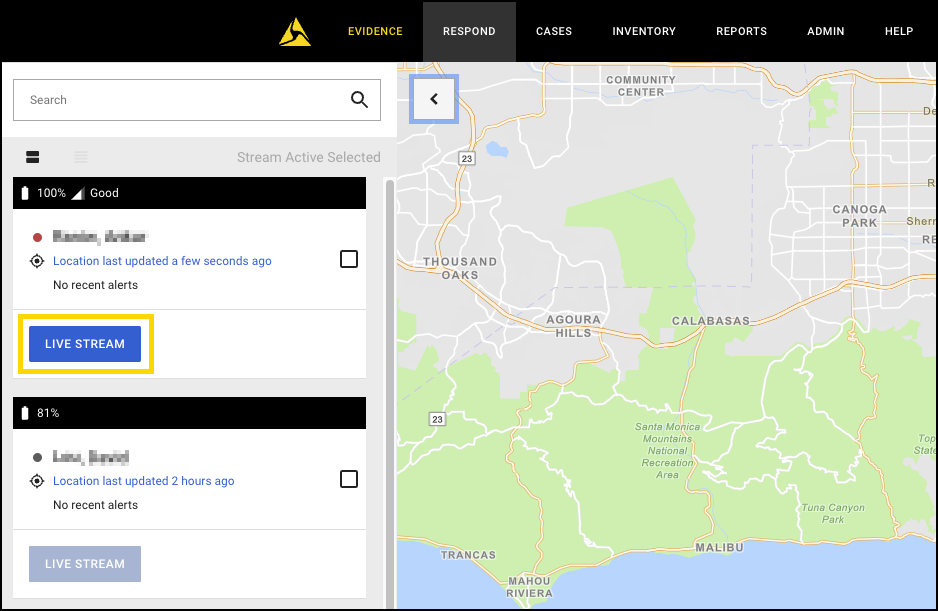
- Select Start Live Streaming on a user’s tile.
- Select Start Call to start bi-directional communication.
- Wait to be connected to the Body 4 camera.
- Your microphone is muted upon successfully connecting. Press and hold the push-to-talk (PTT) button with your mouse or by holding the space bar on your keyboard. Wait to hear the “go-ahead” tone, which indicates you can start talking.
- You may now speak to the Body 4 camera user. Release the mouse (or space bar) when you are done.
Multiple viewers
Just like livestreaming, bi-directional communications supports up to 25 simultaneous Fusus viewers per Body 4 camera. If a conversation is ongoing between a Fusus viewer and camera user, any Fusus viewer who opens the livestream to that camera will automatically be added to the conversation. Similarly, if multiple Fusus viewers are watching a livestream and one viewer starts a call, all other viewers are automatically added to that conversation.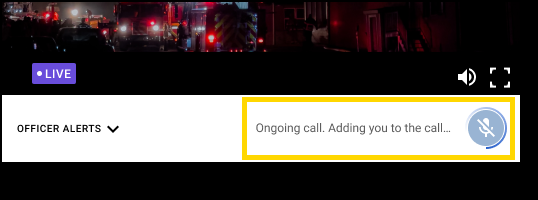
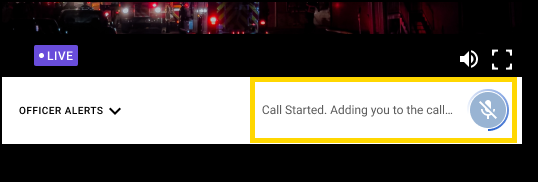
Once the Fusus viewer is added, the card will update to show the total number of viewers in the conversation.
Multiple livestream windows
If multiple camera livestream windows are open, you may start or join a conversation for the livestream in the foreground. Shifting from one camera window to another will drop you from the first conversation. Audio will start playing from the window in the foreground.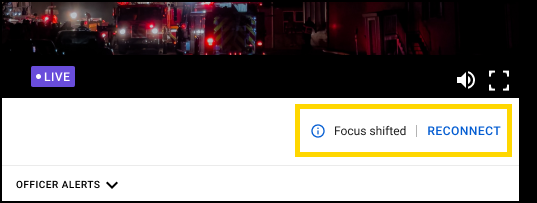
Camera modes
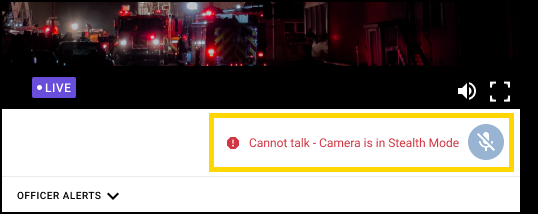
The Body 4 camera may enter modes or conditions that make it unavailable for bi-directional communications. When this happens, Axon Fusus will update to prevent you from talking. Here are two camera modes that do not allow bi-directional communications and how they are display in Axon Fusus:
Stealth mode
When the Body 4 camera enters stealth mode, its speaker becomes muted and, therefore, the Fusus user is not allowed to talk.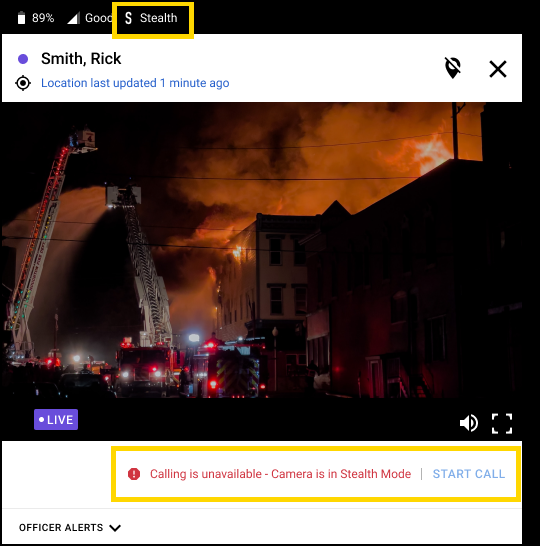
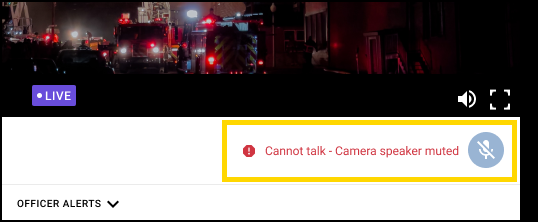
Speaker muted
When the Body 4 camera’s speaker volume is muted, the Fusus user is not allowed to talk.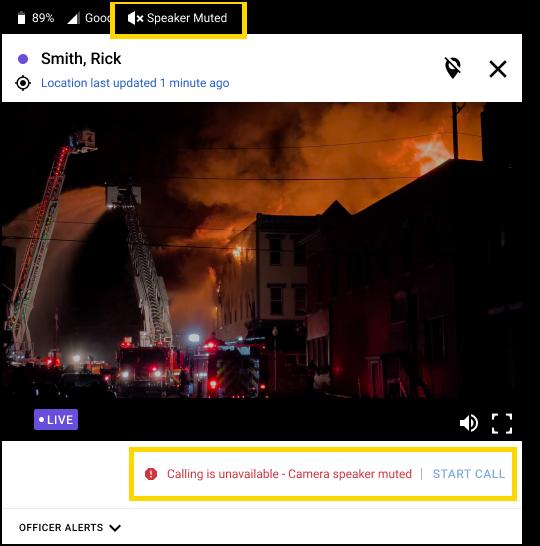
Microphone muted
When the camera's microphone is muted, you will not hear any audio. If this happens, any Fusus viewers in the conversation may continue to talk to each other and the camera user will still hear them, but they will not hear the camera user.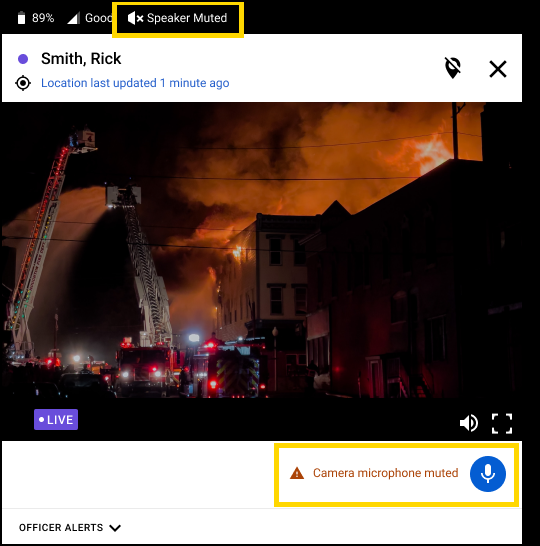
Use BDC on the body camera
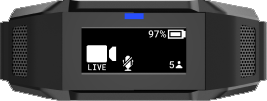
While your Body 4 camera is livestreaming, a LIVE icon appears on the display: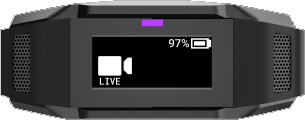
If a Fusus user starts a conversation with you, the camera will vibrate, play a tone, and the display will briefly show COMMS OPEN to inform you that someone has started a conversation and audio can start playing from the camera's speaker.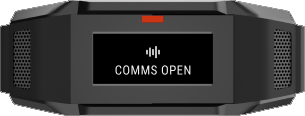
Once connected, the display will update to show the total number of Fusus users in the conversation: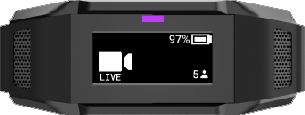
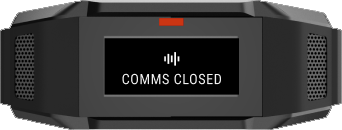
The conversation ends when you end the recording or when all users have closed the livestream. The camera will vibrate, play a tone, and the display will briefly show COMMS CLOSED.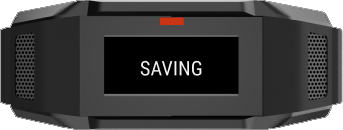
Fusus viewer joins or leaves
When a Fusus user joins or leaves the conversation, the camera will vibrate, play a tone, and the display will indicate the total number of participants. If no Fusus viewers remain, the conversation ends.
Microphone control
When you mute the camera's microphone while recording, it also prevents Fusus users from hearing camera audio.