Sign in and connect body camera
Ensure your Axon Body Camera is powered on with sufficient battery capacity to remain on for all requested activity.
Sign in
- Open Axon View XL.

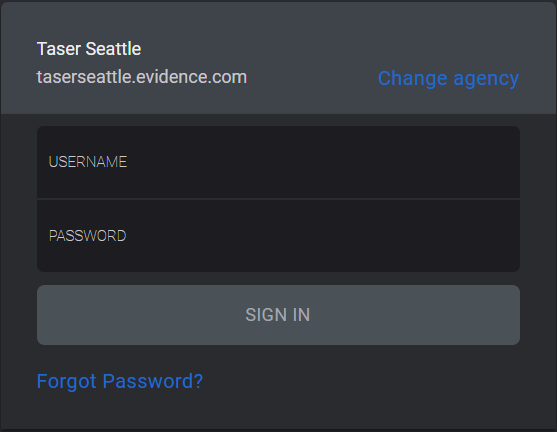
If this is the first time you are signing into Axon View XL, enter your agency's Axon Evidence URL and select Continue.Axon Evidence - Enter your Axon Evidence Username and Password, then select Sign in.
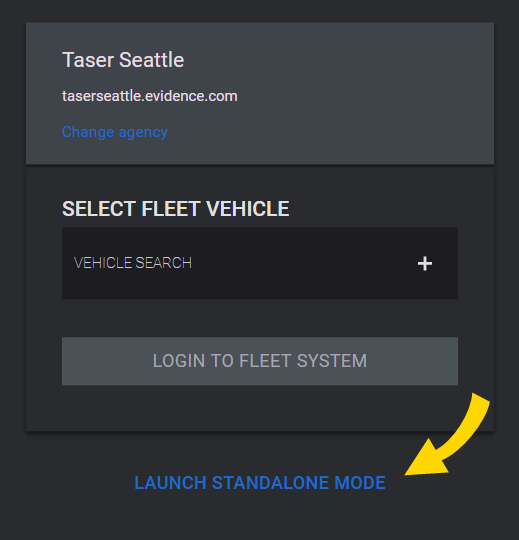
- Select Launch Standalone Mode to open View XL at the Control tab.
- Plug the USB-A end of the cable into a USB port on the laptop/computer.
- Plug the
Axon View XL connects to the camera. This may take up to 60 seconds. If the camera does not connect in 60 seconds, unplug the cable from the camera and plug it back in.
Once View XL is connected, the camera status displays: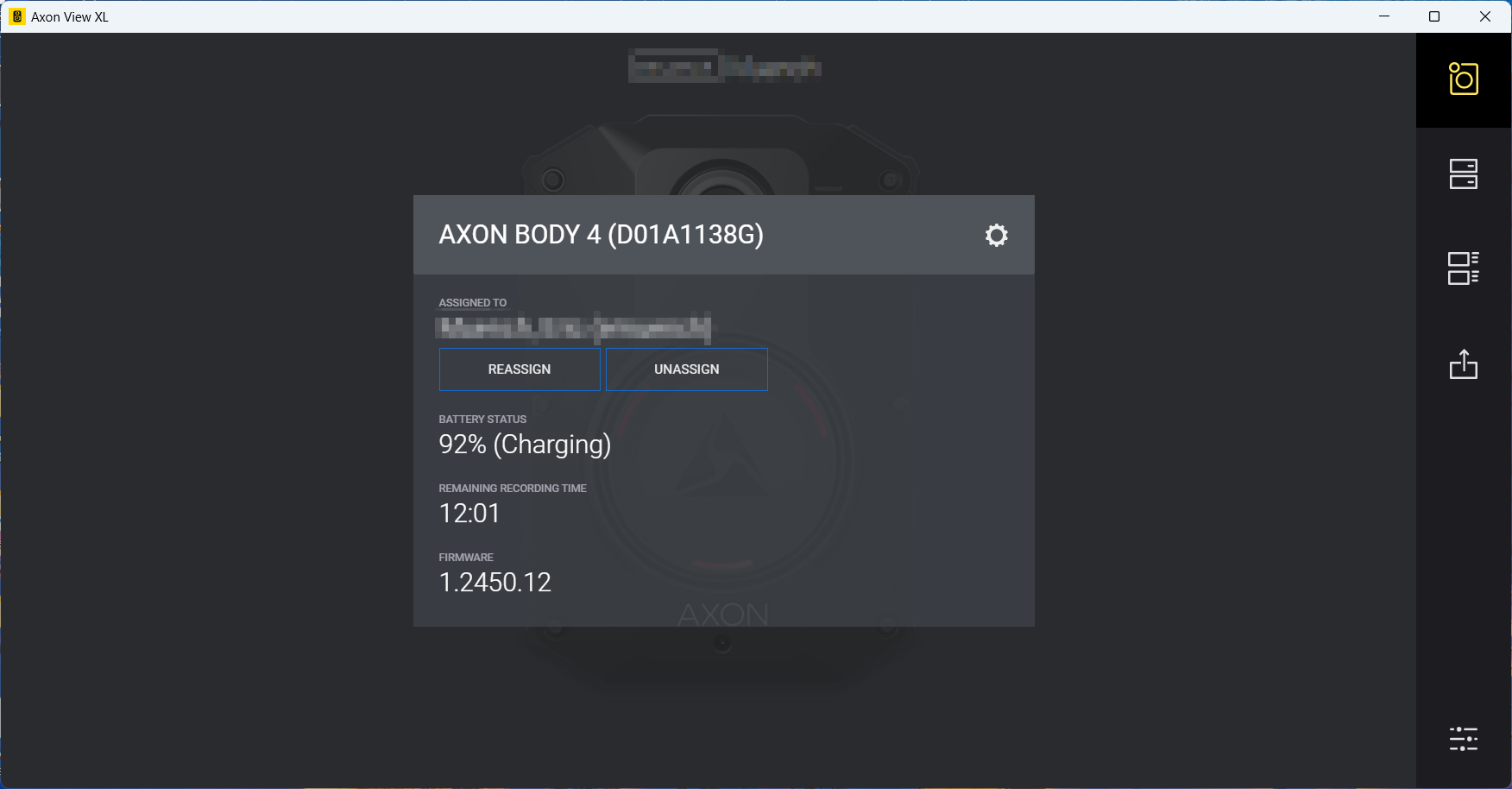
Disconnect the camera
If the camera becomes disconnected while uploading a video, simply reconnect to continue.
After all the videos in the Upload queue have been uploaded, disconnect the
Sign out
- Select Settings
 .
. - Select Sign Out.


