Axon DataStore v1
The Axon DataStore provides SQL-based, read-only access to data entered in Axon Records and Axon Standards, enabling organizations to run reports, build dashboards, and integrate data with third-party systems. This section outlines how data is structured in the v1 DataStore, explains the use of base and derived views, and provides guidance on querying data, managing access, connecting with supported tools, and ensuring proper firewall configuration. It also includes recommendations for query performance, links to data dictionaries, and tips for using Axon Analytics with Power BI.
Downloads
Download the Axon DataStore v1 user guides using the links below.
Introduction
The DataStore is a back-end access point to the data your organization's enters into Axon Records and Axon Standards. The DataStore lets users query directly against existing data without relying on the user interface of Axon Records or Axon Standards. Querying the DataStore requires the use of Structured Query Language (SQL) or an integration with an external software (e.g., Power BI, Crystal Reports, etc.). The goal of these queries is to search data, typically for the purposes of Reporting and Analytics.
For server information, please submit a customer support ticket in the CSS portal.
The DataStore is a read-only Azure SQL database you can access for reporting and analytical purposes.
Data is regularly pushed from Axon Records and Axon Standards and arrives at the Axon DataStore in a raw JSON format where it is displayed in a SQL View.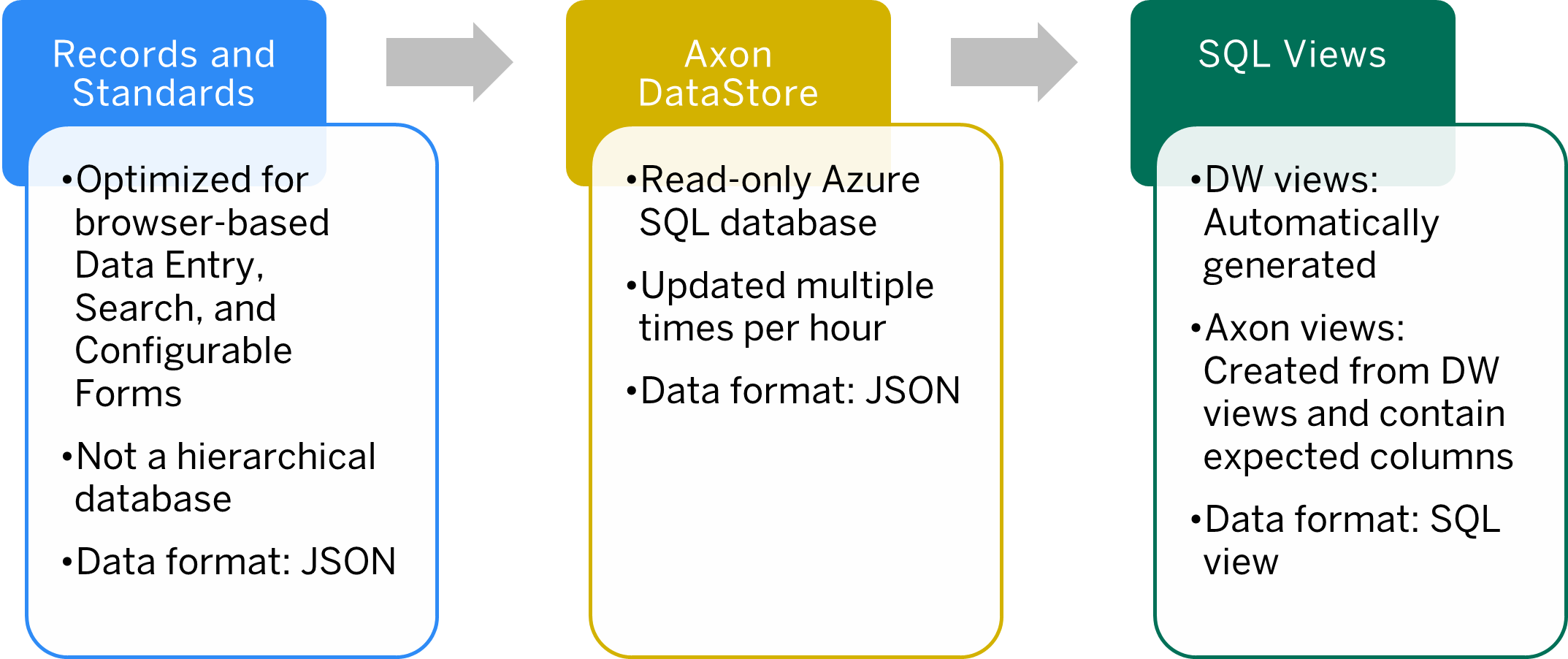
Columns in the Axon DataStore are pulled from the raw JSON using the SQL built-in JSON functions of Azure SQL Database and displayed in a SQL view. The columns in the Axon views match the field labels in the original report where the data was entered.
For example, data entered in the Offense section of a report appears in the Axon view as shown below: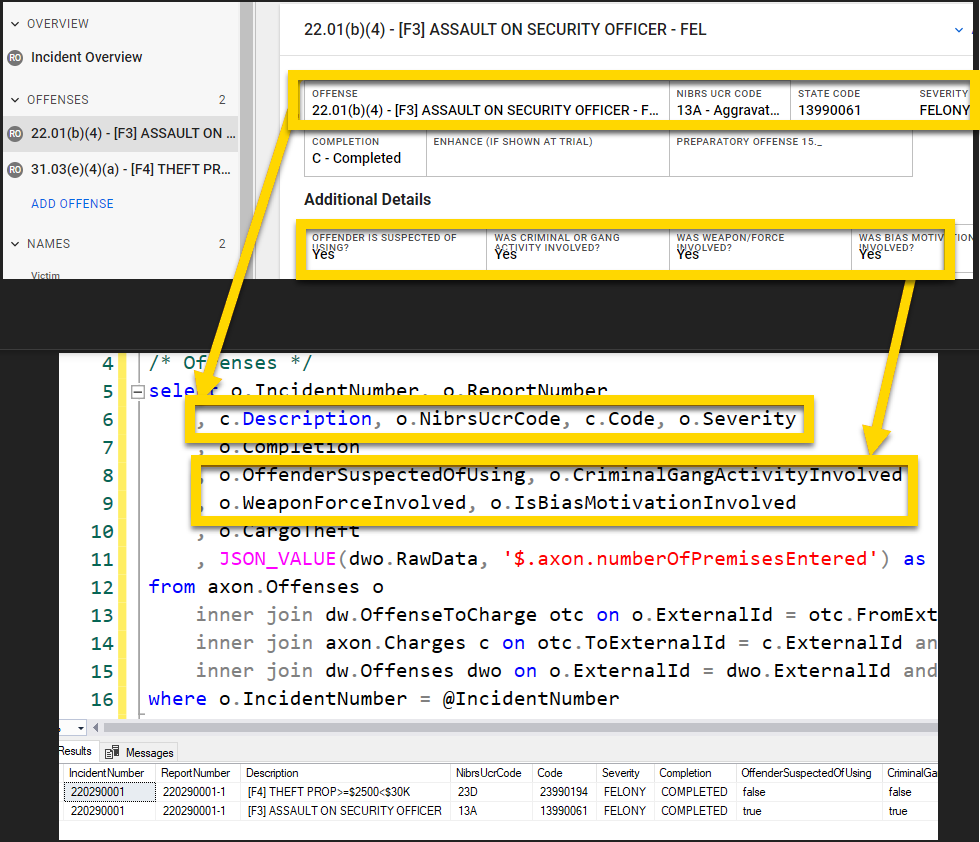
For a full list of how the fields in the Axon Records Incident Report map to the columns in the Axon DataStore, see Axon Records DataStore field mappings.
Custom views and form customizations will result in slightly different DataStore views compared to those shown in the link above.
What is in my DataStore?
All forms and events recorded in Axon Records and Axon Standards are broken down into Data Warehouse (dw) views. Under the latest “Medium-Rare” schema, the Data Warehouse views are further broken down into corresponding axon views. Most axon views also contain a RawData column where you can find all the data from the front-end, including data that is not parsed into individual columns.
Custom form and field data is recorded in the DataStore but may not parsed into columns unless a custom view has been requested. You can use the RawData columns in the dw or axon views to retrieve this data.
Are there different Axon Records and Axon Standards views?
The Axon Records datastore pulls data from Axon Records, so the out of the box (OOTB, or “automatic”) views correspond to Axon Records forms and reports. Some examples of Axon Records specific OOTB views include axon.Arrests, axon.MissingPersons, and axon.RecordsLocations.
Similarly for the Axon Standards datastore, there are OOTB views that correspond to the Axon Standards forms and reports. Examples of these OOTB Axon Standards views include axon.EISPolicies, axon.OfficerInvolvements, and axon.UoF.
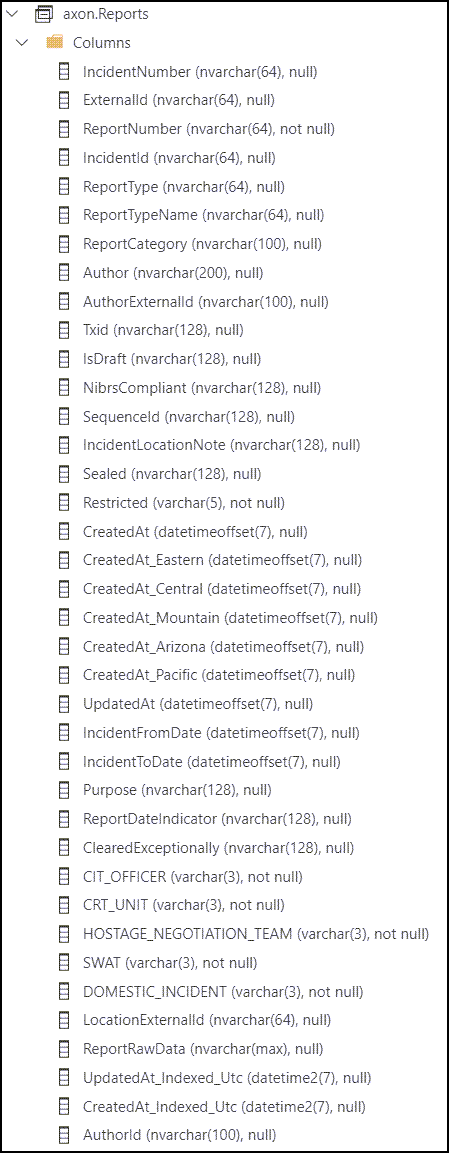
The images below show the RawData column, as well as all other columns that appear in the dw.Reports view: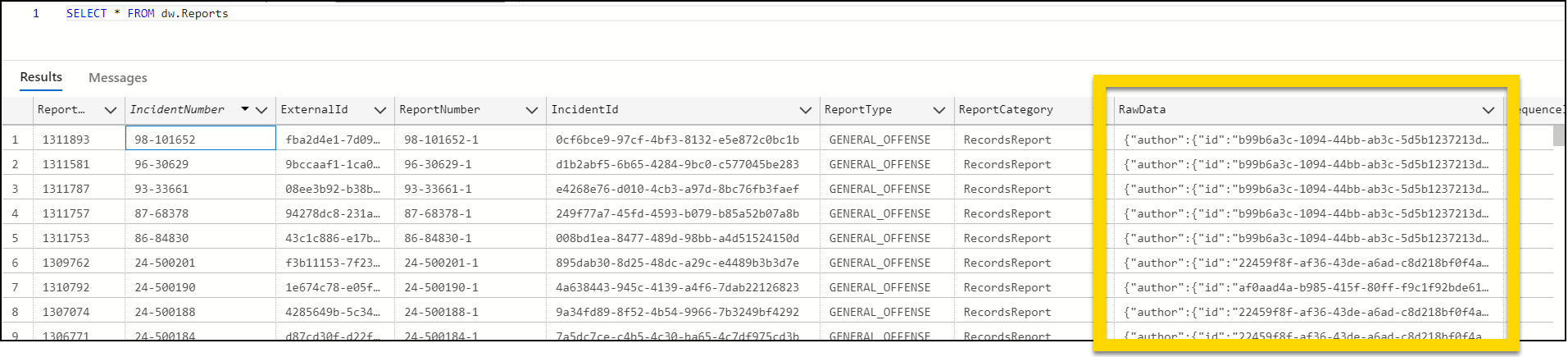
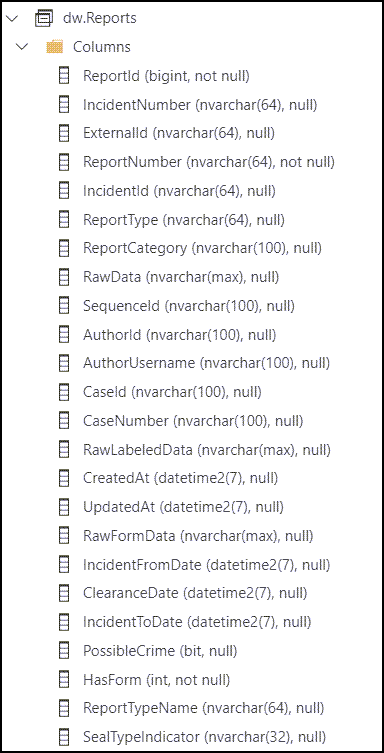
The images below show the columns that appear in the axon.Reports view:
Watch this video to see an introduction to the Axon DataStore.
Watch this video to see information about joining different tables in the DataStore.
Schemas and views
A schema defines how data is organized in the DataStore. Views in the Axon schema inherit rows from views in the dw schema. For this reason, the dw schema view is often referred to as the Base view, and the axon schema view is called the Derived view. While the dw schema is made up of minimal columns with the JSON object in the RawData column, the axon schema translates RawData into columns that can be selected as normal.
Axon recommends using the axon views because they provide:
- A general interface for viewing the data
- An efficient way to obtain, transform, and display the customized forms from Axon Records and Axon Standards.
All data entered in the form fields in Axon Records and Axon Standards reports is available in axon views.
Uptime and updates
Axon guarantees a minimum of 99.9% uptime for the Axon solutions 7 days per week on a 24-hour basis, apart from scheduled downtime, scheduled maintenance, and emergency maintenance.
Axon Records and Axon Standards are designed and operated as highly available cloud applications. Multiple redundant components are used throughout the system architecture to ensure high levels of reliability.
Data freshness
Data entered into Axon Records or Axon Standards reports does not appear in the DataStore in real-time. Instead, it appears in the DataStore after 15 to 30 minutes.
DataStore releases
DataStore code updates are performed on a 2-week cycle. Release notes for view changes are added to the Axon Records and Axon Standards release documentation and can be found on Axon Help.
Generally, changes will only add columns or make performance improvements and will not break an existing view or column. A breaking change is typically considered one where a column is removed or a column data type is changed.
If a breaking change is introduced to the DataStore, that change will be first announced in release notes with a published date in the future for when the change will take place.
The release notes will also include the appropriate replacement for what should be used instead. The replacement will generally be available at the same time the breaking change is announced so you can start making changes right away.
Recommendations
In future releases of the Axon Records and Axon Standards DataStore, Axon may augment the definition of a view by adding columns to the end of the column list. We recommend that you do NOT use the syntax SELECT * FROM <view name> in production code. This syntax will pull more data than necessary and slow the performance of your query. Additionally, because the number of columns returned might change, this syntax could well break your application.
We also recommend that you do NOT use ordinal positioning in production code as there is no guarantee that column ordering will remain the same. To avoid any issues, use column names in your production code.
Disaster recovery
In the event of a major disaster that results in a full loss of a Microsoft Azure region, Axon has created the Axon Cloud Services Information System Contingency Plan (ISCP). The ISCP focuses on the recovery of Axon Records and Axon Standards to a secondary Microsoft Azure region.
Axon is confident that in the event of the complete destruction of a primary Microsoft Azure region, the Axon application services can be recovered and restored in the secondary Microsoft Azure region within, at most, a 24-hour window. However, Axon views the likelihood of such an occurrence as negligible, given the architecture of the underlying Microsoft Azure services.
Firewall requirements
Connectivity to the Axon DataStore requires that you adjust your organization's IP restrictions and network requirements.
IP restriction
All IP traffic to the DataStore is blocked by default. To access the DataStore, your organization’s public IP address(es) must be added to the allow list. You can manage this allow list from the Access Policy tab in the DataStore Settings tool.
The DataStore uses IPv4 (Internet Protocol Version 4) and does NOT currently support IPv6 (Internet Protocol Version 6).
Public vs private IP addresses
When submitting your request for Firewall Access, ensure the IP is a public IP and not a private IP. If your organization uses a private network, you can identify your public IP using any online service such as https://www.whatismyip.com/ or https://www.showmyip.com/.
What are private IP addresses?
Private IP addresses are a subset of IP addresses designated for use within private networks. These addresses are not routable on the public internet, meaning they cannot be used to communicate directly with devices outside the local network, such as the Axon DataStore.
How do I recognize a private IP address?
Private IP addresses are divided into three classes, as defined by the Internet Engineering Task Force (IETF) in RFC 1918:
| Class | Range | Prefix | Usage |
|---|---|---|---|
| A | 10.0.0.0 to 10.255.255.255 | 10 | Large organizations and enterprises |
| B | 172.16.0.0 to 172.31.255.255 | 172 | Schools, universities, and businesses |
| C | 192.168.0.0 to 192.168.255.255 | 192 | Small office or home networks |
Network requirements
Your organization's firewall must allow outbound traffic to the Azure Gov SQL IP Ranges on port 1433.
Refer to the following links for a weekly updated list of the region's SQL IP addresses that your organization should allow:
- Azure IP Ranges and Service Tags - US Government Cloud: US-based organizations
- Azure IP Ranges and Service Tags – Public Cloud: Non-US based organizations
For US-based organizations, search for the “Sql.USGovVirginia” and “Sql.USGovTexas” Service Tags. For non-US organizations, request this information from Axon Support or your Axon representative.
Tips
- You can detect updates from one publication to the next by noting increased changeNumber values in the JSON file. Each subsection (e.g., Storage.WestUS) has its own changeNumber that is incremented as changes occur. The top level of the file's changeNumber is incremented when any of the subsections is changed.
- For examples of how to parse the service tag information (e.g., get all address ranges for Storage in WestUS), see the Service Tag Discovery API PowerShell documentation.
- When new IP addresses are added to service tags, they will not be used in Azure for at least one week. This gives you time to update any systems that might need to track the IP addresses associated with service tags.
- You can also ensure connectivity by using Azure’s Fully Qualified Domain Name (FQDN), using the server provided in the DataStore access control tool.
- For information on how to set up access control, please submit a ticket in the Axon Support portal or reach out to [email protected].
Connect to the DataStore
You can connect to the DataStore using Visual Studio Code or Microsoft SQL Server Management Studio.
Previously, you could connect to the DataStore using Azure Data Studio. However, this program is being deprecated in February 2026. To continue to access the DataStore, use either VS Code or Microsoft SQL Server Management Studio.
You can generate a DataStore account using the DataStore Secret Generation tool in the Administrator Console.
If you have questions about connecting to the DataStore, submit a ticket using the TSS portal or email [email protected].
Connect with Visual Studio Code
To connect to the DataStore using VS Code, take these steps:
- Open VS Code.
- VS Code is a free software that can be downloaded here.
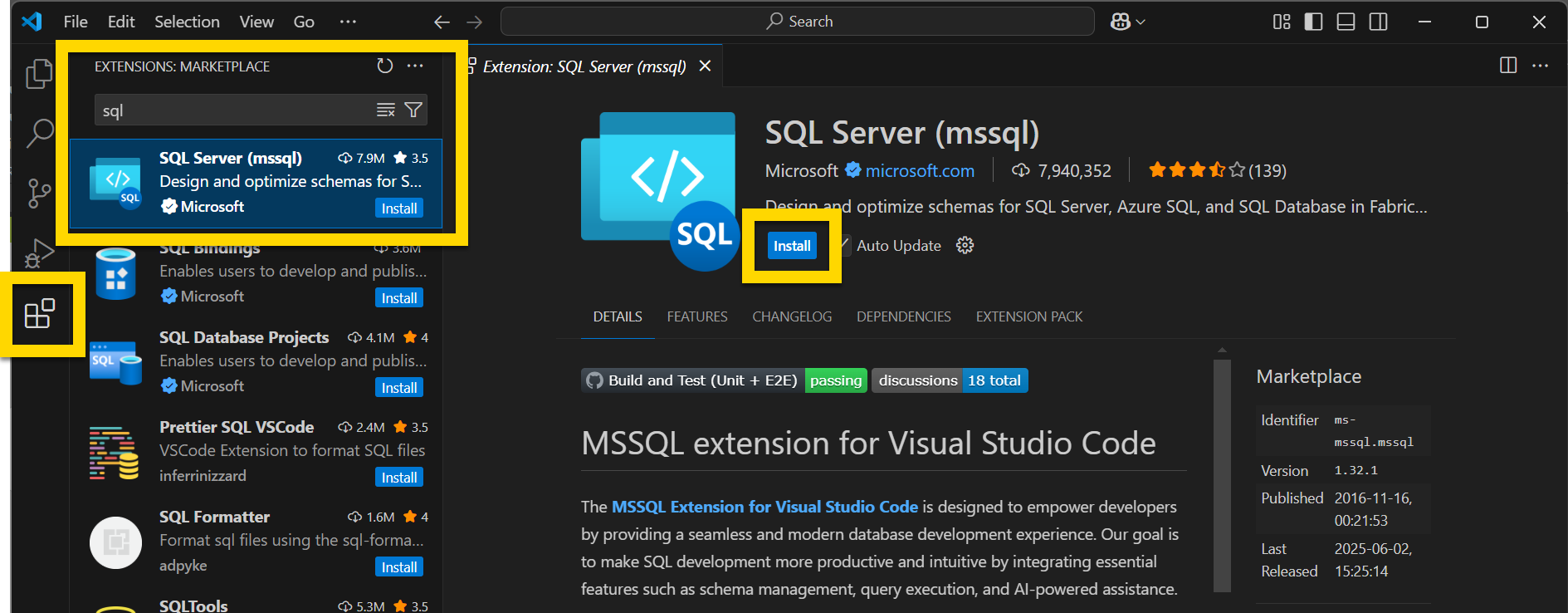
- Select Extensions in the side menu.
- Enter "sql" in the search box and select SQL Server (mssql).
- Select Install.
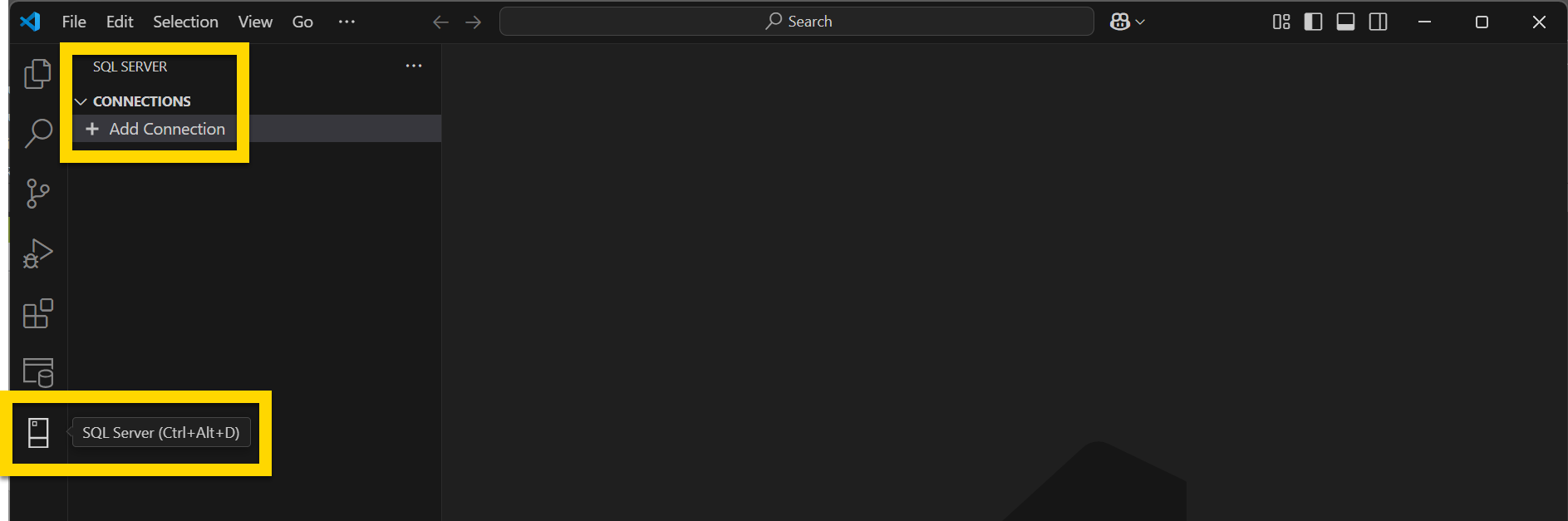
- After a successful install, SQL Server will appear as an option in the side menu. Select this option.
- Select Add Connection.
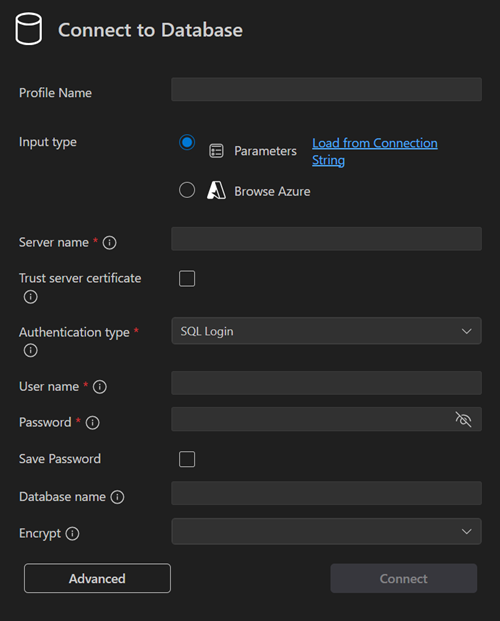
- Complete the following fields in the Connect to Database window:
- Profile name: This name will appear in your list of available connections.
- Recommended format: “Axon [Records or Standards]
[PROD or Training] [PW or Query] Datastore”
- Example: Axon Records PROD PW Datastore
- Recommended format: “Axon [Records or Standards]
[PROD or Training] [PW or Query] Datastore”
- Sever name: The name of the server you are connecting to
- Authentication type: SQL Login
- User name
- Password
- Save Password: Check this box to avoid entering your password each time you use VS Code.
- Database name: The name of the database you are connecting to
- Profile name: This name will appear in your list of available connections.
- Select Connect.
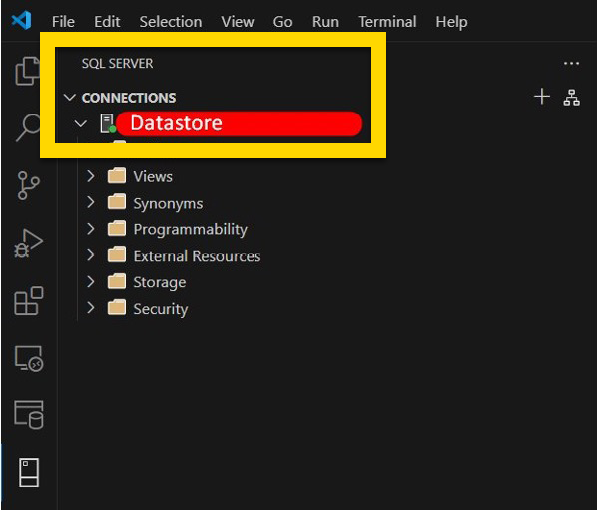
- Following a successful connection, the Profile name will appear in your Connections list.
Connect with Microsoft SQL Server Management Studio
To perform queries using Microsoft SQL Server Management Studio, take these steps:
- Open Microsoft SQL Server Management Studio.
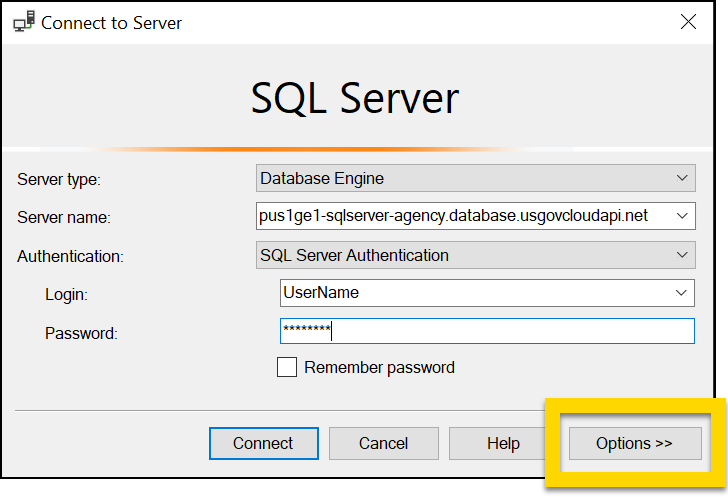
- A secondary Connect to Server will open.
- Enter the Server Name, Username, and Password
- Select Options.
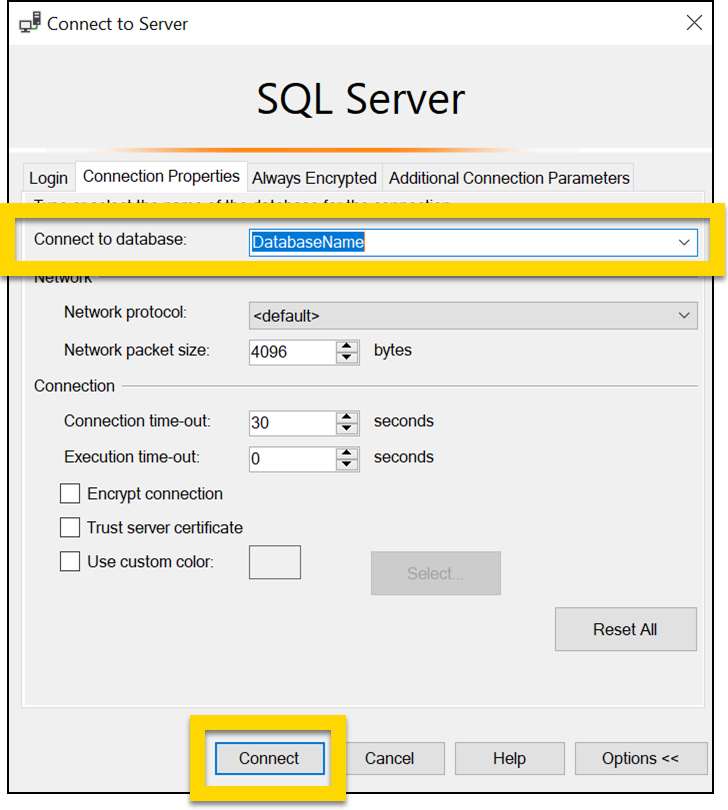
- Enter the Database name in the Connect to database field.
- Select Connect.
Query the DataStore
The DataStore uses Structured Query Language (SQL) to display data. Users have Read Only permissions to the DataStore views. They cannot read or write to tables, or create or alter views.
When querying the DataStore, you can use the following SQL functions:
SELECTJOINWHEREGROUP BYORDER BY
When creating more complex queries or using custom fields, you may also need to use CROSS APPLY and OPENJSON functions.
How do the DataStore views join together?
The DataStore views can typically be linked using External ID and Report Number.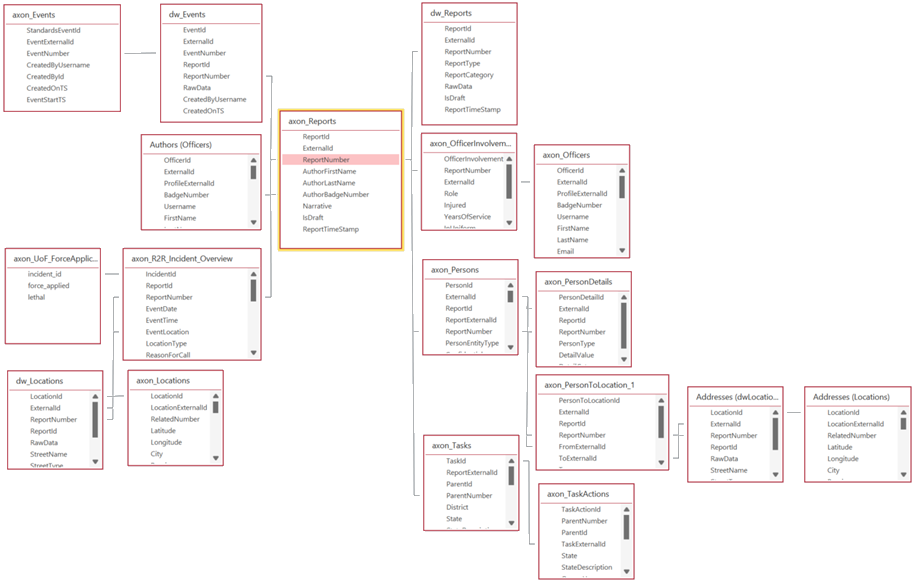
* This image is an example and is not an actual Relationship Diagram.
This downloadable file contains sample SQL JOIN statements you can reference.
Watch this video to see information about joining different tables in the DataStore.
DataStore integrations
Connecting the DataStore to an external product is possible with any database compatible software. The DataStore can be connected via user or service accounts, using a SQL Server or ODBC connection. Axon Support can provide basic instructions on how to integrate the DataStore with your existing reporting software.
If you integrate the DataStore with external products, it is your organization's responsibility to build and maintain any external reports or analytics.
Data dictionaries
The following Excel files contain the Data Dictionaries for the out of the box (OOTB) Axon Records and Axon Standards DataStores.
If your organization has custom views or columns these will not be included in the Data Dictionaries.
These Data Dictionaries were last updated on January 12, 2024.
Axon Analytics and Power BI
The Analytics module in Axon Records and Axon Standards uses Power BI to visualize data. The video below provides a comprehensive overview of setting up a dashboard in Power BI, from data import to final customization and filtering.
This video covers the following topics:
- Importing data into Power BI
- Preparing and transforming data
- Building and customizing visualizations
- Customizing dashboard layouts
- Using slicers for data filtering
Once a Power BI dashboard has been created, it can be uploaded into the Analytics module in Axon Records and Axon Standards. The following video uses the Use of Force dashboard in Axon Standards to explain how users can interact with the Power BI dashboards and visualizations.
This video covers the following topics:
- Using tab and visualization filters
- Exploring map visualizations
- Viewing tool tips
- Interacting with tables and hyperlinks
- Dashboard privileges
- Activity log tabs
- Editing and exporting dashboards


