Access control
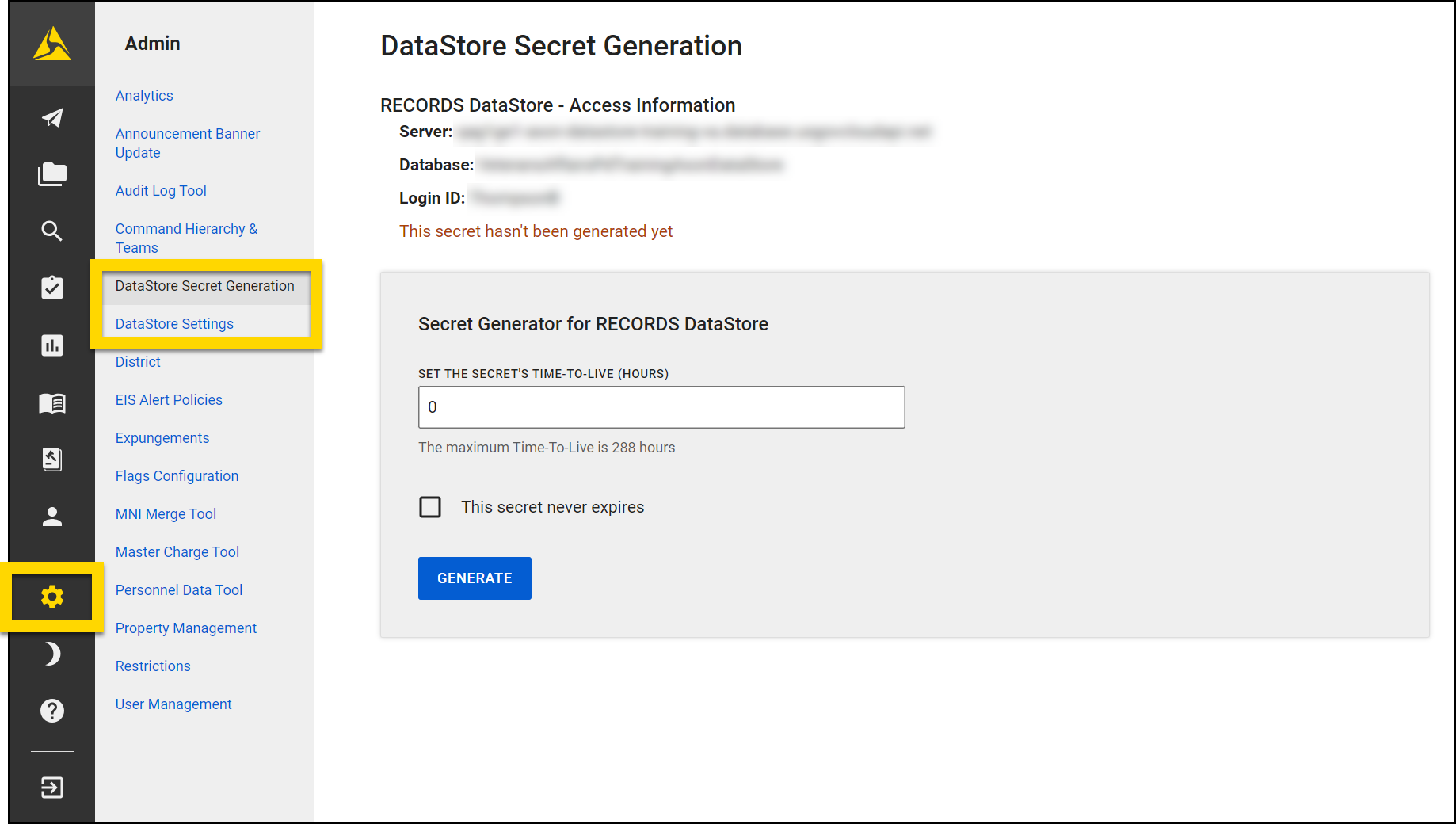
The DataStore tools in the Administrator Console let administrators with the appropriate privileges manage which users can access the DataStore. Using these tools, administrators can:
- DataStore Settings: Lets users manage DataStore configurations and user credentials
- DataStore Secret Generation: Lets users create secrets that allow direct access to the DataStore
DataStore settings
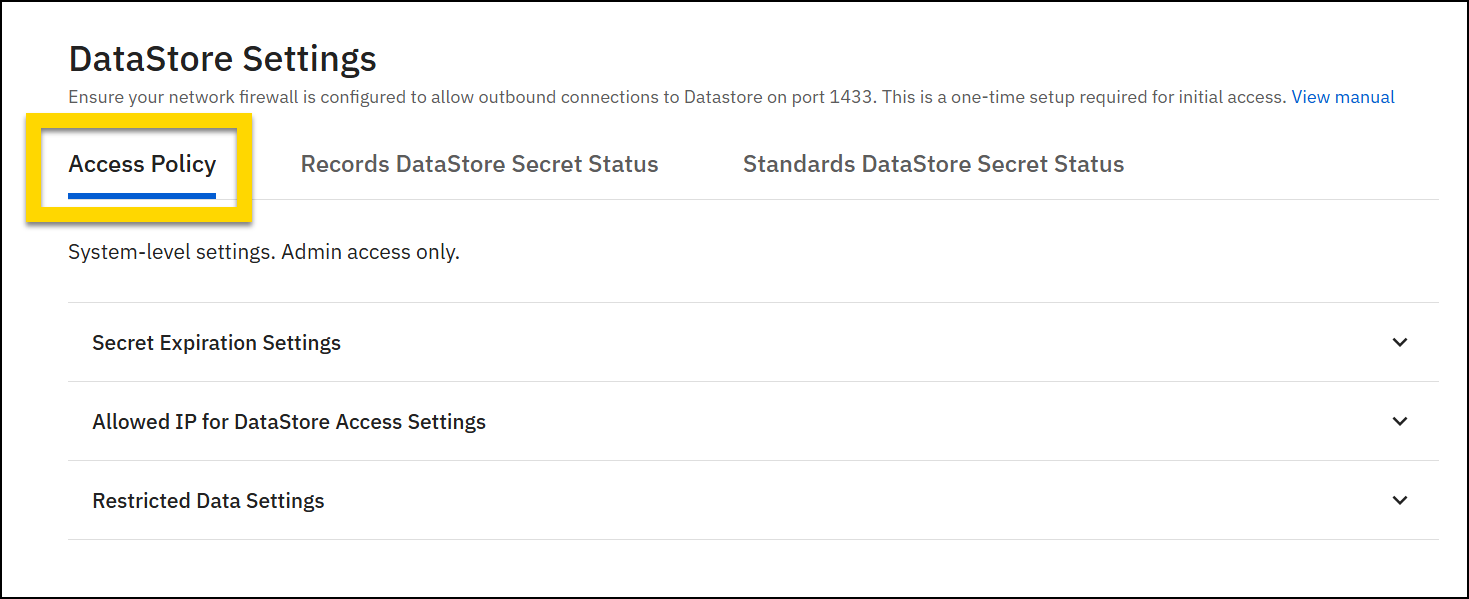
Users who belong to Groups or teams with the DataStore Management privilege can view the DataStore Settings tool. Using this tool, users can manage the organization's access policy and secret statuses for Axon Records and Axon Standards users.
Access policy
From the Access policy tab in the DataStore Settings tool, you can adjust the following settings:
- Secret expiration
- Allowed IP for DataStore access
- Restricted data
Secret expiration settings
Enter a number in the Maximum secret time-to-live (days) field to indicate the maximum number of days a secret can be available after it is generated.
Note that during secret generation, you can enter a TTL in hours, which allows for more granular control than the days setting in the DataStore Settings tool. However, the number of hours you enter during secret generation must be equal to or fewer than the day duration specified in this field in the DataStore Settings tool.
Select the Allow other users to generate never expires secrets checkbox to allow users to generate secrets that never expire.
After making changes, select Save settings.
Allowed IP for DataStore access settings
The IP addresses listed in this table are the only addresses from which the DataStore can be accessed.
To add a new IP address:
- Select Add IP.
- Select the type of address:
- Single IP address: Lets you add one address
- Range of IP address: Lets you add an IP address range. You must provide a starting IP address and an Ending IP address.
- Enter either the single IP address or the range.
- Select Add.
- Select Save settings.
To remove an IP address (either a single IP address or a range):
- Select Remove in the row corresponding to the IP address you want to remove.
- Select Remove again in the confirmation window that appears.
- Select Save settings.
Restricted data settings
By default, when you grant DataStore access to a user, they can access restricted data and classifications. Select the Allow configure access to restricted data and classification checkbox to specify which users can access which restricted data. You can then configure which restrictions users can access either by updating the default access profile or a custom access profile.
When this setting is first enabled, users maintain their existing data access; they can continue to view restricted data and do not see a change in their data access. If you enable this setting and adjust which restricted data users can view, then later disable this setting, users will regain access to all restricted data. If you then re-enable this setting, their access to restricted data will again be curtailed to the restriction configuration you specified.
Secret status
The Secret status tabs in the DataStore Settings tool display a list of all users who have been given access to the DataStore. If your organization is configured for both Axon Records and Axon Standards, you will see two Secret status tabs, one for Axon Records and one for Axon Standards.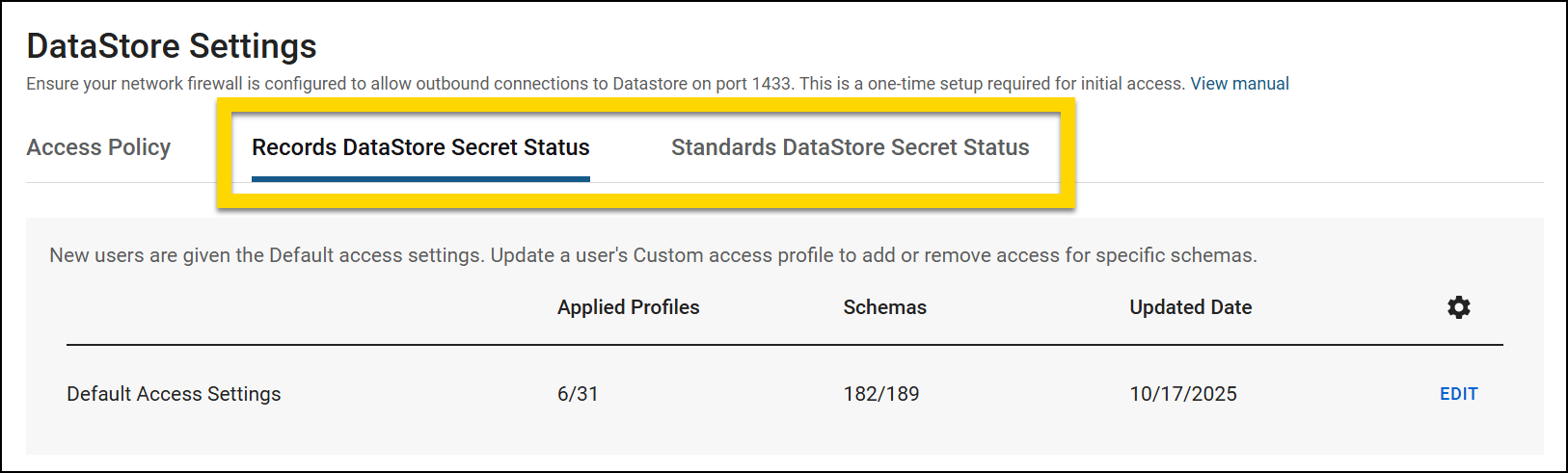
These tabs are split into two sections:
- Default access settings
- Access profile list
Some columns in the tables use a fraction to show a subset compared to the total. For example, in the Default access section, 4388/4392 is listed in the Views column. This means that out of 4392 views, the default access profile can access 4388 views.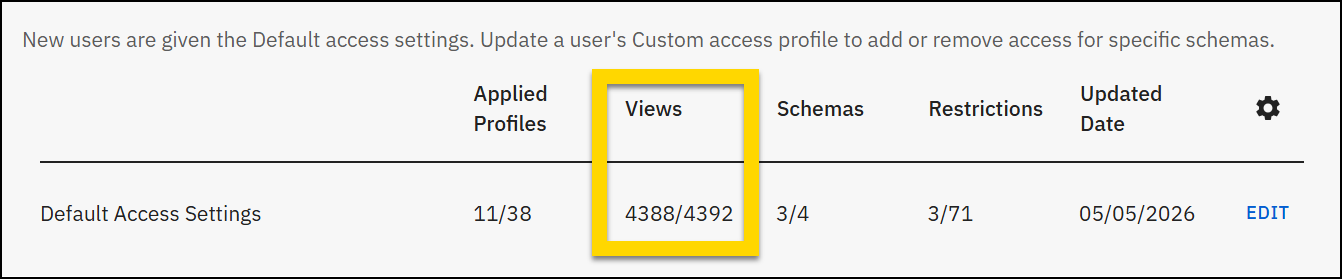
Default access settings
The top section on the Secret status tabs displays the settings for your organization's default access profile. The default access profile acts like a template to let administrators quickly grant access to a pre-defined set of views, schemas, and restriction configurations. This template is applied whenever you give a new user access to the DataStore.
The Default access settings section displays the following information:
- Applied profiles: The number of users who have been given default access
- Views: The number of views included in the default access profile
- Schemas: The number of schemas included in the default access profile
- Restrictions: The number of restrictions included in the default access profile. If the profile can access all restrictions, this column displays "Full access."
- Updated date: The last date when the default access profile was updated
When you edit your DataStore's default access profile, all users who have been given default access will receive the access updates you make. If you only want to adjust access settings for a single user, edit their custom access profile instead.
To edit the default access profile:
- Select Edit in the Default access settings section at the top of the Secret status tab.
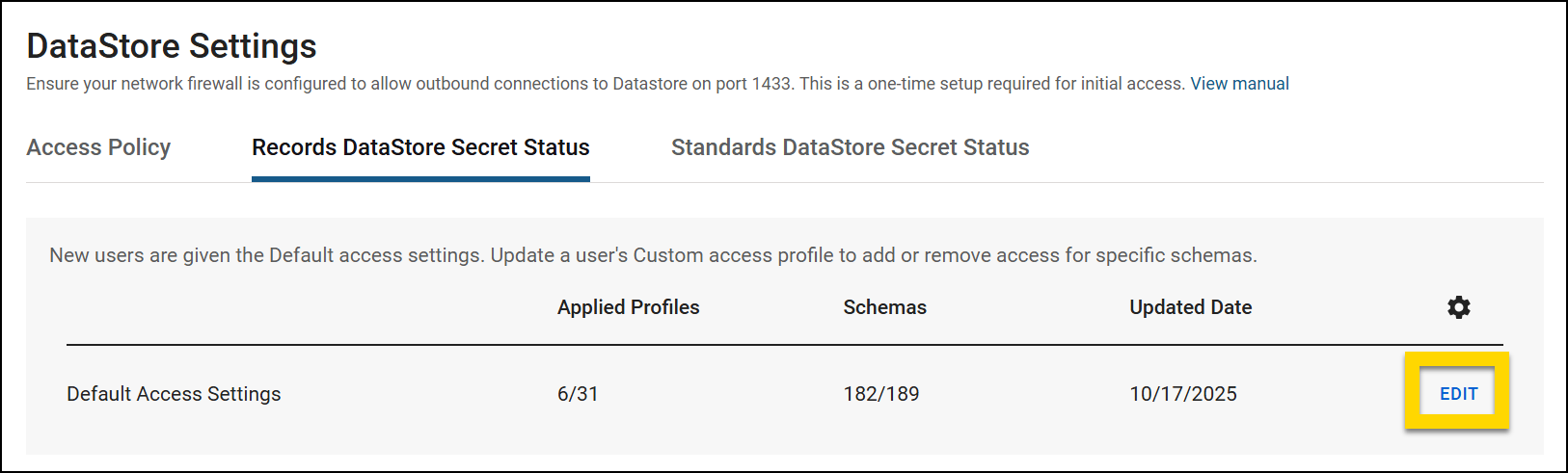
- On the Schemas tab, use the checkboxes to set which schemas are included in the default access profile.
- Use the search bar to find specific tables or views.
- Hover over the information icon to view more details about that schema. See Concepts and features to learn more about schemas.
- Select the down arrows to reveal the nested schema levels.
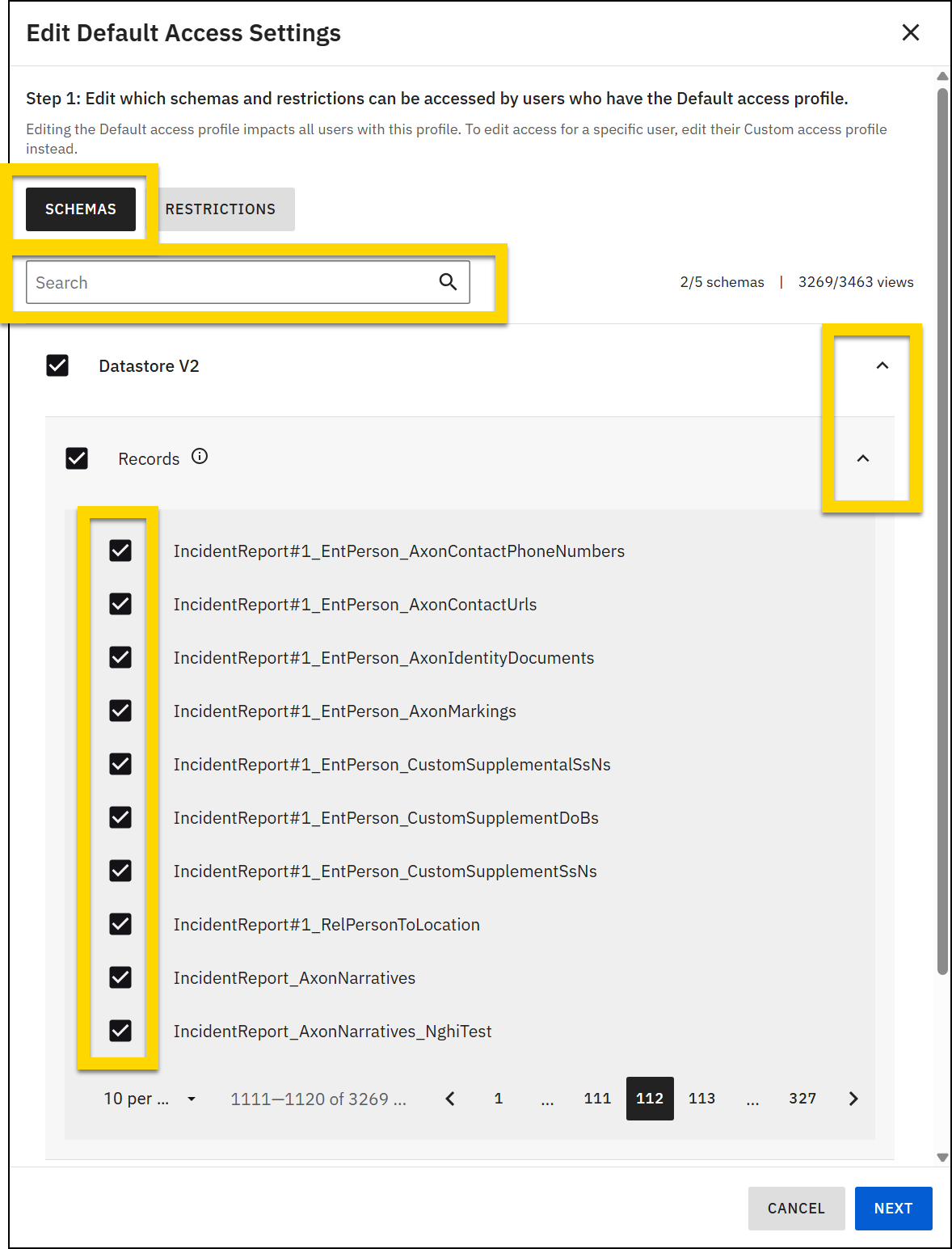
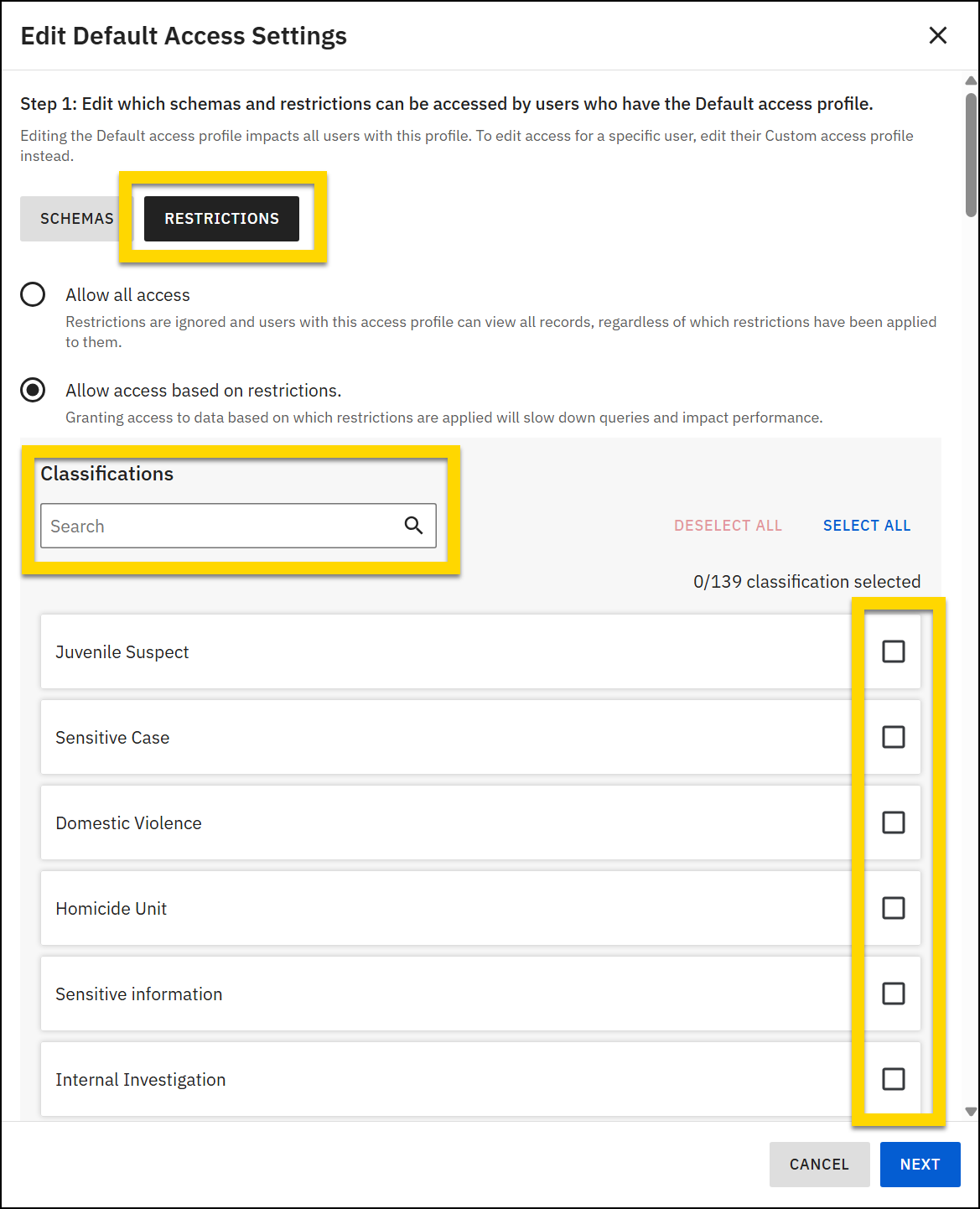
- If your organization uses the Restricted data setting, use the checkboxes on the Restrictions tab to set which restrictions are included in the default access profile.
- Use the search bar to find specific restrictions.
- Select Allow all access to give access to all restrictions or use the checkboxes in the Classifications section to give access to specific restrictions.
- Select Next.
- Use the checkboxes to set which users have the default access profile.
- All users who have previously been given the default access profile are pre-selected.
- Use the search box to find specific users.
- After adjusting the user list, select Save.
- It may take several minutes for your updates to save. Do not close the tab during this process.
Access profile list
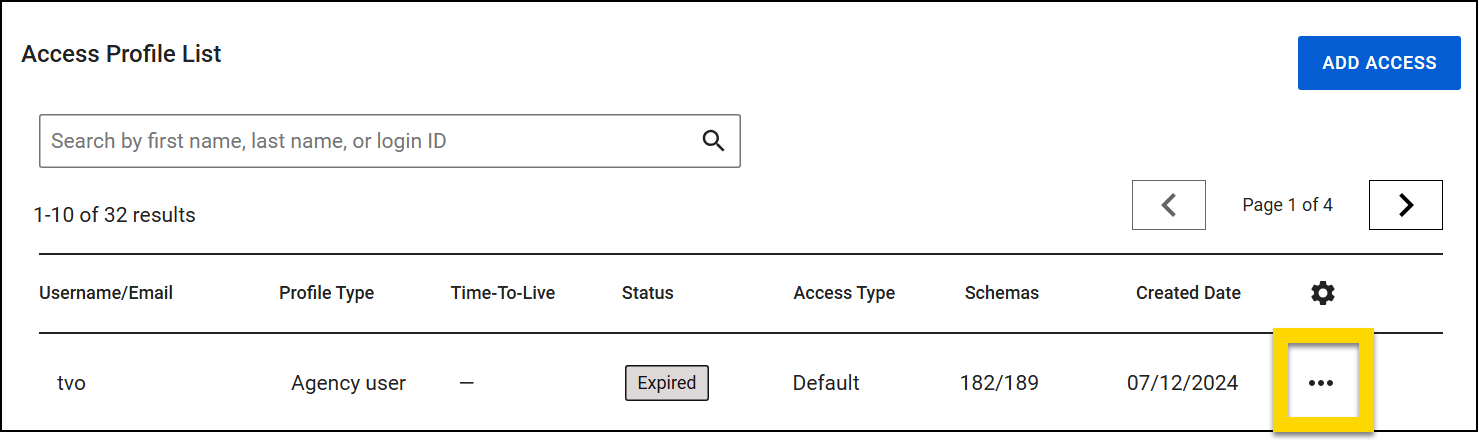
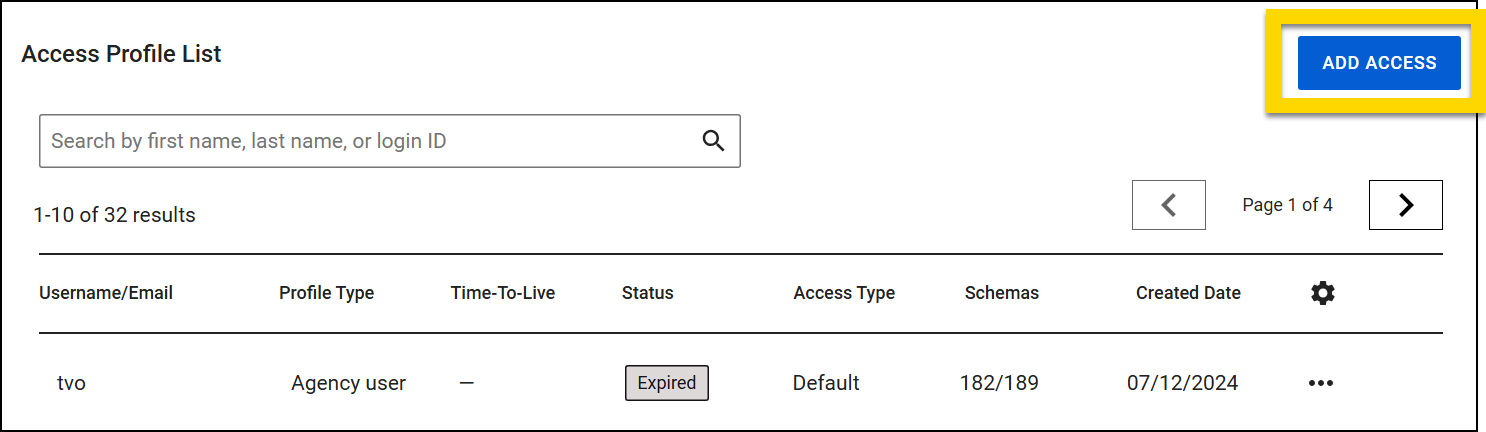
The table in the Access profile list section provides detailed information about all user profiles that have access to DataStore, along with their current access status. Use the search bar or filters to find a specific profile. The following information is included about each profile:
- Username/email: The username or email associated with the profile
- Profile type:
- Agency user: Users who have an Axon Evidence account with the agency and for whom a DataStore secret has been generated.
- Third party: Users who belong to third-party organizations but can still access the organization's DataStore.
- Axon: Axon representatives who have been granted access to the organization's DataStore.
- Time-to-live: Shows the TTL that was specified when the profile's secret was generated
- Status:
- Setup Pending: A secret has NOT yet been generated.
- Active: A secret has been generated and is currently active.
- Expired: A secret was generated, but the TTL has passed and the secret has expired.
- Access type: Whether the profile has default or custom access
- Schemas: The number of tables/views included in the access profile
- View: The number of views included in the access profile
- Restrictions: The number of restrictions included in the access profile. If the profile can access all restrictions, this column displays "Full access."
- Created date: The date the access profile was created
Depending on the profile type and status, various options appear in the More actions [...] menu:
- Edit access control: Appears for all profiles and statuses
- Regenerate secret: Appears for third-party profiles that are in Setup Pending or Active status
- Revoke secret: Appears for all profiles that are in Active status
- Remove access profile: Appears for all Axon profiles in any status
Create access profiles
To grant DataStore access to an agency user, first generate a secret using the DataStore Secret Generation tool. Once the secret has generated, an access profile appears in the Access Profile List where you can edit the access control if you want the profile to have more or less access than is granted by the default access profile.
To create a new access profile for an Axon representative or a third-party user:
- Select Add access.
- Specify if the user is an Axon representative or a third-party user.
- If the user is an Axon representative, enter their email address.
- If the user is a third party, enter a username.
- Select the checkbox to acknowledge that you are a designated administrator responsible for granting DataStore access to users outside your organization.
- Select Next.
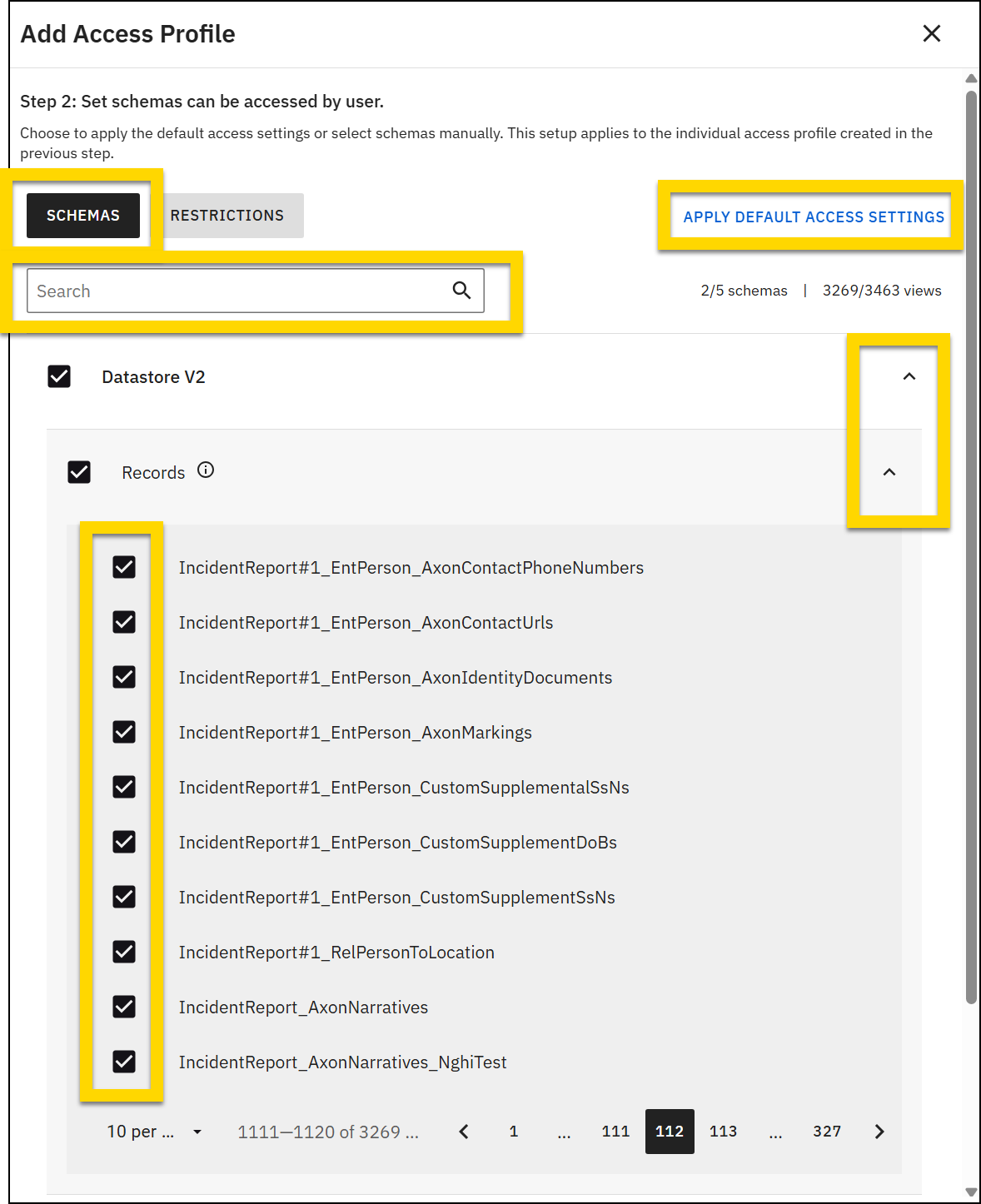
- On the Schemas tab, use the checkboxes to set which schemas are included in the access profile.
- To grant default access, select Apply default access settings.
- To grant custom access, use the checkboxes to select specific schemas.
- Tip: To use the default profile as a starting point, select Apply default access settings then adjust the checkboxes to refine the schemas included in the profile's access.
- Use the search bar to find specific tables or views.
- Hover over the information icon to view more details about that schema. See Concepts and features to learn more about schemas.
- Select the down arrows to reveal the nested schema levels.
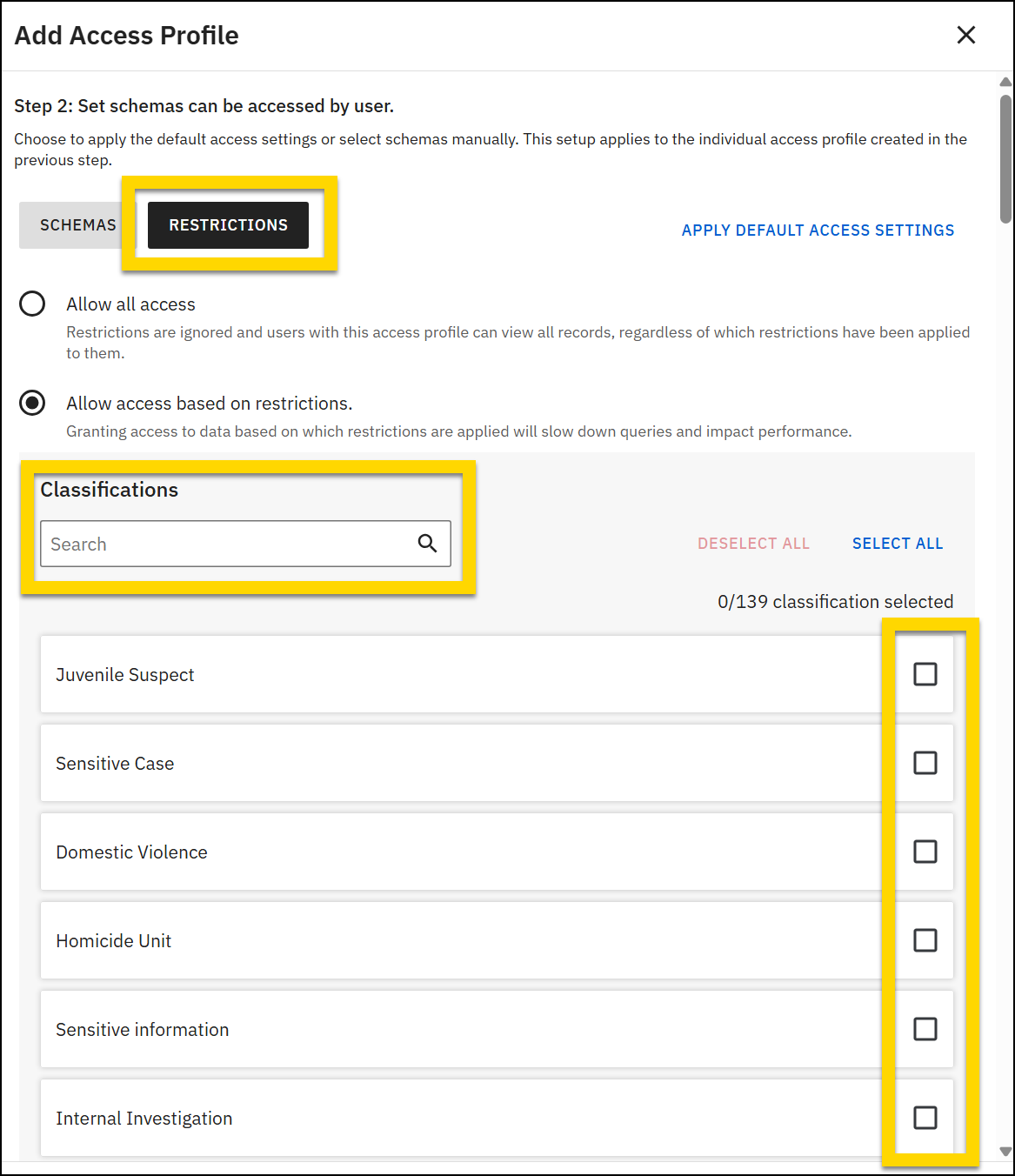
- If your organization uses the Restricted data setting, use the checkboxes on the Restrictions tab to set which restrictions are included in the access profile.
- To grant default access, select Apply default access settings.
- To grant custom access, use the checkboxes to select specific restrictions.
- Tip: To use the default profile as a starting point, select Apply default access settings then adjust the checkboxes to refine the restrictions included in the profile's access.
- Use the search bar to find specific restrictions.
- Select Allow all access to give access to all restrictions or use the checkboxes in the Classifications section to give access to specific restrictions.
- Select Add access profile to create the profile.
- When you create a profile for a third-party user, you can immediately generate a secret for the profile.
- Select a TTL option.
- Options include days, hours, or never expires.
- The maximum number is controlled by the maximum TTL setting on the Access policy tab.
- Select Generate.
- The secret will generate and appear below the Generate button. This secret must be copied immediately, as it will not be displayed again.
- Select Copy secret and close.
- Follow your organization's security practices to safely share the secret with the user.
- Select a TTL option.
- When you create a profile for an Axon representative, they receive an email directing them to log into the internal Axon secured administration portal to generate a secret.
- Axon representatives can never generate “never expire” secrets. Any secrets they generate will adhere to the maximum TTL setting on the Access policy tab.
Edit access profiles
You can edit a profile’s access settings at any time. Changing access does not affect the user’s existing secret; it only modifies their ability to SELECT tables or views within a schema. When new access is granted, the user will be able to see the additional tables or views shortly after the update. Conversely, if a user’s access to specific tables or views is revoked, their access to those resources will be removed immediately. All access changes—both granting and revoking—take effect within approximately 30 seconds.
To edit access:
- Use the search bar to find a profile.
- Select More actions [...] > Edit access control.
- On the Schemas tab, use the checkboxes to set which schemas are included in the access profile.
- If a profile previously had the default access profile and you add or remove access to any schemas, their access type changes to Custom.
- To return a user to the default access profile, select Apply default access settings.
- If your organization uses the Restricted data setting, use the checkboxes on the Restrictions tab to set which restrictions are included in the access profile.
- If a profile previously had the default access profile and you add or remove access to any schemas, their access type changes to Custom.
- To return a user to the default access profile, select Apply default access settings.
- After making all necessary adjustments, select Save.
Regenerate secrets
Regenerating a secret lets you refresh secrets for third-party users outside your organization. Agency users and Axon representatives who have access to the DataStore can generate secrets for themselves as necessary.
To regenerate a secret for a third-party user:
- Use the search bar to find a profile.
- Select More actions [...] > Regenerate secret.
- Select the check box to acknowledge that you are a designated administrator responsible for granting DataStore access to users outside your organization.
- Select a TTL option.
- Options include days, hours, or never expires.
- The maximum number is controlled by the settings on the Access policy tab.
- Select Generate.
- The secret will generate and appear below the Generate button. This secret must be copied immediately, as it will not be displayed again.
- Select Copy secret and close.
- Follow your organization's security practices to safely share the secret with the user.
Revoke secrets
Once a secret is revoked, it immediately changes to an Expired status and can no longer be used to access the DataStore. If the user is currently accessing the DataStore when this occurs, they will no longer be able to perform any queries and will be logged out when their session times out.
Secrets for Axon representatives can't be revoked. Instead, the access profile must be removed.
To revoke a secret:
- Use the search bar to find a profile.
- Select More actions [...] > Revoke.
- Select Revoke in the confirmation window that appears.
Remove access profiles
Access profiles for Axon representatives can be removed at any time. Once an access profile is removed, it cannot be restored.
To remove an access profile:
- Use the search bar to find a profile.
- Select More actions [...] > Remove access profile.
- Select Remove in the confirmation window that appears.
Secret generation
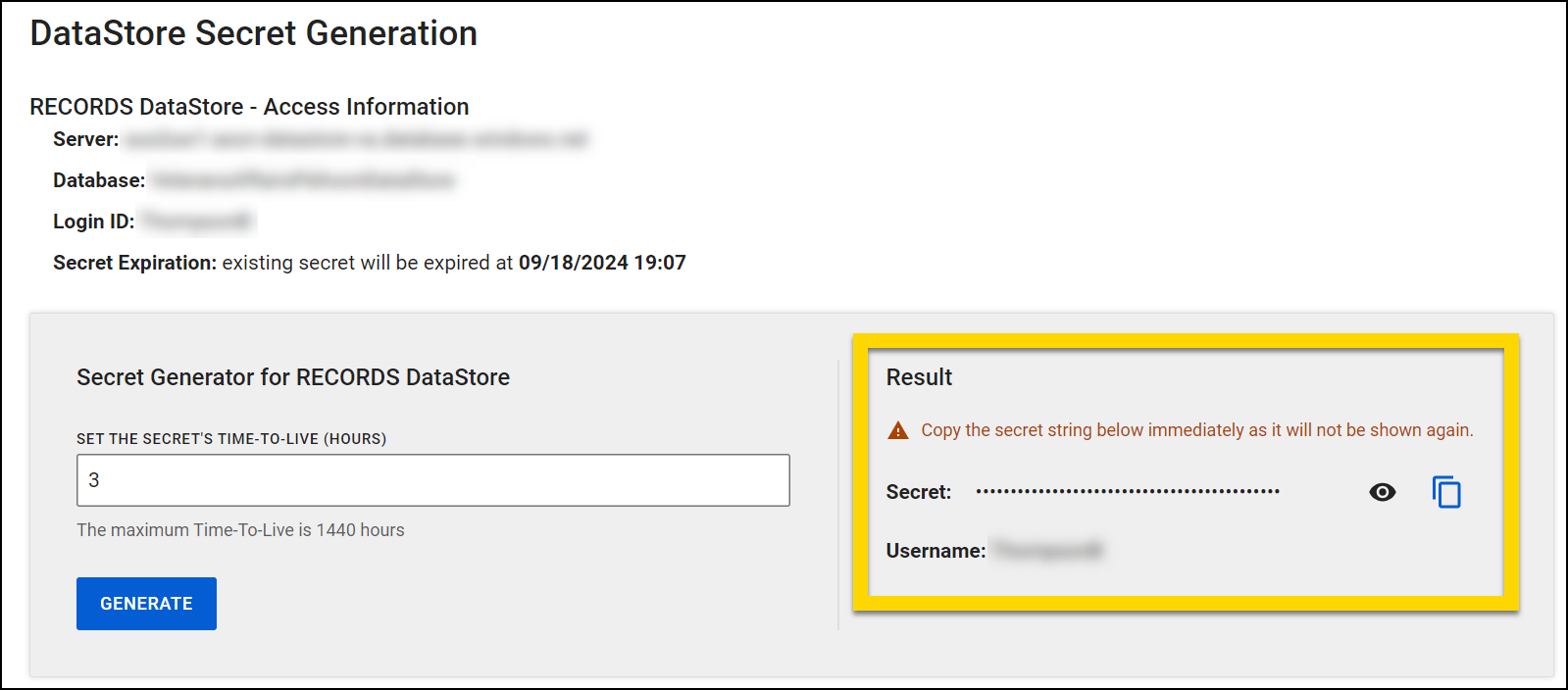
Users who belong to Groups or teams with the DataStore Access privilege can view the DataStore Secret Generation tool. Using this tool, users can generate secrets that allow access to the DataStore. If your organization is configured for both Axon Records and Axon Standards, you will see sections on this page: one for generating Axon Records secrets and one for Axon Standards.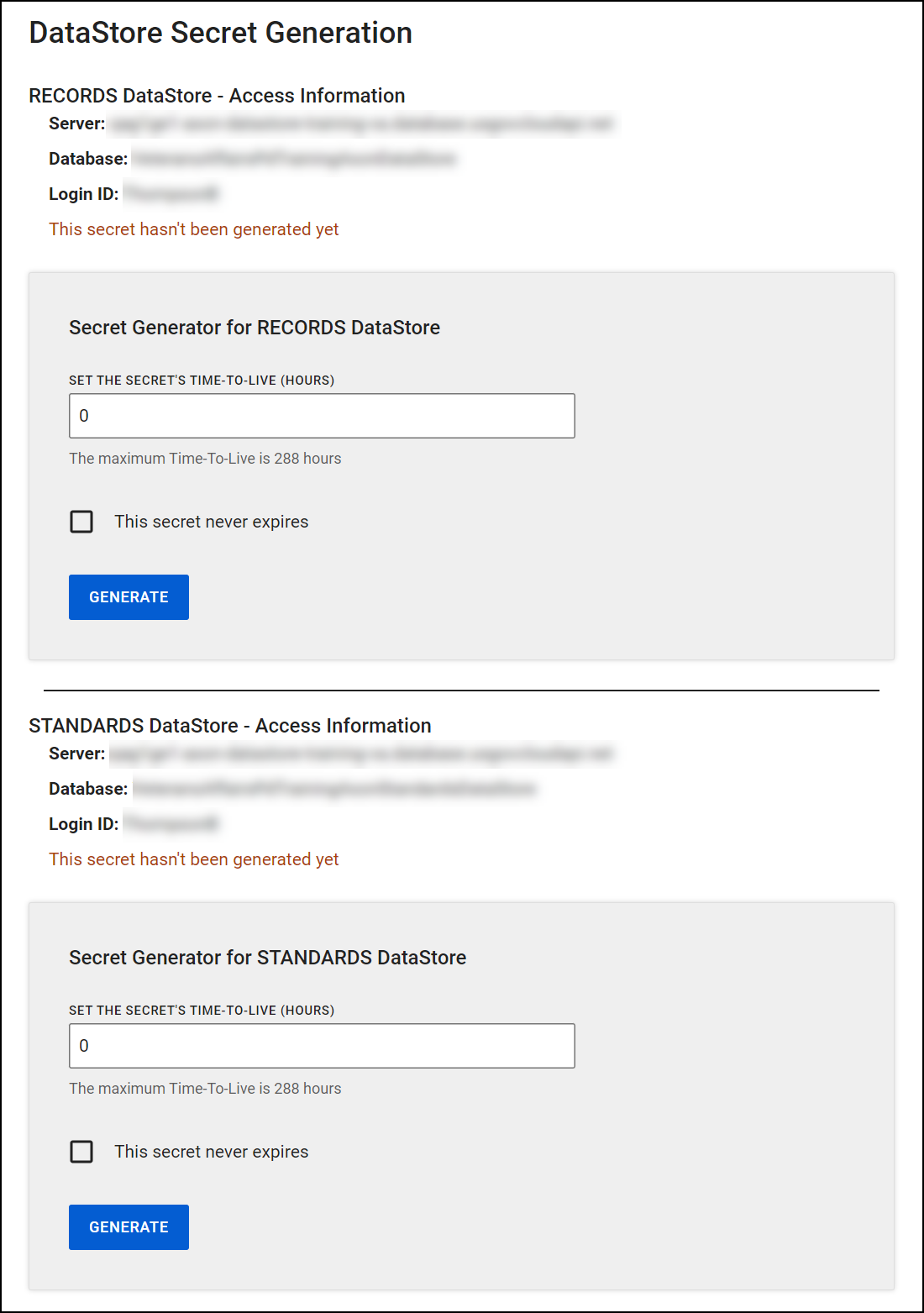
Each section provides the following information:
- Server name
- Database name
- Login ID: The username of the user who is viewing and using the tool
To generate a new secret:
- Go to either the Axon Records or Axon Standards section and enter the time-to-live (TTL) of the secret in hours.
- You can't enter a longer TTL than the maximum set by administrators.
- To generate a secret that never expires, select the This secret never expires checkbox.
- Select Generate.
- The secret will generate and appear on the right side of the gray box. This secret must be copied immediately, as it will not be displayed again.
- The secret will be added to the DataStore Settings tool where users with the appropriate privileges can revoke it if necessary.
Privileges
The privileges related to the Axon Records DataStore appear in the DataStore - Records category, and the privileges related to the Axon Standards DataStore appear in the DataStore - Standards category, as shown below:
|
Name |
Description |
|---|---|
| DataStore - Records | |
| Manage the Records DataStore using the DataStore Settings tool | Lets users access the DataStore Settings tool in the Administrator Console and manage configurations for the Axon Records DataStore. |
| Use the Records DataStore Secret Generation tool to create DataStore secrets | Lets users access the DataStore Secret Generation tool in the Administrator Console and generate secrets for the Axon Records DataStore. |
| DataStore - Standards | |
| Manage the Standards DataStore using the DataStore Settings tool | Lets users access the DataStore Settings tool in the Administrator Console and manage configurations for the Axon Standards DataStore. |
| Use the Standards DataStore Secret Generation tool to create DataStore secrets | Lets users access the DataStore Secret Generation tool in the Administrator Console and generate secrets for the Axon Standards DataStore. |


