Axon DataStore v2
The Axon DataStore offers a structured and performance-optimized platform for accessing Axon Records and Axon Standards data. This section covers key improvements over DataStore v1, including enhanced data modeling, automatic view updates, incremental data extraction, and support for Master Indices. It also outlines access control options, connectivity requirements, disaster recovery planning, integration guidance, and recommendations for reliable querying and dashboard development.
Downloads
Download the Axon DataStore v2 user guides using the links below.
Introduction
The Axon DataStore is a read-only Azure SQL database designed to support reporting and analytics for Axon Records and Axon Standards. It provides structured access to Axon Records and Axon Standards data through SQL views, powers Axon’s in-product Analytics dashboards, as well as allows seamless querying and reporting with third-party tools. When your organization's personnel use Axon Records and Axon Standards in the normal course of operations, data is synchronized to the DataStore where it is processed and presented in SQL views.
You can use the DataStore to support varying data needs, including:
- Building analytics reports with tools like Power BI, Crystal Reports, and Tableau
- Running ad hoc queries for deeper insights
- Transferring data into data warehouses
- Integrating with downstream systems
The original DataStore (DataStore v1) has received detailed feedback highlighting long-standing issues, including lack of clear entity relationships, delays in accessing JSON-extracted columns, slow query performance with JSON operators, and difficulty in identifying and loading incremental data changes. To address these issues, Axon is introducing a new DataStore version 2 that improves usability and understandability, performs faster, and allows for direct data access.
The following sections outline the improvements in DataStore v2.
1. Structured data access with clear entity relationships
In DataStore v1, the data is either obscured in complex JSON blobs or relationships between views are not easily understandable, making it difficult to query the needed data.
DataStore v2 structures all data fields in an explicitly declared tabular format with clear entity relationships that can be directly accessed via standard SQL queries. Because all data fields are pre-extracted into columns, the DataStore v2 does not provide raw JSON blobs. Queries do not require extracting or referencing values stored in JSON blobs, which:
- Makes specific data fields easier to find
- Eliminates the performance hit incurred by performing data extraction from inside of JSON blobs
2. Data Model automatically derived from application forms
DataStore v2 structures all data fields in an explicitly declared tabular format that follows the structure and naming convention of the forms that organization personnel interact with in Axon Records and Axon Standards. This helps IT personnel and data analysts better understand the source of data in any given table, reducing the risk of errors.
3. Automatic table updates when forms change
With DataStore v1, you had to either wait for Axon Support to create custom views (which could take several weeks), or resort to JSON extraction from raw data to query data related to any form changes. In DataStore v2, structural changes for forms will automatically reflect in the DataStore as follows:
- Columns are added for any new fields added to forms.
- Columns are retained for fields removed from forms if data exists in any row.
- Columns are removed for any completely empty columns that correspond to fields removed from forms.
- New views are added for net-new custom forms.
4. Reliable, incremental data extracts
The lack of incremental data-pulling support in DataStore v1 required you to track changes across multiple views or frequently replace large datasets, creating inefficiencies and unnecessary strain on both your systems and the DataStore.
To address this, the DataStore v2 supports industry-standard Change Data Capture (CDC) mechanisms based on incremental data-pulling, providing a transaction record that is faithful to all transactions performed in the database over a defined time period, including DELETE operations. This provides a well-defined interface where you can detect any changes in the DataStore and reliably build your data extraction pipelines.
5. Standardized incident reporting and Master Name Indices
With DataStore v1, assembling complete and accurate data often proved challenging. Retrieving the latest incident information required piecing together multiple rows, each representing a different version of the same report. Similarly, the absence of a Master Indices (MxI) forced you to manually extract and compile identities from related reports, leading to time-consuming, inconsistent, and inefficient processes.
DataStore v2 streamlines reporting by providing structured identity tracking and incident reporting. Master Indices (MxI) eliminate the need for manual identity extraction, offering a pre-built, standardized, and up to date list for persons, vehicles, organizations, and locations. The LatestIncidentReport view consolidates the most recent version of an incident into a single row, reducing complexity. These enhancements improve accuracy, minimize manual effort, and simplify data analysis.
6. Self-Service access control
The "all-or-none" access model in DataStore v1 was often frustrating, since users either had full access or none at all. Managing access also required relying entirely on Axon Support, leaving administrators unable to see who had active credentials or to grant or revoke access themselves. This lack of visibility and control made it harder to enforce security policies, onboard new users efficiently, and remove access when necessary.
DataStore v2 introduces a more secure and streamlined access control mechanism, enabling administrators to manage credentials independently without relying on Axon Support. Administrators can generate and revoke access in a self-service manner, eliminating the need for manual requests. Additionally, by the end of 2025, you will be able to implement fine-grained access controls, restricting user access to specific views to ensure data security and compliance.
Uptime and updates
Axon guarantees a minimum of 99.9% uptime for the Axon solutions 7 days per week on a 24-hour basis, apart from scheduled downtime, scheduled maintenance, and emergency maintenance.
Axon Records and Axon Standards are designed and operated as highly available cloud applications. Multiple redundant components are used throughout the system architecture to ensure high levels of reliability.
Data freshness
Data entered into Axon Records or Axon Standards reports does not appear in the DataStore in real-time. Instead, it appears in the DataStore after 15 to 30 minutes.
DataStore releases
DataStore code updates are performed on a 2-week cycle. Release notes for view changes are added to the Axon Records and Axon Standards release documentation and can be found on Axon Help.
Generally, changes will only add columns or make performance improvements and will not break an existing view or column. A breaking change is typically considered one where a column is removed or a column data type is changed.
If a breaking change is introduced to the DataStore, that change will be first announced in release notes with a published date in the future for when the change will take place.
The release notes will also include the appropriate replacement for what should be used instead. The replacement will generally be available at the same time the breaking change is announced so you can start making changes right away.
Recommendations
In future releases of the Axon Records and Axon Standards DataStore, Axon may augment the definition of a view by adding columns to the end of the column list. We recommend that you do NOT use the syntax SELECT * FROM <view name> in production code. This syntax will pull more data than necessary and slow the performance of your query. Additionally, because the number of columns returned might change, this syntax could well break your application.
We also recommend that you do NOT use ordinal positioning in production code as there is no guarantee that column ordering will remain the same. To avoid any issues, use column names in your production code.
Disaster recovery
In the event of a major disaster that results in a full loss of a Microsoft Azure region, Axon has created the Axon Cloud Services Information System Contingency Plan (ISCP). The ISCP focuses on the recovery of Axon Records and Axon Standards to a secondary Microsoft Azure region.
Axon is confident that in the event of the complete destruction of a primary Microsoft Azure region, the Axon application services can be recovered and restored in the secondary Microsoft Azure region within, at most, a 24-hour window. However, Axon views the likelihood of such an occurrence as negligible, given the architecture of the underlying Microsoft Azure services.
Firewall requirements
Connectivity to the Axon DataStore requires that you adjust your organization's IP restrictions and network requirements.
IP restriction
All IP traffic to the DataStore is blocked by default. To access the DataStore, your organization’s public IP address(es) must be added to the allow list. You can manage this allow list from the Access Policy tab in the DataStore Settings tool.
The DataStore uses IPv4 (Internet Protocol Version 4) and does NOT currently support IPv6 (Internet Protocol Version 6).
Public vs private IP addresses
When submitting your request for Firewall Access, ensure the IP is a public IP and not a private IP. If your organization uses a private network, you can identify your public IP using any online service such as https://www.whatismyip.com/ or https://www.showmyip.com/.
What are private IP addresses?
Private IP addresses are a subset of IP addresses designated for use within private networks. These addresses are not routable on the public internet, meaning they cannot be used to communicate directly with devices outside the local network, such as the Axon DataStore.
How do I recognize a private IP address?
Private IP addresses are divided into three classes, as defined by the Internet Engineering Task Force (IETF) in RFC 1918:
| Class | Range | Prefix | Usage |
|---|---|---|---|
| A | 10.0.0.0 to 10.255.255.255 | 10 | Large organizations and enterprises |
| B | 172.16.0.0 to 172.31.255.255 | 172 | Schools, universities, and businesses |
| C | 192.168.0.0 to 192.168.255.255 | 192 | Small office or home networks |
Network requirements
Your organization's firewall must allow outbound traffic to the Azure Gov SQL IP Ranges on port 1433.
Refer to the following links for a weekly updated list of the region's SQL IP addresses that your organization should allow:
- Azure IP Ranges and Service Tags - US Government Cloud: US-based organizations
- Azure IP Ranges and Service Tags – Public Cloud: Non-US based organizations
For US-based organizations, search for the “Sql.USGovVirginia” and “Sql.USGovTexas” Service Tags. For non-US organizations, request this information from Axon Support or your Axon representative.
Tips
- You can detect updates from one publication to the next by noting increased changeNumber values in the JSON file. Each subsection (e.g., Storage.WestUS) has its own changeNumber that is incremented as changes occur. The top level of the file's changeNumber is incremented when any of the subsections is changed.
- For examples of how to parse the service tag information (e.g., get all address ranges for Storage in WestUS), see the Service Tag Discovery API PowerShell documentation.
- When new IP addresses are added to service tags, they will not be used in Azure for at least one week. This gives you time to update any systems that might need to track the IP addresses associated with service tags.
- You can also ensure connectivity by using Azure’s Fully Qualified Domain Name (FQDN), using the server provided in the DataStore access control tool.
- For information on how to set up access control, please submit a ticket in the Axon Support portal or reach out to softwaresupport@axon.com.
Connect to the DataStore
You can connect to the DataStore using Visual Studio Code or Microsoft SQL Server Management Studio.
Previously, you could connect to the DataStore using Azure Data Studio. However, this program is being deprecated in February 2026. To continue to access the DataStore, use either VS Code or Microsoft SQL Server Management Studio.
You can generate a DataStore account using the DataStore Secret Generation tool in the Administrator Console.
If you have questions about connecting to the DataStore, submit a ticket using the TSS portal or email softwaresupport@axon.com.
Connect with Visual Studio Code
To connect to the DataStore using VS Code, take these steps:
- Open VS Code.
- VS Code is a free software that can be downloaded here.
- Select Extensions in the side menu.
- Enter "sql" in the search box and select SQL Server (mssql).
- Select Install.
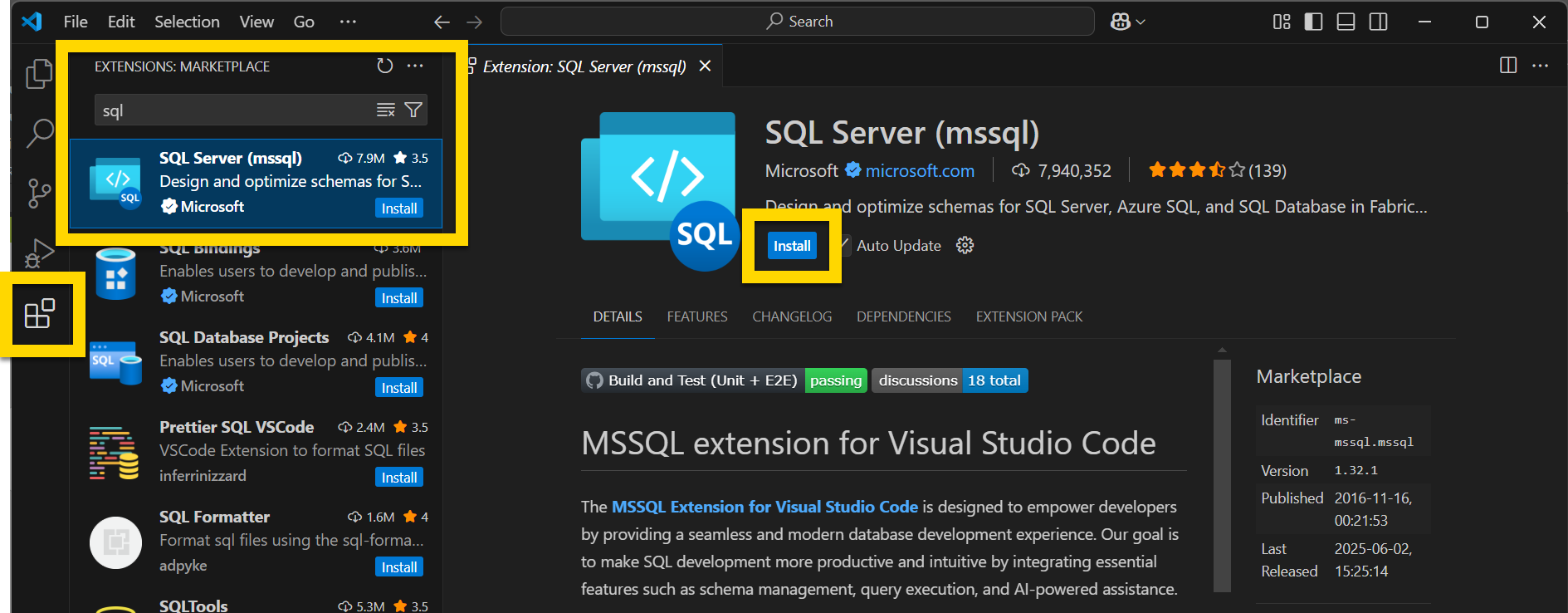
- After a successful install, SQL Server will appear as an option in the side menu. Select this option.
- Select Add Connection.
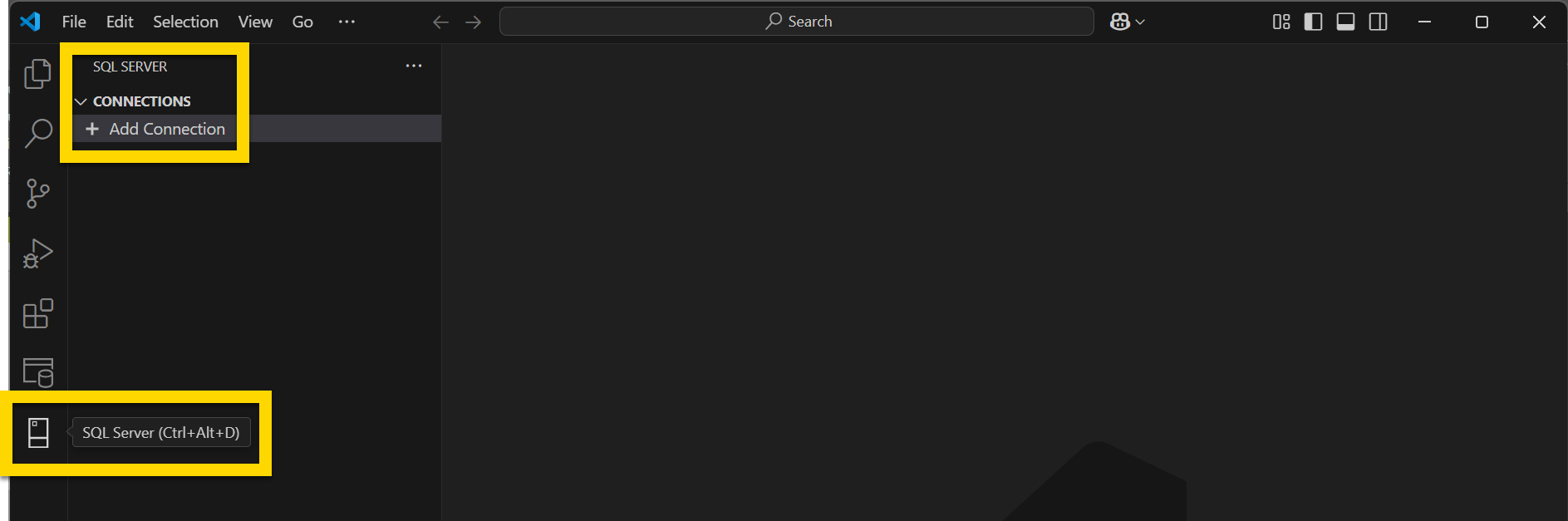
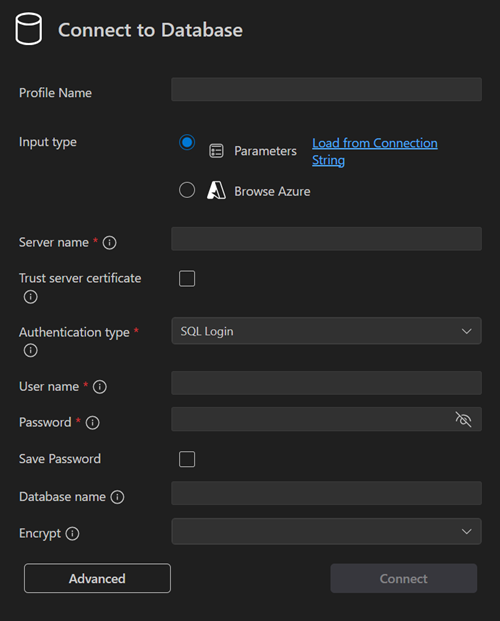
- Complete the following fields in the Connect to Database window:
- Profile name: This name will appear in your list of available connections.
- Recommended format: “Axon [Records or Standards]
[PROD or Training] [PW or Query] Datastore”
- Example: Axon Records PROD PW Datastore
- Recommended format: “Axon [Records or Standards]
[PROD or Training] [PW or Query] Datastore”
- Sever name: The name of the server you are connecting to
- Authentication type: SQL Login
- User name
- Password
- Save Password: Check this box to avoid entering your password each time you use VS Code.
- Database name: The name of the database you are connecting to
- Profile name: This name will appear in your list of available connections.
- Select Connect.
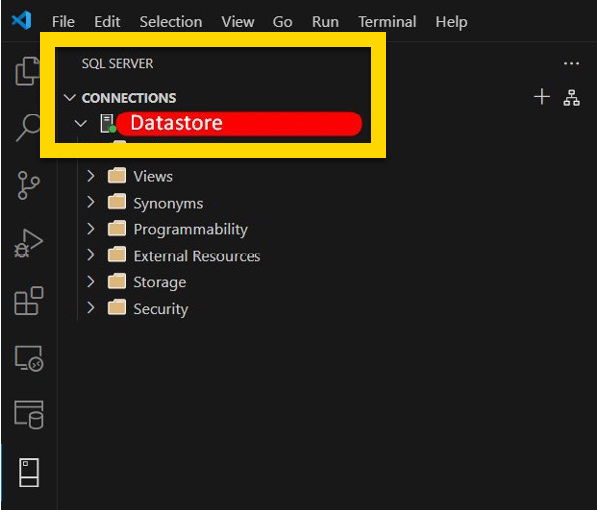
- Following a successful connection, the Profile name will appear in your Connections list.
Connect with Microsoft SQL Server Management Studio
To perform queries using Microsoft SQL Server Management Studio, take these steps:
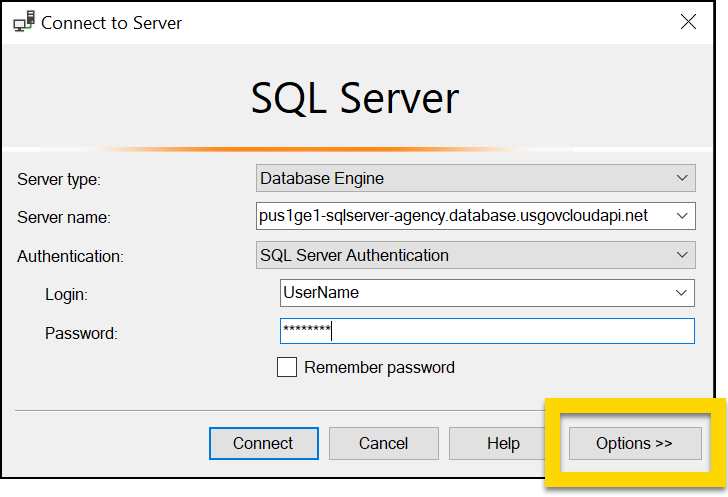
- Open Microsoft SQL Server Management Studio.
- A secondary Connect to Server will open.
- Enter the Server Name, Username, and Password
- Select Options.
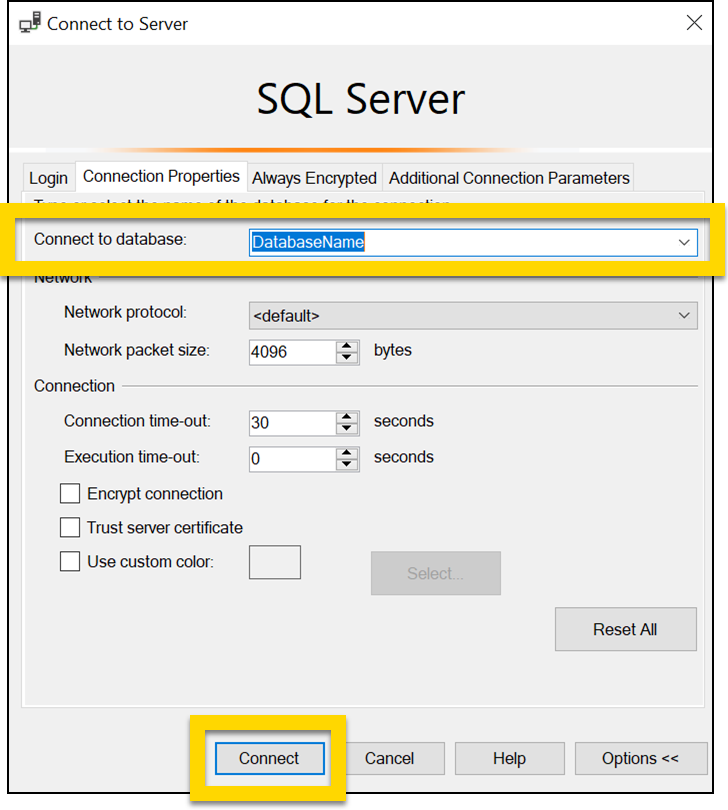
- Enter the Database name in the Connect to database field.
- Select Connect.
DataStore integrations
Connecting the DataStore to an external product is possible with any database compatible software. The DataStore can be connected via user or service accounts, using a SQL Server or ODBC connection. Axon Support can provide basic instructions on how to integrate the DataStore with your existing reporting software.
If you integrate the DataStore with external products, it is your organization's responsibility to build and maintain any external reports or analytics.
Axon Analytics and Power BI
The Analytics module in Axon Records and Axon Standards uses Power BI to visualize data. The video below provides a comprehensive overview of setting up a dashboard in Power BI, from data import to final customization and filtering.
This video covers the following topics:
- Importing data into Power BI
- Preparing and transforming data
- Building and customizing visualizations
- Customizing dashboard layouts
- Using slicers for data filtering
Once a Power BI dashboard has been created, it can be uploaded into the Analytics module in Axon Records and Axon Standards. The following video uses the Use of Force dashboard in Axon Standards to explain how users can interact with the Power BI dashboards and visualizations.
This video covers the following topics:
- Using tab and visualization filters
- Exploring map visualizations
- Viewing tool tips
- Interacting with tables and hyperlinks
- Dashboard privileges
- Activity log tabs
- Editing and exporting dashboards


