The redesigned Axon Evidence overview
A redesigned Axon Evidence experience — built for you
The redesigned Axon Evidence helps you manage evidence faster and more easily. Updates improve navigation, search, evidence details, the media player, and the admin experience. The new layout is simpler, helping you find and review evidence faster — so you can focus more on what matters most.
This is just the beginning. Future updates will include areas like Cases and Community Request, bringing the same streamlined experience across your workflows.
Get Started
2-minute videos
- Navigating Axon Evidence
- Search and manage evidence
- Overview of the evidence details page
- Use the media player
- Explore the Axon Admin Console
Side-by-side comparisons
View side-by-side comparisons of navigation, search, the evidence details page, and bulk actions.
Learn the essentials
The redesigned Axon Evidence helps you access tools and information efficiently. The top navigation menu is now a sidebar, so you can easily move between key areas. The evidence details page uses clear sections to help you review information and complete tasks quickly.
Watch this video to find your way around the redesigned Axon Evidence.
Navigate using the sidebar
The sidebar gives you quick access to every part of Axon Evidence. You can switch to a compact icon-only view if you prefer a cleaner workspace.
Watch this video to learn how to use the sidebar menu navigation.
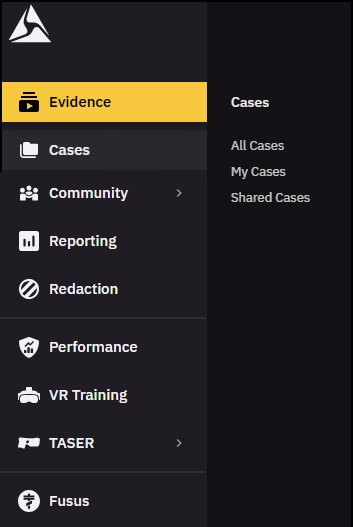
The navigation menu shows your tools and apps. Some menu items open directly. Others include more options you can choose from.
Select a menu item to view and choose from additional options.
Sidebar switcher
The sidebar has two views, expanded and collapsed. Switch between an expanded view with labels and a collapsed view with icons only. Select the sidebar switcher to change the way navigation is displayed. This helps personalize the layout to fit your workflow.
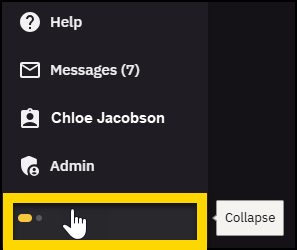
Use the Collapse/Expand button to change how the sidebar looks. The view stays the same the next time you sign in.
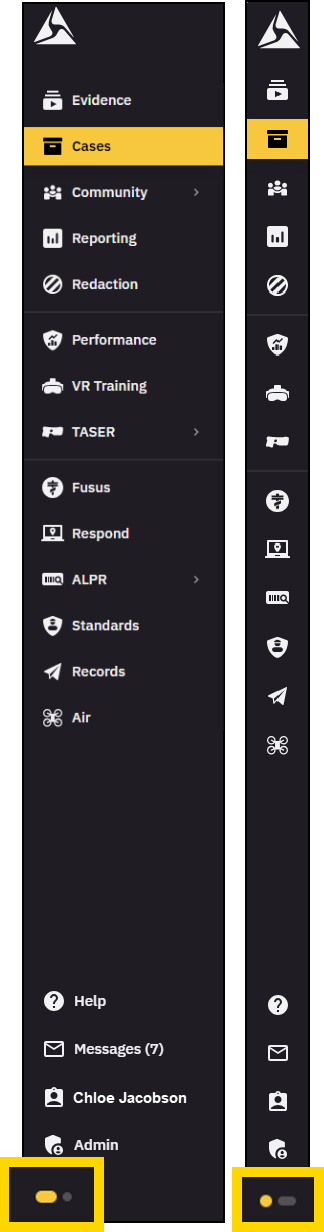
- Expand is the default. It shows both icons and text labels for each menu item.
- Collapse shows icons only. This view gives you more room to work.
Image showing the sidebar in both expanded and collapsed views. In expanded view, the both icons and text labels are shown for each menu item. In collapsed view, only icons are shown.
Use your keyboard to navigate
The sidebar supports full keyboard navigation in both expanded and pro rail views. The actions are mostly the same, but a few behave differently depending on how the sidebar is displayed. The table below shows how key actions work in each mode:
| Key | Expanded view | Collapsed view |
| Tab | Moves through menu items. The first press shows a Skip navigation option. | Moves through icons. Tooltips appear when an item is focused. |
| Enter | Opens the selected page or submenu. | Opens the submenu for the focused icon. |
| Up/Down arrows | Moves between menu items. | Moves between menu items. |
| Esc | Closes an open submenu. | Closes an open submenu. |
Admin and profile access
You can access system settings and your personal profile from the sidebar. Select Admin to manage organization-wide settings. Select your name to update your personal information, preferences, and view account details.

Customize your view
Switch between light mode and dark mode at any time. Light mode offers a bright, traditional display, while dark mode reduces glare and might be easier on the eyes in low-light environments. Your display mode preference is saved and applied the next time you sign in.
Watch this video to learn more about how to change your display mode.
From any page in Axon Evidence, select Switch to dark mode or Switch to light mode to change the display.

Select Switch to dark mode to change back.

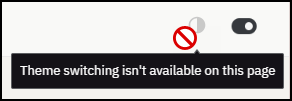
Some pages do not support theme switching. In those cases, the button will be grayed out and display the message "Theme switching isn't available on this page."
Switch between the redesigned Axon Evidence and legacy version
While you are getting familiar with the redesigned Axon Evidence and need to access the previous version, you can switch back to the classic version at any time.
Watch this video to learn how to change versions.
Switch to legacy Axon Evidence
From any page of the redesigned Axon Evidence, select Return to legacy Axon Evidence to open the previous version.

Switch back to the redesigned Axon Evidence
From any page of the redesigned Axon Evidence, select Try the new experience to open the new version.
What to expect when switching versions
- Your access and permissions stay the same in both versions.
- Any changes you make apply across both versions.
- The classic version will remain available for a limited time.
Webinars
These recorded webinars walk you through the vision, reasoning, prototype demos, and Q&A for the redesigned Axon Evidence. The prototypes shown may look slightly different from the final launch experience.
For the most complete overview, start with Final redesigned Axon Evidence, which includes highlights from the first two sessions.
- Redesigned Axon Evidence: Watch on-demand
- New admin experience: Watch on-demand
- Final redesigned Axon Evidence: Watch on-demand
Resources for administrators
If you are responsible for preparing your organization for the redesigned Axon Evidence, the Admin support toolkit gives you everything you need to manage the rollout and keep your teams informed. Use the toolkit to:
- Communicate the change with flyers, email templates, and email signatures
- Train your teams with short videos, webinar recordings, and slide decks
- Prepare for questions with a collection of FAQs you can share or reference
- Learn about the Admin Console


