Multicam Playback
In Axon Evidence, multicam playback helps you review simultaneous video recordings from multiple sources in one seamless view.This feature is helpful for analyzing complex incidents involving multiple individuals or camera angles.
Multicam videos appear automatically when these requirements are met:
- Requires a Pro license.
- The videos were recorded using Axon cameras: Axon Body 2, Axon Body 3, Axon Body 4, Axon Flex 2, or Axon Fleet.
- Each camera was running firmware version 1.9 or later.
- The cameras were within 30 feet (10 meters) of each other and recording for at least one minute (not including pre-event buffering).
- You have permission to view all videos involved.
Open and review videos in multicam
Multicam playback is available from any video that is part of a related group. Not all video evidence includes multicam.
- Select Evidence.
- Find the evidence you want to review.
- Select the evidence to open the evidence details page.
- Select the Overview tab.
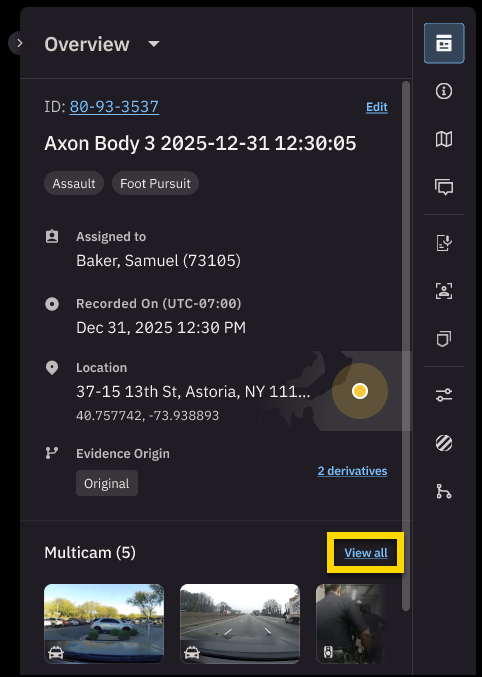
- Under Multicam, select View all to open the multicam selection page.
- Select the checkbox next to each video you want to review together. Select up to five videos to add them to the video selection area where you will preview them before playback.
Select Clear on a video to remove it from the review.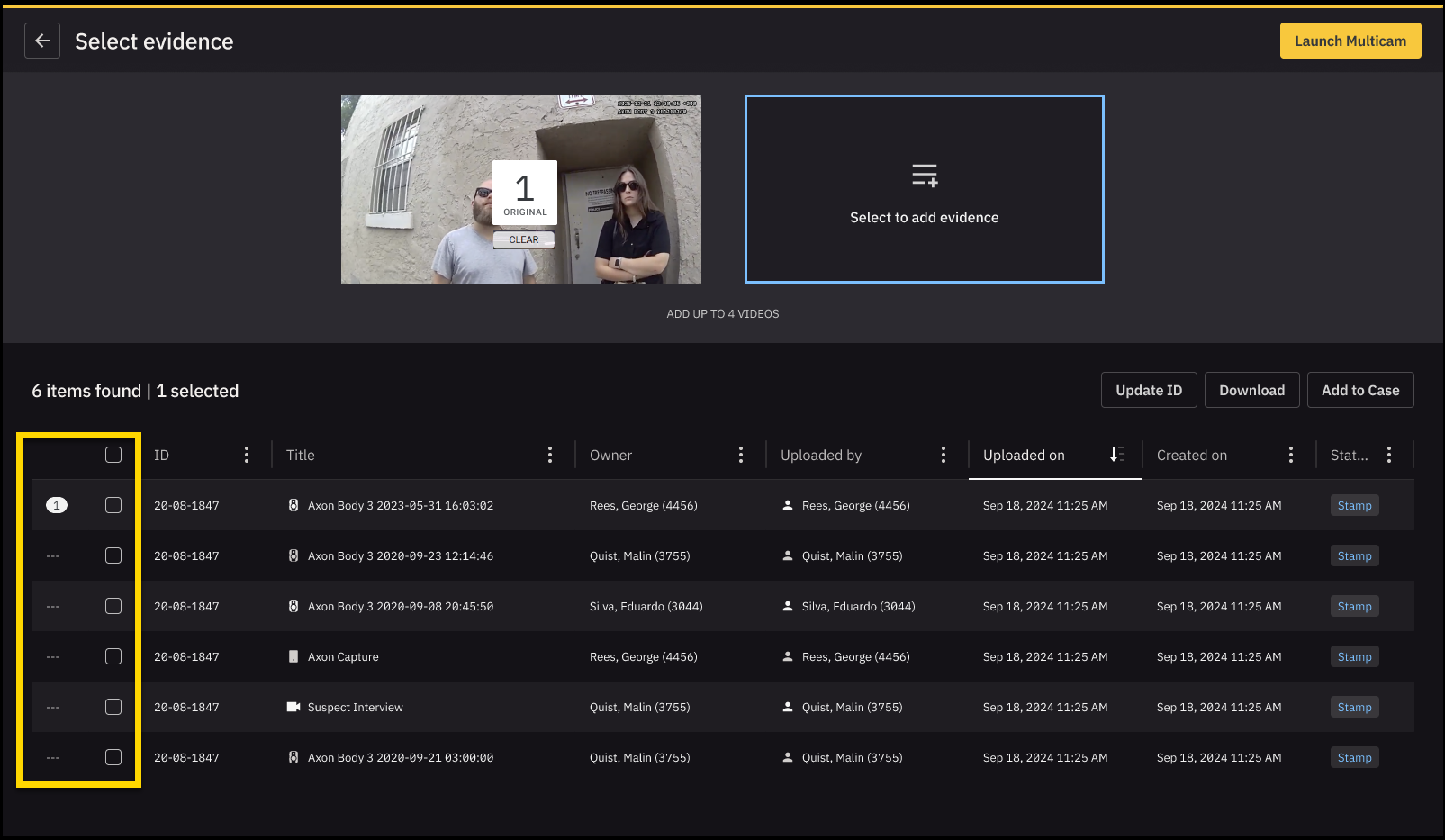
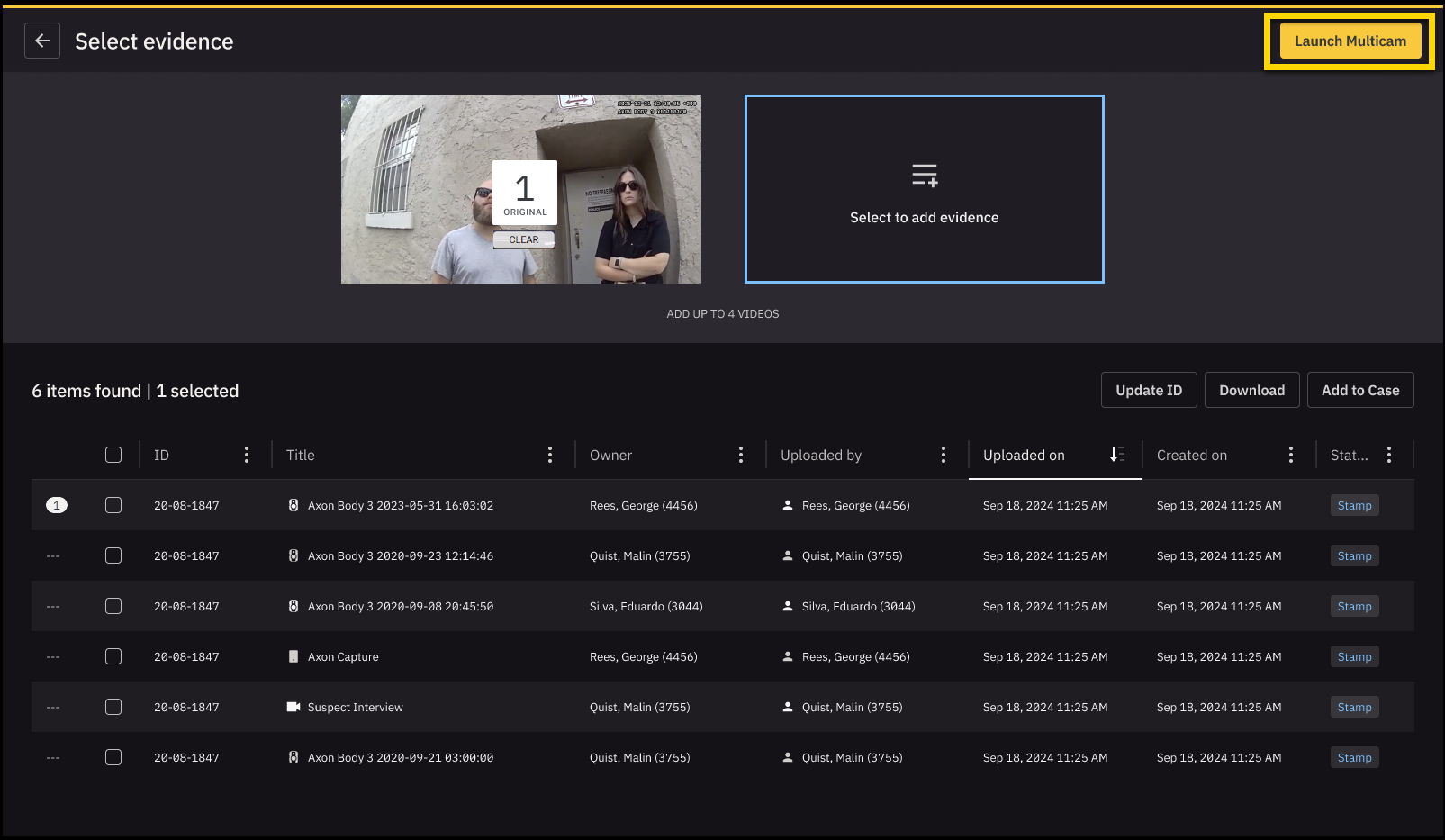
- Select Launch Multicam to open the multicam playback page.
- Use the playback bar to play, pause, or scrub through the timeline as needed.
- Select Extract to create a new piece of evidence. The "Extract Multicam View as New Evidence" pane opens showing the duration and selected audio stream.
- Select Extract. A confirmation message appears.
You will receive an email when the new multicam video is ready, and the video will be added to My Evidence.
Multicam interface and playback controls
The multicam playback page includes all the tools needed to review synchronized video and audio.
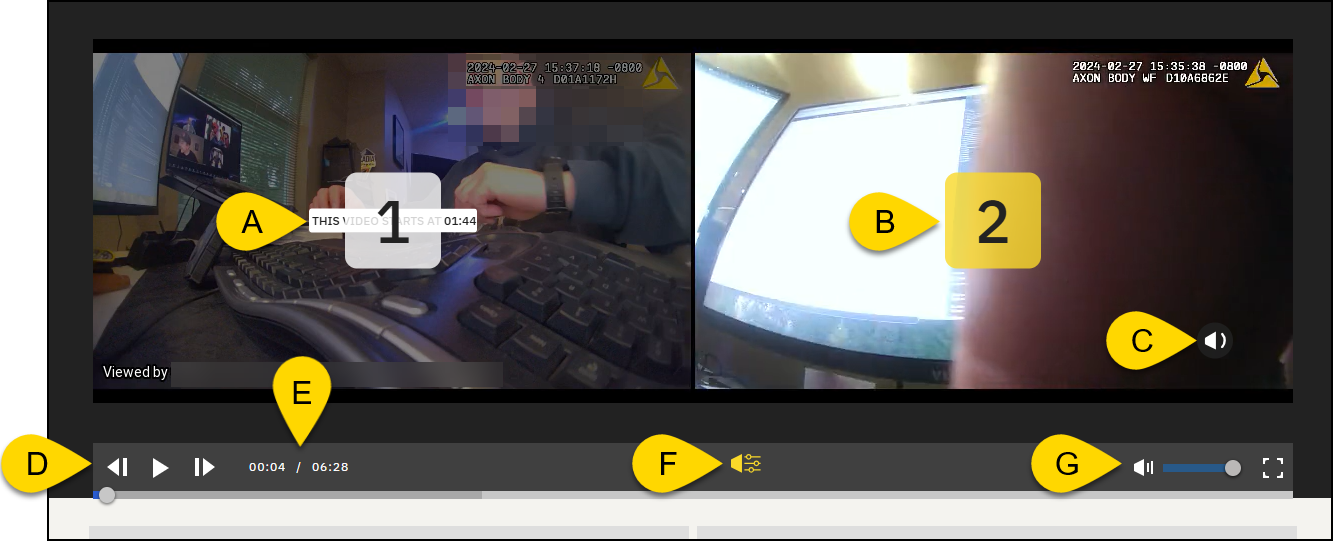
- Delayed start message: When a video starts later than the others, a message shows the exact timestamp it begins. This helps you track when each video becomes active.
- Video order and indicators: Each video is labeled with a large number that shows the order in which it was added to the multicam view.
- The video marked 1 is the original file you opened.
- Other videos are numbered based on selection order.
- The video marked with a yellow box highlights the active video for audio.
- Active audio indicator: An audio icon indicates which video's audio is currently playing.
- Playback controls: Standard controls to play, pause, or step forward/backward by frame.
- Time counter: Displays the current playback position and total video duration.
- The timeline is shared across all videos.
- Scrubbing or jumping affects all videos uniformly.
- Audio selector: Choose which video's audio to hear during playback. Only one audio stream can play at a time.
- Volume and full screen: Adjust playback volume with the slider. Select the full screen button to expand the video player.
Multicam notes
This is only available for Corrections customers.
Adding notes
In the notes field, add your note and then select Post Note.
A pop-up text informs you when the note is successfully added.
If the note fails to post due to a connection issue, an error message informs you the note was not posted. Check which pieces of evidence did not receive the note and add the note as needed.
Editing notes
Select Edit, make the desired changes, and then select Update.
Deleting notes
Select Delete, and then select Delete in the confirmation window.
Syncing notes across evidence views
Notes sync across evidence views. Any changes made are reflected automatically.


