Form Builder
Form Builder lets you manage your organization's forms and subforms. Forms provide the structure for users to create reports. In Form Builder, you can view:
- View the current status of your organization's forms (draft, published, archived).
- Edit existing forms and subforms, including adding cards and fields.
- Revert back to a previous version of a given form or subform.
- Archive forms and subforms.
This video contains a brief overview of Form Builder.
Access Form Builder
To access Form Builder:
- Open the Administrator Console by selecting the gear icon.
- Select Form Builder (Early Access).
- Select a tab to view the forms used in that area of the product (i.e., Records, Standards, Warrants, etc.).
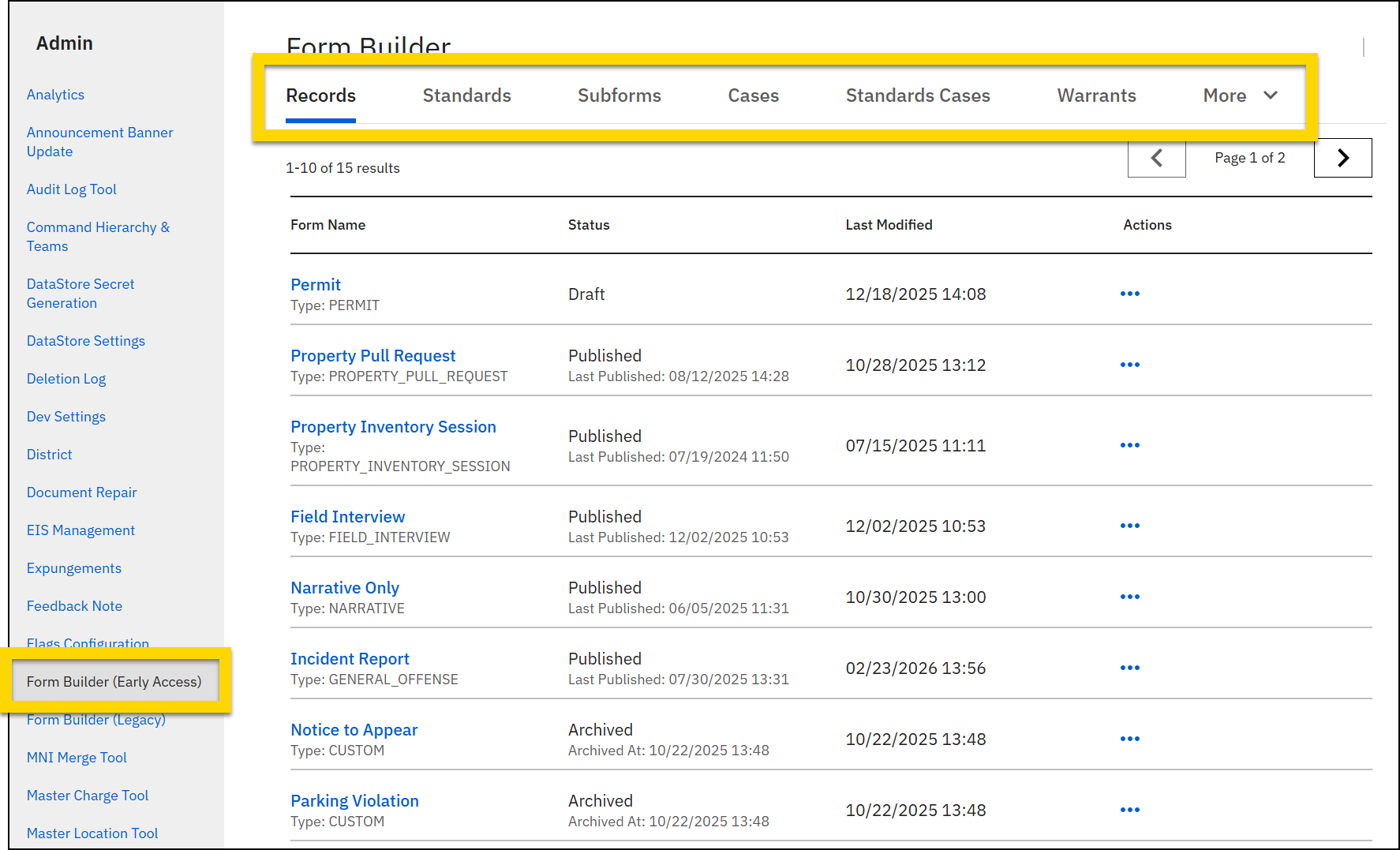
The following information is provided about each form in the list:
- Form name
- Select the blue hyperlink form name to open the form and edit it.
- The form type is listed under the form name. If it is a standard form created by Axon, the type name is listed. If it is a custom form that has been created for your organization, the type is "Custom".
- Status
-
Forms can have one of the following statuses:
- Published: The form is live and matches what users see when creating reports in Report Writer.
- The date the form was last published is also displayed. Note that if this date is prior to the date in the Last modified column, this indicates that the published form has unpublished draft changes.
- Archived: The form is no longer active, and users can no longer use it when creating new reports.
- The form can be unarchived and republished if needed.The date the form was last published is displayed.
- Draft: The form is in draft and has never been published.
- If a form has been published but has edits that have not yet been published, the form status displays as Published.
- Published: The form is live and matches what users see when creating reports in Report Writer.
-
- Last modified
- The date and time of the most recent change made to the form, including edits to the form fields or status changes (such as publishing or archiving).
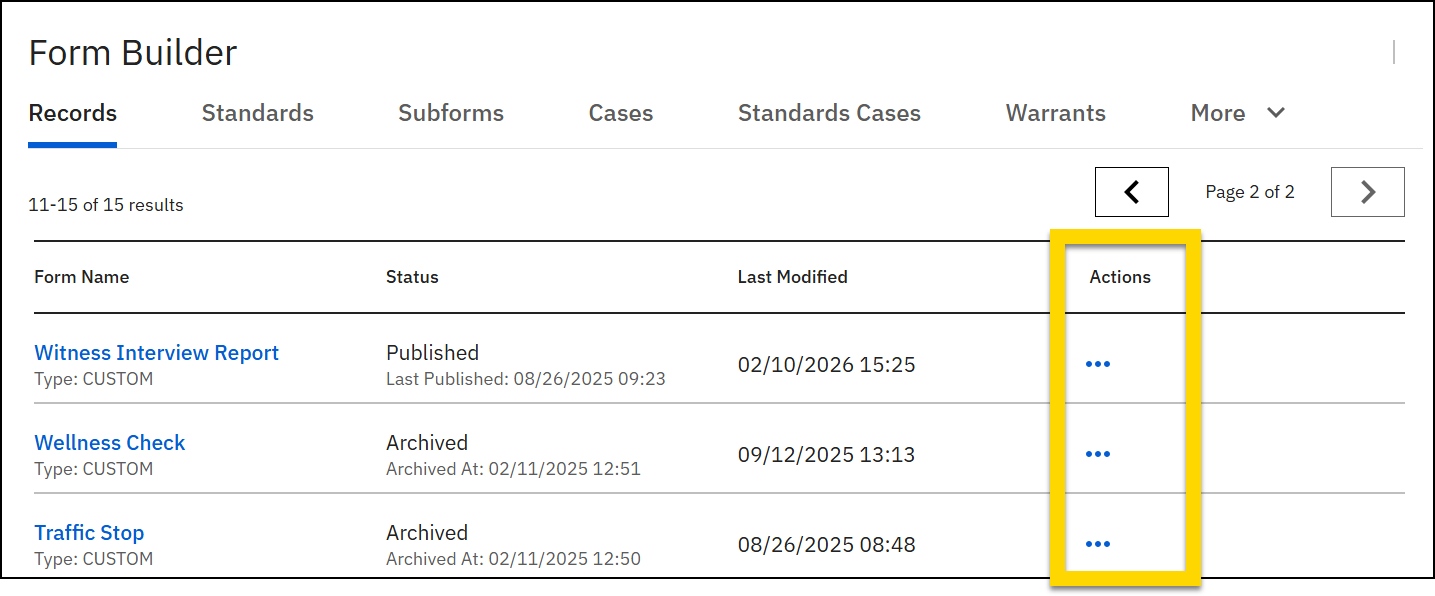
- Actions
- Includes actions you can take on the form, including:
- View activity log
- Archive
- Discard draft
- Includes actions you can take on the form, including:
Watch this video for an overview of accessing and navigating Form Builder.
View activity logs
All actions taken on forms and subforms appear in the activity log, including when a form or subform was last edited, published, or archived and who performed these actions. This information can help track changes and troubleshoot issues, as well as maintain accountability.
When you view a form or subform activity log, you can access the following information:
- Date and time: The exact date and time when a status was changed.
- Action: The specific action taken on the form or subform, such as editing, discarding a draft, publishing, or archiving.
- User: The name of the person who performed the action.
At this time, the activity log displays the name of the Axon representative who made a change. In a future release, it will display "Axon Support" for all changes made internally by Axon staff.
By default, the activity log shows the newest changes first. Use the Sort By dropdown to show the oldest changes first instead.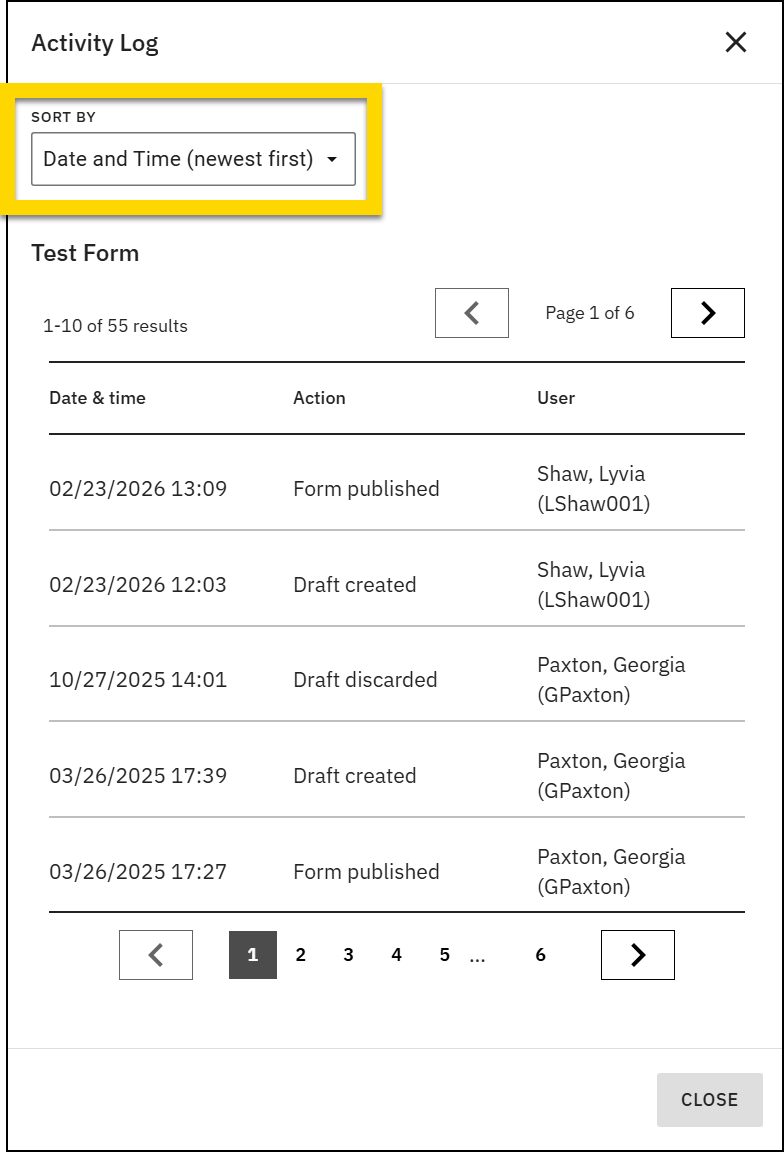
To view a form's or subform's activity log:
- Open Form Builder and switch to the tab that contains the form or subform.
- Locate the form or subform you want to review.
- Select More actions [...] > View activity log in the Actions column.
Watch this video, starting at 04:43, for an overview of the activity log.


