My profile
The Personnel module contains detailed employee information beyond basic demographics, including service history, performance, education, and more. Each user with the appropriate privileges can view their profile, and the profile of others.
To view your own profile, open the Personnel module and select your profile summary. To view the profile of another user, search for them using the search bar.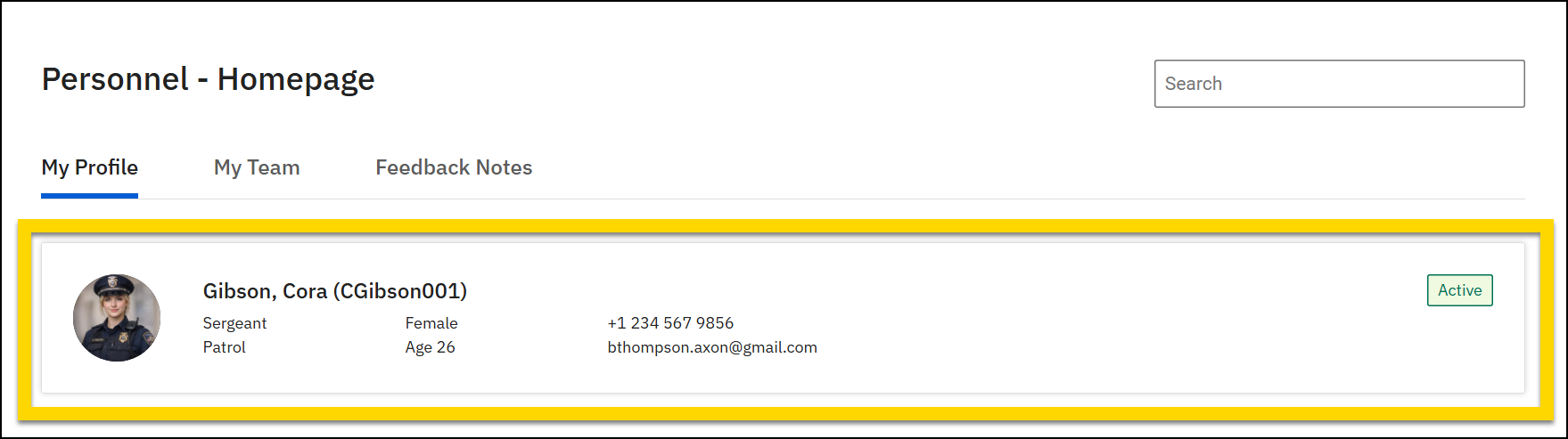
A profile contains various tabs and within those tabs sections that all contain different information:
- Personnel: Contains basic information and records for the user. Sections on this tab include:
- Demographics: Personal and background details
- Service history: Employment timelines, including absences, assignments, light duty, and separations
- Commendations and awards: Recognitions and achievements
- Performance reviews: Detailed performance evaluation records
- Promotions: Career advancement through the ranks
- Discipline: Formal record of disciplinary actions
- Command Hierarchy: Displays the Command Hierarchy Groups the user belongs to
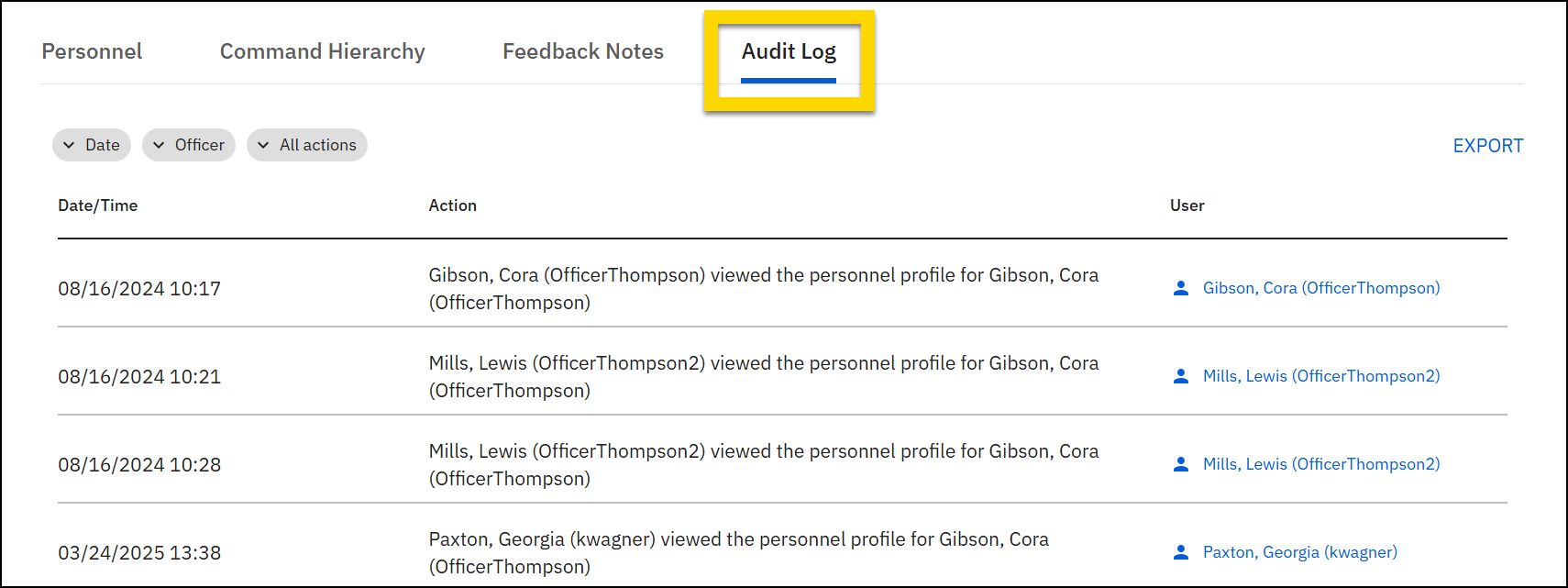
- Audit log: Contains a record of all actions taken on that user's profile
See Personnel fields for more information about the fields that appear by default in the Personnel module. These fields can be configured for each organization.
Update profile
Users with the appropriate profiles can edit profiles by taking the following actions:
- Select the category you want to update (e.g., Service history, Performance review, etc.).
- The process for managing the Demographics section is slightly different. See the Demographics section below for more information.
- Select Add new in the top right corner.
- Fill out all required fields.
- Select Add attachment if have any documents or files you need to include with the record.
- Select Save.
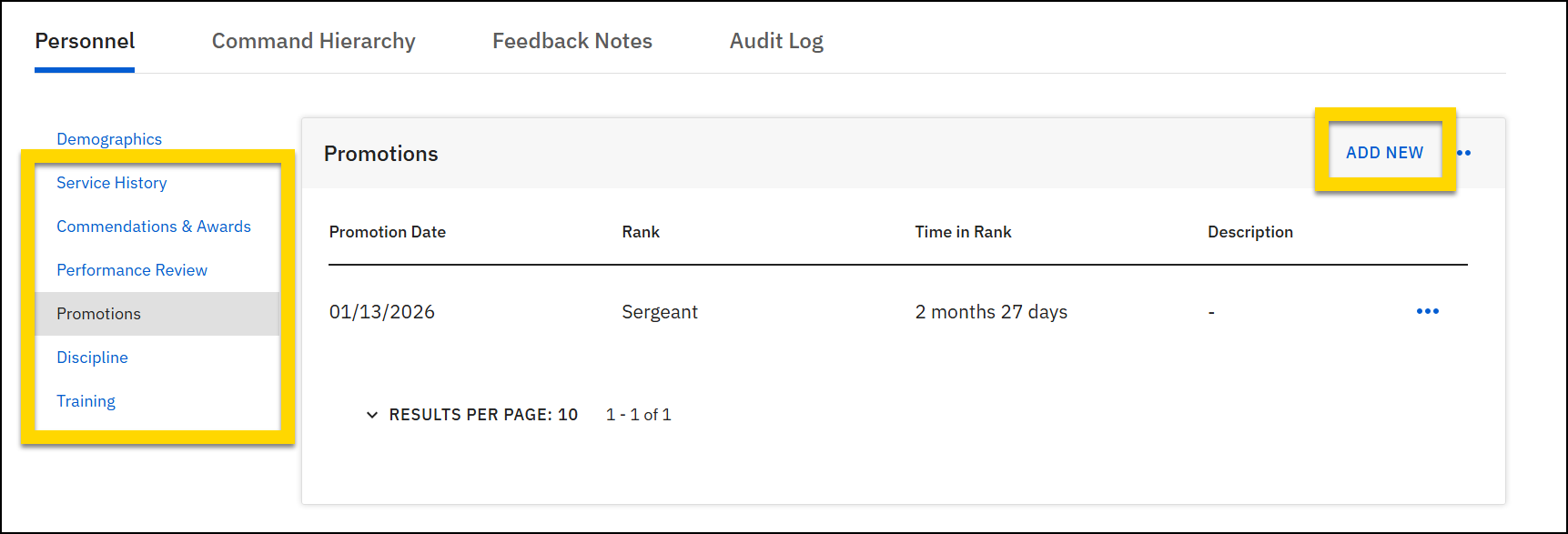
To add information to multiple users, use the Personnel Import Tool in the Administrator Console.
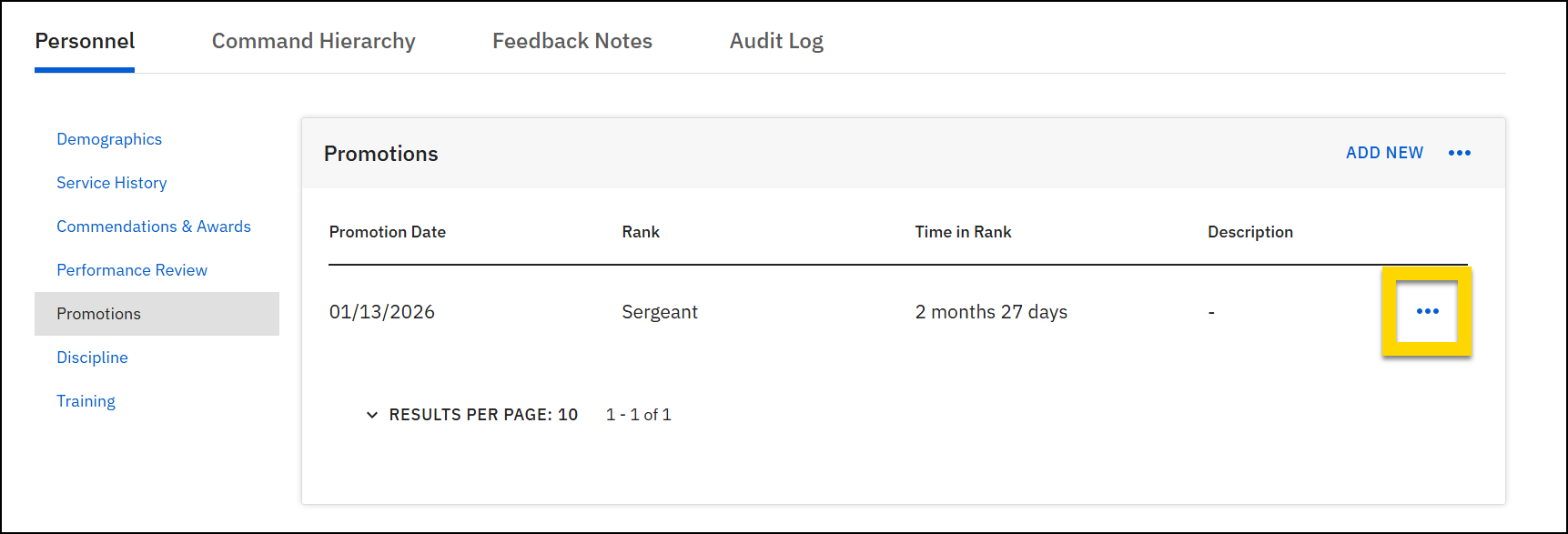
To edit or delete existing record, open the More actions [...] menu for that record and choose an action.
- Edit: This will allow you to update information or remove attachments. Within the edit mode, you can change any detail or click Remove next to an attachment to delete it.
- Delete: This allows you to completely remove a record. A confirmation prompt appears to prevent accidental deletions.
Update Demographics information
Select the pencil icon located in the right corner of the Demographics section to modify demographic details.
With most of the demographic fields, you can add or edit information by selecting the field and typing. If the field is a dropdown menu, select from the available options. 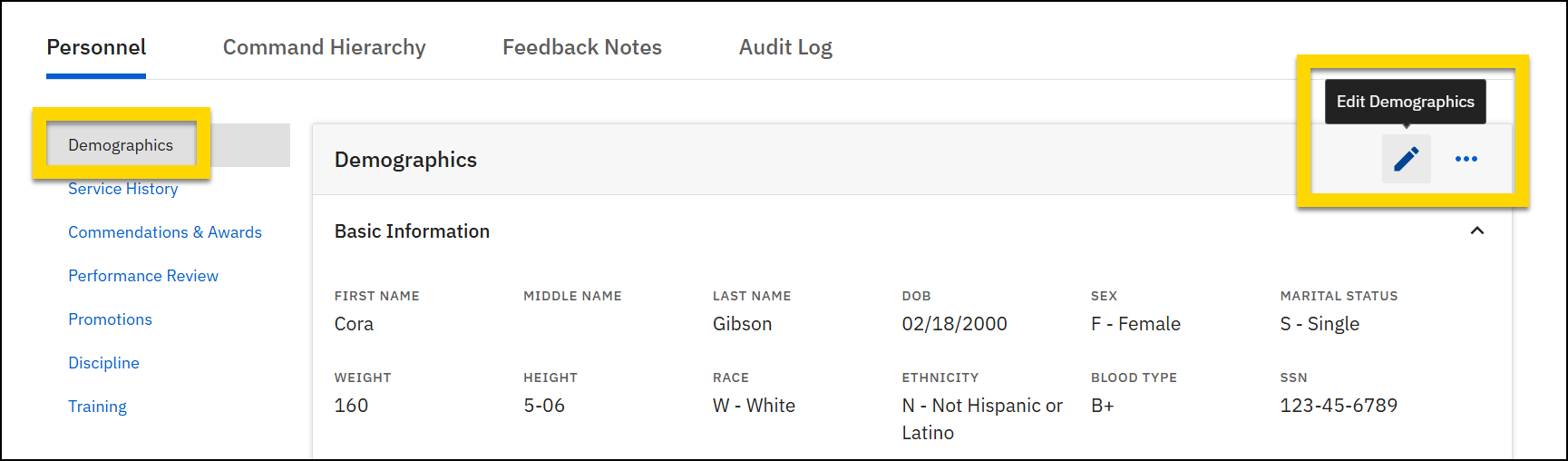
To add an emergency contact, educational history, or skill select Add new. A new set of fields appears, allowing you to enter information. To remove an existing emergency contact, educational history, or skill from the profile, select Remove next to the item you wish to delete. 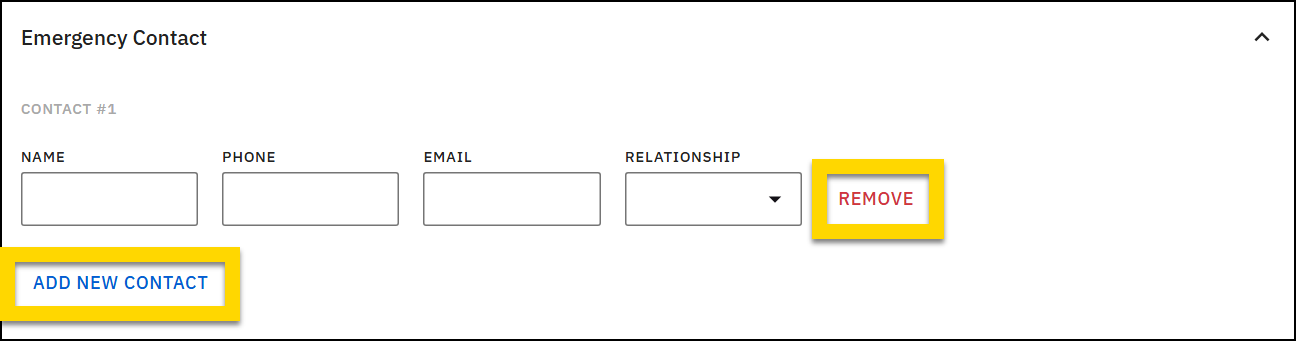
After completing all edits, scroll to the bottom of the page and select Save.
You can configure your reports to auto-fill with certain fields from the Personnel module (e.g., precinct, unit, race, Officer ID, etc.). Contact your Axon representative or Axon Support to set up this configuration.
Audit log
The Audit log tab within each user's profile contains a comprehensive record of all actions taken on that specific profile. Each entry includes the date and time of the action, the modification made, and the user made the change.
The audit log entries are listed from oldest to newest. These entries are automatically created and cannot be altered or added manually. Use the filters at the top of the Audit Log to sort the information by date, name, badge number, or action type. Select Export to export the table to a CSV file.