Distribution requests
You can request that a report or document be sent to external or internal parties. These requests appear in the Distribution Requests inbox.
Distribution Requests inbox
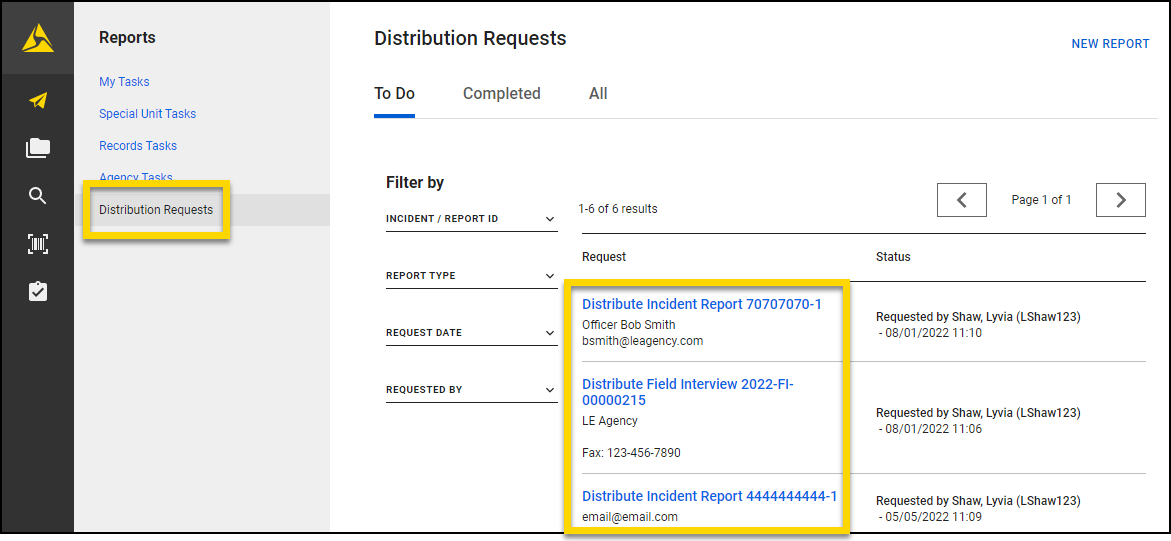
Users responsible for sending reports and other documents to external and internal parties can access the Distribution Requests inbox. The three tabs at the top of the screen allow you to switch between tasks you need To Do, tasks you have Completed, and All tasks.
Users can submit a distribution request while a report is in progress, but requests only appear in the Distribution Requests inbox once the report is finalized.
The most recently updated tasks appear at the top of the list. Use the following options to filter which tasks are displayed:
- Incident/Report ID
- Request Date
- Requested By
- Distributed By
The following information is included for each request: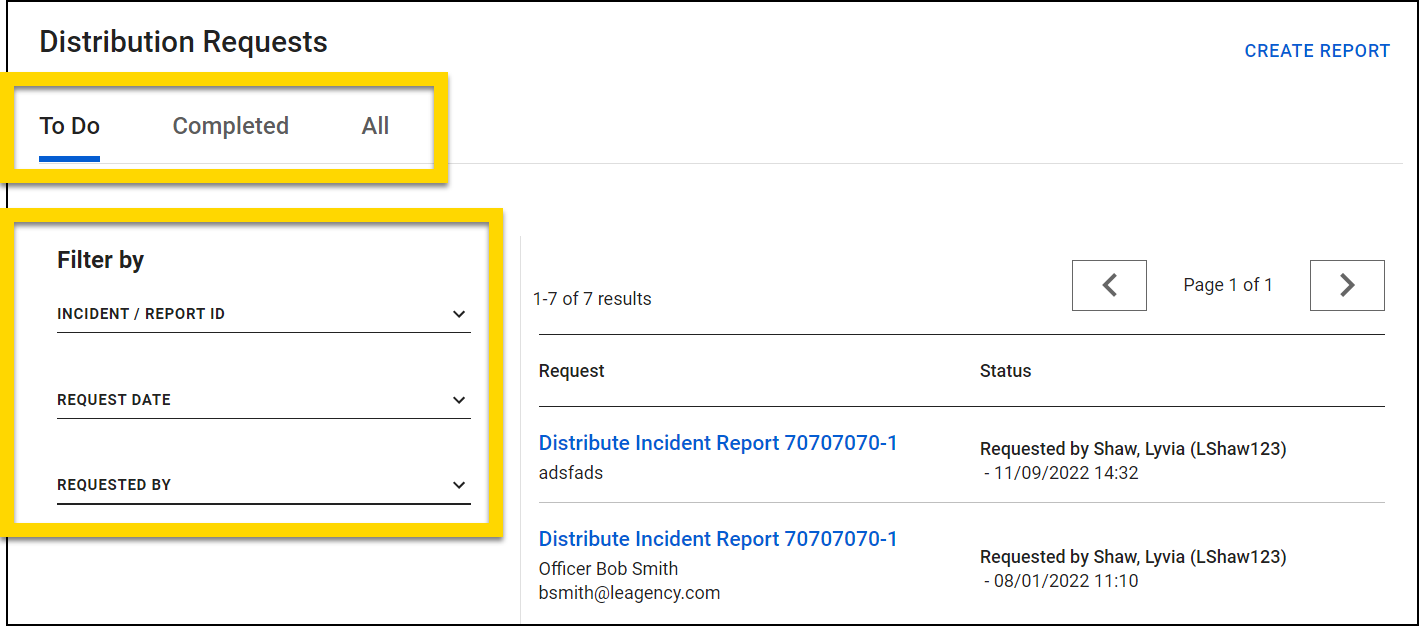
Request
- The distribution request Report ID
- Selecting the distribution request opens the report so you can manage the request.
- The contact information for the people or agencies receiving the report
Status
- Who requested the distribution
- The date and time of the request
- Who completed the distribution (Completed and All tabs)
- The date and time the distribution was marked as complete (Completed and All tabs)
Create distribution requests
To create a distribution request, follow these steps:
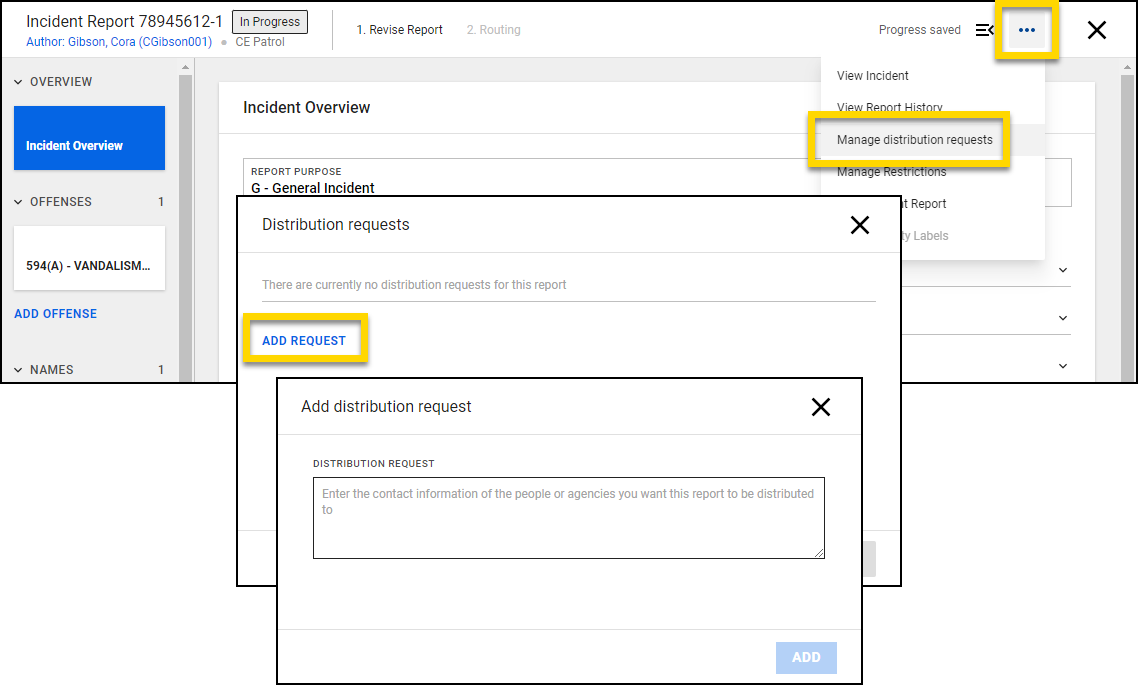
- Open the report's More Actions [...] menu and select Manage distribution requests.
- Select Add Request, provide contact information for the recipient, and select Add.
Your request will appear in the Distribution Requests window. When a clerk completes the distribution, this window will show the date and time of distribution. You can request additional distributions by selecting Add Request again.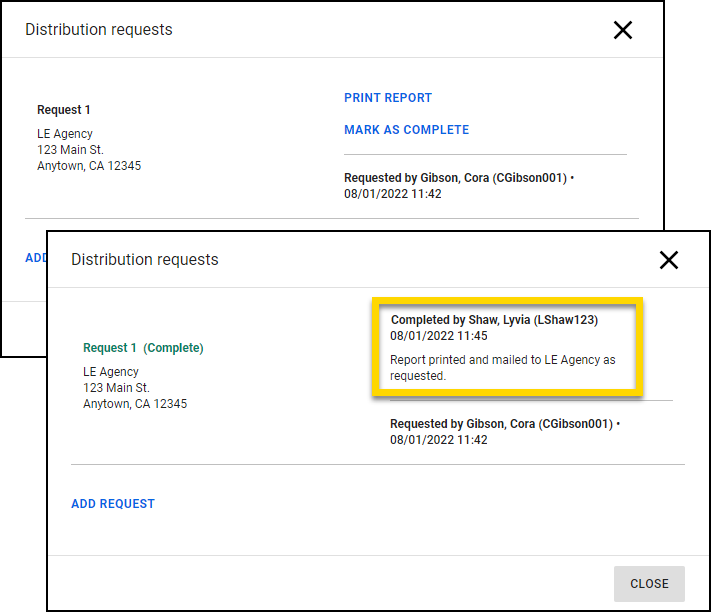
If you want to share a case with another agency, see Case share overview.
Complete distribution requests
To complete a distribution request, take these steps:
- Select a task name in the Distribution Requests inbox.
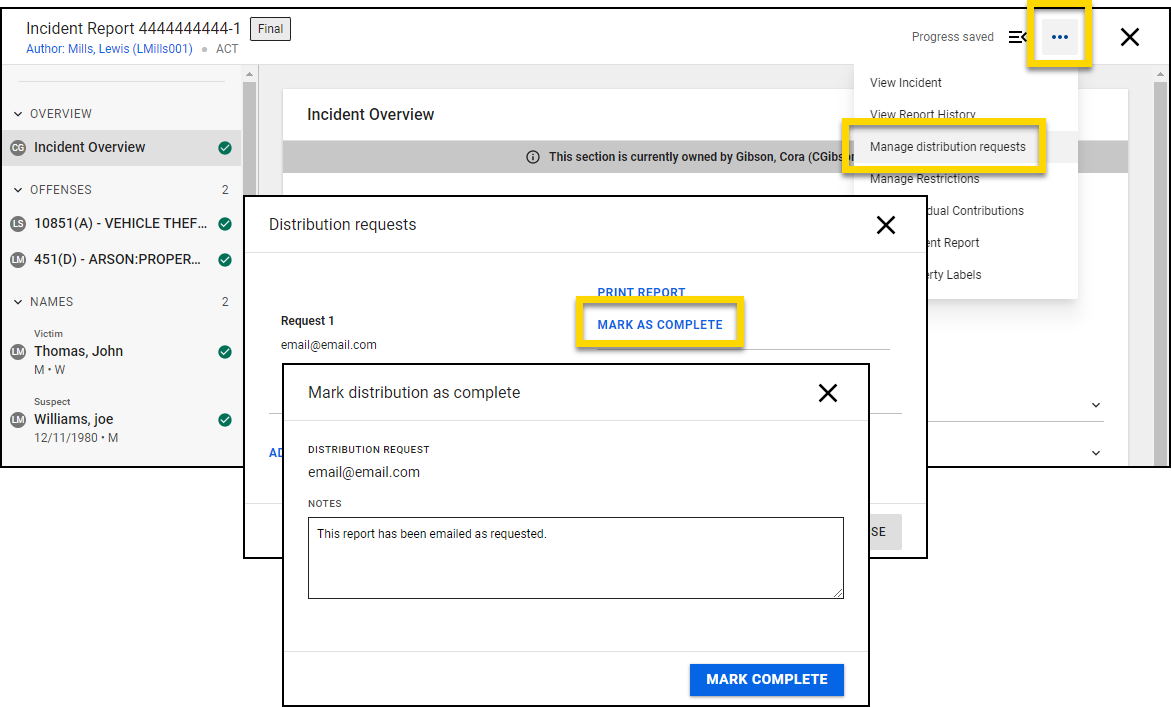
- Select More Actions [...] > Manage distribution requests.
- Select Print Report, choose the information you want to include, and select Print.
- The report will open in a new browser tab where you can save it as a PDF or print it. (See Print Reports, Incidents, and Events for more information.)
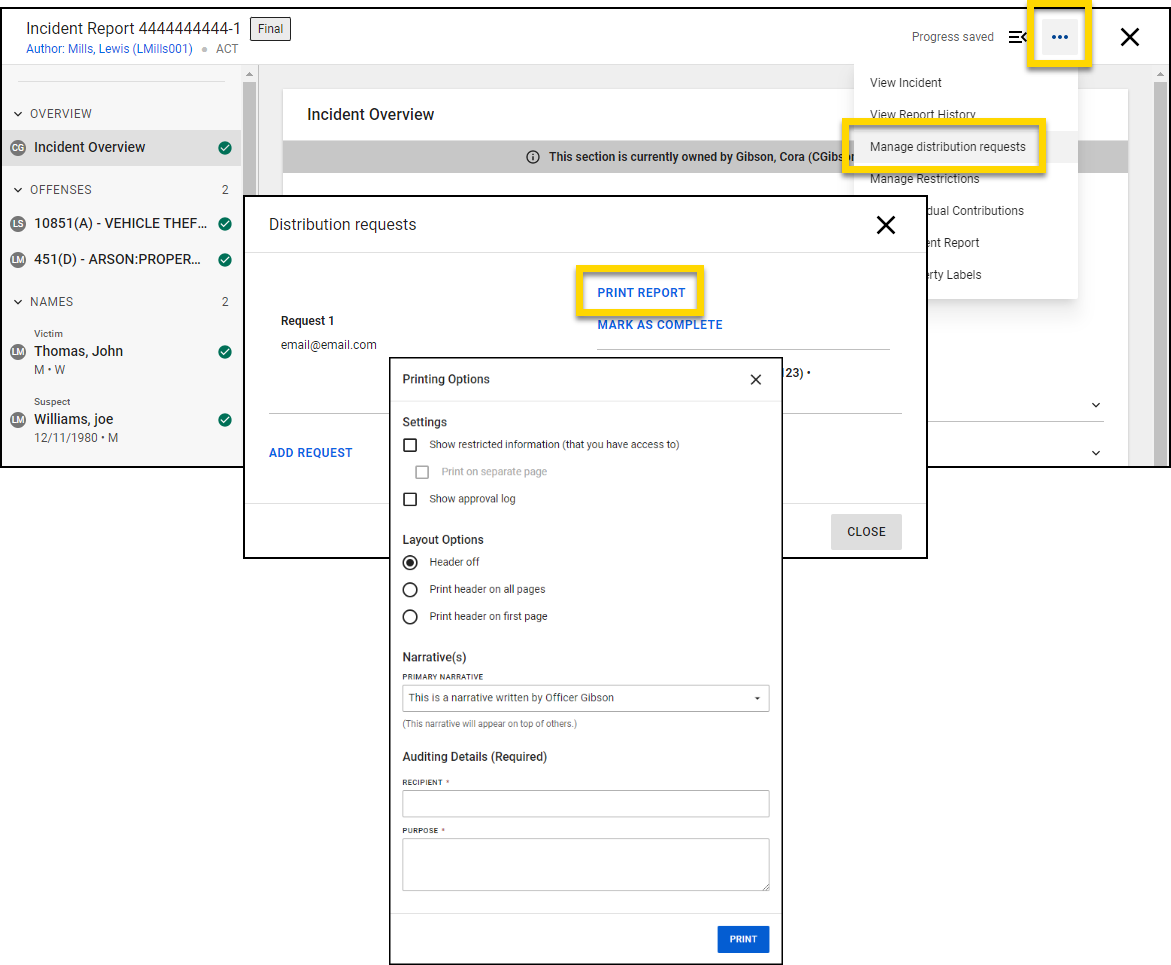
- Once you've sent the report to the requested party, return to the report and select More Actions [...] > Manage distribution requests.
- Select Mark as Complete, enter distribution notes, and select Mark Complete. The distribution request will move to the Completed tab in the Distribution Requests inbox.