Search partner data
Your organization can share your data with other organizations who also use Axon Records. In return, those partner organizations can share their data with your organization. This sharing lets your users search for information entered in the Axon Records systems of your partner organizations. This data-sharing method provides critical officer safety information and accelerates crime-solving efforts.
When this data sharing is set up, users can view the following information from partner organizations based on what your partner organizations agree to share with your organization:
- Preview incidents, out of the box reports (field interviews, incident reports, etc.) and warrants
- People profiles
- Vehicle profiles
- Locations
- Organizations
The following data cannot be shared with partner organizations:
- Custom forms
- Files
- Bookings
- Calls for Service
- Property
- Permits
Administration
Before setting up the data sharing feature, your organization must set up a data sharing agreement with the organizations you want to share data with.
Once the data sharing agreement is in place, you can work with your Axon representative to enable this data-sharing feature. When setting it up, you must determine:
- Which organizations you want to share your data with
- Which information you want to share with each organization (i.e., the scope of the data share). Options include:
- Previews of incidents
- When you share incidents with other organizations, all of the following data is also included in the share.
- Previews of warrant documents
- People
- Vehicles
- Locations
- Organizations
- Previews of incidents
After you have set up data sharing with another organization, you can grant the following privilege to your organization's Command Hierarchy Groups and teams to let your organization's users view shared information.
- MultiJuris: View data from other partners while logging into home agency
This privilege grants access to data from ALL partner organizations. At this time, you cannot grant access to the data from some organizations but not others.
Search partner data
To perform a search for partner data:
- Open search by selecting the magnifying glass from the main navigation menu.
- Select a search tab to view search results for that category.
- You cannot search for partner data while viewing All search results. Instead, you must select one of the search tabs and perform a search there.
- In the Results settings section, turn on the Include partner agency results setting.
- If that data type has not been shared with you by any partner organizations, this setting will not appear.
- When the setting is enabled, a list of available partner organizations appears. Use the checkboxes to indicate which organizations you want to include in your search.
- If you switch to a different search tab, you must turn on this setting again and select which organization's data to search.
- Depending on your organization's sharing agreements, each search tab may contain different organizations.
- Run a search, either by entering a term in the search bar or by using filters.
- Some filters only work with your organization’s data and will not return search results from partner organizations, even if the Include partner agency results setting is enabled. If a filter only returns information from your organization, a message appears below the filter.
- Results from partner organizations have a gray label that contains the name of the organization the data belongs to.
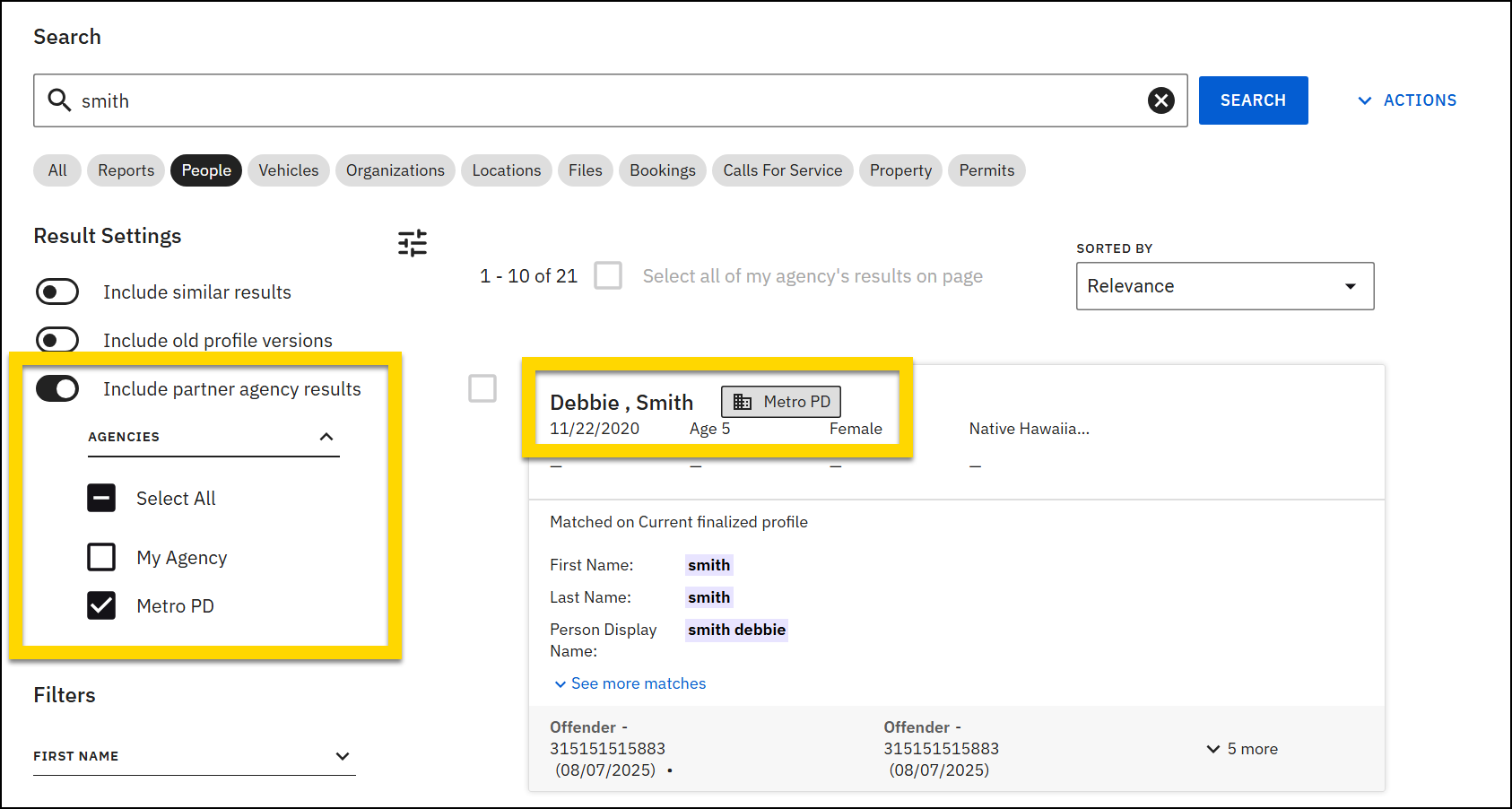
You cannot export partner organization search results. Additionally, you cannot add person profiles from partner organizations to your organization’s MNI Merge Tool. Profiles for partner organizations are read-only and cannot be edited.
View partner data
When viewing data for partner organizations, the amount of data you can see varies depending on the data type.
Reports
At this time, when searching for partner data from the Reports tab, you can only view the search results, which contain a preview of the report or warrant. You cannot select a search result to open the report. In the future, functionality will be introduced to allow you to view additional information for reports generated by partner organizations.
Profiles
When searching for people, vehicle, location, and organization data, you can view the full profiles from partner organizations, including basic details, descriptions, etc. A banner at the top of these profiles indicates that they are read-only and cannot be edited. Flags appear as usual at the top of the profile. In the future, additional functionality will be introduced to allow you to view photos that have been added to person profiles.
The Associations section only appears for partner organizations that have been granted access to view previews of reports and warrant documents. This section lists all non-restricted incidents, reports, and warrants associated with the profile. You can only view the report previews in this section and are not able to open the report. Viewing additional report information will be introduced in the future.
Warrants
You cannot search for warrants from partner organizations in your organization's Agency Court Papers inbox in the Warrants module. However, if a person from a partner organization is associated with a warrant, that warrant will appear as a result on the Reports tab and in the Associations section on their profile. As with reports, currently you can only view the warrant preview and not the full document.
Restrictions
If a partner agency has restricted a report, that report will NOT be visible to your organization, either in search results or in the Associations section on profiles.
Audit logs
When viewing the audit log from the Administrator Console, events related to viewing partner organizations data include “Multi-Juris” in the Details column. Events include:
- View: [Multi-Juris View] user viewed ID from partner organization.
- Example: [Multi-Juris View] Shaw; Lyvia (LShaw) viewed Person ID PER2500034625 from westmercercitypd
- Search: [Multi-Juris Search] User searched Records search category with filters: Partner Agencies: [`partner organization `]. Results: Number of results
- Example: [Multi-Juris Search] Shaw; Lyvia (ThompsonB) searched Records incidents with filters: Partner Agencies: [`westmercercitypd `]. Results: 2
The audit log lets you see how users are accessing your data, whether they belong to your organization or a partner organization. Similarly, you can always see which data users from your organization are accessing, whether the data belongs to your organization or a partner organization.


