Update firmware for VR Controllers
It's important to keep VR Controllers up to date with the latest firmware to help make sure optimal performance. Furthermore, some apps require the latest firmware.
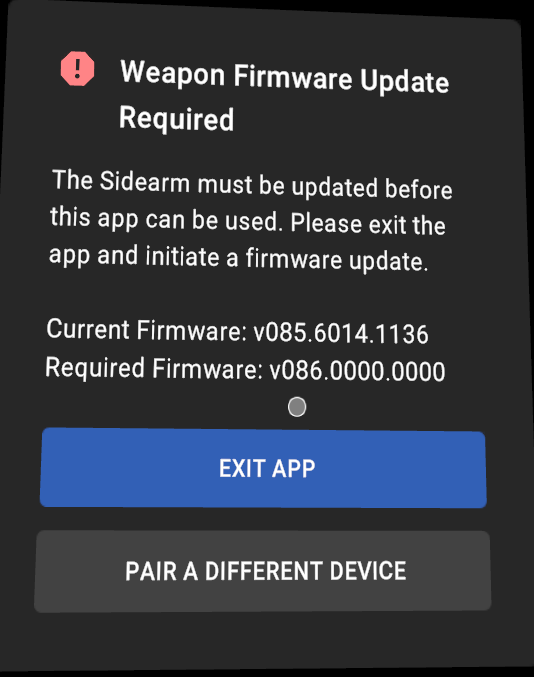
Before updating the firmware, you must first pair a controller. For more information on pairing, see Pair VR Controller with headset.
To update firmware for a VR Controller:
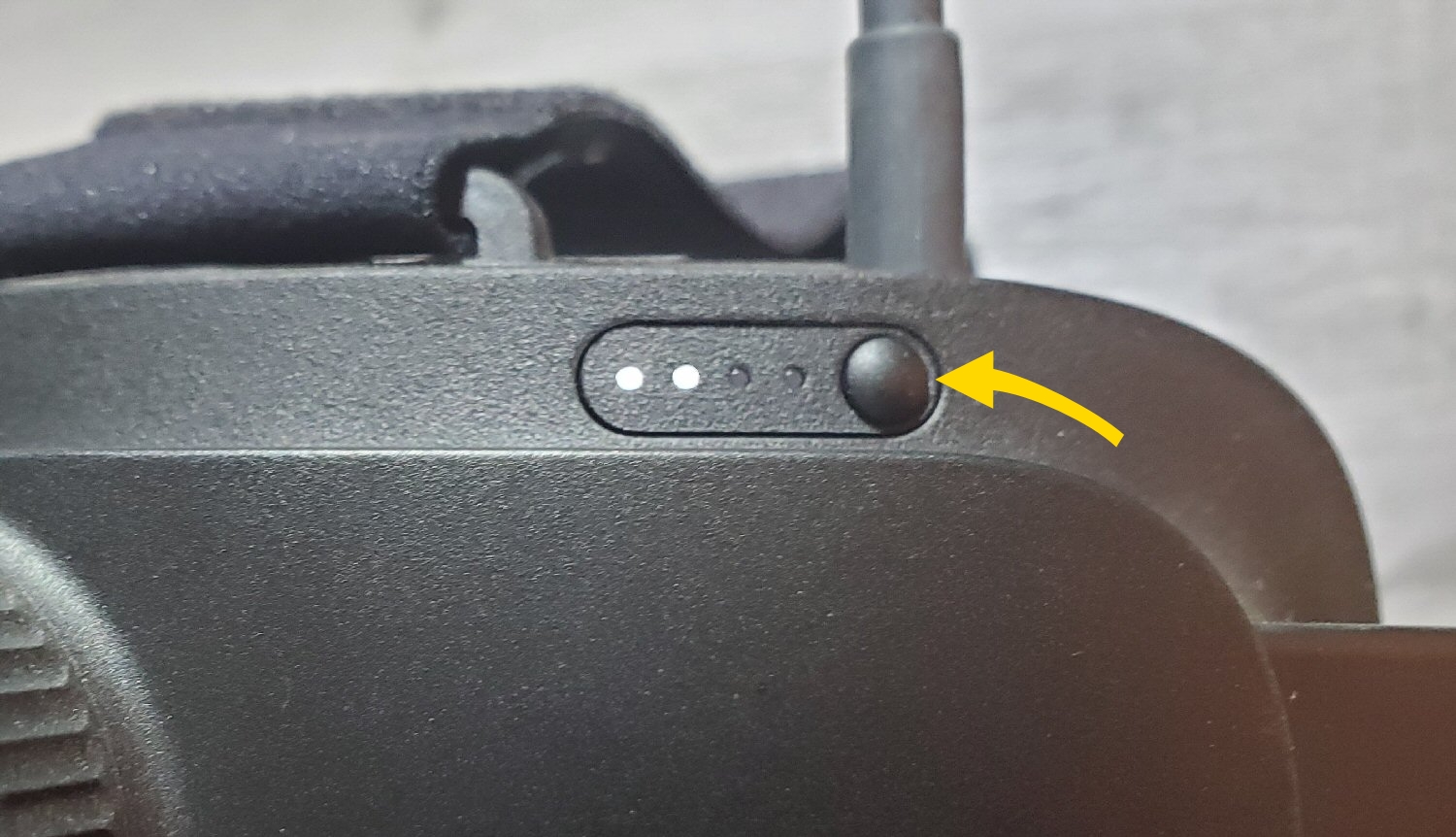
- Turn on your headset by pressing the Power button for about five seconds.
- Put on the headset.
- Accept the boundary messages.
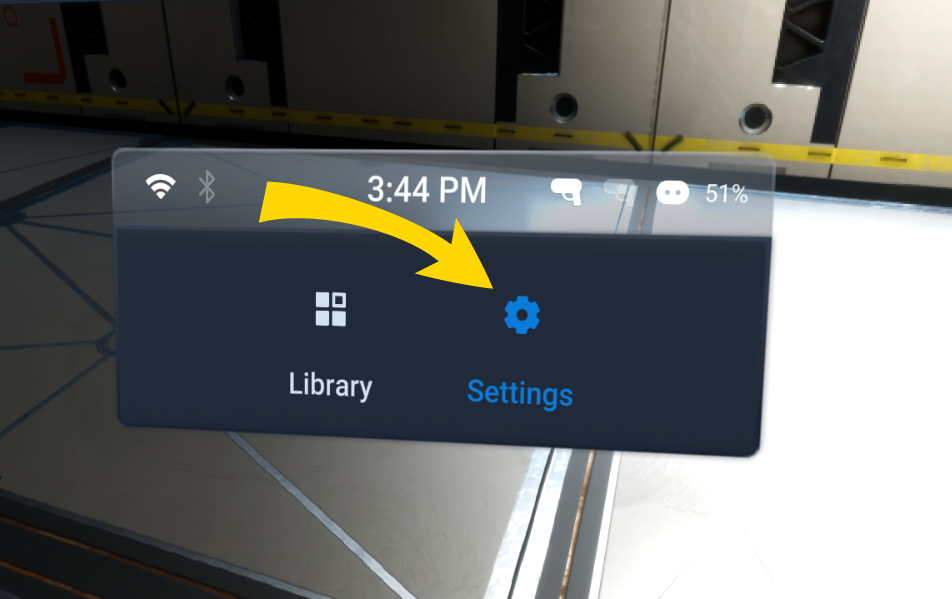
- In the headset library, use your hand to pinch to select Settings.
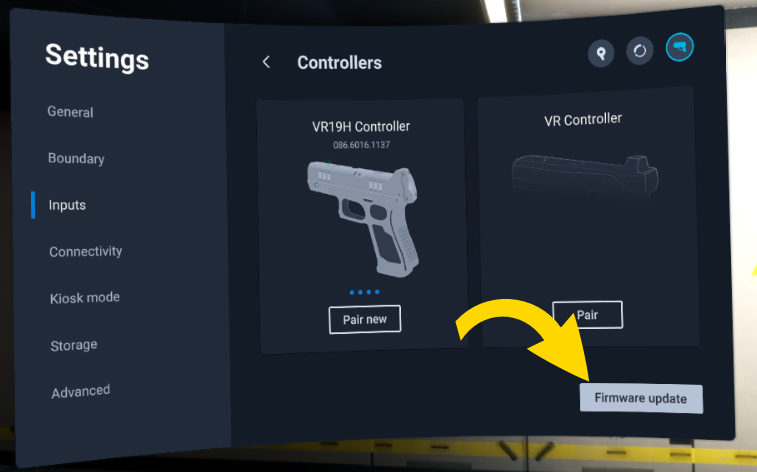
- Select Inputs.
- Select Controllers.
- Ensure the controllers you want to update firmware for are paired. For more information, see Pair VR Controller with headset.
- Turn on the controllers you want to update firmware for.
- Select Firmware Update. If this button doesn't display, the firmware for your controller is up-to-date.
-
The firmware updates.
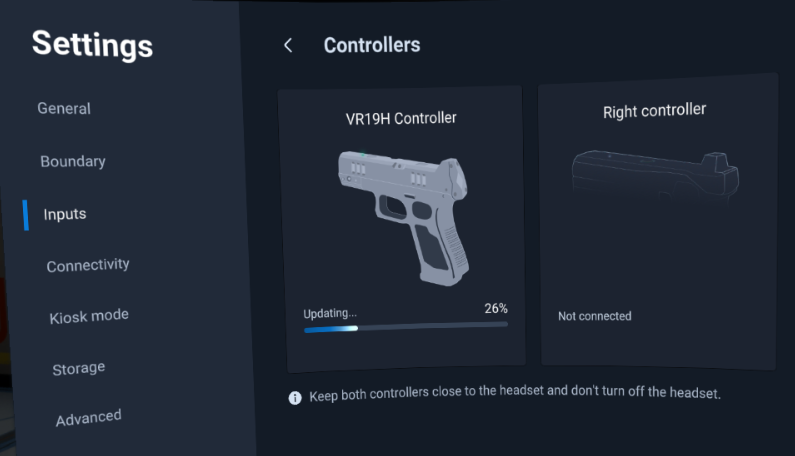
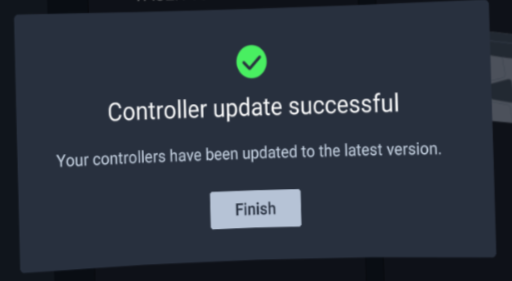
- A success pop-up notification displays when the firmware update completes.
Note
Keep your VR Controller near your headset and ensure the headset stays on until the firmware update completes.
Troubleshooting
Firmware update was unsuccessful
If the firmware update was unsuccessful, a failed pop-up notification displays.
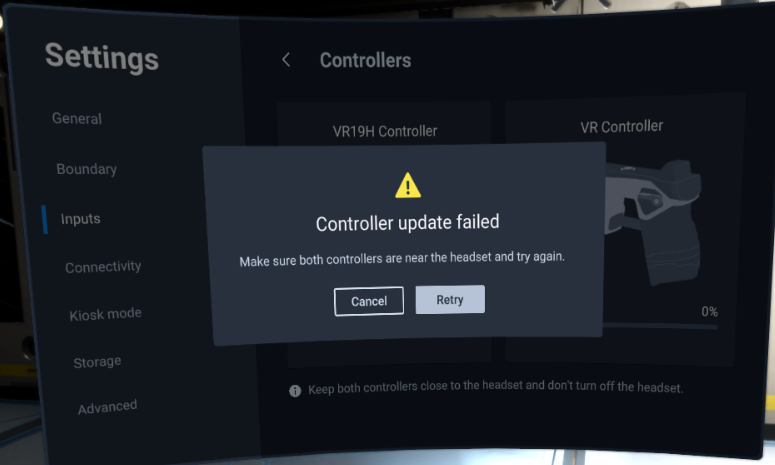
If this occurs, try the following:
- Reset your controller.
- For the TASER 7 or TASER 10 VR Controllers, remove and install the battery.
- For the Handgun VR Controller, press the power button to reset it.
-
- Retry the firmware steps listed above.


