Screen cast options
Watch this video to learn how to screen cast on a VR headset.
This article is only meant for users who want to screen cast offline. For the most recent article on how to screen cast online, see Minimum network requirements.
Supported dongles
The following display adapters will work with the VR headset and Samsung VR tablet:
- Roku Streaming Stick 4k
- Amazon Fire TV Stick
- 4K Wireless HDMI Display Dongle Adapter
- 2K 1080P Wireless HDMI Streaming Adapter
The 4K dongles are only supported by VR headset ROM Versions x.646 and later.
Miracast
Miracast empowers users to wirelessly share high-resolution pictures and high-definition multimedia between Miracast-supported devices, regardless of whether a Wi-Fi network is available.
The headset can connect to Miracast devices on both 5 GHz and 2.4 GHz bands via Wi-Fi Direct.
To screen cast with Miracast:
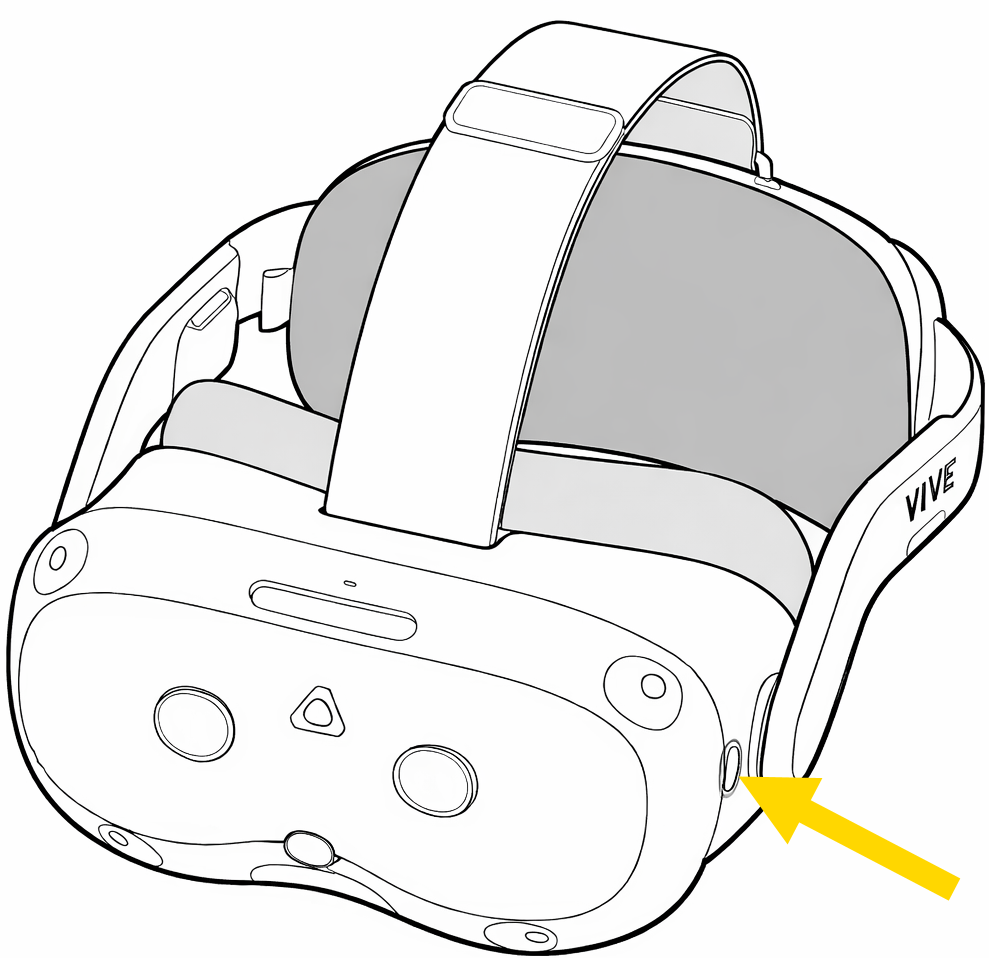
- Tap the headset left temple button to open the headset sub-menu.
- Select Cast.
- Select the media you want to cast to, like a TV, monitor, or tablet.
Tablet
Use a tablet's Second screen setting to concurrently view in-headset content. When using the tablet as a second screen, ensure your tablet and headset are close to each other and are connected to the same Wi-Fi network.
Samsung S9 VR tablet
To cast your session, complete steps on the tablet first, then continue on the headset.
On the tablet
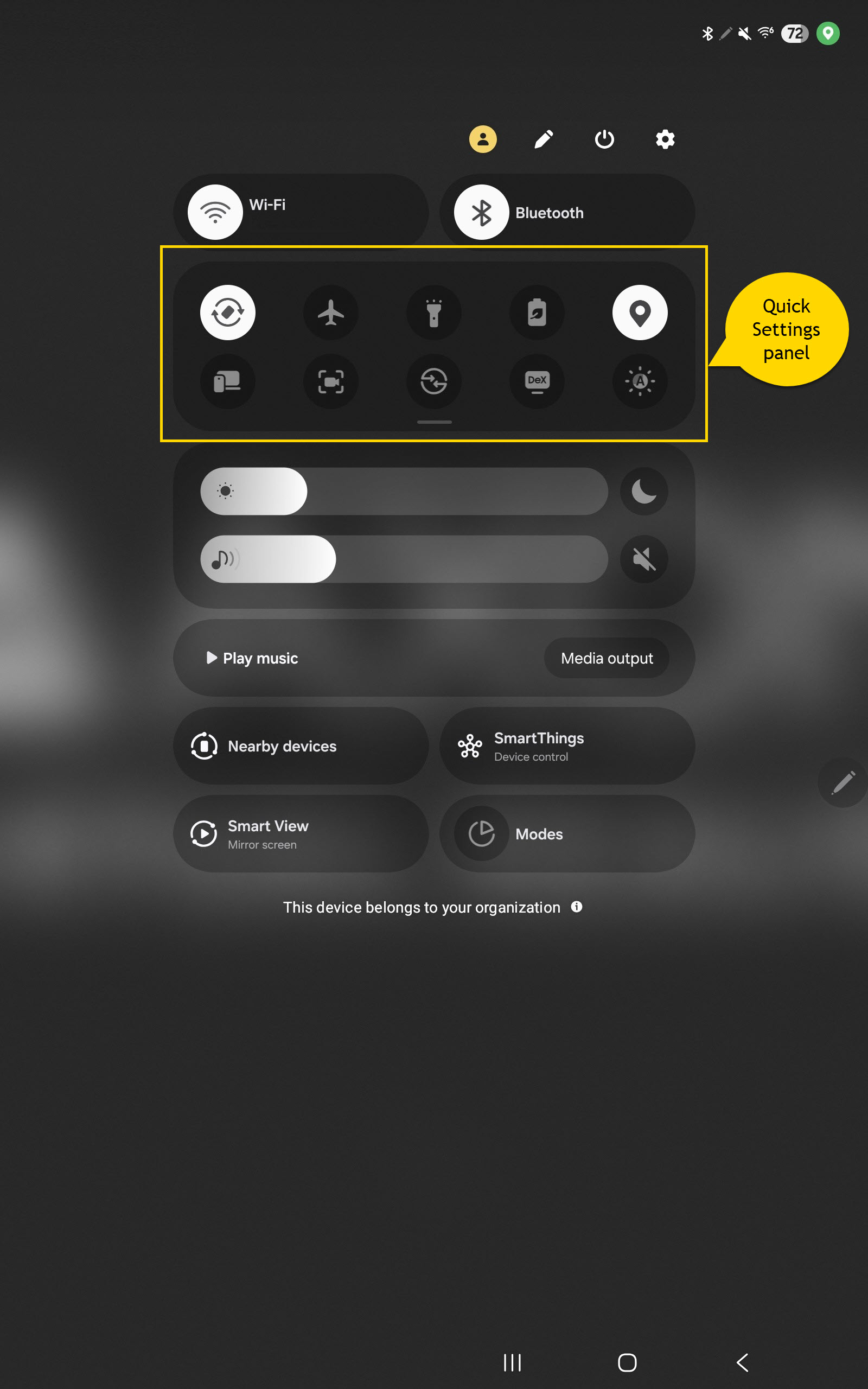
- Swipe down from the upper-right corner of the tablet to open the Quick Settings panel. (Swiping form anywhere else will show notifications.)
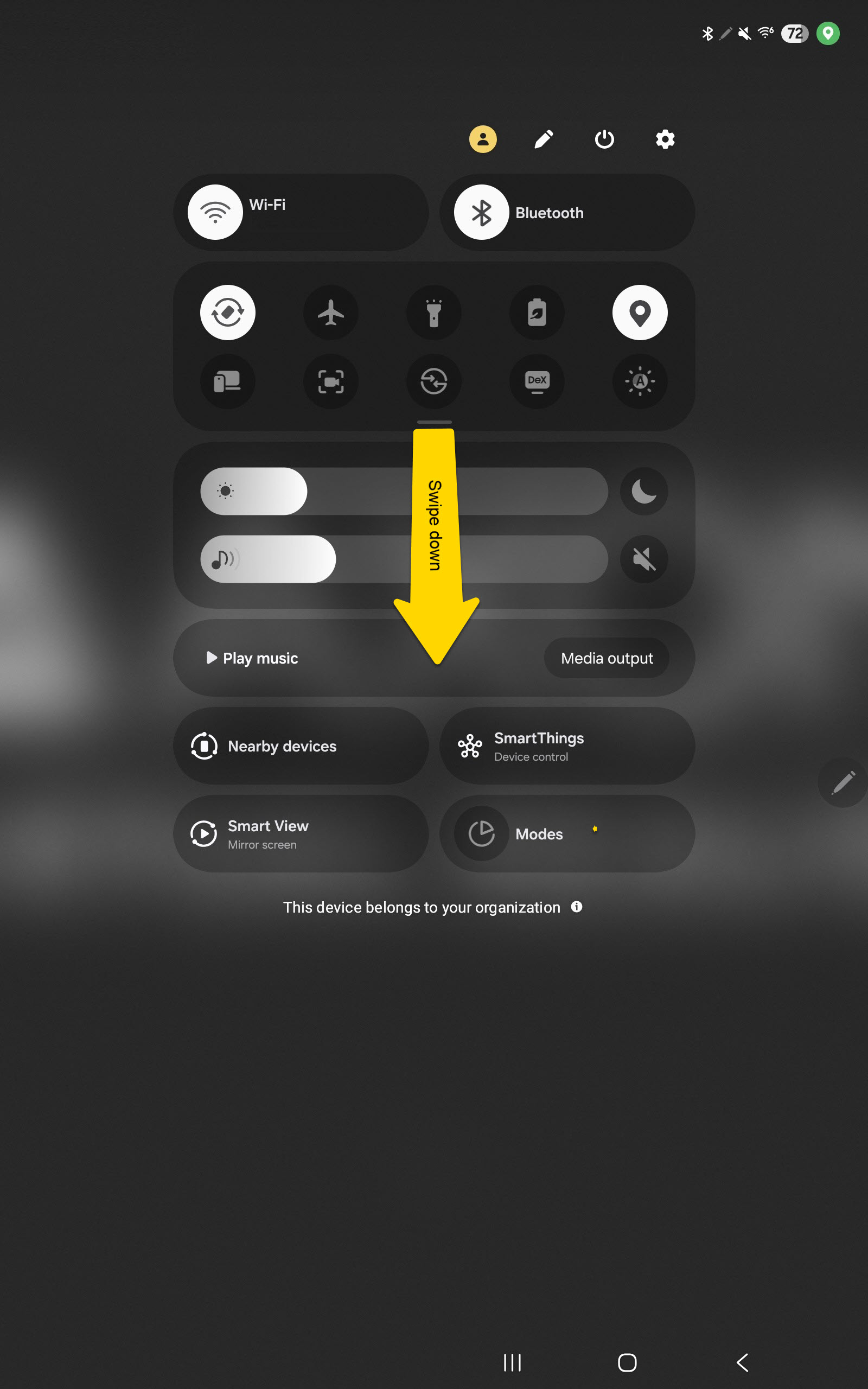
- Swipe down from the Quick Settings panel to expand the full settings.
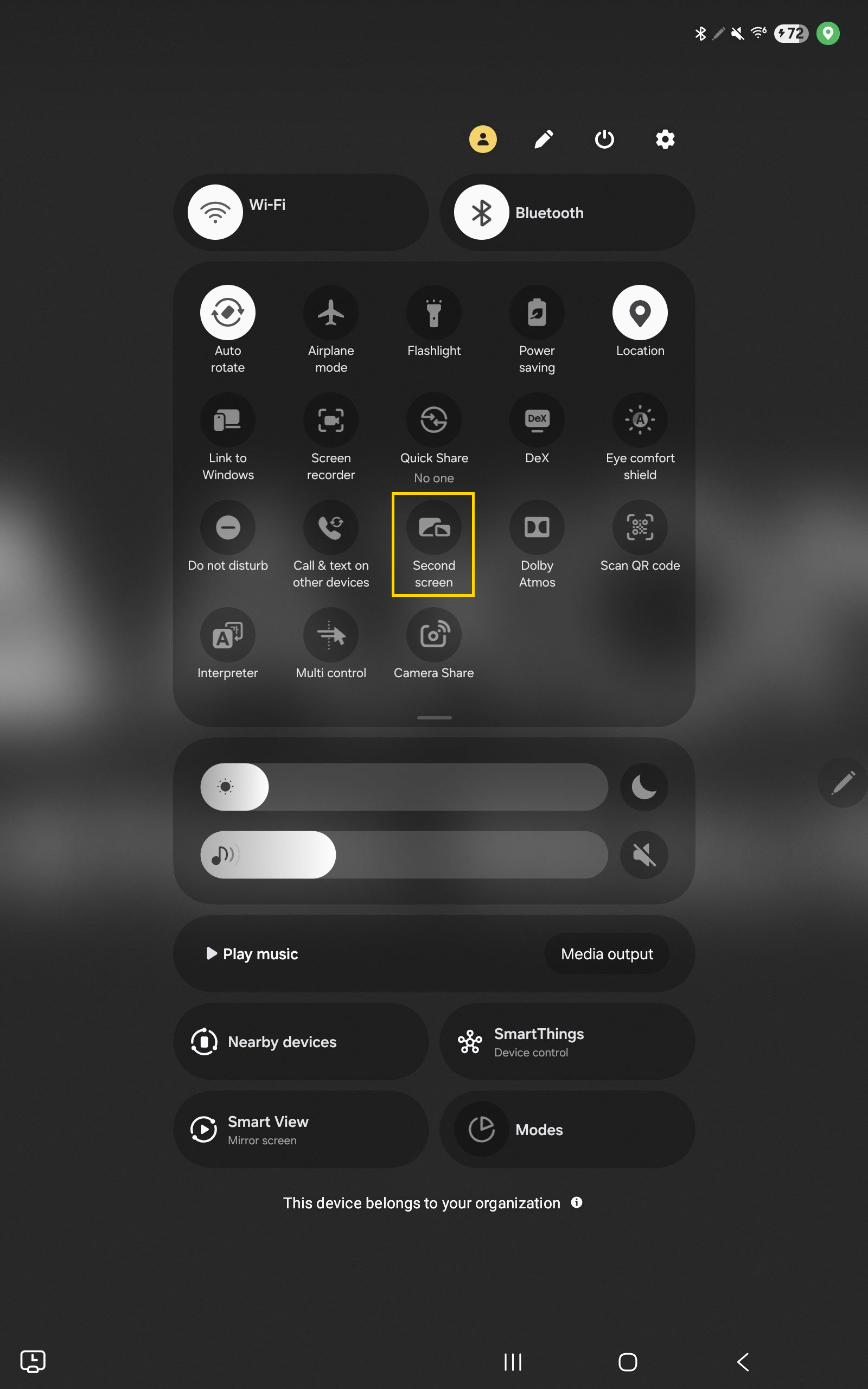
- Select Second screen.
On the headset
- When the tablet pairing screen appears, select the headset button to open the sub-menu.
- Select Cast.
- Select the media to cast to.
Samsung S7+ VR tablet
To cast your session, complete steps on the tablet first, then continue on the headset.
On the tablet
- Swipe down twice from the top of the tablet screen.
- Select Second screen.
- Select Video (smoother playback).
On the headset
- When the tablet pairing screen appears, select the headset button to open the sub-menu.
- Select Cast.
- Select the media to cast to.


