This video explains how to pair a VR headset with a trainer's tablet.
The information in this article is intended for running Simulator Training exercises with a trainer. For instructions on solo-run exercises (Solo mode), see Start Simulator Training.
The latest version of Simulator Training enhances the training experience by enabling trainers to lead exercises via tablet, fostering greater collaboration between trainers and trainees. This update allows trainees' VR headsets to pair with a trainer's Samsung VR tablet, enabling real-time monitoring, guidance, and interaction during immersive training exercises. Trainees will benefit from personalized instruction and support from their trainer as well as gaining unique insights from detailed After-Action Reports.
To update Simulator Training, power on the headsets and Samsung VR tablets, and connect them to Wi-Fi and internet. Simulator Training automatically updates them to the latest version. To run Simulator Training with a trainer, the headsets and Samsung VR tablet must maintain an active internet connection. However, it's important to note that your devices will continue to function as usual in Solo Mode, even without an active connection.
Minimum network requirements
Test your network before training using the built-in network speed test on the VR tablet, or visit https://vr.evidence.com/vr-net-test. This test measures network performance but does not verify that required ports are open. Confirm that your network configuration includes the required ports listed in Network requirements for VR headsets and tablets.
To run Simulator Training with a trainer, you must meet the following minimum network requirements:
- Wi-Fi: 2.4GHz
- Upload bandwidth: 1Mbps (simultaneous on headset and tablet)
- Download bandwidth:
- 3Mbps (for running headset and tablet simultaneously)
- ~50Mbps (for Verbal Skills Training)
- Ping to Photon: 250ms
- Ping to Azure: 2500ms
- Connection type: Broadband internet connection
- Network throttling: Must not be applied to app traffic
- Traffic prioritization: App traffic should be prioritized at the router level when possible
Recommended network requirements
Test your network before training using the built-in network speed test on the VR tablet, or visit https://vr.evidence.com/vr-net-test. This test measures network performance but does not verify that required ports are open. Confirm that your network configuration includes the required ports listed in Network requirements for VR headsets and tablets.
For optimal performance while running Simulator Training with a trainer, these are the recommended network requirements:
- Wi-Fi: 5GHz
- Upload bandwidth: 3Mbps (simultaneous on headset and tablet)
- Download bandwidth:
- 5Mbps (for running headset and tablet simultaneously)
- ~50Mbps (for Verbal Skills Training)
- Ping to Photon: < 100ms
- Ping to Azure: 1000ms
- Connection type: Broadband internet connection
- Network throttling: Must not be applied to app traffic
- Traffic prioritization: App traffic should be prioritized at the router level when possible
Trainer-led Simulator Training workflow
Running trainer-led Simulator Training exercises involves two roles:
- Trainee (headset user)
- Trainer (Samsung VR tablet user)
This is the workflow:
- Trainee: Turns on their VR headset and opens Simulator Training.
- Trainer: Turns on their Samsung VR tablet and signs in to Simulator Training.
- Trainer: Selects a Simulator Training exercise.
- Trainer: Creates a training group. For more information, see Training groups below.
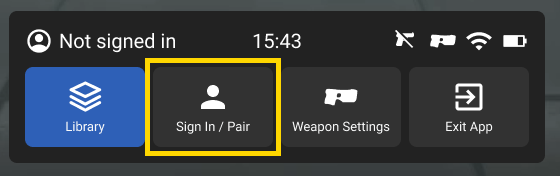
- Trainee: Select Sign In / Pair in the menu bar to start pairing process for the headset and tablet.
- Trainee: Selects Pair with Code and reads the code out loud to the trainer.
- Trainer: Enters the code on the tablet and selects Pair. The trainee's headset is now paired with the trainer's tablet.
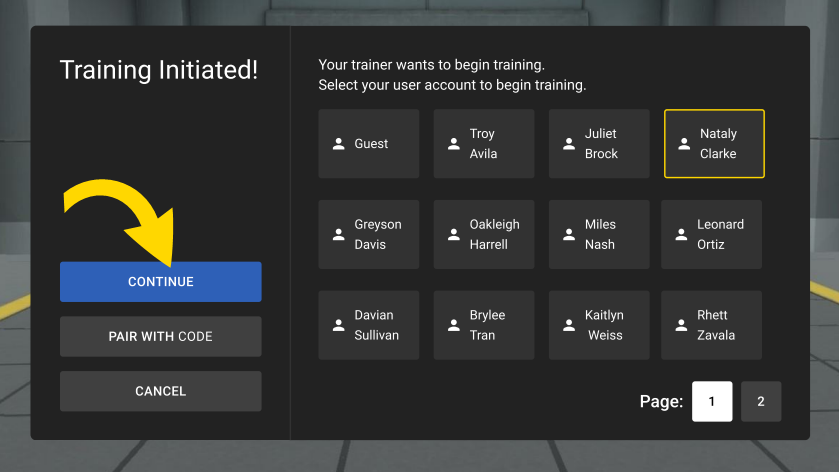
- Trainee: Selects their name and then Continue. The names displayed in the headset are determined by the training group the trainer created in Step 4.
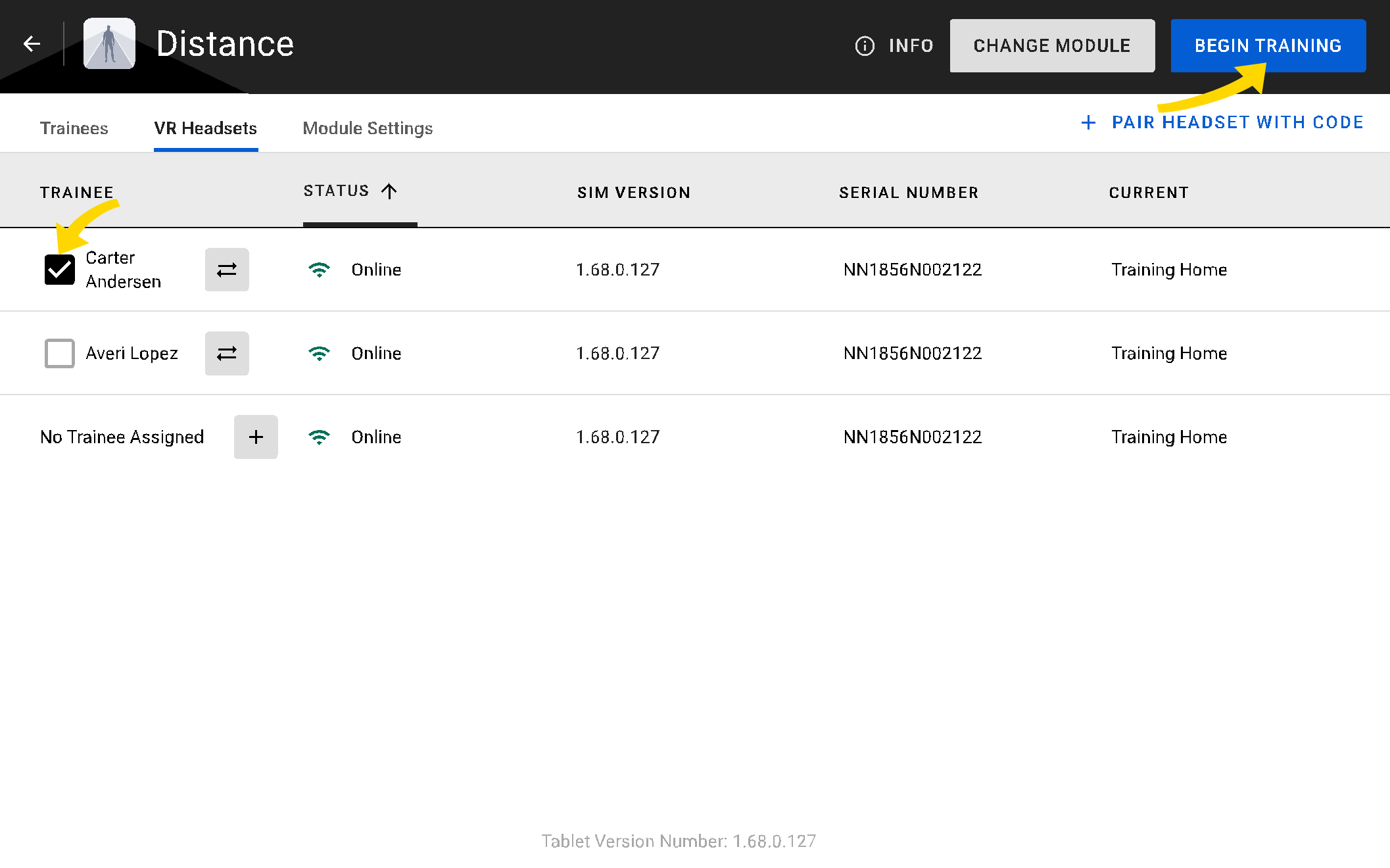
- Trainer: By default, the Samsung VR tablet auto-selects the first name in the list. The trainer selects the checkbox for the trainee they would like to train if they are not already selected, then selects Begin Training.
- Trainee: Reviews the exercise description and selects Start Exercise.
- Trainee: The trainee completes the Simulator Training exercise while the trainer monitors the headset view from their Samsung VR tablet. The trainer can quit training at any time. For more information, see Quit training below.
- Trainer and trainee: Views and analyzes the After-Action Report after the trainee has completed the exercise. This report is tailored for both the trainer and trainee, so each user sees their own separate report. Actions by one user do not affect the report of the other.
- Trainer: Can either restart the training for the same trainee or start a new training. For more information, see Restart training and New training below.
Trainees can run solo sessions while waiting for training
Trainers can only begin training for one trainee at a time. After a trainee pairs with their trainer, they can run solo sessions while they wait for their turn. When the trainer starts their facilitated training from their Samsung VR tablet, the trainee in-headset will be pulled out of their solo session (or any other activity) and into the exercise the trainer has chosen.
Pair VR headset with Samsung VR tablet
Multiple VR headsets can be paired with a single Samsung VR tablet. However, a trainer can only begin a Simulator Training exercise for one trainee at a time.
If a headset was previously added to your agency, it will automatically pair with the Samsung VR tablet when the trainee selects their name in-headset.
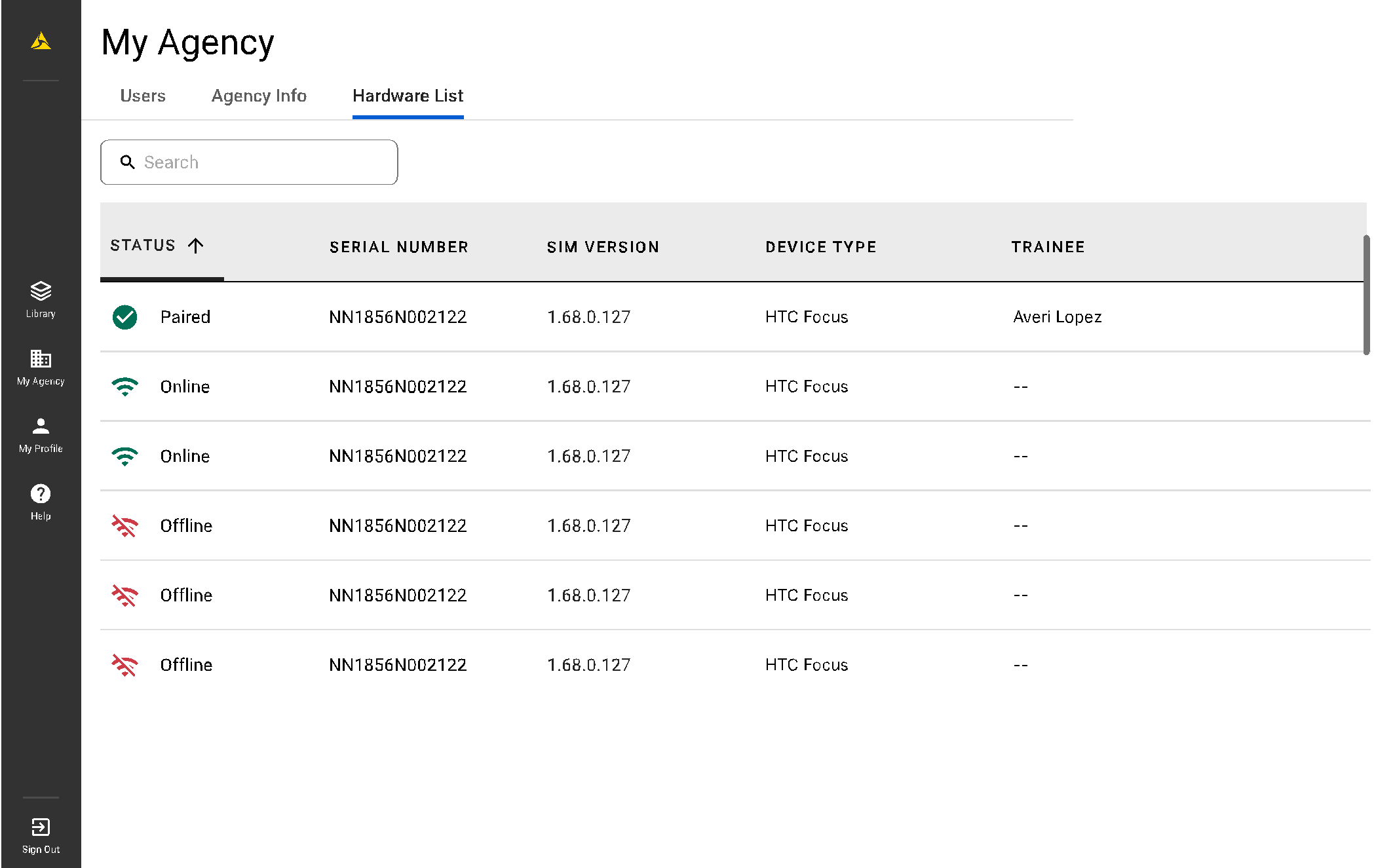
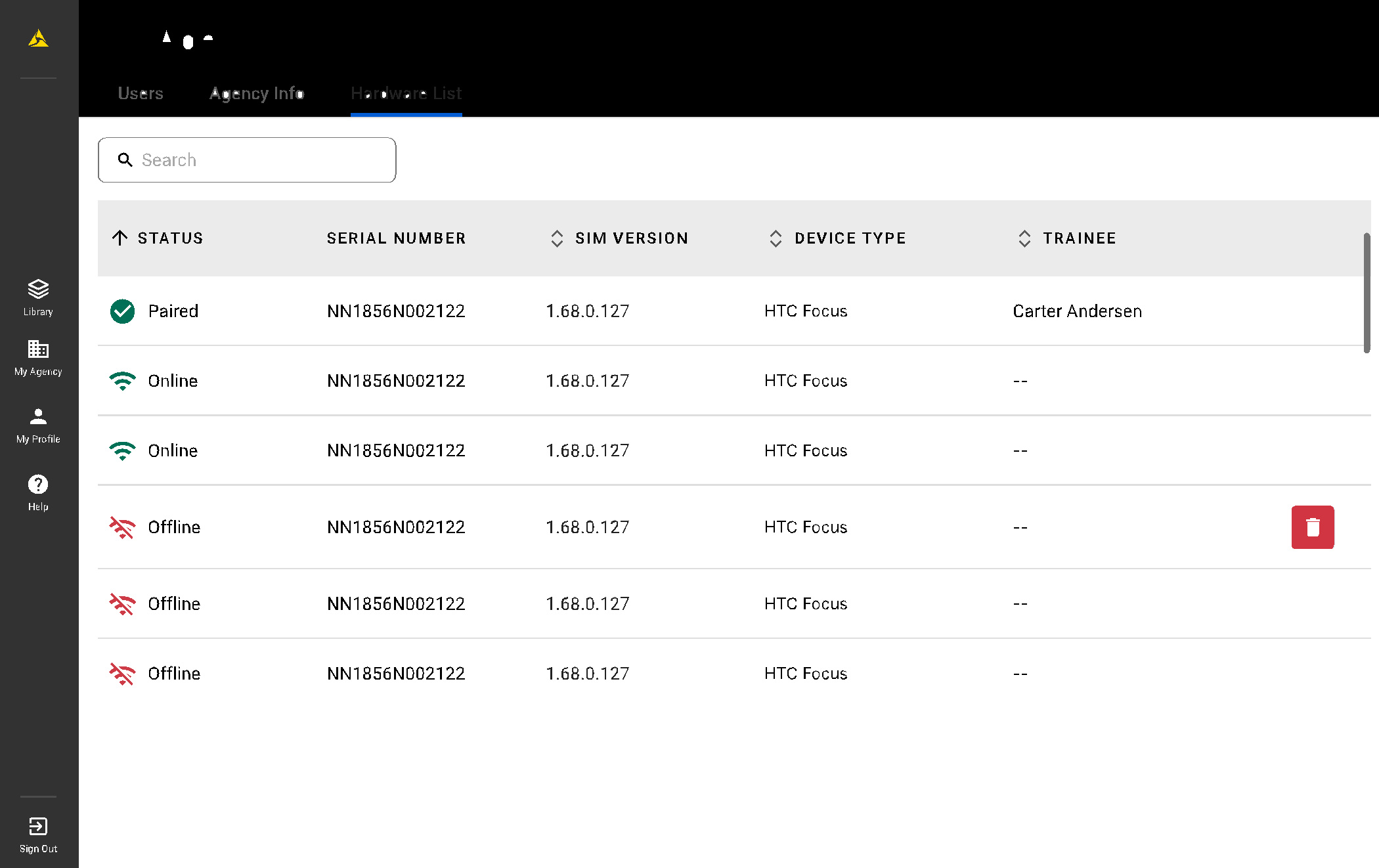
You can view a list of paired headsets by going to My Agency > Hardware List in the Simulator Training app on your Samsung VR tablet.
Pair headset with Samsung VR tablet using a code
You can manually pair a headset with your Samsung VR tablet if it is not already listed on your device. This requires completing actions on both the headset and Samsung VR tablet.
To pair a headset with a Samsung VR tablet using a code:
- Perform the following on the Samsung VR tablet:
- Open Simulator Training.
- Read and accept the disclaimer.
- Sign in.
- Select an exercise in the Library.
- Create a training group.
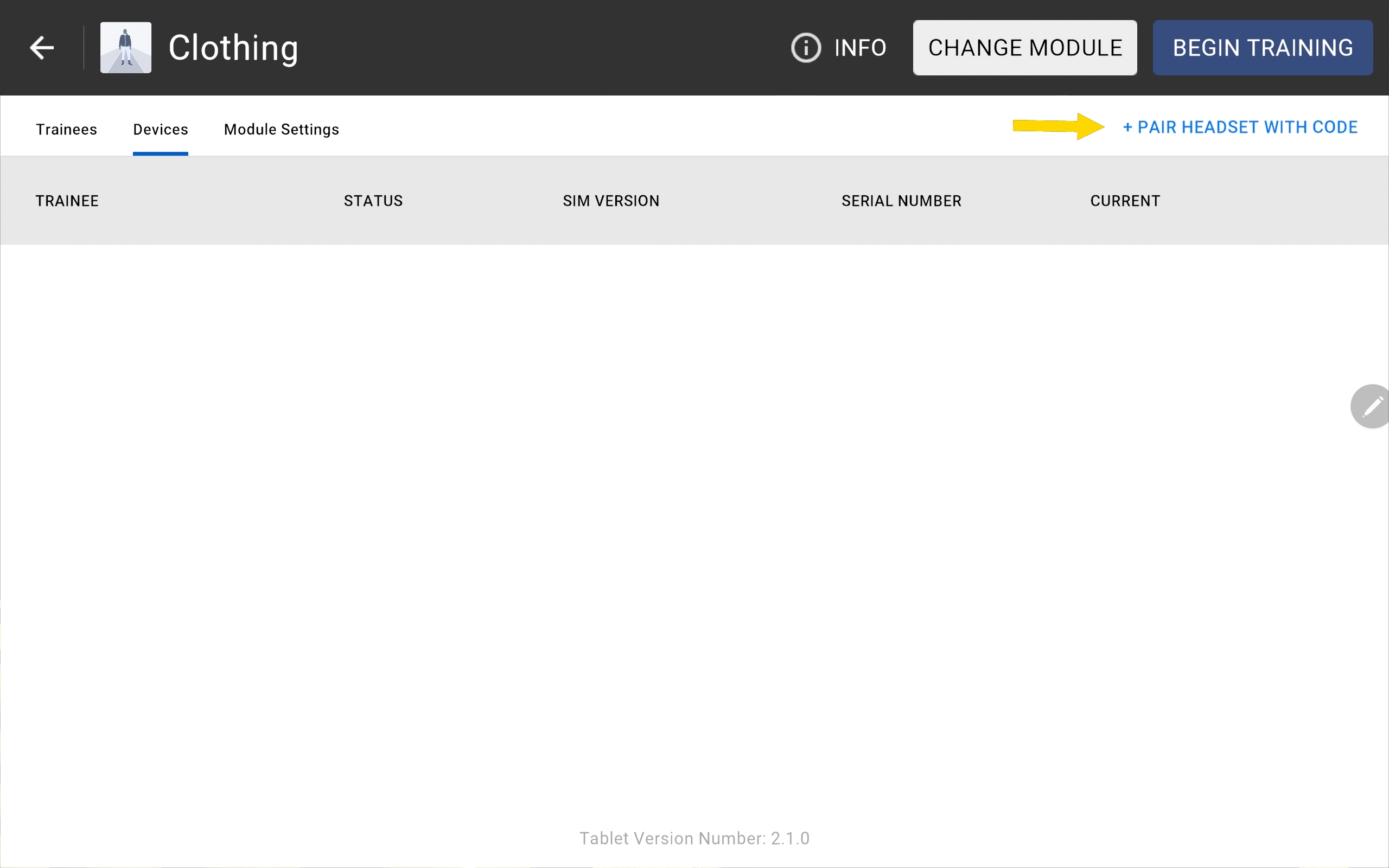
- Select Pair Headset with Code. You will be prompted to enter a pairing code.
- Perform the following on the headset:
- Open Simulator Training.
- Complete the on-screen prompts.
- Select Sign In / Pair in the menu bar.
- Select Pair with Code.
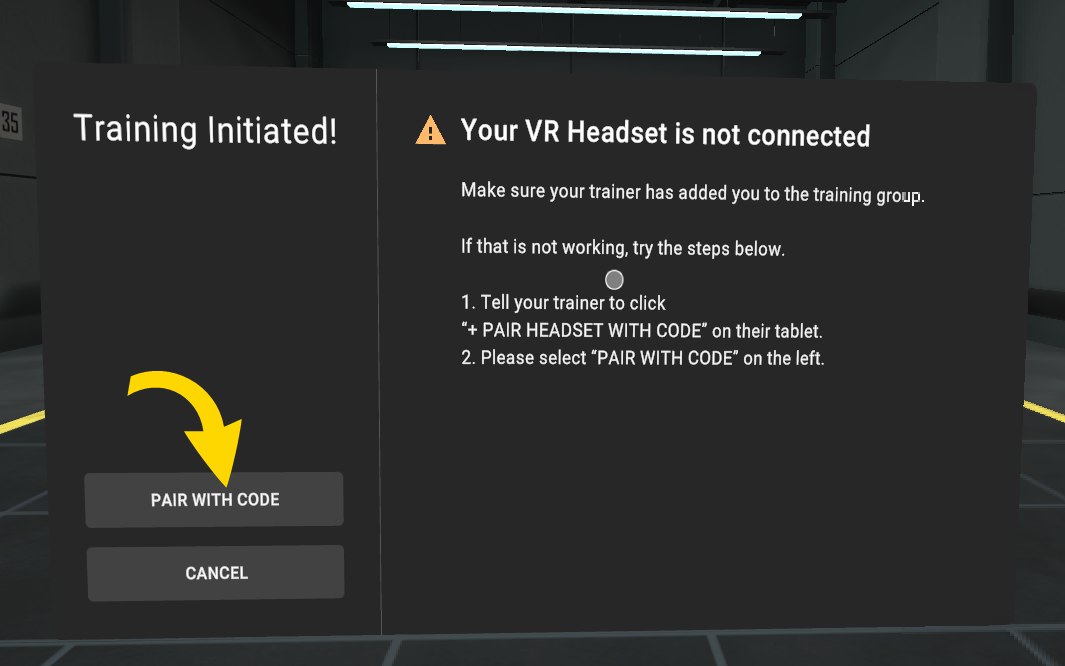
- Read the code that appears out loud to your trainer.
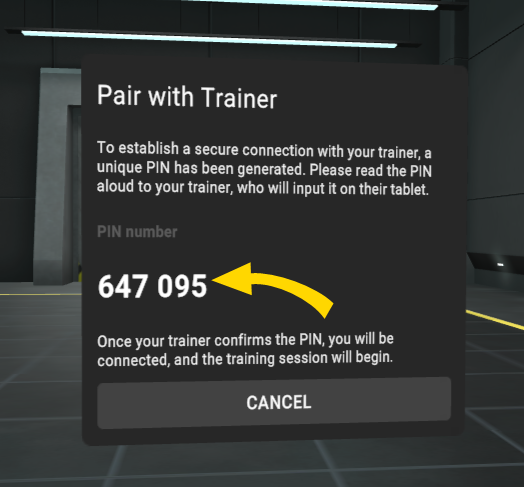
- Perform the following on the Samsung VR tablet:
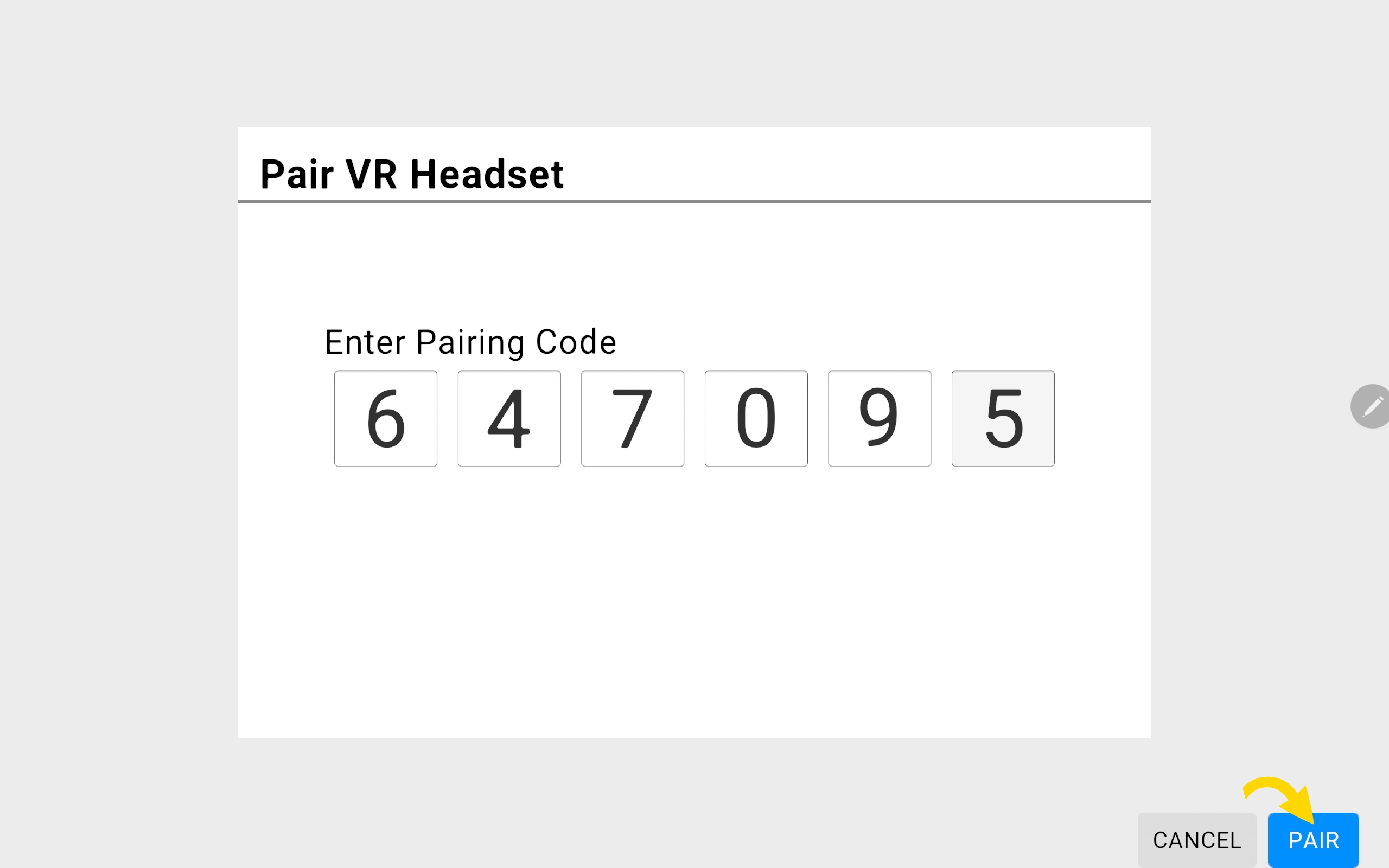
- Enter the code.
- Select Pair. The headset pairs with the Samsung VR tablet.
Remove headset from agency list
You can only remove headsets that were manually paired using a code. Headsets that were paired to your agency using other methods cannot be removed from the Samsung VR tablet.
To remove a manually paired headset from your agency:
- Open Simulator Training on your Samsung VR tablet.
- Sign in.
- Select My Agency.
- Select Hardware List.
- Tap the headset you want to remove.
- Select the red trash can icon.
- Select Remove from the dialog box to confirm.
Training groups
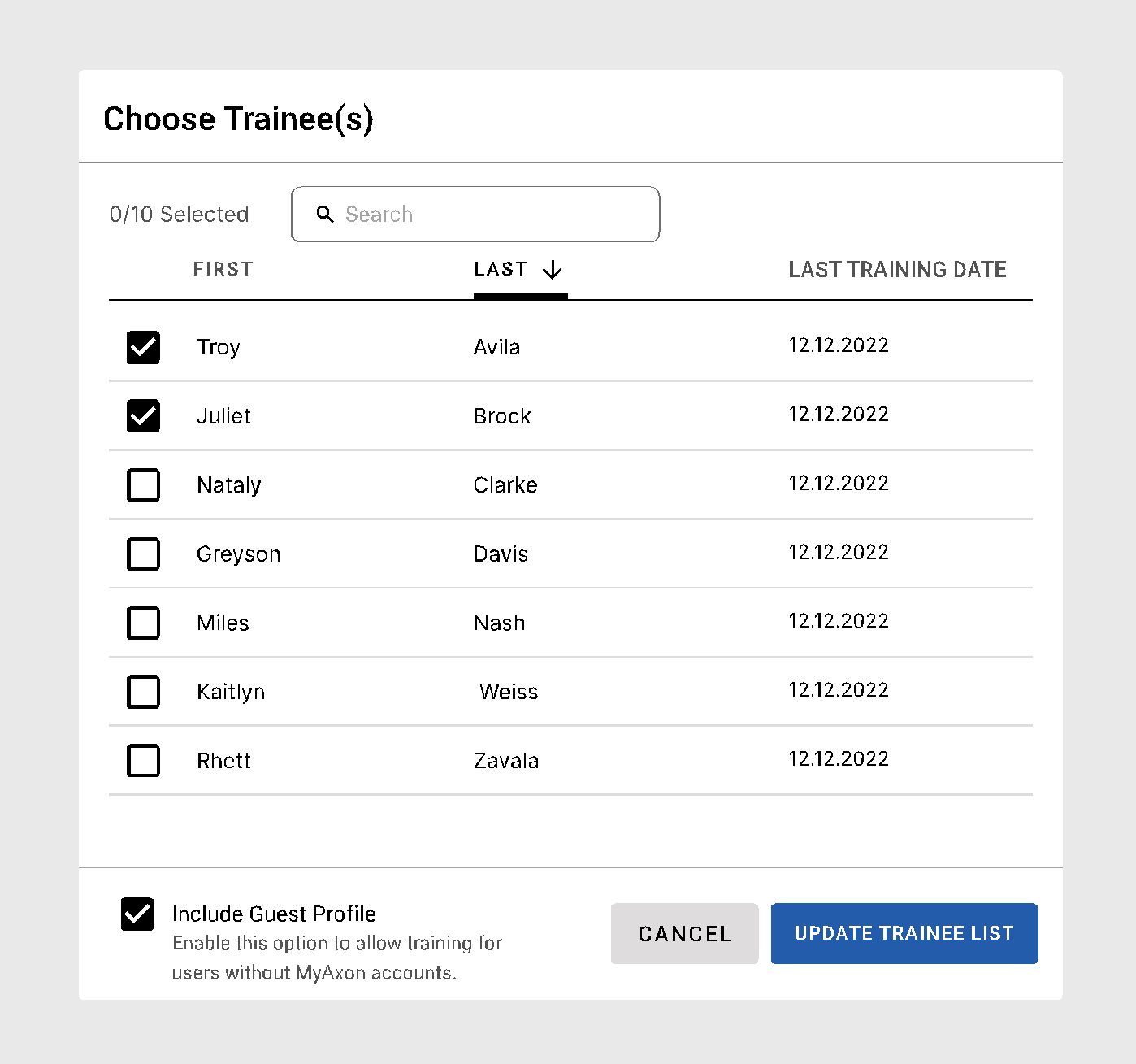
Before you run an exercise, you must select or create a training group. A training group consists of up to 10 trainees who will participate in a particular session. This is how it works: When you sign in to your Samsung VR tablet, connect to your agency. Next, select users from your agency's list to add them to your training group. The users you add to this training group will be available for selection in the headset when a trainee pairs with their trainer. To learn more on how to add users to your agency's list, see How do I set up my agency to use Axon Academy for VR?.
If you have more than 10 trainees, you can create multiple training groups. Furthermore, you can add or remove users from a training group as needed. For more information, see Switch profile below.
You can view the list of users by going to My Agency > Users in the Simulator Training app on your Samsung VR tablet.
When creating a training group on the tablet, the trainee list will display every Axon Evidence user from your agency, regardless of group affiliation. This makes sure that all eligible trainee accounts are visible.
Guest profiles
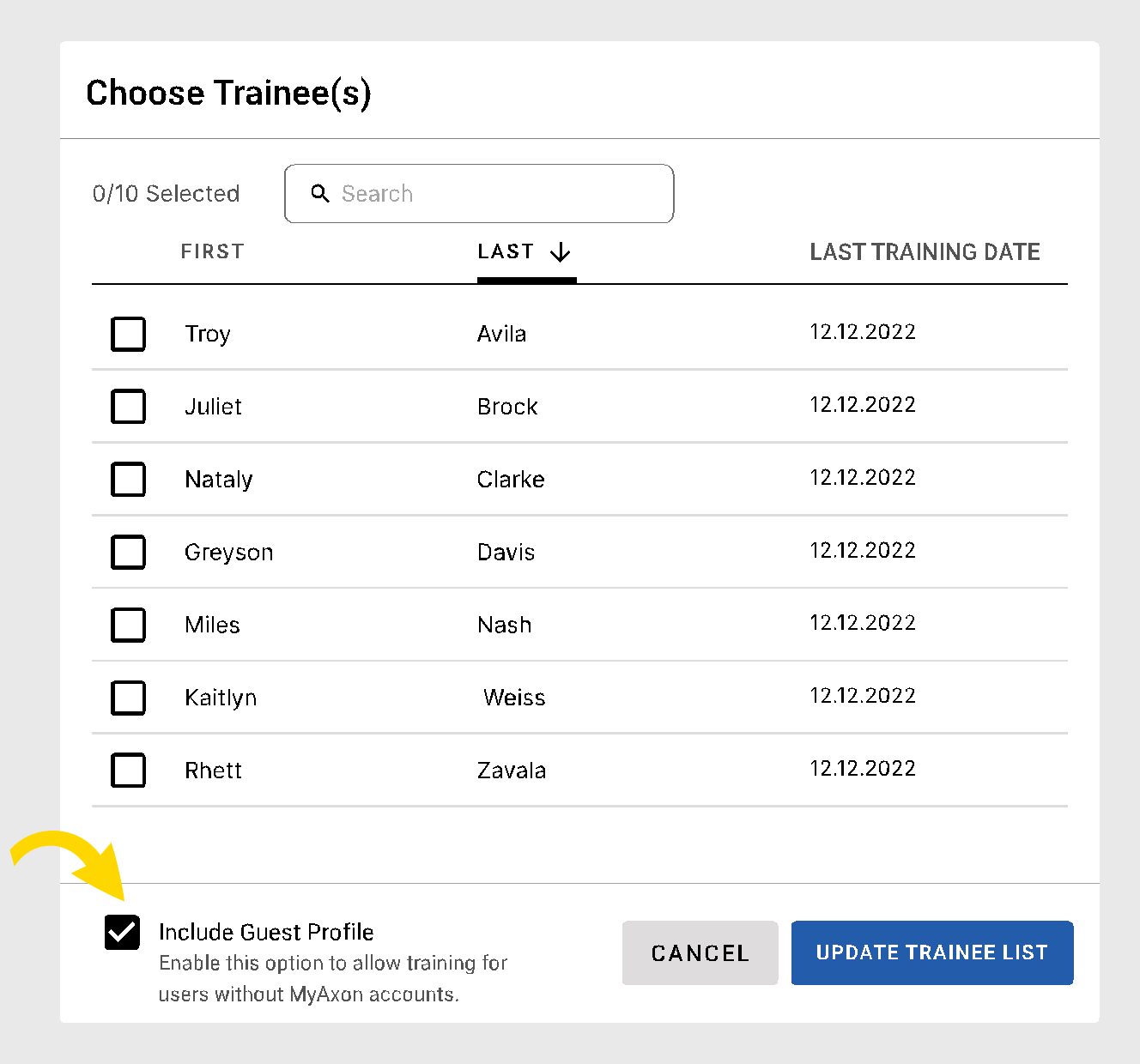
If a user doesn't have an account, you can assign them a guest profile. Training progress cannot be tracked under guest profiles. This means that any trainings completed under a guest profile will not be saved.
To assign a user a guest profile, select Include Guest Profile when adding users to a training group. For more information, see Create a training group below.
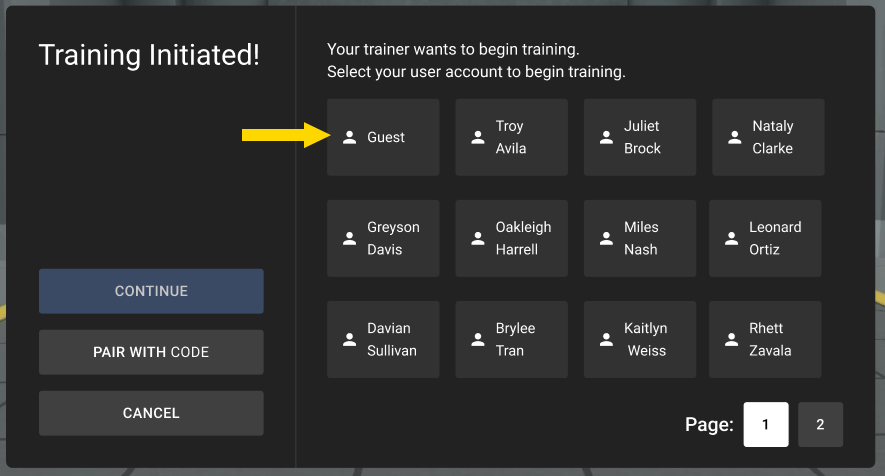
For a trainee to use the guest profile, they must select Guest in the headset.
Create a training group
To create a training group:
- Open Simulator Training on your Samsung VR tablet.
- Sign in.
- Select an exercise in the Library.
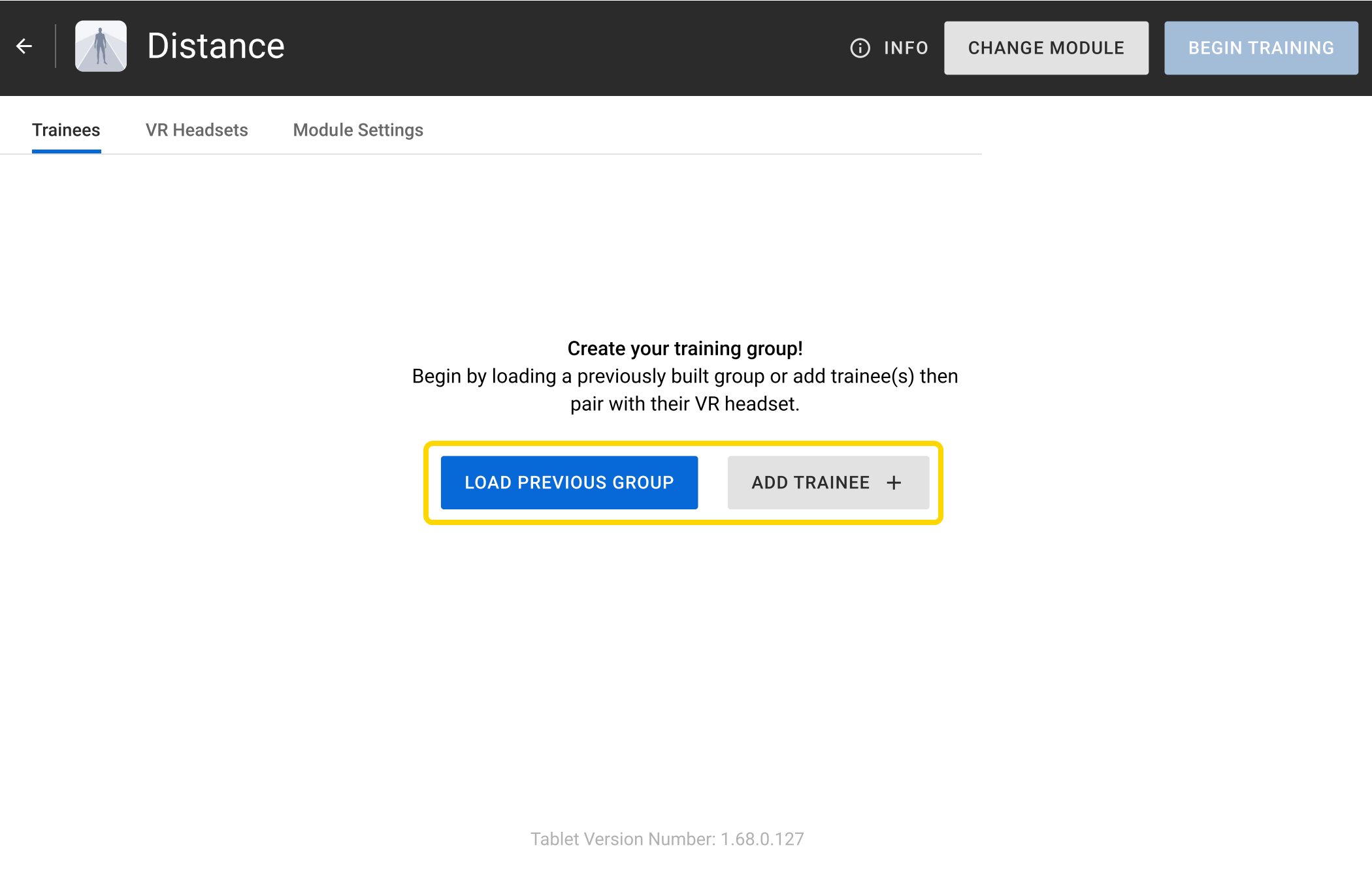
- Create a training group by selecting one of the following:
- Load Previous Group: Load or edit the previous training group from the current exercise. This option is only available if a previous training occurred.
- Add Trainee: Select users to create add to a training group. See Step 5 for more information on how to add users.
- Select the users you want to add to the training group.
- Select Update Trainee List. The users are added to the training group.
View learning objectives
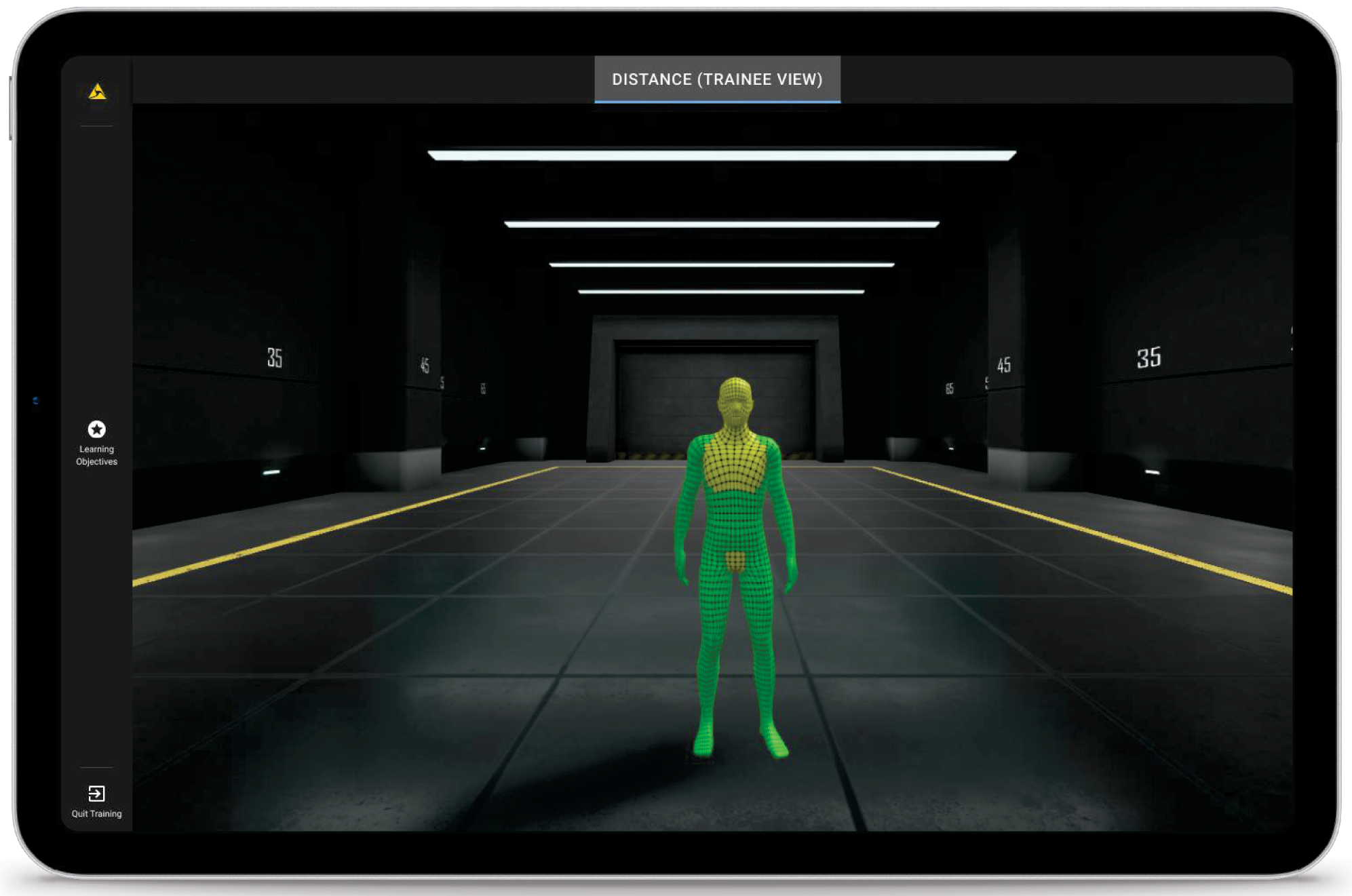
A trainer can view the learning objectives for each Simulator Training exercise on the Samsung VR tablet by selecting Learning Objectives after starting the training.
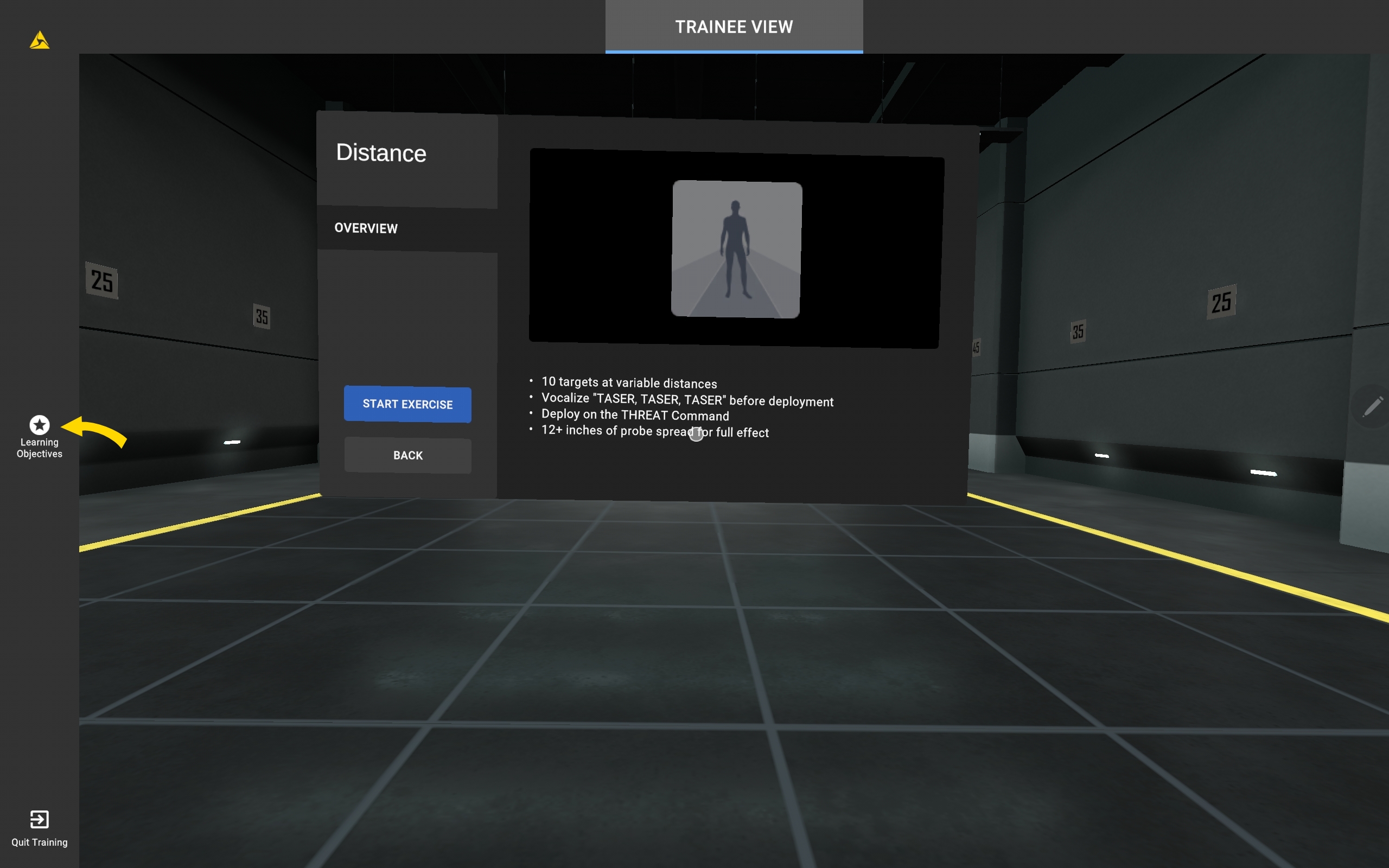
Trainees do not have access to these learning objectives in the headset. Trainers can verbally share the learning objectives with trainees before they select Start Exercise in the headset.
Change exercise
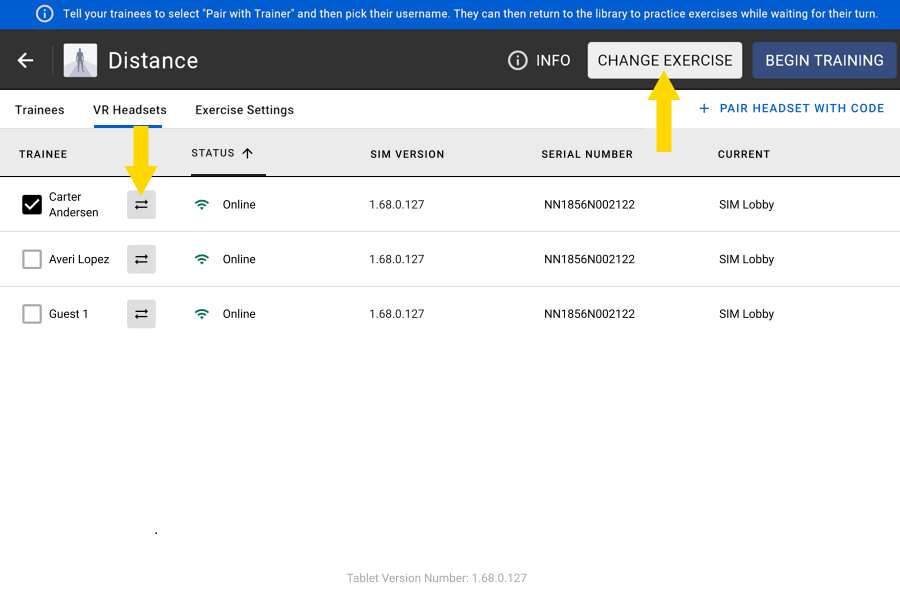
After a trainer has set up a training group, they can change the exercise on the Samsung VR tablet. To do this:
- Select Change Exercise.
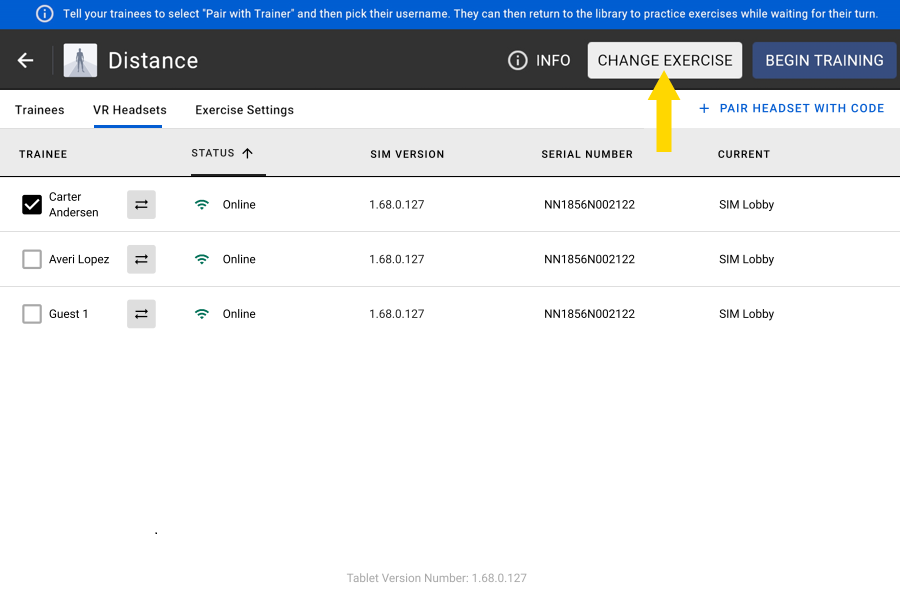
- Select the exercise you want trainees to complete in the dialog box.
- Select Change Exercise.
Switch profile
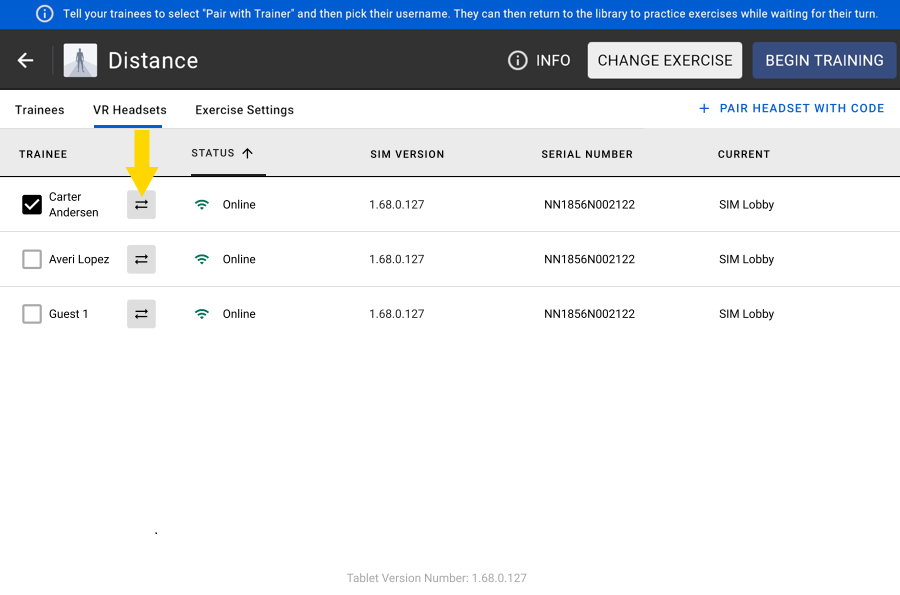
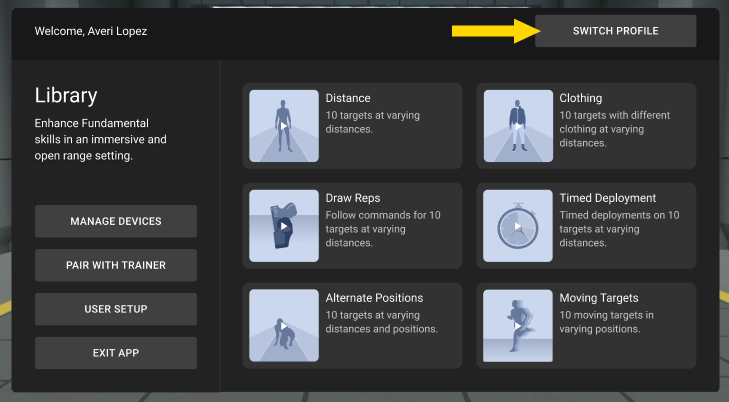
Trainees can be swapped by selecting a new trainee name both in the headset and on the Samsung VR tablet.
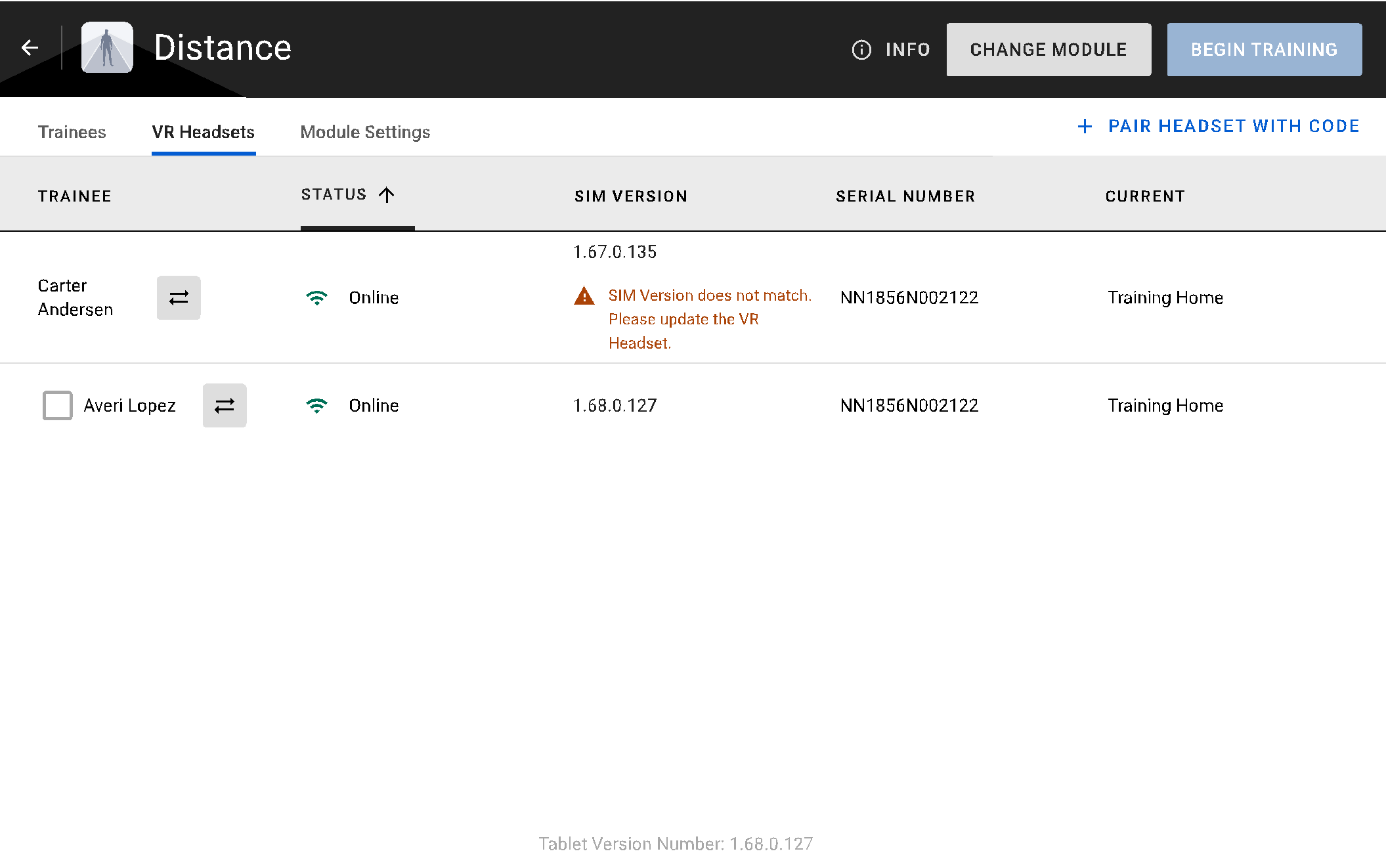
To swap a trainee on the Samsung VR tablet, select the swap icon (stacked horizontal arrows), and then select the new trainee.
On the headset, select Switch Profile and then choose the appropriate name.
New training
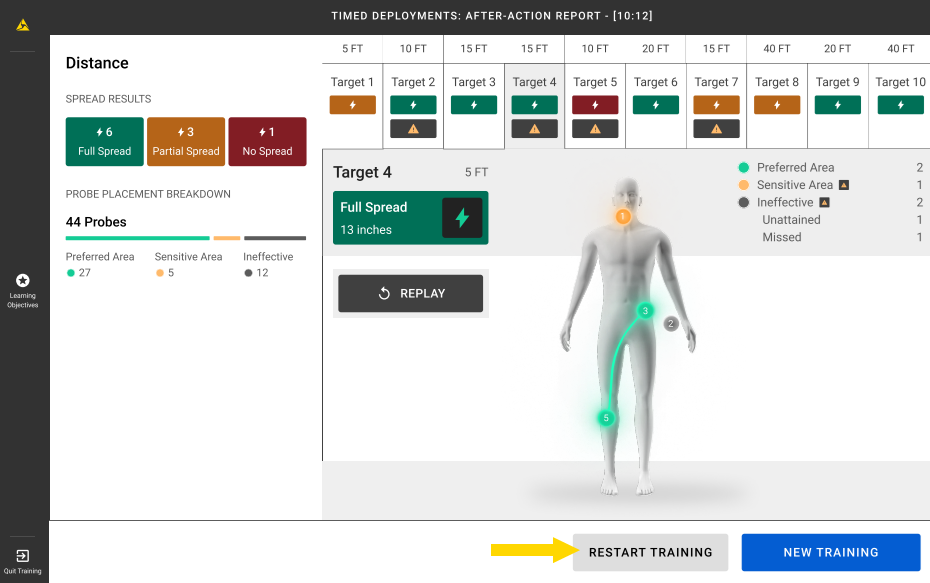
After a trainee has completed an exercise, the trainer can start a new one by selecting New Training.
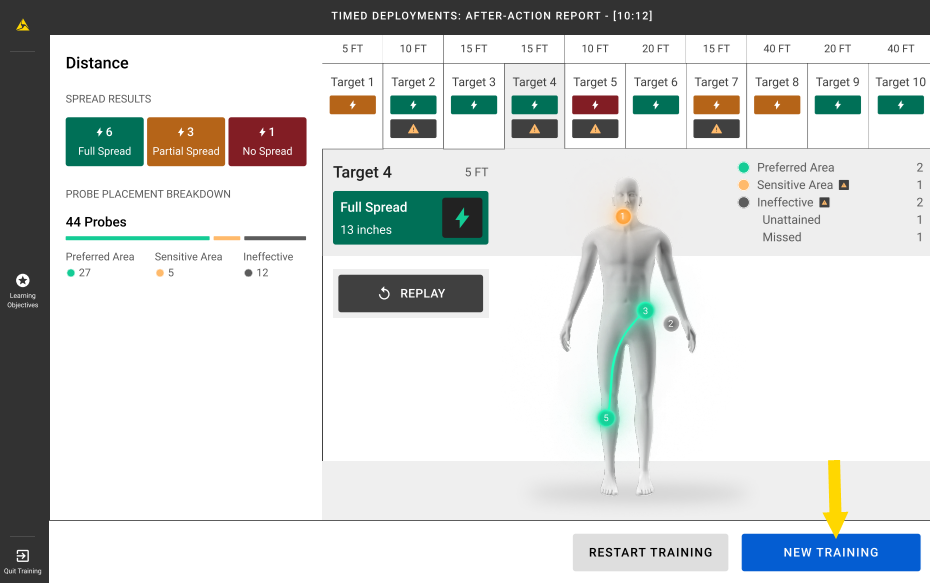
This will take the trainer to the VR Headsets tab. From here, they can change the exercise or trainee as needed.
Restart training
After a trainee has completed an exercise, the trainer can restart it by selecting Restart Training. This will reset the same exercise for the same trainee.
Quit training
A trainer can stop training at any time by selecting Quit Training on their Samsung VR tablet. All progress will be lost and the trainer will be redirected to the VR Headsets tab.
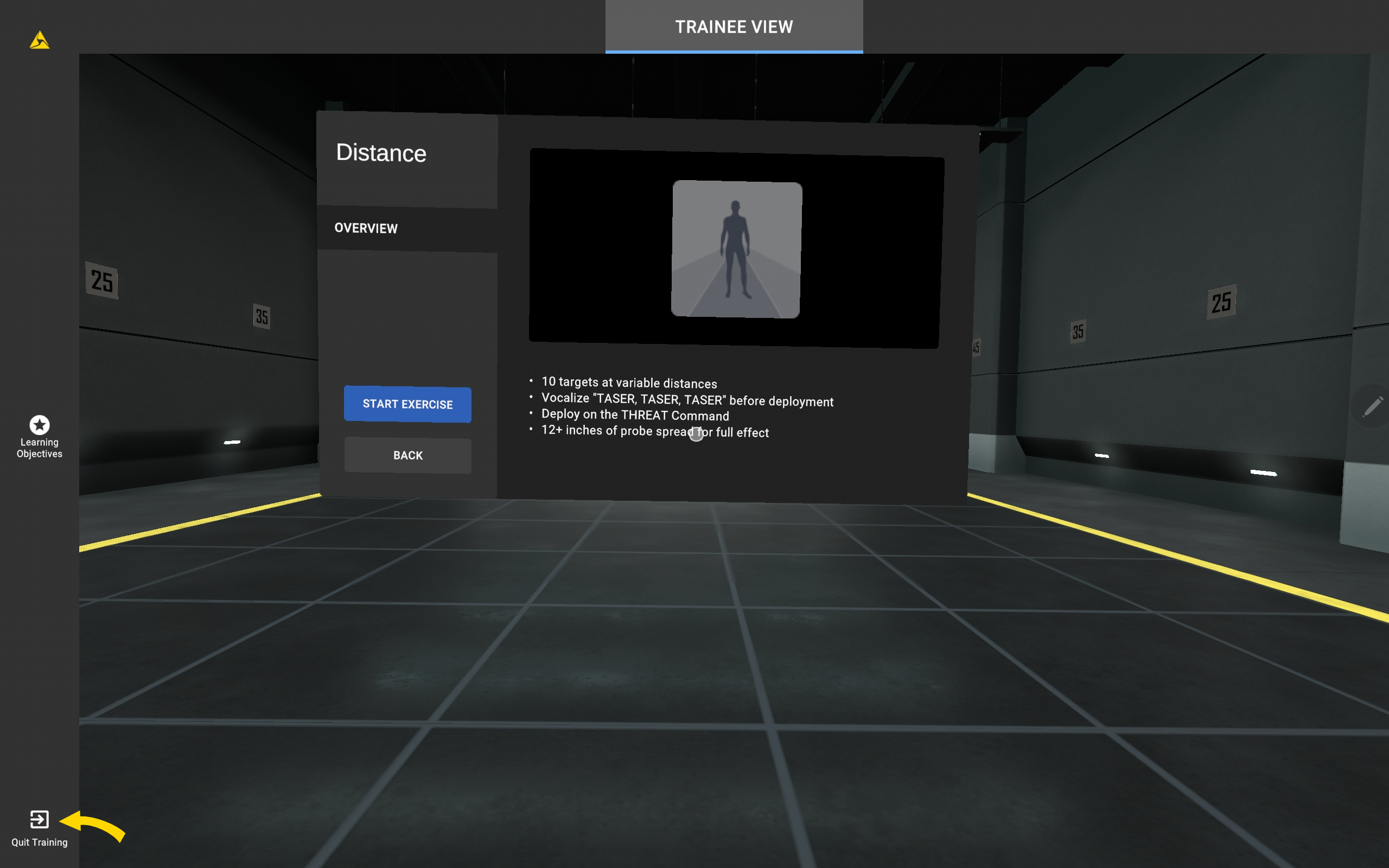
From the VR Headsets tab, the trainer can change the exercise or trainee as needed.
FAQ
Can trainers be added to a training group?
Yes!
Can a trainer log in to the tablet and facilitate a training for themselves in-headset?
Yes! To do this, the trainer will need to add themselves to a training group on the tablet, select their name in-headset, and then start the training on the tablet.
Troubleshooting
Can't sign in to the VR tablet after creating or updating the vr-trainers group
If you cannot sign in, try the following:
- Wait for access to update: Changes to the vr-trainers group can take up to 3 hours to sync. After waiting, try signing in again. If it still doesn't work, wait a few minutes and try once more.
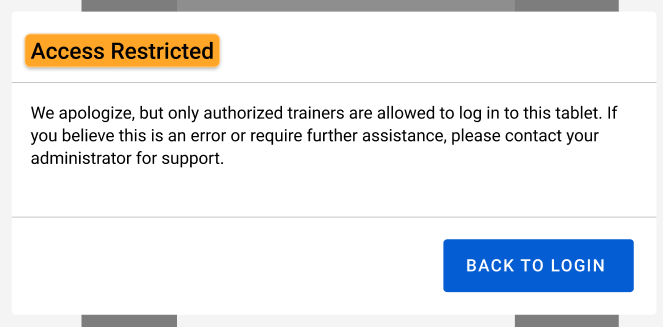
- Check your account: Only users in the vr-trainers group can sign in to the VR tablet.
- Update the app: Connect the tablet to Wi-Fi so it can receive the latest Simulator Training update.
Locate the Simulator Training version and git hash numbers
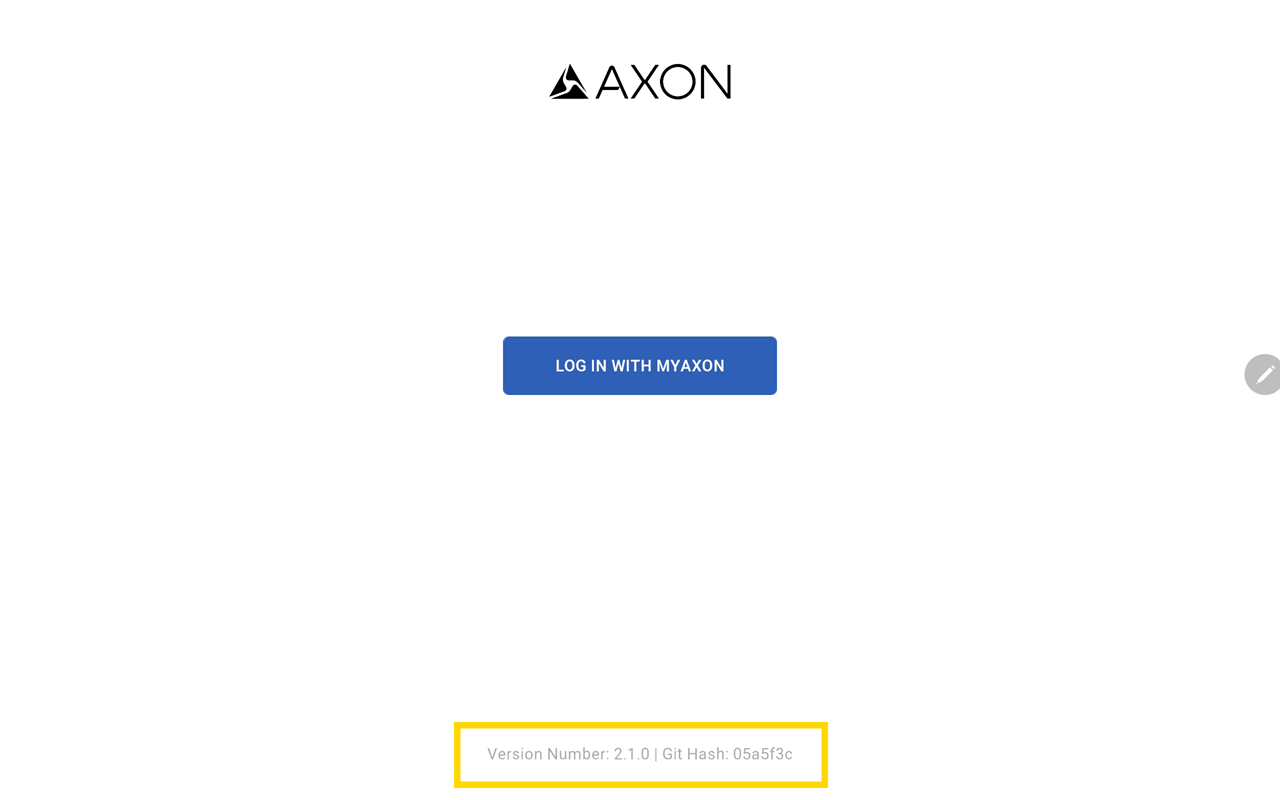
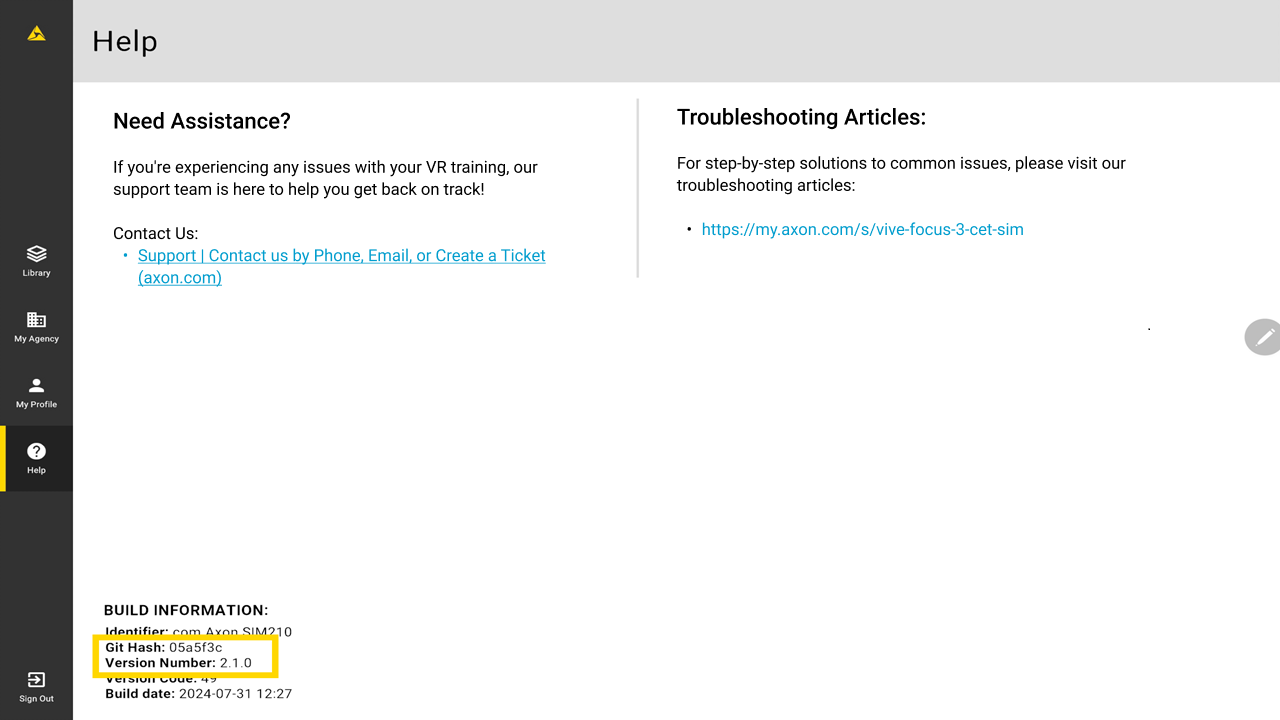
If you encounter an error in the Simulator Training app on the Samsung VR tablet, Axon Support may ask for your Simulator Training's version and Git Hash numbers. You can locate these numbers in the following locations:
- At the bottom of the Simulator Training sign-in page
- On the Help page under Build Information
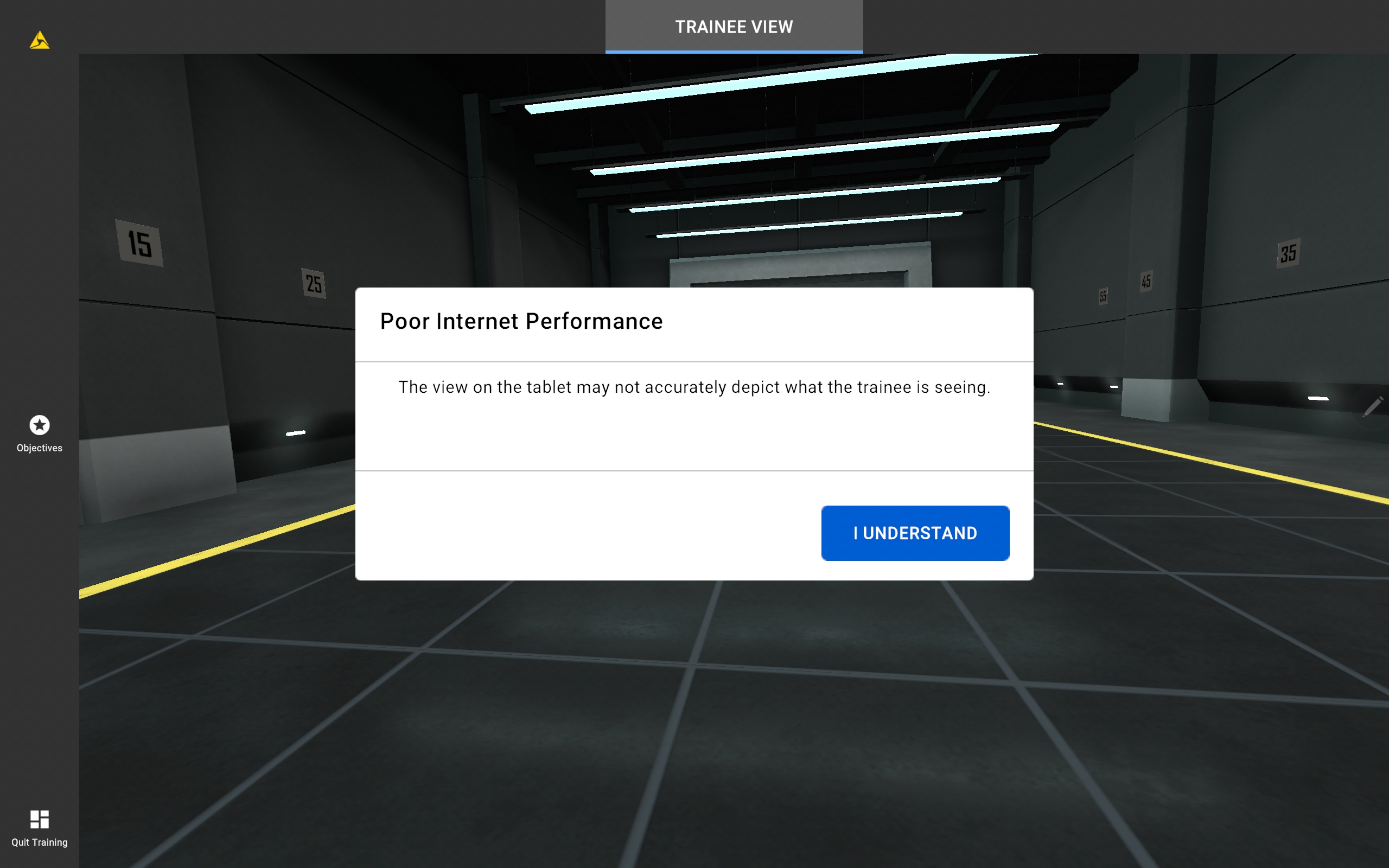
Poor internet connection detected
A poor internet connection was detected on the Samsung VR tablet. The trainee can continue training, but the trainer may experience delays in viewing the Samsung VR tablet. To improve your connection, try disconnecting and reconnecting to your Wi-Fi network or restarting your router. If you are still experiencing network connectivity issues, try the following:
- Check to ensure other devices can connect to the internet on the same wireless network.
- Consult with your IT department or help desk to troubleshoot your local network.
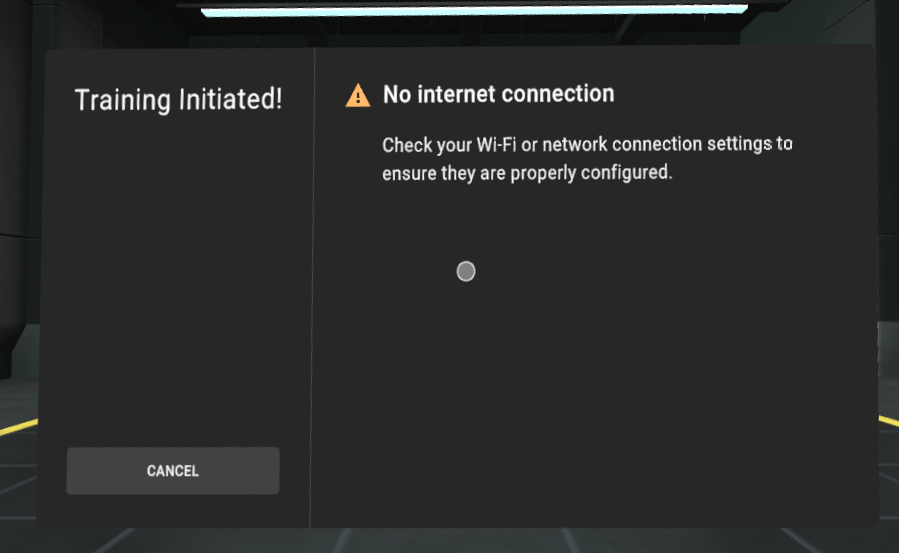
No internet connection detected
No internet connection was detected in the headset. To run Simulator Training exercises with a trainer, the headset must have an active internet connection. To check your internet connection, go back to the main library and navigate to Settings > Connectivity > Wi-Fi. For additional details, see the FAQ Why can't I connect to my secure Wi-Fi network?.
If you are still experiencing network connectivity issues, try the following:
- Wait about 30 seconds before selecting "Pair".
- Check to ensure other devices can connect to the internet on the same wireless network.
- Consult with your IT department or help desk to troubleshoot your local network.
If none of the above fixed the network issue, contact Axon Support.
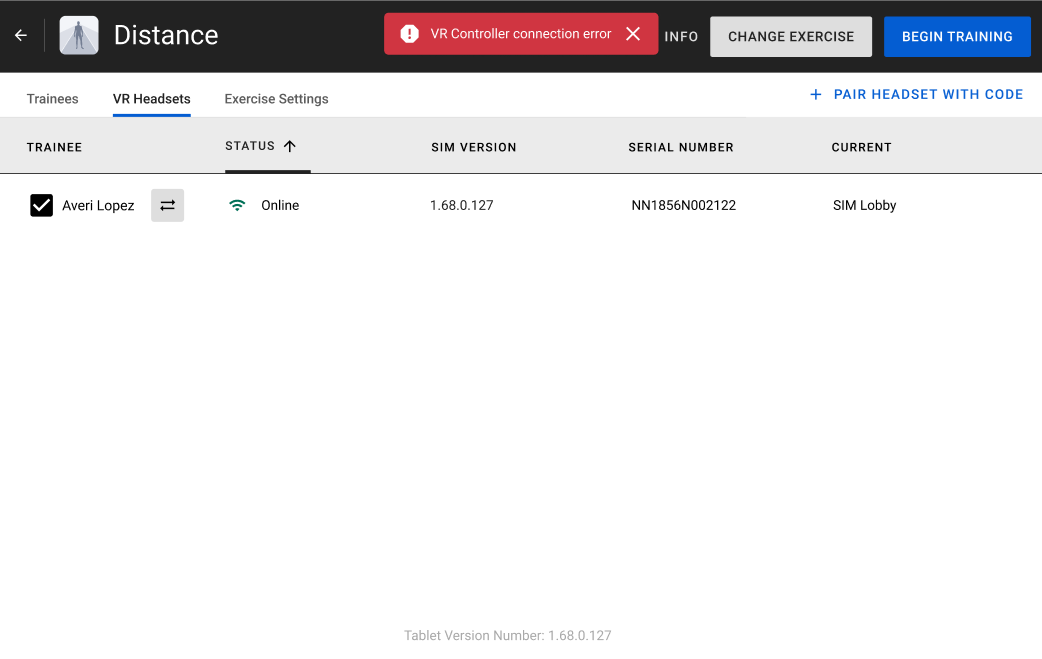
VR Controller connection error detected
No VR Controller was detected. To resolve this error, connect a VR Controller before starting the training.
If a VR Controller was previously paired, it might have gone to sleep after being inactive. Turn the VR Controller back on to reconnect it.
Simulator Training version is out of date
Simulator Training must be up-to-date on the headset for the trainee to run an exercise with a trainer. Update Simulator Training by connecting the headset to an active internet connection.
Access Restricted message displayed
If a user signs in to Simulator Training on the Samsung VR tablet using trainee account credentials, they will receive an "Access Restricted" message. Only authorized trainers can sign in.